
Unit 1 Introduction to Google Slides Lesson 1
- Slides: 9
Unit 1: Introduction to Google Slides Lesson 1: Getting Started with Google Slides
Lesson 1: Getting Started with Google Slides Objectives: • Learn how Google Slides can be used • Open a blank Google Slides file • Open a template in Google Slides • Learn about slide layouts • Apply themes to a presentation • Learn how to show your presentation
Create Presentations Capture your audience’s attention with: • Images • Video • Music • Animations • Narration • And more…
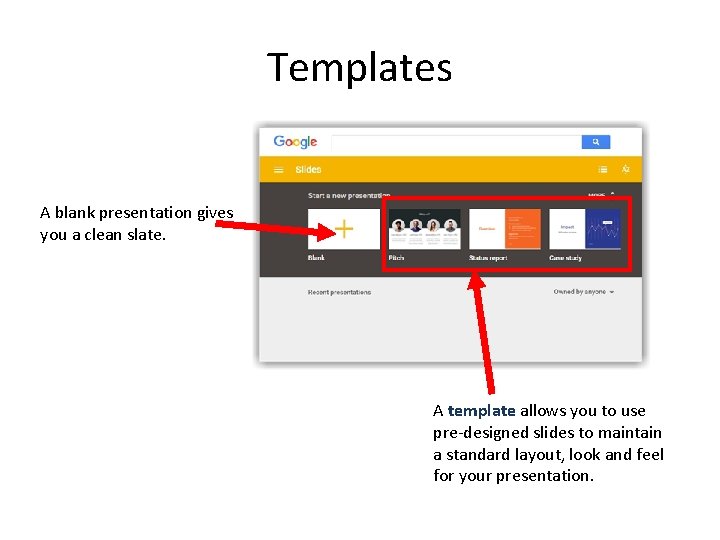
Templates A blank presentation gives you a clean slate. A template allows you to use pre-designed slides to maintain a standard layout, look and feel for your presentation.
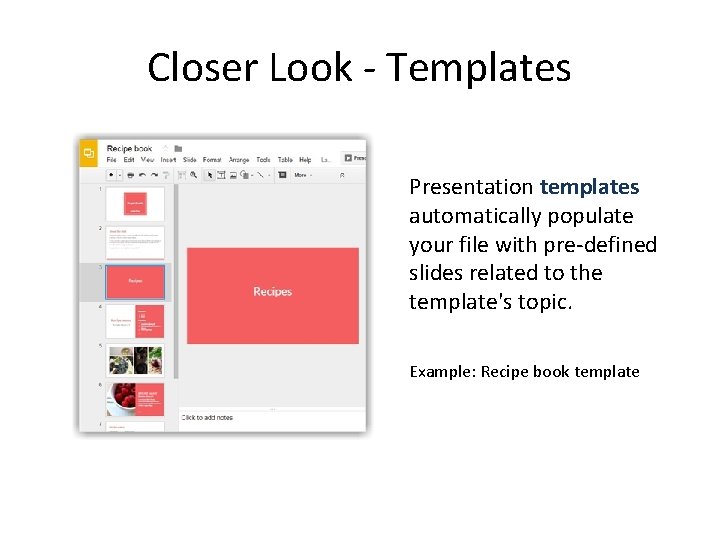
Closer Look - Templates Presentation templates automatically populate your file with pre-defined slides related to the template's topic. Example: Recipe book template
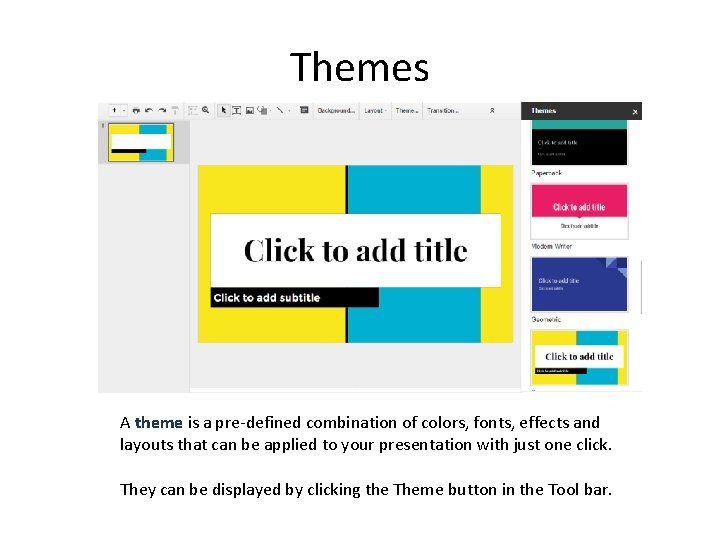
Themes A theme is a pre-defined combination of colors, fonts, effects and layouts that can be applied to your presentation with just one click. They can be displayed by clicking the Theme button in the Tool bar.
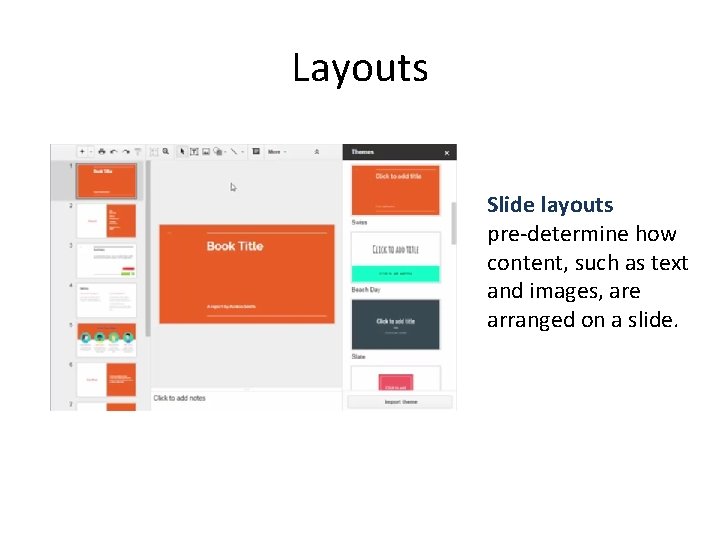
Layouts Slide layouts pre-determine how content, such as text and images, are arranged on a slide.
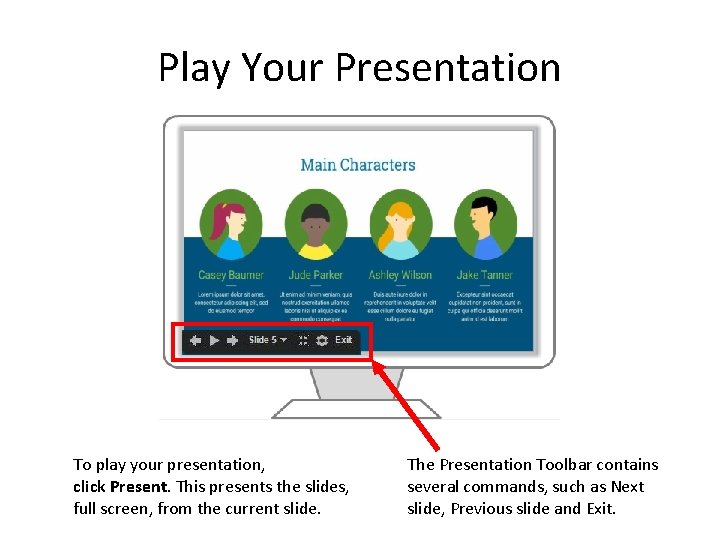
Play Your Presentation To play your presentation, click Present. This presents the slides, full screen, from the current slide. The Presentation Toolbar contains several commands, such as Next slide, Previous slide and Exit.
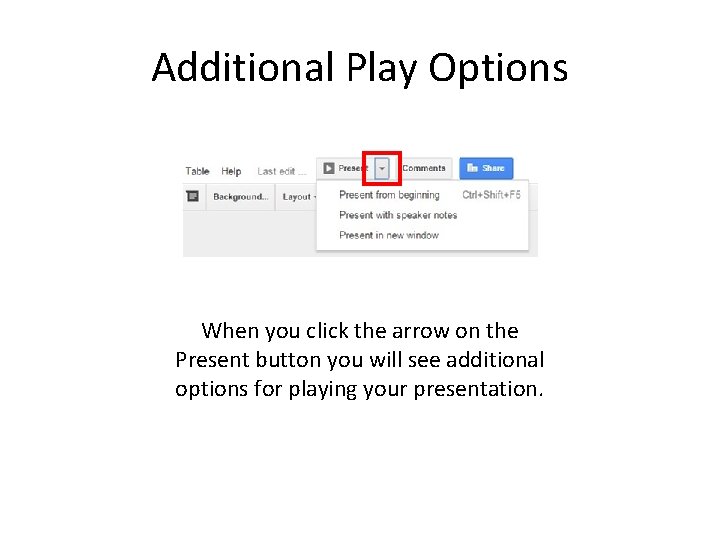
Additional Play Options When you click the arrow on the Present button you will see additional options for playing your presentation.