
Uniform Traffic Citation First Time Users Initial Setup








- Slides: 73
Uniform Traffic Citation
First Time Users
Initial Setup • Set your default search • Create a default officer signature • Pick your theme
Default Search
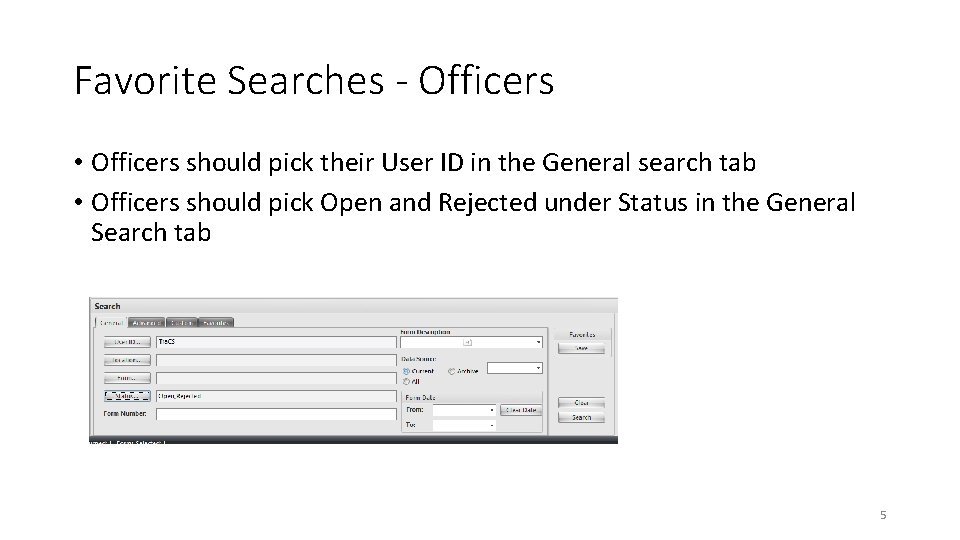
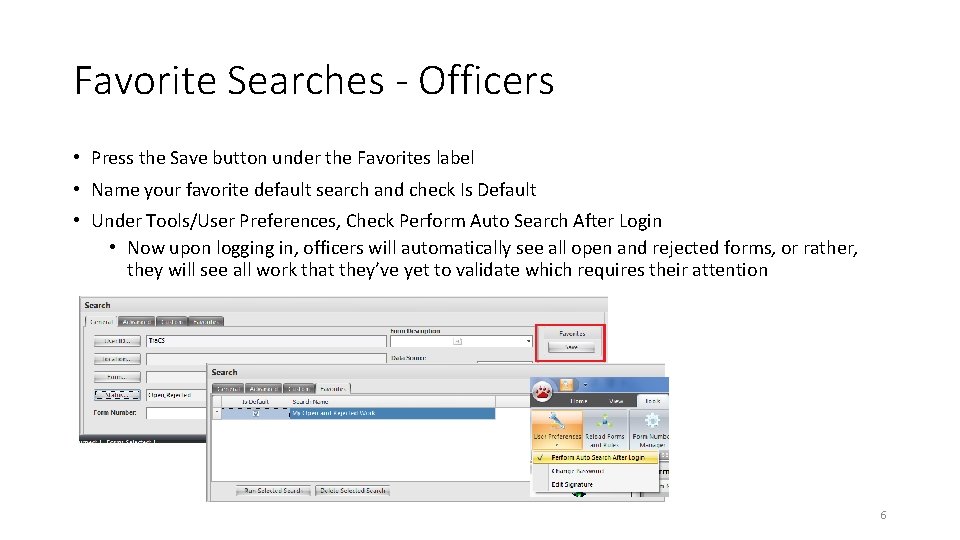
Favorite Searches - Officers • Officers should pick their User ID in the General search tab • Officers should pick Open and Rejected under Status in the General Search tab 5
Favorite Searches - Officers • Press the Save button under the Favorites label • Name your favorite default search and check Is Default • Under Tools/User Preferences, Check Perform Auto Search After Login • Now upon logging in, officers will automatically see all open and rejected forms, or rather, they will see all work that they’ve yet to validate which requires their attention 6
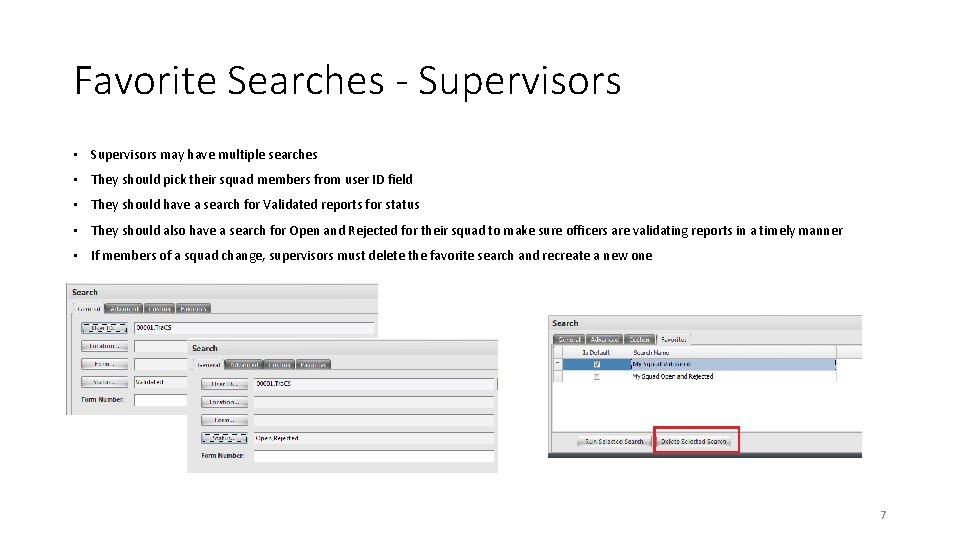
Favorite Searches - Supervisors • Supervisors may have multiple searches • They should pick their squad members from user ID field • They should have a search for Validated reports for status • They should also have a search for Open and Rejected for their squad to make sure officers are validating reports in a timely manner • If members of a squad change, supervisors must delete the favorite search and recreate a new one 7
Create a Signature
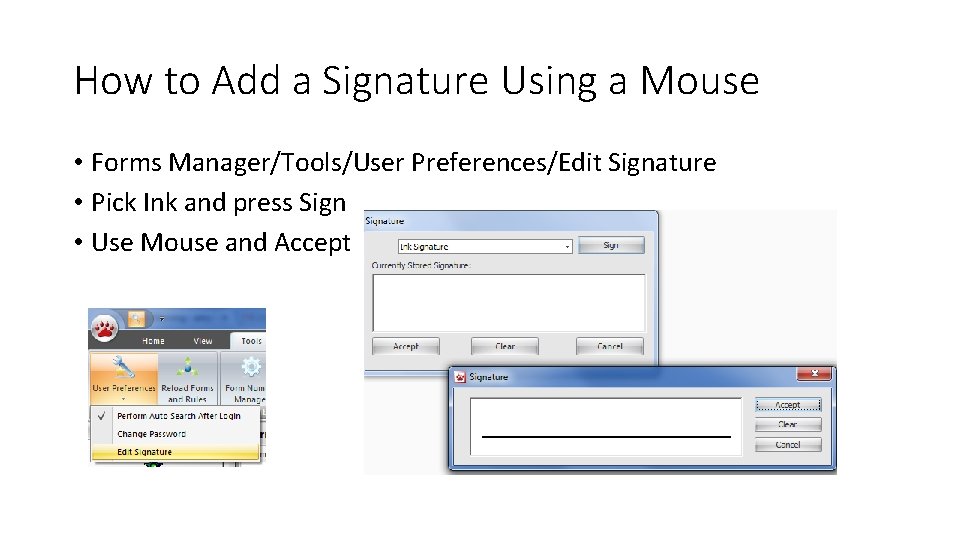
How to Add a Signature Using a Mouse • Forms Manager/Tools/User Preferences/Edit Signature • Pick Ink and press Sign • Use Mouse and Accept
Pick Your Theme
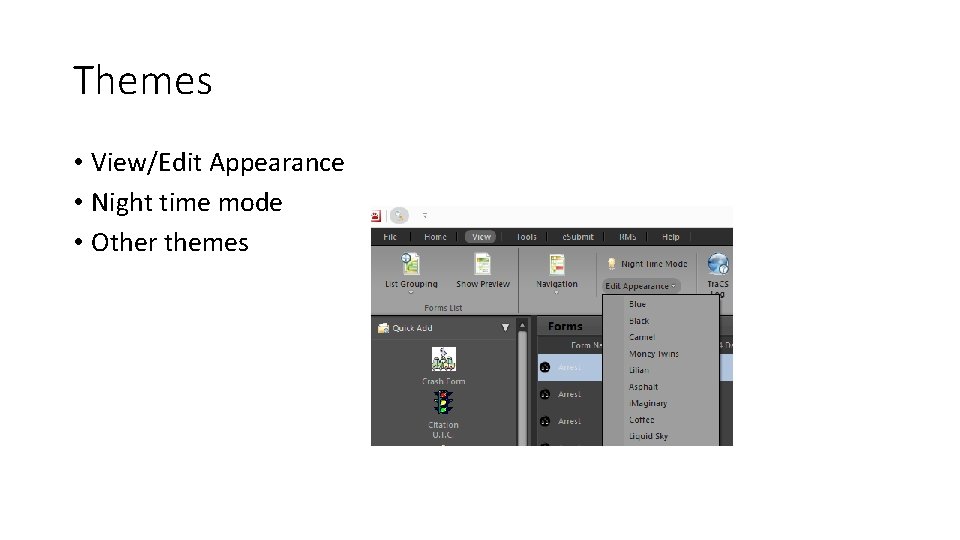
Themes • View/Edit Appearance • Night time mode • Other themes
Run Tags/DLs in NCIC/FCIC
Run Florida DLs and Tags in FCIC • Before you begin, run your DLs and Tags in your FCIC so your Florida People and Cars can be imported into a clipboard for use on the Tra. CS forms 13
Starting a UTC
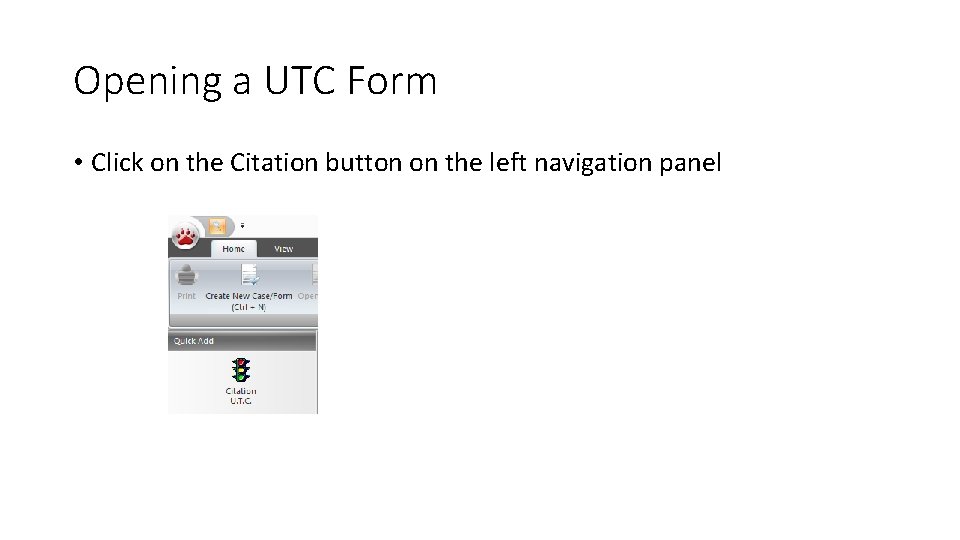
Opening a UTC Form • Click on the Citation button on the left navigation panel
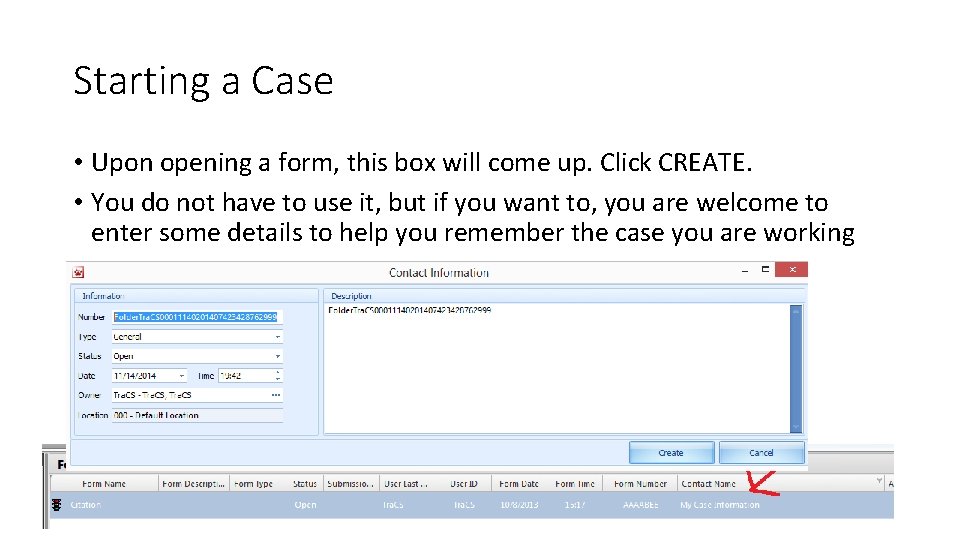
Starting a Case • Upon opening a form, this box will come up. Click CREATE. • You do not have to use it, but if you want to, you are welcome to enter some details to help you remember the case you are working
Managing the View
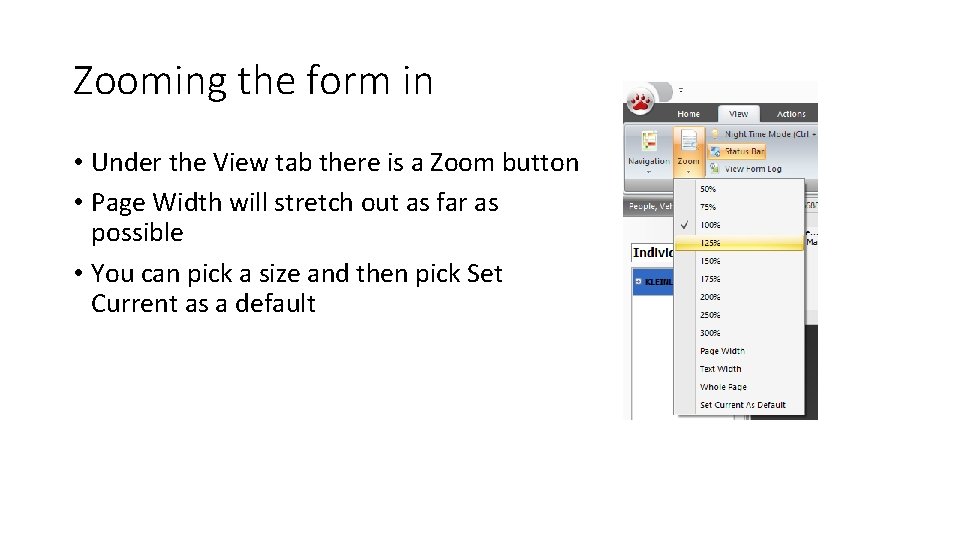
Zooming the form in • Under the View tab there is a Zoom button • Page Width will stretch out as far as possible • You can pick a size and then pick Set Current as a default
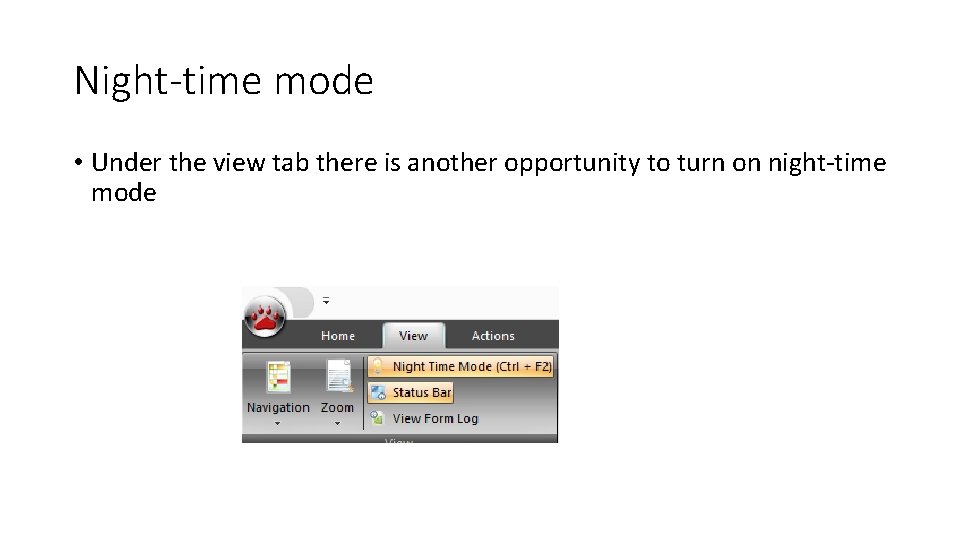
Night-time mode • Under the view tab there is another opportunity to turn on night-time mode
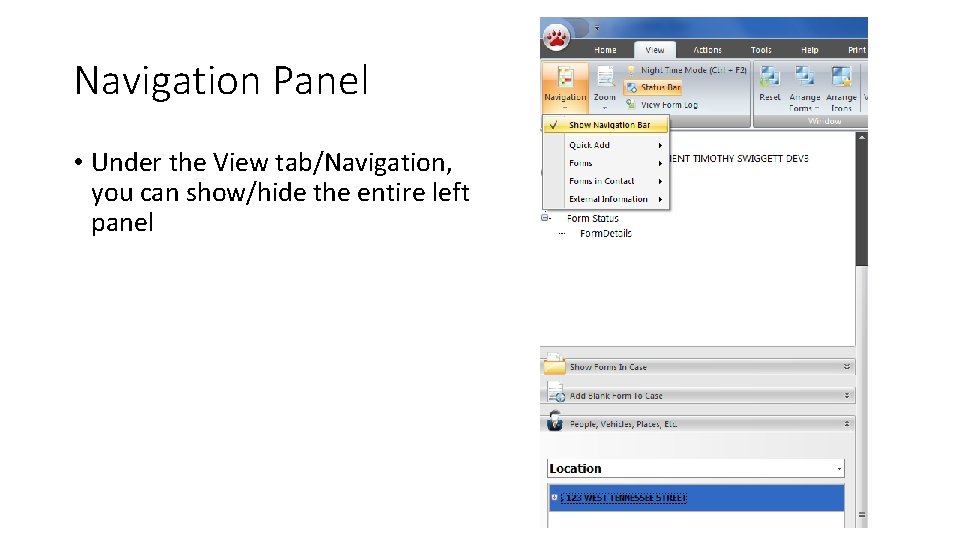
Navigation Panel • Under the View tab/Navigation, you can show/hide the entire left panel
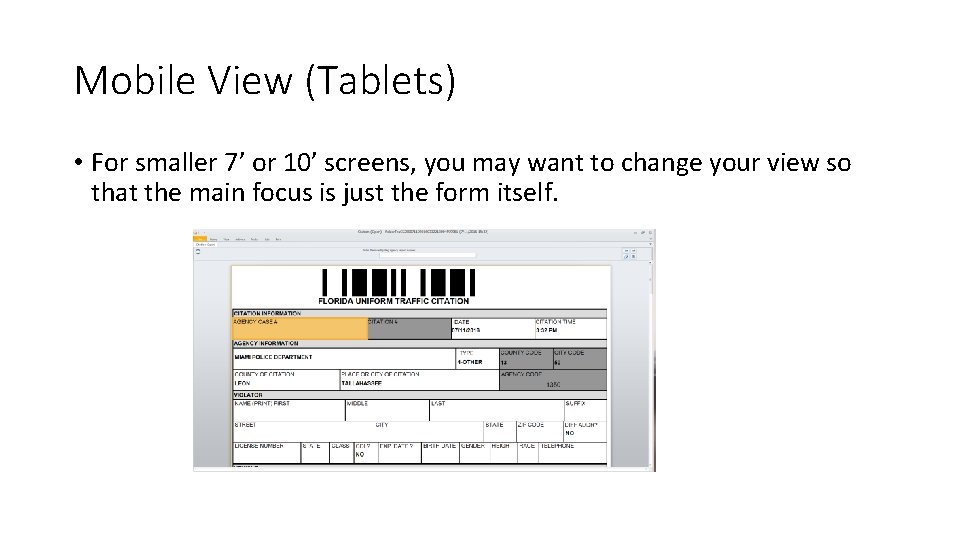
Mobile View (Tablets) • For smaller 7’ or 10’ screens, you may want to change your view so that the main focus is just the form itself.
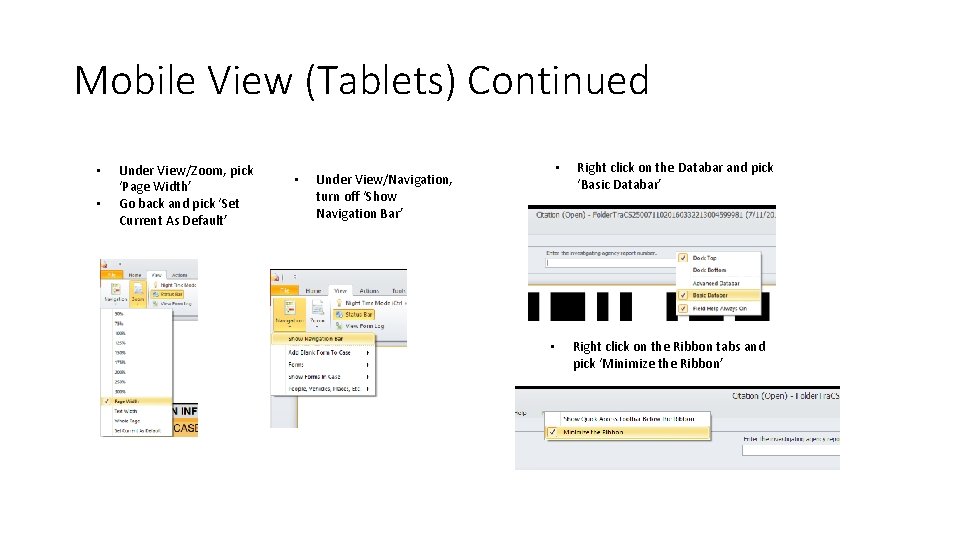
Mobile View (Tablets) Continued • • Under View/Zoom, pick ‘Page Width’ Go back and pick ‘Set Current As Default’ • Under View/Navigation, turn off ‘Show Navigation Bar’ • • Right click on the Databar and pick ‘Basic Databar’ Right click on the Ribbon tabs and pick ‘Minimize the Ribbon’
Filling Out the Form
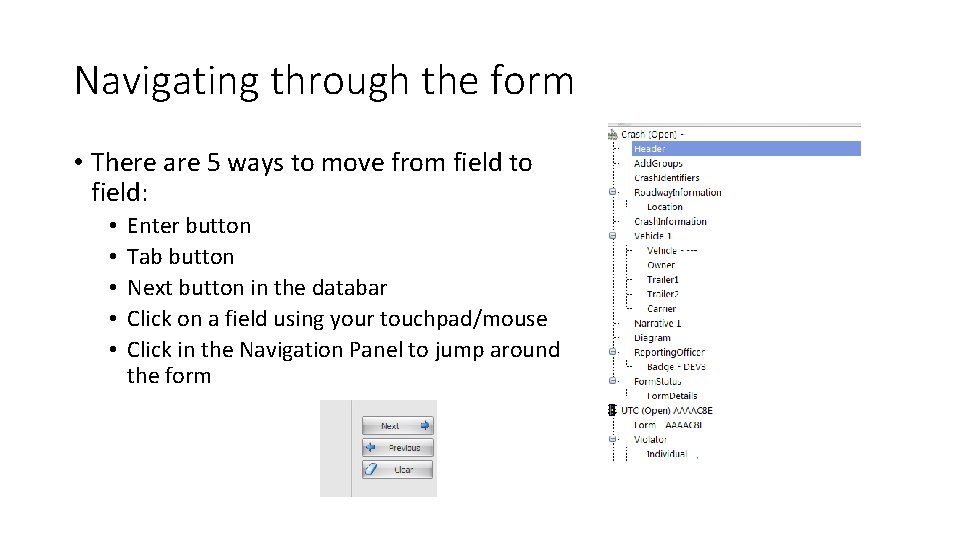
Navigating through the form • There are 5 ways to move from field to field: • • • Enter button Tab button Next button in the databar Click on a field using your touchpad/mouse Click in the Navigation Panel to jump around the form
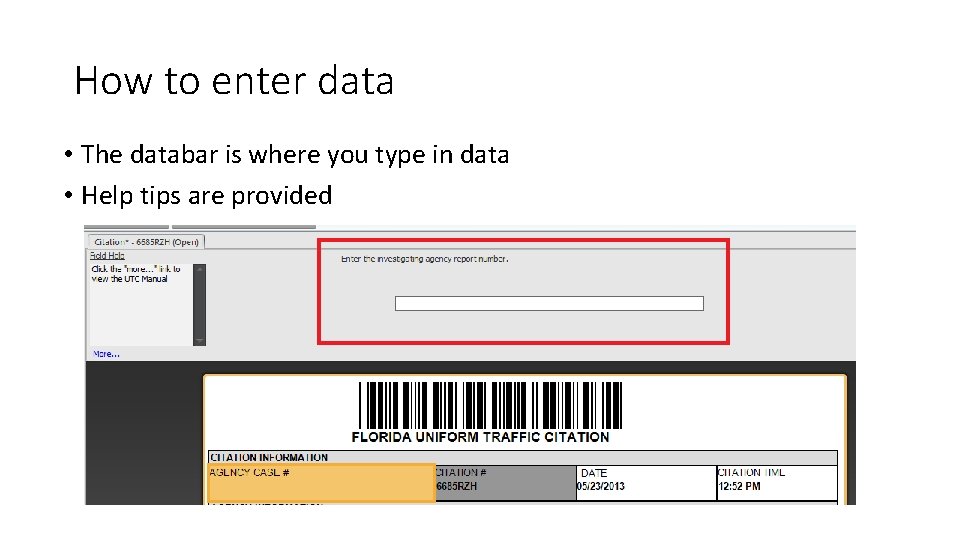
How to enter data • The databar is where you type in data • Help tips are provided
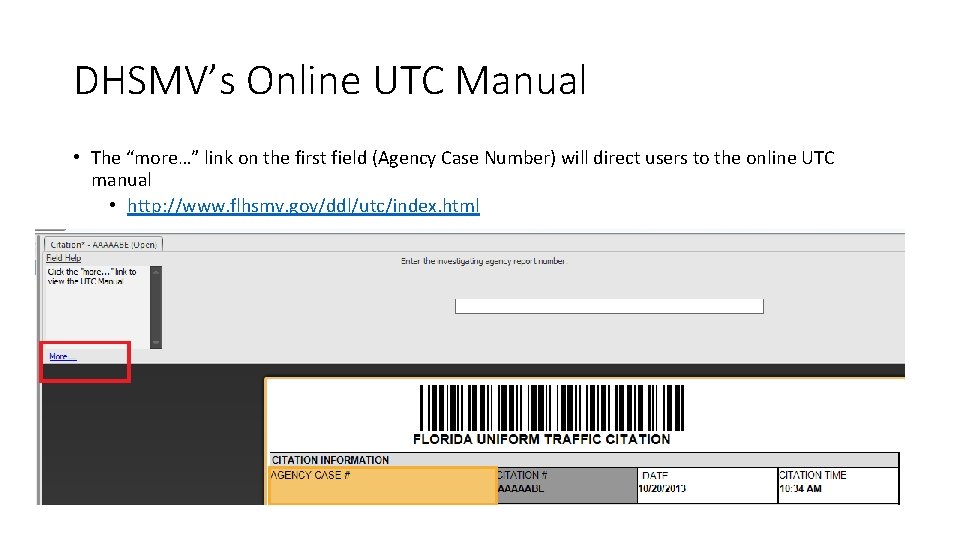
DHSMV’s Online UTC Manual • The “more…” link on the first field (Agency Case Number) will direct users to the online UTC manual • http: //www. flhsmv. gov/ddl/utc/index. html
The First Time Only • The first time you complete a UTC, you will be required to enter some basic information, such as: • • The type of department The city where the citation was written The county where the citation as written Information related to your identification as a reporting officer • The second time you write a UTC and beyond, this information will default based on the initial entry
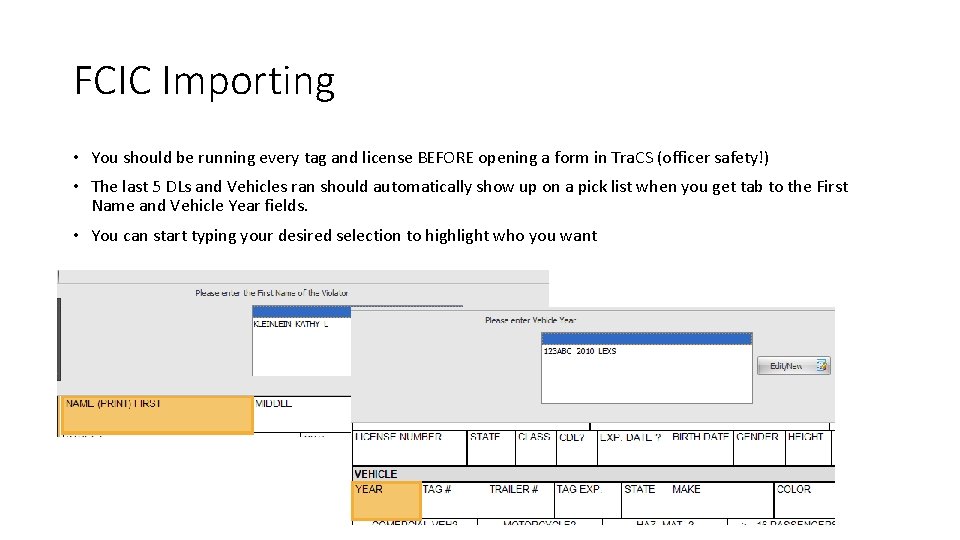
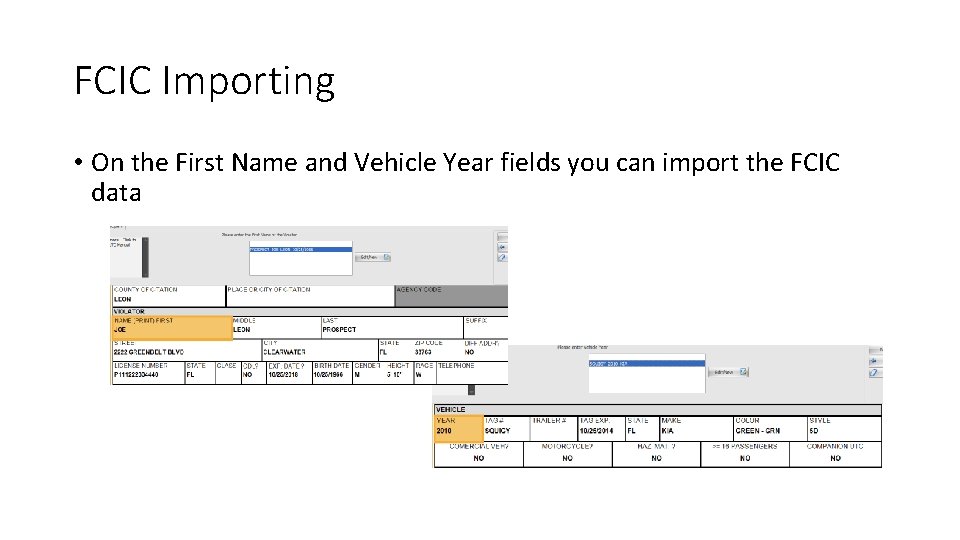
FCIC Importing • You should be running every tag and license BEFORE opening a form in Tra. CS (officer safety!) • The last 5 DLs and Vehicles ran should automatically show up on a pick list when you get tab to the First Name and Vehicle Year fields. • You can start typing your desired selection to highlight who you want
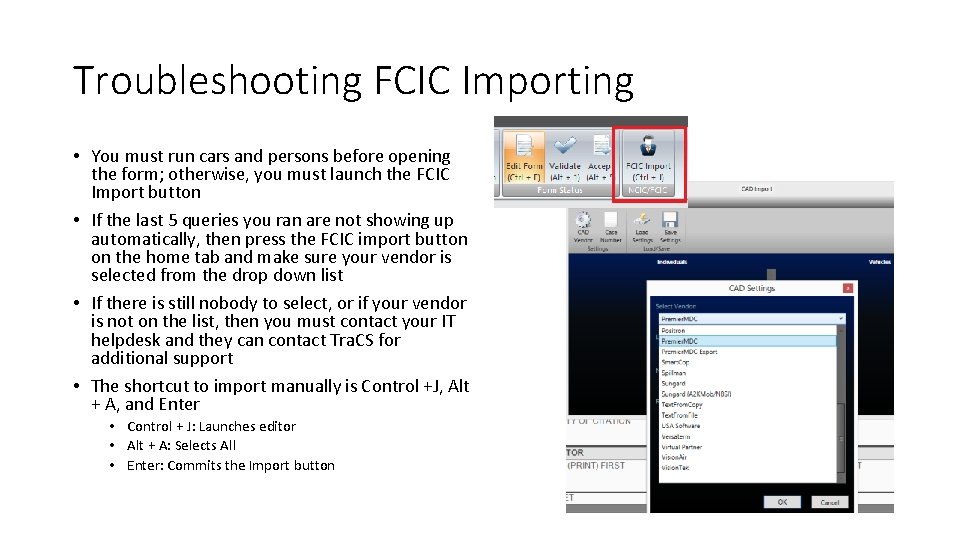
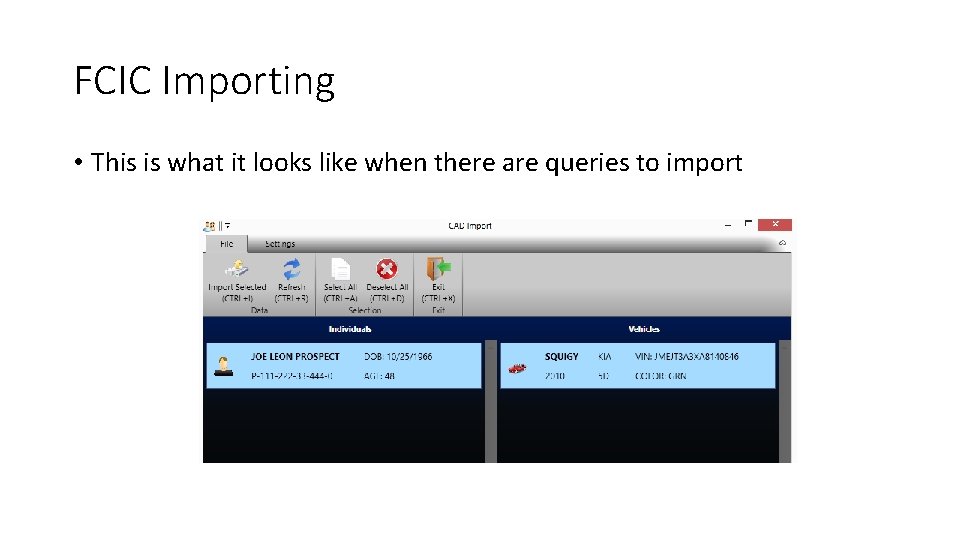
Troubleshooting FCIC Importing • You must run cars and persons before opening the form; otherwise, you must launch the FCIC Import button • If the last 5 queries you ran are not showing up automatically, then press the FCIC import button on the home tab and make sure your vendor is selected from the drop down list • If there is still nobody to select, or if your vendor is not on the list, then you must contact your IT helpdesk and they can contact Tra. CS for additional support • The shortcut to import manually is Control +J, Alt + A, and Enter • Control + J: Launches editor • Alt + A: Selects All • Enter: Commits the Import button
FCIC Importing • This is what it looks like when there are queries to import
FCIC Importing • On the First Name and Vehicle Year fields you can import the FCIC data
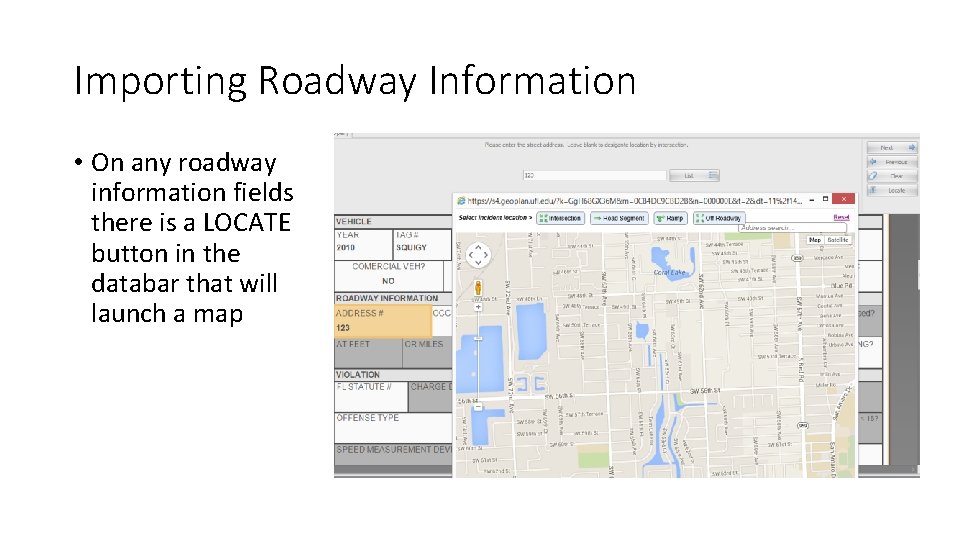
Importing Roadway Information • On any roadway information fields there is a LOCATE button in the databar that will launch a map
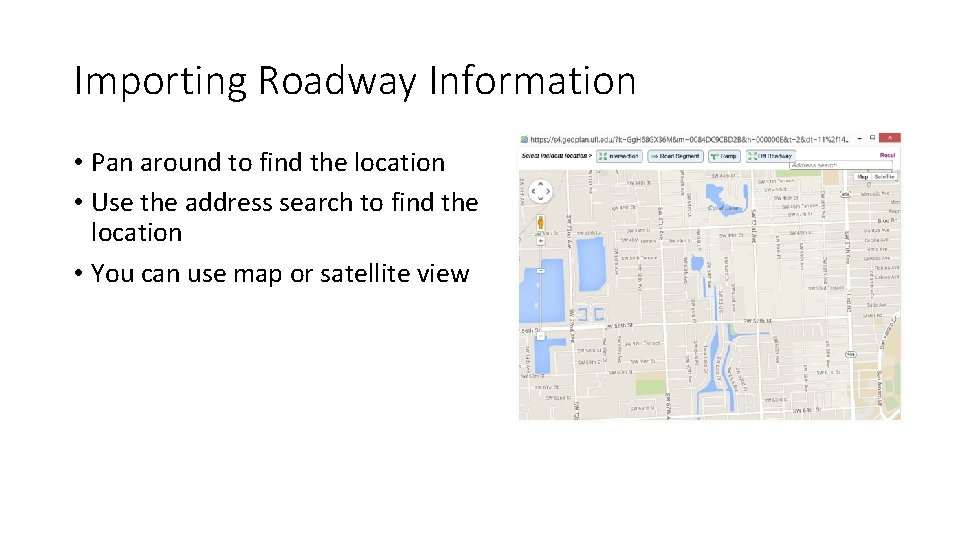
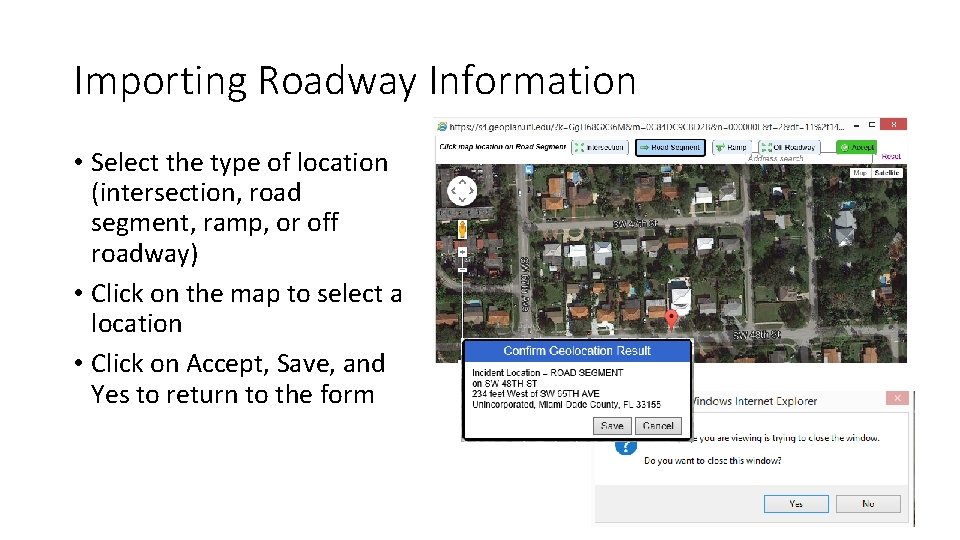
Importing Roadway Information • Pan around to find the location • Use the address search to find the location • You can use map or satellite view
Importing Roadway Information • Select the type of location (intersection, road segment, ramp, or off roadway) • Click on the map to select a location • Click on Accept, Save, and Yes to return to the form
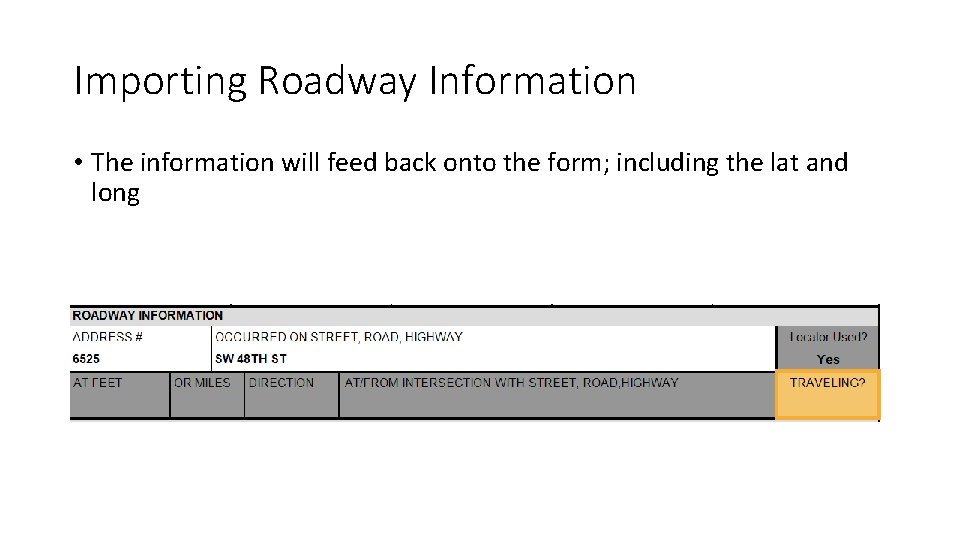
Importing Roadway Information • The information will feed back onto the form; including the lat and long
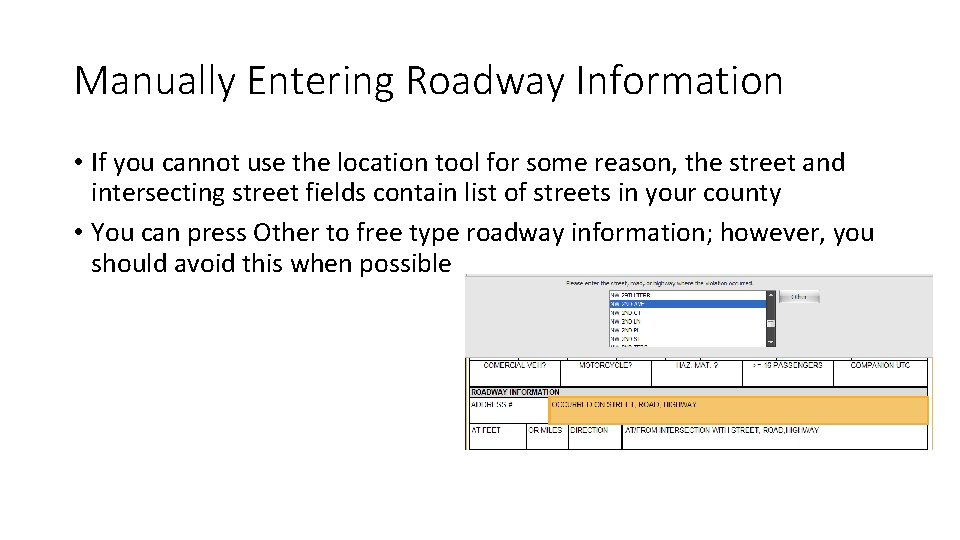
Manually Entering Roadway Information • If you cannot use the location tool for some reason, the street and intersecting street fields contain list of streets in your county • You can press Other to free type roadway information; however, you should avoid this when possible
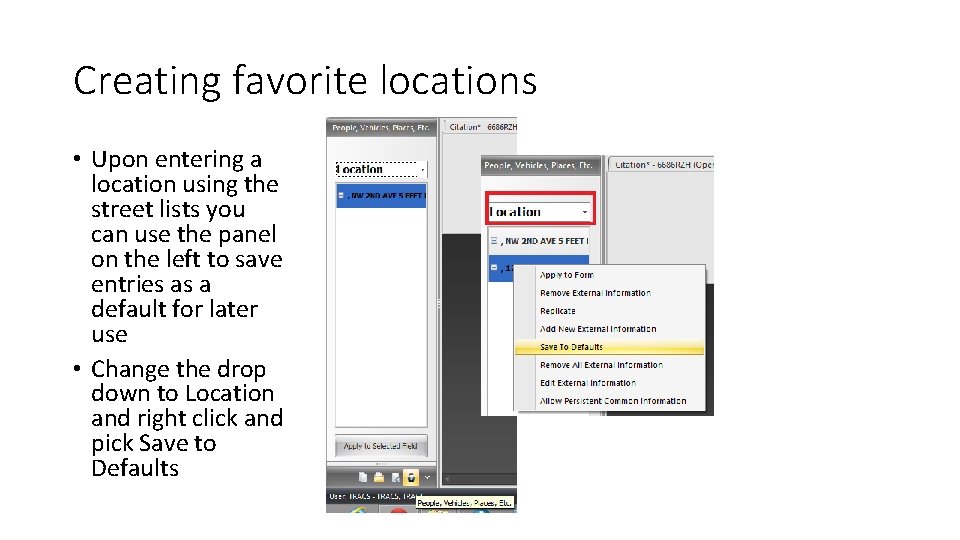
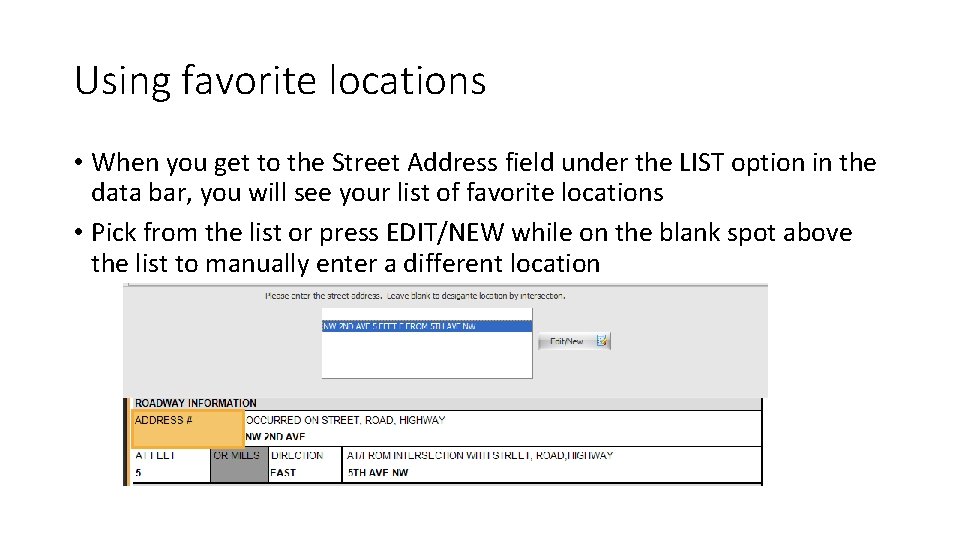
Creating favorite locations • Upon entering a location using the street lists you can use the panel on the left to save entries as a default for later use • Change the drop down to Location and right click and pick Save to Defaults
Using favorite locations • When you get to the Street Address field under the LIST option in the data bar, you will see your list of favorite locations • Pick from the list or press EDIT/NEW while on the blank spot above the list to manually enter a different location
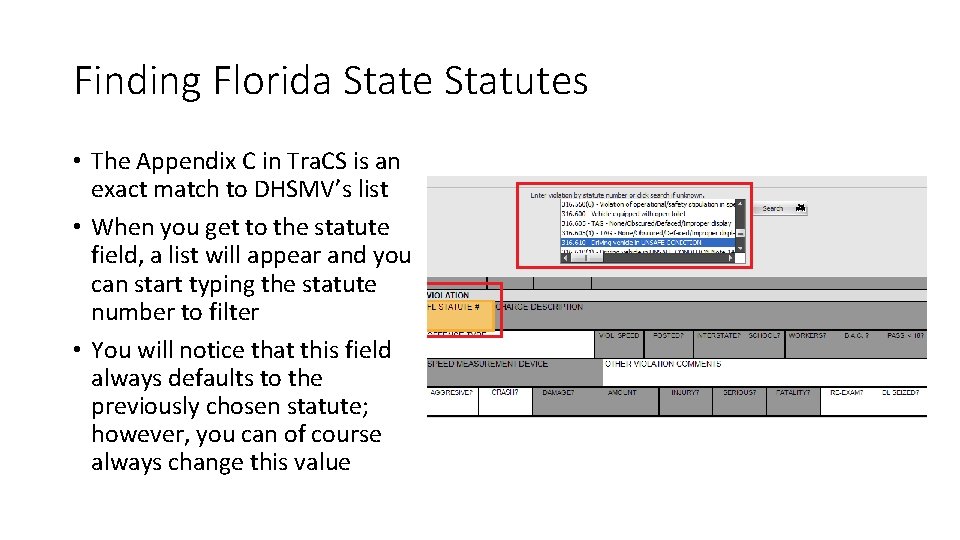
Finding Florida State Statutes • The Appendix C in Tra. CS is an exact match to DHSMV’s list • When you get to the statute field, a list will appear and you can start typing the statute number to filter • You will notice that this field always defaults to the previously chosen statute; however, you can of course always change this value
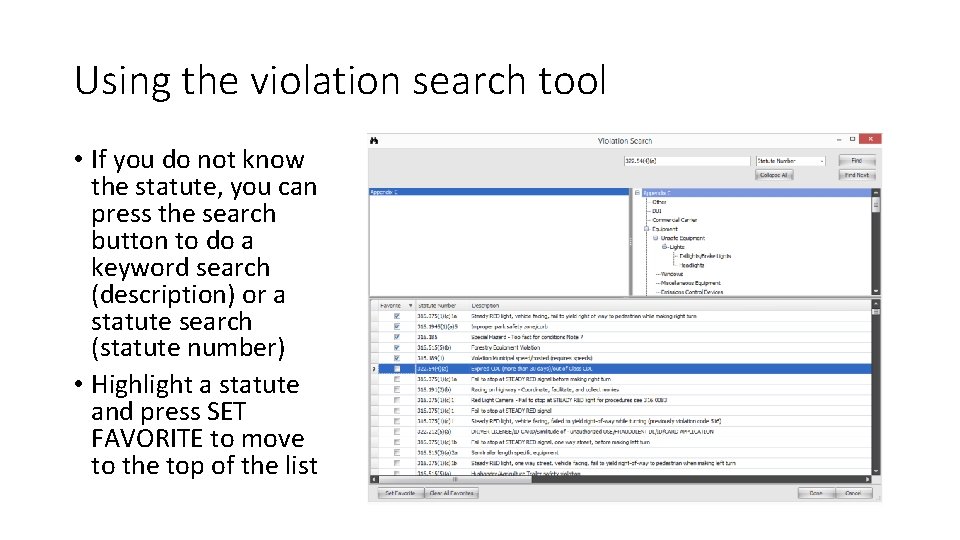
Using the violation search tool • If you do not know the statute, you can press the search button to do a keyword search (description) or a statute search (statute number) • Highlight a statute and press SET FAVORITE to move to the top of the list
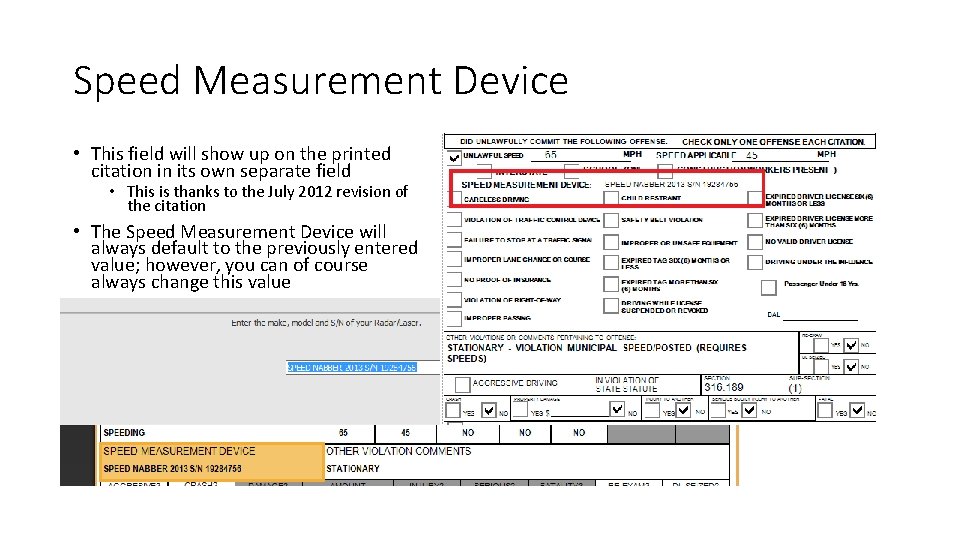
Speed Measurement Device • This field will show up on the printed citation in its own separate field • This is thanks to the July 2012 revision of the citation • The Speed Measurement Device will always default to the previously entered value; however, you can of course always change this value
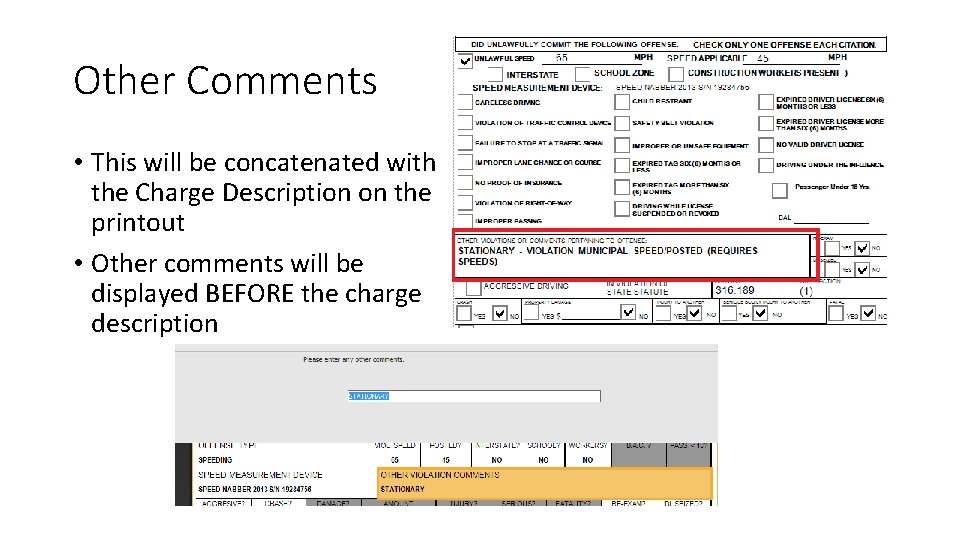
Other Comments • This will be concatenated with the Charge Description on the printout • Other comments will be displayed BEFORE the charge description
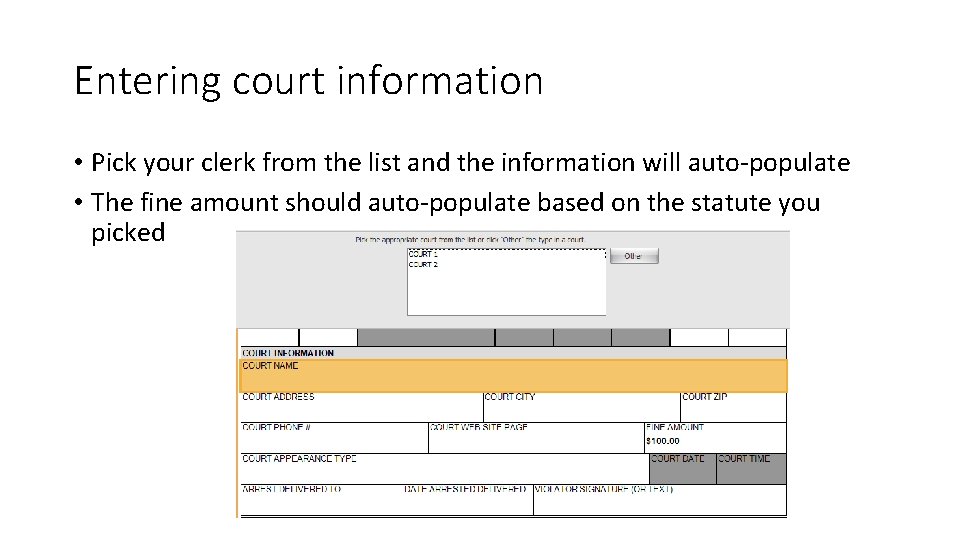
Entering court information • Pick your clerk from the list and the information will auto-populate • The fine amount should auto-populate based on the statute you picked
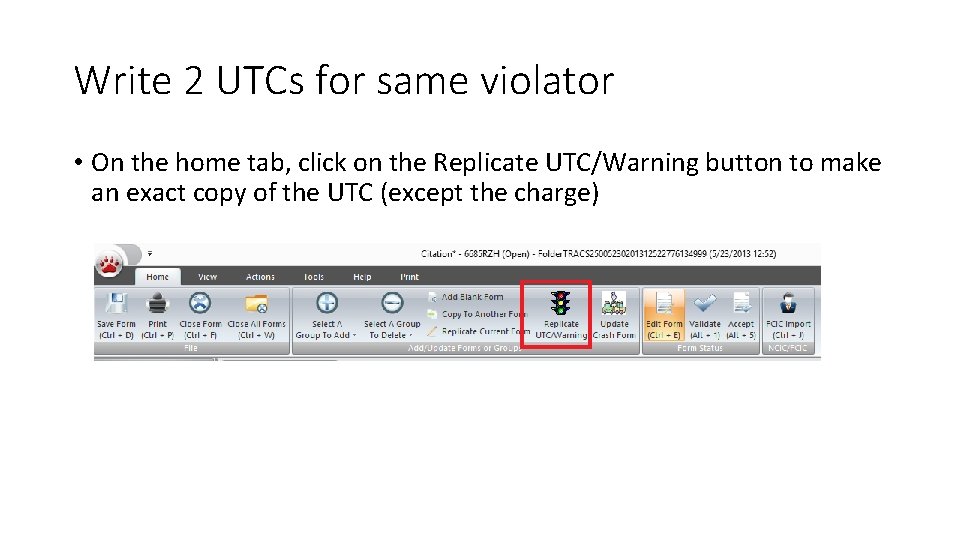
Write 2 UTCs for same violator • On the home tab, click on the Replicate UTC/Warning button to make an exact copy of the UTC (except the charge)
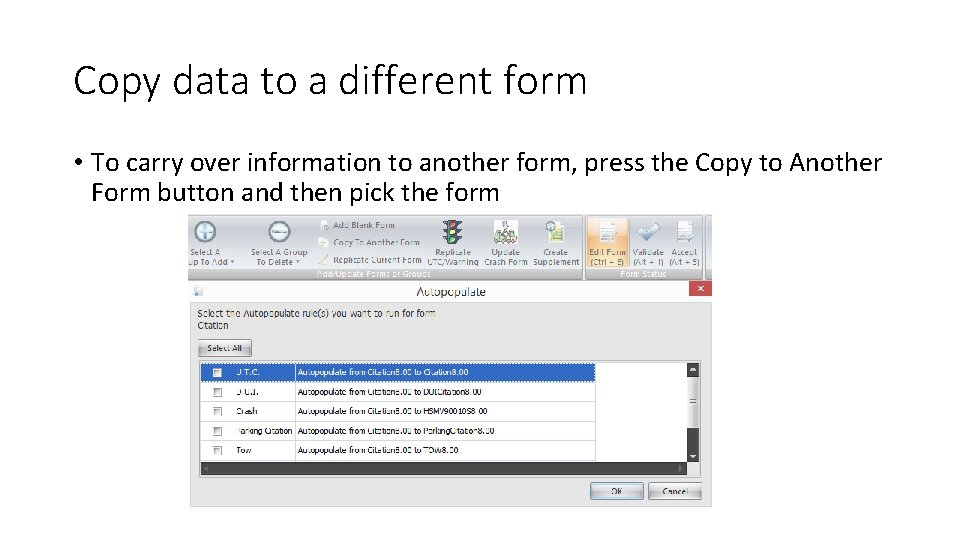
Copy data to a different form • To carry over information to another form, press the Copy to Another Form button and then pick the form
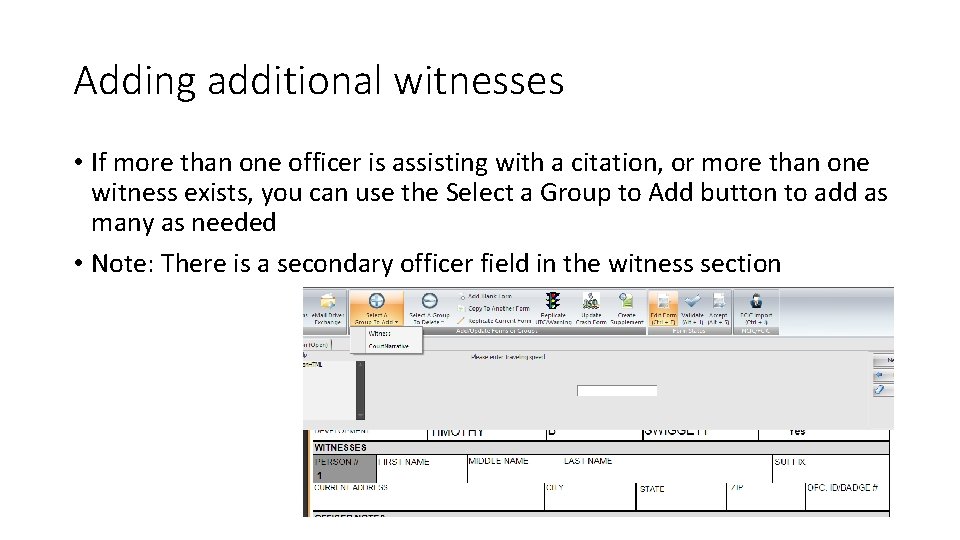
Adding additional witnesses • If more than one officer is assisting with a citation, or more than one witness exists, you can use the Select a Group to Add button to add as many as needed • Note: There is a secondary officer field in the witness section
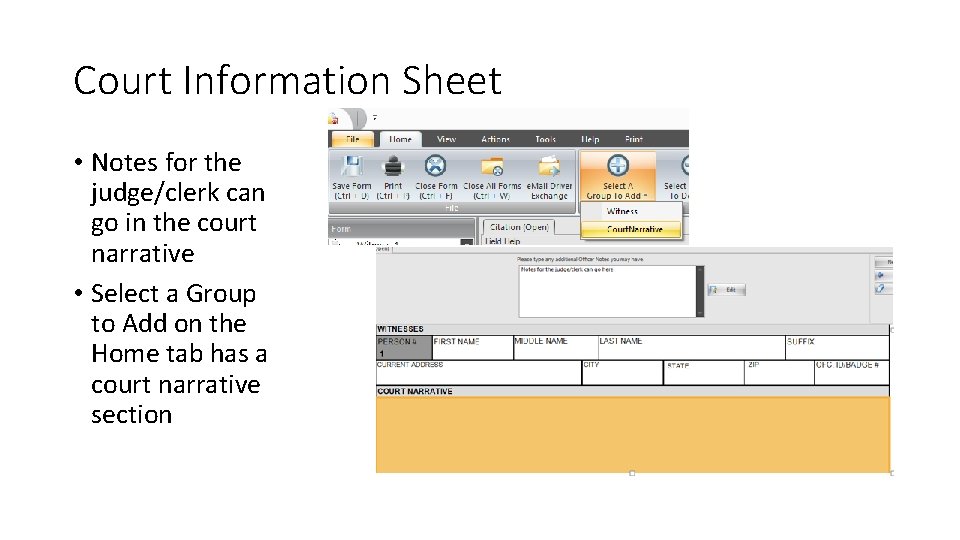
Court Information Sheet • Notes for the judge/clerk can go in the court narrative • Select a Group to Add on the Home tab has a court narrative section
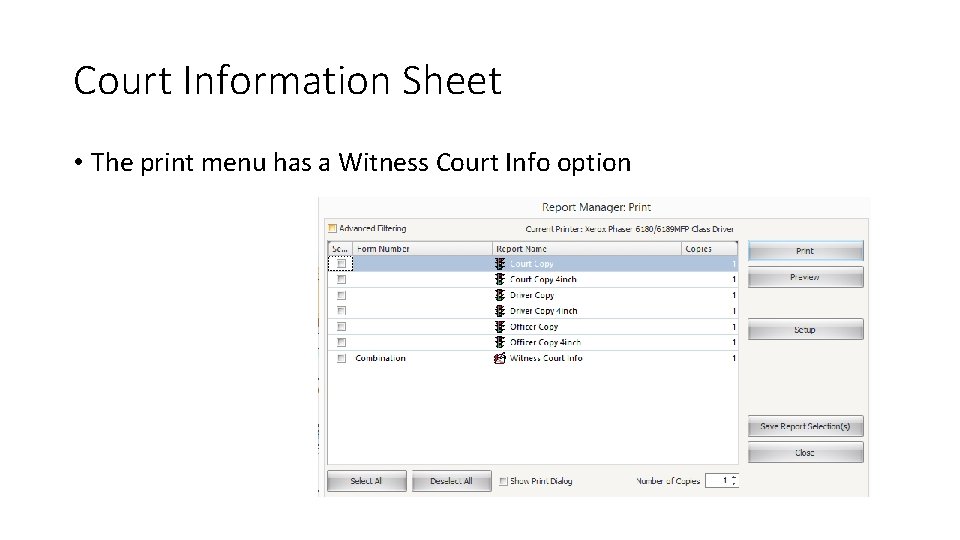
Court Information Sheet • The print menu has a Witness Court Info option
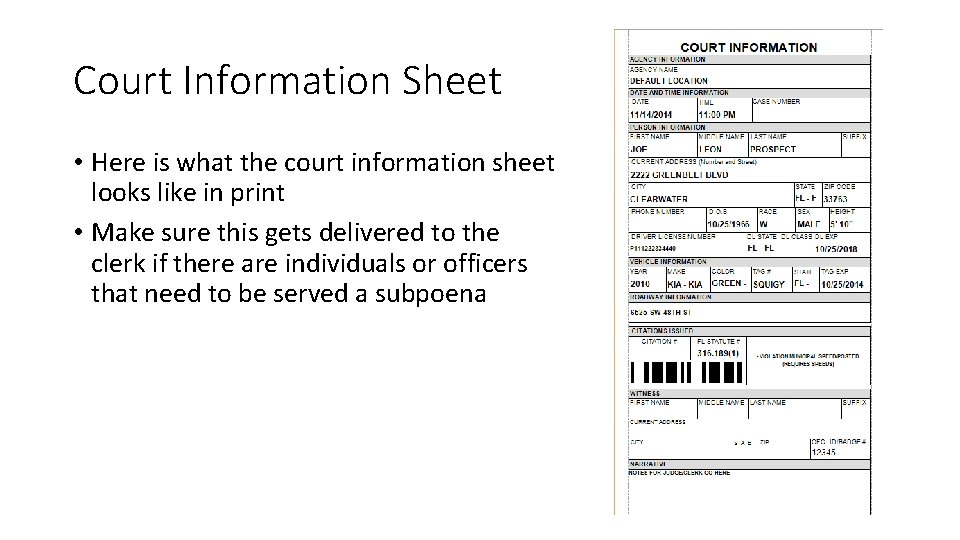
Court Information Sheet • Here is what the court information sheet looks like in print • Make sure this gets delivered to the clerk if there are individuals or officers that need to be served a subpoena
Electronic Submission to Clerk of Court
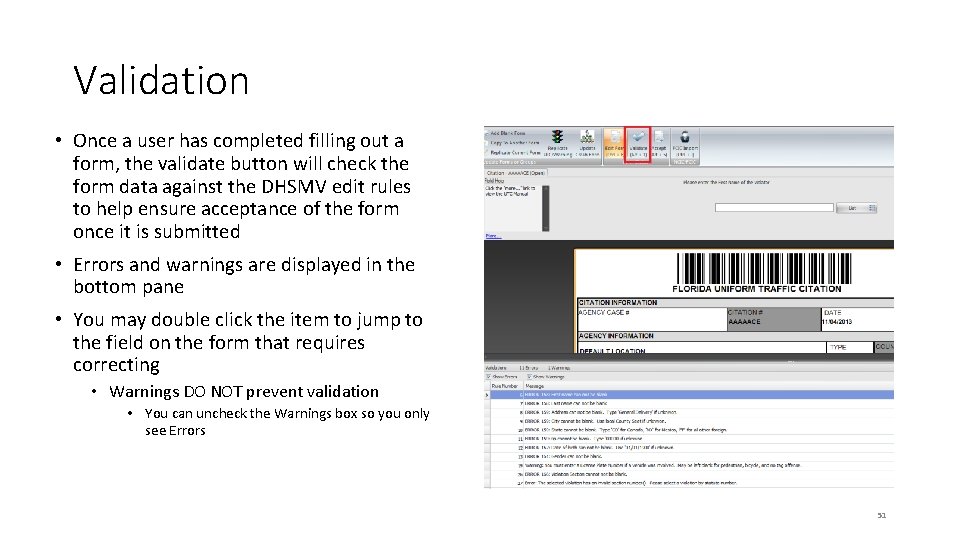
Validation • Once a user has completed filling out a form, the validate button will check the form data against the DHSMV edit rules to help ensure acceptance of the form once it is submitted • Errors and warnings are displayed in the bottom pane • You may double click the item to jump to the field on the form that requires correcting • Warnings DO NOT prevent validation • You can uncheck the Warnings box so you only see Errors 51
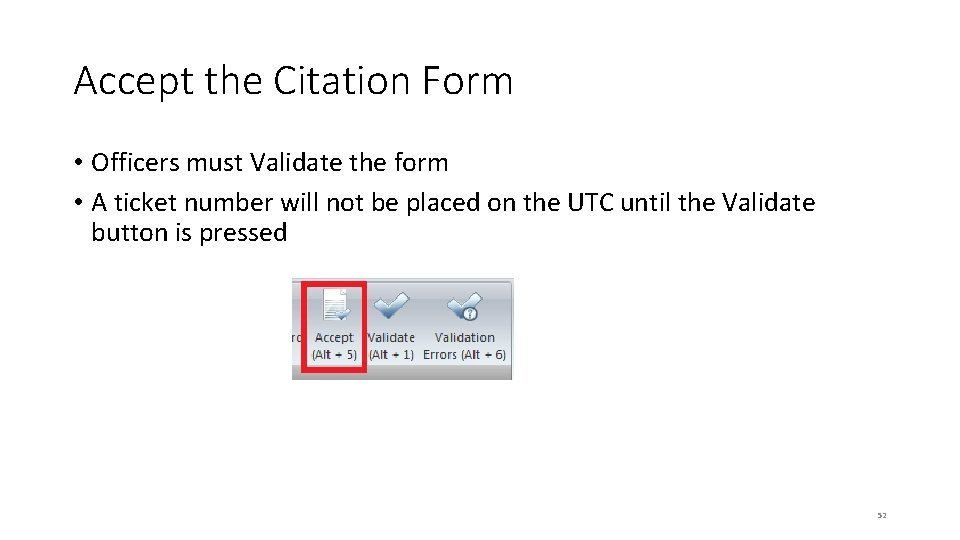
Accept the Citation Form • Officers must Validate the form • A ticket number will not be placed on the UTC until the Validate button is pressed 52
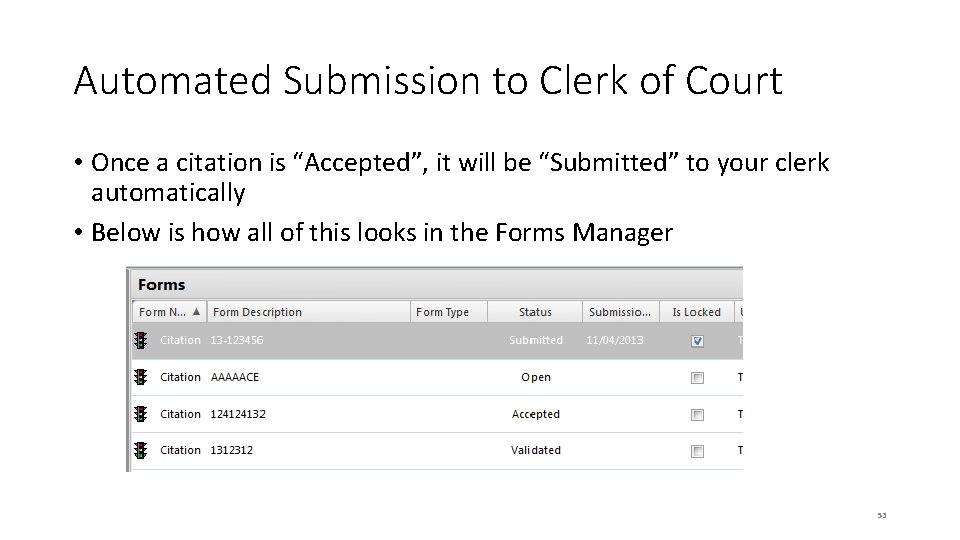
Automated Submission to Clerk of Court • Once a citation is “Accepted”, it will be “Submitted” to your clerk automatically • Below is how all of this looks in the Forms Manager 53
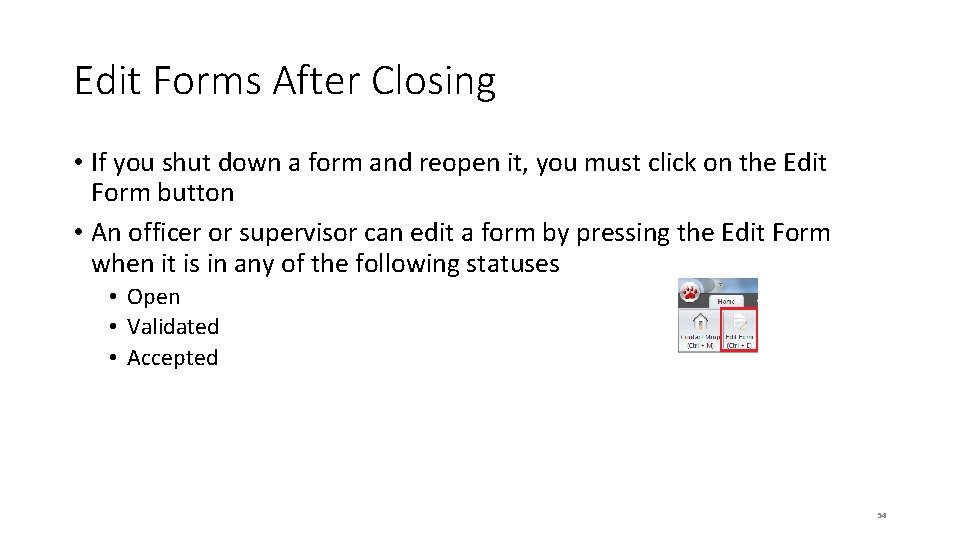
Edit Forms After Closing • If you shut down a form and reopen it, you must click on the Edit Form button • An officer or supervisor can edit a form by pressing the Edit Form when it is in any of the following statuses • Open • Validated • Accepted 54
Printing
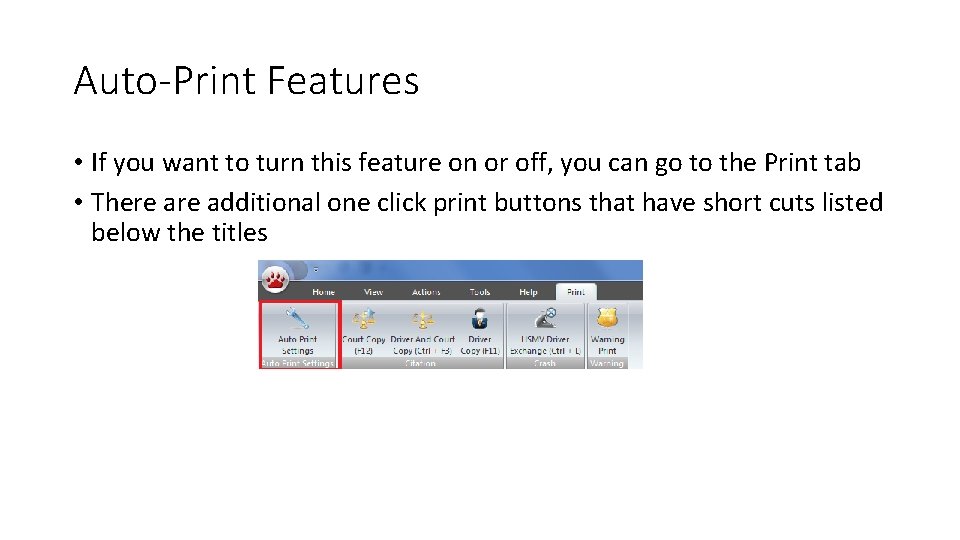
Auto-Print Features • If you want to turn this feature on or off, you can go to the Print tab • There additional one click print buttons that have short cuts listed below the titles
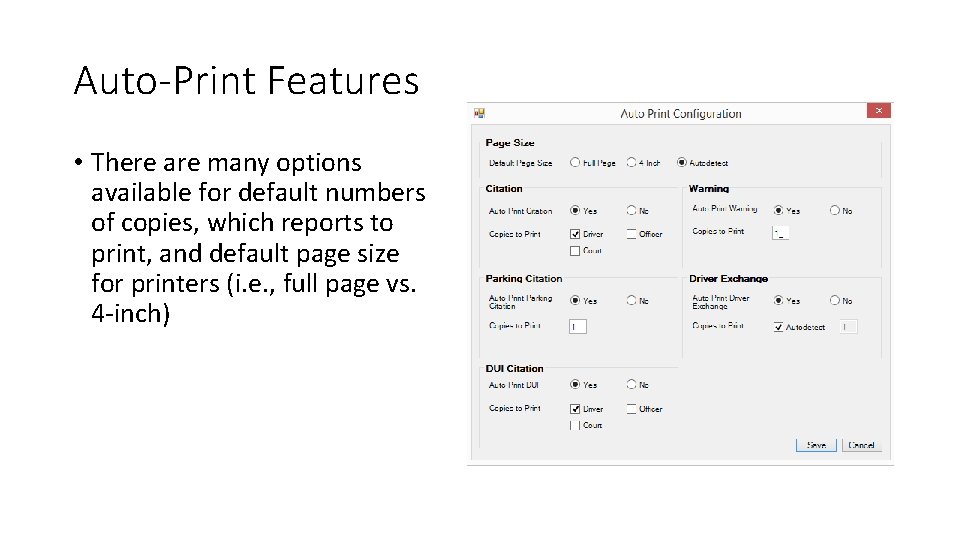
Auto-Print Features • There are many options available for default numbers of copies, which reports to print, and default page size for printers (i. e. , full page vs. 4 -inch)
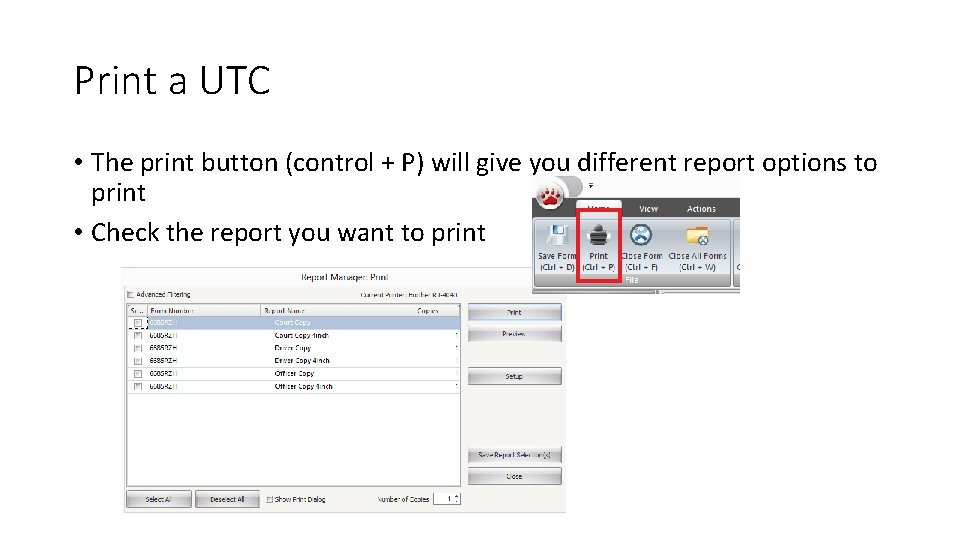
Print a UTC • The print button (control + P) will give you different report options to print • Check the report you want to print
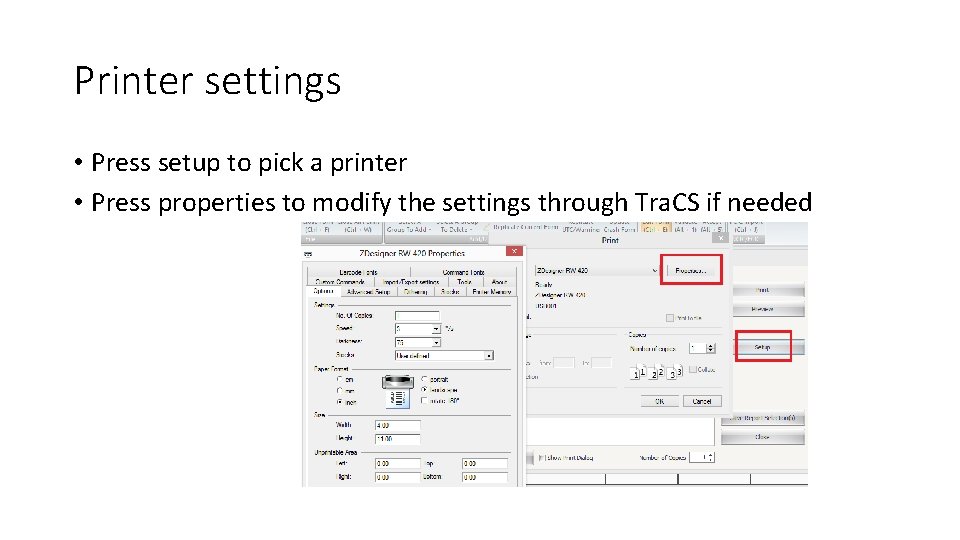
Printer settings • Press setup to pick a printer • Press properties to modify the settings through Tra. CS if needed
Zebra Printers • If you use the Zebra RW 420 printer, you must have your IT person visit this link to learn about configuration • http: //www. tracsflorida. org/wiki/index. php? title=Zebra_RW_420_Printer_Co nfiguration 60
Voiding Citations
Voiding Citations • Once you open a ticket and begin typing a citizen’s information, it is recommended you either ISSUE the citation or VOID the citation. Do NOT type over the citizen’s data to issue to a different person. • Per the DHSMV (https: //www. flhsmv. gov/ddl/utc/Section 3. pdf), if an officer needs to void a citation, all copies must be in the officer’s possession and marked VOID with a brief explanation and the officer’s initials. Only the arresting officer may void the citation. Forward a copy to DHSMV (Mail Stop 93) for accountability. A citation CANNOT be voided once it is issued to an alleged violator. Remember, it is unlawful and official misconduct for an officer to dispose of a citation other than as required by 316. 650 Florida Statutes.
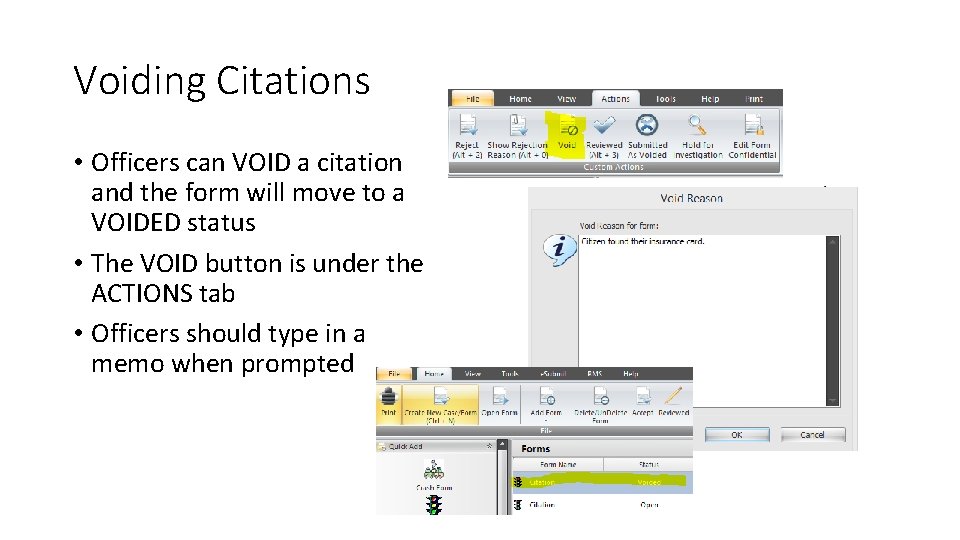
Voiding Citations • Officers can VOID a citation and the form will move to a VOIDED status • The VOID button is under the ACTIONS tab • Officers should type in a memo when prompted
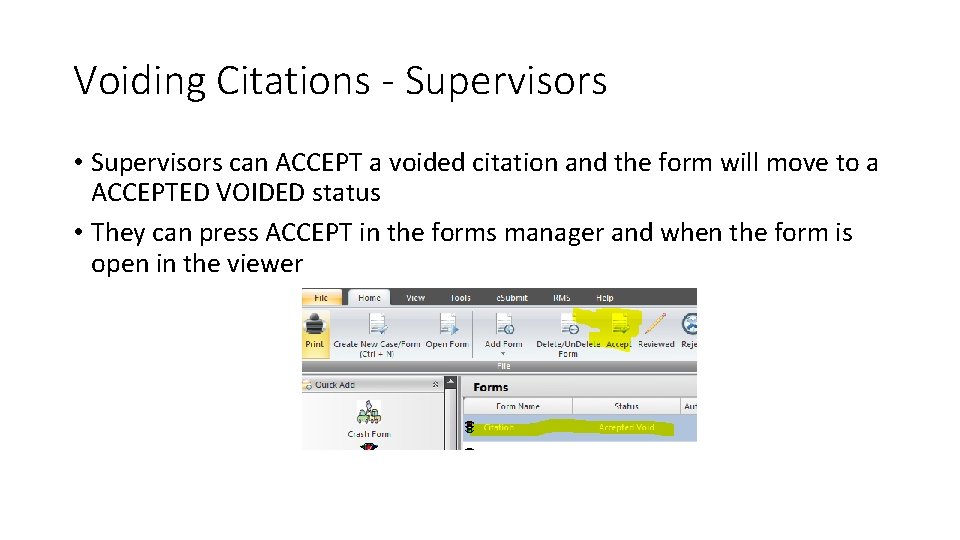
Voiding Citations - Supervisors • Supervisors can ACCEPT a voided citation and the form will move to a ACCEPTED VOIDED status • They can press ACCEPT in the forms manager and when the form is open in the viewer
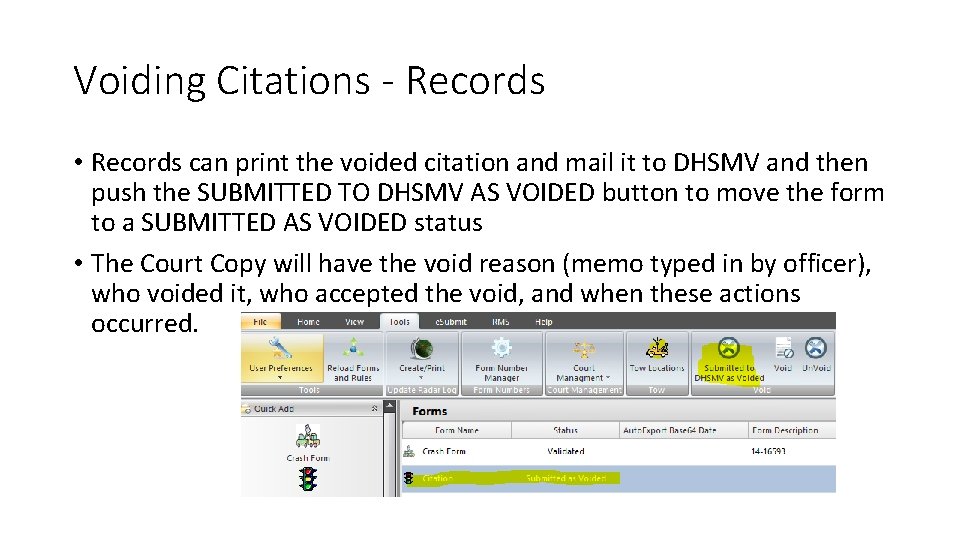
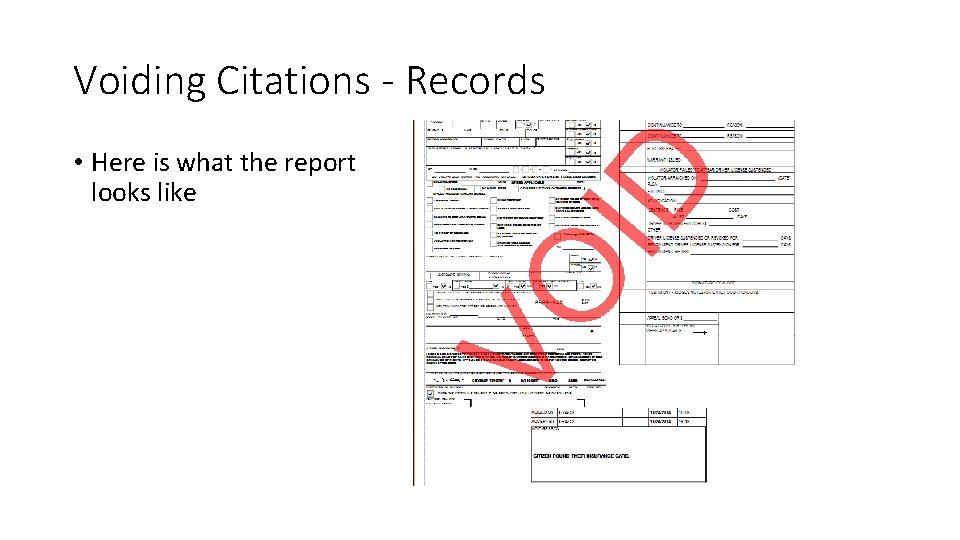
Voiding Citations - Records • Records can print the voided citation and mail it to DHSMV and then push the SUBMITTED TO DHSMV AS VOIDED button to move the form to a SUBMITTED AS VOIDED status • The Court Copy will have the void reason (memo typed in by officer), who voided it, who accepted the void, and when these actions occurred.
Voiding Citations - Records • Here is what the report looks like
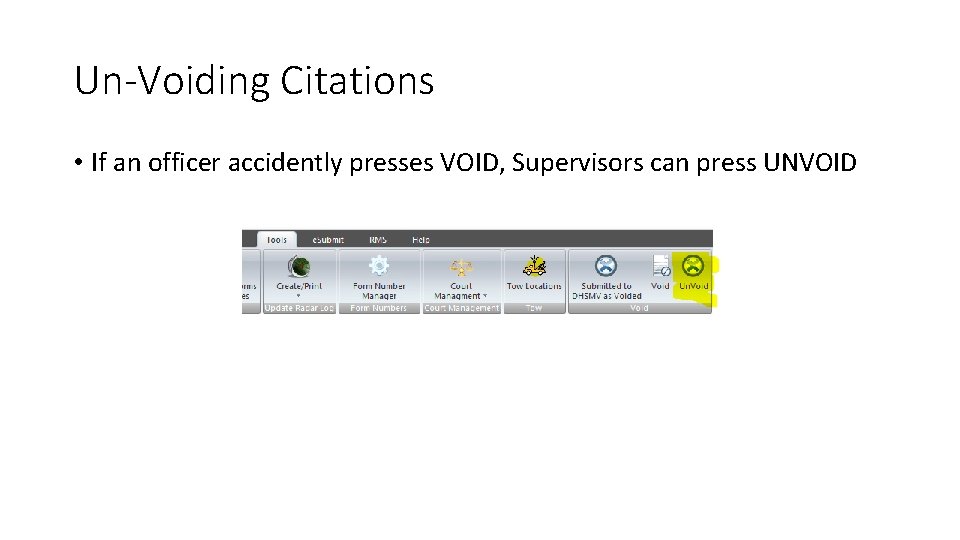
Un-Voiding Citations • If an officer accidently presses VOID, Supervisors can press UNVOID
Searching for Forms in the Forms Manager
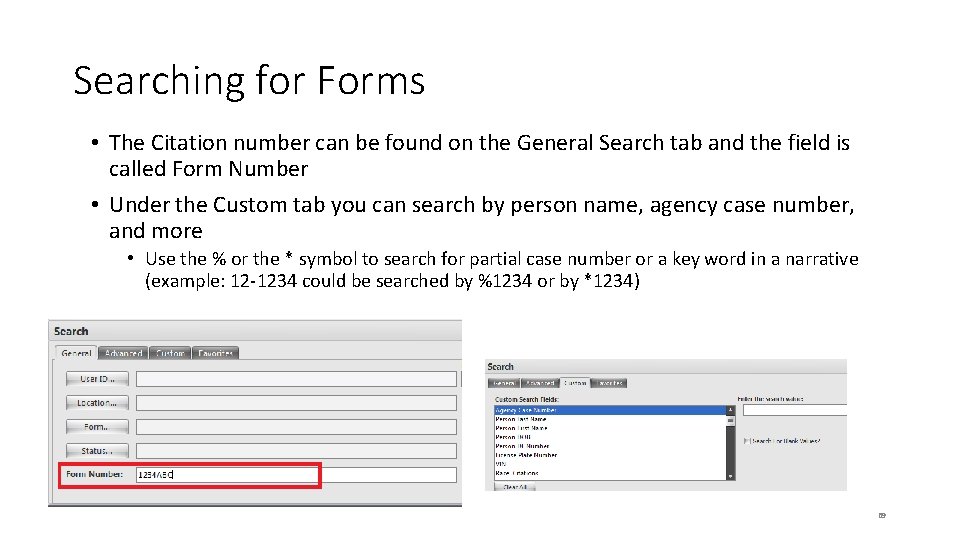
Searching for Forms • The Citation number can be found on the General Search tab and the field is called Form Number • Under the Custom tab you can search by person name, agency case number, and more • Use the % or the * symbol to search for partial case number or a key word in a narrative (example: 12 -1234 could be searched by %1234 or by *1234) 69
Additional Tips
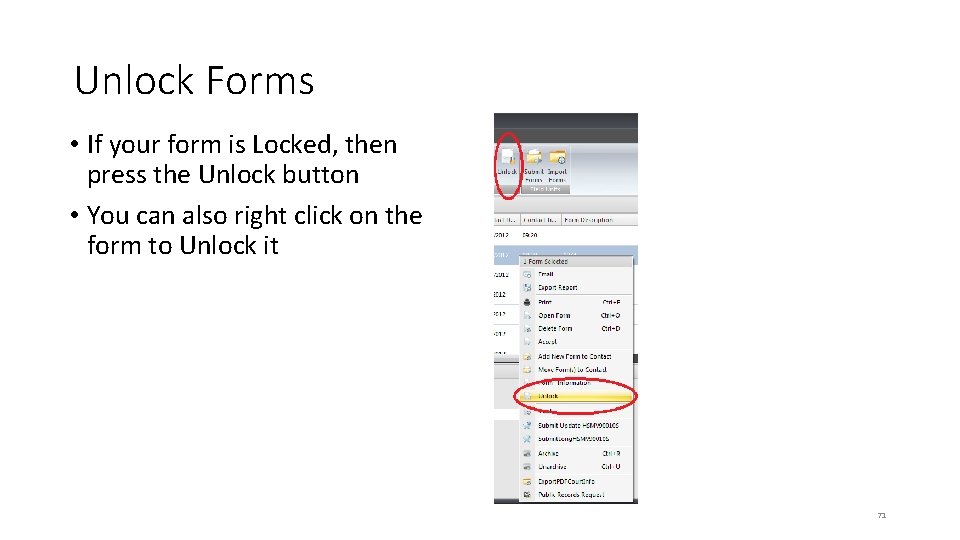
Unlock Forms • If your form is Locked, then press the Unlock button • You can also right click on the form to Unlock it 71
What Does Each Status? • Open – User is still working on the form • Validated – User is done working on the form and the form is ready to be “accepted” • Accepted – Supervisor has approved and the form is ready to go to the State • Submitted – Has been submitted electronically to the clerk’s office • Submitted reports are “locked” to prevent further editing. 72
Moving Forms Through the Process • Under no exceptions, the following buttons must be pushed • Officers MUST press the validate button when they are done • Supervisors MUST press the Accept button when they are done • The server MUST be set up properly to automatically submit accepted forms to the state • If a crash is in accepted status for more than 24 hours, there is an issue with the server and IT MUST tell Tra. CS they require assistance 73