
UnifiedPCMC Ver 4 KXNCP 5001000TDE 600 Installation UPCMC




- Slides: 42
Unified-PCMC Ver 4 (KX-NCP 500/1000/TDE 600)
Installation
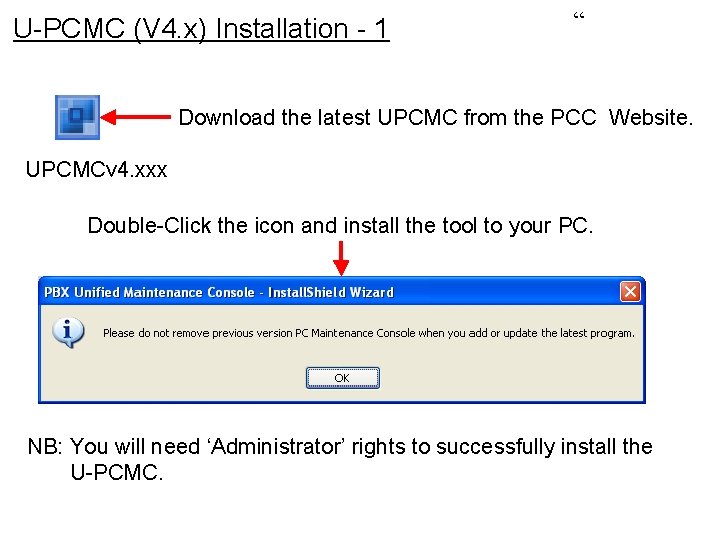
U-PCMC (V 4. x) Installation - 1 “ Download the latest UPCMC from the PCC Website. UPCMCv 4. xxx Double-Click the icon and install the tool to your PC. NB: You will need ‘Administrator’ rights to successfully install the U-PCMC.
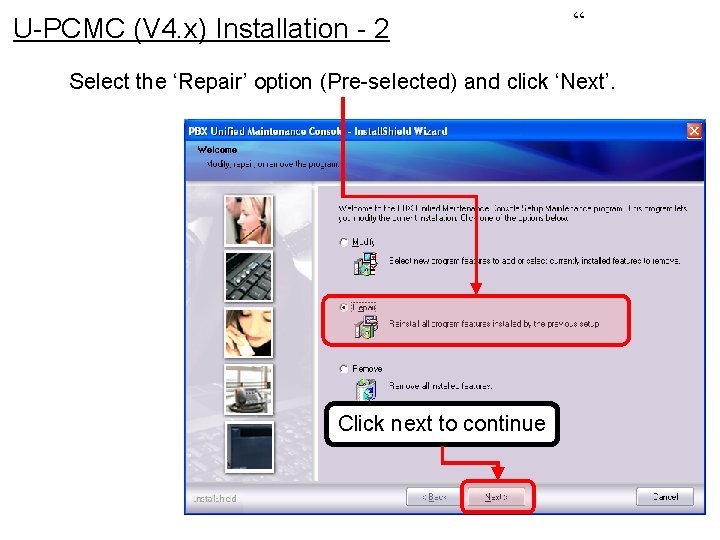
U-PCMC (V 4. x) Installation - 2 “ Select the ‘Repair’ option (Pre-selected) and click ‘Next’. Click next to continue
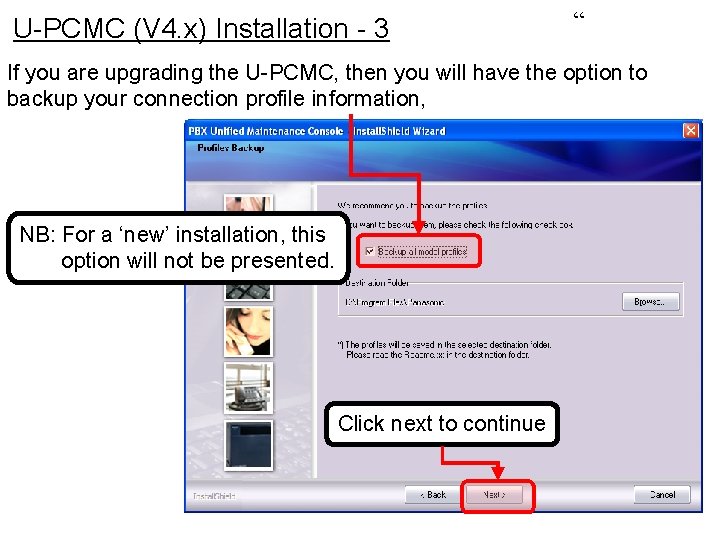
U-PCMC (V 4. x) Installation - 3 “ If you are upgrading the U-PCMC, then you will have the option to backup your connection profile information, NB: For a ‘new’ installation, this option will not be presented. Click next to continue
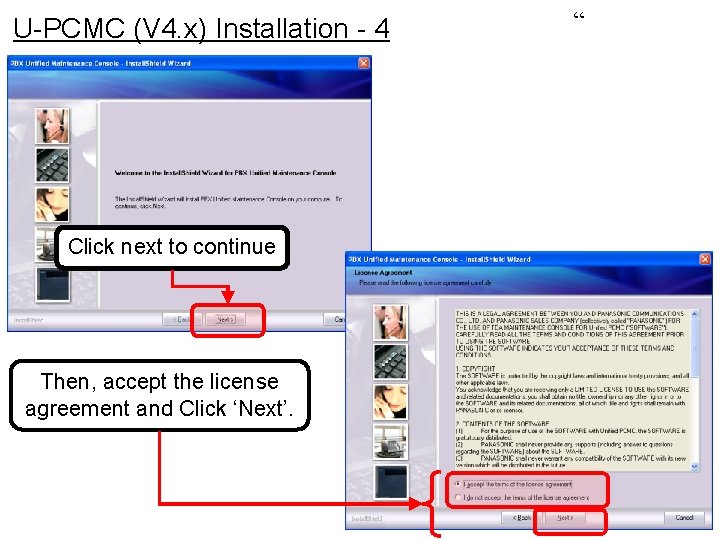
U-PCMC (V 4. x) Installation - 4 Click next to continue Then, accept the license agreement and Click ‘Next’. “
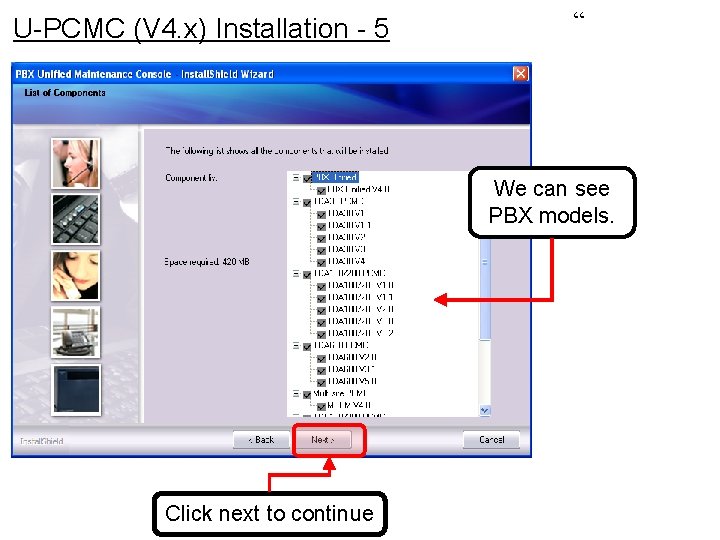
U-PCMC (V 4. x) Installation - 5 “ We can see PBX models. Click next to continue
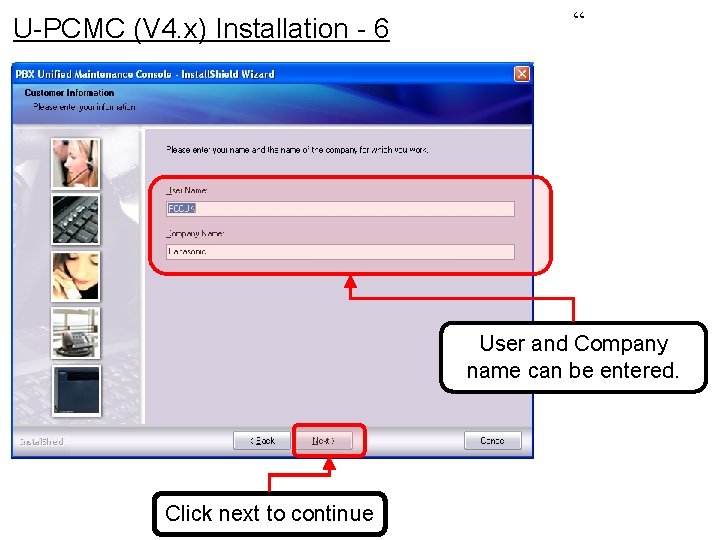
U-PCMC (V 4. x) Installation - 6 “ User and Company name can be entered. Click next to continue
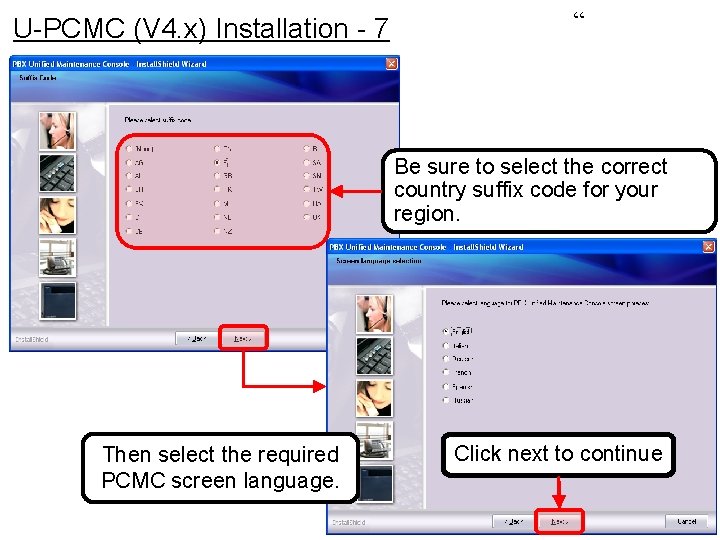
U-PCMC (V 4. x) Installation - 7 “ Be sure to select the correct country suffix code for your region. Then select the required PCMC screen language. Click next to continue
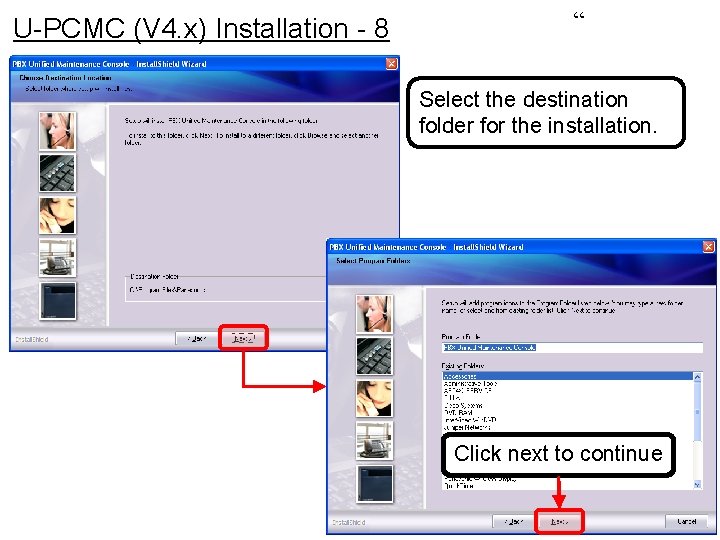
U-PCMC (V 4. x) Installation - 8 “ Select the destination folder for the installation. Click next to continue
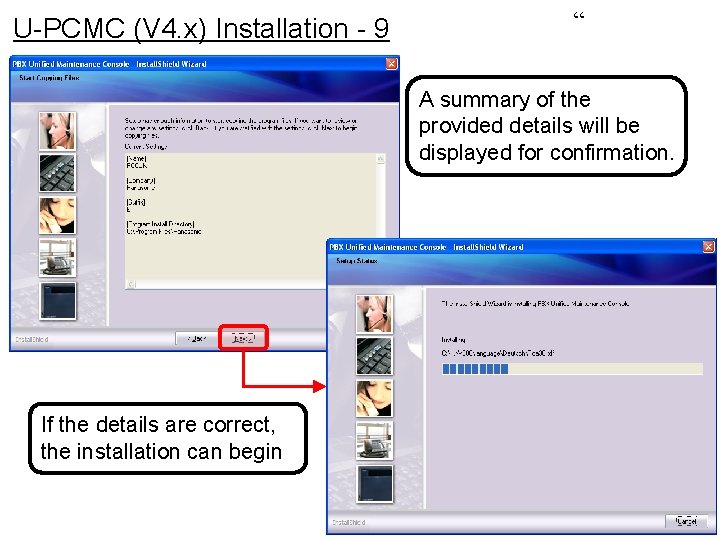
U-PCMC (V 4. x) Installation - 9 “ A summary of the provided details will be displayed for confirmation. If the details are correct, the installation can begin
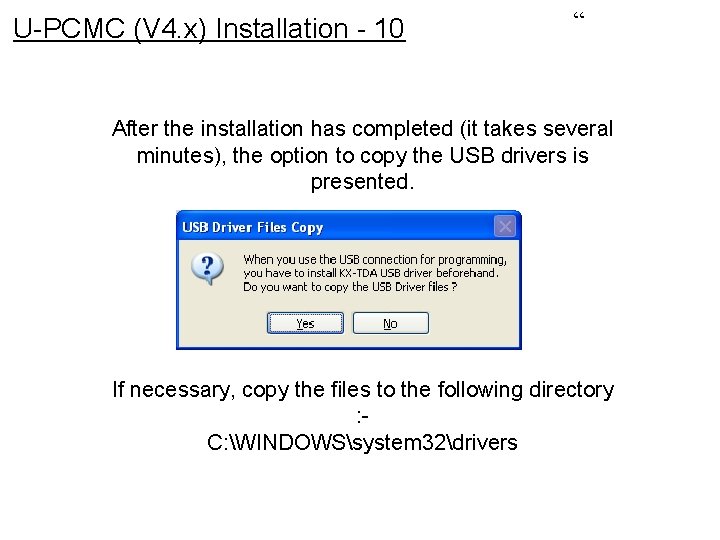
U-PCMC (V 4. x) Installation - 10 “ After the installation has completed (it takes several minutes), the option to copy the USB drivers is presented. If necessary, copy the files to the following directory : C: WINDOWSsystem 32drivers
Start U-PCMC
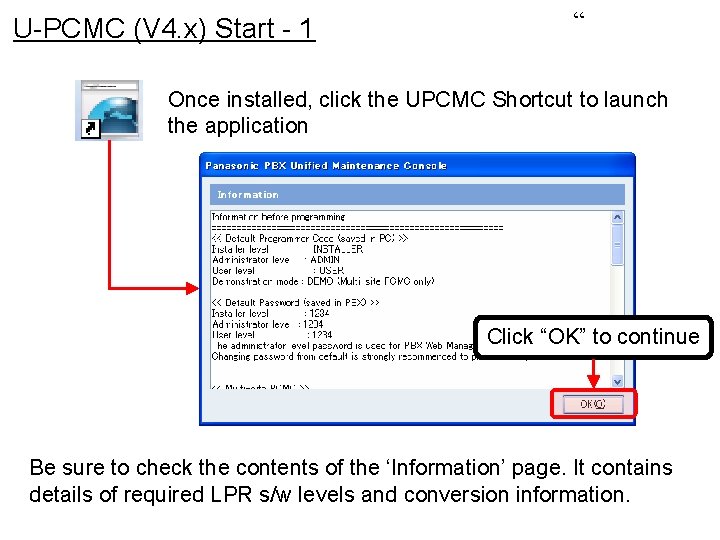
U-PCMC (V 4. x) Start - 1 “ Once installed, click the UPCMC Shortcut to launch the application Click “OK” to continue Be sure to check the contents of the ‘Information’ page. It contains details of required LPR s/w levels and conversion information.
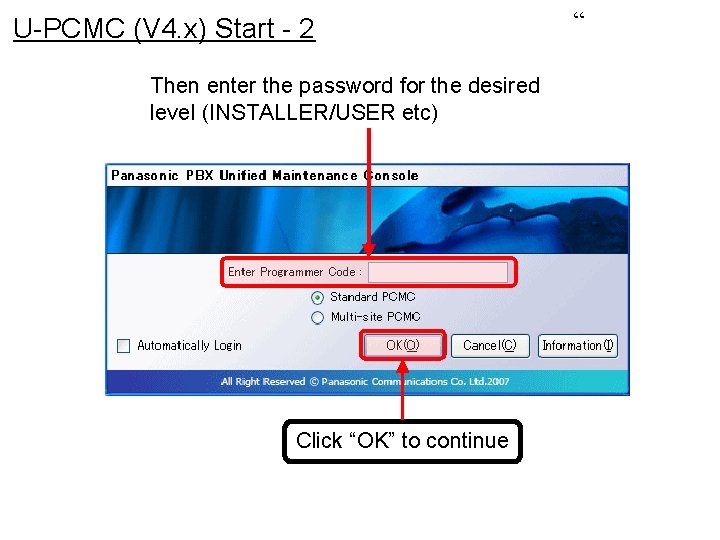
U-PCMC (V 4. x) Start - 2 Then enter the password for the desired level (INSTALLER/USER etc) Click “OK” to continue “
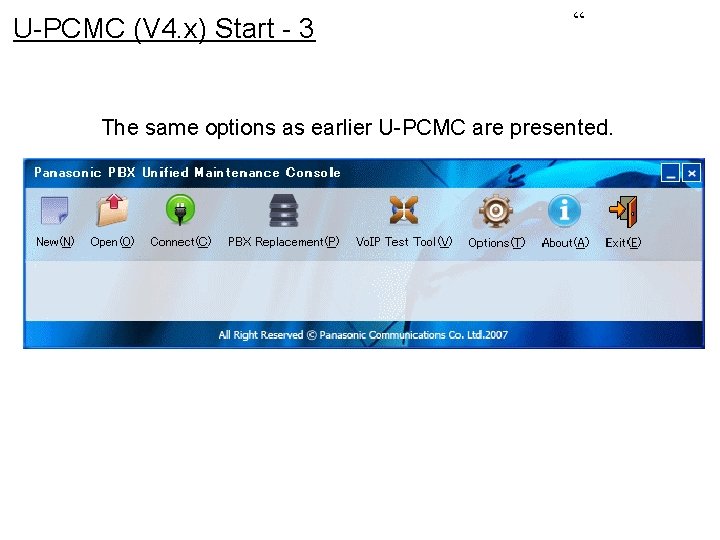
U-PCMC (V 4. x) Start - 3 “ The same options as earlier U-PCMC are presented.
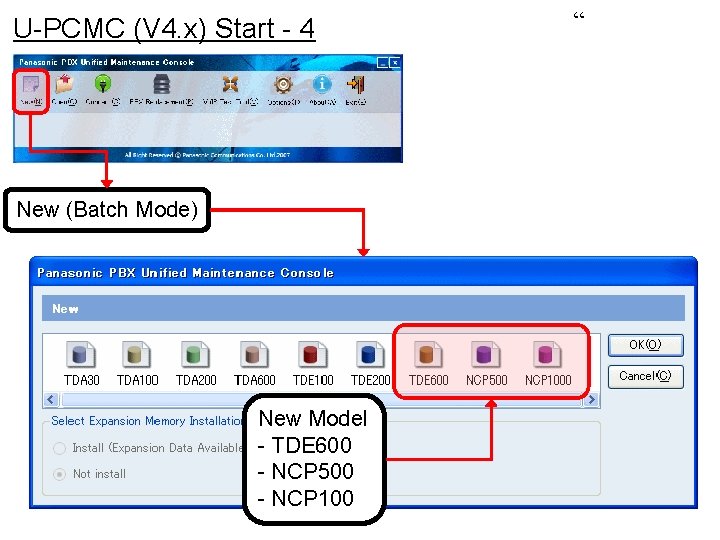
U-PCMC (V 4. x) Start - 4 New (Batch Mode) New Model - TDE 600 - NCP 500 - NCP 100 “
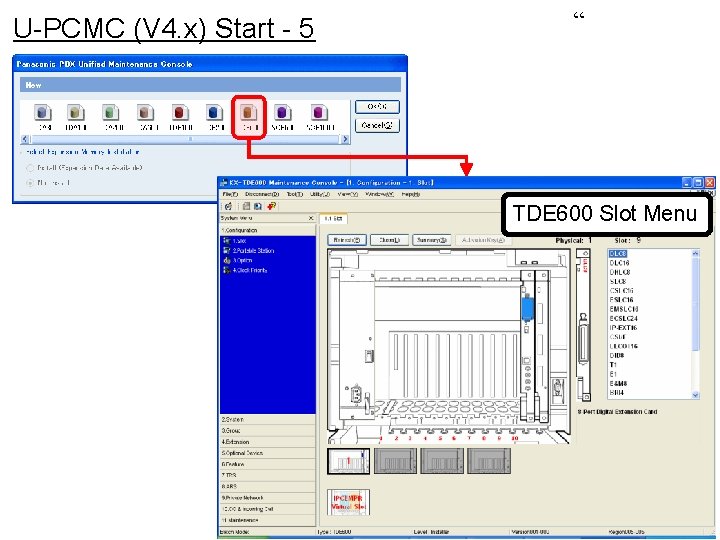
U-PCMC (V 4. x) Start - 5 “ TDE 600 Slot Menu
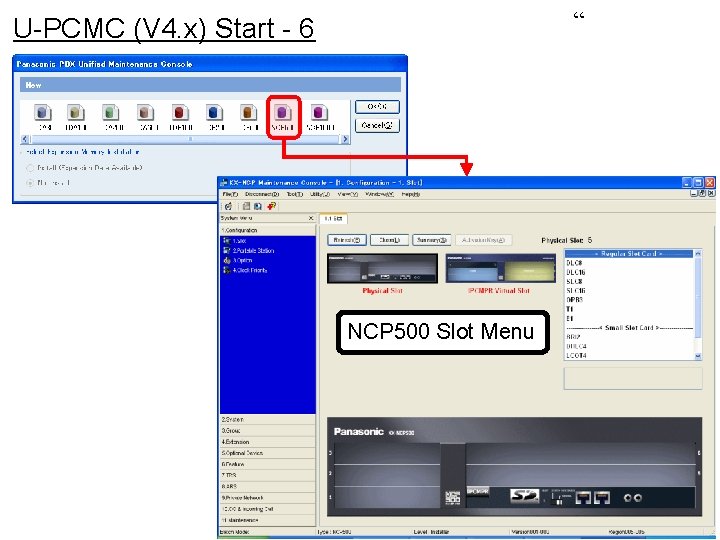
“ U-PCMC (V 4. x) Start - 6 NCP 500 Slot Menu
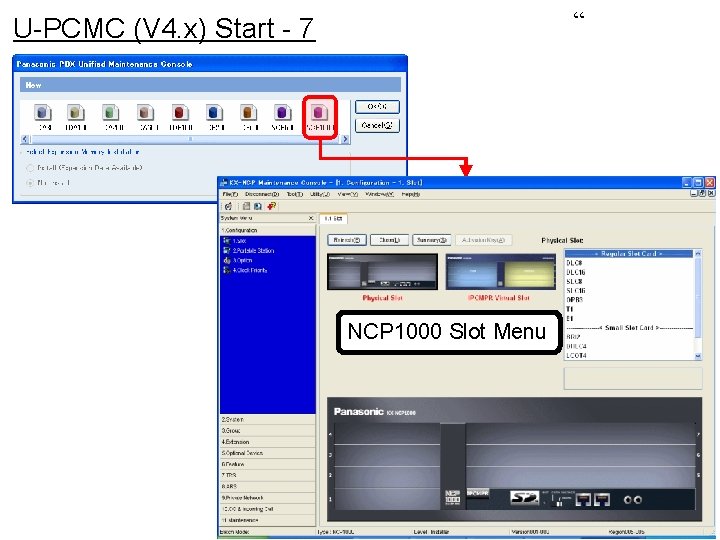
“ U-PCMC (V 4. x) Start - 7 NCP 1000 Slot Menu
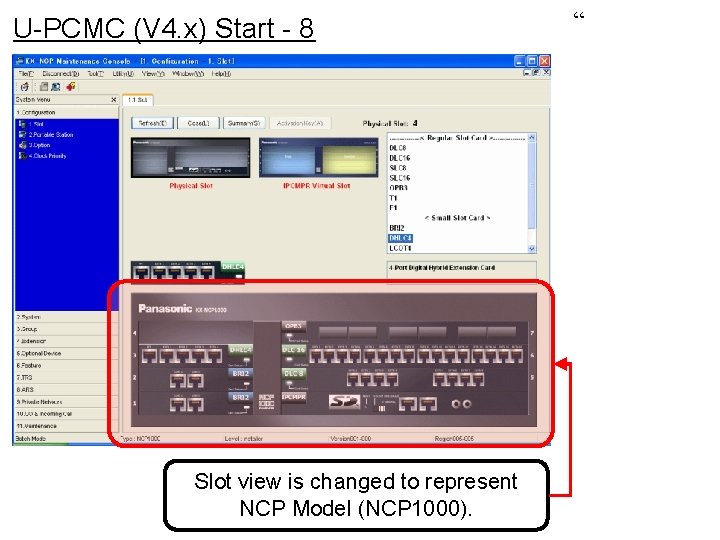
U-PCMC (V 4. x) Start - 8 Slot view is changed to represent NCP Model (NCP 1000). “
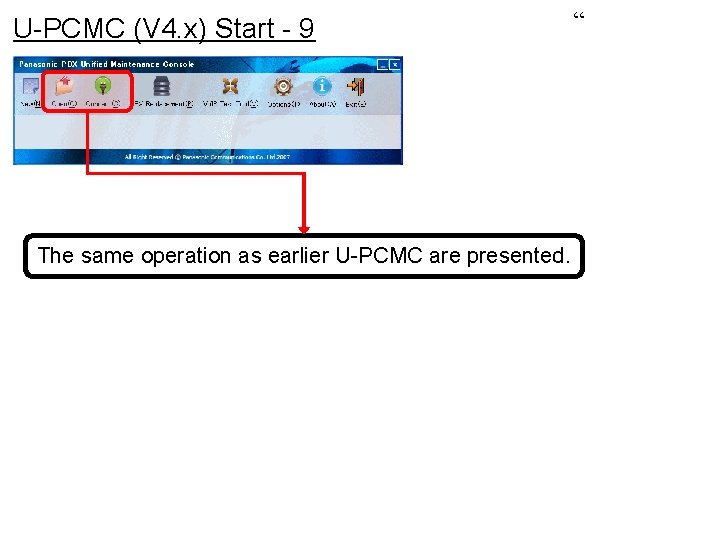
U-PCMC (V 4. x) Start - 9 The same operation as earlier U-PCMC are presented. “
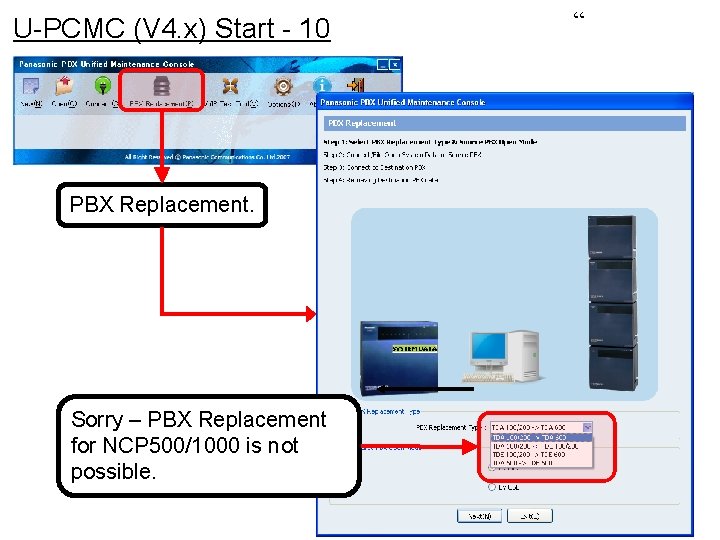
U-PCMC (V 4. x) Start - 10 PBX Replacement. Sorry – PBX Replacement for NCP 500/1000 is not possible. “
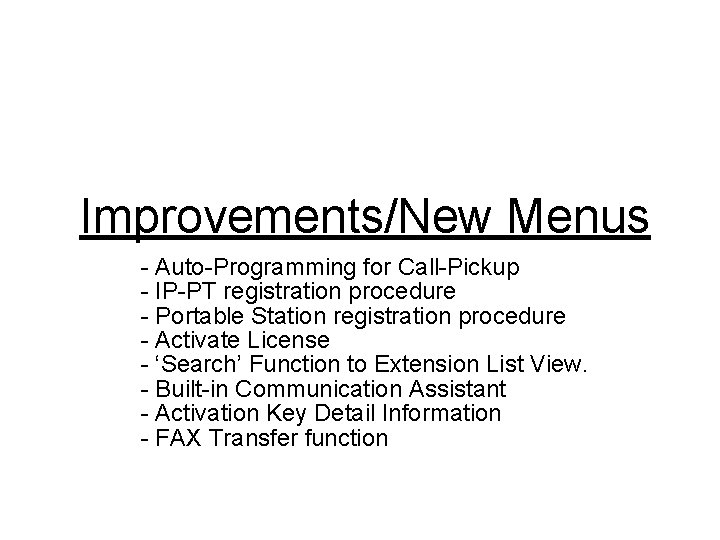
Improvements/New Menus - Auto-Programming for Call-Pickup - IP-PT registration procedure - Portable Station registration procedure - Activate License - ‘Search’ Function to Extension List View. - Built-in Communication Assistant - Activation Key Detail Information - FAX Transfer function
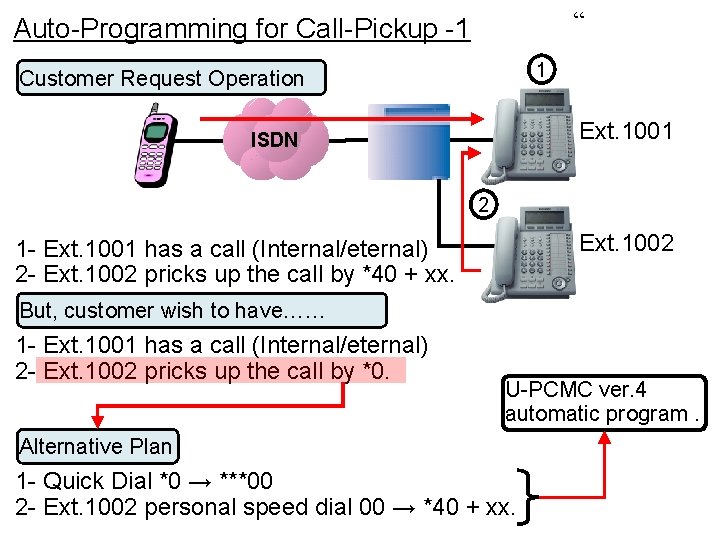
“ Auto-Programming for Call-Pickup -1 1 Customer Request Operation Ext. 1001 ISDN 2 Ext. 1002 1 - Ext. 1001 has a call (Internal/eternal) 2 - Ext. 1002 pricks up the call by *40 + xx. But, customer wish to have…… 1 - Ext. 1001 has a call (Internal/eternal) 2 - Ext. 1002 pricks up the call by *0. U-PCMC ver. 4 automatic program. Alternative Plan 1 - Quick Dial *0 → ***00 2 - Ext. 1002 personal speed dial 00 → *40 + xx.
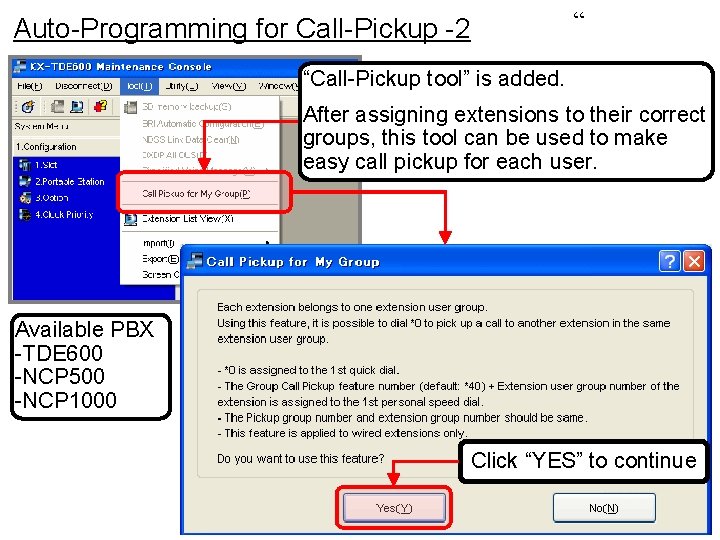
“ Auto-Programming for Call-Pickup -2 “Call-Pickup tool” is added. After assigning extensions to their correct groups, this tool can be used to make easy call pickup for each user. Available PBX -TDE 600 -NCP 500 -NCP 1000 Click “YES” to continue
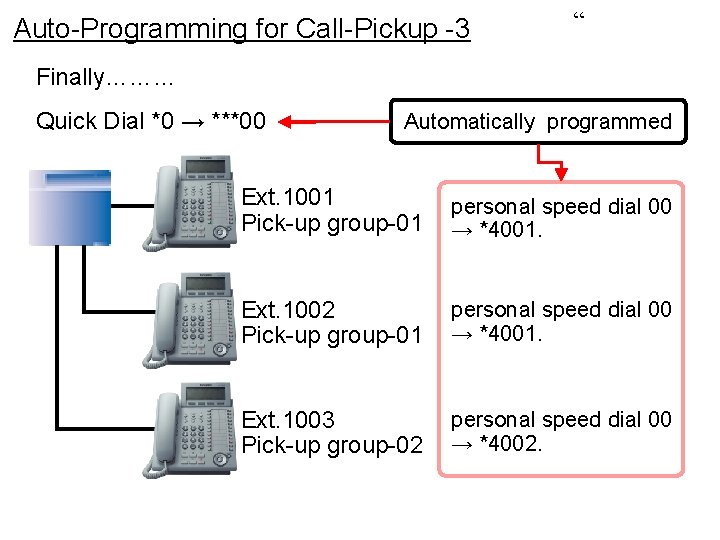
Auto-Programming for Call-Pickup -3 “ Finally……… Quick Dial *0 → ***00 Automatically programmed Ext. 1001 Pick-up group-01 personal speed dial 00 → *4001. Ext. 1002 Pick-up group-01 personal speed dial 00 → *4001. Ext. 1003 Pick-up group-02 personal speed dial 00 → *4002.
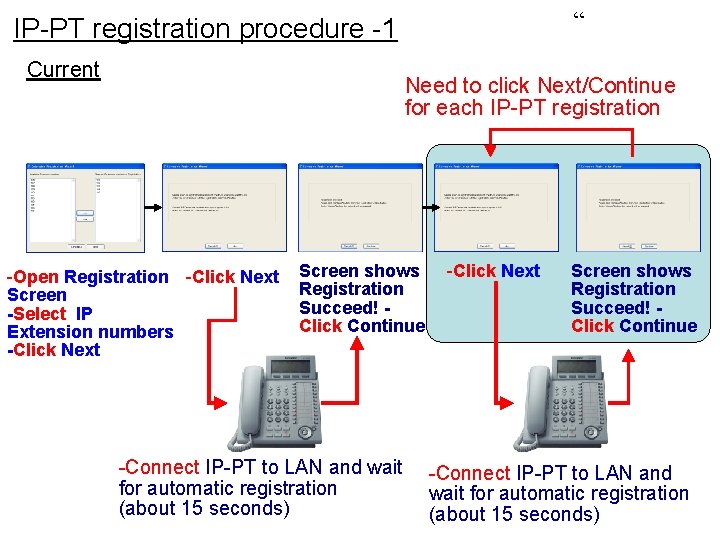
“ IP-PT registration procedure -1 Current Need to click Next/Continue for each IP-PT registration -Open Registration -Click Next Screen -Select IP Extension numbers -Click Next Screen shows Registration Succeed! Click Continue -Connect IP-PT to LAN and wait for automatic registration (about 15 seconds)
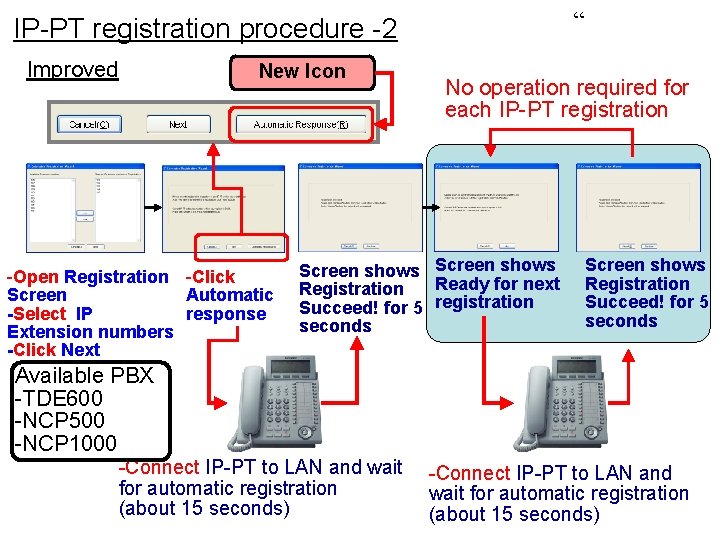
“ IP-PT registration procedure -2 Improved New Icon -Open Registration -Click Screen Automatic -Select IP response Extension numbers -Click Next No operation required for each IP-PT registration Screen shows Ready for next Registration Succeed! for 5 registration seconds Screen shows Registration Succeed! for 5 seconds Available PBX -TDE 600 -NCP 500 -NCP 1000 -Connect IP-PT to LAN and wait for automatic registration (about 15 seconds)
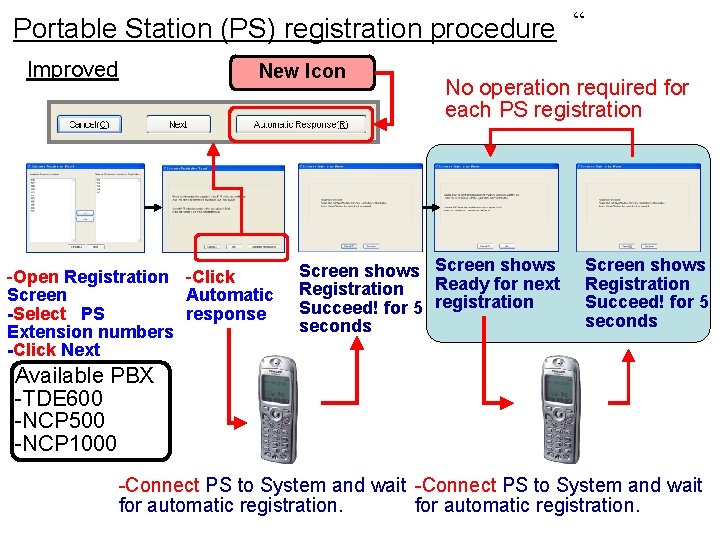
Portable Station (PS) registration procedure “ Improved New Icon -Open Registration -Click Screen Automatic -Select PS response Extension numbers -Click Next No operation required for each PS registration Screen shows Ready for next Registration Succeed! for 5 registration seconds Screen shows Registration Succeed! for 5 seconds Available PBX -TDE 600 -NCP 500 -NCP 1000 -Connect PS to System and wait for automatic registration.
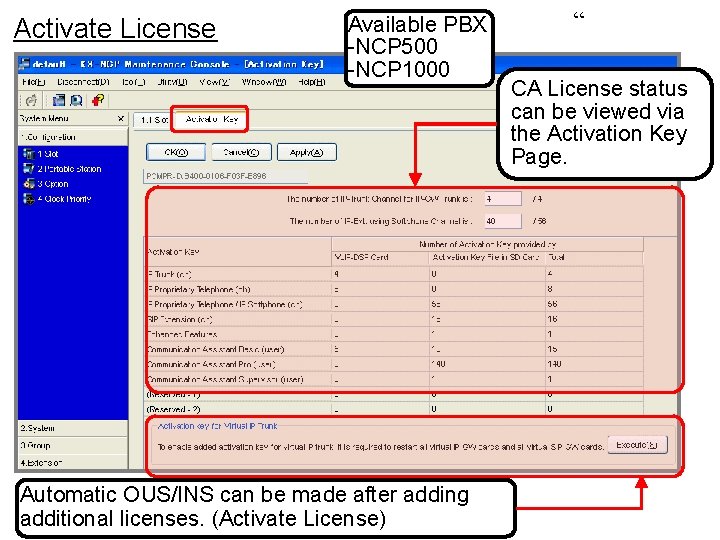
Activate License Available PBX -NCP 500 -NCP 1000 Automatic OUS/INS can be made after adding additional licenses. (Activate License) “ CA License status can be viewed via the Activation Key Page.
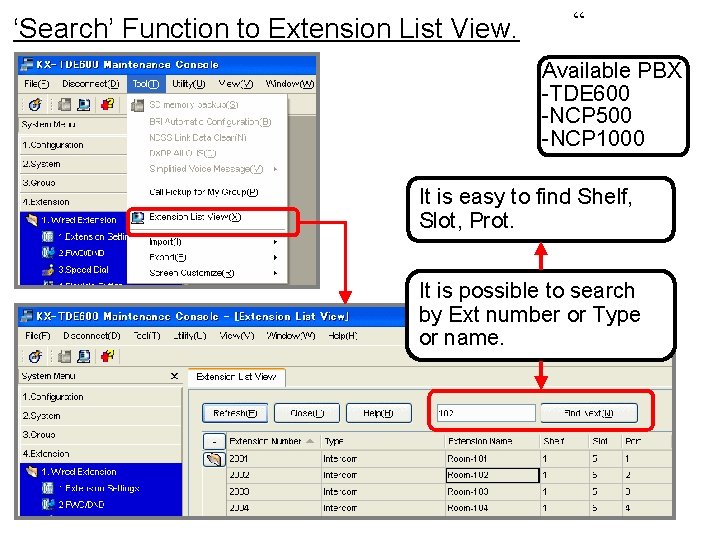
‘Search’ Function to Extension List View. “ Available PBX -TDE 600 -NCP 500 -NCP 1000 It is easy to find Shelf, Slot, Prot. It is possible to search by Ext number or Type or name.
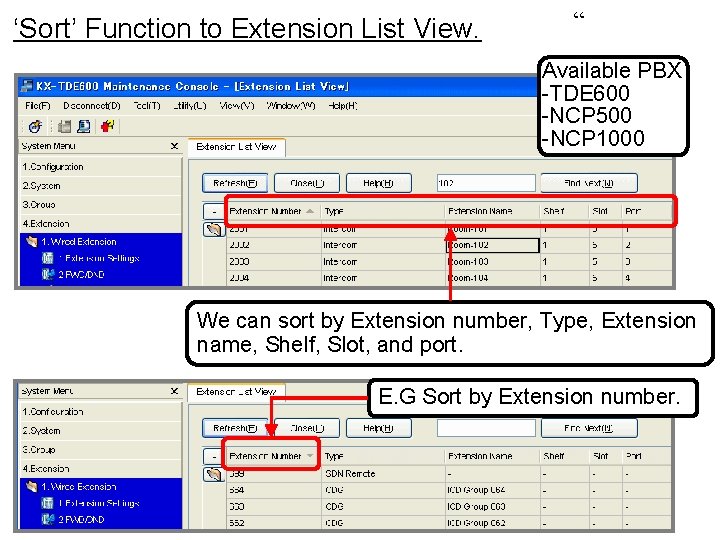
‘Sort’ Function to Extension List View. “ Available PBX -TDE 600 -NCP 500 -NCP 1000 We can sort by Extension number, Type, Extension name, Shelf, Slot, and port. E. G Sort by Extension number.
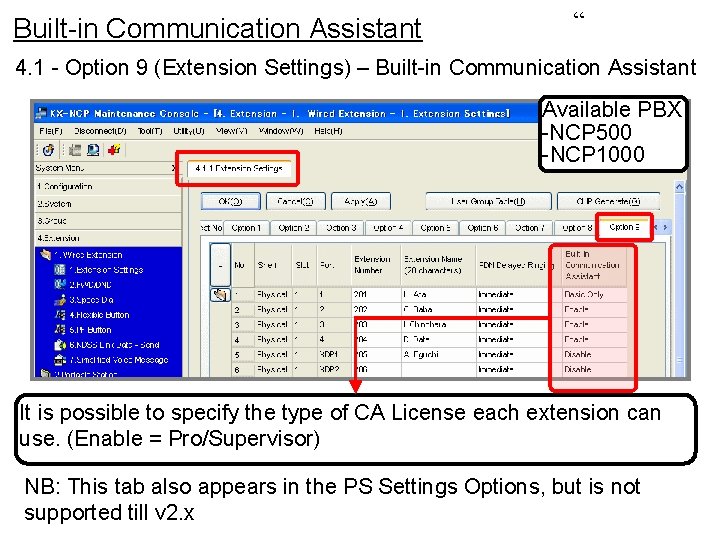
Built-in Communication Assistant “ 4. 1 - Option 9 (Extension Settings) – Built-in Communication Assistant Available PBX -NCP 500 -NCP 1000 It is possible to specify the type of CA License each extension can use. (Enable = Pro/Supervisor) NB: This tab also appears in the PS Settings Options, but is not supported till v 2. x
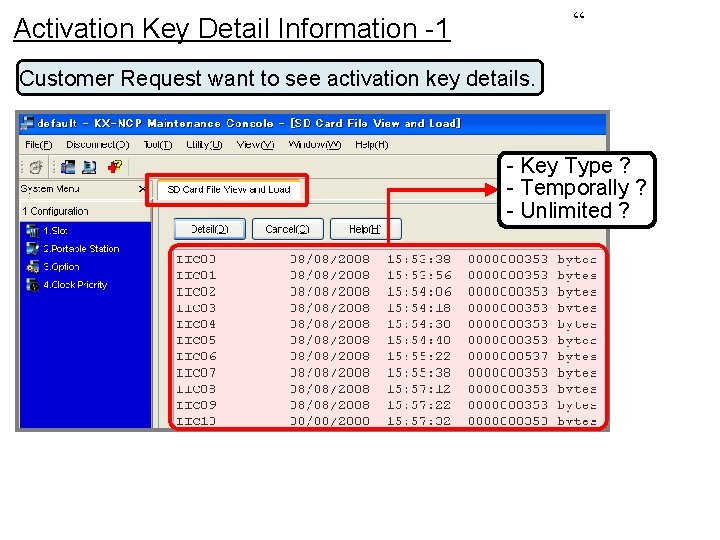
“ Activation Key Detail Information -1 Customer Request want to see activation key details. - Key Type ? - Temporally ? - Unlimited ?
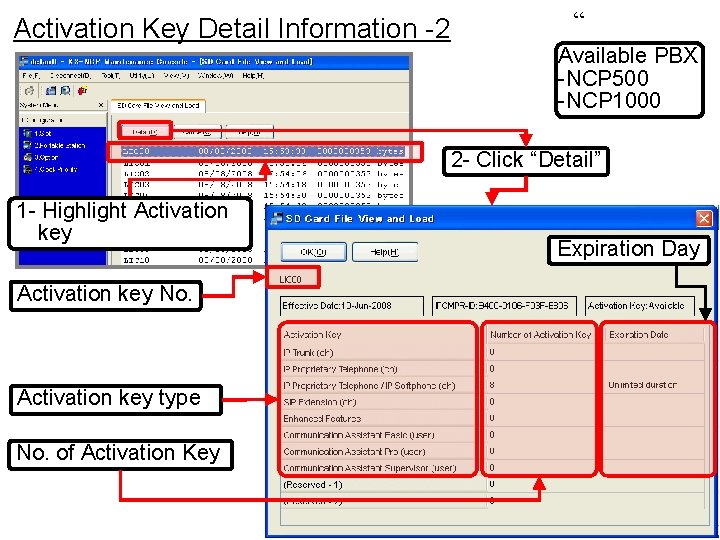
Activation Key Detail Information -2 “ Available PBX -NCP 500 -NCP 1000 2 - Click “Detail” 1 - Highlight Activation key No. Activation key type No. of Activation Key Expiration Day
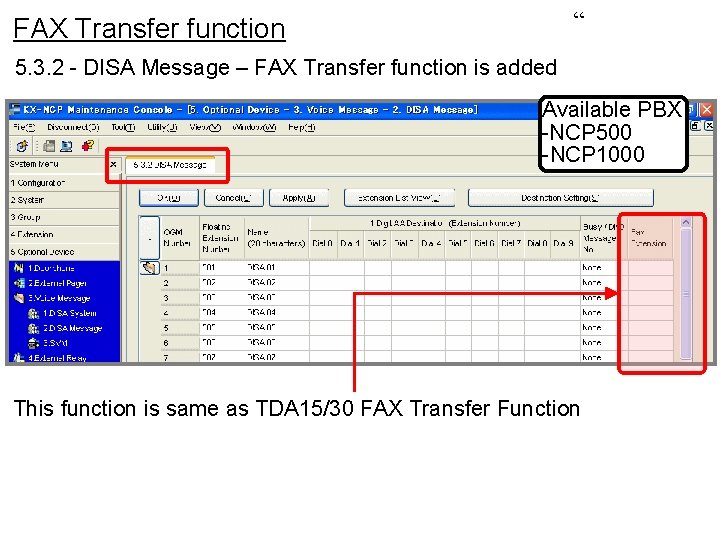
“ FAX Transfer function 5. 3. 2 - DISA Message – FAX Transfer function is added Available PBX -NCP 500 -NCP 1000 This function is same as TDA 15/30 FAX Transfer Function
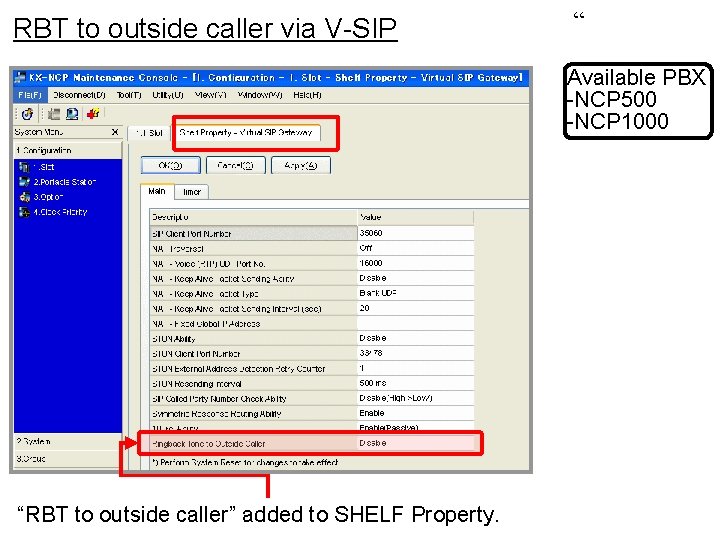
RBT to outside caller via V-SIP “ Available PBX -NCP 500 -NCP 1000 “RBT to outside caller” added to SHELF Property.
Modifications/Changes
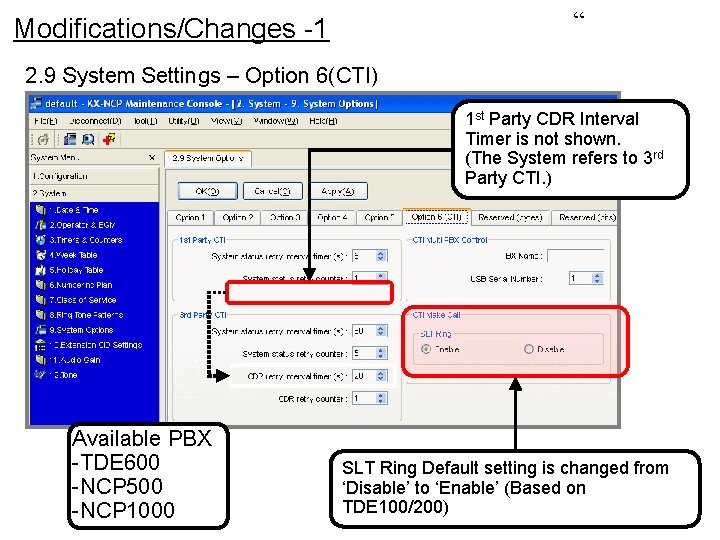
“ Modifications/Changes -1 2. 9 System Settings – Option 6(CTI) 1 st Party CDR Interval Timer is not shown. (The System refers to 3 rd Party CTI. ) Available PBX -TDE 600 -NCP 500 -NCP 1000 SLT Ring Default setting is changed from ‘Disable’ to ‘Enable’ (Based on TDE 100/200)
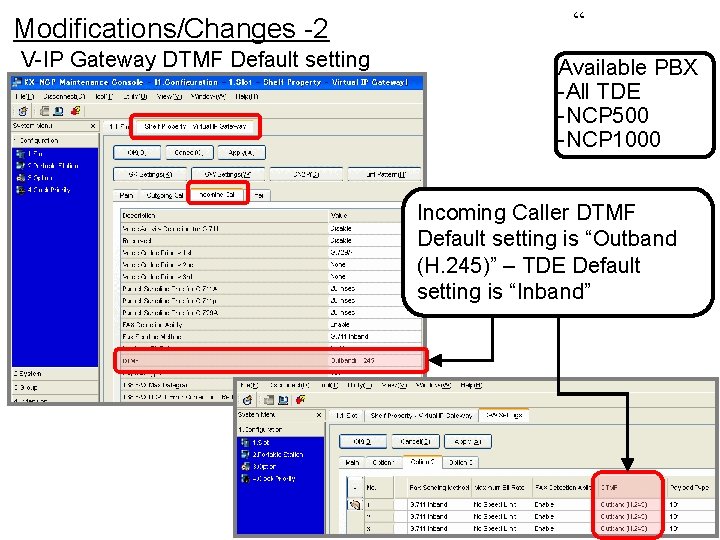
Modifications/Changes -2 V-IP Gateway DTMF Default setting “ Available PBX -All TDE -NCP 500 -NCP 1000 Incoming Caller DTMF Default setting is “Outband (H. 245)” – TDE Default setting is “Inband”
Thank You Very Much For Your Attention “ We are Panasonic Family”