
Unified Interface Playbook Chapter 1 Initiate Unified Interface
Unified Interface Playbook Chapter 1: Initiate Unified Interface Program Team
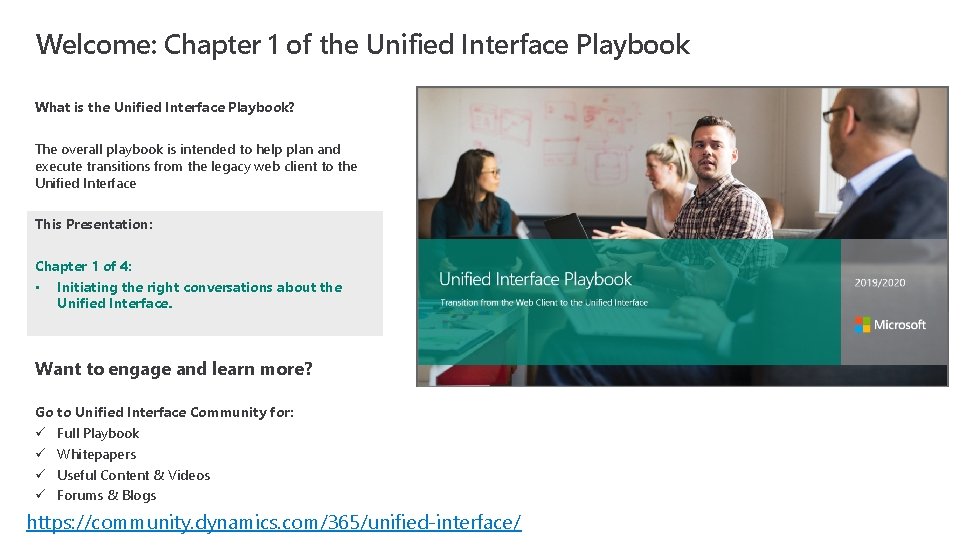
Welcome: Chapter 1 of the Unified Interface Playbook What is the Unified Interface Playbook? The overall playbook is intended to help plan and execute transitions from the legacy web client to the Unified Interface This Presentation: Chapter 1 of 4: • Initiating the right conversations about the Unified Interface. Want to engage and learn more? Go to Unified Interface Community for: ü Full Playbook ü Whitepapers ü Useful Content & Videos ü Forums & Blogs https: //community. dynamics. com/365/unified-interface/
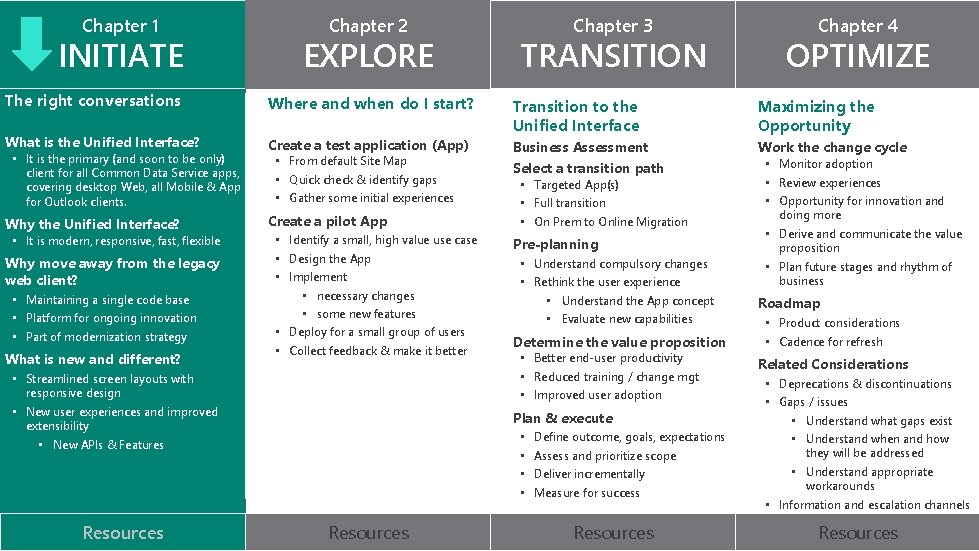
Chapter 1 INITIATE Chapter 2 EXPLORE The right conversations Where and when do I start? What is the Unified Interface? Create a test application (App) • It is the primary (and soon to be only) client for all Common Data Service apps, covering desktop Web, all Mobile & App for Outlook clients. Why the Unified Interface? • It is modern, responsive, fast, flexible Why move away from the legacy web client? • Maintaining a single code base • Platform for ongoing innovation • Part of modernization strategy What is new and different? • From default Site Map • Quick check & identify gaps • Gather some initial experiences Create a pilot App • Identify a small, high value use case • Design the App • Implement • necessary changes • some new features • Deploy for a small group of users • Collect feedback & make it better • Streamlined screen layouts with responsive design • New user experiences and improved extensibility • New APIs & Features Resources Chapter 3 TRANSITION OPTIMIZE Transition to the Unified Interface Maximizing the Opportunity Business Assessment Select a transition path Work the change cycle • Targeted App(s) • Full transition • On Prem to Online Migration Pre-planning • Understand compulsory changes • Rethink the user experience • Understand the App concept • Evaluate new capabilities Determine the value proposition • Better end-user productivity • Reduced training / change mgt • Improved user adoption Plan & execute • • Resources Chapter 4 Define outcome, goals, expectations Assess and prioritize scope Deliver incrementally Measure for success Resources • Monitor adoption • Review experiences • Opportunity for innovation and doing more • Derive and communicate the value proposition • Plan future stages and rhythm of business Roadmap • Product considerations • Cadence for refresh Related Considerations • Deprecations & discontinuations • Gaps / issues • Understand what gaps exist • Understand when and how they will be addressed • Understand appropriate workarounds • Information and escalation channels Resources
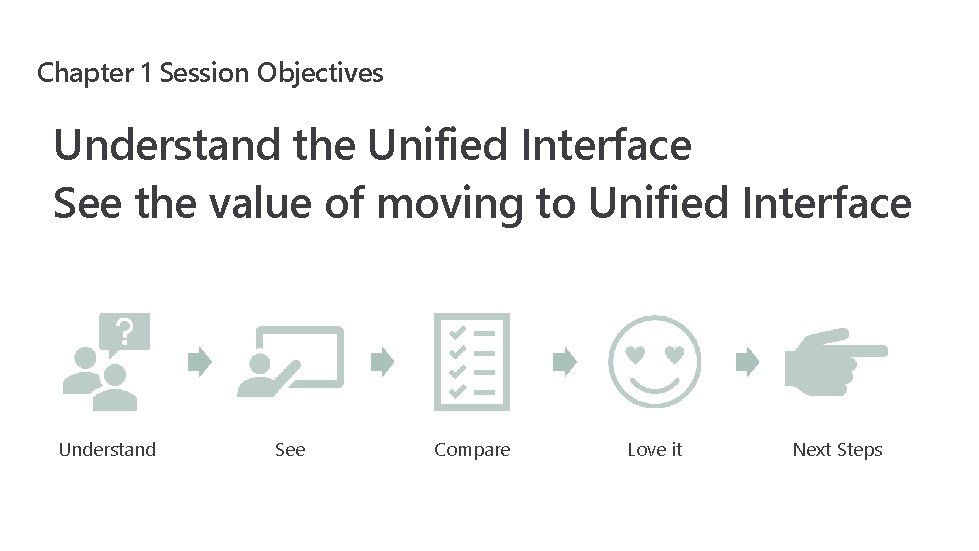
Chapter 1 Session Objectives Understand the Unified Interface See the value of moving to Unified Interface Understand See Compare Love it Next Steps

What is Unified Interface?
Unified Interface is our new presentation client we use across all of our Applications in Dynamics 365 Customer Engagement
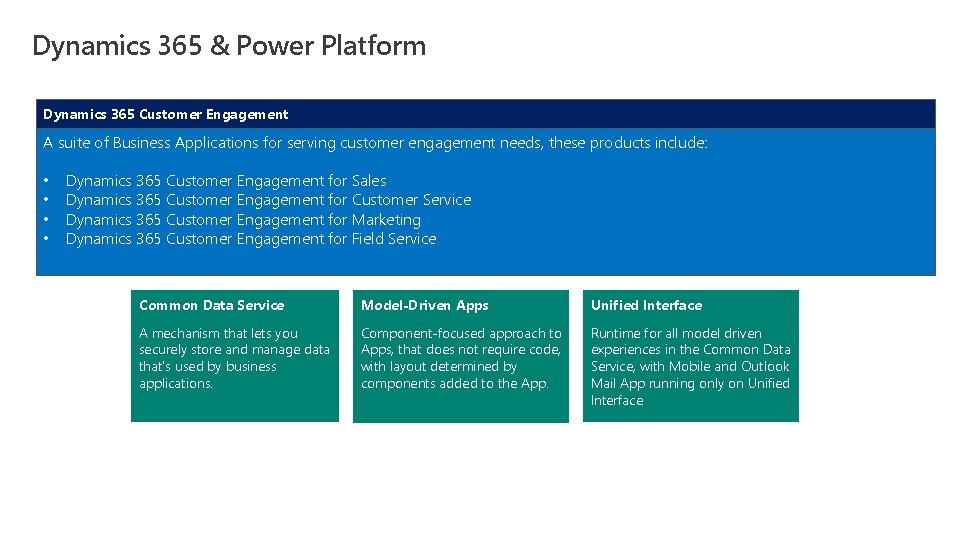
Dynamics 365 & Power Platform Dynamics 365 Customer Engagement A suite of Business Applications for serving customer engagement needs, these products include: • • Dynamics 365 Customer Engagement for Sales Dynamics 365 Customer Engagement for Customer Service Dynamics 365 Customer Engagement for Marketing Dynamics 365 Customer Engagement for Field Service Common Data Service Model-Driven Apps Unified Interface A mechanism that lets you securely store and manage data that's used by business applications. Component-focused approach to Apps, that does not require code, with layout determined by components added to the App. Runtime for all model driven experiences in the Common Data Service, with Mobile and Outlook Mail App running only on Unified Interface
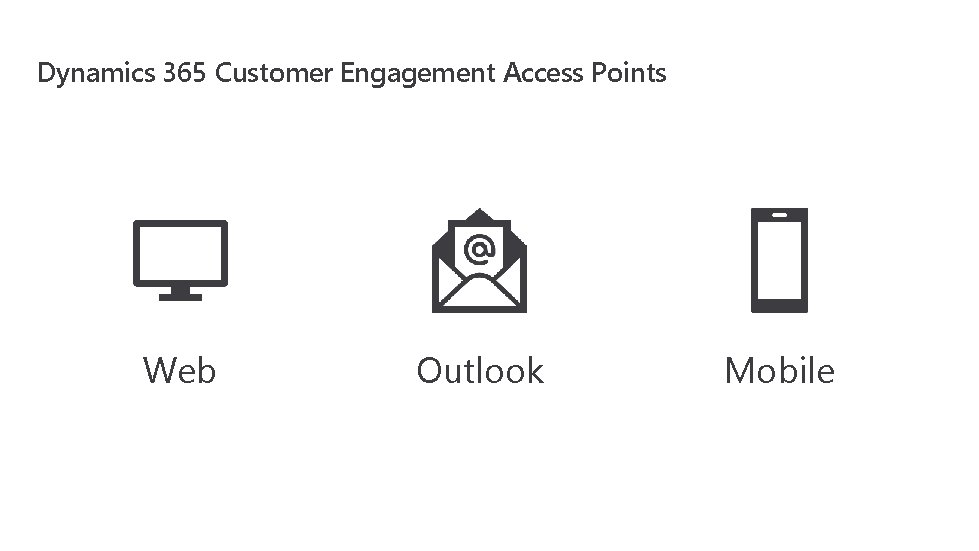
Dynamics 365 Customer Engagement Access Points Web Outlook Mobile
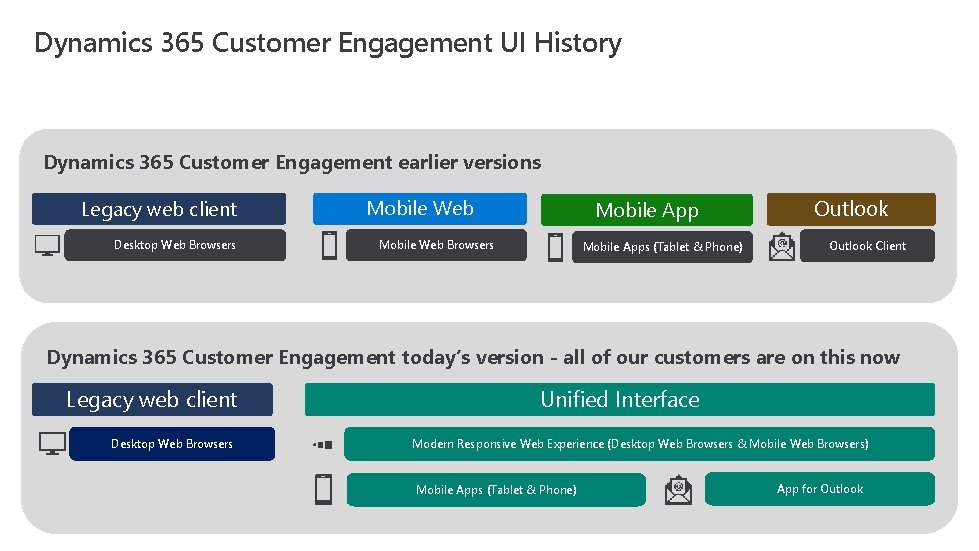
Dynamics 365 Customer Engagement UI History Dynamics 365 Customer Engagement earlier versions Legacy web client Desktop Web Browsers Mobile Web Mobile App Mobile Web Browsers Mobile Apps (Tablet & Phone) Outlook Client Dynamics 365 Customer Engagement today’s version - all of our customers are on this now Legacy web client Desktop Web Browsers Unified Interface Modern Responsive Web Experience (Desktop Web Browsers & Mobile Web Browsers) Mobile Apps (Tablet & Phone) App for Outlook
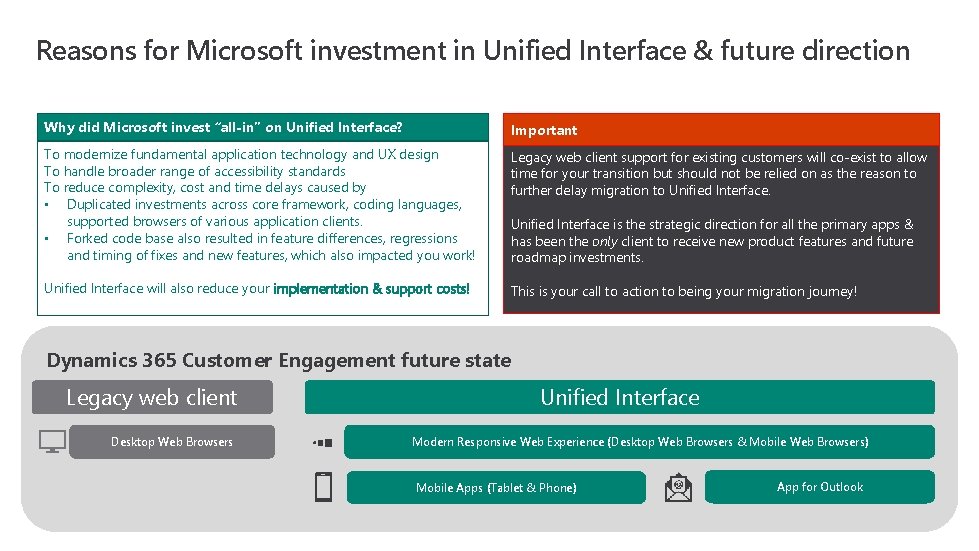
Reasons for Microsoft investment in Unified Interface & future direction Why did Microsoft invest “all-in” on Unified Interface? Important To modernize fundamental application technology and UX design To handle broader range of accessibility standards To reduce complexity, cost and time delays caused by • Duplicated investments across core framework, coding languages, supported browsers of various application clients. • Forked code base also resulted in feature differences, regressions and timing of fixes and new features, which also impacted you work! Legacy web client support for existing customers will co-exist to allow time for your transition but should not be relied on as the reason to further delay migration to Unified Interface will also reduce your implementation & support costs! This is your call to action to being your migration journey! Unified Interface is the strategic direction for all the primary apps & has been the only client to receive new product features and future roadmap investments. Dynamics 365 Customer Engagement future state Legacy web client Desktop Web Browsers Unified Interface Modern Responsive Web Experience (Desktop Web Browsers & Mobile Web Browsers) Mobile Apps (Tablet & Phone) App for Outlook
Why should you move to Unified Interface?
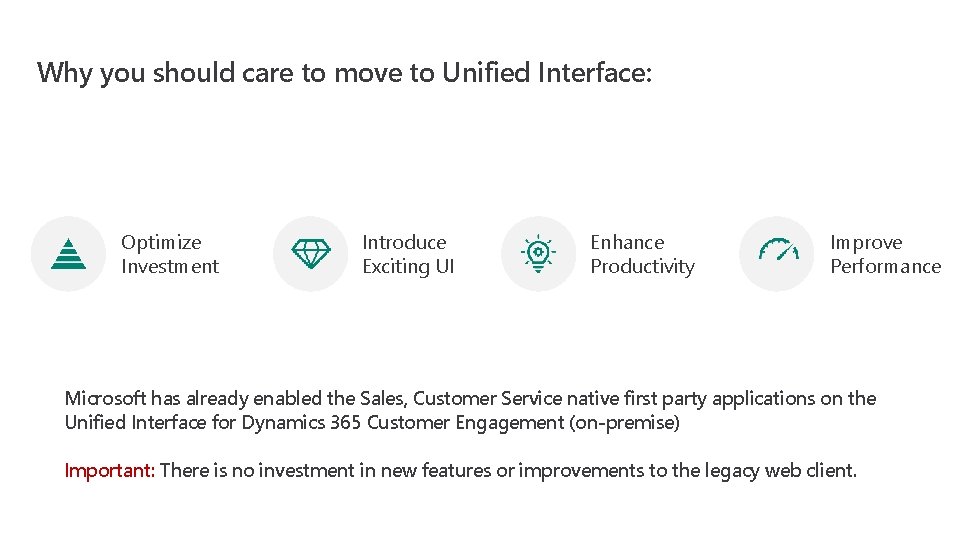
Why you should care to move to Unified Interface: Optimize Investment Introduce Exciting UI Enhance Productivity Improve Performance Microsoft has already enabled the Sales, Customer Service native first party applications on the Unified Interface for Dynamics 365 Customer Engagement (on-premise) Important: There is no investment in new features or improvements to the legacy web client.
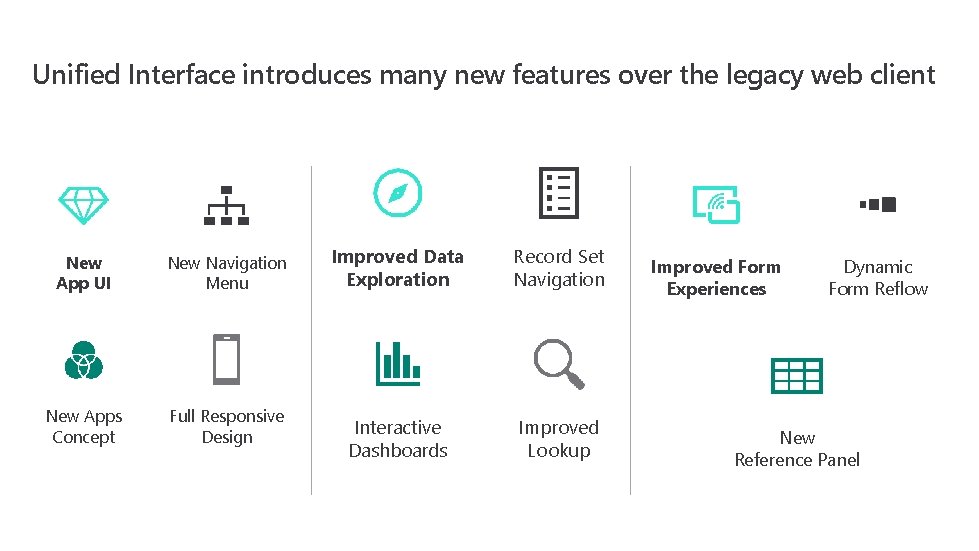
Unified Interface introduces many new features over the legacy web client New App UI New Navigation Menu New Apps Concept Full Responsive Design Improved Data Exploration Record Set Navigation Interactive Dashboards Improved Lookup Improved Form Experiences Dynamic Form Reflow New Reference Panel
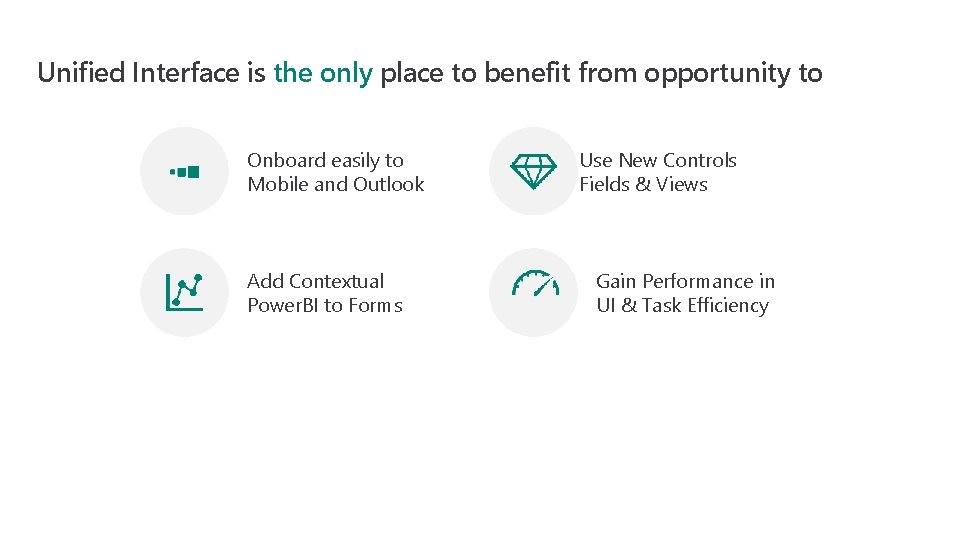
Unified Interface is the only place to benefit from opportunity to Onboard easily to Mobile and Outlook Add Contextual Power. BI to Forms Use New Controls Fields & Views Gain Performance in UI & Task Efficiency
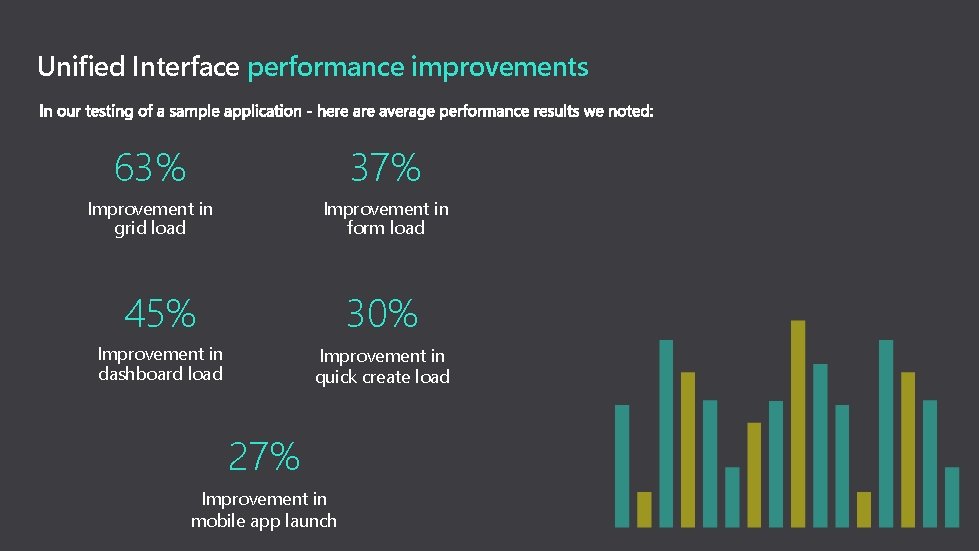
Unified Interface performance improvements 63% 37% Improvement in grid load Improvement in form load 45% 30% Improvement in dashboard load Improvement in quick create load 27% Improvement in mobile app launch
Let’s sum up the value benefits!
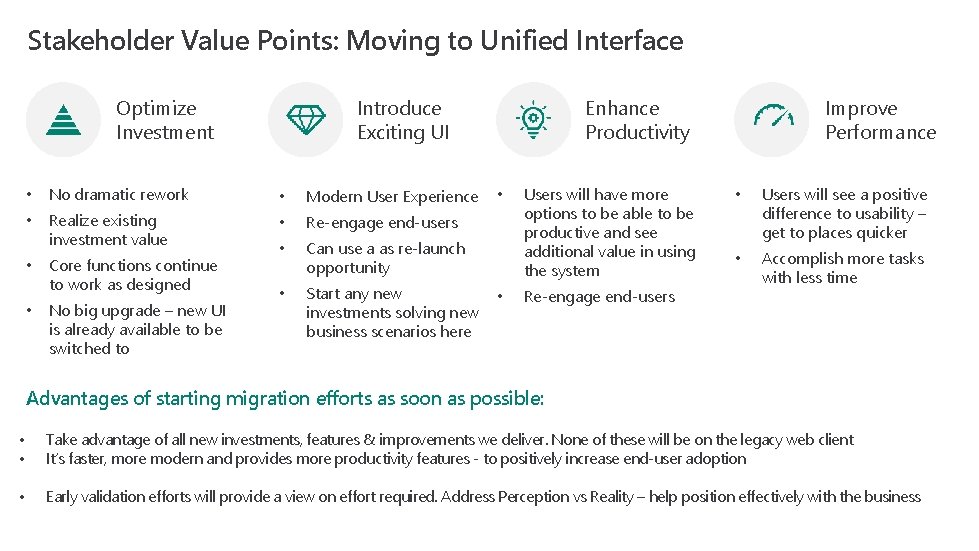
Stakeholder Value Points: Moving to Unified Interface Optimize Investment Introduce Exciting UI • No dramatic rework • Modern User Experience • Realize existing investment value • Re-engage end-users • Can use a as re-launch opportunity • Start any new investments solving new business scenarios here • • Core functions continue to work as designed No big upgrade – new UI is already available to be switched to Enhance Productivity • • Users will have more options to be able to be productive and see additional value in using the system Re-engage end-users Improve Performance • Users will see a positive difference to usability – get to places quicker • Accomplish more tasks with less time Advantages of starting migration efforts as soon as possible: • • Take advantage of all new investments, features & improvements we deliver. None of these will be on the legacy web client It’s faster, more modern and provides more productivity features - to positively increase end-user adoption • Early validation efforts will provide a view on effort required. Address Perception vs Reality – help position effectively with the business
What happens to my existing app? See & compare! Unified Interface vs Legacy web client
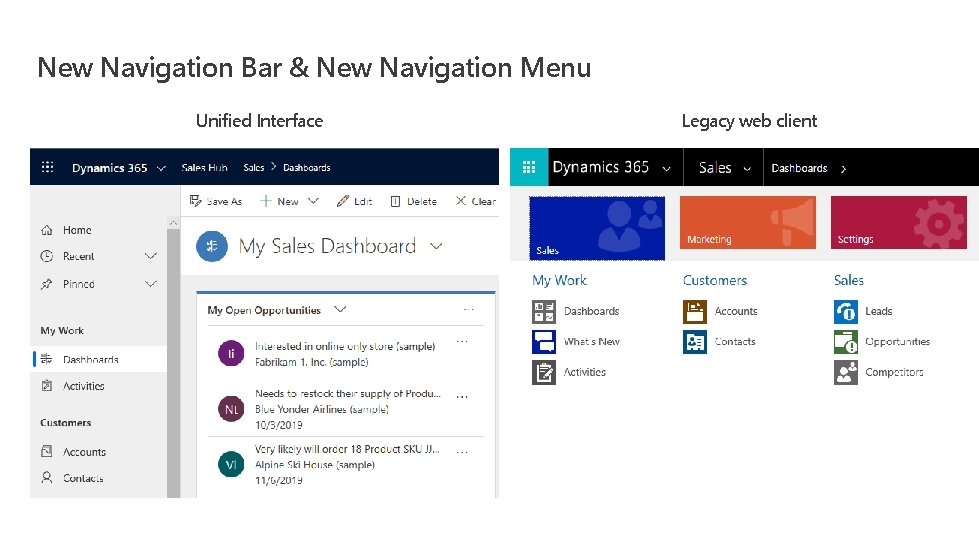
New Navigation Bar & New Navigation Menu Unified Interface Legacy web client
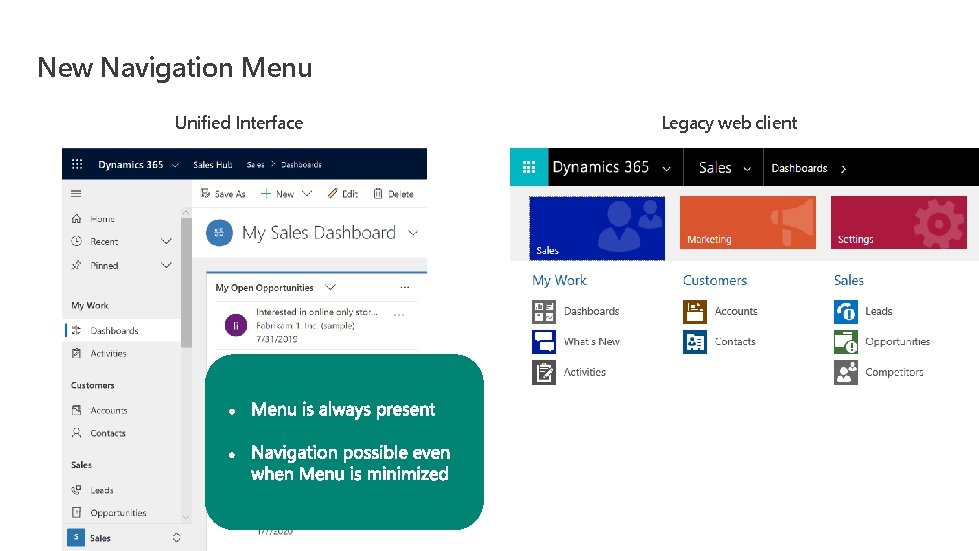
New Navigation Menu Unified Interface Legacy web client
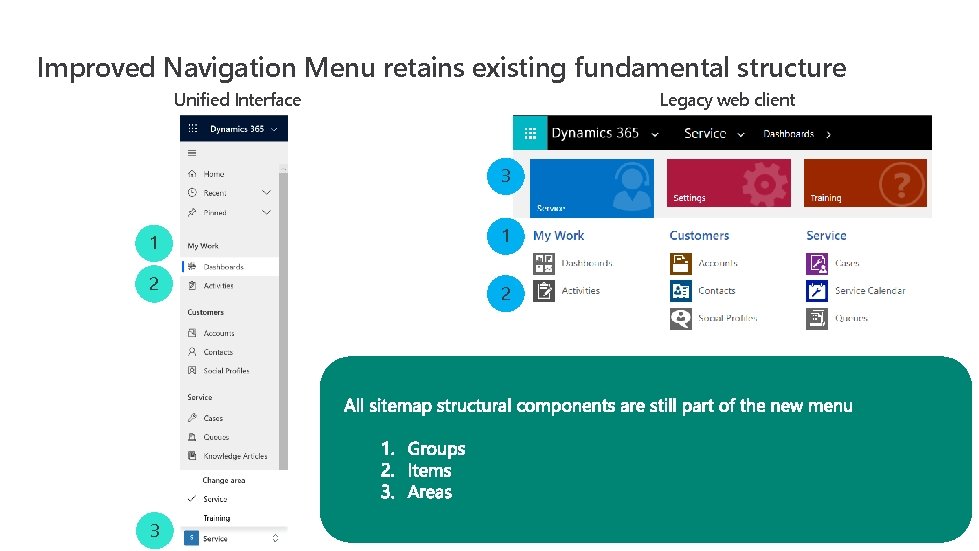
Improved Navigation Menu retains existing fundamental structure Unified Interface Legacy web client 3 1 2
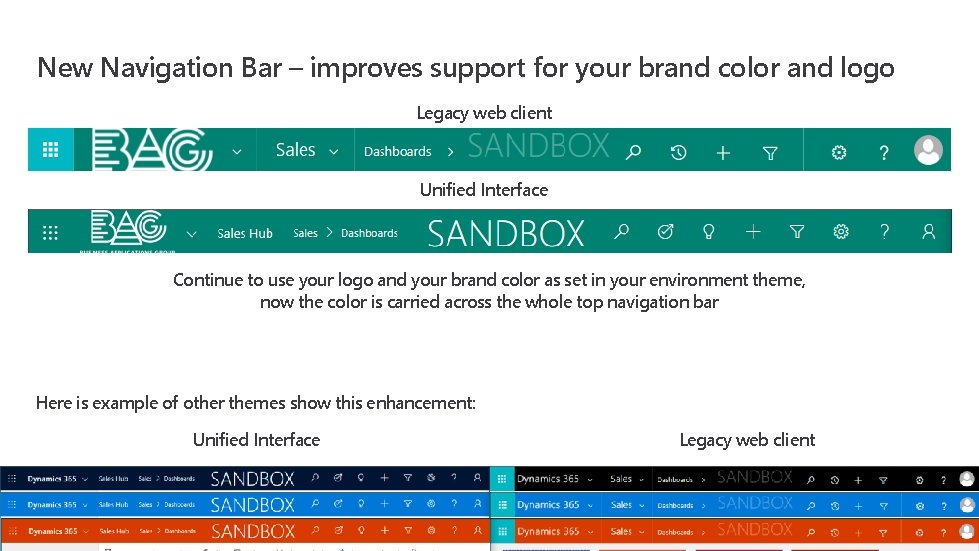
New Navigation Bar – improves support for your brand color and logo Legacy web client Unified Interface Continue to use your logo and your brand color as set in your environment theme, now the color is carried across the whole top navigation bar Here is example of other themes show this enhancement: Unified Interface Legacy web client
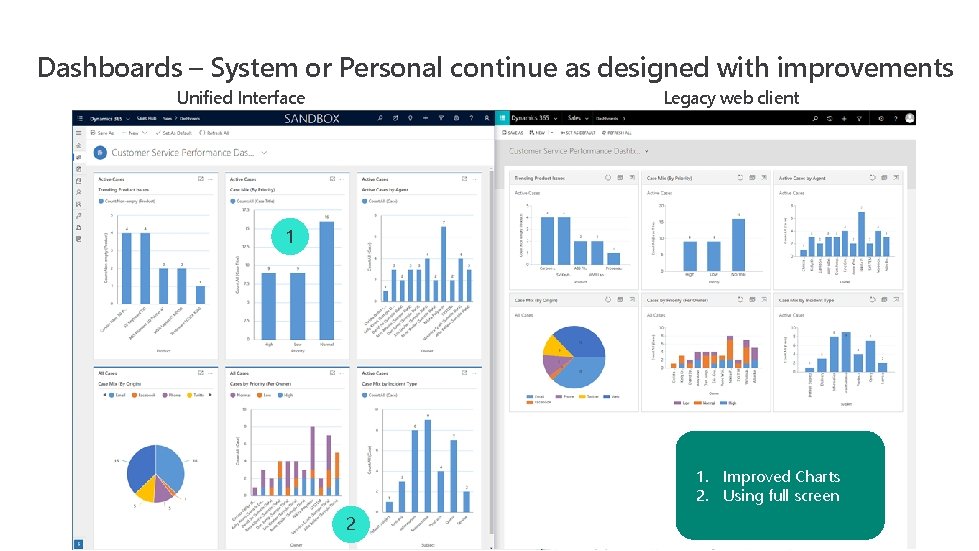
Dashboards – System or Personal continue as designed with improvements Unified Interface Legacy web client 1 1. Improved Charts 2. Using full screen 2
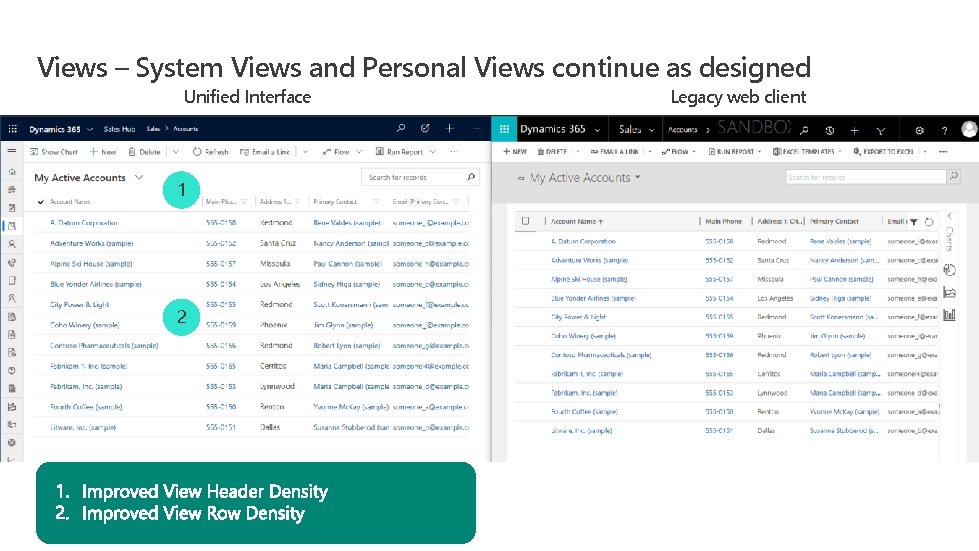
Views – System Views and Personal Views continue as designed Unified Interface 1 2 Legacy web client
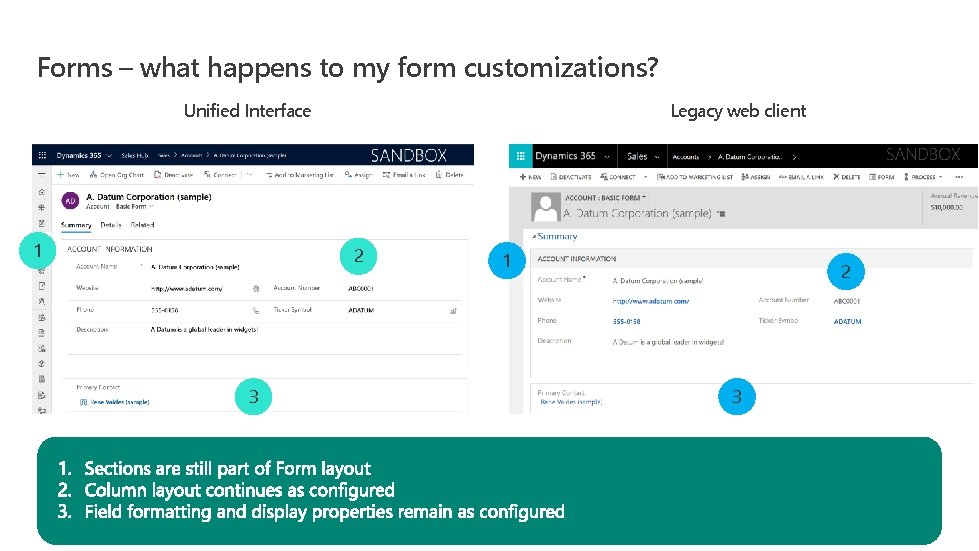
Forms – what happens to my form customizations? Unified Interface 1 Legacy web client 2 3 1 2 3
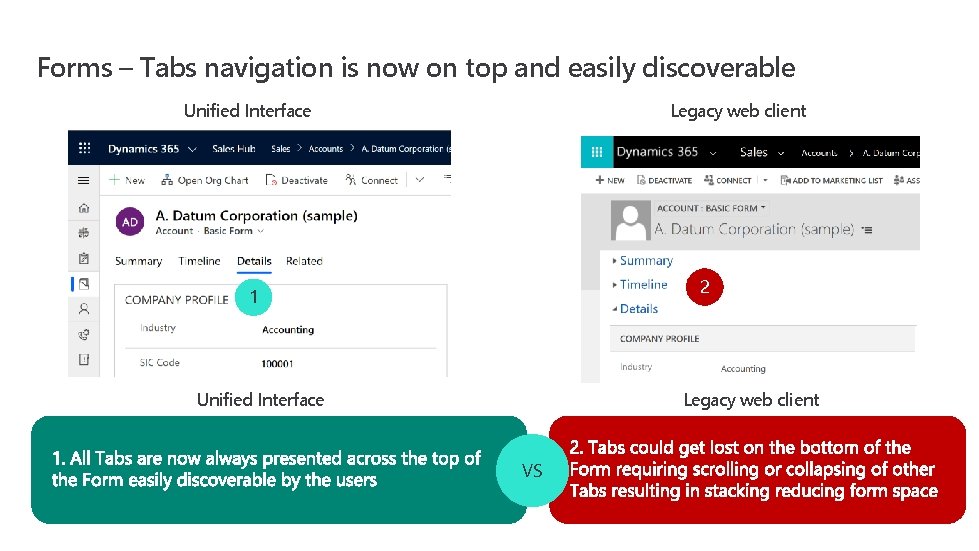
Forms – Tabs navigation is now on top and easily discoverable Unified Interface Legacy web client 2 1 Unified Interface Legacy web client VS
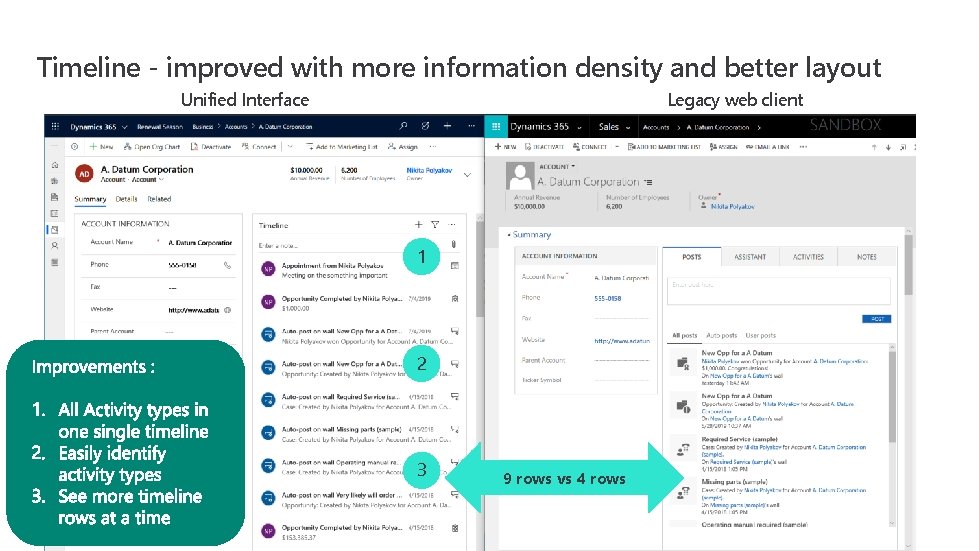
Timeline - improved with more information density and better layout Unified Interface Legacy web client 1 2 3 9 rows vs 4 rows
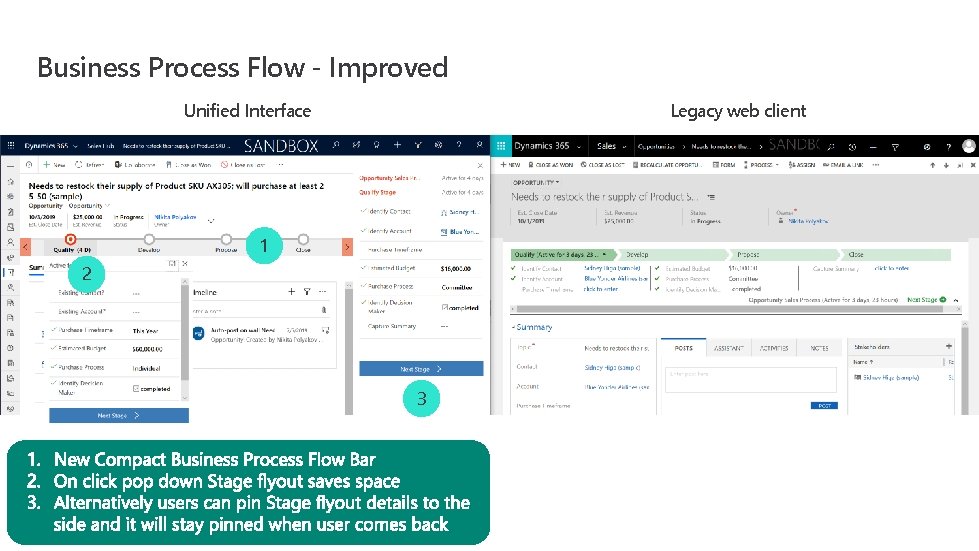
Business Process Flow - Improved Unified Interface Legacy web client 1 2 3
What is possible for my app? Art of the possible Unique to Unified Interface
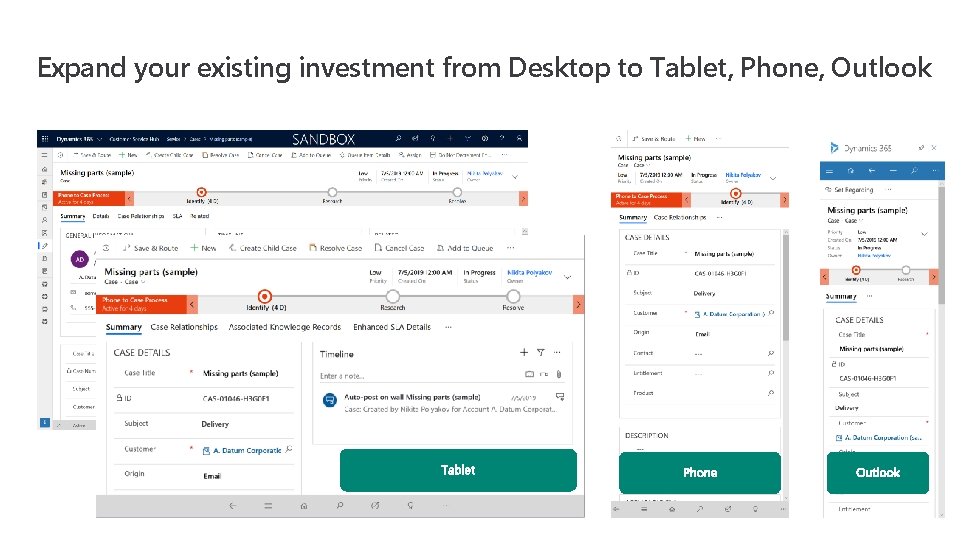
Expand your existing investment from Desktop to Tablet, Phone, Outlook
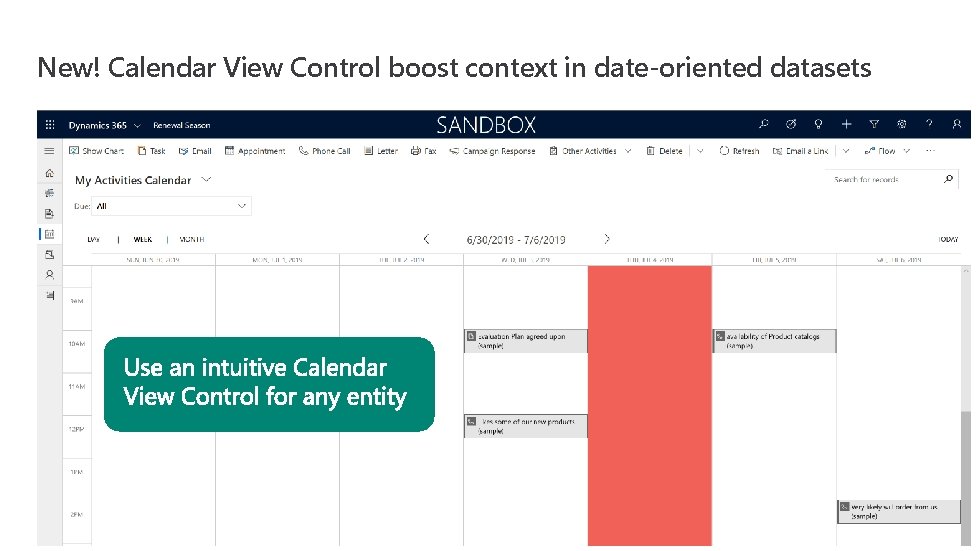
New! Calendar View Control boost context in date-oriented datasets
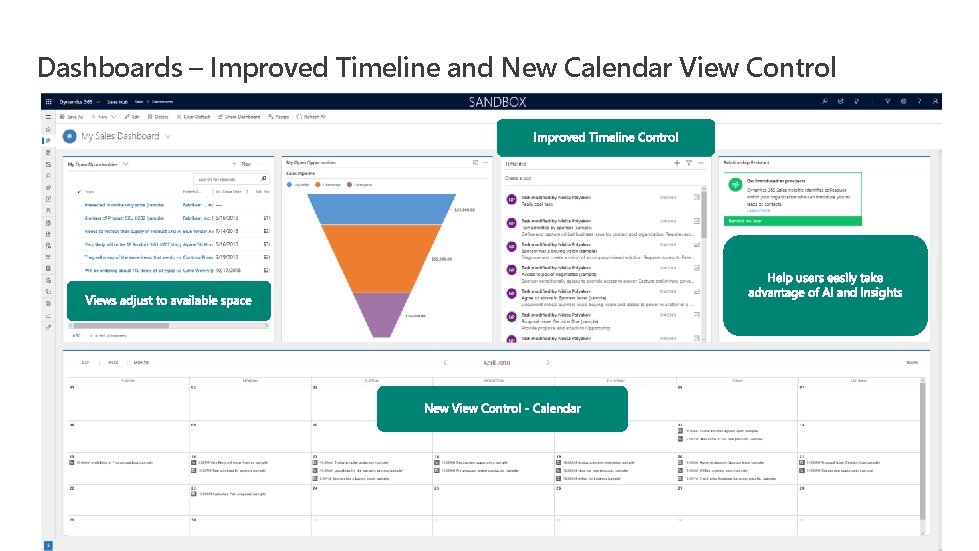
Dashboards – Improved Timeline and New Calendar View Control
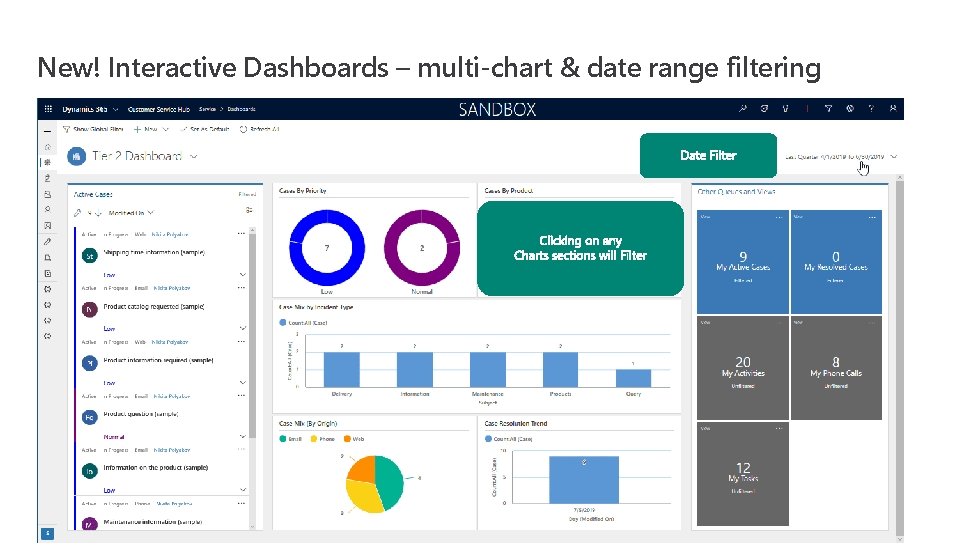
New! Interactive Dashboards – multi-chart & date range filtering
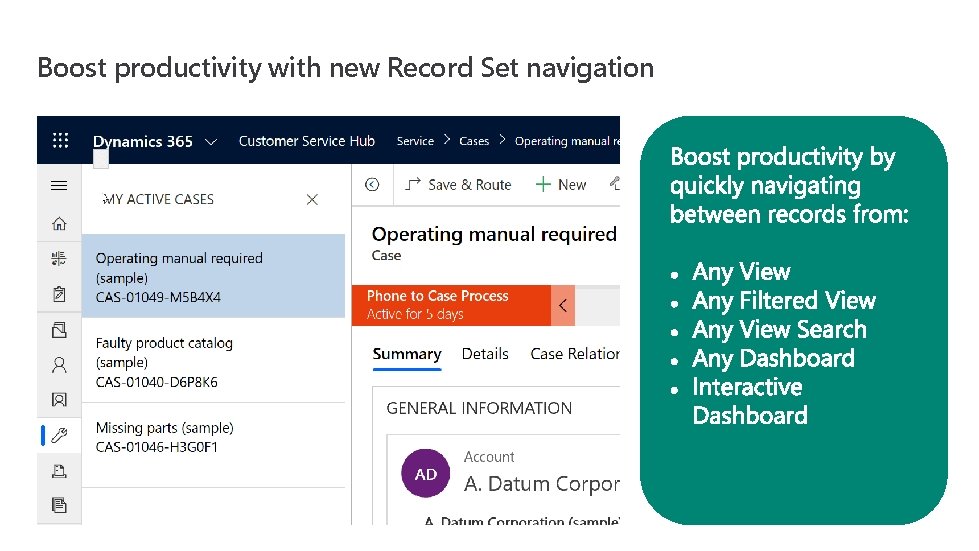
Boost productivity with new Record Set navigation
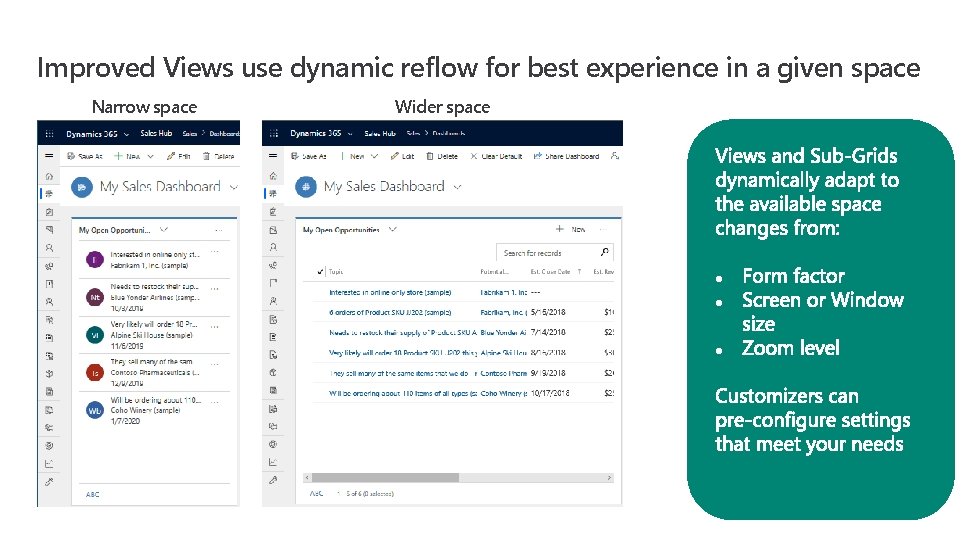
Improved Views use dynamic reflow for best experience in a given space Narrow space Wider space
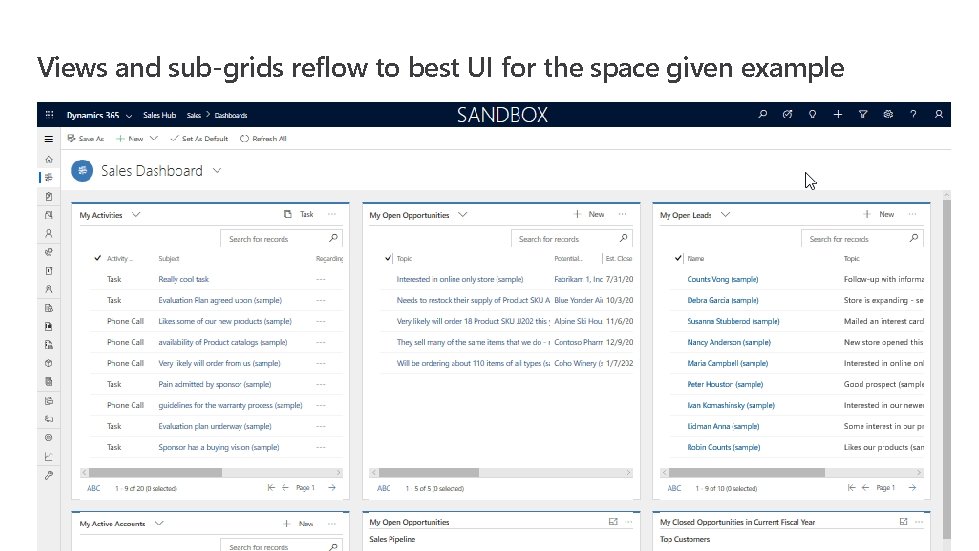
Views and sub-grids reflow to best UI for the space given example
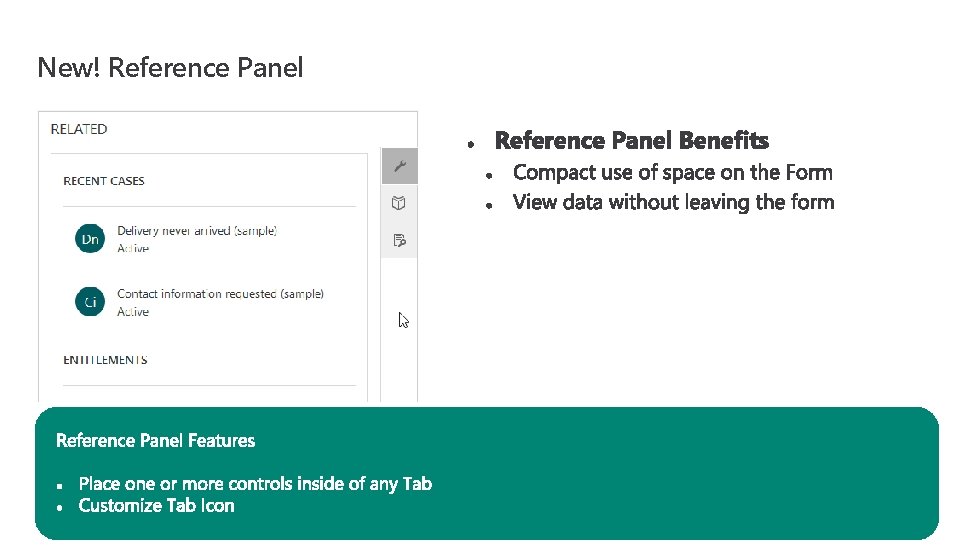
New! Reference Panel
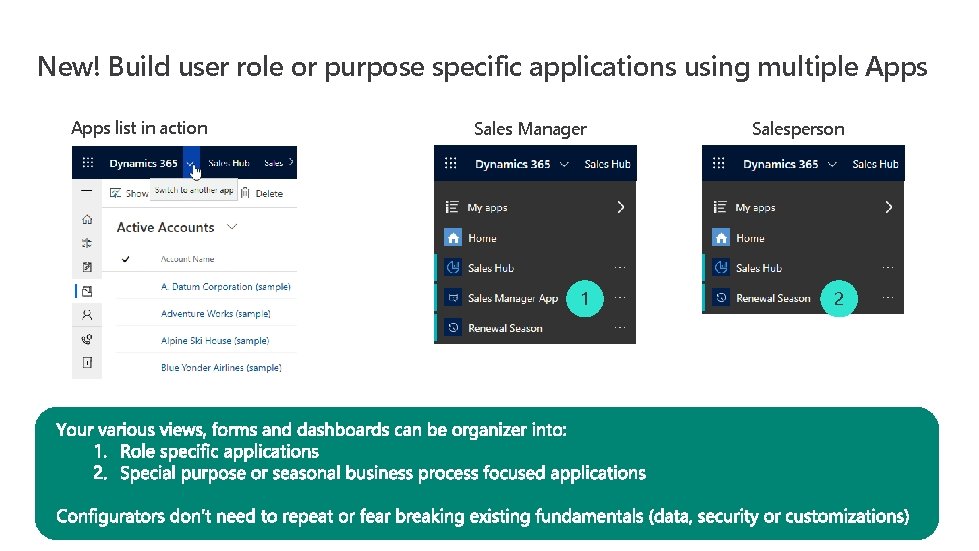
New! Build user role or purpose specific applications using multiple Apps list in action Sales Manager Salesperson 1 2
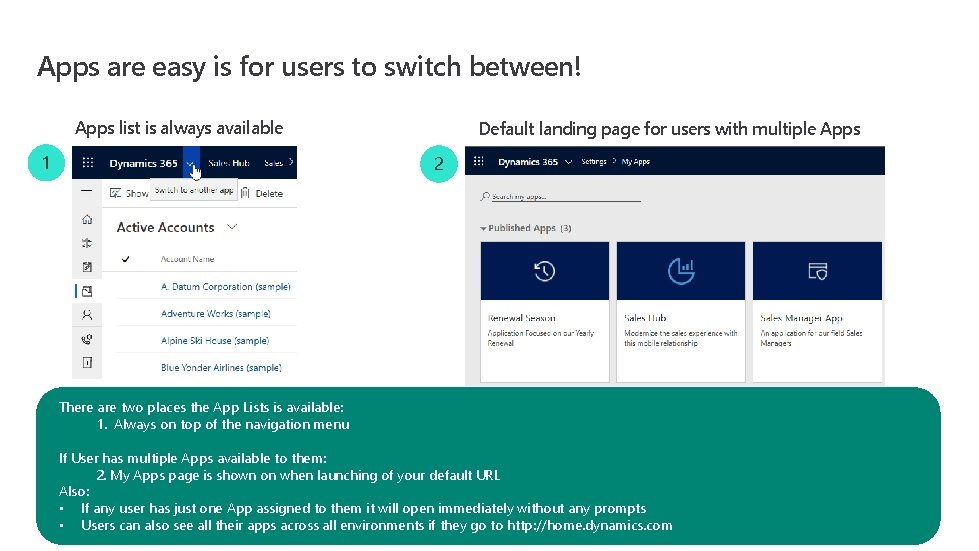
Apps are easy is for users to switch between! Apps list is always available 1 Default landing page for users with multiple Apps 2 There are two places the App Lists is available: 1. Always on top of the navigation menu If User has multiple Apps available to them: 2. My Apps page is shown on when launching of your default URL Also: • If any user has just one App assigned to them it will open immediately without any prompts • Users can also see all their apps across all environments if they go to http: //home. dynamics. com
Call to Action: Just Start!
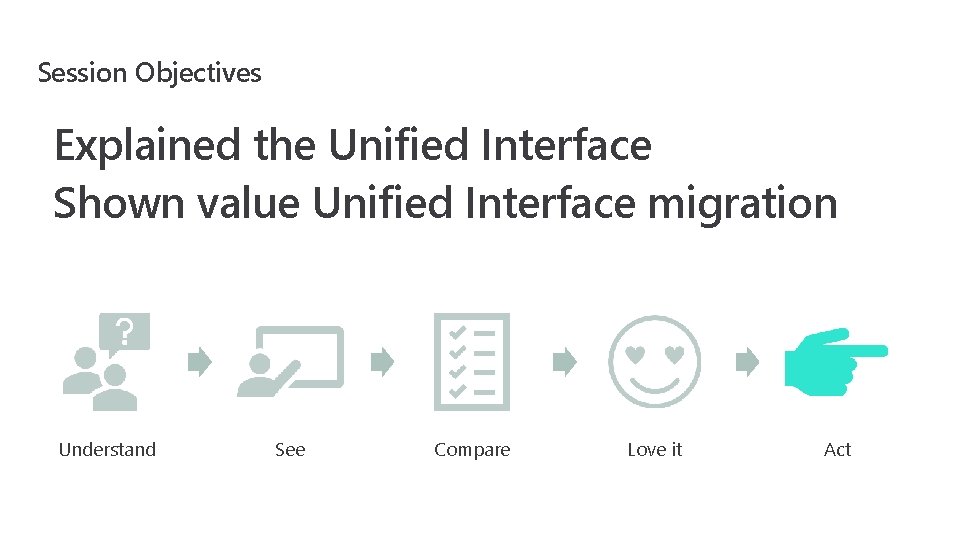
Session Objectives Explained the Unified Interface Shown value Unified Interface migration Understand See Compare Love it Act
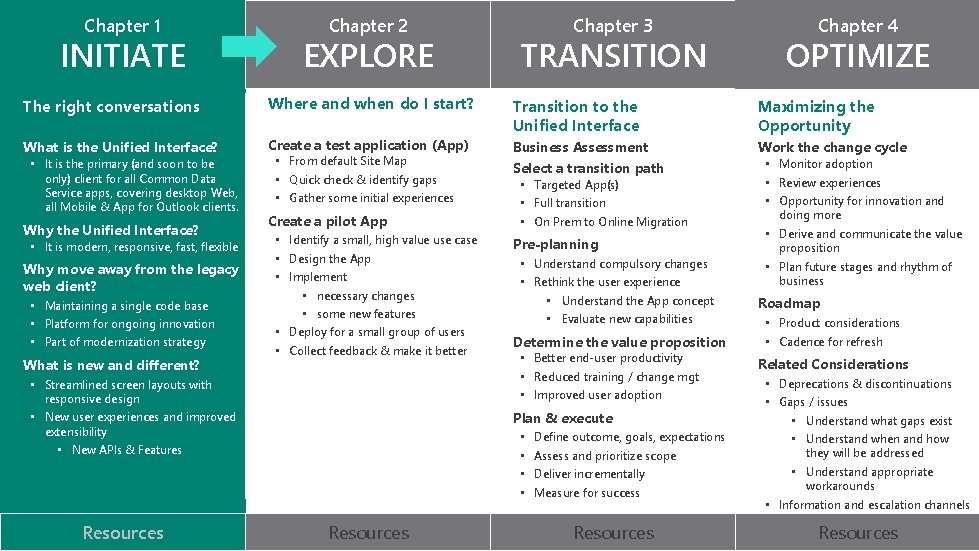
Chapter 1 INITIATE Chapter 2 EXPLORE The right conversations Where and when do I start? What is the Unified Interface? Create a test application (App) • It is the primary (and soon to be only) client for all Common Data Service apps, covering desktop Web, all Mobile & App for Outlook clients. Why the Unified Interface? • It is modern, responsive, fast, flexible Why move away from the legacy web client? • Maintaining a single code base • Platform for ongoing innovation • Part of modernization strategy What is new and different? • From default Site Map • Quick check & identify gaps • Gather some initial experiences Create a pilot App • Identify a small, high value use case • Design the App • Implement • necessary changes • some new features • Deploy for a small group of users • Collect feedback & make it better • Streamlined screen layouts with responsive design • New user experiences and improved extensibility • New APIs & Features Resources Chapter 3 TRANSITION OPTIMIZE Transition to the Unified Interface Maximizing the Opportunity Business Assessment Select a transition path Work the change cycle • Targeted App(s) • Full transition • On Prem to Online Migration Pre-planning • Understand compulsory changes • Rethink the user experience • Understand the App concept • Evaluate new capabilities Determine the value proposition • Better end-user productivity • Reduced training / change mgt • Improved user adoption Plan & execute • • Resources Chapter 4 Define outcome, goals, expectations Assess and prioritize scope Deliver incrementally Measure for success Resources • Monitor adoption • Review experiences • Opportunity for innovation and doing more • Derive and communicate the value proposition • Plan future stages and rhythm of business Roadmap • Product considerations • Cadence for refresh Related Considerations • Deprecations & discontinuations • Gaps / issues • Understand what gaps exist • Understand when and how they will be addressed • Understand appropriate workarounds • Information and escalation channels Resources
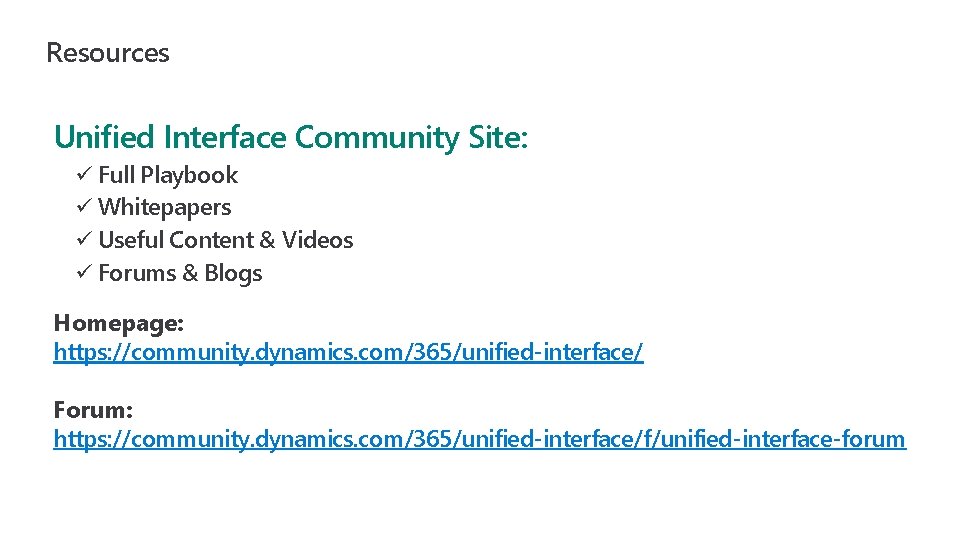
Resources Unified Interface Community Site: ü Full Playbook ü Whitepapers ü Useful Content & Videos ü Forums & Blogs Homepage: https: //community. dynamics. com/365/unified-interface/ Forum: https: //community. dynamics. com/365/unified-interface/f/unified-interface-forum
Videos from Microsoft Business Applications Summit 2019 Hear customer stories who already made the migration to Unified Interface: Implementation Best Practices for Dynamics 365: Making the move to modern Unified Interface https: //powerusers. microsoft. com/t 5/Microsoft-Business-Applications/Microsoft. Dynamics-365 -for-Customer-Service-Dynamics-Portals/m-p/299102

Q&A

Thank you!
- Slides: 46