
UNGM and UNOPS e Sourcing system Training for

- Slides: 33
UNGM and UNOPS e. Sourcing system Training for vendors <Date> <Name of presenter>
Webinar introduction • Objectives o Introduction to UNGM and UNOPS e. Sourcing o Vendor registration on UNGM o Main system functionalities o Q&A session • Duration: 1 hour • Please add questions using the chat functionality of the Web. Ex application. Questions will be answered in the Q&A session, at the end of the presentation This presentation is part of a detailed UNOPS e. Sourcing Vendor Guide which is available in Adobe PDF format on this link: https: //esourcing. unops. org/#/Help/Guides 2 UNOPS e. Sourcing training for Vendors v 1. 1
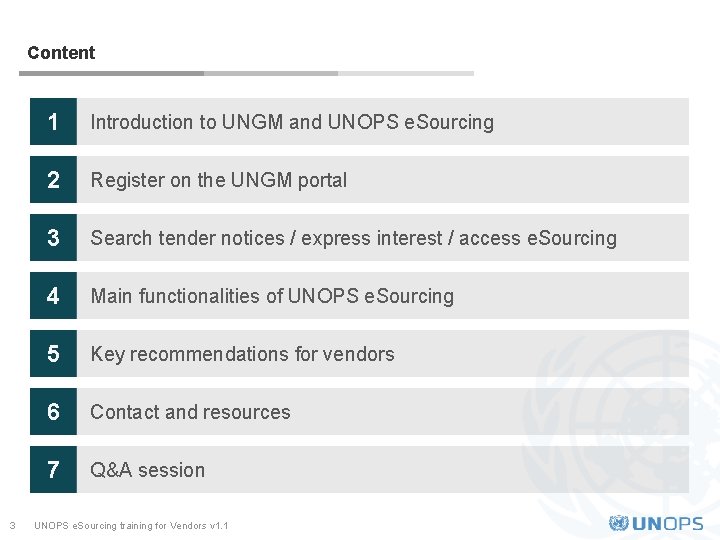
Content 3 1 Introduction to UNGM and UNOPS e. Sourcing 2 Register on the UNGM portal 3 Search tender notices / express interest / access e. Sourcing 4 Main functionalities of UNOPS e. Sourcing 5 Key recommendations for vendors 6 Contact and resources 7 Q&A session UNOPS e. Sourcing training for Vendors v 1. 1
INTRODUCTION TO UNGM AND UNOPS ESOURCING 1
1 INTRODUCTION TO UNGM AND UNOPS ESOURCING United Nations Global Marketplace (UNGM) • Common procurement portal of the United Nations system of organizations • Brings together UN procurement staff and the vendor community. • Self-service portal where potential suppliers can register with one or more of the 26 UN organizations using the UNGM as their vendor database and sourcing tool. These organizations account for over 99% of the total UN procurement spent (approx. USD 15 Bn. per year) • Excellent way to introduce products and services to many UN organizations, countries and regions by completing only one registration form • No cost for vendor’s to register • UNGM also provides an overview of tender notices • Entry point for various UN agencies’ e-procurement systems which are integrated with the UNGM website, such as the UNOPS e. Sourcing system 5 UNOPS e. Sourcing training for Vendors v 1. 1
1 INTRODUCTION TO UNGM AND UNOPS ESOURCING UNOPS e. Sourcing • UNOPS e. Sourcing is an e-tendering system developed by UNOPS to conduct its tender processes • The system handles on-line the sourcing, solicitation, bid opening, evaluation and award stages of the procurement process (next slide: system scope) • Streamlines how UNOPS and our vendors interact, providing increased efficiency and governance to the procurement process • In order to access the full UNOPS tender details and submit a vendor response to a tender using the system vendors must be registered as a UNOPS vendor on UNGM • Roll out e. Sourcing started at UNOPS progressively from February 2016 and it is expected that by the end of 2017 almost all procurement processes will be done in the system. 6 UNOPS e. Sourcing training for Vendors v 1. 1
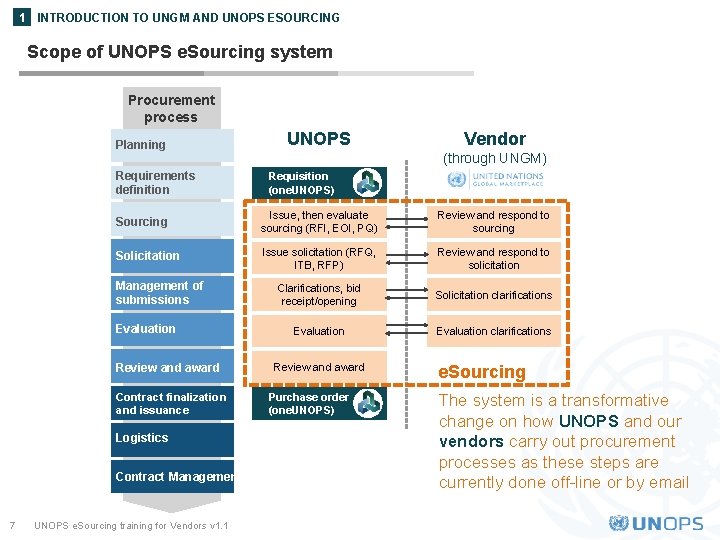
1 INTRODUCTION TO UNGM AND UNOPS ESOURCING Scope of UNOPS e. Sourcing system Procurement process Planning Requirements definition Vendor (through UNGM) Requisition (one. UNOPS) Sourcing Issue, then evaluate sourcing (RFI, EOI, PQ) Review and respond to sourcing Solicitation Issue solicitation (RFQ, ITB, RFP) Review and respond to solicitation Clarifications, bid receipt/opening Solicitation clarifications Evaluation clarifications Management of submissions Evaluation Review and award Contract finalization and issuance Logistics Contract Management 7 UNOPS e. Sourcing training for Vendors v 1. 1 Review and award Purchase order (one. UNOPS) e. Sourcing The system is a transformative change on how UNOPS and our vendors carry out procurement processes as these steps are currently done off-line or by email
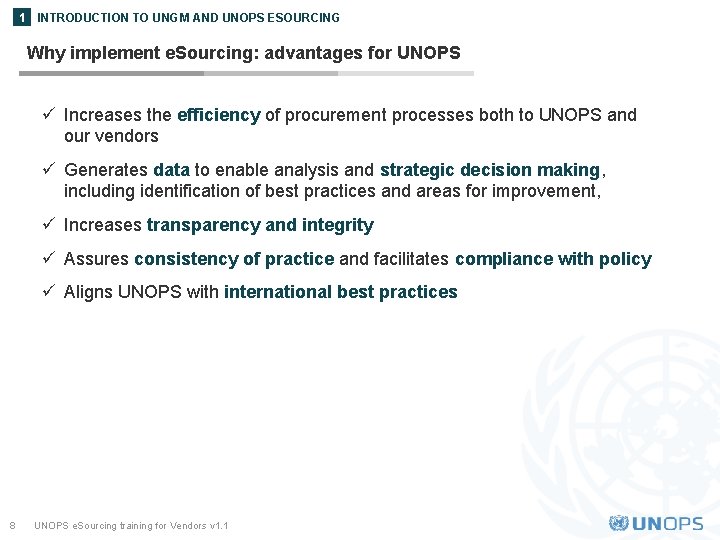
1 INTRODUCTION TO UNGM AND UNOPS ESOURCING Why implement e. Sourcing: advantages for UNOPS ü Increases the efficiency of procurement processes both to UNOPS and our vendors ü Generates data to enable analysis and strategic decision making, including identification of best practices and areas for improvement, ü Increases transparency and integrity ü Assures consistency of practice and facilitates compliance with policy ü Aligns UNOPS with international best practices 8 UNOPS e. Sourcing training for Vendors v 1. 1
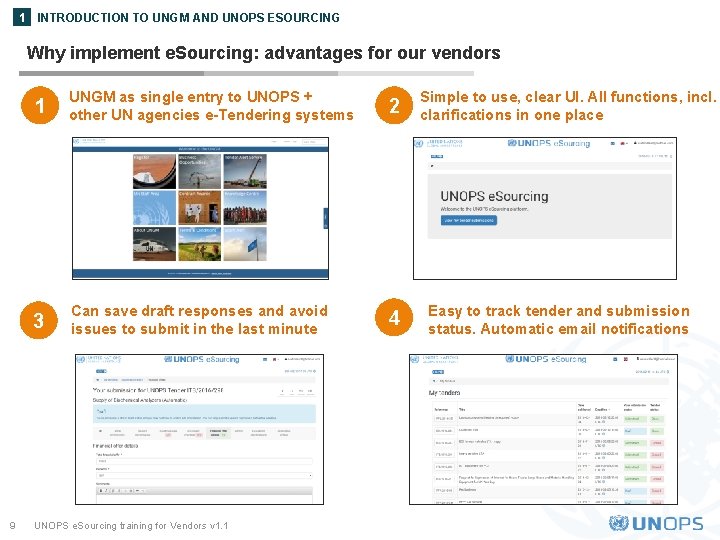
1 INTRODUCTION TO UNGM AND UNOPS ESOURCING Why implement e. Sourcing: advantages for our vendors 9 1 UNGM as single entry to UNOPS + other UN agencies e-Tendering systems 2 3 Can save draft responses and avoid issues to submit in the last minute 4 UNOPS e. Sourcing training for Vendors v 1. 1 Simple to use, clear UI. All functions, incl. clarifications in one place Easy to track tender and submission status. Automatic email notifications
REGISTER ON THE UNGM PORTAL 2
2 REGISTER ON THE UNGM PORTAL UNGM registration • Registration is critical: in order to access the full UNOPS tender details and respond to a tender in the UNOPS e. Sourcing system, you must first register as a UNOPS vendor on UNGM • Once you have registered, the log-in details is the same for UNGM and UNOPS e. Sourcing • Registration at basic level is sufficient, as UNOPS does not require level 1 and 2 registrations • Registration should take under 10 minutes to complete • Please note that registration at UNGM is free of charge 11 UNOPS e. Sourcing training for Vendors v 1. 1
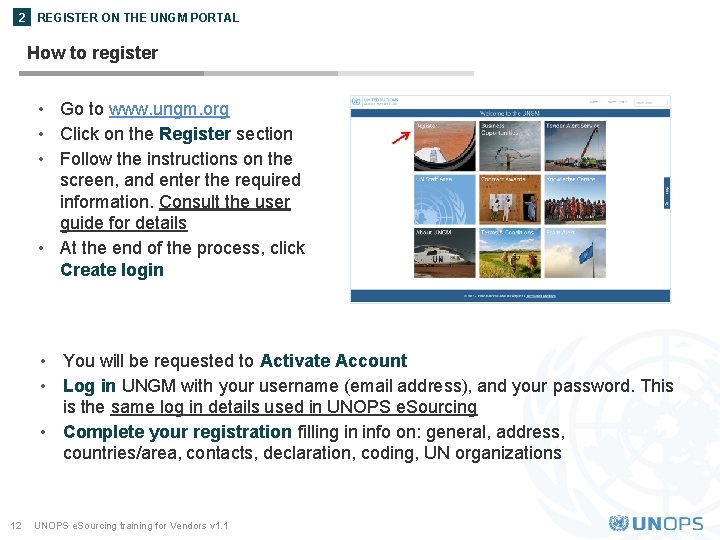
2 REGISTER ON THE UNGM PORTAL How to register • Go to www. ungm. org • Click on the Register section • Follow the instructions on the screen, and enter the required information. Consult the user guide for details • At the end of the process, click Create login • You will be requested to Activate Account • Log in UNGM with your username (email address), and your password. This is the same log in details used in UNOPS e. Sourcing • Complete your registration filling in info on: general, address, countries/area, contacts, declaration, coding, UN organizations 12 UNOPS e. Sourcing training for Vendors v 1. 1
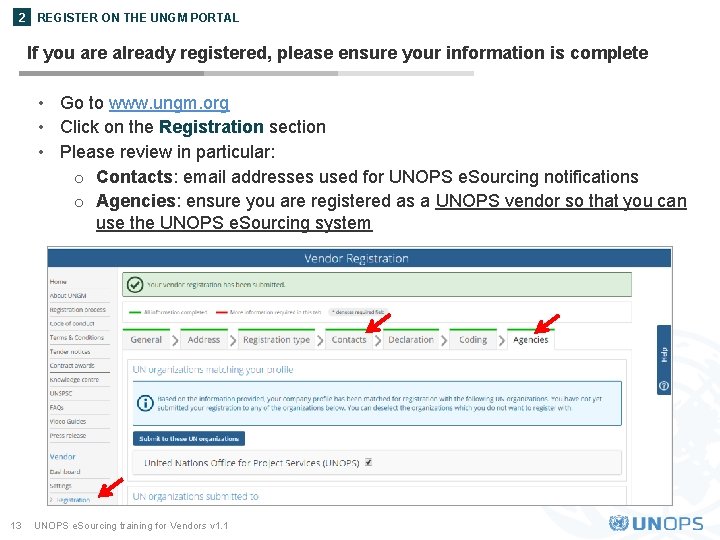
2 REGISTER ON THE UNGM PORTAL If you are already registered, please ensure your information is complete • Go to www. ungm. org • Click on the Registration section • Please review in particular: o Contacts: email addresses used for UNOPS e. Sourcing notifications o Agencies: ensure you are registered as a UNOPS vendor so that you can use the UNOPS e. Sourcing system 13 UNOPS e. Sourcing training for Vendors v 1. 1
SEARCH TENDER NOTICES / EXPRESS INTEREST / ACCESS ESOURCING 3
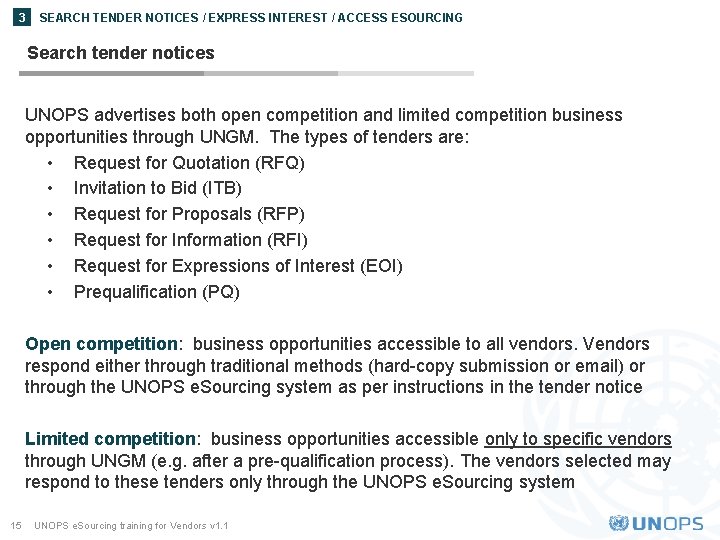
3 SEARCH TENDER NOTICES / EXPRESS INTEREST / ACCESS ESOURCING Search tender notices UNOPS advertises both open competition and limited competition business opportunities through UNGM. The types of tenders are: • Request for Quotation (RFQ) • Invitation to Bid (ITB) • Request for Proposals (RFP) • Request for Information (RFI) • Request for Expressions of Interest (EOI) • Prequalification (PQ) Open competition: business opportunities accessible to all vendors. Vendors respond either through traditional methods (hard-copy submission or email) or through the UNOPS e. Sourcing system as per instructions in the tender notice Limited competition: business opportunities accessible only to specific vendors through UNGM (e. g. after a pre-qualification process). The vendors selected may respond to these tenders only through the UNOPS e. Sourcing system 15 UNOPS e. Sourcing training for Vendors v 1. 1
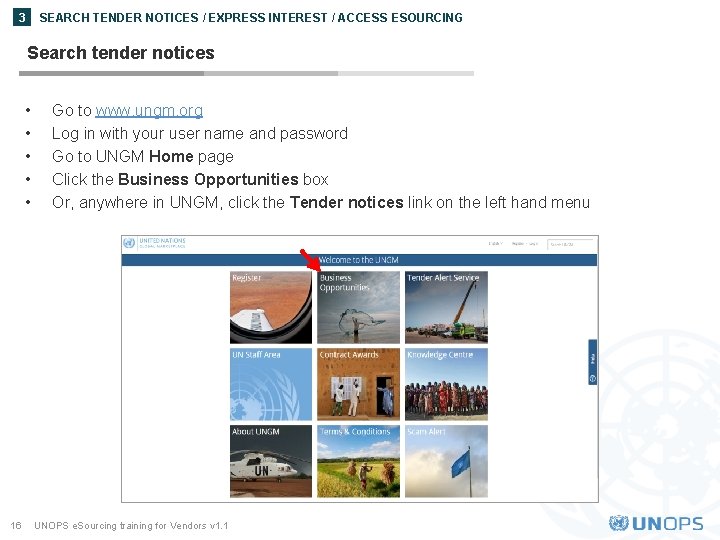
SEARCH TENDER NOTICES / EXPRESS INTEREST / ACCESS ESOURCING 3 Search tender notices • • • 16 Go to www. ungm. org Log in with your user name and password Go to UNGM Home page Click the Business Opportunities box Or, anywhere in UNGM, click the Tender notices link on the left hand menu UNOPS e. Sourcing training for Vendors v 1. 1
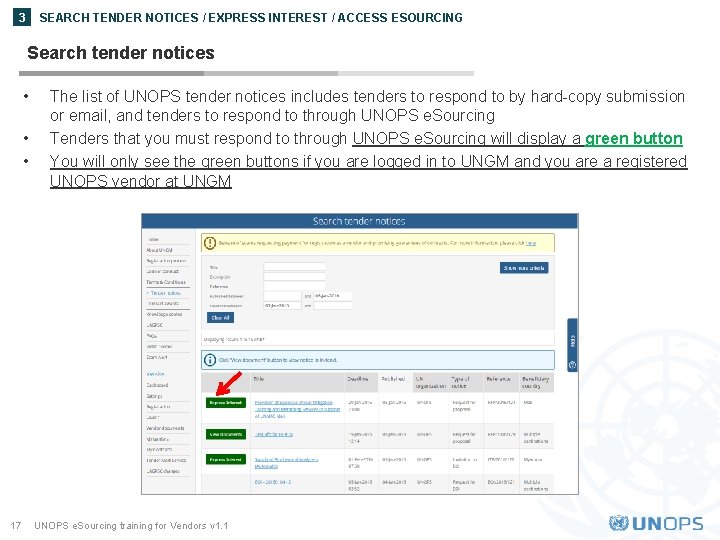
SEARCH TENDER NOTICES / EXPRESS INTEREST / ACCESS ESOURCING 3 Search tender notices • • • 17 The list of UNOPS tender notices includes tenders to respond to by hard-copy submission or email, and tenders to respond to through UNOPS e. Sourcing Tenders that you must respond to through UNOPS e. Sourcing will display a green button You will only see the green buttons if you are logged in to UNGM and you are a registered UNOPS vendor at UNGM UNOPS e. Sourcing training for Vendors v 1. 1
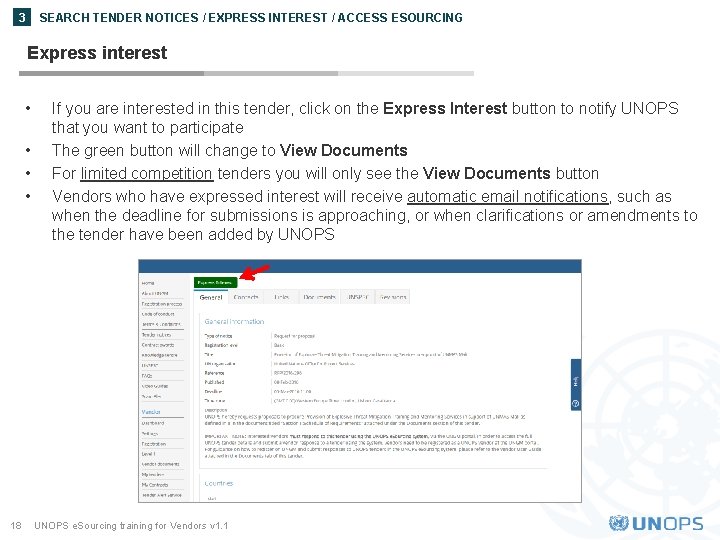
SEARCH TENDER NOTICES / EXPRESS INTEREST / ACCESS ESOURCING 3 Express interest • • 18 If you are interested in this tender, click on the Express Interest button to notify UNOPS that you want to participate The green button will change to View Documents For limited competition tenders you will only see the View Documents button Vendors who have expressed interest will receive automatic email notifications, such as when the deadline for submissions is approaching, or when clarifications or amendments to the tender have been added by UNOPS e. Sourcing training for Vendors v 1. 1
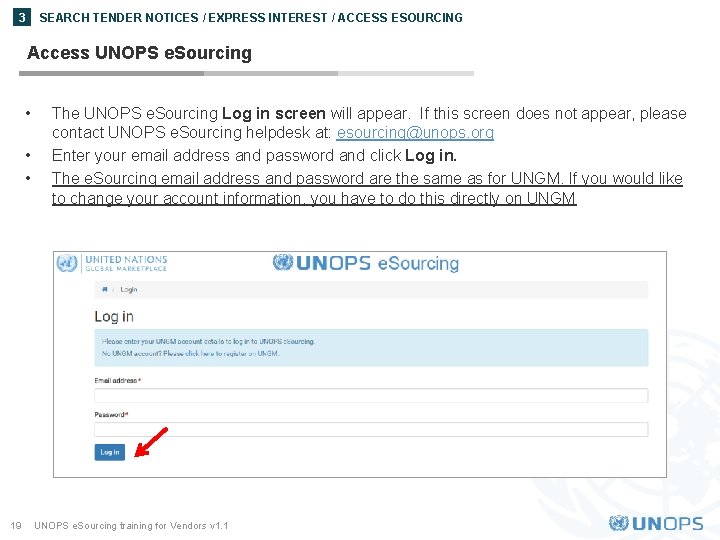
SEARCH TENDER NOTICES / EXPRESS INTEREST / ACCESS ESOURCING 3 Access UNOPS e. Sourcing • • • 19 The UNOPS e. Sourcing Log in screen will appear. If this screen does not appear, please contact UNOPS e. Sourcing helpdesk at: esourcing@unops. org Enter your email address and password and click Log in. The e. Sourcing email address and password are the same as for UNGM. If you would like to change your account information, you have to do this directly on UNGM UNOPS e. Sourcing training for Vendors v 1. 1
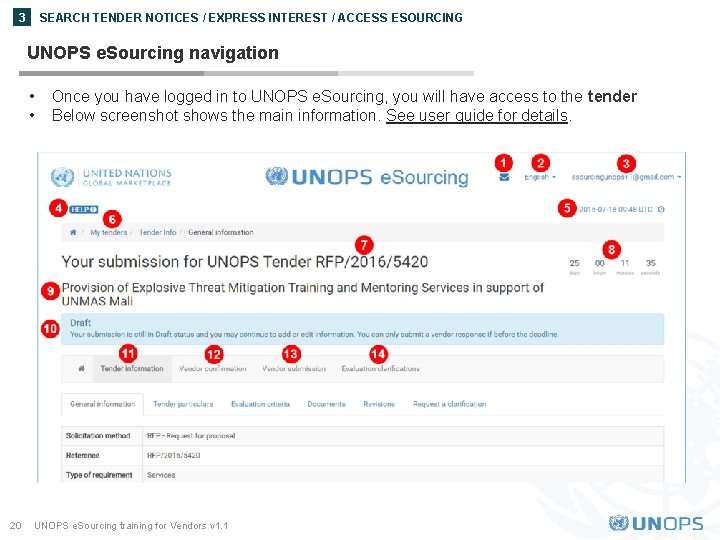
SEARCH TENDER NOTICES / EXPRESS INTEREST / ACCESS ESOURCING 3 UNOPS e. Sourcing navigation • • 20 Once you have logged in to UNOPS e. Sourcing, you will have access to the tender Below screenshot shows the main information. See user guide for details. UNOPS e. Sourcing training for Vendors v 1. 1
UNOPS ESOURCING: OVERVIEW OF MAIN FUNCTIONALITIES 4
4 UNOPS ESOURCING: OVERVIEW OF MAIN FUNCTIONALITIES Identification of main functionalities in UNOPS e. Sourcing In the next slides we give a quick overview of the following main functionalities: 1. Inform UNOPS about your intention to submit a response (or not) 2. Request a clarification on a tender 3. Submit a response to a tender 4. Submit an alternative offer to a tender 5. View, edit and withdraw a response to a tender 6. Respond to an evaluation clarification The next slides are just a quick outline. For details, please see user guide 22 UNOPS e. Sourcing training for Vendors v 1. 1
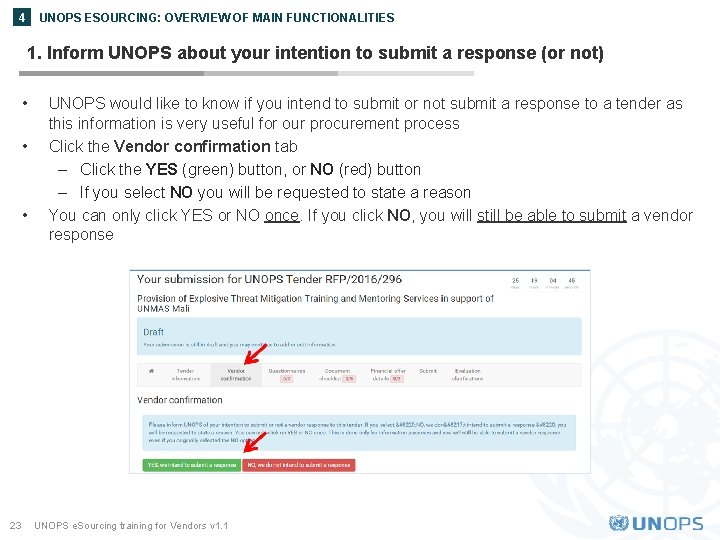
UNOPS ESOURCING: OVERVIEW OF MAIN FUNCTIONALITIES 4 1. Inform UNOPS about your intention to submit a response (or not) • • • 23 UNOPS would like to know if you intend to submit or not submit a response to a tender as this information is very useful for our procurement process Click the Vendor confirmation tab – Click the YES (green) button, or NO (red) button – If you select NO you will be requested to state a reason You can only click YES or NO once. If you click NO, you will still be able to submit a vendor response UNOPS e. Sourcing training for Vendors v 1. 1
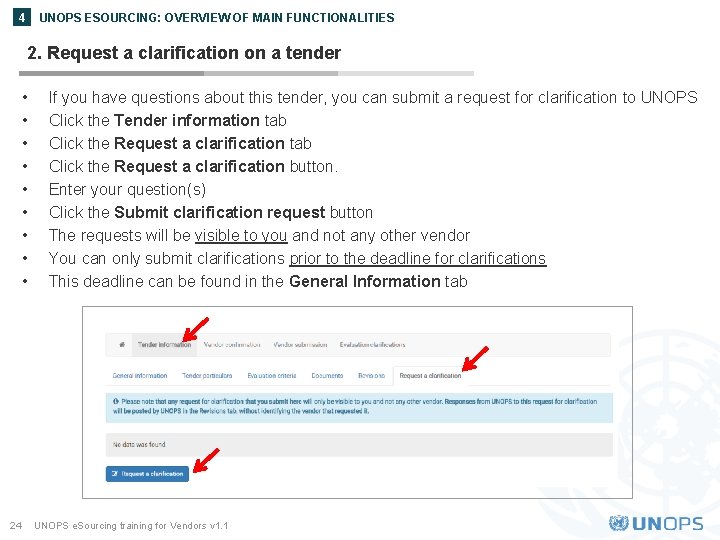
UNOPS ESOURCING: OVERVIEW OF MAIN FUNCTIONALITIES 4 2. Request a clarification on a tender • • • 24 If you have questions about this tender, you can submit a request for clarification to UNOPS Click the Tender information tab Click the Request a clarification button. Enter your question(s) Click the Submit clarification request button The requests will be visible to you and not any other vendor You can only submit clarifications prior to the deadline for clarifications This deadline can be found in the General Information tab UNOPS e. Sourcing training for Vendors v 1. 1
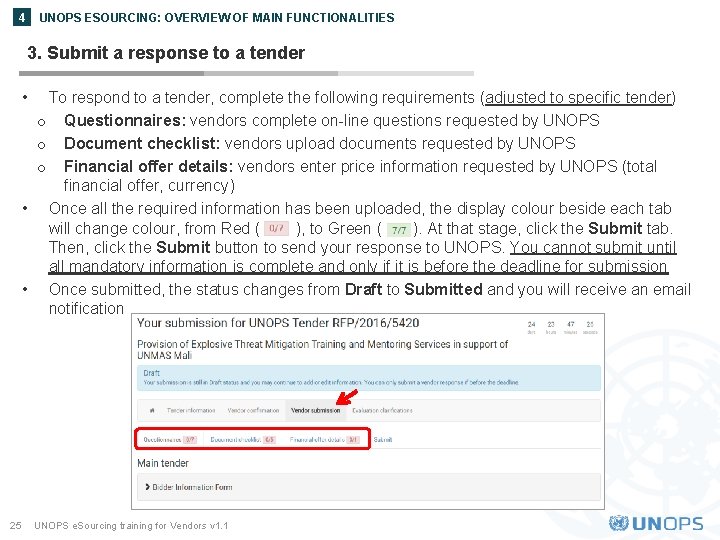
UNOPS ESOURCING: OVERVIEW OF MAIN FUNCTIONALITIES 4 3. Submit a response to a tender • To respond to a tender, complete the following requirements (adjusted to specific tender) o Questionnaires: vendors complete on-line questions requested by UNOPS o Document checklist: vendors upload documents requested by UNOPS o Financial offer details: vendors enter price information requested by UNOPS (total financial offer, currency) • Once all the required information has been uploaded, the display colour beside each tab will change colour, from Red ( ), to Green ( ). At that stage, click the Submit tab. Then, click the Submit button to send your response to UNOPS. You cannot submit until all mandatory information is complete and only if it is before the deadline for submission • Once submitted, the status changes from Draft to Submitted and you will receive an email notification 25 UNOPS e. Sourcing training for Vendors v 1. 1
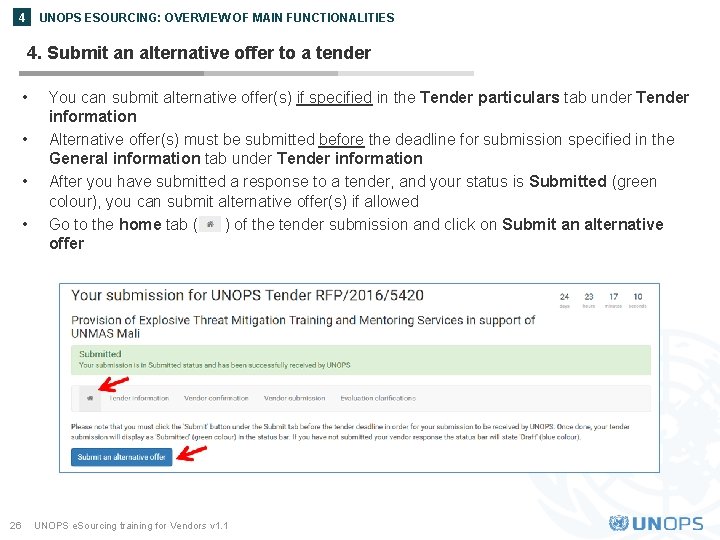
UNOPS ESOURCING: OVERVIEW OF MAIN FUNCTIONALITIES 4 4. Submit an alternative offer to a tender • • 26 You can submit alternative offer(s) if specified in the Tender particulars tab under Tender information Alternative offer(s) must be submitted before the deadline for submission specified in the General information tab under Tender information After you have submitted a response to a tender, and your status is Submitted (green colour), you can submit alternative offer(s) if allowed Go to the home tab ( ) of the tender submission and click on Submit an alternative offer UNOPS e. Sourcing training for Vendors v 1. 1
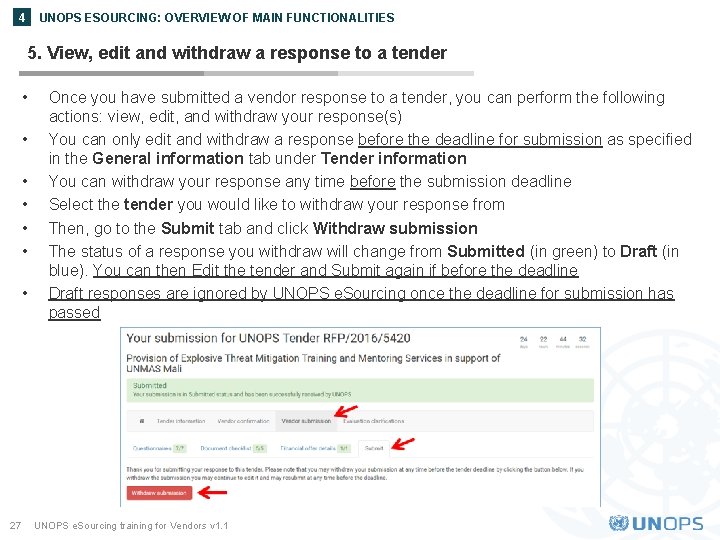
UNOPS ESOURCING: OVERVIEW OF MAIN FUNCTIONALITIES 4 5. View, edit and withdraw a response to a tender • • 27 Once you have submitted a vendor response to a tender, you can perform the following actions: view, edit, and withdraw your response(s) You can only edit and withdraw a response before the deadline for submission as specified in the General information tab under Tender information You can withdraw your response any time before the submission deadline Select the tender you would like to withdraw your response from Then, go to the Submit tab and click Withdraw submission The status of a response you withdraw will change from Submitted (in green) to Draft (in blue). You can then Edit the tender and Submit again if before the deadline Draft responses are ignored by UNOPS e. Sourcing once the deadline for submission has passed UNOPS e. Sourcing training for Vendors v 1. 1
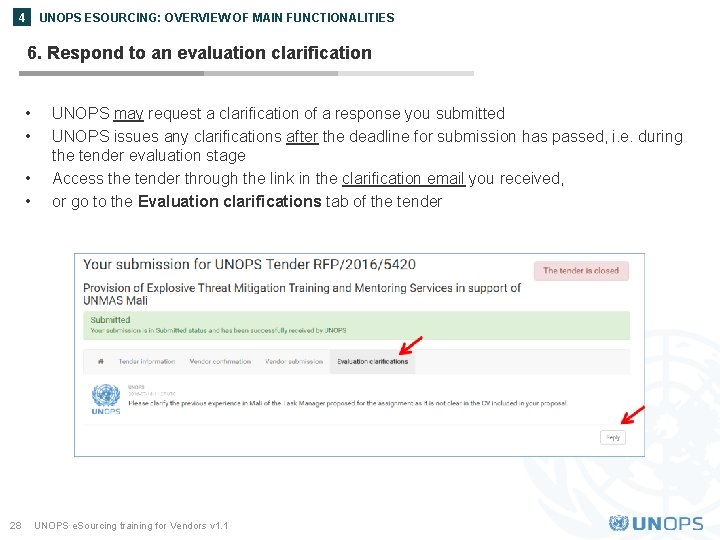
UNOPS ESOURCING: OVERVIEW OF MAIN FUNCTIONALITIES 4 6. Respond to an evaluation clarification • • 28 UNOPS may request a clarification of a response you submitted UNOPS issues any clarifications after the deadline for submission has passed, i. e. during the tender evaluation stage Access the tender through the link in the clarification email you received, or go to the Evaluation clarifications tab of the tender UNOPS e. Sourcing training for Vendors v 1. 1
KEY RECOMMENDATIONS FOR VENDORS 5
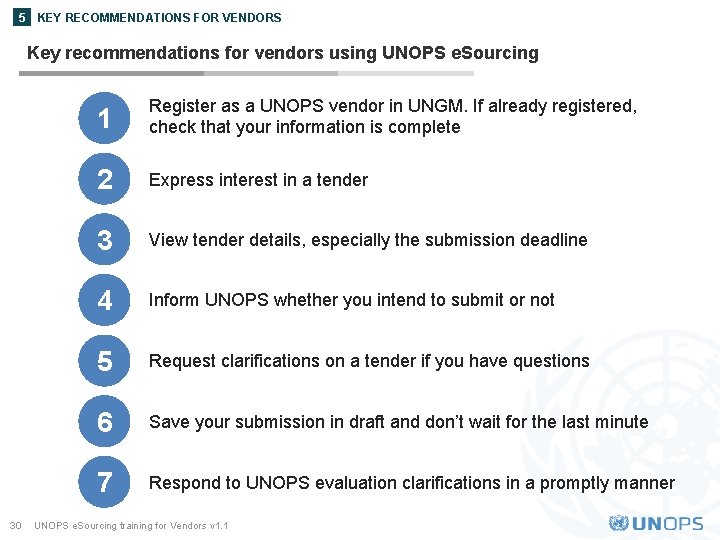
5 KEY RECOMMENDATIONS FOR VENDORS Key recommendations for vendors using UNOPS e. Sourcing 30 1 Register as a UNOPS vendor in UNGM. If already registered, check that your information is complete 2 Express interest in a tender 3 View tender details, especially the submission deadline 4 Inform UNOPS whether you intend to submit or not 5 Request clarifications on a tender if you have questions 6 Save your submission in draft and don’t wait for the last minute 7 Respond to UNOPS evaluation clarifications in a promptly manner UNOPS e. Sourcing training for Vendors v 1. 1
CONTACTS AND RESOURCES 6
6 CONTACT AND RESOURCES Contacts and resources UNGM • • For general information please visit www. ungm. org For further assistance on the UNGM vendor registration process, use the Help functionality and FAQ available on the site: https: //www. ungm. org/Public/Help UNOPS e. Sourcing • • • 32 For general information about UNOPS please visit www. unops. org For information about UNOPS procurement please visit https: //www. unops. org/english/Opportunities/suppliers/Pages/default. aspx For assistance on the UNOPS e. Sourcing system o Use the Help functionality available on the site, including the user guides, FAQ and videos: https: //esourcing. unops. org/#/Help/Guides o Contact the UNOPS Helpdesk at: esourcing@unops. org Please provide your UNGM user name, your UNGM Registration Number and the tender reference (e. g. RFP/2016/296 UNOPS e. Sourcing training for Vendors v 1. 1
Q&A SESSION 7