
Understanding the Terminology about the internet and the
Understanding the Terminology about the internet and the World Wide Web Mrs. Valerio Reference e. Book CIS 105
Part 1. understanding the Terminology about the internet and the WWW • Everyone has heard of the internet • A network of computers and devices all over the world that can be accessed • ARPANET (Advanced Research Projects Agency Network) was the first internet. • It was owned and used by the military • In Dec of 1974 it became commercialized. • The modern internet expanded in the mid 1980’s • Reported in 2014, over 43. 6 % of the world’s population was using the internet. • Point – in some counties it’s very expensive to have internet at home.
Part 1. understanding the Terminology about the internet and the WWW • A common mistake in view…. many see the internet and the World Wide Web as the same thing. • The WWW. . “is a system of websites connected by links”. • They are stored in servers on the internet. • “WWW is a part of the Internet but not the whole of Internet” • The WWW was invented by a British computer scientist, Tim Berners-Lee in 1989 • Websites are locations connected to the Internet that maintain one or more web pages. • A website is a set of related web pages typically served from a single web domain and hosted on at least one server that is accessible via the Internet

Part 1. understanding the Terminology about the internet and the WWW • Web Browser – an application that is used to display a web page on a device. • There are other resources within the browser application in order to display the web page correctly. • Examples: Mozilla Firefox, Internet Explorer, Google Chrome, Safari • The 1 st web Browser, to display web pages, was the World. Wide. Web. • However, the internet does more than allow people to see web pages. • We communicate, track weather, track the stock market, interact academically. . etc.
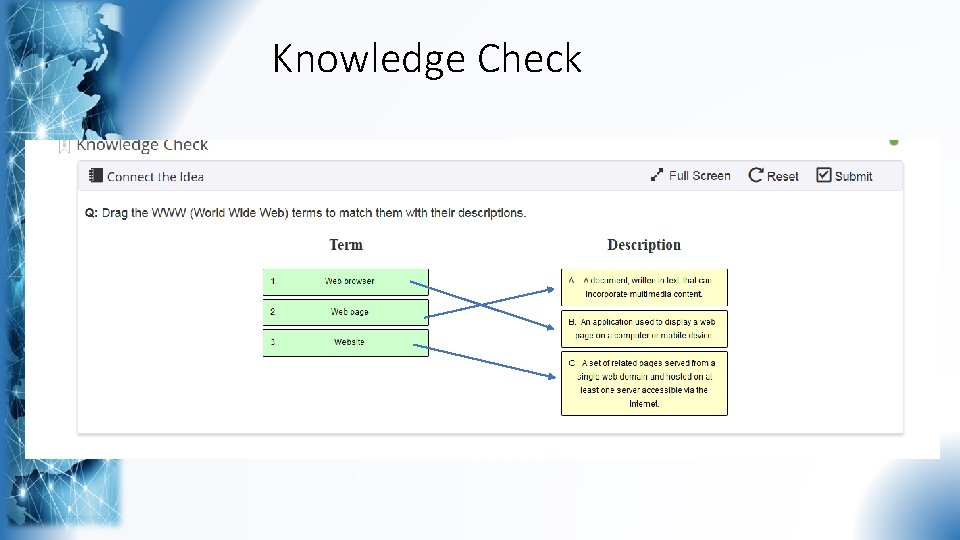
Knowledge Check
Part 2
Part 2. Understanding the World Wide Web • Protocol: The specific data-transmission rules for accessing the resource on the Web. For websites and web pages, it can be http: // (Hypertext Transfer Protocol) or https: // (the s at the end stands for Secure). • It use to be that you had to type the protocol to reach a website, but today's web browsers supply it automatically. • Prefix: www is the prefix used for visiting websites on the Web. Most websites do not require it, and they can be accessed without typing www as the prefix. For example, typing www. example. com or example. com leads you to the same web page. The www prefix must always be followed by a dot.
Part 2. Understanding the World Wide Web • Domain Name: This consists of one or more parts or labels, delimited (defined as the beginning or end of something) by dots, like example. com. The right label (com) is called the top-level domain. Each label to the left of the top-level domain is a subdomain of the domain on its right. In example. com, example is a subdomain of the com domain. Some websites may have multiple subdomains, like example 1. example 2. com. In this scenario, example 1 is a subdomain of example 2, and example 2 is a subdomain of the com top-level domain. • Path: This element is optional and is generally used to access a very specific resource on a website, like a certain web page, file, and so on. The path is always preceded by a / (slash) and then followed by the address of the resource you are trying to access, such as example. com/example.
Part 2. Understanding the World Wide Web • The complete URL for example. com is the following: http: //www. example. com. • The http: // protocol is automatically completed by your browser, and you don't have to type it. • But. . some websites may require you to type www and cannot be accessed without this prefix • It depends on how it was configured.
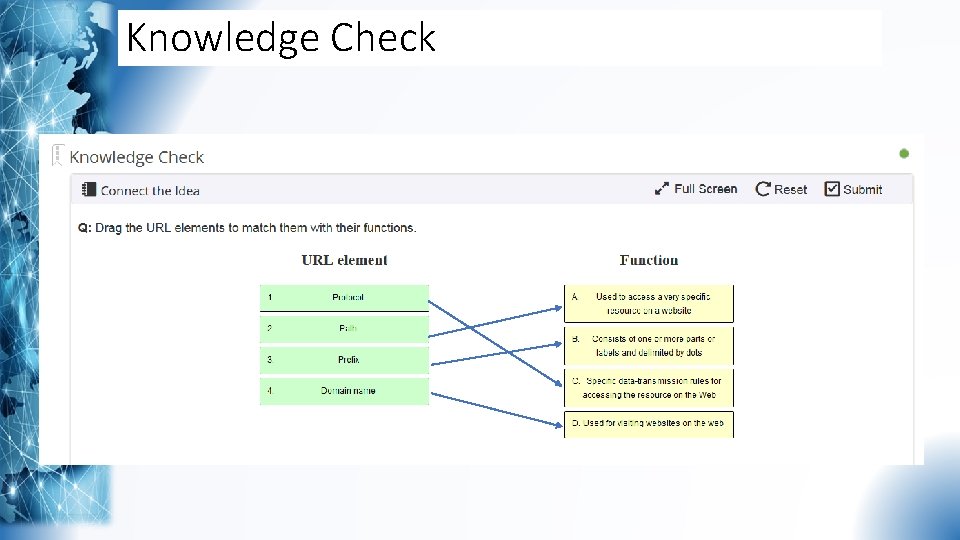
Knowledge Check
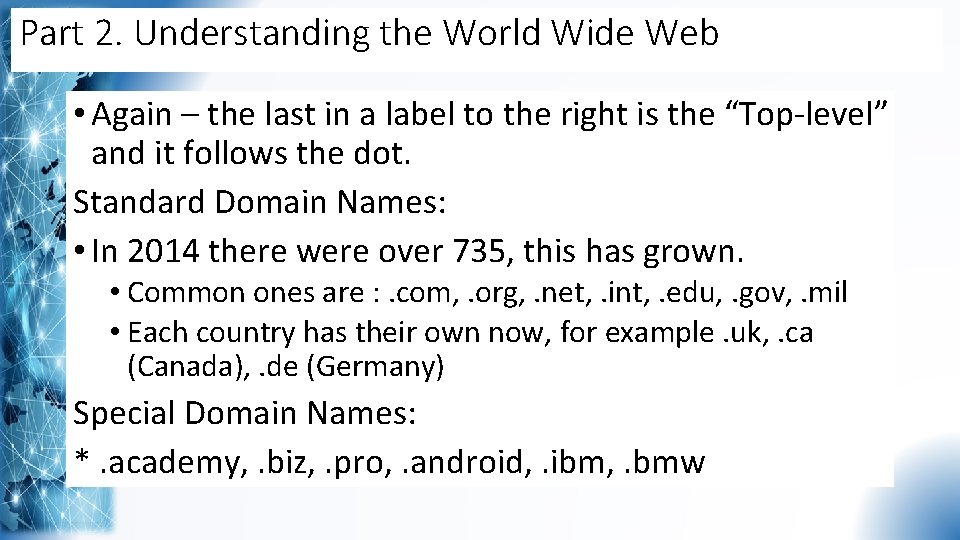
Part 2. Understanding the World Wide Web • Again – the last in a label to the right is the “Top-level” and it follows the dot. Standard Domain Names: • In 2014 there were over 735, this has grown. • Common ones are : . com, . org, . net, . int, . edu, . gov, . mil • Each country has their own now, for example. uk, . ca (Canada), . de (Germany) Special Domain Names: *. academy, . biz, . pro, . android, . ibm, . bmw
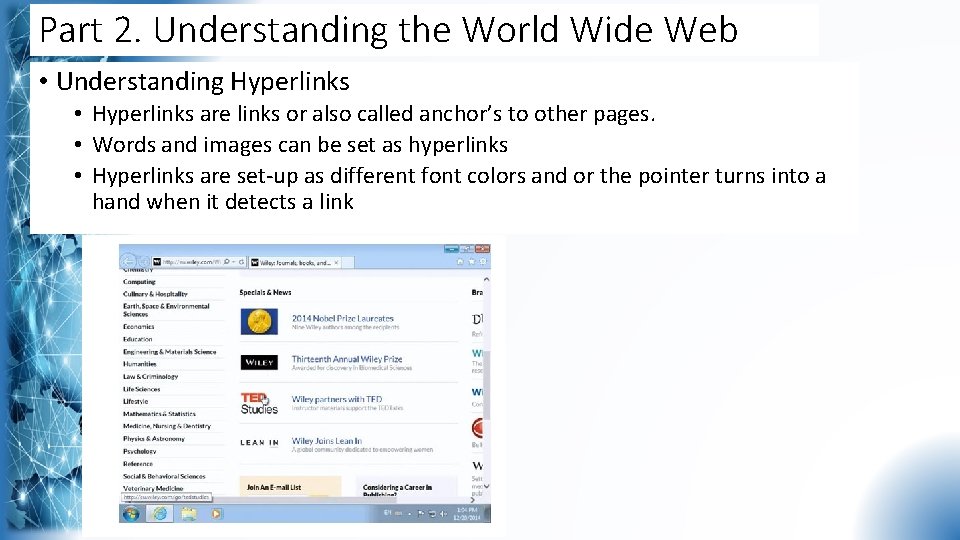
Part 2. Understanding the World Wide Web • Understanding Hyperlinks • Hyperlinks are links or also called anchor’s to other pages. • Words and images can be set as hyperlinks • Hyperlinks are set-up as different font colors and or the pointer turns into a hand when it detects a link
Part 3
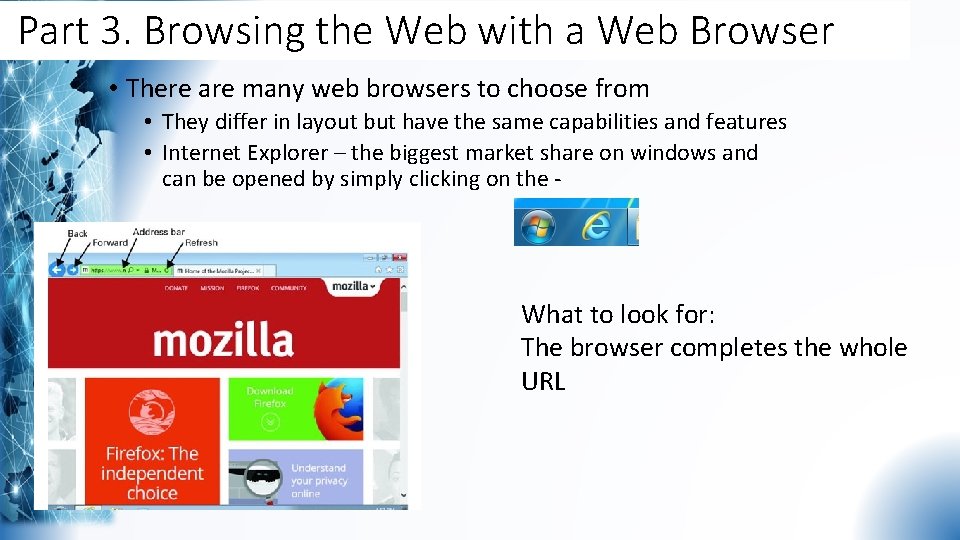
Part 3. Browsing the Web with a Web Browser • There are many web browsers to choose from • They differ in layout but have the same capabilities and features • Internet Explorer – the biggest market share on windows and can be opened by simply clicking on the - What to look for: The browser completes the whole URL
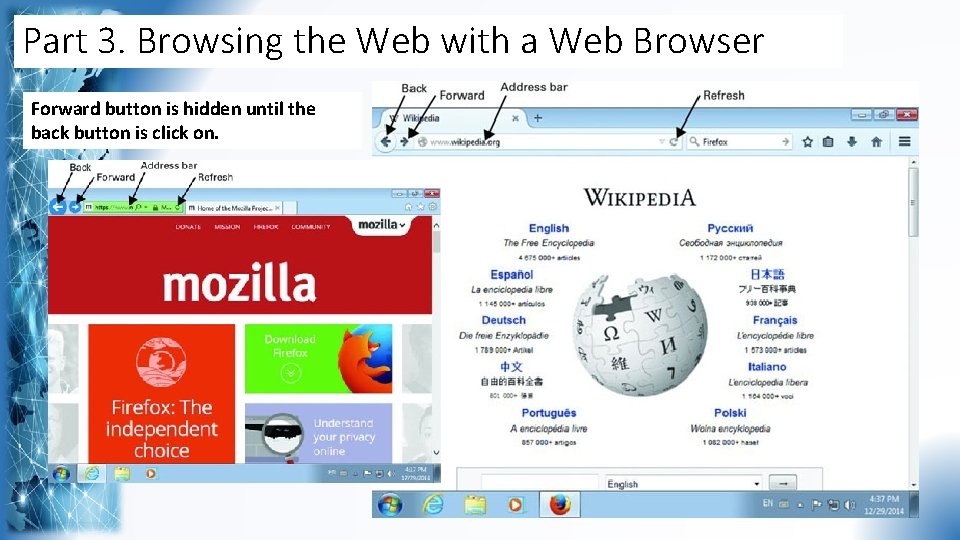
Part 3. Browsing the Web with a Web Browser Forward button is hidden until the back button is click on.
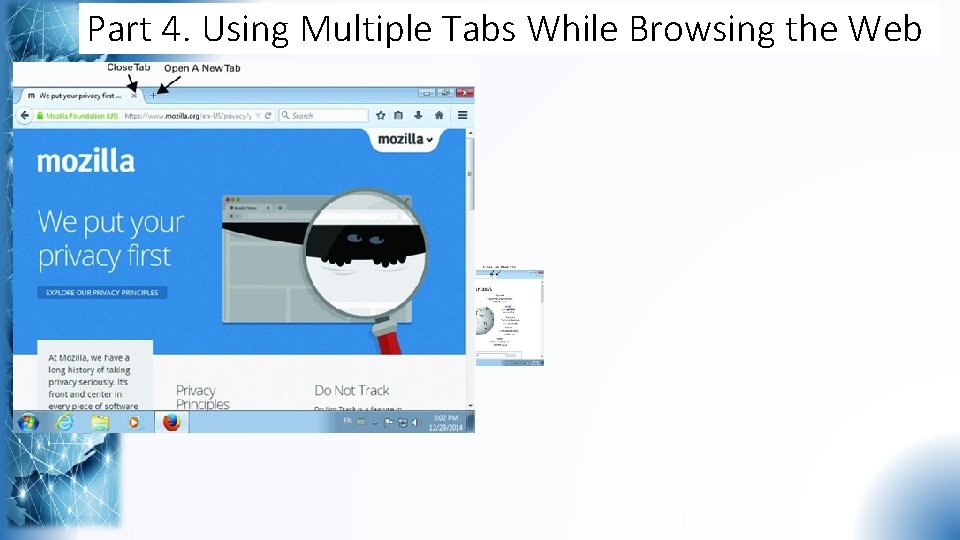
Part 4. Using Multiple Tabs While Browsing the Web
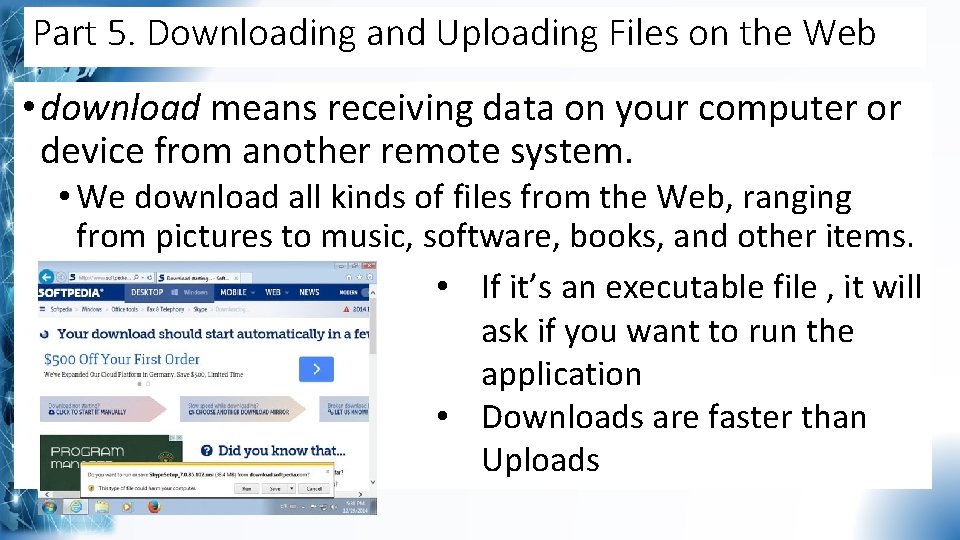
Part 5. Downloading and Uploading Files on the Web • download means receiving data on your computer or device from another remote system. • We download all kinds of files from the Web, ranging from pictures to music, software, books, and other items. • If it’s an executable file , it will ask if you want to run the application • Downloads are faster than Uploads
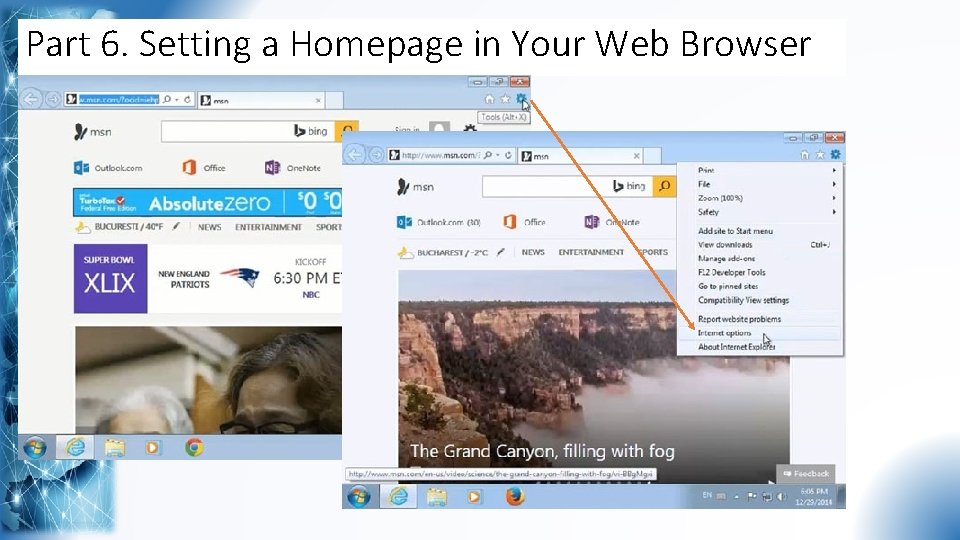
Part 6. Setting a Homepage in Your Web Browser
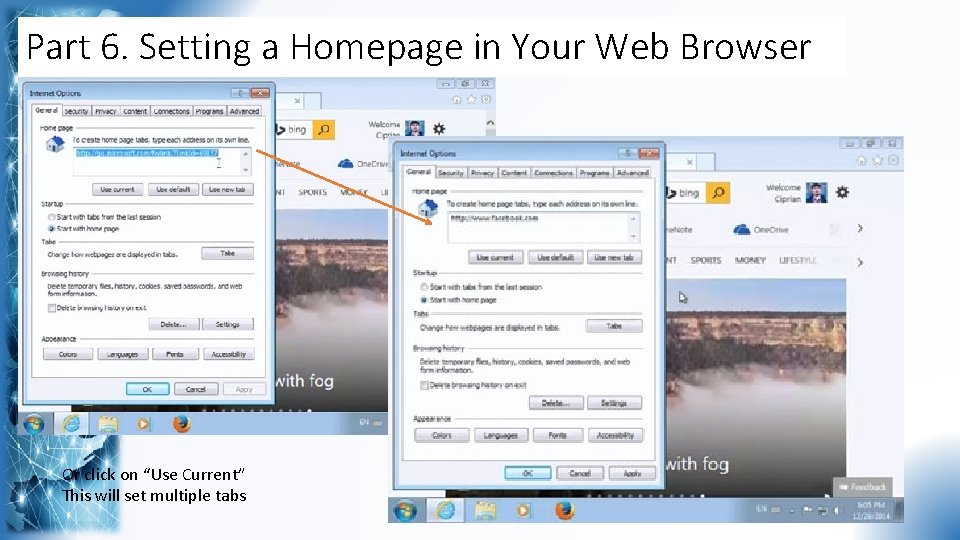
Part 6. Setting a Homepage in Your Web Browser Or click on “Use Current” This will set multiple tabs
Part 7. Using and Clearing Your Browsing History • All web browsers store a complete log of the websites and web pages that you have visited. • You can easily access your history and find the web pages that you have visited. • It’s useful because you can easily access your history and find the web pages that you have visited in the past. • It’s faster because you don't have to fully type each URL after you visit it once.
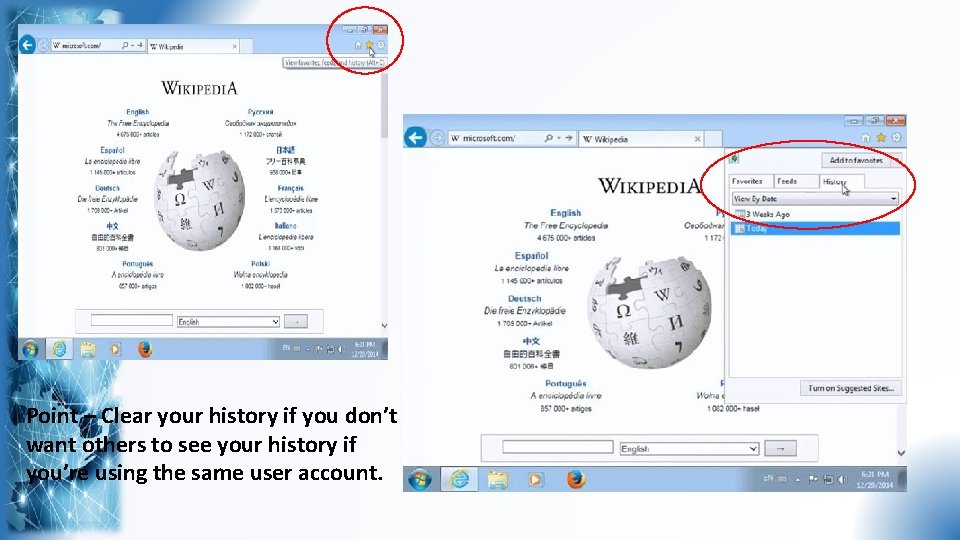
Point – Clear your history if you don’t want others to see your history if you’re using the same user account.
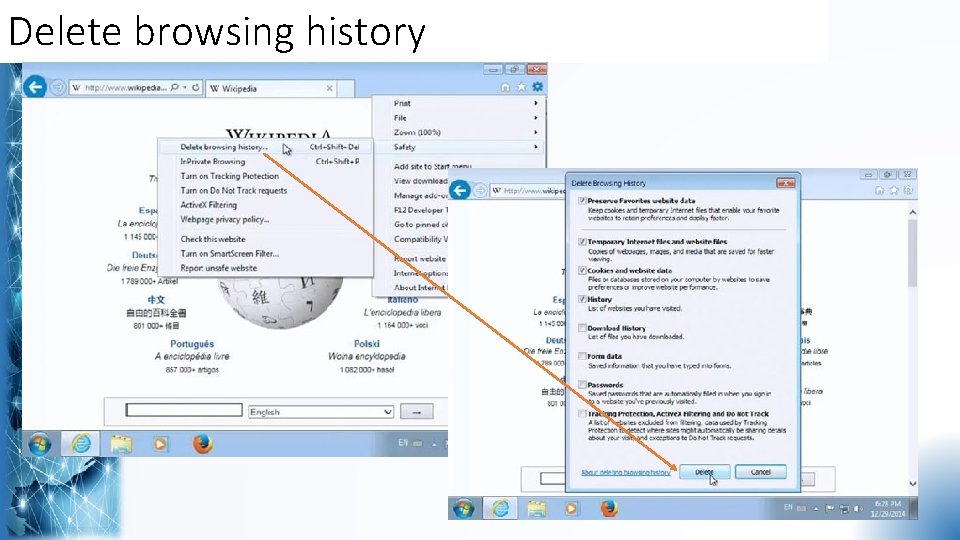
Delete browsing history
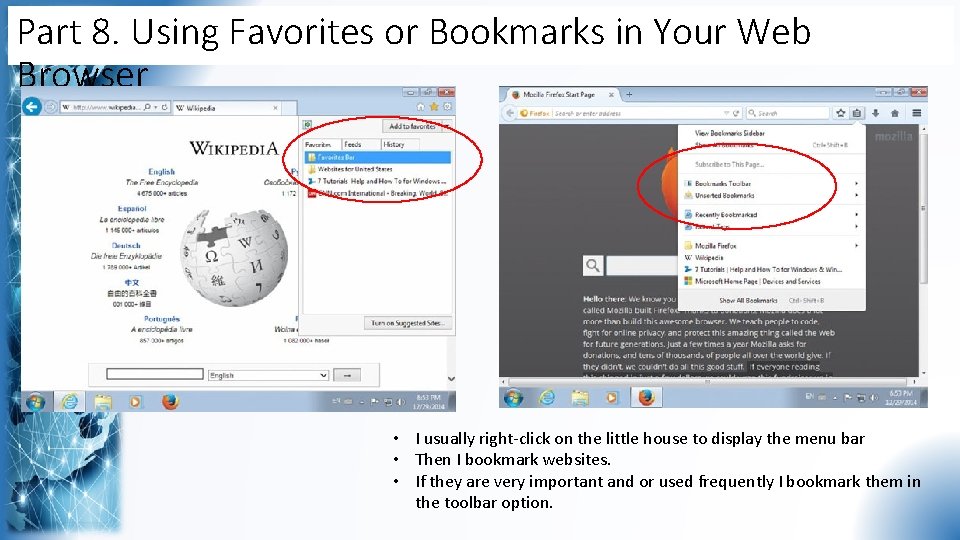
Part 8. Using Favorites or Bookmarks in Your Web Browser • I usually right-click on the little house to display the menu bar • Then I bookmark websites. • If they are very important and or used frequently I bookmark them in the toolbar option.
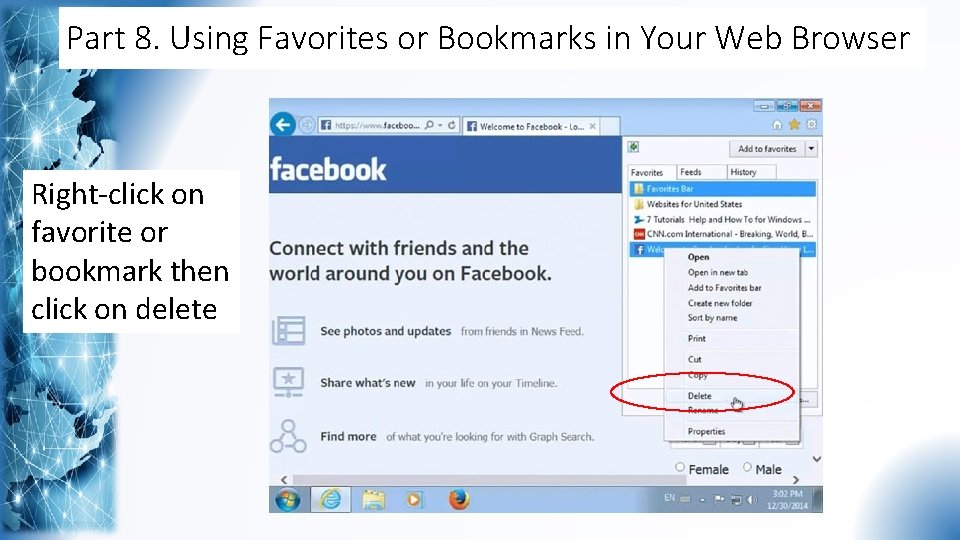
Part 8. Using Favorites or Bookmarks in Your Web Browser Right-click on favorite or bookmark then click on delete
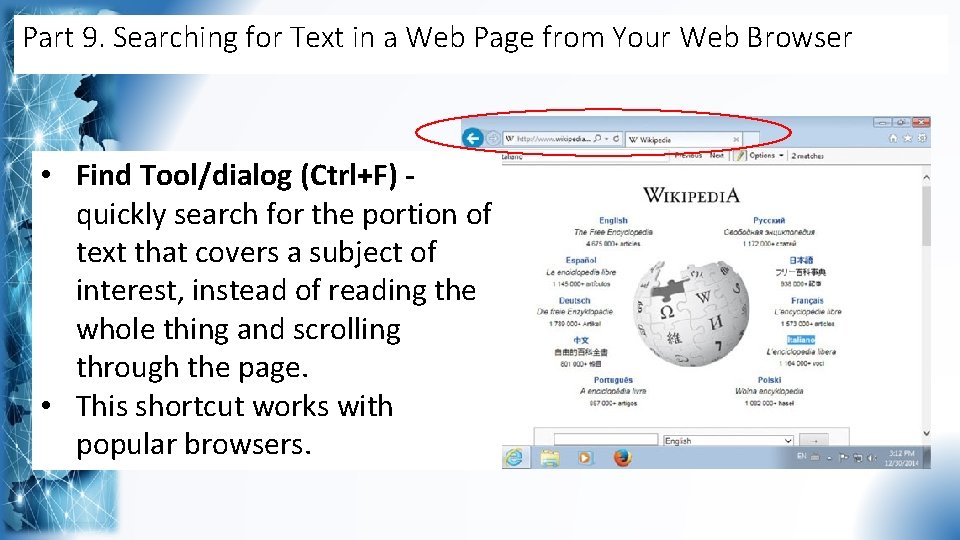
Part 9. Searching for Text in a Web Page from Your Web Browser • Find Tool/dialog (Ctrl+F) quickly search for the portion of text that covers a subject of interest, instead of reading the whole thing and scrolling through the page. • This shortcut works with popular browsers.
Part 10. Using Plug-ins, Add-ons, and Extensions in Your Web Browser • They are software components that add features to browsers • Most popular plug-in is Adobe Flash Player to view multimedia content that was created with adobe flash. • Modern web browsers also have customized collections of addons, plug-ins, and extensions that are maintained by their developers and their community of users. • To find add-ons: • For Internet Explorer - http: //www. iegallery. com • For Mozilla - https: //addons. mozilla. org • For Chrome https: //chrome. google. com/webstore/category/extensions
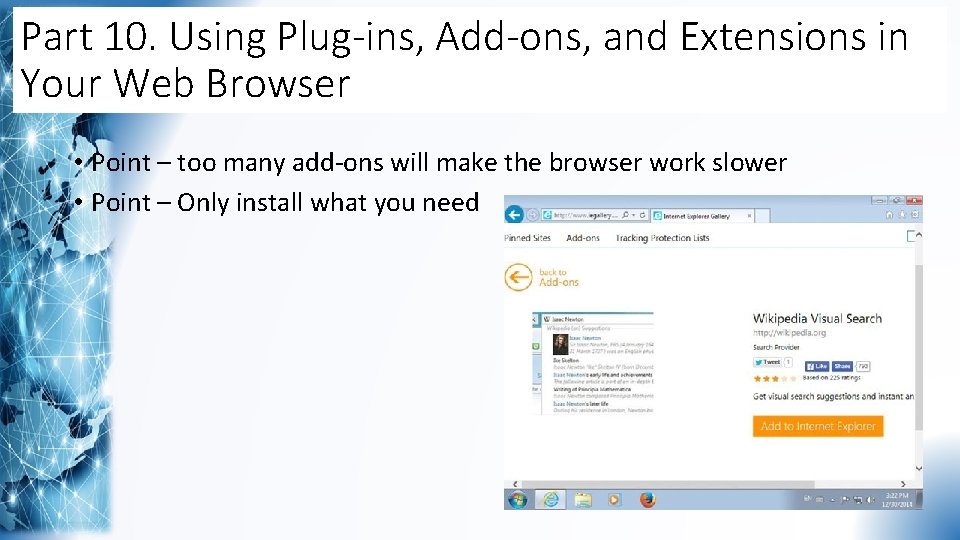
Part 10. Using Plug-ins, Add-ons, and Extensions in Your Web Browser • Point – too many add-ons will make the browser work slower • Point – Only install what you need
Part 11. Summary • You learned about the Internet and the World Wide Web, what they have in common, and what's different about them. • You also learned important concepts like websites, web pages, web browsers, and more.
1. 12 Exam Essentials • Understand the difference between the Internet and the WWW. Many people confuse the Internet with the World Wide Web. Knowing what each of them is and what's different between these concepts is a key aspect of living online. • Know what a web browser is and how to use it. You cannot browse the Web without a web browser. Knowing how to use a web browser is mandatory for being productive when online. • Know how to use the basic features of a web browser. In order to be productive when browsing the Web, you should know how to navigate among the websites that you have visited, open multiple tabs at the same time, set the homepage, bookmark favorite websites, and more. • Learn how to access and clear your browsing history. Your browsing history can help you to access web pages that you have visited in the past. You should learn how to access it and how to clear it when appropriate. • Understand what plug-ins are and why they are useful. Plug-ins, add-ons, and extensions can extend what you can do with a web browser. You should learn what plug-ins are and where you can find them for your web browser.
- Slides: 29