
Understanding the Procure to Pay Dashboard Content Modernization
Understanding the Procure to Pay Dashboard Content Modernization of Financial Reporting Project Summer 2015
Objective of Today’s Discussion Introduce users to the new OBI dashboards and provide a high-level overview of the associated business processes 2
Overview Agile Software Development What is P 2 P? Transaction Types Committed Funds Dashboard Vendor Invoice Detail Dashboard Understanding P 2 P Accounting Escheat Dashboard Appendix
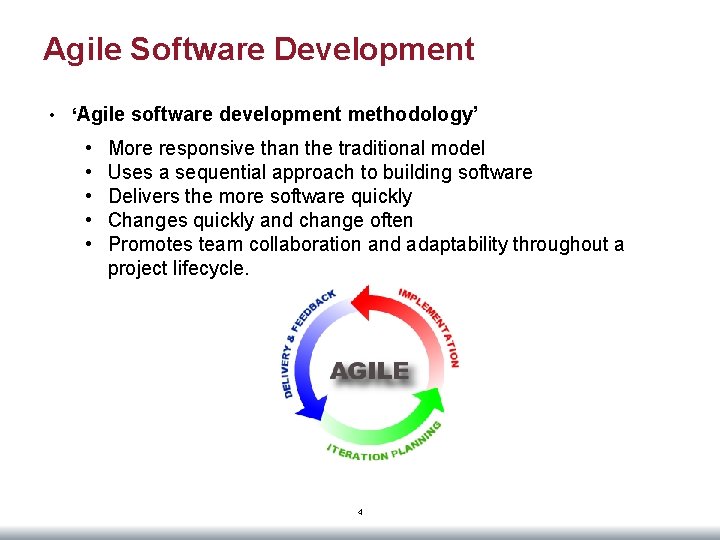
Agile Software Development • ‘Agile software development methodology’ • • • More responsive than the traditional model Uses a sequential approach to building software Delivers the more software quickly Changes quickly and change often Promotes team collaboration and adaptability throughout a project lifecycle. 4
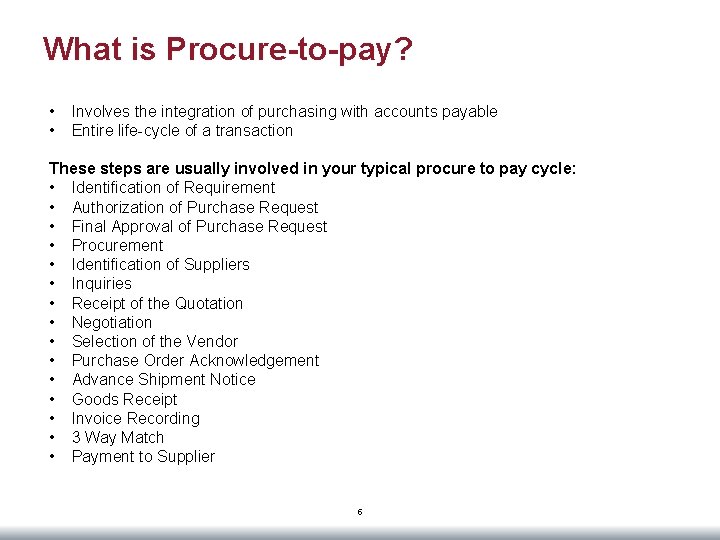
What is Procure-to-pay? • • Involves the integration of purchasing with accounts payable Entire life-cycle of a transaction These steps are usually involved in your typical procure to pay cycle: • Identification of Requirement • Authorization of Purchase Request • Final Approval of Purchase Request • Procurement • Identification of Suppliers • Inquiries • Receipt of the Quotation • Negotiation • Selection of the Vendor • Purchase Order Acknowledgement • Advance Shipment Notice • Goods Receipt • Invoice Recording • 3 Way Match • Payment to Supplier 5
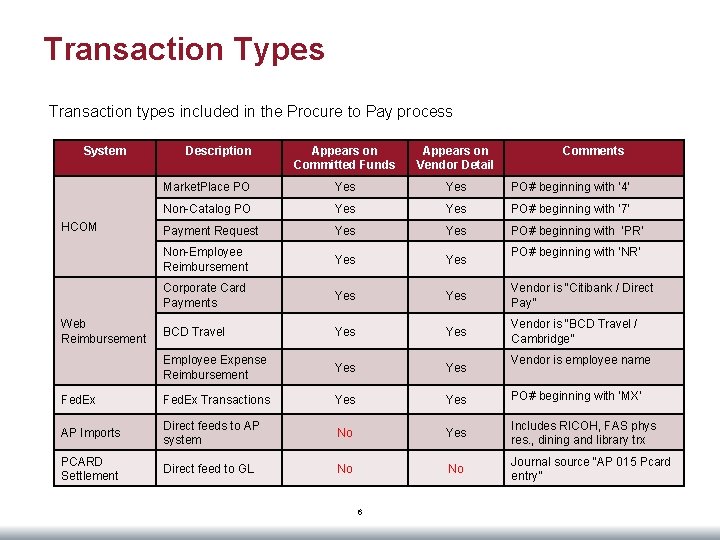
Transaction Types Transaction types included in the Procure to Pay process System Appears on Committed Funds Appears on Vendor Detail Market. Place PO Yes PO# beginning with ‘ 4’ Non-Catalog PO Yes PO# beginning with ‘ 7’ Payment Request Yes PO# beginning with ‘PR’ Non-Employee Reimbursement Yes Corporate Card Payments Yes Vendor is “Citibank / Direct Pay” BCD Travel Yes Vendor is “BCD Travel / Cambridge” Employee Expense Reimbursement Yes Fed. Ex Transactions Yes PO# beginning with ‘MX’ AP Imports Direct feeds to AP system No Yes Includes RICOH, FAS phys res. , dining and library trx PCARD Settlement Direct feed to GL No No Journal source “AP 015 Pcard entry” HCOM Web Reimbursement Description 6 Comments PO# beginning with ‘NR’ Vendor is employee name
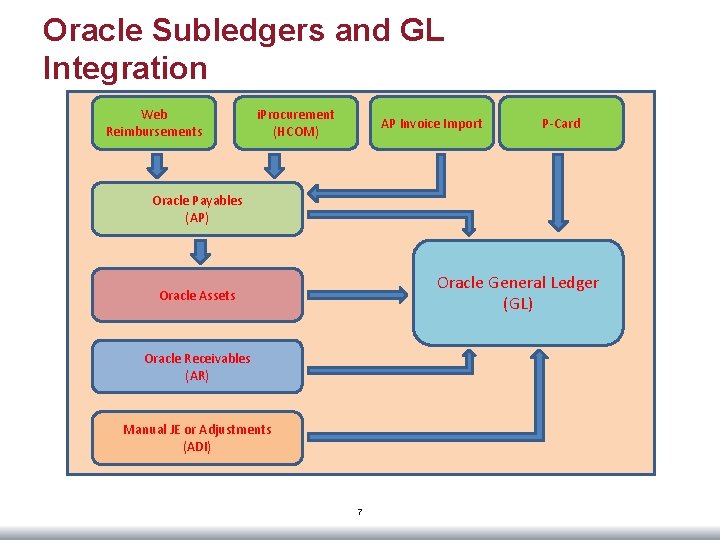
Oracle Subledgers and GL Integration Web Reimbursements i. Procurement (HCOM) AP Invoice Import P-Card Oracle Payables (AP) Oracle General Ledger (GL) Oracle Assets Oracle Receivables (AR) Manual JE or Adjustments (ADI) 7
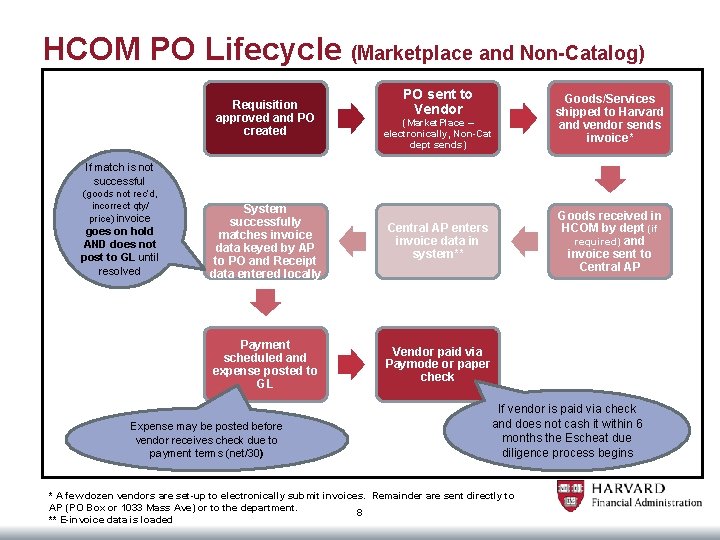
HCOM PO Lifecycle (Marketplace and Non-Catalog) Requisition approved and PO created PO sent to Vendor (Market. Place – electronically, Non-Cat dept sends) Goods/Services shipped to Harvard and vendor sends invoice* If match is not successful (goods not rec’d, incorrect qty/ price) invoice goes on hold AND does not post to GL until resolved System successfully matches invoice data keyed by AP to PO and Receipt data entered locally Central AP enters invoice data in system** Payment scheduled and expense posted to GL Vendor paid via Paymode or paper check Expense may be posted before vendor receives check due to payment terms (net/30) Goods received in HCOM by dept (if required) and invoice sent to Central AP If vendor is paid via check and does not cash it within 6 months the Escheat due diligence process begins * A few dozen vendors are set-up to electronically submit invoices. Remainder are sent directly to AP (PO Box or 1033 Mass Ave) or to the department. 8 ** E-invoice data is loaded
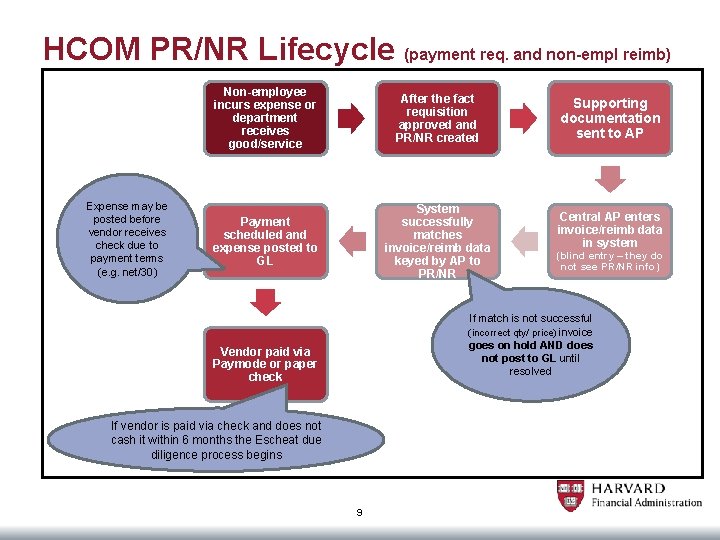
HCOM PR/NR Lifecycle (payment req. and non-empl reimb) Expense may be posted before vendor receives check due to payment terms (e. g. net/30) Non-employee incurs expense or department receives good/service After the fact requisition approved and PR/NR created Payment scheduled and expense posted to GL System successfully matches invoice/reimb data keyed by AP to PR/NR Supporting documentation sent to AP Central AP enters invoice/reimb data in system (blind entry – they do not see PR/NR info) If match is not successful (incorrect qty/ price) invoice goes on hold AND does not post to GL until resolved Vendor paid via Paymode or paper check If vendor is paid via check and does not cash it within 6 months the Escheat due diligence process begins 9
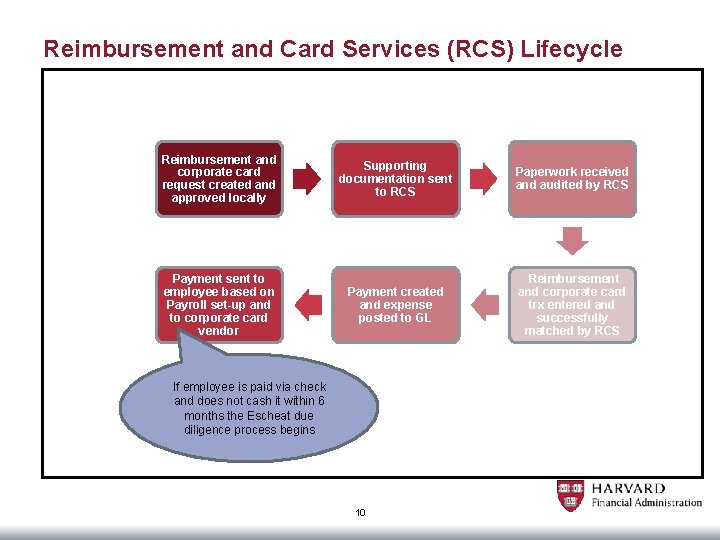
Reimbursement and Card Services (RCS) Lifecycle Reimbursement and corporate card request created and approved locally Payment sent to employee based on Payroll set-up and to corporate card vendor Supporting documentation sent to RCS Paperwork received and audited by RCS Payment created and expense posted to GL Reimbursement and corporate card trx entered and successfully matched by RCS If employee is paid via check and does not cash it within 6 months the Escheat due diligence process begins 10

Committed Funds Dashboard Description The Committed Funds dashboard is used to track open purchasing/invoice activity that has been approved for purchase but not yet posted to the General Ledger. Business Questions Answered Ø How much funding do I really have left to spend? When you look at a GL report and see you have a remaining budget of $2000 you may not have the complete picture. The committed funds dashboard will display outstanding commitments. If you have $500 in committed funds then what you really have left to spend is $1500 ($2000 remaining budget on GL report less $500 in open commitments). Ø What open POs do I have? This is useful if you are: Ø Looking to close a grant and want to confirm all activity has been accounted Ø Looking to identify POs no longer needed and may be closed (see Appendix for close process) Ø How much do I need to accrue? The committed funds report can identify where you have received goods/services, but have not been invoiced and therefore should accrue. Ø What invoices am I missing? You can use this dashboard to identify where goods/services have been received, but an invoice has not yet been processed by Central AP (vendor never billed Harvard, invoice got lost in transit etc…). If a transaction appears on this report that you believe was submitted then you may want to do some research. 11
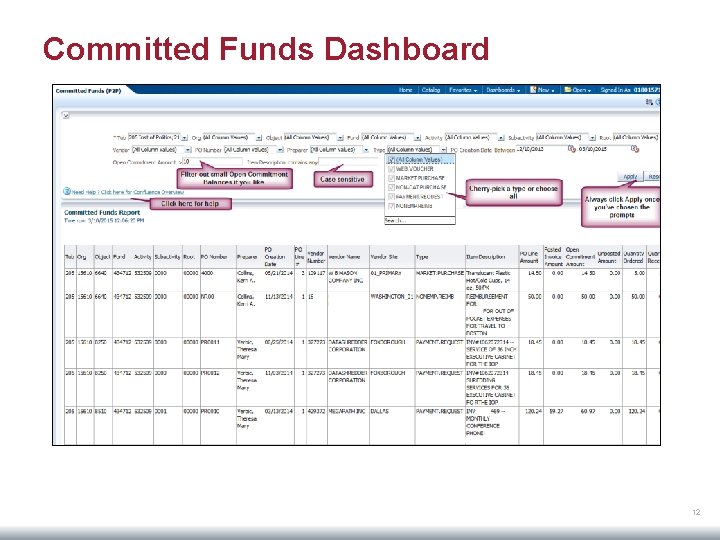
Committed Funds Dashboard 12
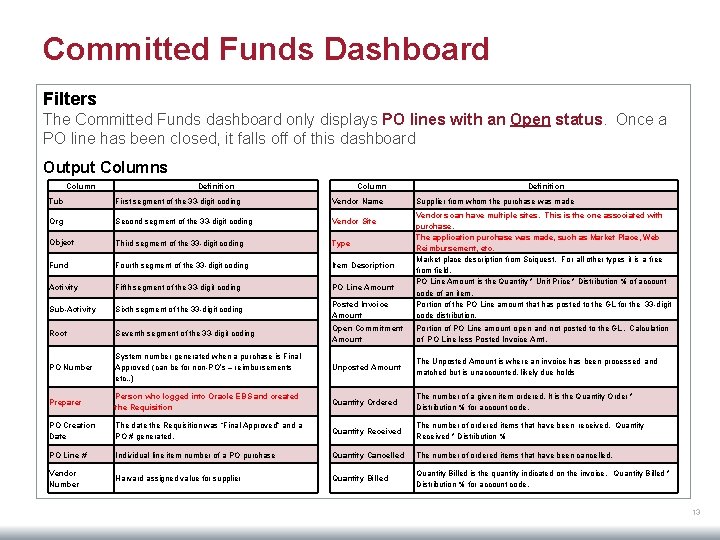
Committed Funds Dashboard Filters The Committed Funds dashboard only displays PO lines with an Open status. Once a PO line has been closed, it falls off of this dashboard Output Columns Column Definition Tub First segment of the 33 -digit coding Vendor Name Org Second segment of the 33 -digit coding Vendor Site Third segment of the 33 -digit coding Type Fund Fourth segment of the 33 -digit coding Item Description Activity Fifth segment of the 33 -digit coding PO Line Amount Sub-Activity Sixth segment of the 33 -digit coding Posted Invoice Amount Vendors can have multiple sites. This is the one associated with purchase. The application purchase was made, such as Market Place, Web Reimbursement, etc. Market place description from Sciquest. For all other types it is a free from field. PO Line Amount is the Quantity * Unit Price * Distribution % of account code of an item. Portion of the PO Line amount that has posted to the GL for the 33 -digit code distribution. Root Seventh segment of the 33 -digit coding Open Commitment Amount Portion of PO Line amount open and not posted to the GL. Calculation of PO Line less Posted Invoice Amt. PO Number System number generated when a purchase is Final Approved (can be for non-PO’s – reimbursements etc. . ) Unposted Amount The Unposted Amount is where an invoice has been processed and matched but is unaccounted, likely due holds Preparer Person who logged into Oracle EBS and created the Requisition Quantity Ordered The number of a given item ordered. It is the Quantity Order * Distribution % for account code. PO Creation Date The date the Requisition was “Final Approved” and a PO # generated. Quantity Received The number of ordered items that have been received. Quantity Received * Distribution % PO Line # Individual line item number of a PO purchase Quantity Cancelled The number of ordered items that have been cancelled. Vendor Number Harvard assigned value for supplier Quantity Billed is the quantity indicated on the invoice. Quantity Billed * Distribution % for account code. Object Supplier from whom the purchase was made 13
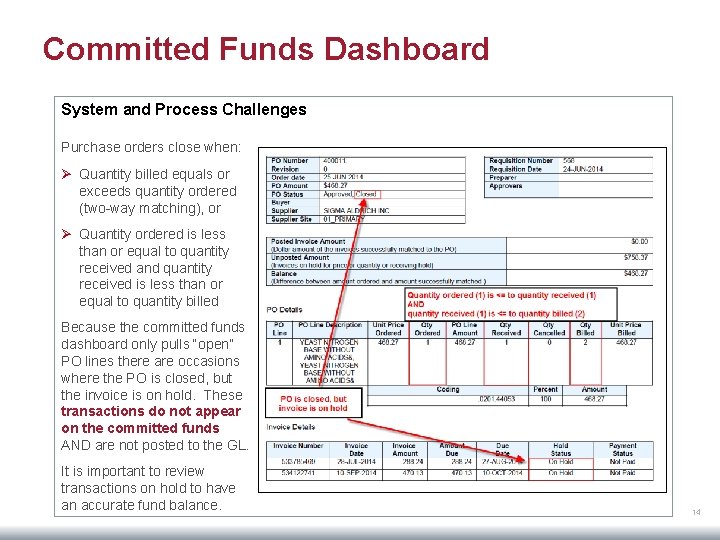
Committed Funds Dashboard System and Process Challenges Purchase orders close when: Ø Quantity billed equals or exceeds quantity ordered (two-way matching), or Ø Quantity ordered is less than or equal to quantity received and quantity received is less than or equal to quantity billed Because the committed funds dashboard only pulls “open” PO lines there are occasions where the PO is closed, but the invoice is on hold. These transactions do not appear on the committed funds AND are not posted to the GL. It is important to review transactions on hold to have an accurate fund balance. 14
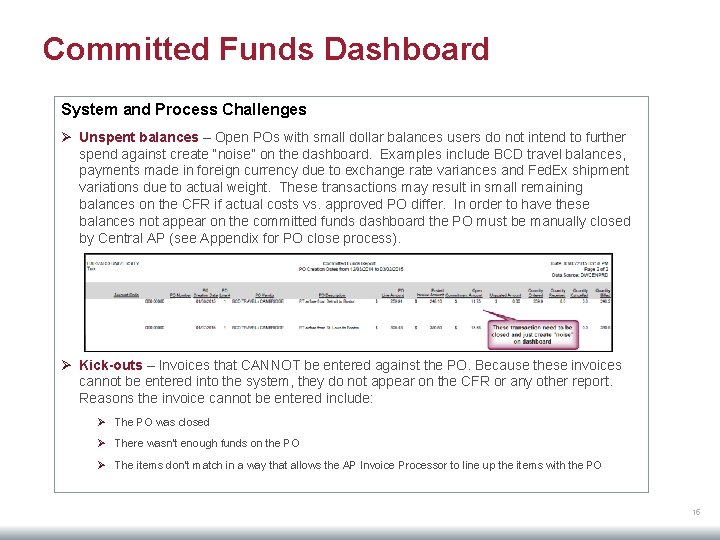
Committed Funds Dashboard System and Process Challenges Ø Unspent balances – Open POs with small dollar balances users do not intend to further spend against create “noise” on the dashboard. Examples include BCD travel balances, payments made in foreign currency due to exchange rate variances and Fed. Ex shipment variations due to actual weight. These transactions may result in small remaining balances on the CFR if actual costs vs. approved PO differ. In order to have these balances not appear on the committed funds dashboard the PO must be manually closed by Central AP (see Appendix for PO close process). Ø Kick-outs – Invoices that CANNOT be entered against the PO. Because these invoices cannot be entered into the system, they do not appear on the CFR or any other report. Reasons the invoice cannot be entered include: Ø The PO was closed Ø There wasn’t enough funds on the PO Ø The items don’t match in a way that allows the AP Invoice Processor to line up the items with the PO 15
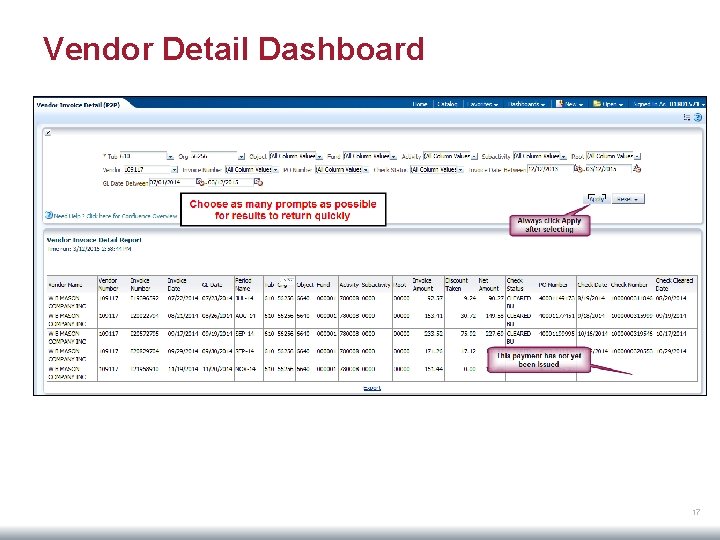
Vendor Invoice Detail Dashboard Description The Vendor Detail dashboard is used to review matched payables activity that has posted to the General Ledger. Business Questions Answered Ø Do we have a relationship with a particular vendor? This dashboard can be used to see all past activity with a specific vendor for tub(s) you have access to. You can use this to review when you last did business with the vendor, what’s your overall spend with the vendor etc… Ø Has the vendor cashed the check? This is useful if you receive a call from a vendor stating they were not paid. You can review the payment status to determine if the check has been issued, cashed etc… Ø What payables activity has been posted to the GL? This dashboard will show you details of all payables activity that has been posted to the GL. Ø Has something escheatable already been paid? This dashboard is useful for researching escheatable payments to determine if another payment was issued for the same amount using a different PO/payment number. 16
Vendor Detail Dashboard 17
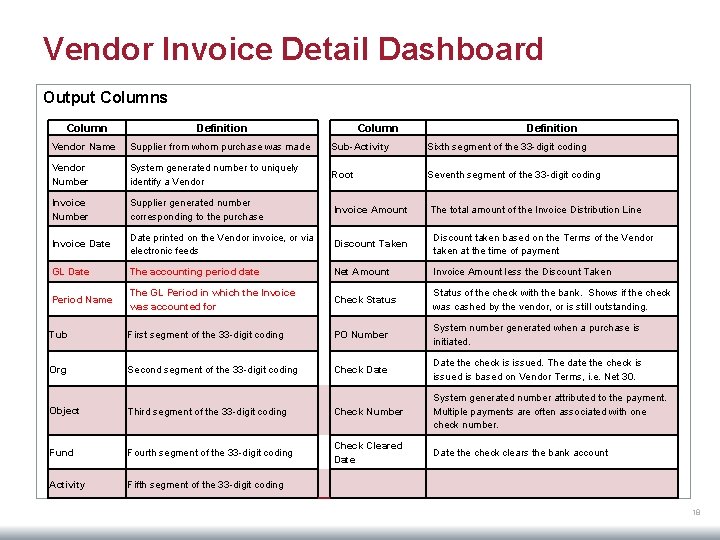
Vendor Invoice Detail Dashboard Output Columns Column Definition Vendor Name Supplier from whom purchase was made Sub-Activity Sixth segment of the 33 -digit coding Vendor Number System generated number to uniquely identify a Vendor Root Seventh segment of the 33 -digit coding Invoice Number Supplier generated number corresponding to the purchase Invoice Amount The total amount of the Invoice Distribution Line Invoice Date printed on the Vendor invoice, or via electronic feeds Discount Taken Discount taken based on the Terms of the Vendor taken at the time of payment GL Date The accounting period date Net Amount Invoice Amount less the Discount Taken Period Name The GL Period in which the Invoice was accounted for Check Status of the check with the bank. Shows if the check was cashed by the vendor, or is still outstanding. Tub First segment of the 33 -digit coding PO Number System number generated when a purchase is initiated. Org Second segment of the 33 -digit coding Check Date the check is issued. The date the check is issued is based on Vendor Terms, i. e. Net 30. Object Third segment of the 33 -digit coding Check Number System generated number attributed to the payment. Multiple payments are often associated with one check number. Fund Fourth segment of the 33 -digit coding Check Cleared Date the check clears the bank account Activity Fifth segment of the 33 -digit coding 18
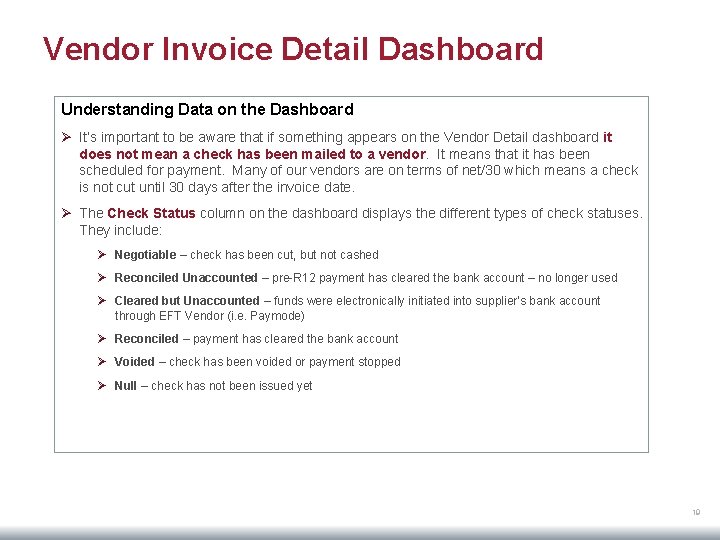
Vendor Invoice Detail Dashboard Understanding Data on the Dashboard Ø It’s important to be aware that if something appears on the Vendor Detail dashboard it does not mean a check has been mailed to a vendor. It means that it has been scheduled for payment. Many of our vendors are on terms of net/30 which means a check is not cut until 30 days after the invoice date. Ø The Check Status column on the dashboard displays the different types of check statuses. They include: Ø Negotiable – check has been cut, but not cashed Ø Reconciled Unaccounted – pre-R 12 payment has cleared the bank account – no longer used Ø Cleared but Unaccounted – funds were electronically initiated into supplier’s bank account through EFT Vendor (i. e. Paymode) Ø Reconciled – payment has cleared the bank account Ø Voided – check has been voided or payment stopped Ø Null – check has not been issued yet 19
Understanding General Ledger Posting Activity Ø Payables activity posts to the General Ledger when the invoice is successfully matched and approved not necessarily when the vendor is paid Ø On a nightly basis, accounting entries are posted to the General Ledger and will appear on the detail listing the morning after the invoice is successfully matched 20
Escheat – Unclaimed Checks 21
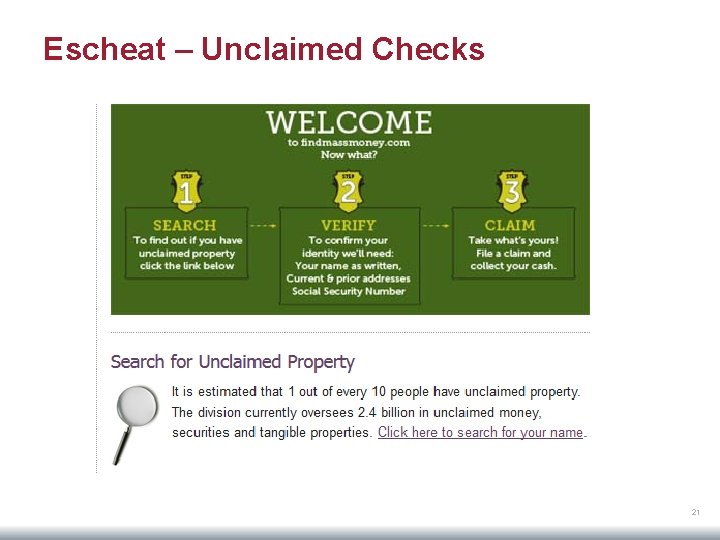
Escheat – Unclaimed Checks • According to Massachusetts Abandoned Property Law, any uncashed check that has been inactive for more than 3 years is declared abandoned and turned over to the State Treasury. • Due Diligence: Escheat Due Diligence letters need to be issued (for all checks >$100) notifying the vendor/individual of their uncashed check within 60 days of being turned over to the state every October 30 th. – Is check due to the vendor/individual? – Has every possible attempt to notify the vendor or individual? – Is the correct address on file? • Issue send them a replacement check 22

Escheat Dashboard Description The State of Massachusetts requires Harvard University to make an effort to contact vendors that have not cashed checks that were sent to them. This dashboard shows a list of uncashed checks. It contains data needed by local units to perform due diligence research on checks that have been outstanding (uncashed) for more than 6 months. Business Questions Answered Ø Does my department have uncashed checks in Escheatable status? This dashboard can be used to view all checks for your tub-org that are designated as “escheatable” Ø Does my department have uncashed checks aged 6 months and older? Ø Does my department need to send any Escheat Due Diligence Letters this month? 23
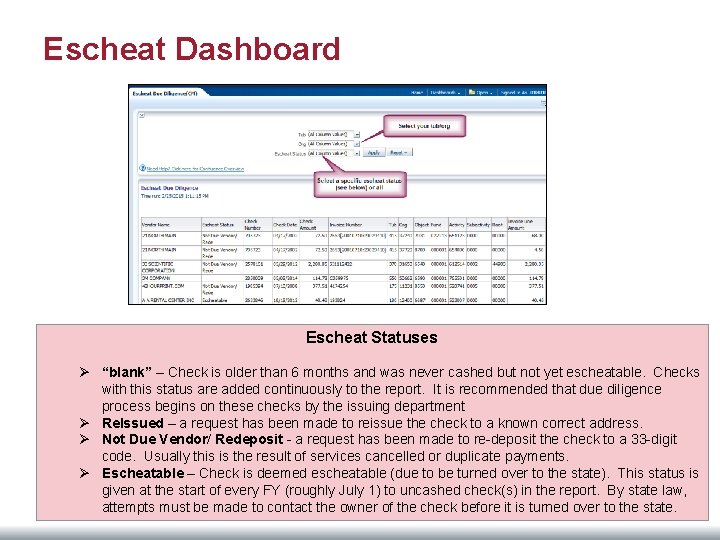
Escheat Dashboard Escheat Statuses Ø “blank” – Check is older than 6 months and was never cashed but not yet escheatable. Checks with this status are added continuously to the report. It is recommended that due diligence process begins on these checks by the issuing department Ø Re. Issued – a request has been made to reissue the check to a known correct address. Ø Not Due Vendor/ Redeposit - a request has been made to re-deposit the check to a 33 -digit code. Usually this is the result of services cancelled or duplicate payments. Ø Escheatable – Check is deemed escheatable (due to be turned over to the state). This status is given at the start of every FY (roughly July 1) to uncashed check(s) in the report. By state law, attempts must be made to contact the owner of the check before it is turned over to the state. 24
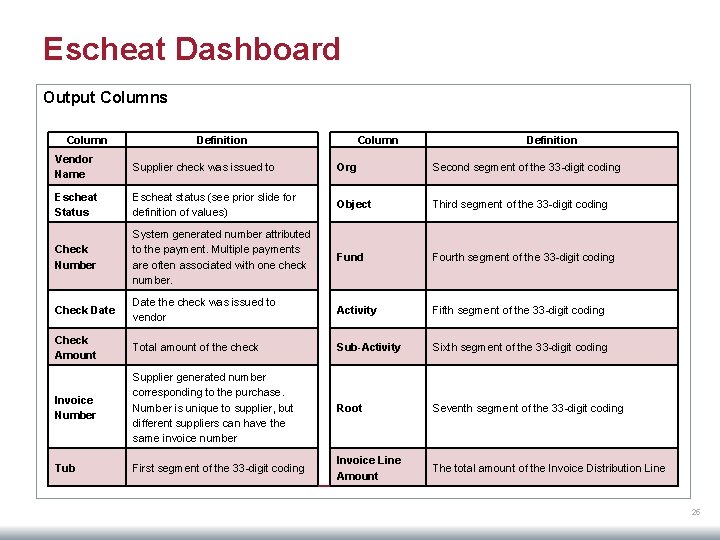
Escheat Dashboard Output Columns Column Definition Vendor Name Supplier check was issued to Org Second segment of the 33 -digit coding Escheat Status Escheat status (see prior slide for definition of values) Object Third segment of the 33 -digit coding Check Number System generated number attributed to the payment. Multiple payments are often associated with one check number. Fund Fourth segment of the 33 -digit coding Check Date the check was issued to vendor Activity Fifth segment of the 33 -digit coding Check Amount Total amount of the check Sub-Activity Sixth segment of the 33 -digit coding Invoice Number Supplier generated number corresponding to the purchase. Number is unique to supplier, but different suppliers can have the same invoice number Root Seventh segment of the 33 -digit coding Tub First segment of the 33 -digit coding Invoice Line Amount The total amount of the Invoice Distribution Line 25
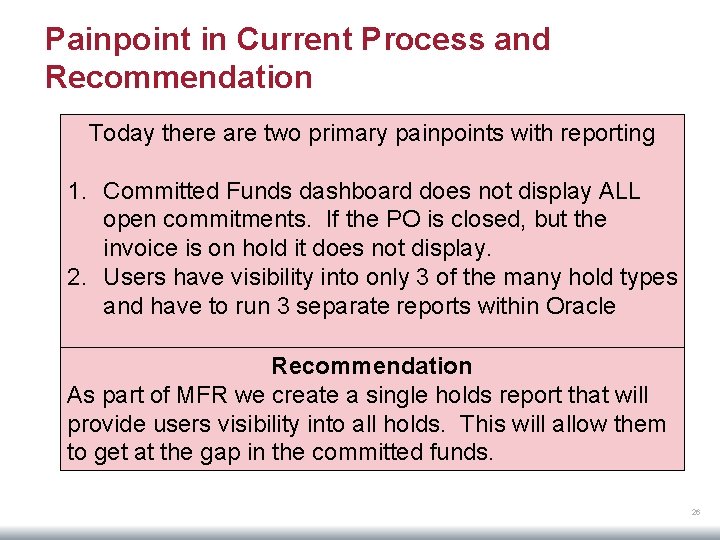
Painpoint in Current Process and Recommendation Today there are two primary painpoints with reporting 1. Committed Funds dashboard does not display ALL open commitments. If the PO is closed, but the invoice is on hold it does not display. 2. Users have visibility into only 3 of the many hold types and have to run 3 separate reports within Oracle Recommendation As part of MFR we create a single holds report that will provide users visibility into all holds. This will allow them to get at the gap in the committed funds. 26

Appendix
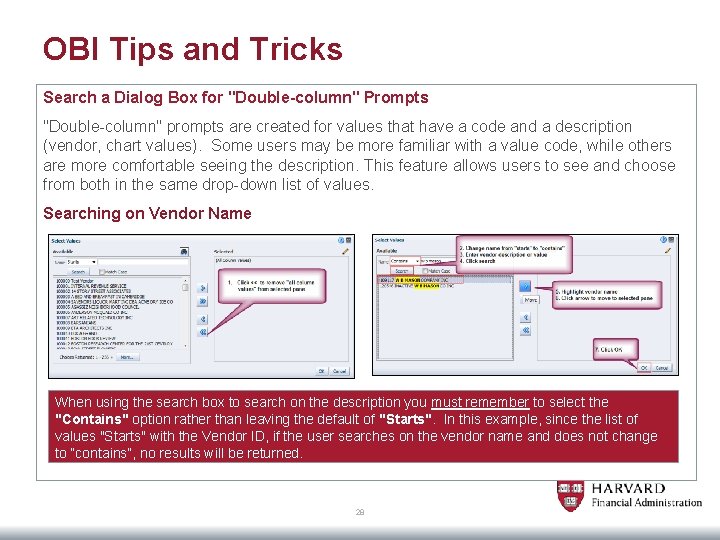
OBI Tips and Tricks Search a Dialog Box for "Double-column" Prompts "Double-column" prompts are created for values that have a code and a description (vendor, chart values). Some users may be more familiar with a value code, while others are more comfortable seeing the description. This feature allows users to see and choose from both in the same drop-down list of values. Searching on Vendor Name When using the search box to search on the description you must remember to select the "Contains" option rather than leaving the default of "Starts". In this example, since the list of values "Starts" with the Vendor ID, if the user searches on the vendor name and does not change to “contains”, no results will be returned. 28
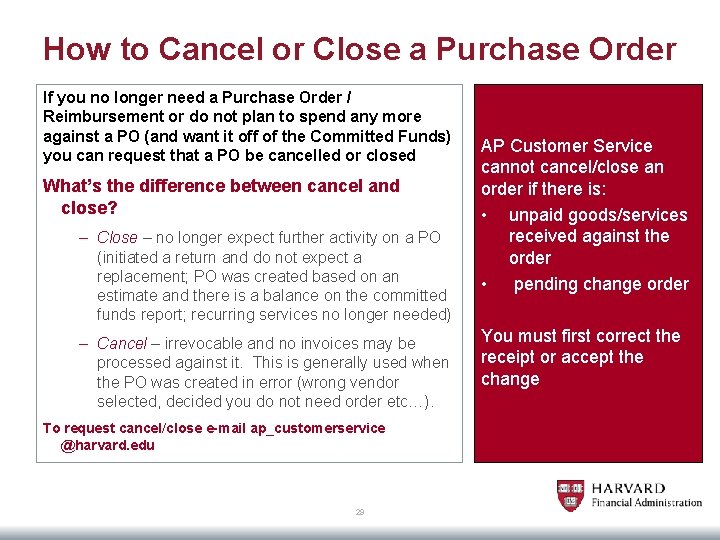
How to Cancel or Close a Purchase Order If you no longer need a Purchase Order / Reimbursement or do not plan to spend any more against a PO (and want it off of the Committed Funds) you can request that a PO be cancelled or closed What’s the difference between cancel and close? – Close – no longer expect further activity on a PO (initiated a return and do not expect a replacement; PO was created based on an estimate and there is a balance on the committed funds report; recurring services no longer needed) – Cancel – irrevocable and no invoices may be processed against it. This is generally used when the PO was created in error (wrong vendor selected, decided you do not need order etc…). To request cancel/close e-mail ap_customerservice @harvard. edu 29 AP Customer Service cannot cancel/close an order if there is: • unpaid goods/services received against the order • pending change order You must first correct the receipt or accept the change
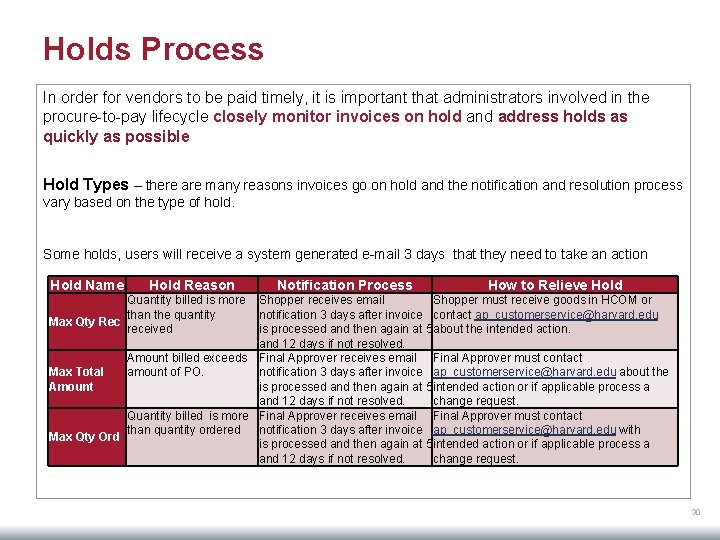
Holds Process In order for vendors to be paid timely, it is important that administrators involved in the procure-to-pay lifecycle closely monitor invoices on hold and address holds as quickly as possible Hold Types – there are many reasons invoices go on hold and the notification and resolution process vary based on the type of hold. Some holds, users will receive a system generated e-mail 3 days that they need to take an action Hold Name Hold Reason Notification Process How to Relieve Hold Quantity billed is more Shopper receives email Shopper must receive goods in HCOM or than the quantity notification 3 days after invoice contact ap_customerservice@harvard. edu Max Qty Rec received is processed and then again at 5 about the intended action. and 12 days if not resolved. Amount billed exceeds Final Approver receives email Final Approver must contact Max Total amount of PO. notification 3 days after invoice ap_customerservice@harvard. edu about the Amount is processed and then again at 5 intended action or if applicable process a and 12 days if not resolved. change request. Quantity billed is more Final Approver receives email Final Approver must contact than quantity ordered notification 3 days after invoice ap_customerservice@harvard. edu with Max Qty Ord is processed and then again at 5 intended action or if applicable process a and 12 days if not resolved. change request. 30
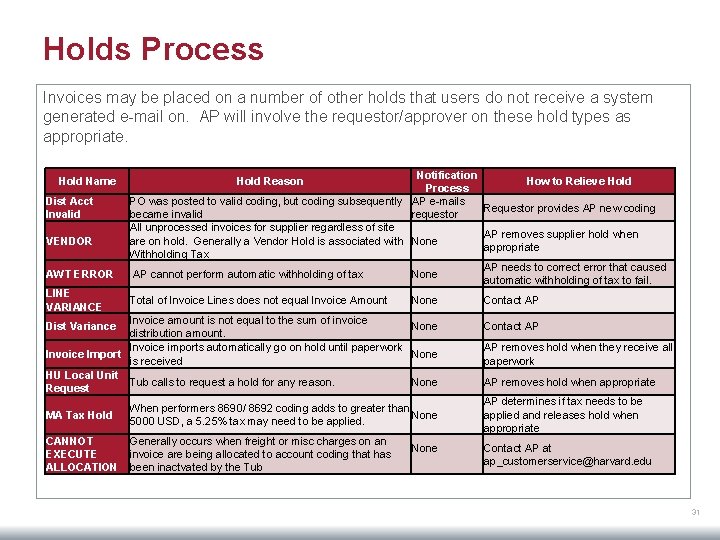
Holds Process Invoices may be placed on a number of other holds that users do not receive a system generated e-mail on. AP will involve the requestor/approver on these hold types as appropriate. Hold Name Dist Acct Invalid VENDOR AWT ERROR LINE VARIANCE Notification How to Relieve Hold Process PO was posted to valid coding, but coding subsequently AP e-mails Requestor provides AP new coding became invalid requestor All unprocessed invoices for supplier regardless of site AP removes supplier hold when are on hold. Generally a Vendor Hold is associated with None appropriate Withholding Tax AP needs to correct error that caused AP cannot perform automatic withholding of tax None automatic withholding of tax to fail. Hold Reason Total of Invoice Lines does not equal Invoice Amount None Invoice amount is not equal to the sum of invoice None distribution amount. Invoice imports automatically go on hold until paperwork Invoice Import None is received HU Local Unit Tub calls to request a hold for any reason. None Request Dist Variance Contact AP AP removes hold when they receive all paperwork AP removes hold when appropriate MA Tax Hold When performers 8690/ 8692 coding adds to greater than None 5000 USD, a 5. 25% tax may need to be applied. AP determines if tax needs to be applied and releases hold when appropriate CANNOT EXECUTE ALLOCATION Generally occurs when freight or misc charges on an invoice are being allocated to account coding that has been inactvated by the Tub Contact AP at ap_customerservice@harvard. edu None 31
- Slides: 31