
Understanding the Flex Application Life Cycle Flex applications


- Slides: 97
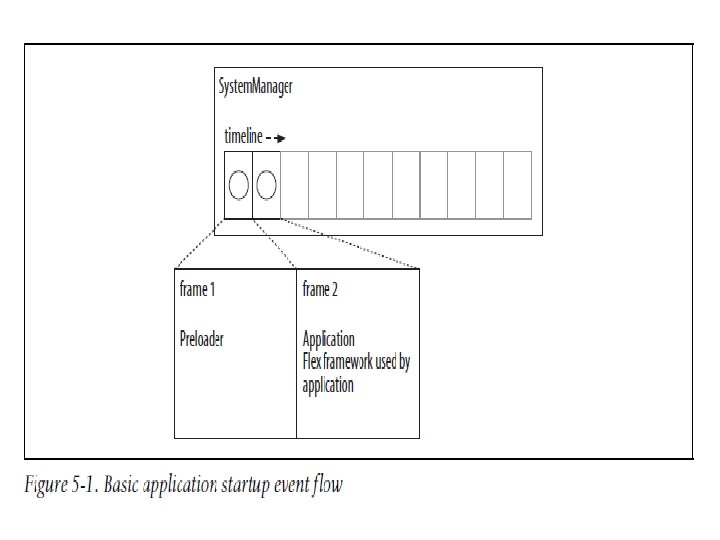
Understanding the Flex Application Life Cycle Flex applications are essentially Flash applications that use the Flex framework (which is written in Action. Script). The root of a Flex application is typically System. Manager. It is a subclass of flash. display. Movie. Clip.
A movie clip is a display object type that supports frames, which are units of a timeline. System. Manager has two frames. Flash Player can access content on frames as they download without having to wait for the entire file to download.
The first frame is used to display a progress indicator while the application loads. This frame is lightweight in terms of file size and can download and run almost immediately. It does not have much of the Flex framework.
The second frame is the one in which the application itself (along withthe majority of the Flex framework utilized by the application) is actually present.
Once the System. Manager instance for a Flex application has advanced to the second frame, it creates an instance of the main application class for the Flex application. The System. Manager instance for the Flex application has an application property that is null until it creates the application object on frame 2.
At that point, the application instance is initialized and runs through its own startup procedure. That means that all the application object’s internal life cycle events occur.
The internal life cycle events are as follows: Preinitialize: Here the application has been instantiated but has not yet created any child components. Initialize: The application has created child components but has not yet laid out those components.
creation. Complete: The application has been completely instantiated and has laid out all components. Once an application has completed its internal startup procedure, it notifies System. Manager. The System. Manager dispatches an application. Complete event. From that point forward the application is ready to run.
System. Manager also manages all things that are displayed in front of the application content. This means that all pop ups, cursors, and tool tips are placed within the System. Manager instance.
System. Manager has a property called top. Level. System. Manager. This is a reference to the System. Manager instance that is at the root of everything running in Flash Player at that time. For a Flex application loaded as the main application within Flash Player, this property will always be selfreferencing.
However, a Flex application loaded into another Flex application also has its own System. Manager. That System. Manager object’s top. Level. System. Manager will reference the System. Manager object of the parent Flex application rather than itself. All subclasses of UIComponents (including Application) have a system. Manager property that references System. Manager for the application.
The primary way in which developers are likely to use System. Manager is to listen for events that are dispatched by any display object in the application. When those events bubble up, the last object to have an opportunity to handle the event is System. Manager.
Differentiating Between Flash Player and Framework: Flash Player is a runtime environment for Flash and Flex applications. It can run. swf files, which contain bytecode that can communicate with Flash Player, instructing it to perform operations such as loading images, drawing graphics, making HTTP requests, and so on.
Flash and Flex applications can do only what Flash Player allows them to do. Flash Player provides an API for all the operations it can perform.
Flex applications run in the same Flash Player as Flash applications. That means the. swf files for Flex applications cannot contain anything that a standard Flash application can’t contain, and therefore, both applications have the same behaviors.
This is because the applications contain only the instructions, and Flash Player is what runs the instructions. Therefore, what differentiates Flash and Flex applications is not the content, but how you create that content.
Flex consists of a compiler that is capable of compiling MXML and Action. Script. The entire Flex framework is written in Action. Script and MXML. It provides a layer of abstraction. When you utilize the Flex framework, the compiler will include the necessary libraries in the. swf files.
The disadvantage of using the framework is that the file size of the. swf increases. But in Action. Script 3. 0 -only projects this does not happen because no flex framework classes are used. Because the classes already exist within Flash Player itself, they don’t have to be compiled into the. swf.
You can easily differentiate between Flash Player and Flex framework classes using these guidelines: • If the class is in a package starting with the word flash (e. g. , flash. net. URLLoader), it is part of Flash Player. • If the class is in a package starting with the letters mx (e. g. , mx. controls. Button), it is part of the Flex framework. • MXML tags almost always (with few exceptions) correspond to Flex framework classes.
Bootstrapping Flex Applications: The default root object is, in fact, of type mx. managers. System. Manager. The flash. display. Movie. Clip class is a display object type which allows you to programmatically work with timelines.
Timelines and frames are an essential part of System. Manager A timeline is composed of frames. A frame represents a point in time during the playback of a timeline. Because there’s no way to programmatically add frames, almost all display objects in Flex applications consist of just one frame.
System. Manager is the one exception to this rule. System. Manager consists of two frames. This is essential because it enables the Flex application to have a preloader that indicates download progress to the user. The preloader must exist on the first frame, And the Flex application (the Application object) must exist on the second frame.
Flex automatically handles all the bootstrapping and initialization, including creation of the System. Manager object and the default preloader. However, there at least two instances when you’ll want to know this information: when loading a Flex application into another Flex application and when customizing the preloader.
Loading One Flex Application into Another Flex Application: To do this create an SWFLoader instance and set the source property <mx: SWFLoader source="application. swf" />
To call a public method defined in the loaded application, you must know two things: • What is the path to the loaded application relative to the SWFLoader used to load the application? • When has the loaded application actually initialized?
When an SWFLoader loads a Flex application, the SWFLoader object’s content property provides a reference to the root of the loaded Flex application. Which is a System. Manager object. The System. Manager class defines an application property that references the Application object.
The application property of a System. Manager object for a Flex application that has just loaded will be null because the loaded content will still be on its first frame, and the Application instance isn’t constructed until the second frame. This may cause problem.
When an SWFLoader loads and initializes the content, it dispatches an init event. You should first handle the init event. This tells you when you can System. Manager for the loaded content. reference the
You must then add an event listener for the application. Complete event for the System. Manager. When the application. Complete event occurs, you can reference the Application object for the loaded content.
Example to load one Flex application into another and use events to wait until the application has actually initialized before trying to communicate with the loaded content.
Understanding Application Domains: An application domain is the partition within which an application runs in Flash Player. In many cases, just one application is running in Flash Player, and in such cases, there is just one application domain.
However, when you load additional. swf files into an existing application, you can create additional application domains for some or all of those additional applications.
When you load a. swf file, three possible things can occur: • The loaded. swf runs in a new application domain that is completely partitioned from all other application domains. • The loaded. swf runs in a new application domain that is a child of an existing application domain. • The loaded. swf runs in an existing application domain.
An application domain holds the collections of classes for an application or applications. When just one application is running in Flash Player, the concept of an application domain is just a formality because you are guaranteed that an. swf will never contain more than one class having the same name.
Exclusive Application Domain: when you load an additional. swf file, there is a possibility that it will contain a definition for a class by the same name as one that is already loaded from another. swf file. An application domain ensures that within the domain there is only one definition for each class.
Parent/child application Domains: If an application is loaded into an application domain with a parent, it inherits all the class definitions from the parent application domain. The result is that the child application domain cannot have class definitions for classes that are defined in the parent application domain.
If you load one Flex application. swf into another Flex application. swf with the default settings, there would be two application domains. But one would be a child of the other, and all duplicate Flex framework classes from the child would be disregarded and only classes from the parent application domain are considered.
If one. swf is loaded into the other, the child class having name as parent class will not work as intended because that class will be discarded in the child, and the parent version will be used in both applications. In such a case, completely partition the applications into separate application domains. Separate application domains ensure that the sorts of conflicts just described don’t occur.
Same Application Domain: The third scenario is one in which an. swf is loaded into the same application domain as the loading/requesting application. This is the behavior utilized by runtime shared libraries. It is also useful when you want to load libraries of fonts and other assets at runtime for use in the
You can create application domains by specifying a flash. system. Loader. Context with the appropriate setting when calling the load( ) method of a flash. display. Loader or a flash. net. URLLoader object.
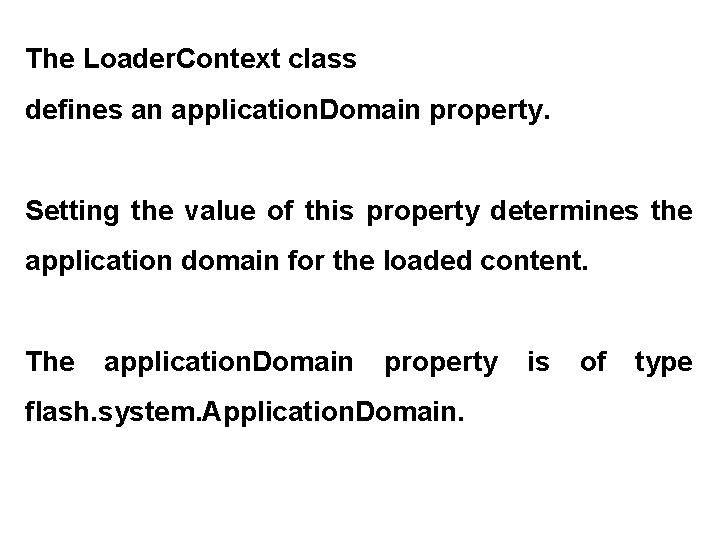
The Loader. Context class defines an application. Domain property. Setting the value of this property determines the application domain for the loaded content. The application. Domain property flash. system. Application. Domain. is of type
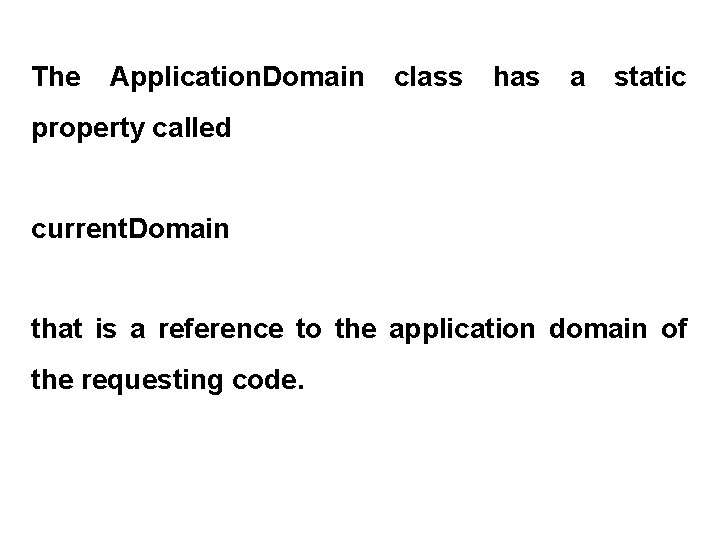
The Application. Domain class has a static property called current. Domain that is a reference to the application domain of the requesting code.
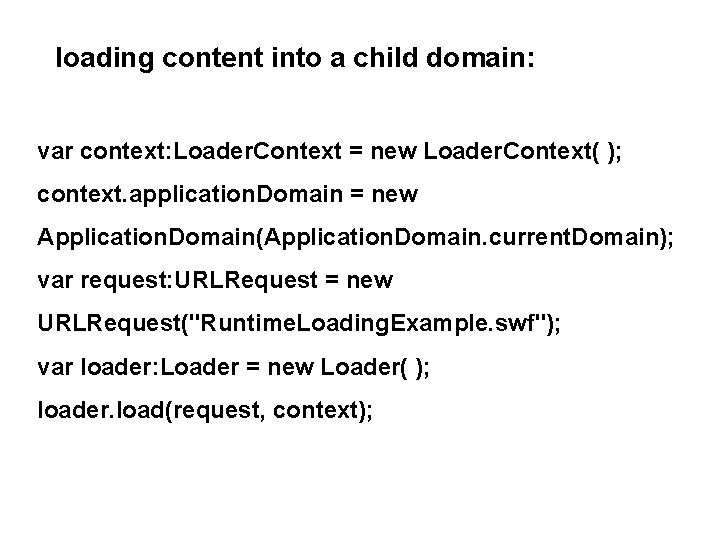
loading content into a child domain: var context: Loader. Context = new Loader. Context( ); context. application. Domain = new Application. Domain(Application. Domain. current. Domain); var request: URLRequest = new URLRequest("Runtime. Loading. Example. swf"); var loader: Loader = new Loader( ); loader. load(request, context);
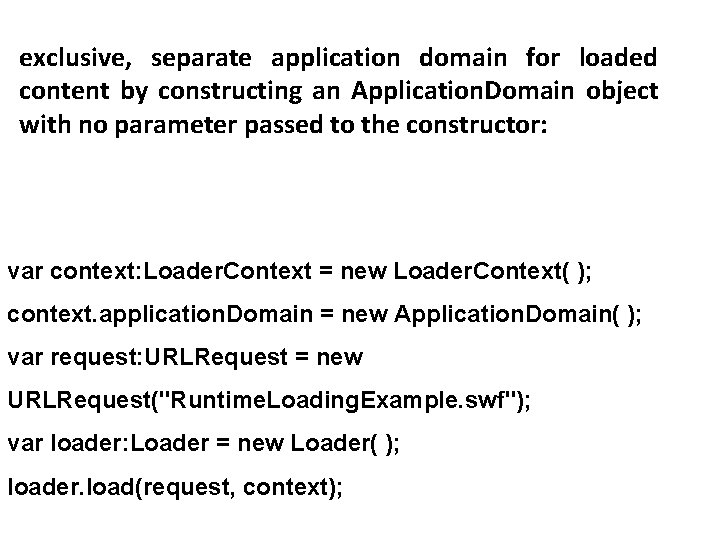
exclusive, separate application domain for loaded content by constructing an Application. Domain object with no parameter passed to the constructor: var context: Loader. Context = new Loader. Context( ); context. application. Domain = new Application. Domain( ); var request: URLRequest = new URLRequest("Runtime. Loading. Example. swf"); var loader: Loader = new Loader( ); loader. load(request, context);
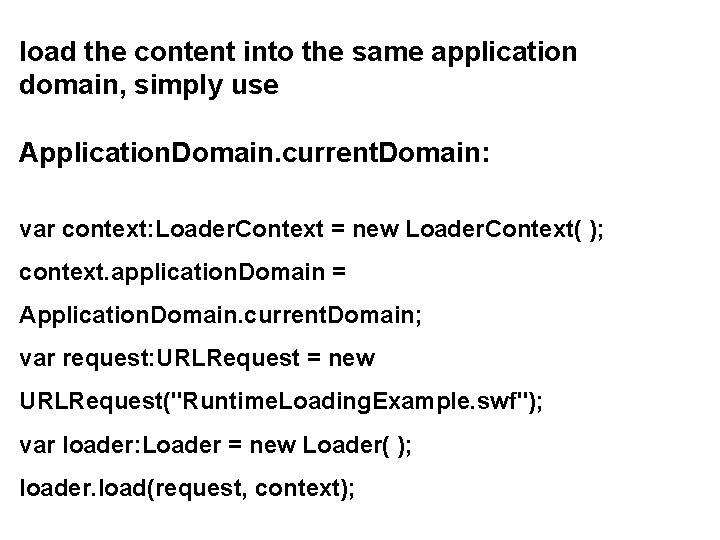
load the content into the same application domain, simply use Application. Domain. current. Domain: var context: Loader. Context = new Loader. Context( ); context. application. Domain = Application. Domain. current. Domain; var request: URLRequest = new URLRequest("Runtime. Loading. Example. swf"); var loader: Loader = new Loader( ); loader. load(request, context);
Understanding the Preloader: By default, all Flex applications have a preloader with a progress bar that indicates progress as the application loads and initializes. This preloader is a lightweight class that is created on the first frame of the system manager.
The preloader dispatches a series of events that the progress bar then handles. Typically the progress bar registers one or more listeners for events dispatched by the preloader object.
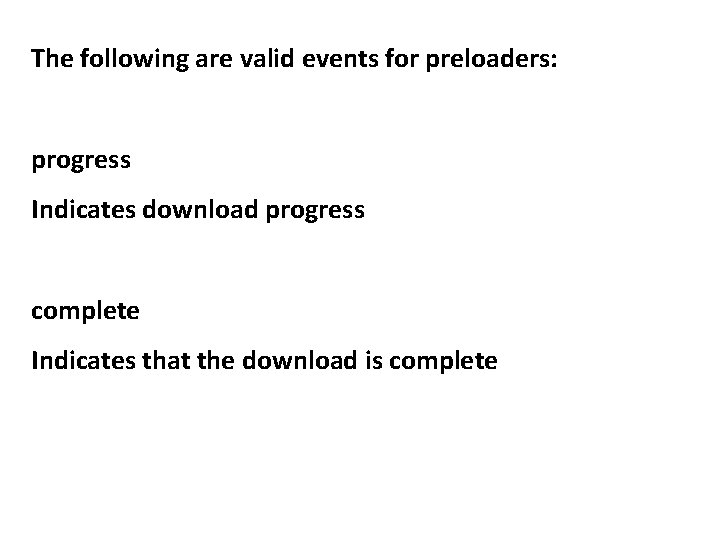
The following are valid events for preloaders: progress Indicates download progress complete Indicates that the download is complete
rsl. Error Indicates that a runtime shared library could not load rsl. Progress Indicates the download progress for a runtime shared library
rsl. Complete Indicates that the download is complete for runtime shared libraries init. Progress Indicates that the application is initializing init. Complete Indicates that the application has initialized
Once the complete event occurs, the system manager advances to the second frame where the application itself is created and initialized. The application runs through its initial events, and it then notifies the system manager which in turn notifies the preloader about initialization progress.
The preloader then notifies the system manager when it is ready to have the system manager remove it from the display.
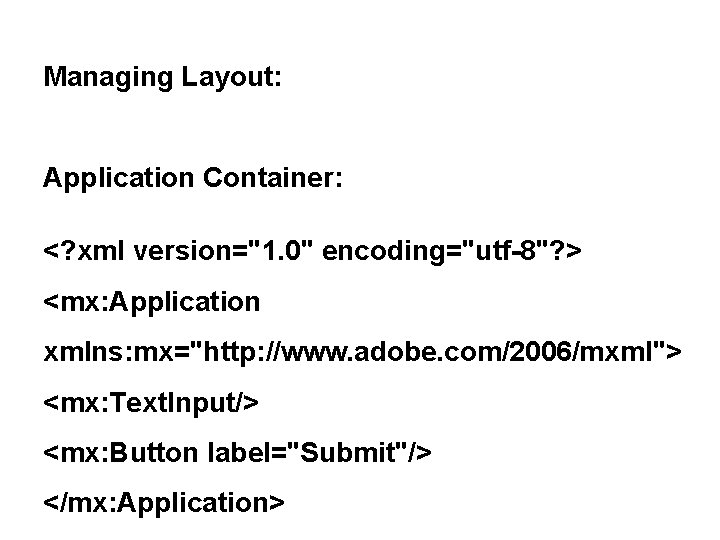
Managing Layout: Application Container: <? xml version="1. 0" encoding="utf-8"? > <mx: Application xmlns: mx="http: //www. adobe. com/2006/mxml"> <mx: Text. Input/> <mx: Button label="Submit"/> </mx: Application>
The layout property of the Application container controls how children are positioned and sized, and if the value is set Adding children Action. Script to a container using
Working with Children: Container children must implement the IUIComponent interface. Managing change after setting layout for the container requires a better understanding of the Action. Script display list API.
Reordering children using the display list API The methods add. Child( ), add. Child. At( ), get. Child. By. Name( ), get. Child. Index( ), get. Children( ), remove. All. Children( ), contains( ), and set. Child. Index( ), as well as the num. Children property, are the Container class members related to working with Children.
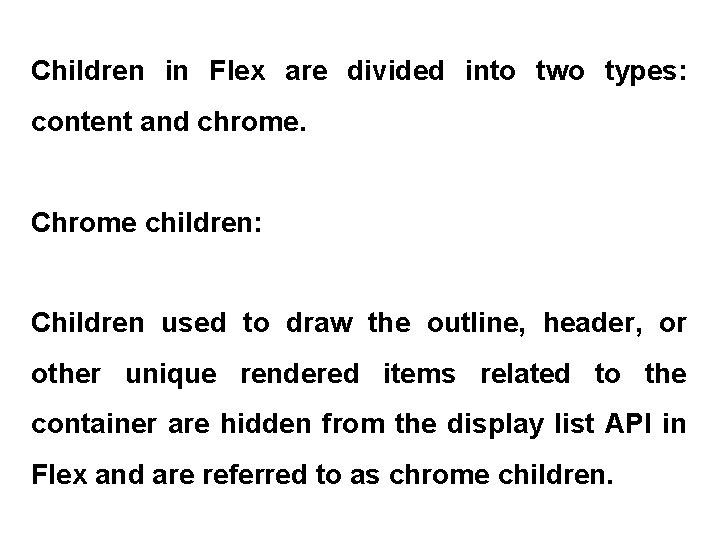
Children in Flex are divided into two types: content and chrome. Chrome children: Children used to draw the outline, header, or other unique rendered items related to the container are hidden from the display list API in Flex and are referred to as chrome children.
Content children: Children added to a container, such as Button or Label, are content children.
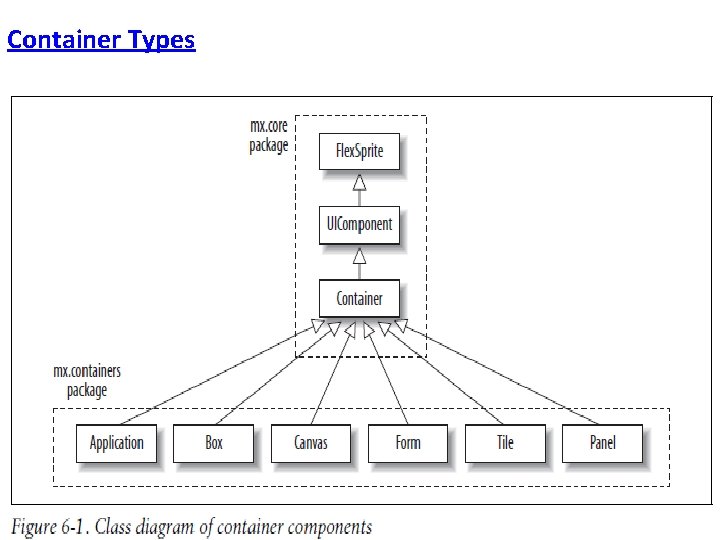
Container Types
Layout Rules Many containers internally make use of two main layout rules: • box • canvas. These rules define how containers internally implement child positioning and sizing.
Box-based layout: The containers HBox, VBox, HDivided. Box, VDivided. Box, Application. Control. Bar, and Control. Bar all base their layout rules on those of the Box container.
The box layout rule dictates that each child occupies its own row or column, depending on the direction under which the rule is operating. You can set the value of the direction property to horizontal or vertical using the constant values • Box. Direction. HORIZONTAL • Box. Direction. VERTICAL.
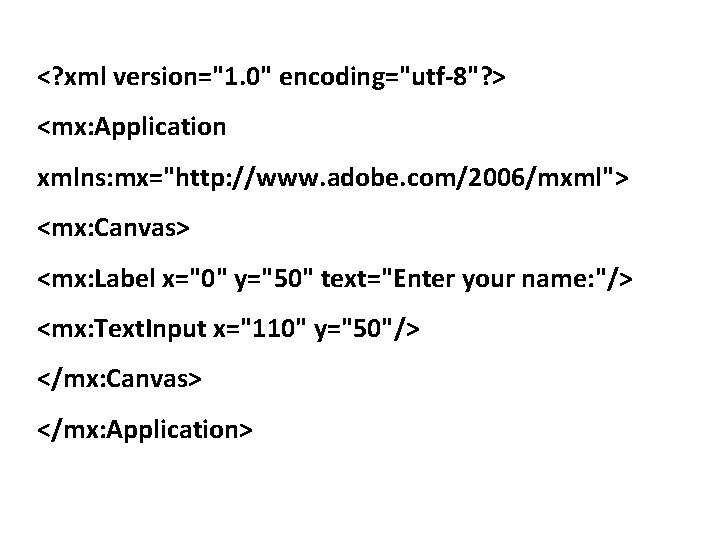
Canvas-based layout: The Canvas container is the base implementer of the canvas-based layout rule. Canvas-based layout allows you to position children using explicit x and y coordinates. This allows you to accurately control the position of each child.
<? xml version="1. 0" encoding="utf-8"? > <mx: Application xmlns: mx="http: //www. adobe. com/2006/mxml"> <mx: Canvas> <mx: Label x="0" y="50" text="Enter your name: "/> <mx: Text. Input x="110" y="50"/> </mx: Canvas> </mx: Application>
Constraint-based layout: Constraint-based layout lets you lay out children at predefined positions relative to their parent.
To position children using the constraint-based layout method, you set one or several child style properties— top, bottom, left, right, horizontal. Center, and vertical. Center— with a value based on the parent’s position in relation to the child.
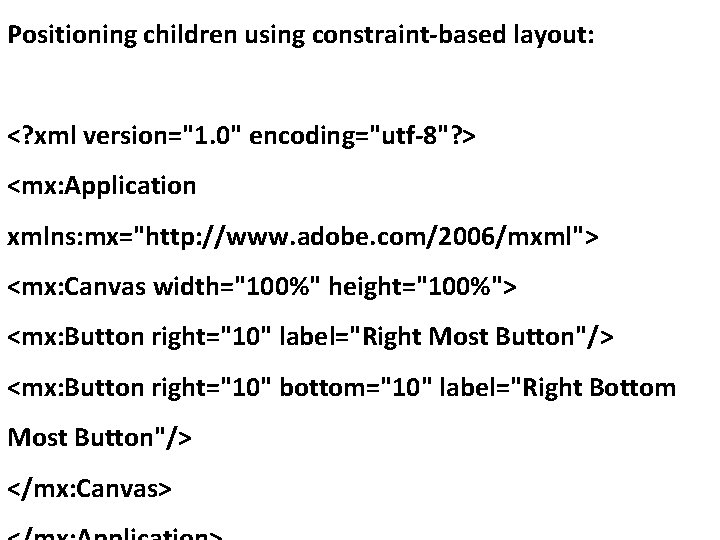
Positioning children using constraint-based layout: <? xml version="1. 0" encoding="utf-8"? > <mx: Application xmlns: mx="http: //www. adobe. com/2006/mxml"> <mx: Canvas width="100%" height="100%"> <mx: Button right="10" label="Right Most Button"/> <mx: Button right="10" bottom="10" label="Right Bottom Most Button"/> </mx: Canvas>
Hybrid layout containers: The containers Application, Panel, and Title. Window are based on both Box and Canvas layout rules. The layout property accepts three valid values: • Container. Layout. ABSOLUTE, • Container. Layout. HORIZONTAL, and • Container. Layout. VERTICAL.
When you set the layout property value to absolute, the container behaves as a Canvas-based container. Setting the value to horizontal or vertical causes the container to act as a Box-based container with the appropriate direction
Additional layout rules: Flex provides three other layout rules you can use in your application: • Tile, • Grid, • Form. they are embedded within specific containers.
Tile layout rule: The Tile layout rule is found in the Tile container. Its purpose is to lay out children in a grid form, while optimally keeping the number of rows and columns equal. The direction property for the Tile container can accept two values: Tile. Direction. HORIZONTAL and Tile. Direction. VERTICAL.
Grid layout rule: The Grid layout rule is used by the Grid container component. This layout rule/container replicates how an HTML table works in Flex. Grid Container example:
Form layout rule: This container is used to lay out forms such as those you’d see on a web page, which typically include headings and input controls in a Flex application. The Form container, like the Grid container, has associated components and exists for convenience. Example of using the Form container
Padding, Borders, and Gaps: /// Go through in Text Book.
Nesting Containers: Flex allows you to easily nest containers within other containers. Example of nesting containers
Handling Scrolling and Clipping If a container doesn’t have enough available space, a scrollbar appears by default Each container has the properties horizontal. Scroll. Policy and vertical. Scroll. Policy. These properties accept the values Scroll. Policy. ON, Scroll. Policy. OFF, and Scroll. Policy. AUTO, which is the default for containers.
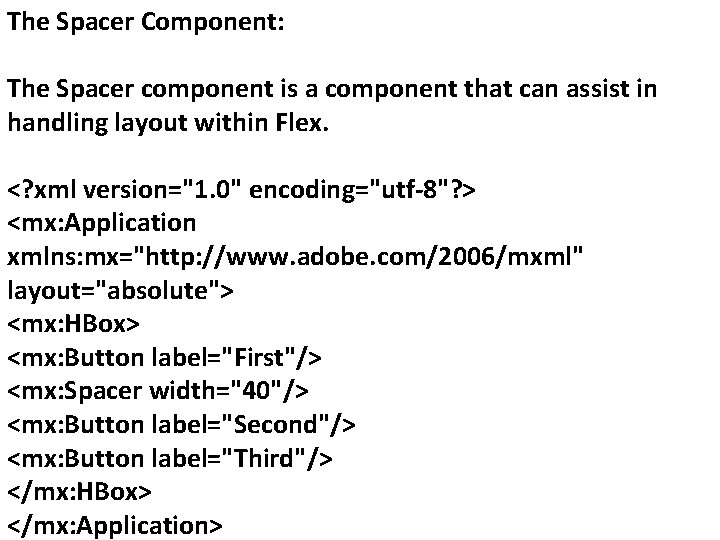
The Spacer Component: The Spacer component is a component that can assist in handling layout within Flex. <? xml version="1. 0" encoding="utf-8"? > <mx: Application xmlns: mx="http: //www. adobe. com/2006/mxml" layout="absolute"> <mx: HBox> <mx: Button label="First"/> <mx: Spacer width="40"/> <mx: Button label="Second"/> <mx: Button label="Third"/> </mx: HBox> </mx: Application>
Clipping: Clipping is another function that containers perform on children when they exceed the available area. Using clipping, a container can clip (hide) the parts that exceed its viewable area.
Making Fluid Interfaces: Another benefit of using Flex is the ability to build fluid interfaces (i. e. , interfaces that expand or contract when their available real estate changes).
For applications deployed to the Web, this usually occurs when the browser window is resized. Without Flex, you would need to handle the resize event of the Flash Player manually and adjust all containers and their children sizes to handle the change in available space.
In Flex, all layout containers and controls support the ability to set some values as percentages, the most basic of which are the width and height properties that set the available real estate for the container. Setting the width and height properties to a percentage value causes the container to occupy a percentage of the container of which it is currently a child.
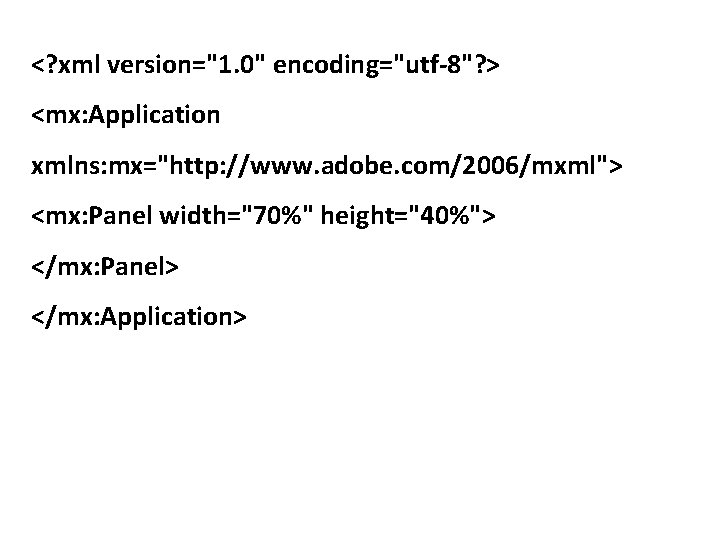
<? xml version="1. 0" encoding="utf-8"? > <mx: Application xmlns: mx="http: //www. adobe. com/2006/mxml"> <mx: Panel width="70%" height="40%"> </mx: Panel> </mx: Application>
Layout example that contains different nested container types and controls
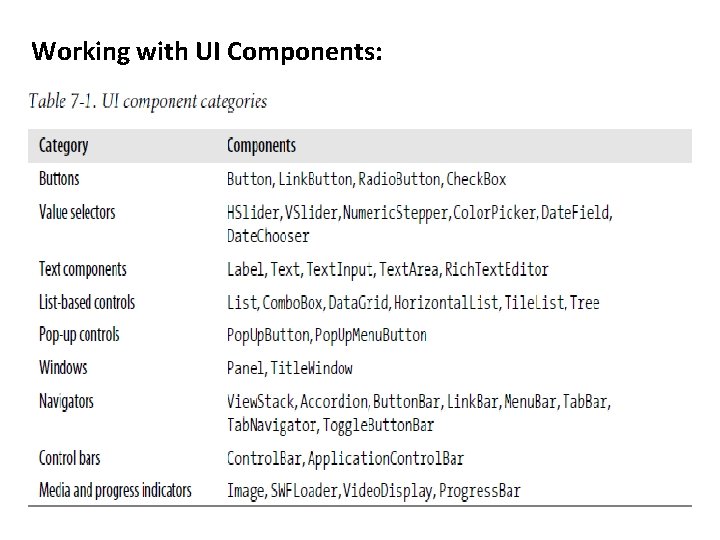
Working with UI Components:
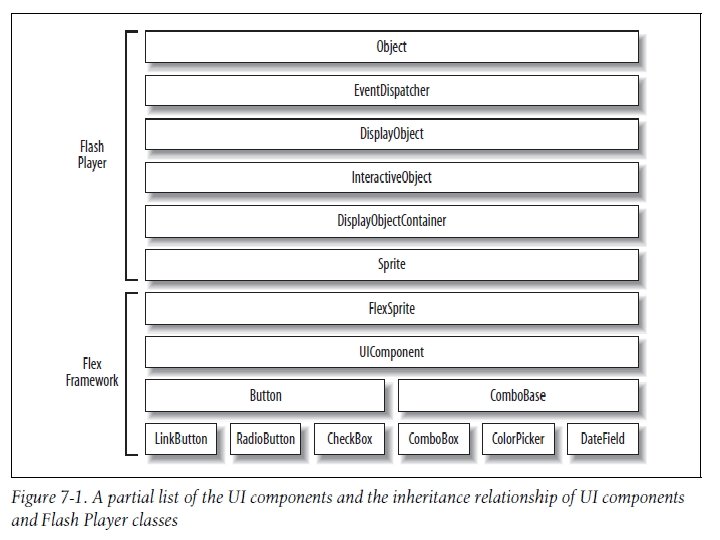
All UI components (and all layout components) are related because they inherit from a common abstract superclass called mx. core. UIComponent.
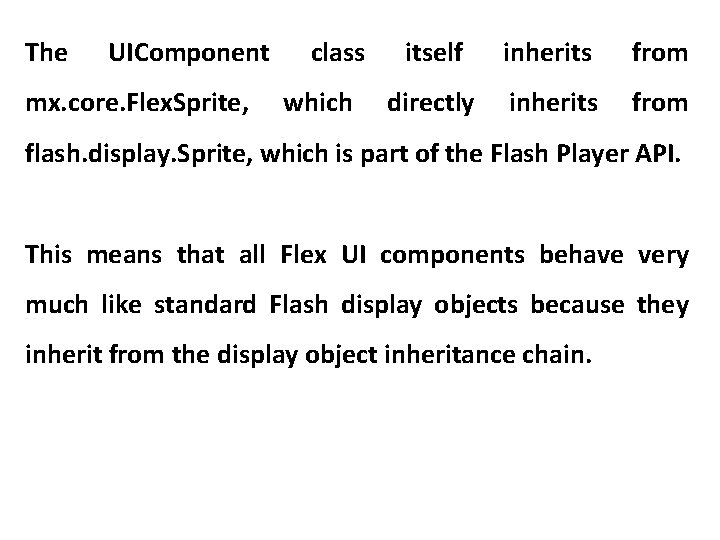
The UIComponent mx. core. Flex. Sprite, class which itself inherits from directly inherits from flash. display. Sprite, which is part of the Flash Player API. This means that all Flex UI components behave very much like standard Flash display objects because they inherit from the display object inheritance chain.
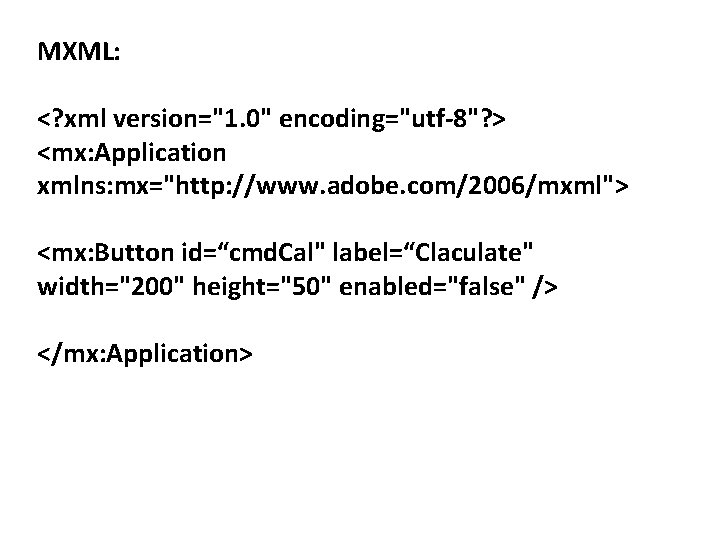
MXML: <? xml version="1. 0" encoding="utf-8"? > <mx: Application xmlns: mx="http: //www. adobe. com/2006/mxml"> <mx: Button id=“cmd. Cal" label=“Claculate" width="200" height="50" enabled="false" /> </mx: Application>
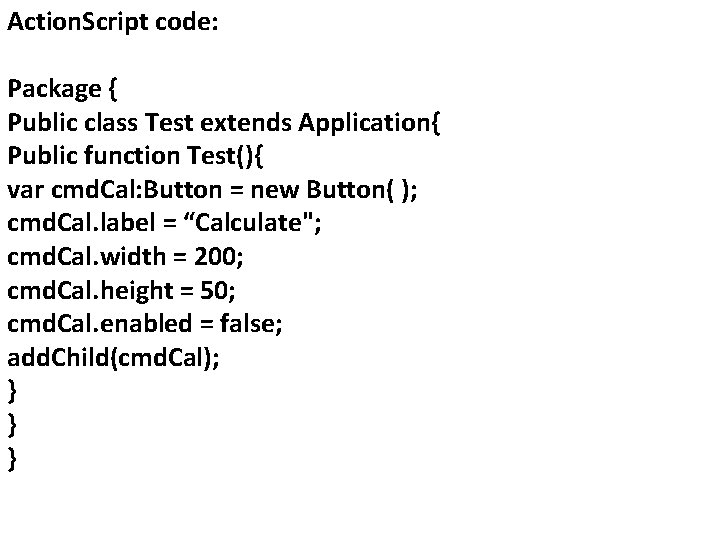
Action. Script code: Package { Public class Test extends Application{ Public function Test(){ var cmd. Cal: Button = new Button( ); cmd. Cal. label = “Calculate"; cmd. Cal. width = 200; cmd. Cal. height = 50; cmd. Cal. enabled = false; add. Child(cmd. Cal); } } }
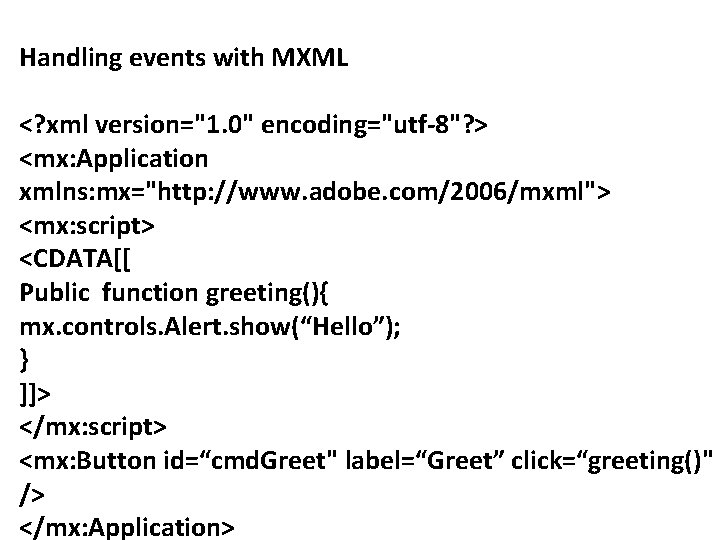
Handling events with MXML <? xml version="1. 0" encoding="utf-8"? > <mx: Application xmlns: mx="http: //www. adobe. com/2006/mxml"> <mx: script> <CDATA[[ Public function greeting(){ mx. controls. Alert. show(“Hello”); } ]]> </mx: script> <mx: Button id=“cmd. Greet" label=“Greet” click=“greeting()" /> </mx: Application>
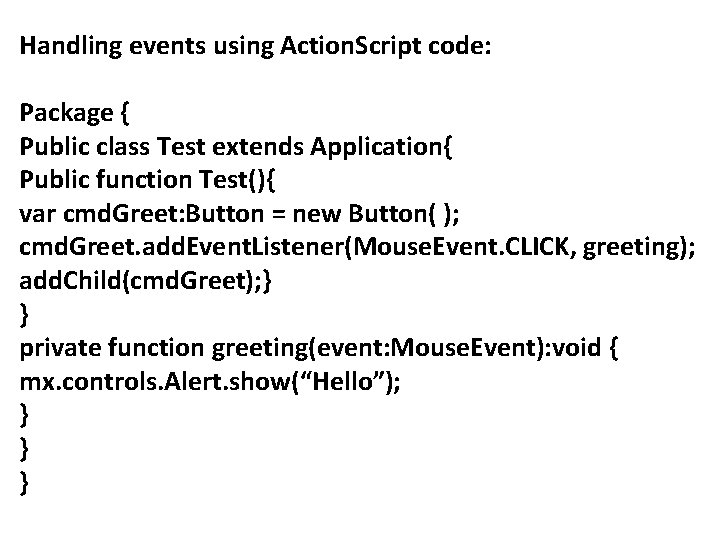
Handling events using Action. Script code: Package { Public class Test extends Application{ Public function Test(){ var cmd. Greet: Button = new Button( ); cmd. Greet. add. Event. Listener(Mouse. Event. CLICK, greeting); add. Child(cmd. Greet); } } private function greeting(event: Mouse. Event): void { mx. controls. Alert. show(“Hello”); } } }
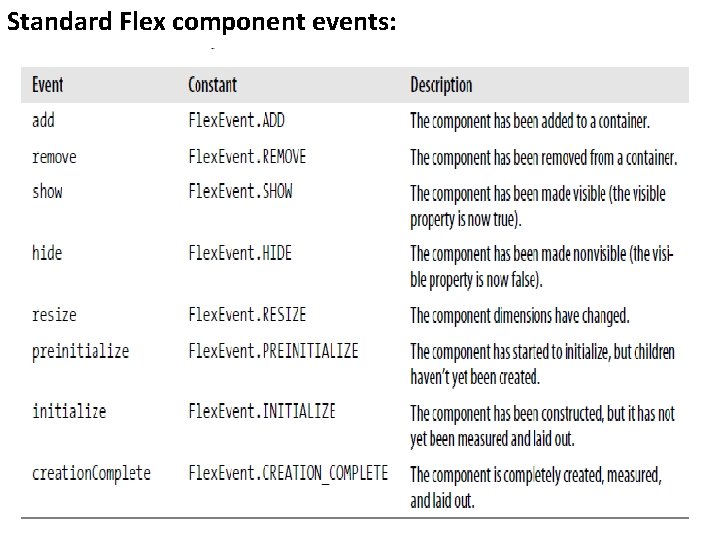
Standard Flex component events:
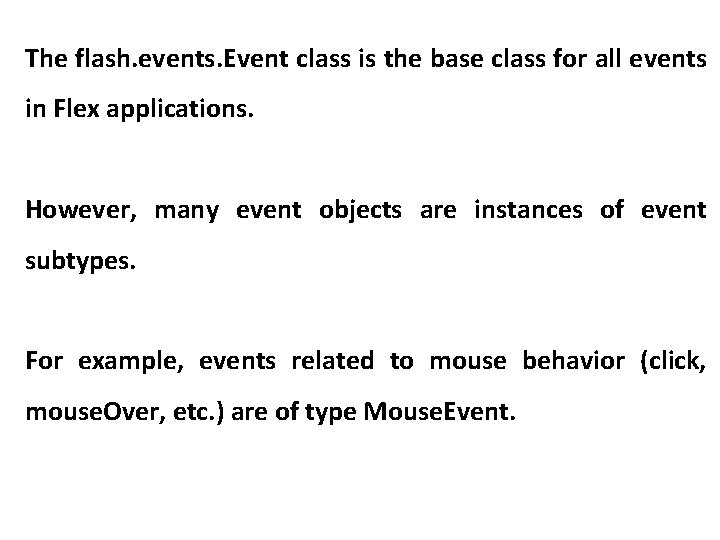
The flash. events. Event class is the base class for all events in Flex applications. However, many event objects are instances of event subtypes. For example, events related to mouse behavior (click, mouse. Over, etc. ) are of type Mouse. Event.
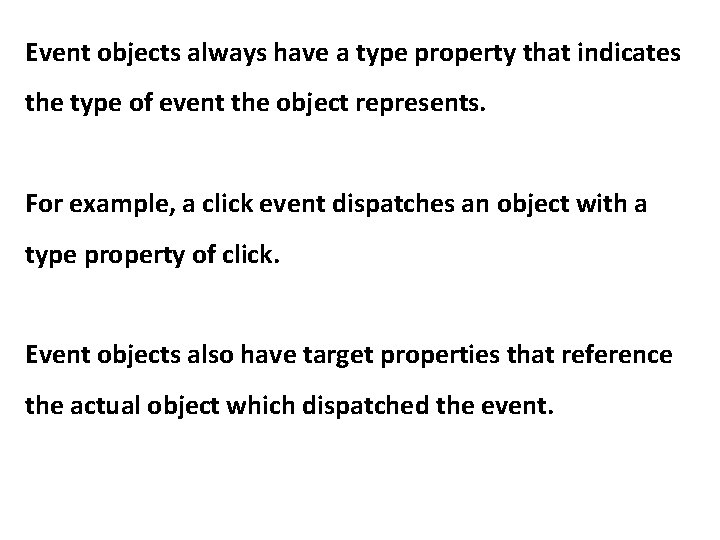
Event objects always have a type property that indicates the type of event the object represents. For example, a click event dispatches an object with a type property of click. Event objects also have target properties that reference the actual object which dispatched the event.
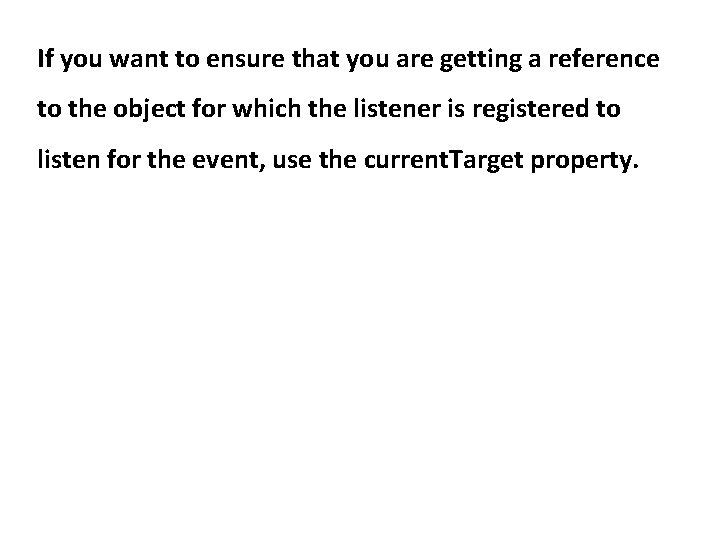
If you want to ensure that you are getting a reference to the object for which the listener is registered to listen for the event, use the current. Target property.
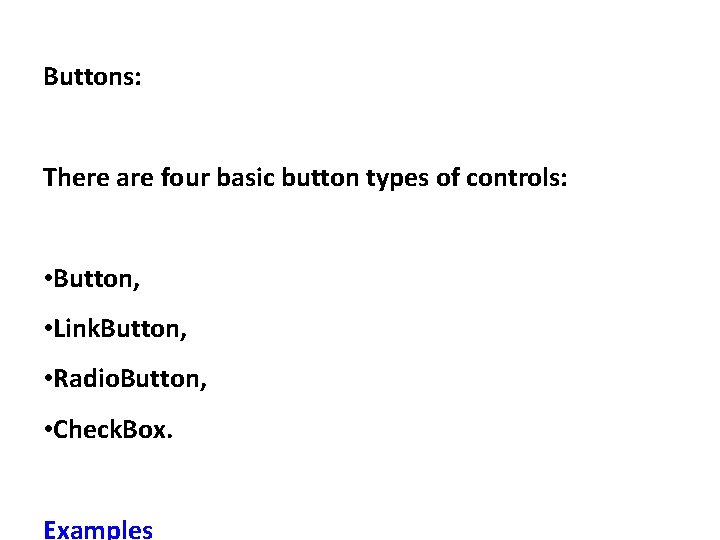
Buttons: There are four basic button types of controls: • Button, • Link. Button, • Radio. Button, • Check. Box. Examples