
Understanding SPSS II 2016 17 Workshop Series July

- Slides: 25
Understanding SPSS II 2016 -17 Workshop Series July 19, 2017
Office of Institutional Research (IR) • Accountability • Internal • External • Visit us at: https: //www. csusb. edu/institutional-research • Assessment • Continual Improvement Support • Surveys and Measures • Planning • Enrollment Management/Resource Allocation • Decision-making and Policy Formation • Research • Qualitative and Quantitative Research • Dissemination
IR Staff • AVP for Institutional Effectiveness and Director of IR • Muriel Lopez-Wagner • Assistant Director • Tanner Carollo • Institutional Effectiveness Associate • Joanna Oxendine • Research Analyst • Akira Kanatsu • Research Technician • Mariela Monge • Administrative Support Coordinator • Monica Villarruel
What is SPSS? • Statistical analysis software • Descriptive statistics and frequencies • T-Tests, ANOVA, correlations, etc. • Tabulated reports, graphs, and charts. • Can also be used for data management
SPSS or Excel? • Some benefits of using SPSS over Excel include: • Quick and easy access to descriptives • Variety of charts and graphs • Flexible pivot tables • Easy to create subsets • Easy value labeling • User friendly with output that is easy to understand
Today’s Topics • SPSS Syntax • Merging Datasets • Custom Tables • How to Save a File
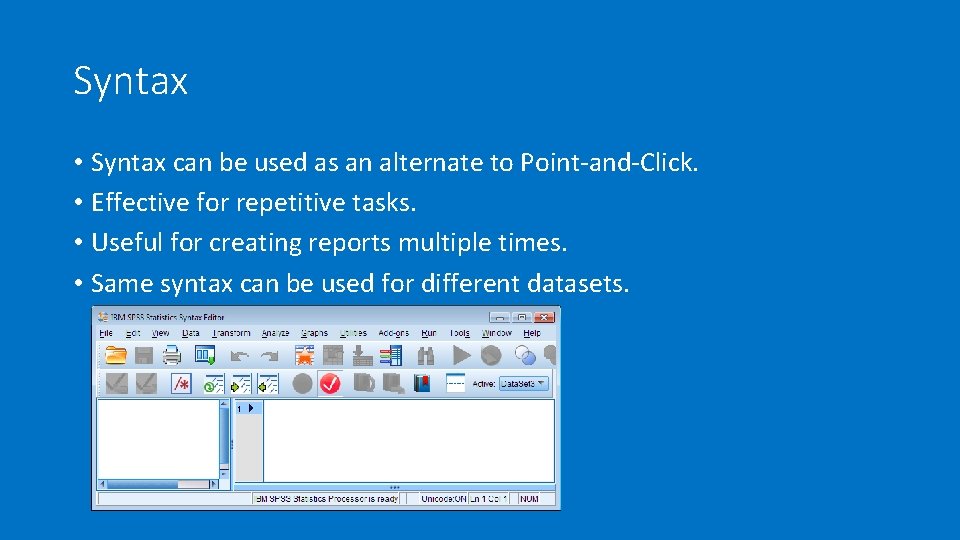
Syntax • Syntax can be used as an alternate to Point-and-Click. • Effective for repetitive tasks. • Useful for creating reports multiple times. • Same syntax can be used for different datasets.
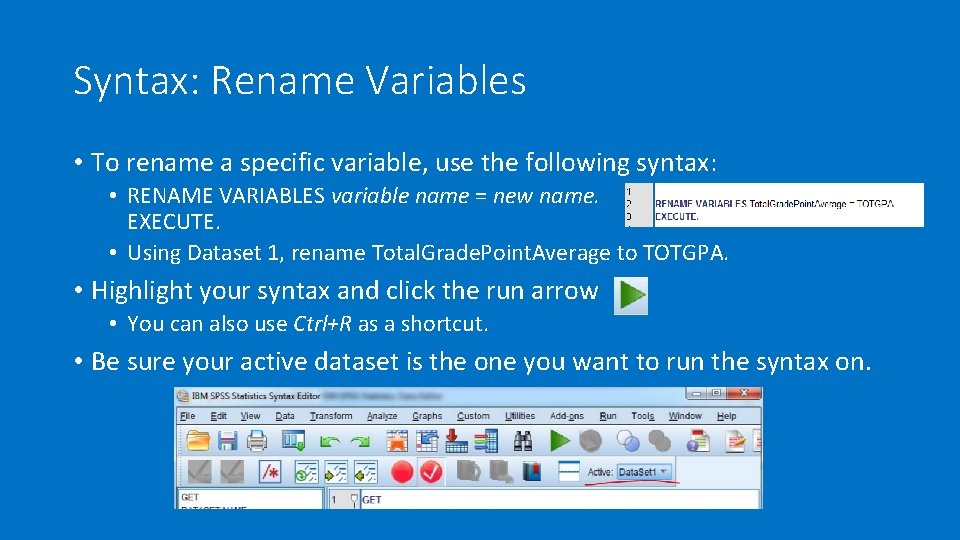
Syntax: Rename Variables • To rename a specific variable, use the following syntax: • RENAME VARIABLES variable name = new name. EXECUTE. • Using Dataset 1, rename Total. Grade. Point. Average to TOTGPA. • Highlight your syntax and click the run arrow • You can also use Ctrl+R as a shortcut. • Be sure your active dataset is the one you want to run the syntax on.
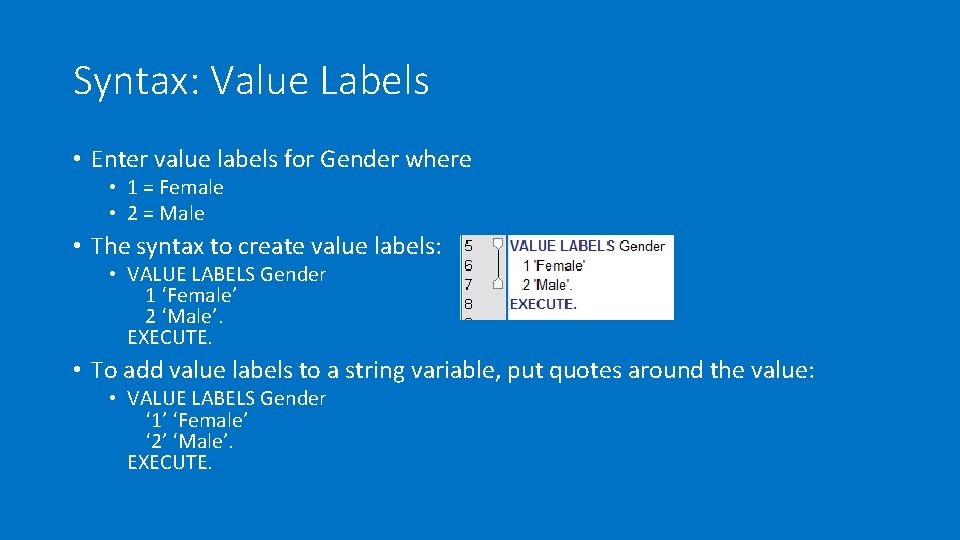
Syntax: Value Labels • Enter value labels for Gender where • 1 = Female • 2 = Male • The syntax to create value labels: • VALUE LABELS Gender 1 ‘Female’ 2 ‘Male’. EXECUTE. • To add value labels to a string variable, put quotes around the value: • VALUE LABELS Gender ‘ 1’ ‘Female’ ‘ 2’ ‘Male’. EXECUTE.
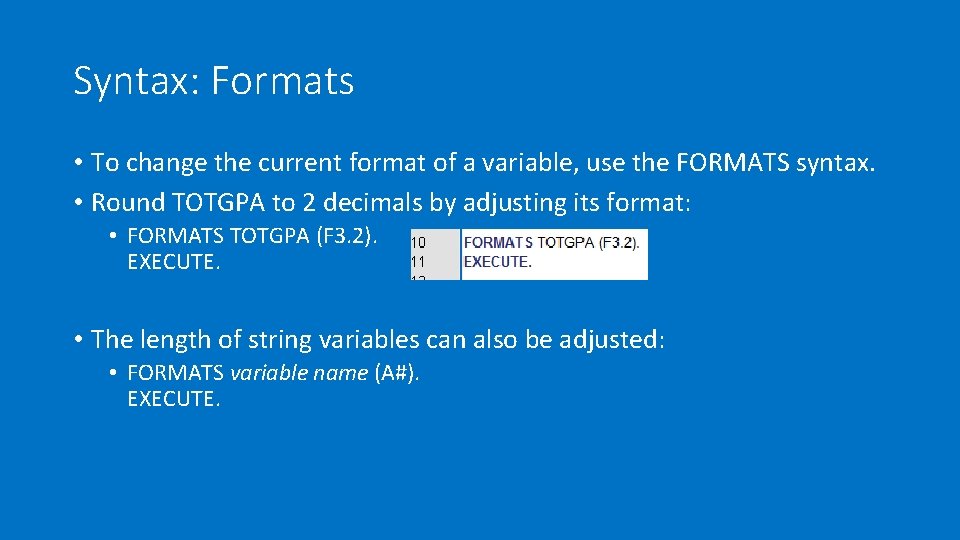
Syntax: Formats • To change the current format of a variable, use the FORMATS syntax. • Round TOTGPA to 2 decimals by adjusting its format: • FORMATS TOTGPA (F 3. 2). EXECUTE. • The length of string variables can also be adjusted: • FORMATS variable name (A#). EXECUTE.
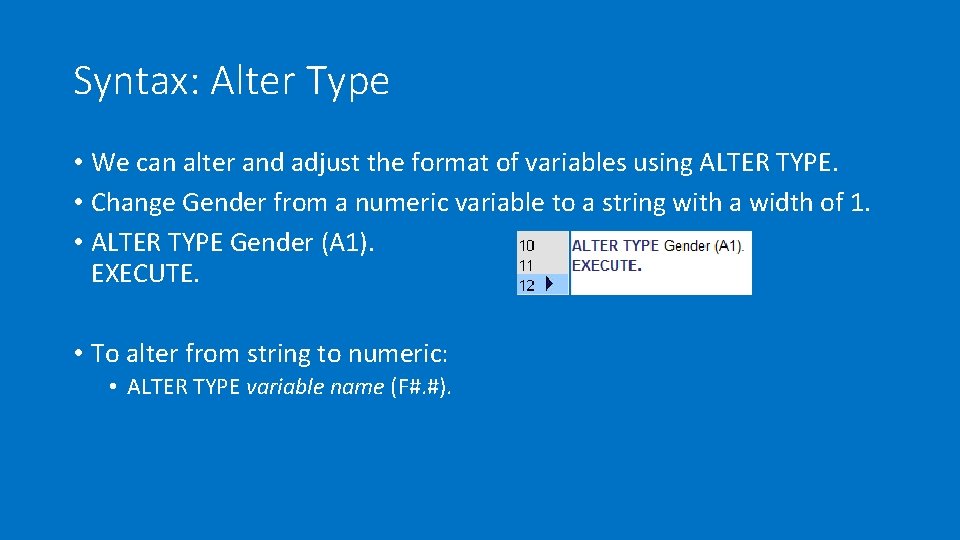
Syntax: Alter Type • We can alter and adjust the format of variables using ALTER TYPE. • Change Gender from a numeric variable to a string with a width of 1. • ALTER TYPE Gender (A 1). EXECUTE. • To alter from string to numeric: • ALTER TYPE variable name (F#. #).
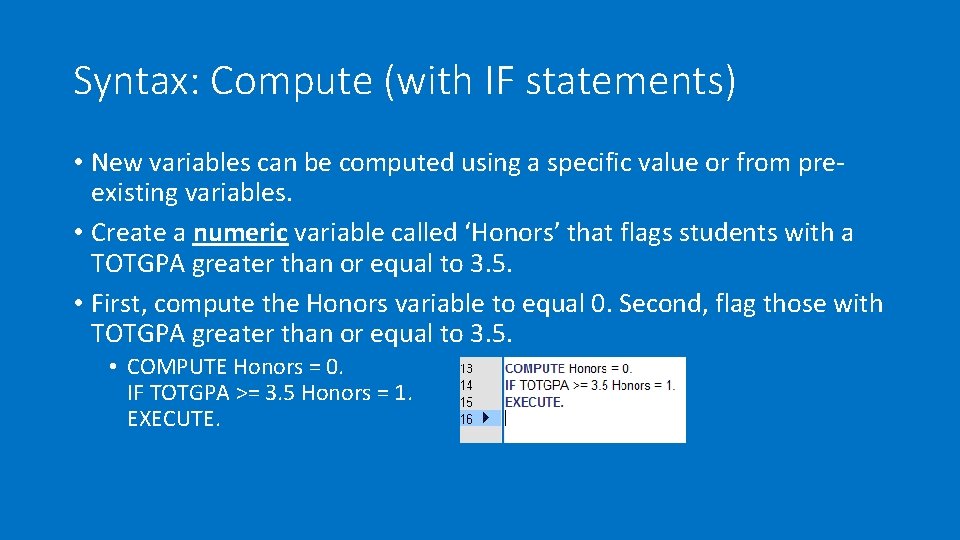
Syntax: Compute (with IF statements) • New variables can be computed using a specific value or from preexisting variables. • Create a numeric variable called ‘Honors’ that flags students with a TOTGPA greater than or equal to 3. 5. • First, compute the Honors variable to equal 0. Second, flag those with TOTGPA greater than or equal to 3. 5. • COMPUTE Honors = 0. IF TOTGPA >= 3. 5 Honors = 1. EXECUTE.
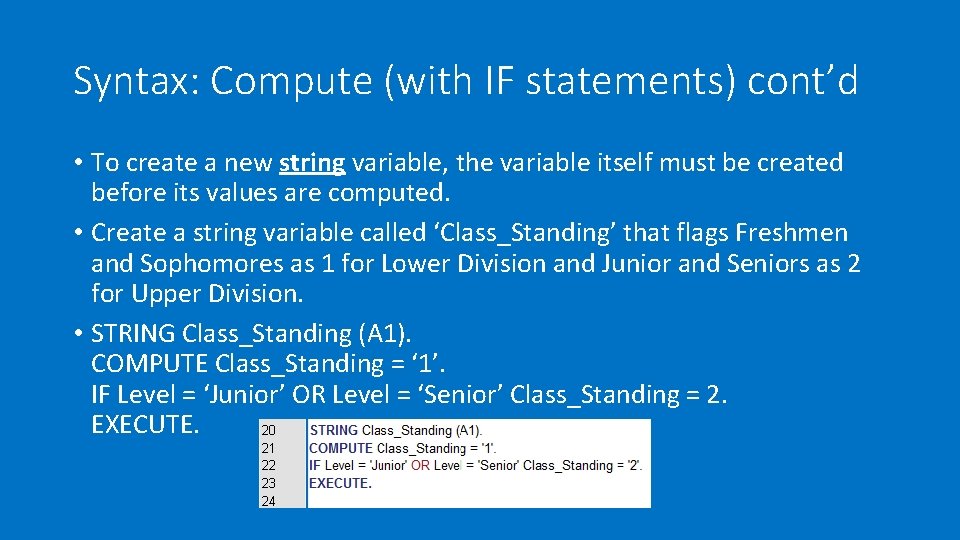
Syntax: Compute (with IF statements) cont’d • To create a new string variable, the variable itself must be created before its values are computed. • Create a string variable called ‘Class_Standing’ that flags Freshmen and Sophomores as 1 for Lower Division and Junior and Seniors as 2 for Upper Division. • STRING Class_Standing (A 1). COMPUTE Class_Standing = ‘ 1’. IF Level = ‘Junior’ OR Level = ‘Senior’ Class_Standing = 2. EXECUTE.
Syntax: ANY Statement • Instead of using the OR statement, we can use the ANY statement. • ANY is more compact and efficient. • Going back to the last example, let’s use the ANY statement in the last example instead of OR. • STRING Class_Standing (A 1). COMPUTE Class_Standing = ‘ 1’. IF ANY(Level, ‘Junior’, ‘Senior’) Class_Standing = 2. EXECUTE.
Syntax ANY Statement Cont’d • In general, the ANY statement has this format: • ANY(variable, value 1, value 2, value 3, …) • Translation: IF variable = value 1 OR variable = value 2 OR variable = value 3 … • ANY(value, variable 1, variable 2, variable 3, …) • Translation: IF variable 1 = value OR variable 2 = value OR variable 3 = value …
Syntax: Apply Current Syntax to Dataset 2 • Select Dataset 2 to be your active dataset. • High all syntax (Ctrl+A) and press the run icon. • If no syntax is highlighted, the entire syntax is run by default.
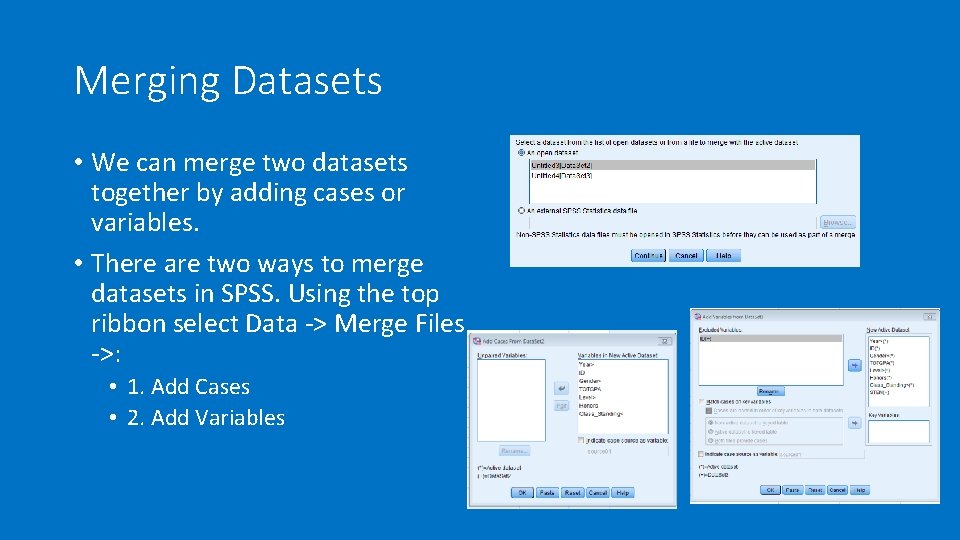
Merging Datasets • We can merge two datasets together by adding cases or variables. • There are two ways to merge datasets in SPSS. Using the top ribbon select Data -> Merge Files ->: • 1. Add Cases • 2. Add Variables
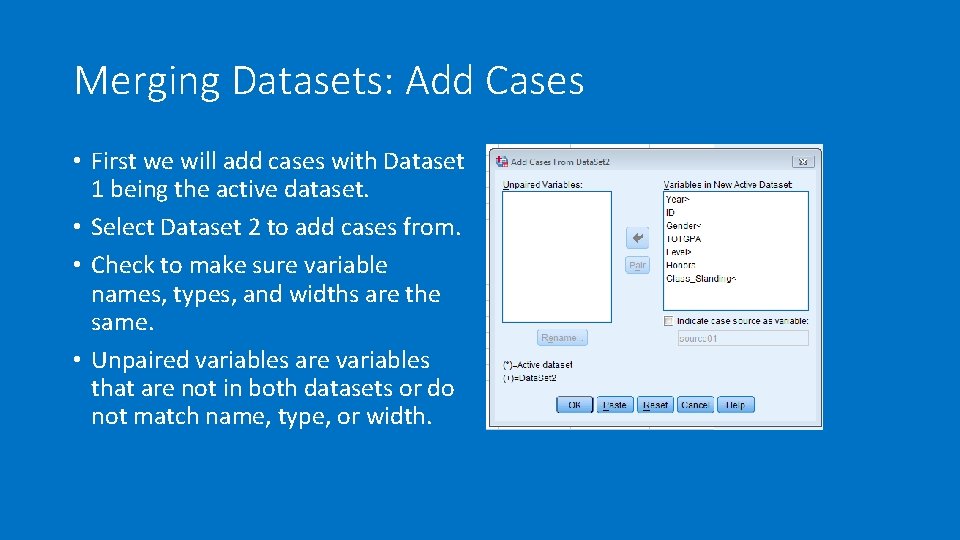
Merging Datasets: Add Cases • First we will add cases with Dataset 1 being the active dataset. • Select Dataset 2 to add cases from. • Check to make sure variable names, types, and widths are the same. • Unpaired variables are variables that are not in both datasets or do not match name, type, or width.
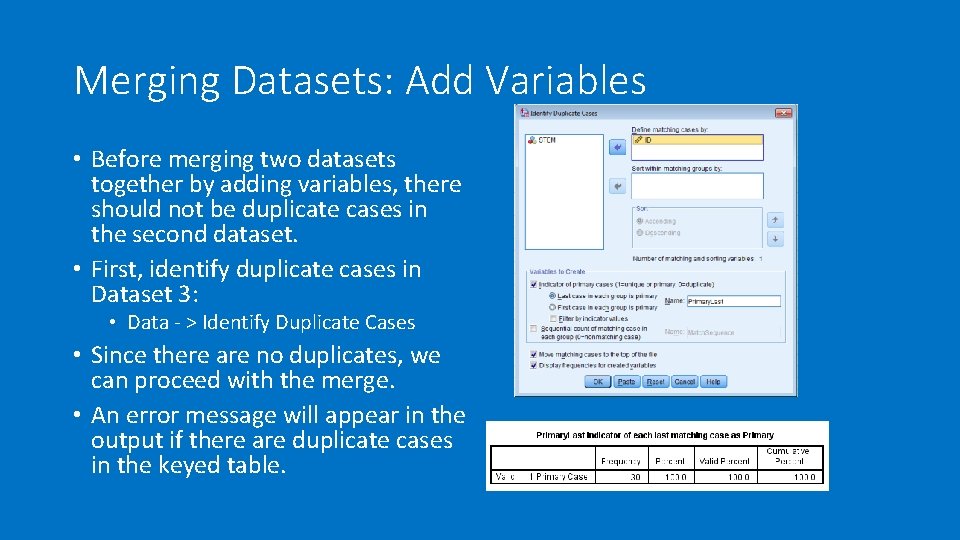
Merging Datasets: Add Variables • Before merging two datasets together by adding variables, there should not be duplicate cases in the second dataset. • First, identify duplicate cases in Dataset 3: • Data - > Identify Duplicate Cases • Since there are no duplicates, we can proceed with the merge. • An error message will appear in the output if there are duplicate cases in the keyed table.
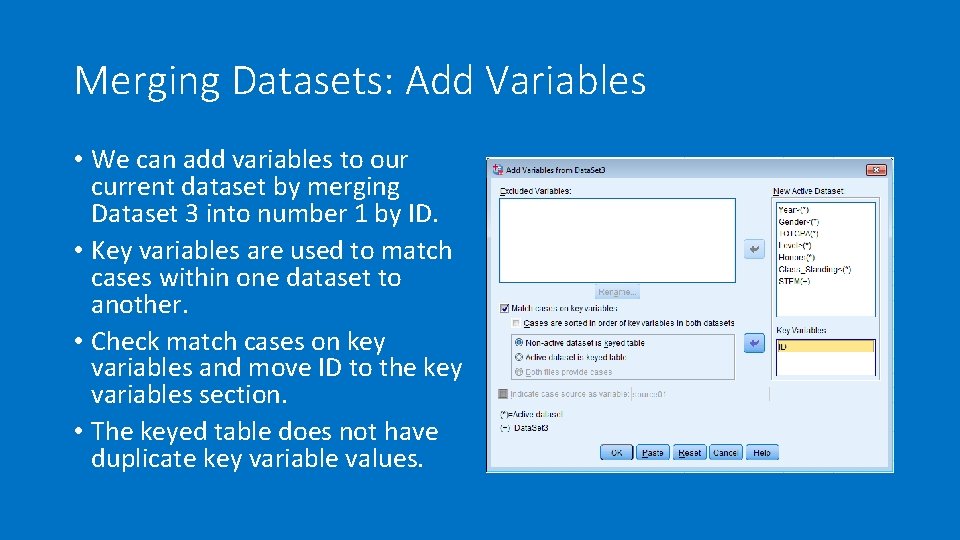
Merging Datasets: Add Variables • We can add variables to our current dataset by merging Dataset 3 into number 1 by ID. • Key variables are used to match cases within one dataset to another. • Check match cases on key variables and move ID to the key variables section. • The keyed table does not have duplicate key variable values.
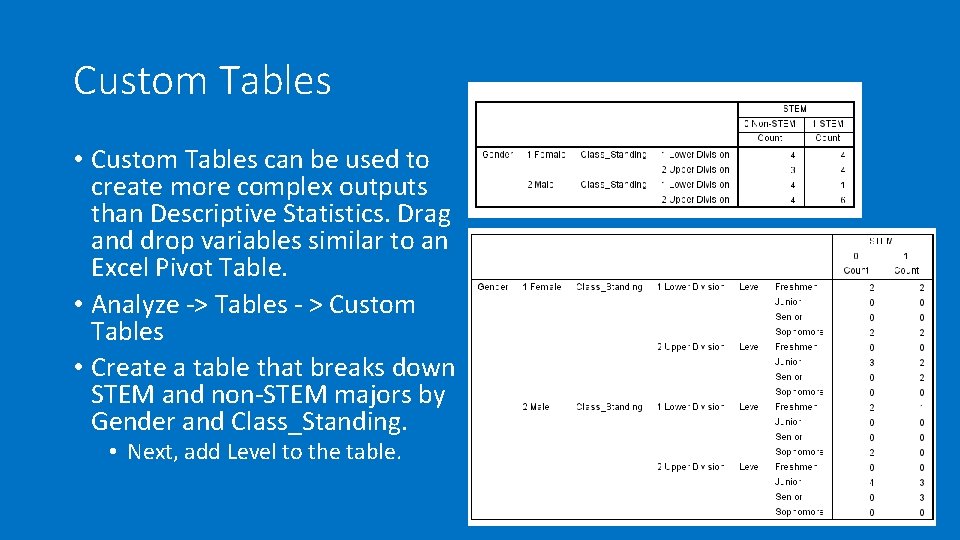
Custom Tables • Custom Tables can be used to create more complex outputs than Descriptive Statistics. Drag and drop variables similar to an Excel Pivot Table. • Analyze -> Tables - > Custom Tables • Create a table that breaks down STEM and non-STEM majors by Gender and Class_Standing. • Next, add Level to the table.
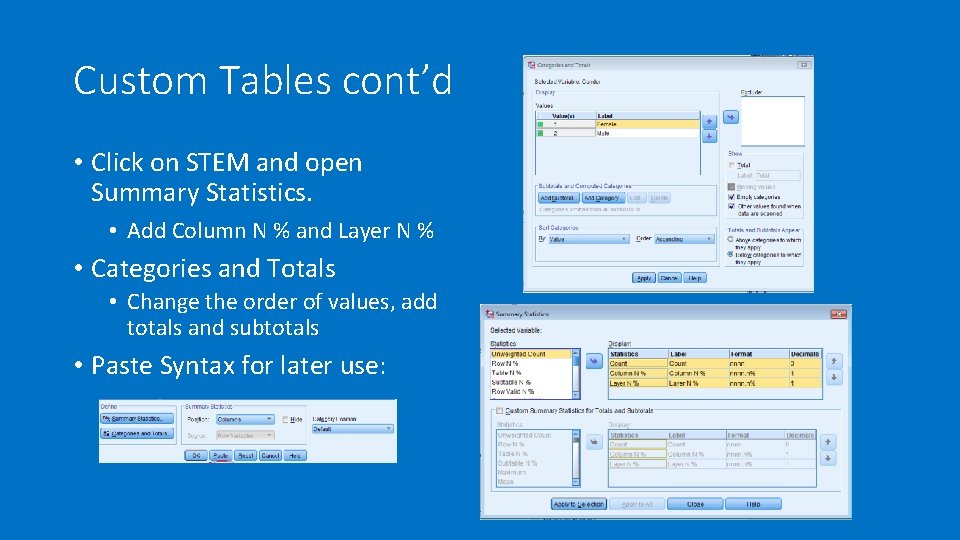
Custom Tables cont’d • Click on STEM and open Summary Statistics. • Add Column N % and Layer N % • Categories and Totals • Change the order of values, add totals and subtotals • Paste Syntax for later use:
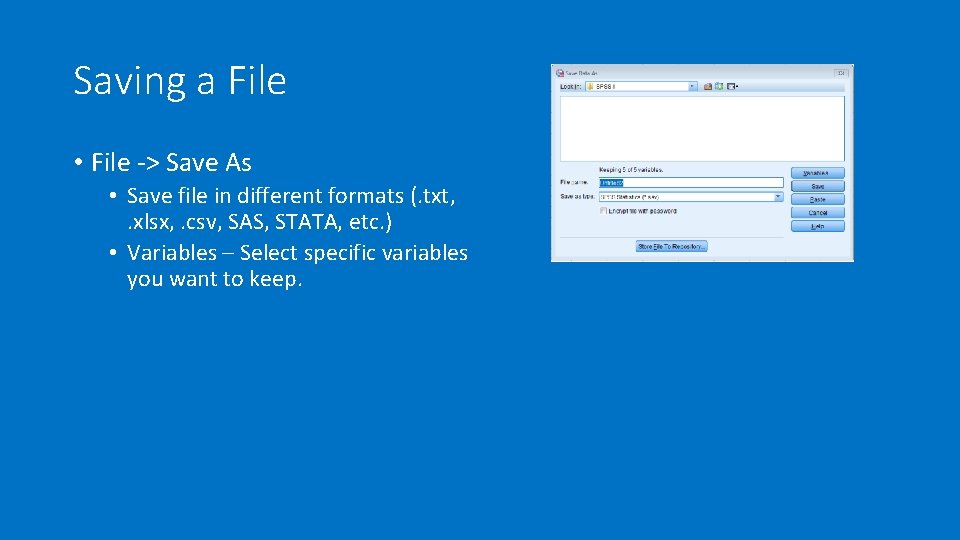
Saving a File • File -> Save As • Save file in different formats (. txt, . xlsx, . csv, SAS, STATA, etc. ) • Variables – Select specific variables you want to keep.
Thank You! • Questions/comments? • Contact Us • AD-170 • 909 -537 -5052 • institutional_research@csusb. edu