
Understanding Spreadsheets Cell Data Formulas Operations 1 Cell
- Slides: 11
Understanding Spreadsheets • • • Cell Data Formulas Operations 1
Cell Data -- is classified according to its intended purpose. 2
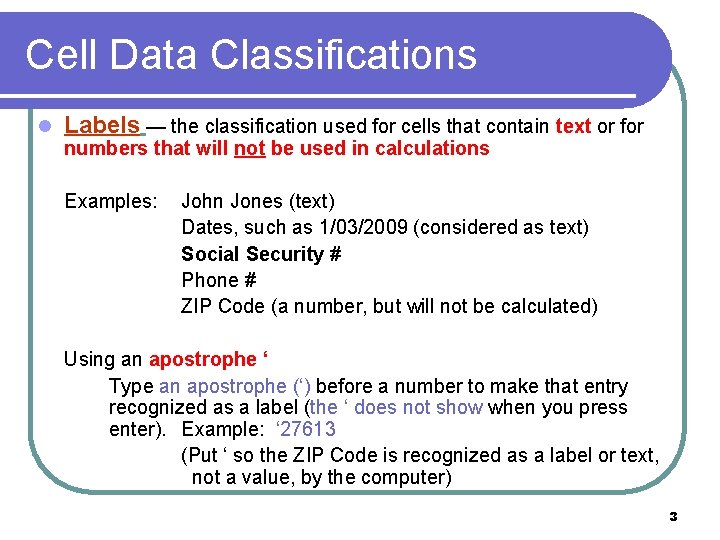
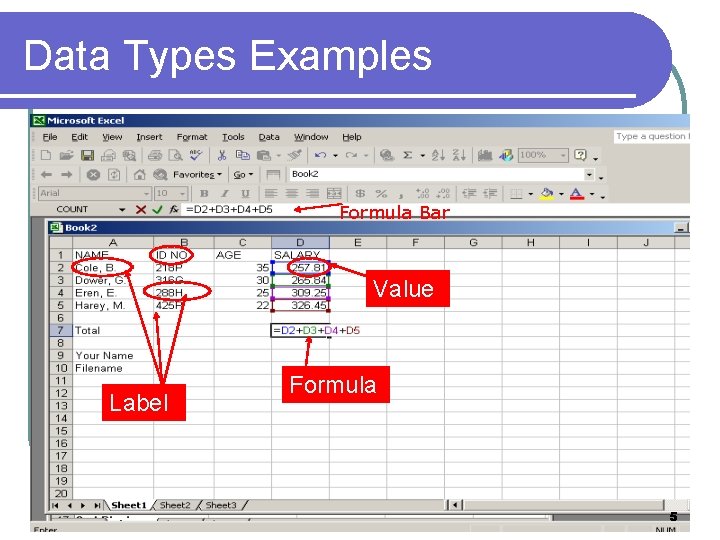
Cell Data Classifications l Labels — the classification used for cells that contain text or for numbers that will not be used in calculations Examples: John Jones (text) Dates, such as 1/03/2009 (considered as text) Social Security # Phone # ZIP Code (a number, but will not be calculated) Using an apostrophe ‘ Type an apostrophe (‘) before a number to make that entry recognized as a label (the ‘ does not show when you press enter). Example: ‘ 27613 (Put ‘ so the ZIP Code is recognized as a label or text, not a value, by the computer) 3
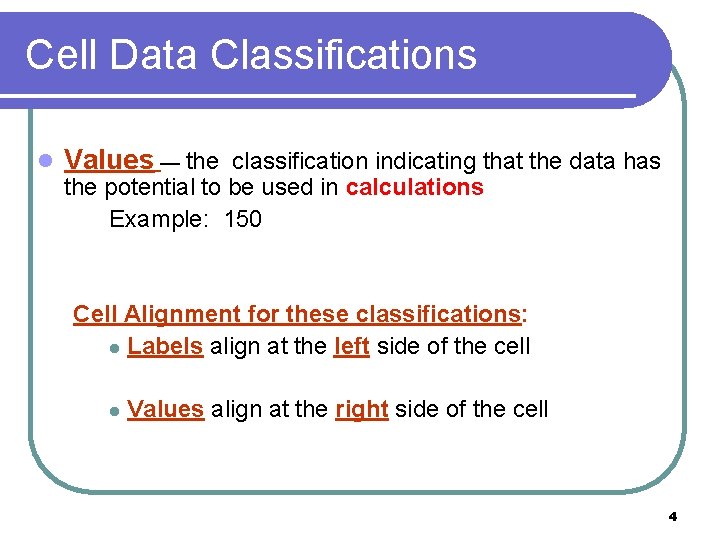
Cell Data Classifications l Values — the classification indicating that the data has the potential to be used in calculations Example: 150 Cell Alignment for these classifications: l Labels align at the left side of the cell l Values align at the right side of the cell 4
Data Types Examples Formula Bar Value Label Formula 5
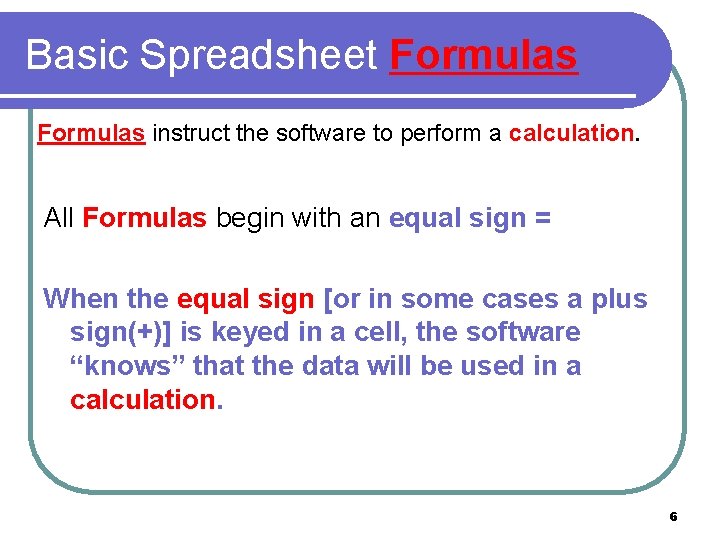
Basic Spreadsheet Formulas instruct the software to perform a calculation. All Formulas begin with an equal sign = When the equal sign [or in some cases a plus sign(+)] is keyed in a cell, the software “knows” that the data will be used in a calculation. 6
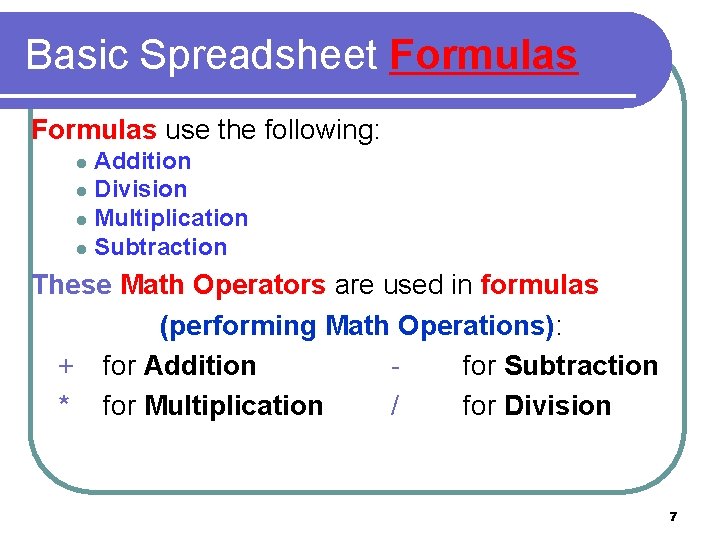
Basic Spreadsheet Formulas use the following: Addition l Division l Multiplication l Subtraction l These Math Operators are used in formulas (performing Math Operations): + for Addition for Subtraction * for Multiplication / for Division 7
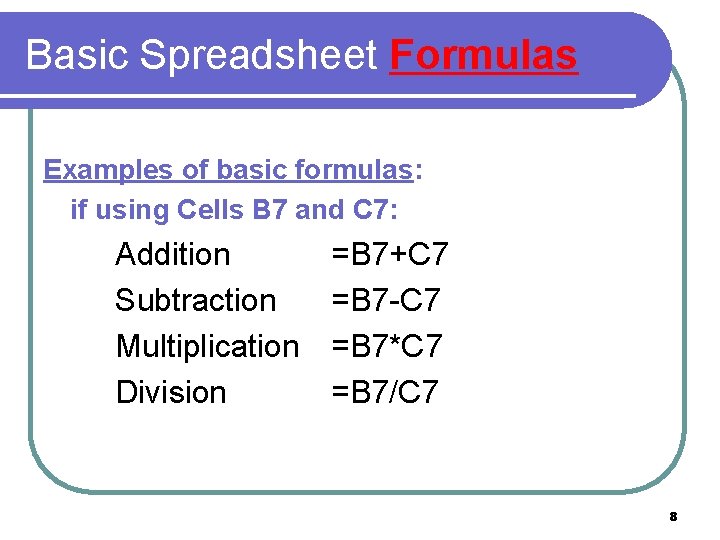
Basic Spreadsheet Formulas Examples of basic formulas: if using Cells B 7 and C 7: Addition Subtraction Multiplication Division =B 7+C 7 =B 7 -C 7 =B 7*C 7 =B 7/C 7 8
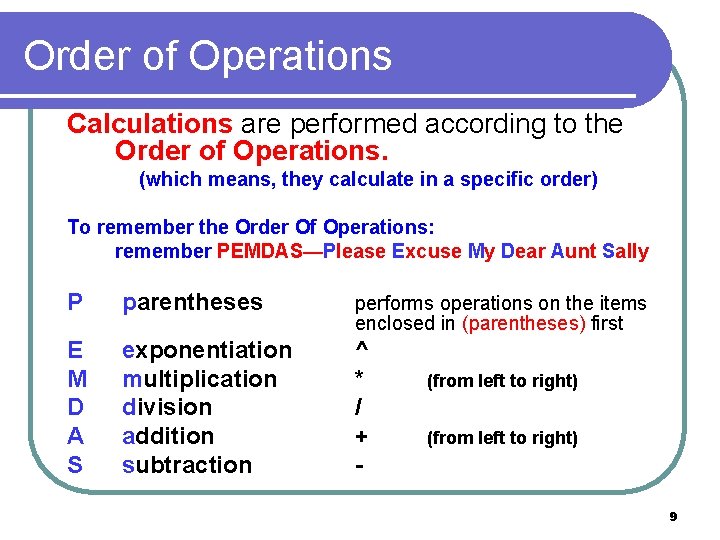
Order of Operations Calculations are performed according to the Order of Operations. (which means, they calculate in a specific order) To remember the Order Of Operations: remember PEMDAS—Please Excuse My Dear Aunt Sally P parentheses performs operations on the items enclosed in (parentheses) first E M D A S exponentiation multiplication division addition subtraction ^ * / + - (from left to right) 9
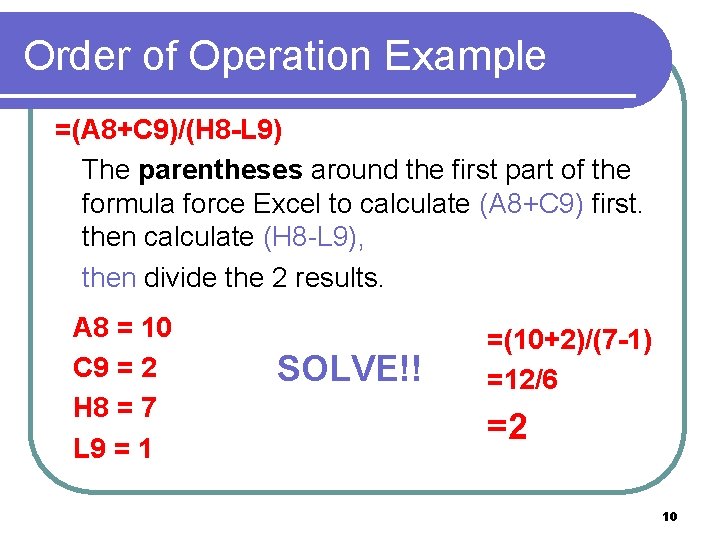
Order of Operation Example =(A 8+C 9)/(H 8 -L 9) The parentheses around the first part of the formula force Excel to calculate (A 8+C 9) first. then calculate (H 8 -L 9), then divide the 2 results. A 8 = 10 C 9 = 2 H 8 = 7 L 9 = 1 SOLVE!! =(10+2)/(7 -1) =12/6 =2 10
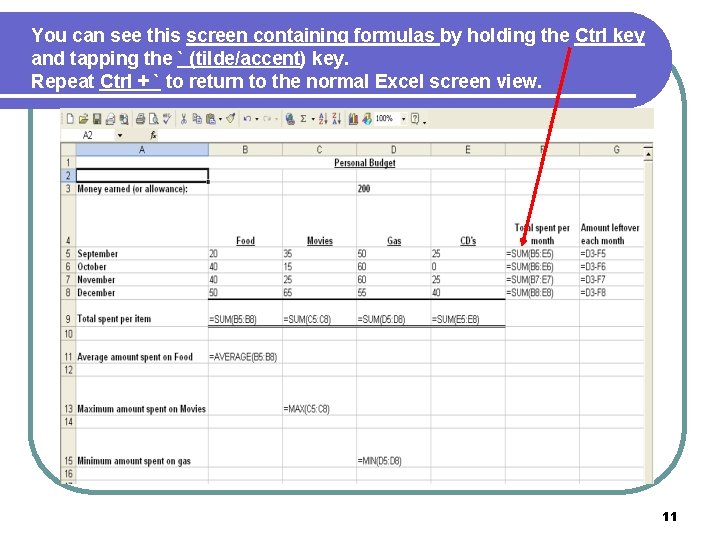
You can see this screen containing formulas by holding the Ctrl key and tapping the ` (tilde/accent) key. Repeat Ctrl + ` to return to the normal Excel screen view. 11