
Understanding Setup for Vendor Managed Inventory Concept Understanding
- Slides: 32
Understanding Setup for Vendor Managed Inventory Concept
Understanding Setup for Vendor Managed Inventory
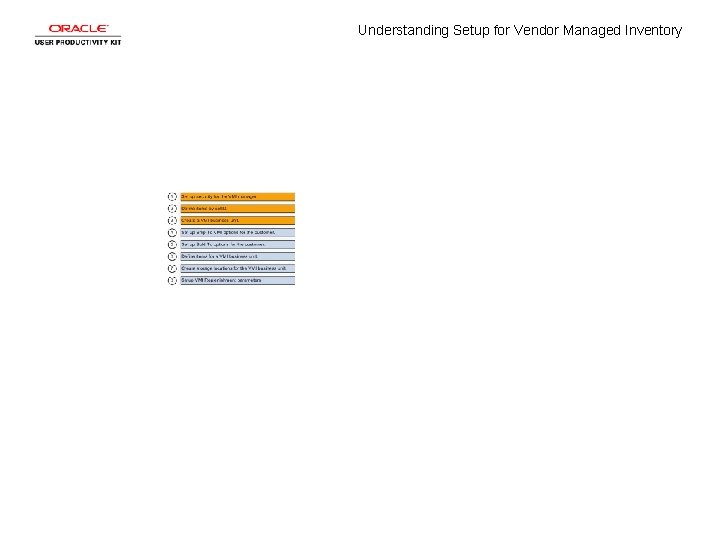
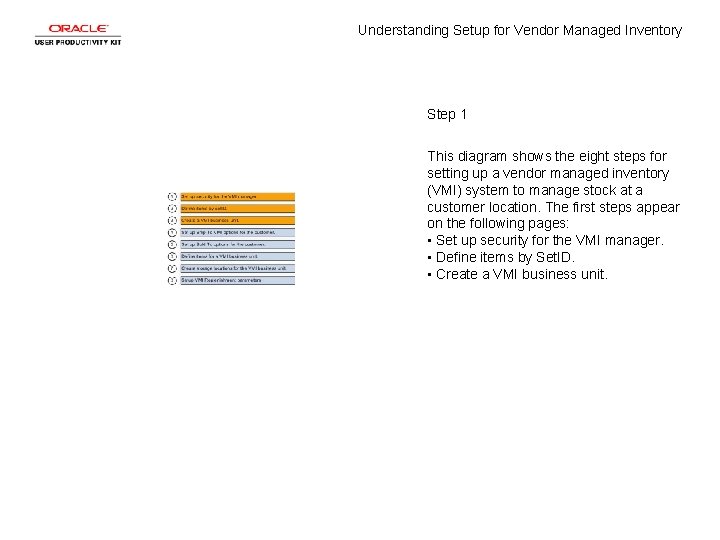
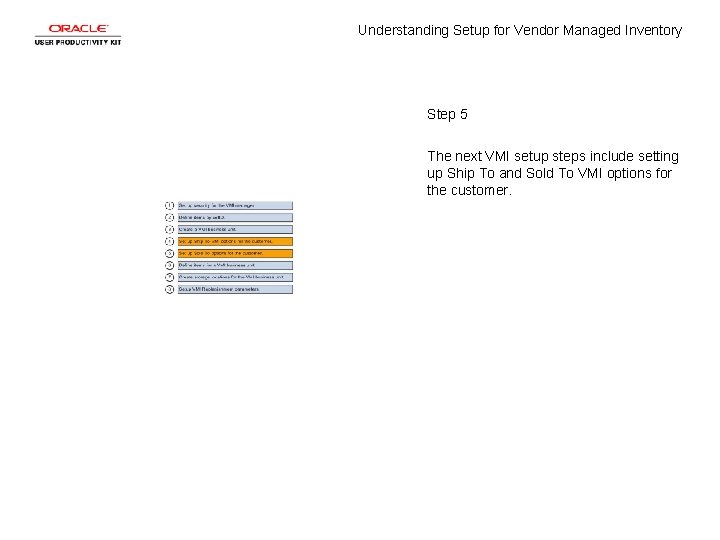
Understanding Setup for Vendor Managed Inventory Step 1 This diagram shows the eight steps for setting up a vendor managed inventory (VMI) system to manage stock at a customer location. The first steps appear on the following pages: • Set up security for the VMI manager. • Define items by Set. ID. • Create a VMI business unit.
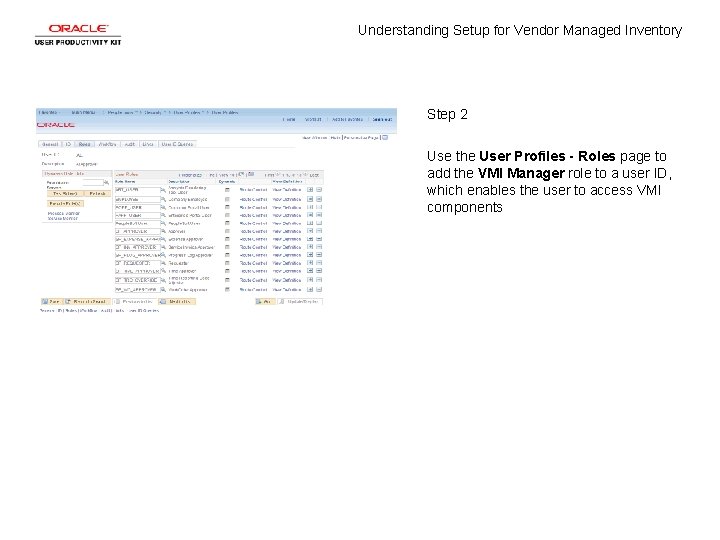
Understanding Setup for Vendor Managed Inventory Step 2 Use the User Profiles - Roles page to add the VMI Manager role to a user ID, which enables the user to access VMI components
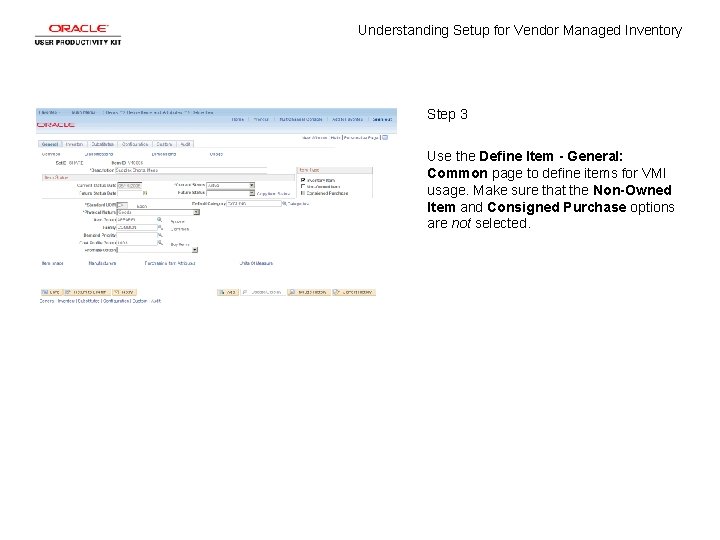
Understanding Setup for Vendor Managed Inventory Step 3 Use the Define Item - General: Common page to define items for VMI usage. Make sure that the Non-Owned Item and Consigned Purchase options are not selected.
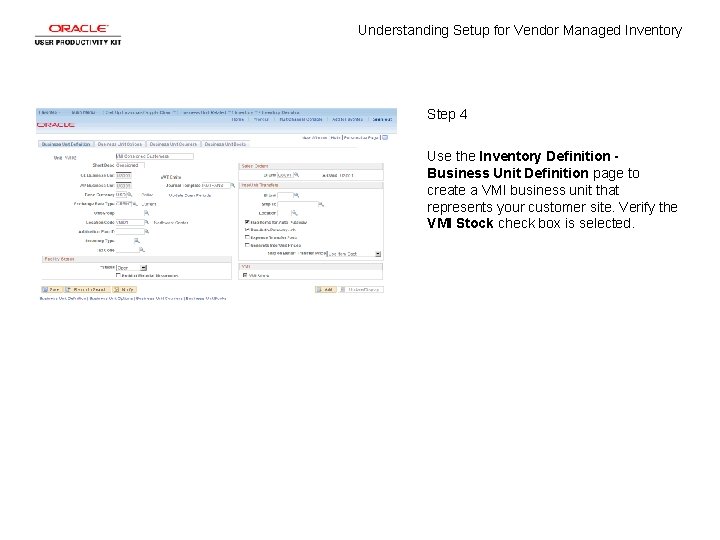
Understanding Setup for Vendor Managed Inventory Step 4 Use the Inventory Definition Business Unit Definition page to create a VMI business unit that represents your customer site. Verify the VMI Stock check box is selected.
Understanding Setup for Vendor Managed Inventory Step 5 The next VMI setup steps include setting up Ship To and Sold To VMI options for the customer.
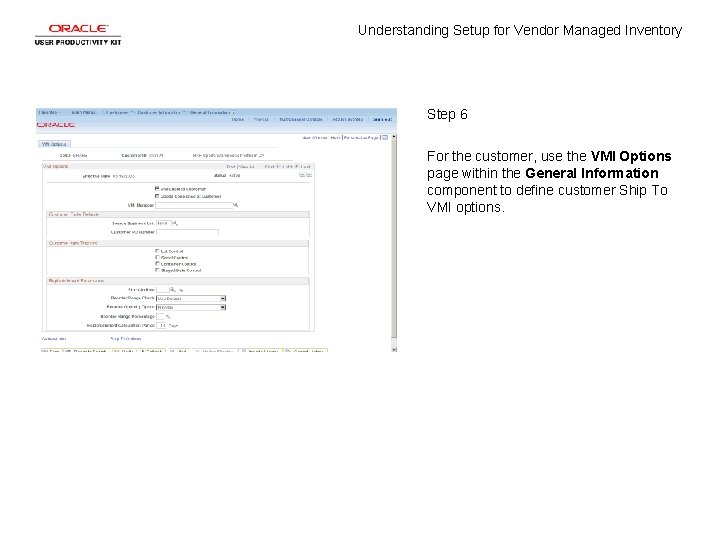
Understanding Setup for Vendor Managed Inventory Step 6 For the customer, use the VMI Options page within the General Information component to define customer Ship To VMI options.
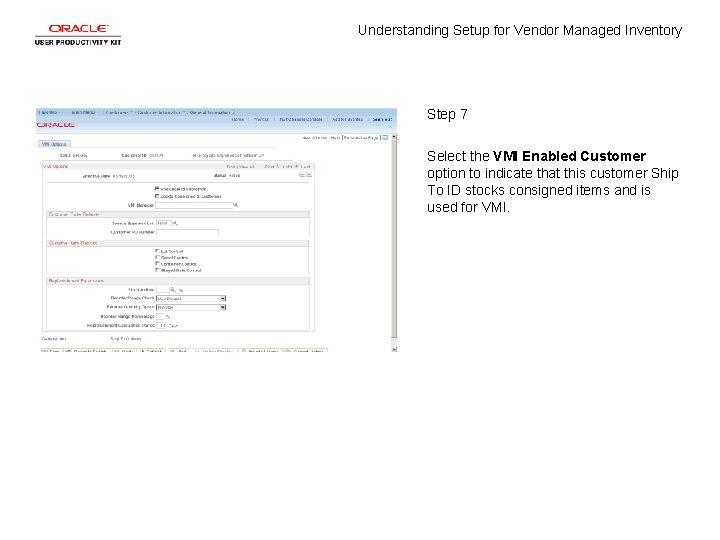
Understanding Setup for Vendor Managed Inventory Step 7 Select the VMI Enabled Customer option to indicate that this customer Ship To ID stocks consigned items and is used for VMI.
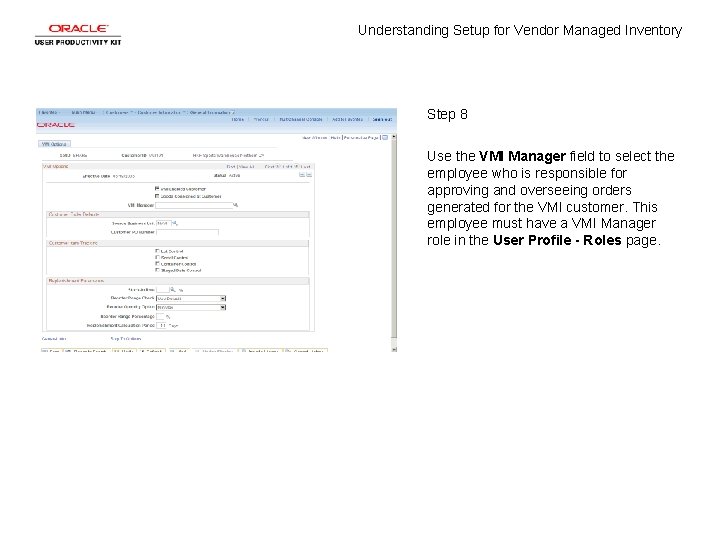
Understanding Setup for Vendor Managed Inventory Step 8 Use the VMI Manager field to select the employee who is responsible for approving and overseeing orders generated for the VMI customer. This employee must have a VMI Manager role in the User Profile - Roles page.
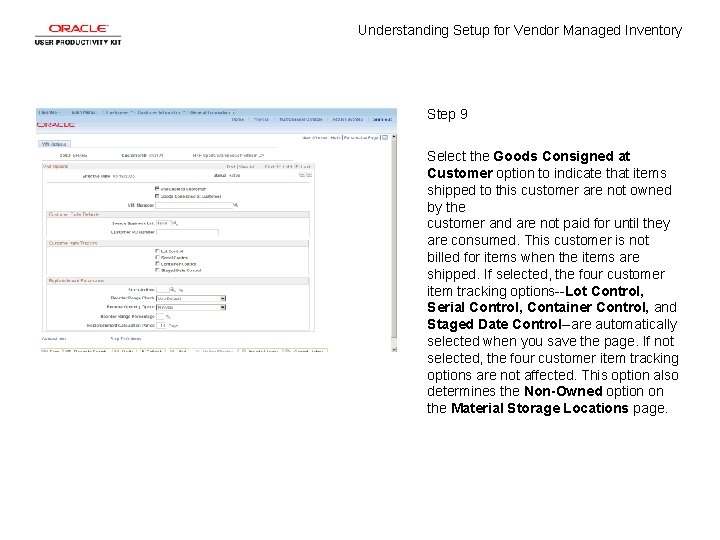
Understanding Setup for Vendor Managed Inventory Step 9 Select the Goods Consigned at Customer option to indicate that items shipped to this customer are not owned by the customer and are not paid for until they are consumed. This customer is not billed for items when the items are shipped. If selected, the four customer item tracking options--Lot Control, Serial Control, Container Control, and Staged Date Control--are automatically selected when you save the page. If not selected, the four customer item tracking options are not affected. This option also determines the Non-Owned option on the Material Storage Locations page.
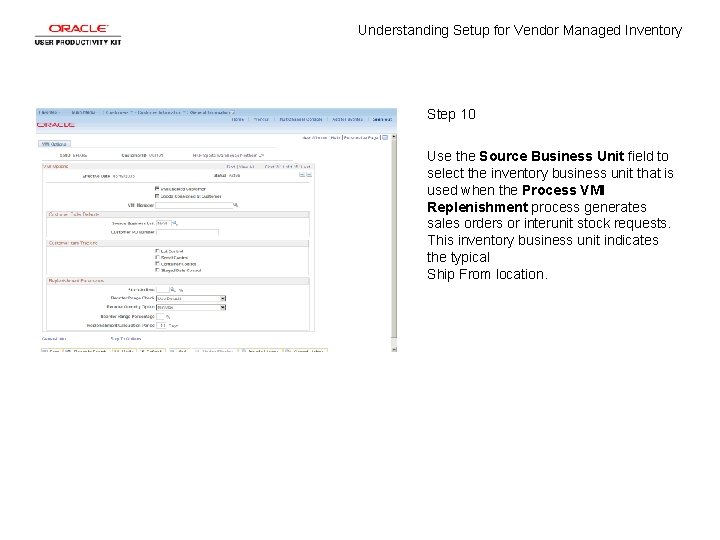
Understanding Setup for Vendor Managed Inventory Step 10 Use the Source Business Unit field to select the inventory business unit that is used when the Process VMI Replenishment process generates sales orders or interunit stock requests. This inventory business unit indicates the typical Ship From location.
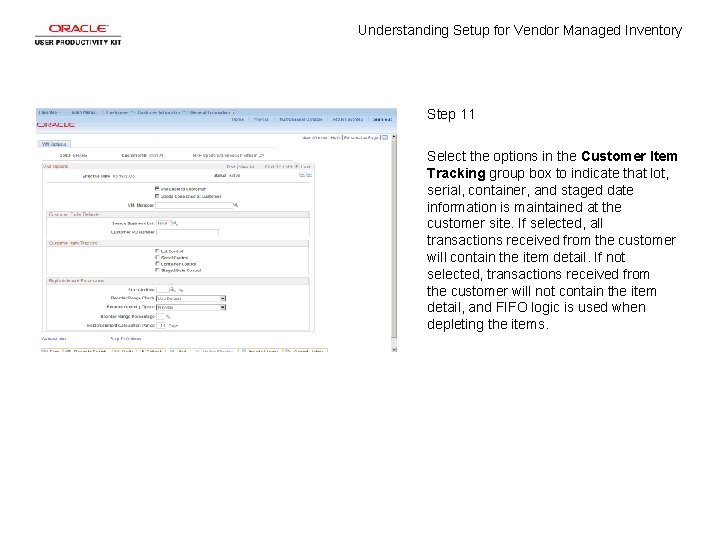
Understanding Setup for Vendor Managed Inventory Step 11 Select the options in the Customer Item Tracking group box to indicate that lot, serial, container, and staged date information is maintained at the customer site. If selected, all transactions received from the customer will contain the item detail. If not selected, transactions received from the customer will not contain the item detail, and FIFO logic is used when depleting the items.
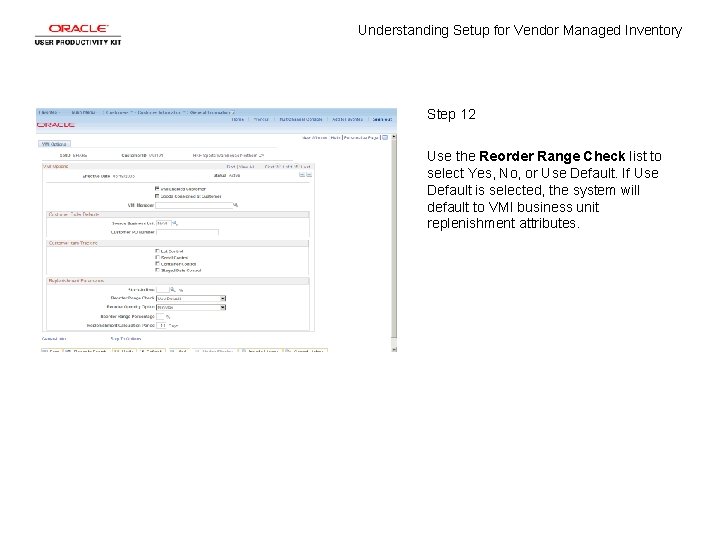
Understanding Setup for Vendor Managed Inventory Step 12 Use the Reorder Range Check list to select Yes, No, or Use Default. If Use Default is selected, the system will default to VMI business unit replenishment attributes.
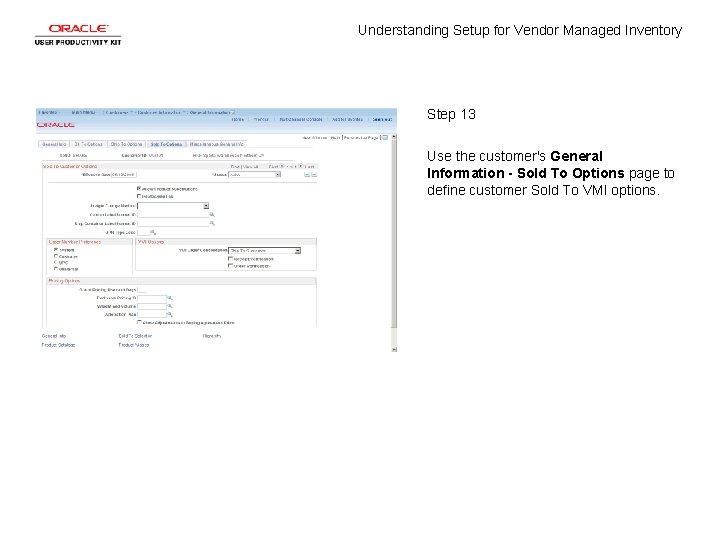
Understanding Setup for Vendor Managed Inventory Step 13 Use the customer's General Information - Sold To Options page to define customer Sold To VMI options.
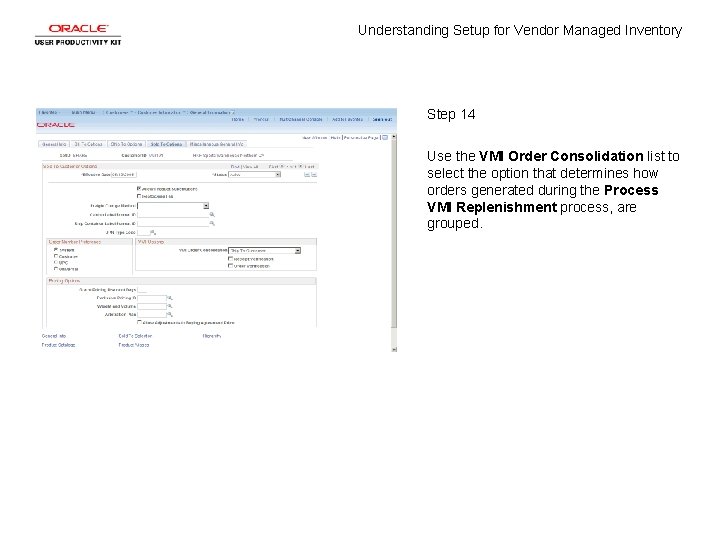
Understanding Setup for Vendor Managed Inventory Step 14 Use the VMI Order Consolidation list to select the option that determines how orders generated during the Process VMI Replenishment process, are grouped.
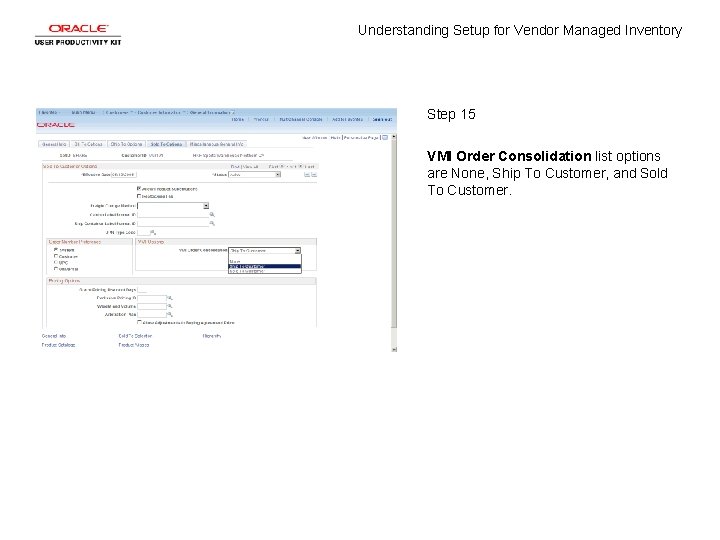
Understanding Setup for Vendor Managed Inventory Step 15 VMI Order Consolidation list options are None, Ship To Customer, and Sold To Customer.
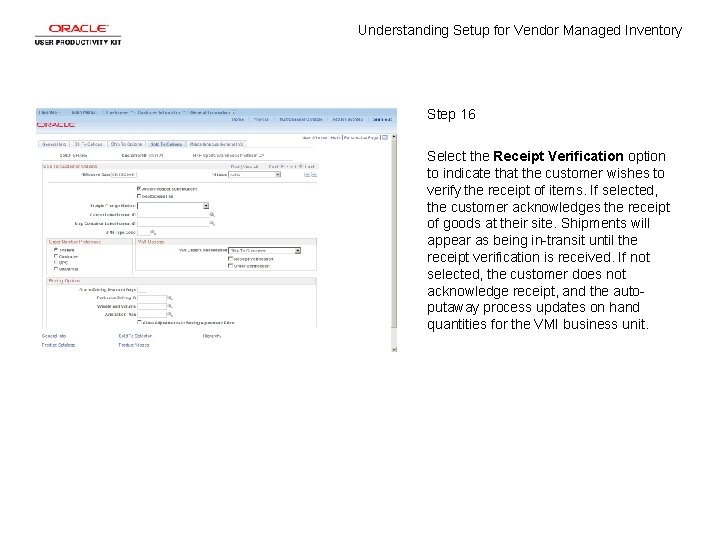
Understanding Setup for Vendor Managed Inventory Step 16 Select the Receipt Verification option to indicate that the customer wishes to verify the receipt of items. If selected, the customer acknowledges the receipt of goods at their site. Shipments will appear as being in-transit until the receipt verification is received. If not selected, the customer does not acknowledge receipt, and the autoputaway process updates on hand quantities for the VMI business unit.
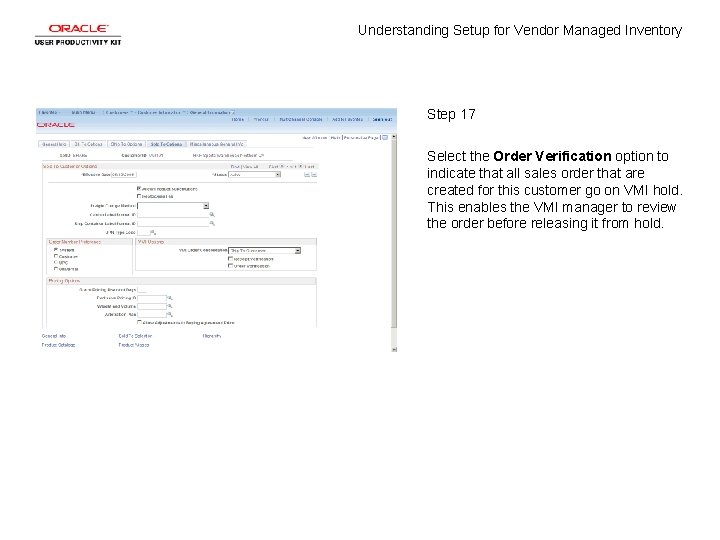
Understanding Setup for Vendor Managed Inventory Step 17 Select the Order Verification option to indicate that all sales order that are created for this customer go on VMI hold. This enables the VMI manager to review the order before releasing it from hold.
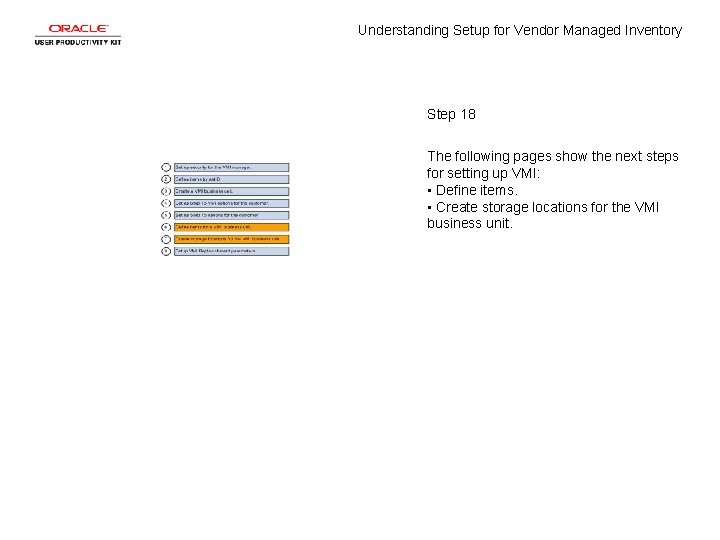
Understanding Setup for Vendor Managed Inventory Step 18 The following pages show the next steps for setting up VMI: • Define items. • Create storage locations for the VMI business unit.
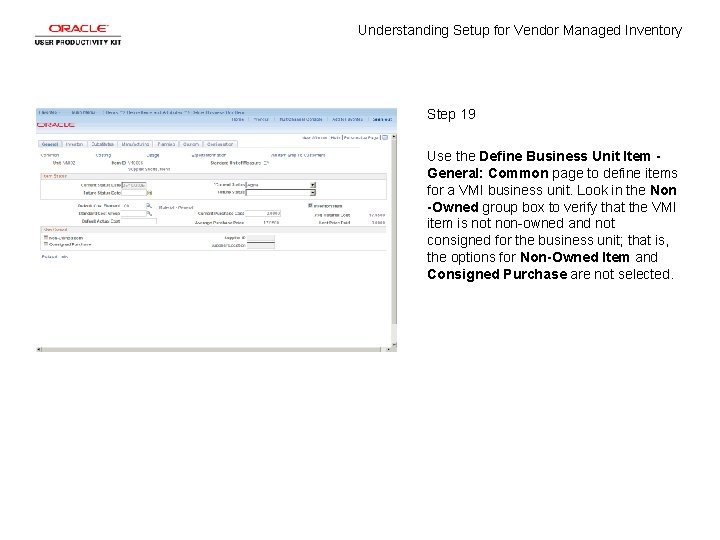
Understanding Setup for Vendor Managed Inventory Step 19 Use the Define Business Unit Item General: Common page to define items for a VMI business unit. Look in the Non -Owned group box to verify that the VMI item is not non-owned and not consigned for the business unit; that is, the options for Non-Owned Item and Consigned Purchase are not selected.
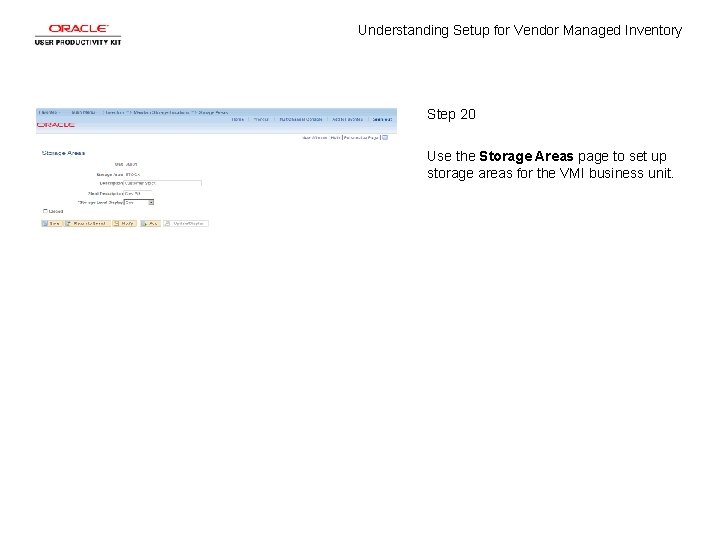
Understanding Setup for Vendor Managed Inventory Step 20 Use the Storage Areas page to set up storage areas for the VMI business unit.
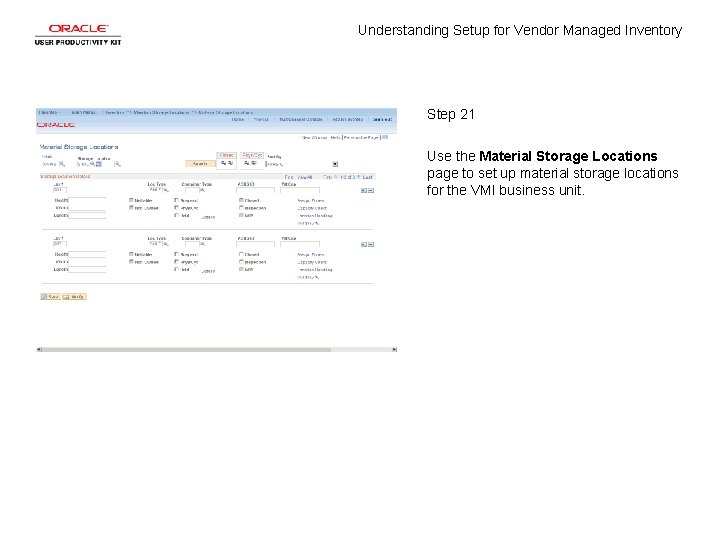
Understanding Setup for Vendor Managed Inventory Step 21 Use the Material Storage Locations page to set up material storage locations for the VMI business unit.
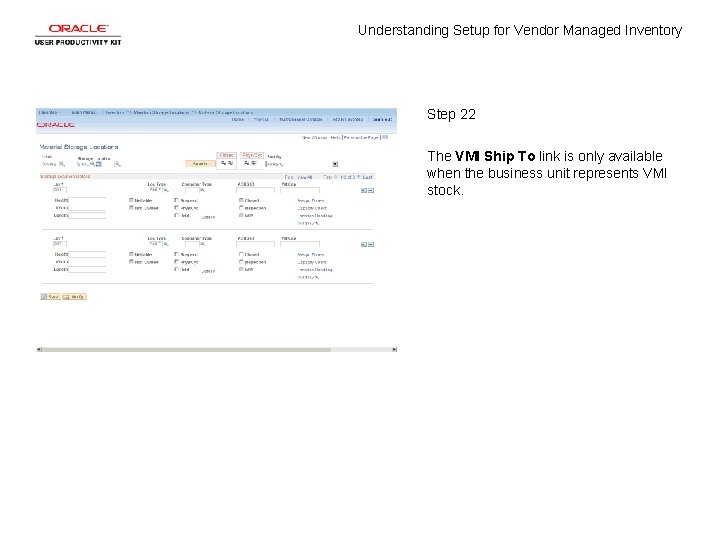
Understanding Setup for Vendor Managed Inventory Step 22 The VMI Ship To link is only available when the business unit represents VMI stock.
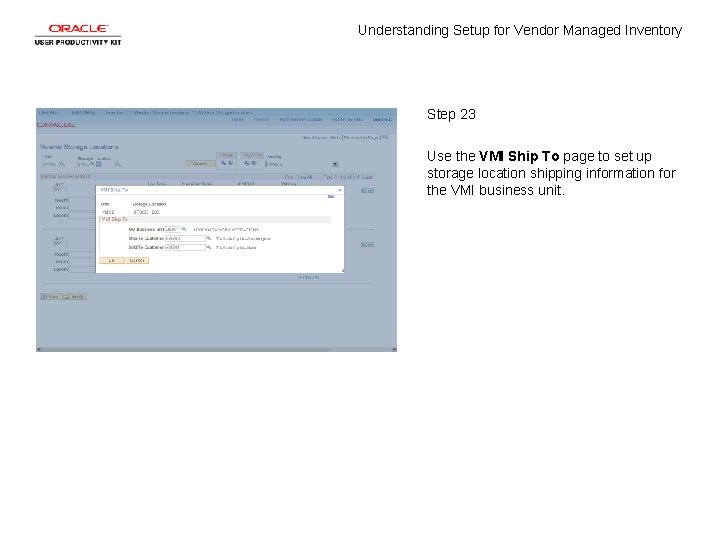
Understanding Setup for Vendor Managed Inventory Step 23 Use the VMI Ship To page to set up storage location shipping information for the VMI business unit.
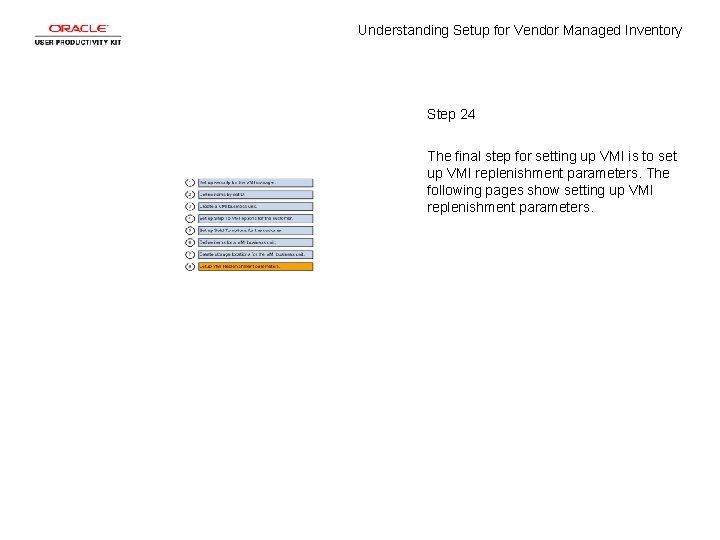
Understanding Setup for Vendor Managed Inventory Step 24 The final step for setting up VMI is to set up VMI replenishment parameters. The following pages show setting up VMI replenishment parameters.
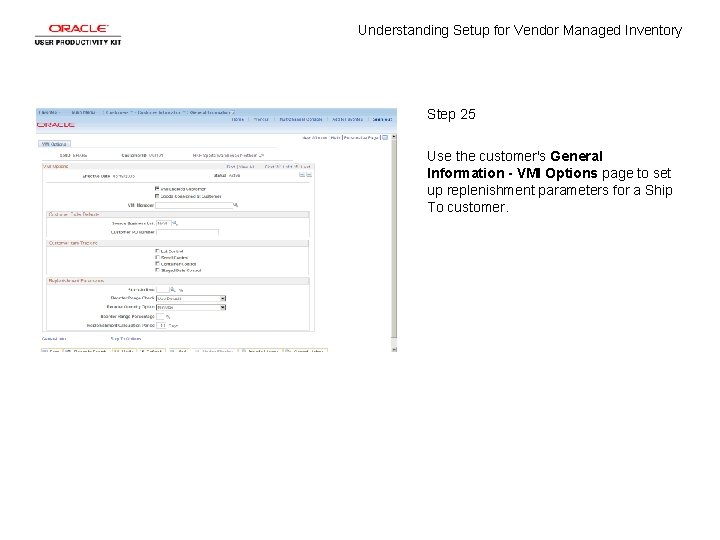
Understanding Setup for Vendor Managed Inventory Step 25 Use the customer's General Information - VMI Options page to set up replenishment parameters for a Ship To customer.
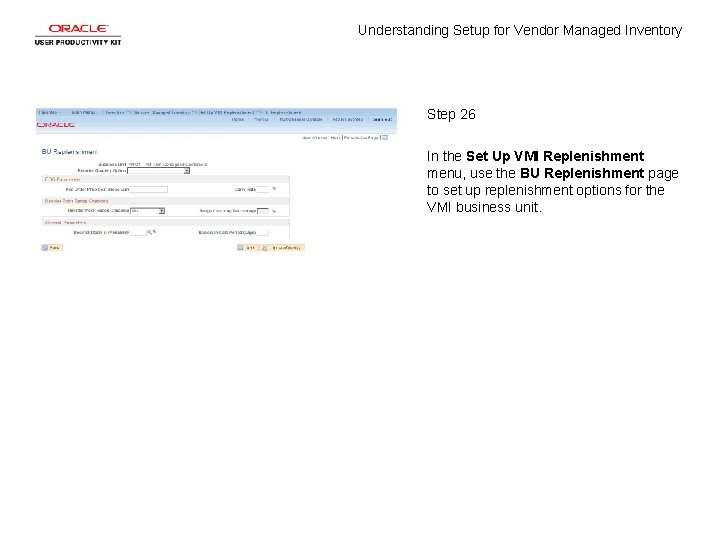
Understanding Setup for Vendor Managed Inventory Step 26 In the Set Up VMI Replenishment menu, use the BU Replenishment page to set up replenishment options for the VMI business unit.
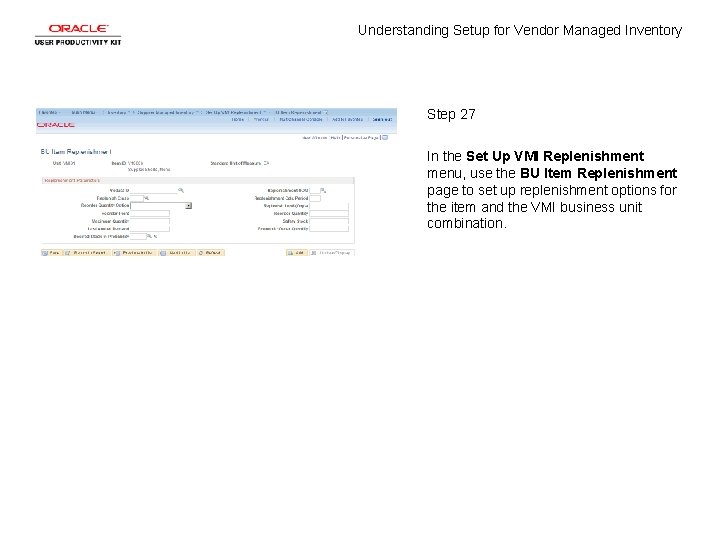
Understanding Setup for Vendor Managed Inventory Step 27 In the Set Up VMI Replenishment menu, use the BU Item Replenishment page to set up replenishment options for the item and the VMI business unit combination.
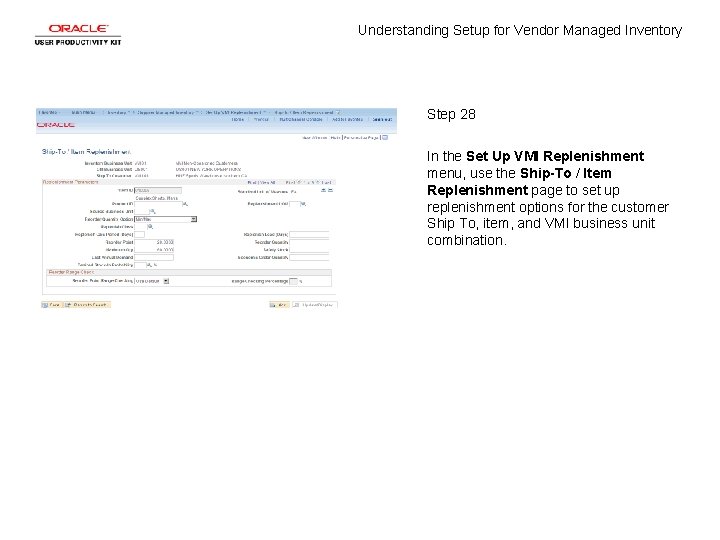
Understanding Setup for Vendor Managed Inventory Step 28 In the Set Up VMI Replenishment menu, use the Ship-To / Item Replenishment page to set up replenishment options for the customer Ship To, item, and VMI business unit combination.
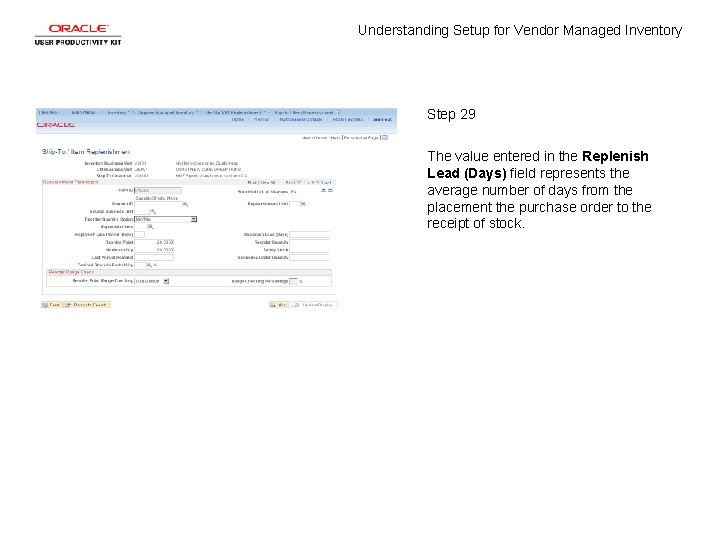
Understanding Setup for Vendor Managed Inventory Step 29 The value entered in the Replenish Lead (Days) field represents the average number of days from the placement the purchase order to the receipt of stock.
Understanding Setup for Vendor Managed Inventory Step 30 You have successfully reviewed the requirements for setting up vendor managed inventory. End of Procedure.