
UNDERSTANDING PRACTICE WORKFLOW USING ELECTRONIC MEDICAL RECORDS SETTING
- Slides: 14
UNDERSTANDING PRACTICE WORKFLOW USING ELECTRONIC MEDICAL RECORDS
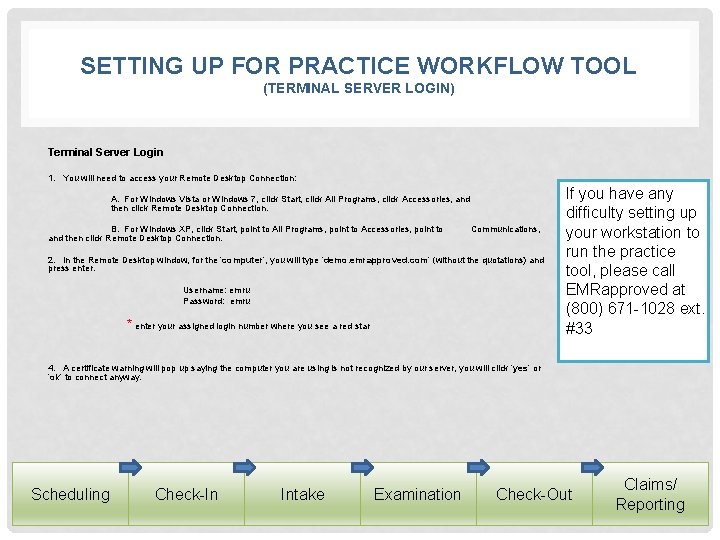
SETTING UP FOR PRACTICE WORKFLOW TOOL (TERMINAL SERVER LOGIN) Terminal Server Login 1. You will need to access your Remote Desktop Connection: A. For Windows Vista or Windows 7, click Start, click All Programs, click Accessories, and then click Remote Desktop Connection. B. For Windows XP, click Start, point to All Programs, point to Accessories, point to and then click Remote Desktop Connection. Communications, 2. In the Remote Desktop window, for the ‘computer’, you will type ‘demo. emrapproved. com’ (without the quotations) and press enter. Username: emru Password: emru * enter your assigned login number where you see a red star If you have any difficulty setting up your workstation to run the practice tool, please call EMRapproved at (800) 671 -1028 ext. #33 4. A certificate warning will pop up saying the computer you are using is not recognized by our server, you will click ‘yes’ or ‘ok’ to connect anyway. Scheduling Check-In Intake Examination Check-Out Claims/ Reporting
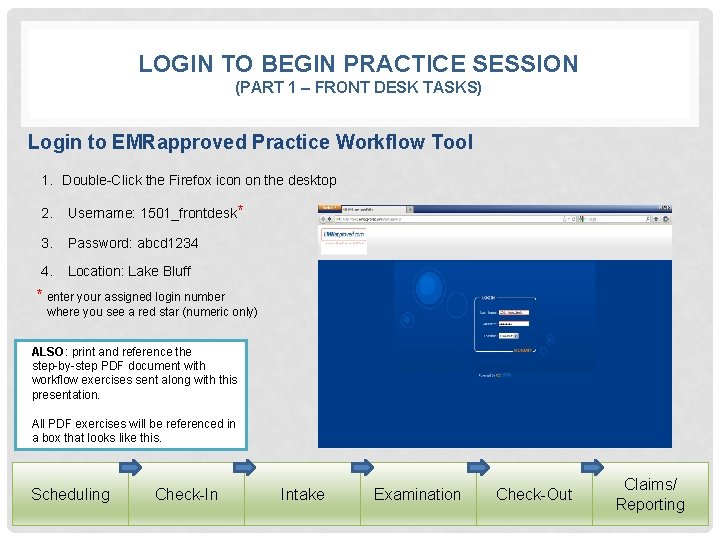
LOGIN TO BEGIN PRACTICE SESSION (PART 1 – FRONT DESK TASKS) Login to EMRapproved Practice Workflow Tool 1. Double-Click the Firefox icon on the desktop 2. Username: 1501_frontdesk* 3. Password: abcd 1234 4. Location: Lake Bluff * enter your assigned login number where you see a red star (numeric only) ALSO: print and reference the step-by-step PDF document with workflow exercises sent along with this presentation. All PDF exercises will be referenced in a box that looks like this. Scheduling Check-In Intake Examination Check-Out Claims/ Reporting
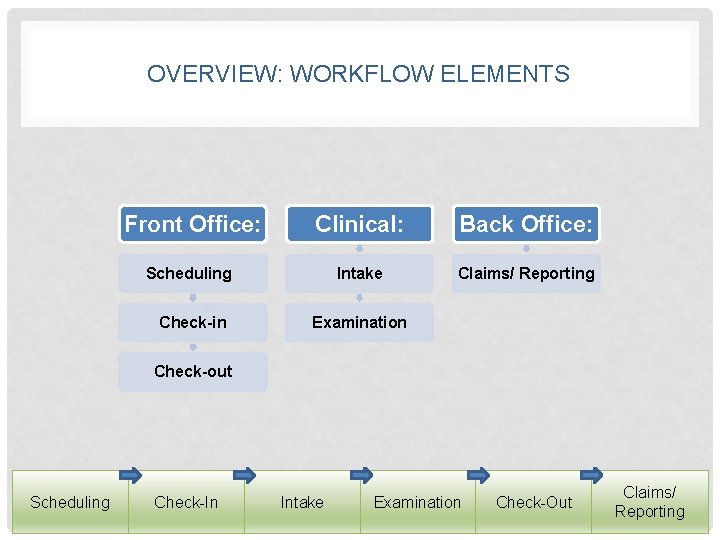
OVERVIEW: WORKFLOW ELEMENTS Front Office: Clinical: Back Office: Scheduling Intake Claims/ Reporting Check-in Examination Check-out Scheduling Check-In Intake Examination Check-Out Claims/ Reporting
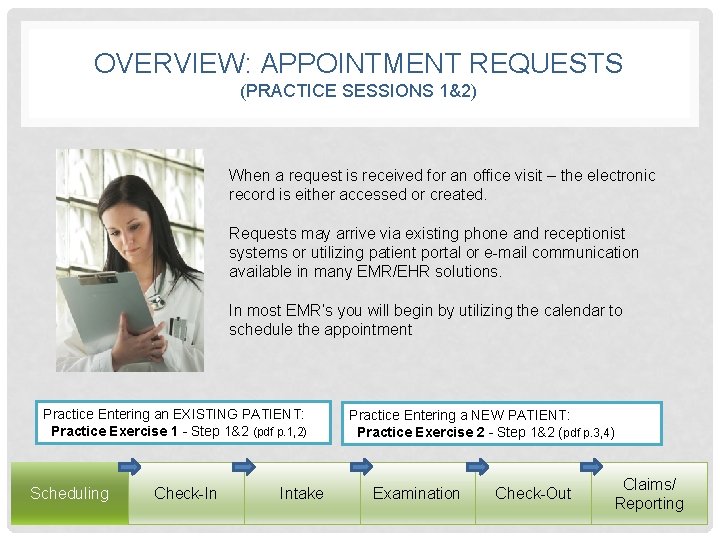
OVERVIEW: APPOINTMENT REQUESTS (PRACTICE SESSIONS 1&2) When a request is received for an office visit – the electronic record is either accessed or created. Requests may arrive via existing phone and receptionist systems or utilizing patient portal or e-mail communication available in many EMR/EHR solutions. In most EMR’s you will begin by utilizing the calendar to schedule the appointment Practice Entering an EXISTING PATIENT: Practice Exercise 1 - Step 1&2 (pdf p. 1, 2) Scheduling Check-In Intake Practice Entering a NEW PATIENT: Practice Exercise 2 - Step 1&2 (pdf p. 3, 4) Examination Check-Out Claims/ Reporting
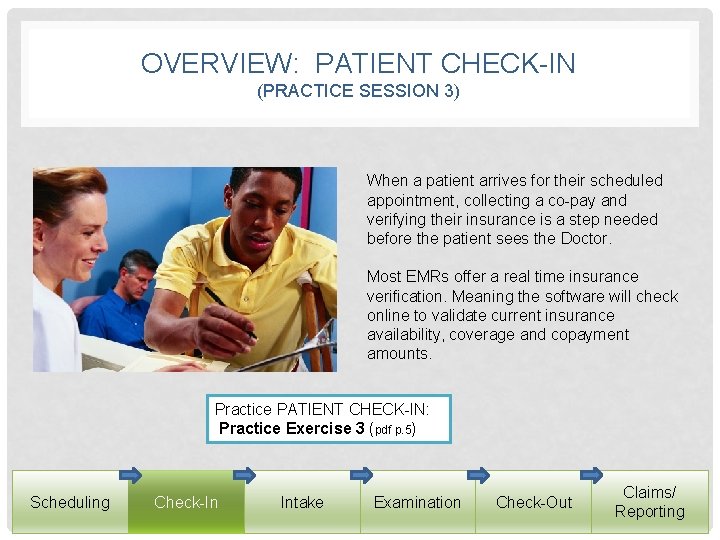
OVERVIEW: PATIENT CHECK-IN (PRACTICE SESSION 3) When a patient arrives for their scheduled appointment, collecting a co-pay and verifying their insurance is a step needed before the patient sees the Doctor. Most EMRs offer a real time insurance verification. Meaning the software will check online to validate current insurance availability, coverage and copayment amounts. Practice PATIENT CHECK-IN: Practice Exercise 3 (pdf p. 5) Scheduling Check-In Intake Examination Check-Out Claims/ Reporting
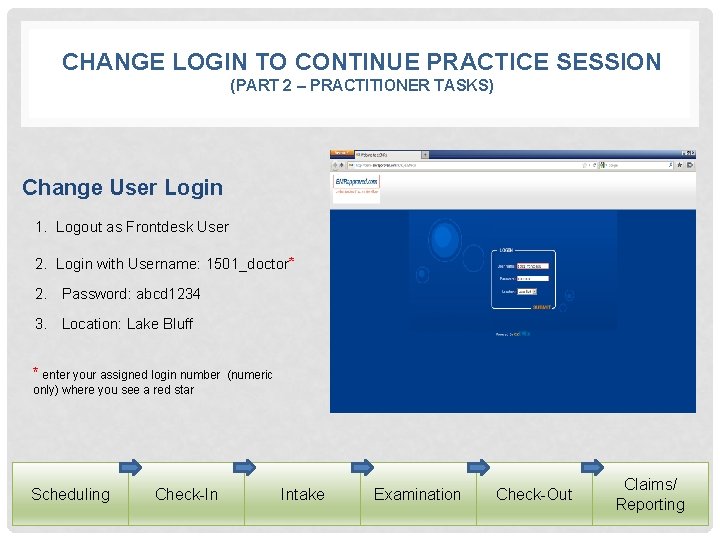
CHANGE LOGIN TO CONTINUE PRACTICE SESSION (PART 2 – PRACTITIONER TASKS) Change User Login 1. Logout as Frontdesk User 2. Login with Username: 1501_doctor* 2. Password: abcd 1234 3. Location: Lake Bluff * enter your assigned login number (numeric only) where you see a red star Scheduling Check-In Intake Examination Check-Out Claims/ Reporting
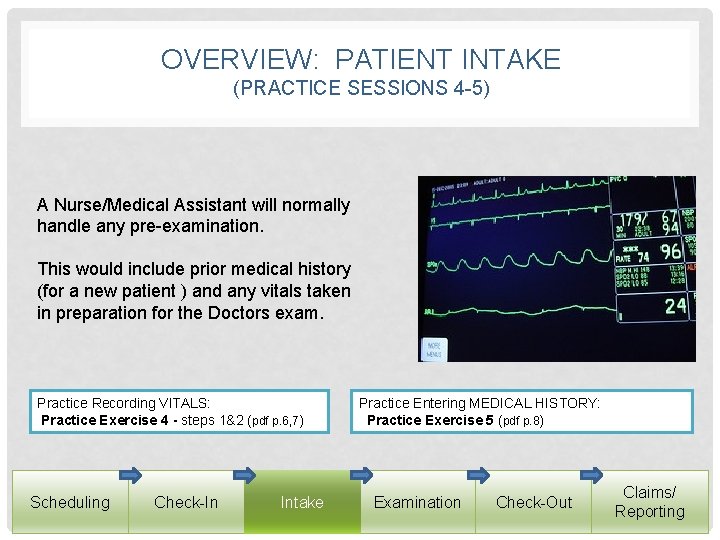
OVERVIEW: PATIENT INTAKE (PRACTICE SESSIONS 4 -5) A Nurse/Medical Assistant will normally handle any pre-examination. This would include prior medical history (for a new patient ) and any vitals taken in preparation for the Doctors exam. Practice Recording VITALS: Practice Exercise 4 - steps 1&2 (pdf p. 6, 7) Scheduling Check-In Intake Practice Entering MEDICAL HISTORY: Practice Exercise 5 (pdf p. 8) Examination Check-Out Claims/ Reporting
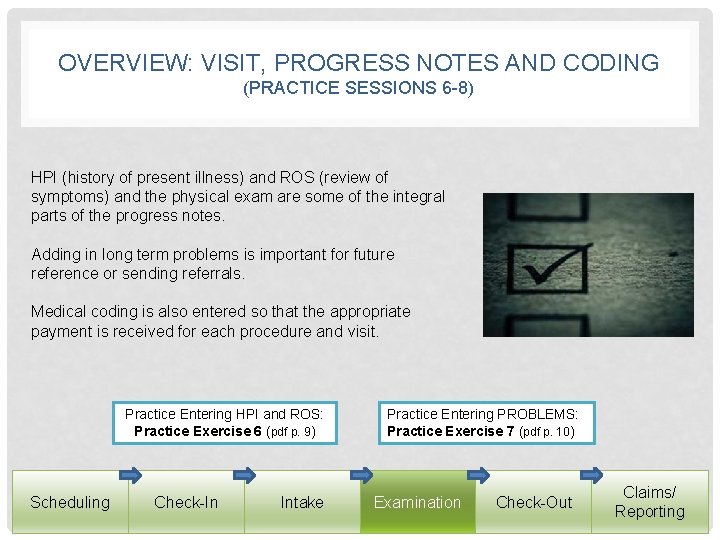
OVERVIEW: VISIT, PROGRESS NOTES AND CODING (PRACTICE SESSIONS 6 -8) HPI (history of present illness) and ROS (review of symptoms) and the physical exam are some of the integral parts of the progress notes. Adding in long term problems is important for future reference or sending referrals. Medical coding is also entered so that the appropriate payment is received for each procedure and visit. Practice Entering HPI and ROS: Practice Exercise 6 (pdf p. 9) Scheduling Check-In Intake Practice Entering PROBLEMS: Practice Exercise 7 (pdf p. 10) Examination Check-Out Claims/ Reporting
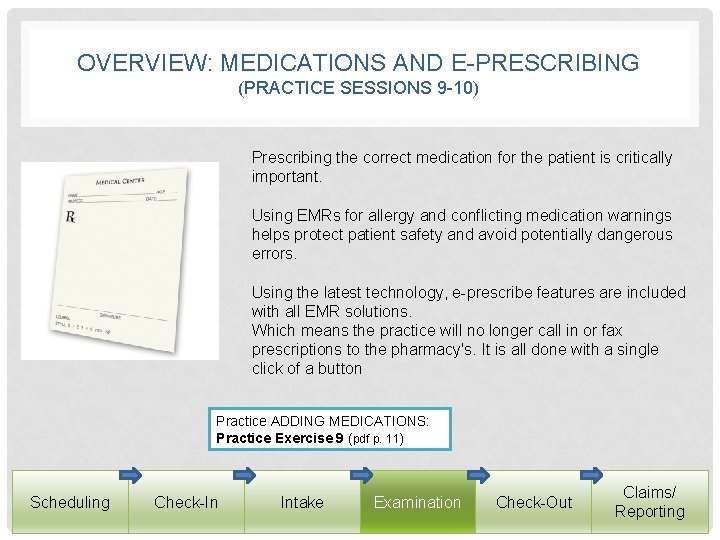
OVERVIEW: MEDICATIONS AND E-PRESCRIBING (PRACTICE SESSIONS 9 -10) Prescribing the correct medication for the patient is critically important. Using EMRs for allergy and conflicting medication warnings helps protect patient safety and avoid potentially dangerous errors. Using the latest technology, e-prescribe features are included with all EMR solutions. Which means the practice will no longer call in or fax prescriptions to the pharmacy's. It is all done with a single click of a button Practice ADDING MEDICATIONS: Practice Exercise 9 (pdf p. 11) Scheduling Check-In Intake Examination Check-Out Claims/ Reporting
OVERVIEW: SCHEDULING FOLLOW-UP APPOINTMENTS The Doctor may request that the patient come back for a follow-up visit. The front desk will now access the EMR to schedule this next appointment. Scheduling Check-In Intake Examination Check-Out Claims/ Reporting
OVERVIEW: BILLING, CLAIMS, RECEIPTS Most EMR solutions have an integrated billing component, although a practice may outsource many of the billing and financial functions. When the Doctor does their coding and then locks or submits the progress note, a claim will be generated. The Biller/Practice Manager can review this claim, check the ICD or CPT codes entered, and then send the claim off to their billing house. Most billing houses integrate function with the EMRs to make filing claims more streamlined. With or without a PM (Practice Management/Billing) component to the EMR; a patient can obtain a receipt of payment from the EMR system. Scheduling Check-In Intake Examination Check-Out Claims/ Reporting
OVERVIEW: REPORTING Reports can be run and printed from within the billing section of the EMR. These reports can be customized for the unique needs of each practice. Whether it be a daily, monthly, or annual format. Itemized by cash transactions or specific insurance company. The options are numerous and flexible. Reporting is also available in other areas of the EMR. Scheduling Check-In Intake Examination Check-Out Claims/ Reporting
Congratulations! You have now completed your workflow practice session. UNDERSTANDING PRACTICE WORKFLOW USING ELECTRONIC MEDICAL RECORDS