
Understanding Operating Systems Seventh Edition Review Chapters 7
- Slides: 82
Understanding Operating Systems Seventh Edition Review Chapters 7, 8, 11, 14 & 15
Chapter 7 • Features of dedicated, shared, and virtual devices • Concepts of blocking and buffering, and how they improve I/O performance • Roles of seek time, search time, and transfer time in calculating access time • Differences in access times in several types of devices • Strengths and weaknesses of common seek strategies and how they compare • Levels of RAID and what sets each apart Understanding Operating Systems, 7 e 2
Device Management Peripheral devices are input / output / storage / communication devices that connect to the computer’s primary computing devices of the processor and main memory (can be internal or external) Device management involves overseeing the delicate balance of the system’s finite supply of devices with the user’s almost infinite demand for them. The four basic functions: • Monitoring the status of each device • Enforcing preset policies to determine which process gets device and for how long • Allocating each device • Deallocating each device Understanding Operating Systems, 7 e 3
Representing Bits Computers are digital data processors used to turn data into information – they are bit manipulators! Input Process Output Store Communicate Computers use at least 3 ways to represent bits: • • • Magnetic - + - charge Optical - absence or presence of reflective light Electricity (voltage) – solid state Understanding Operating Systems, 7 e 4
Types of Devices From the OS perspective there are three device types: dedicated, shared, and virtual: Dedicated device – Assigned to one job at a time • For entire time that job is active (or until released) • Examples: tape drives, printers, and plotters – Disadvantage • Must be allocated for duration of job execution - inefficient if device not used 100 percent of time Shared device – Assigned to several processes • Example: direct access storage device (DASD) Virtual device – Dedicated and shared device combination - dedicated device transformed into shared device • Example: printer – Converted by spooling program – Spooling: speeds up slow dedicated I/O device Understanding Operating Systems, 7 e 5
Management of I/O Requests OS Device Manager divides I/O task into 3 parts and each is handled by specific software component: I/O traffic controller, scheduler and handler • I/O traffic controller – Watches status of devices, control units, channels – Three main tasks • Determine if path available • If more than one path available, determine which one to select • If paths all busy, determine when one is available – Maintains database containing each unit’s status and connections Understanding Operating Systems, 7 e 6
Management of I/O Requests (cont'd. ) • I/O scheduler – Similar job as process scheduler (Chapter 4) – Allocates devices, control units, and channels – If requests greater than available paths • Decides which request to satisfy first: based on different criteria • I/O device handler – Performs actual data transfer • Processes device interrupts • Handles error conditions • Provides detailed scheduling algorithms – Device dependent Understanding Operating Systems, 7 e 7
Storage devices are classified by several factors: – Type of medium • Magnetic (+- charge) • Optical (reflective light) • Solid state (electric voltage) – Access method • Sequential • Direct – Capacity – how much can be stored (# bytes) – Access time – how fast can save retrieve data • Seek time – time to locate • Transfer rate – time to transfer between storage & memory – Other factors such as fixed removable, etc. Understanding Operating Systems, 7 e 8
Sequential Access Storage Media • Magnetic tape – Early computer systems: routine secondary storage – Records stored serially • Record length determined by application program • Record identified by position on tape • Record access – Tape rotates passing under read/write head: only when access requested for read or write • Time-consuming process Understanding Operating Systems, 7 e 9
Sequential Access Storage Media (cont'd. ) • Blocking advantages – Fewer I/O operations needed – Less wasted tape space • Blocking disadvantages – Overhead and software routines needed for blocking, deblocking, and record keeping – Buffer space wasted • When only one logical record needed Understanding Operating Systems, 7 e 10
Direct Access Storage Devices • Directly read or write to specific disk area – Random access storage devices • Three categories – Magnetic disks – Optical discs – Solid state (flash) memory • Access time variance – Not as wide as magnetic tape but record location can directly affect access time Understanding Operating Systems, 7 e 11
Magnetic Disk Storage • Two recording surfaces (top and bottom) • Each surface formatted – Concentric tracks: numbered from track 0 on outside to highest track number in center • Read/write heads move in unison: virtual cylinder • Accessing a record: system needs three things – Cylinder number – Surface number – Sector number Understanding Operating Systems, 7 e 12
Access Times • File access time factors – Seek time (slowest) • Time to position read/write head on track • Does not apply to fixed read/write head devices – Search time • Rotational delay • Time to rotate DASD • Rotate until desired record under read/write head – Transfer time (fastest) • Time to transfer data • Secondary storage to main memory transfer Understanding Operating Systems, 7 e 13
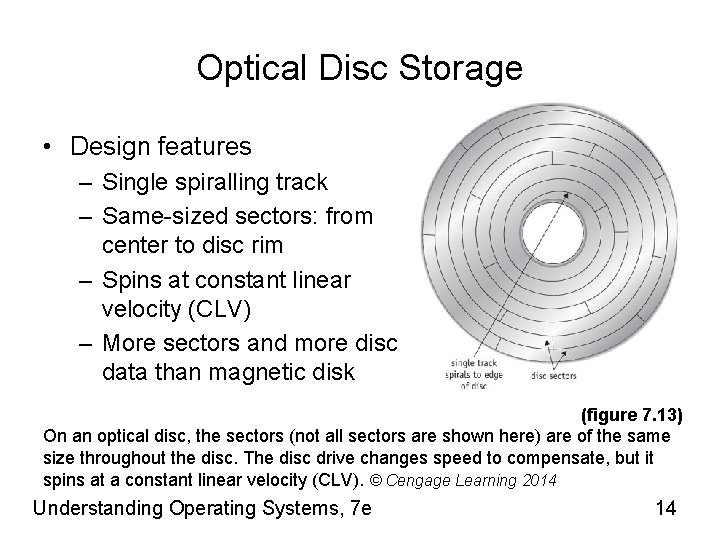
Optical Disc Storage • Design features – Single spiralling track – Same-sized sectors: from center to disc rim – Spins at constant linear velocity (CLV) – More sectors and more disc data than magnetic disk (figure 7. 13) On an optical disc, the sectors (not all sectors are shown here) are of the same size throughout the disc. The disc drive changes speed to compensate, but it spins at a constant linear velocity (CLV). © Cengage Learning 2014 Understanding Operating Systems, 7 e 14
Optical Disc Storage (cont'd. ) • Two important performance measures – Sustained data-transfer rate • Speed to read massive data amounts from disc • Measured in megabytes per second (Mbps) • Crucial for applications requiring sequential access – Average access time • Average time to move head to specific disc location • Expressed in milliseconds (ms) • Third feature – Cache size (hardware) • Buffer to transfer data blocks from disc Understanding Operating Systems, 7 e 15
CD and DVD Technology CD – Data recorded as zeros and ones – Pits: indentations & Lands: flat areas – Reads with low-power laser: absence or presence of reflective light CD-R (compact disk recordable) technology – – Contains several layers Reads on low-power laser Records with high-power laser CD cannot be erased after data recorded CD-RW and DVD-RW: rewritable discs – Record data: beam heats up disc – Erase data: low-energy beam to heat up pits Understanding Operating Systems, 7 e 16
CD and DVD Technology (cont'd. ) DVDs: compared to CDs – Similar in design, shape, and size – Differs in data capacity • Dual-layer, single-sided DVD holds 13 CDs • Single-layer, single-sided DVD holds 8. 6 GB (MPEG video compression) – Differs in laser wavelength • Uses red laser (smaller pits, tighter spiral) Blu-Ray Disc – – – Same physical size as DVD/CD Smaller pits More tightly wound tracks Use of blue-violet laser allows multiple layers Formats: BD-ROM (read only), BD-R (recordable), and BD-RE (rewritable) Understanding Operating Systems, 7 e 17
Solid State Storage • Stores electrons in a floating gate transistor • Electrons remain even after power is turned off • Flash Storage – Electrically erasable, programmable, and read-only memory (EEPROM) • Nonvolatile and removable • Emulates random access – Difference: data stored securely (even if removed) – Write data: electric charge sent through floating gate – Erase data: strong electrical field (flash) applied Understanding Operating Systems, 7 e 18
Solid State Drives (SSDs) • Fast but currently pricey storage devices • Typical device functions in smaller physical space than magnetic drives • Work electronically: no moving parts • Require less power; silent; relatively lightweight • Disadvantages – Catastrophic crashes: no warning messages – Data transfer rates: degrade over time • Hybrid drive – Combines SSD and hard drive technology Understanding Operating Systems, 7 e 19
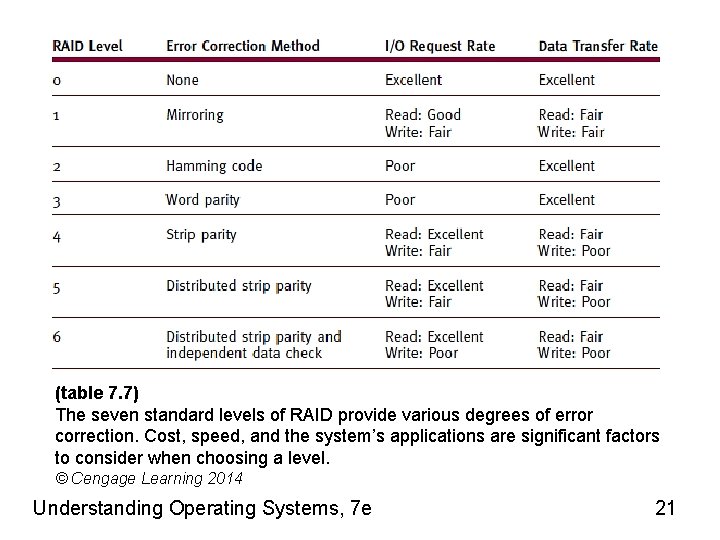
RAID • Physical disk drive set viewed as single logical unit – Preferable over few large-capacity disk drives • Improved I/O performance • Improved data recovery – Disk failure event • Introduces redundancy – Helps with hardware failure recovery • Significant factors in RAID level selection – Cost, speed, system’s applications • Increases hardware costs Understanding Operating Systems, 7 e 20
(table 7. 7) The seven standard levels of RAID provide various degrees of error correction. Cost, speed, and the system’s applications are significant factors to consider when choosing a level. © Cengage Learning 2014 Understanding Operating Systems, 7 e 21
Chapter 8 • The fundamentals of file management • File-naming conventions, including the role of extensions • The difference between fixed-length and variable-length record format • The advantages and disadvantages of several file storage techniques • Comparisons of sequential and direct file access • Access control techniques and how they compare • The role of data compression in file storage Understanding Operating Systems, 7 e 22
Introduction • File management system – Software responsible for creating, deleting, modifying, controlling access to files • File Manager’s efficiency directly affected by: – – How the system’s files are organized How files are stored How each file’s records are structured How user access to all files is protected Understanding Operating Systems, 7 e 23
Responsibilities of the File Manager Four tasks: 1. 2. 3. 4. File storage • Keeping track of where each file is stored Policy implementation: • Determine where and how files are stored • Efficiently use available storage space • Determine who (users) will have access • Provide efficient file access for users using device-independent commands File allocation (once user access cleared) • Activate secondary storage device, load file into memory, and update file File deallocation • Update file tables, rewrite file (if revised), & communicate file availability Understanding Operating Systems, 7 e 24
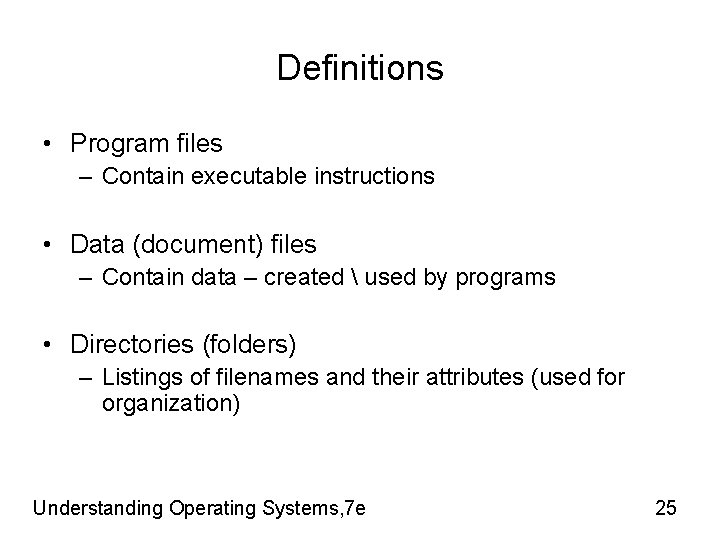
Definitions • Program files – Contain executable instructions • Data (document) files – Contain data – created used by programs • Directories (folders) – Listings of filenames and their attributes (used for organization) Understanding Operating Systems, 7 e 25
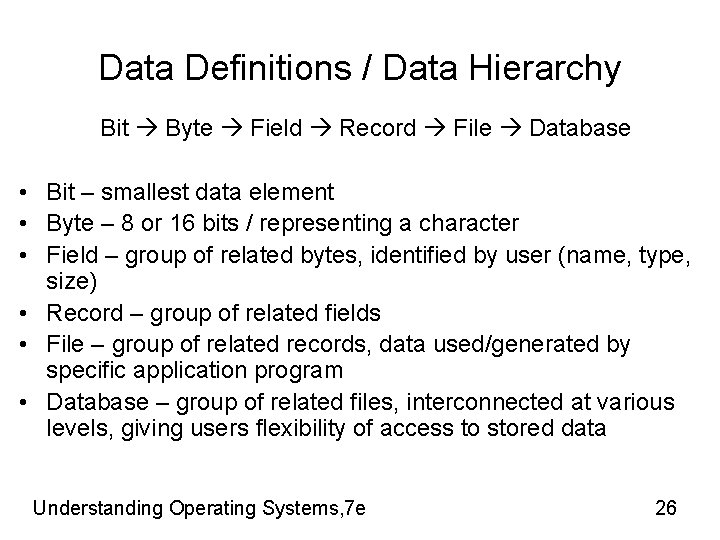
Data Definitions / Data Hierarchy Bit Byte Field Record File Database • Bit – smallest data element • Byte – 8 or 16 bits / representing a character • Field – group of related bytes, identified by user (name, type, size) • Record – group of related fields • File – group of related records, data used/generated by specific application program • Database – group of related files, interconnected at various levels, giving users flexibility of access to stored data Understanding Operating Systems, 7 e 26
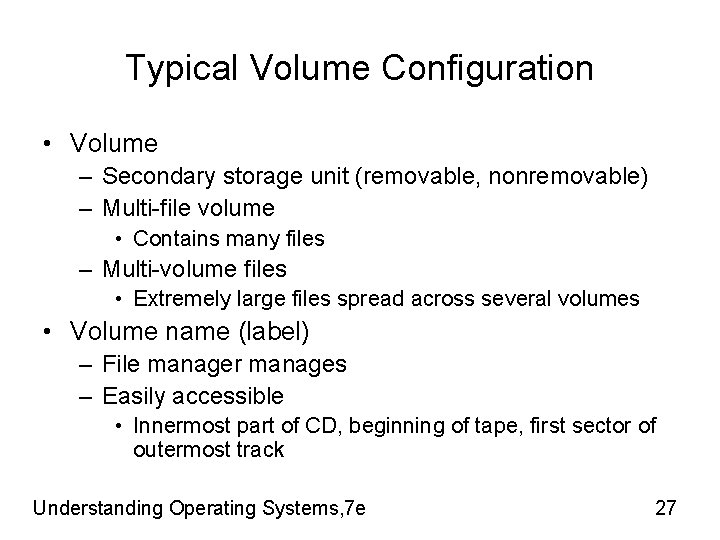
Typical Volume Configuration • Volume – Secondary storage unit (removable, nonremovable) – Multi-file volume • Contains many files – Multi-volume files • Extremely large files spread across several volumes • Volume name (label) – File manager manages – Easily accessible • Innermost part of CD, beginning of tape, first sector of outermost track Understanding Operating Systems, 7 e 27
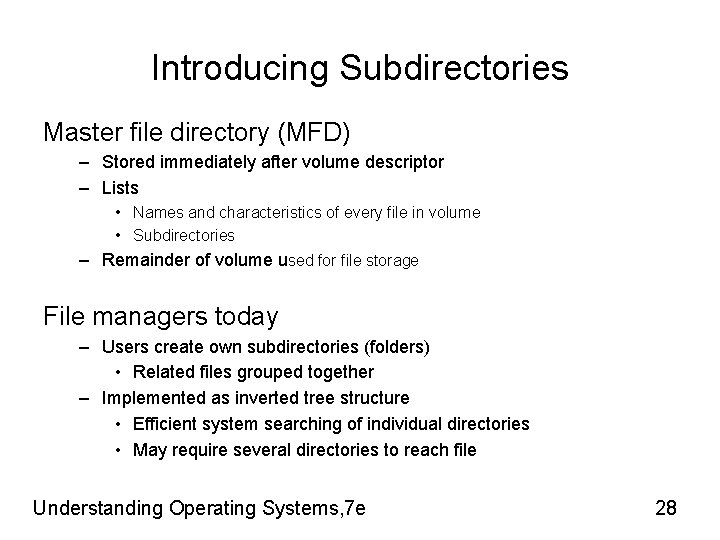
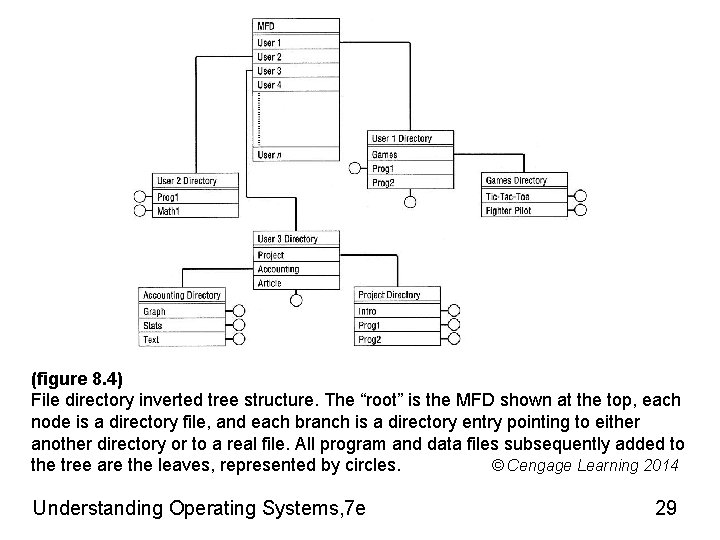
Introducing Subdirectories Master file directory (MFD) – Stored immediately after volume descriptor – Lists • Names and characteristics of every file in volume • Subdirectories – Remainder of volume used for file storage File managers today – Users create own subdirectories (folders) • Related files grouped together – Implemented as inverted tree structure • Efficient system searching of individual directories • May require several directories to reach file Understanding Operating Systems, 7 e 28
(figure 8. 4) File directory inverted tree structure. The “root” is the MFD shown at the top, each node is a directory file, and each branch is a directory entry pointing to either another directory or to a real file. All program and data files subsequently added to the tree are the leaves, represented by circles. © Cengage Learning 2014 Understanding Operating Systems, 7 e 29
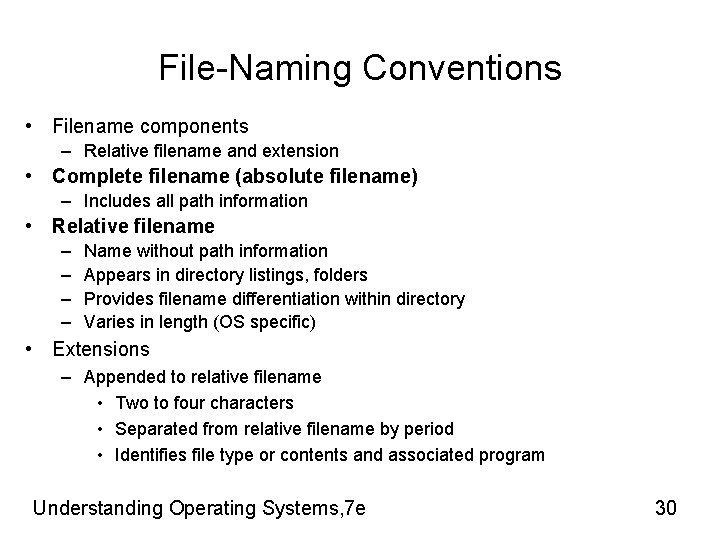
File-Naming Conventions • Filename components – Relative filename and extension • Complete filename (absolute filename) – Includes all path information • Relative filename – – Name without path information Appears in directory listings, folders Provides filename differentiation within directory Varies in length (OS specific) • Extensions – Appended to relative filename • Two to four characters • Separated from relative filename by period • Identifies file type or contents and associated program Understanding Operating Systems, 7 e 30
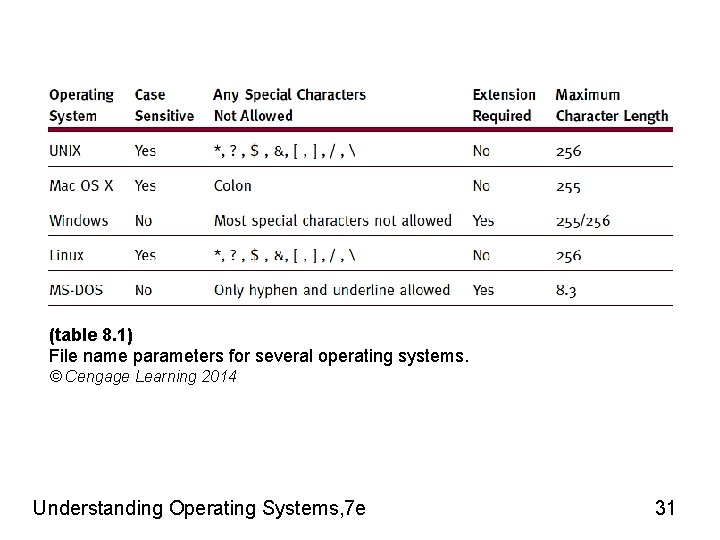
(table 8. 1) File name parameters for several operating systems. © Cengage Learning 2014 Understanding Operating Systems, 7 e 31
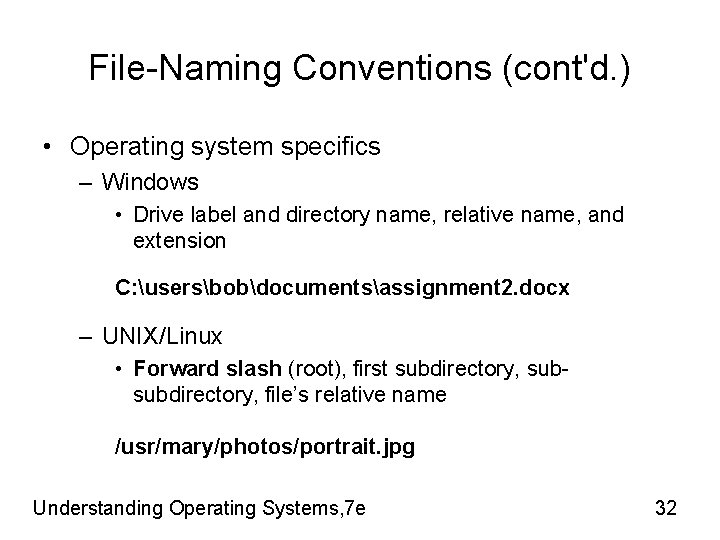
File-Naming Conventions (cont'd. ) • Operating system specifics – Windows • Drive label and directory name, relative name, and extension C: usersbobdocumentsassignment 2. docx – UNIX/Linux • Forward slash (root), first subdirectory, subsubdirectory, file’s relative name /usr/mary/photos/portrait. jpg Understanding Operating Systems, 7 e 32
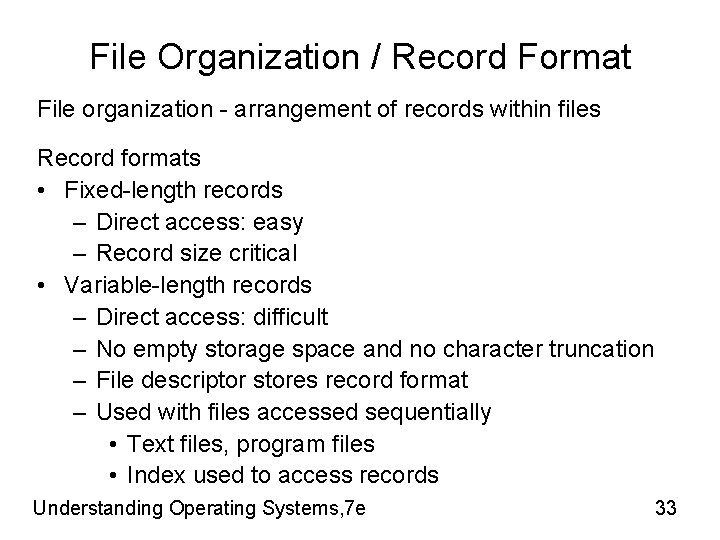
File Organization / Record Format File organization - arrangement of records within files Record formats • Fixed-length records – Direct access: easy – Record size critical • Variable-length records – Direct access: difficult – No empty storage space and no character truncation – File descriptor stores record format – Used with files accessed sequentially • Text files, program files • Index used to access records Understanding Operating Systems, 7 e 33
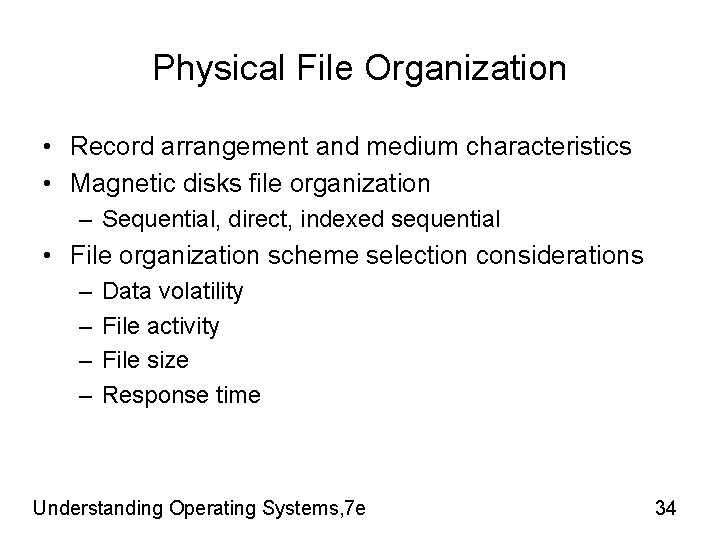
Physical File Organization • Record arrangement and medium characteristics • Magnetic disks file organization – Sequential, direct, indexed sequential • File organization scheme selection considerations – – Data volatility File activity File size Response time Understanding Operating Systems, 7 e 34
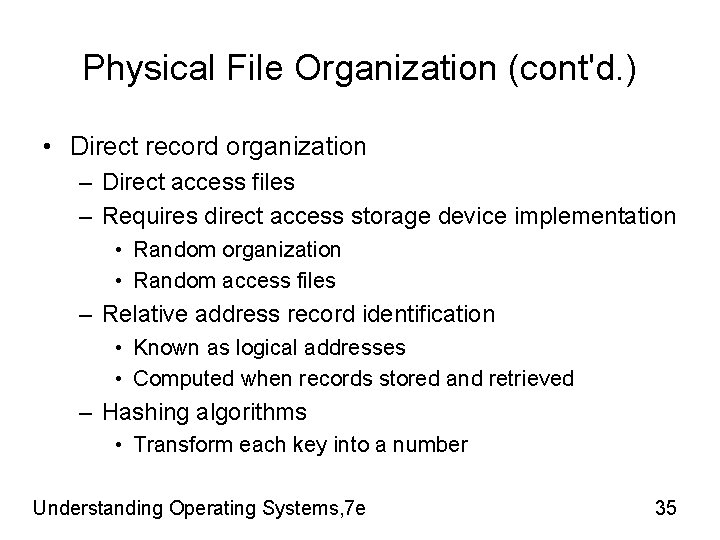
Physical File Organization (cont'd. ) • Direct record organization – Direct access files – Requires direct access storage device implementation • Random organization • Random access files – Relative address record identification • Known as logical addresses • Computed when records stored and retrieved – Hashing algorithms • Transform each key into a number Understanding Operating Systems, 7 e 35
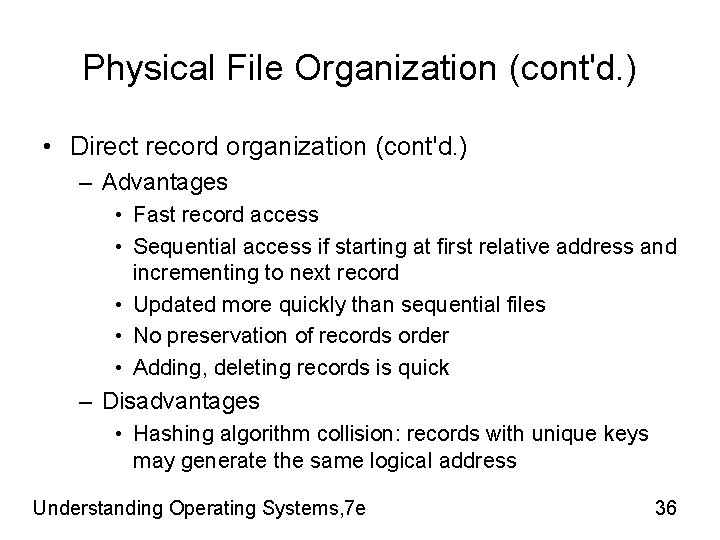
Physical File Organization (cont'd. ) • Direct record organization (cont'd. ) – Advantages • Fast record access • Sequential access if starting at first relative address and incrementing to next record • Updated more quickly than sequential files • No preservation of records order • Adding, deleting records is quick – Disadvantages • Hashing algorithm collision: records with unique keys may generate the same logical address Understanding Operating Systems, 7 e 36
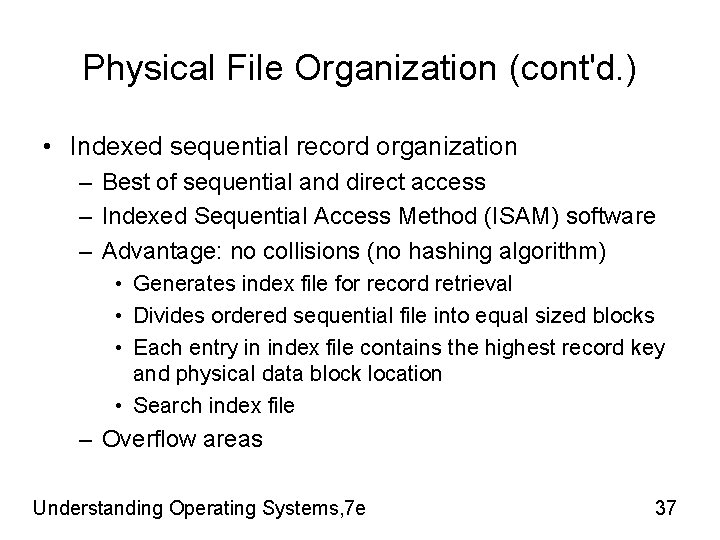
Physical File Organization (cont'd. ) • Indexed sequential record organization – Best of sequential and direct access – Indexed Sequential Access Method (ISAM) software – Advantage: no collisions (no hashing algorithm) • Generates index file for record retrieval • Divides ordered sequential file into equal sized blocks • Each entry in index file contains the highest record key and physical data block location • Search index file – Overflow areas Understanding Operating Systems, 7 e 37
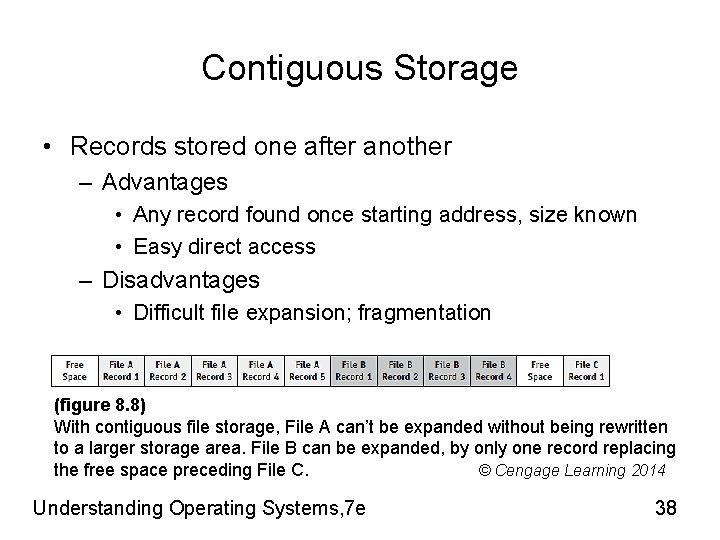
Contiguous Storage • Records stored one after another – Advantages • Any record found once starting address, size known • Easy direct access – Disadvantages • Difficult file expansion; fragmentation (figure 8. 8) With contiguous file storage, File A can’t be expanded without being rewritten to a larger storage area. File B can be expanded, by only one record replacing the free space preceding File C. © Cengage Learning 2014 Understanding Operating Systems, 7 e 38
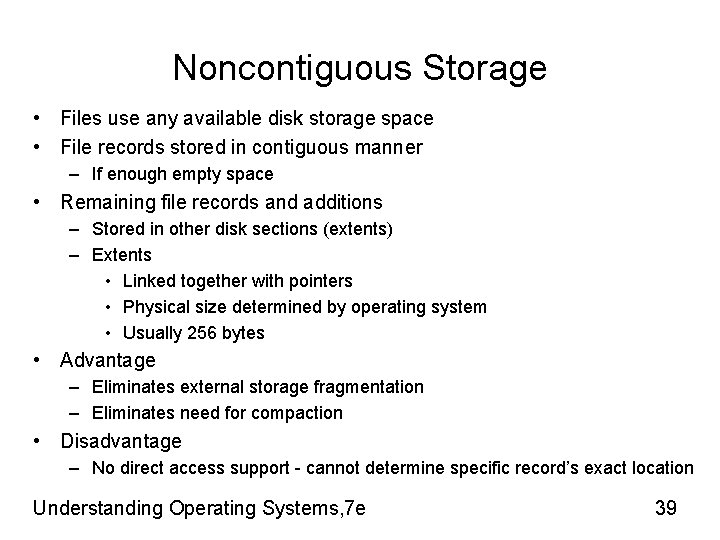
Noncontiguous Storage • Files use any available disk storage space • File records stored in contiguous manner – If enough empty space • Remaining file records and additions – Stored in other disk sections (extents) – Extents • Linked together with pointers • Physical size determined by operating system • Usually 256 bytes • Advantage – Eliminates external storage fragmentation – Eliminates need for compaction • Disadvantage – No direct access support - cannot determine specific record’s exact location Understanding Operating Systems, 7 e 39
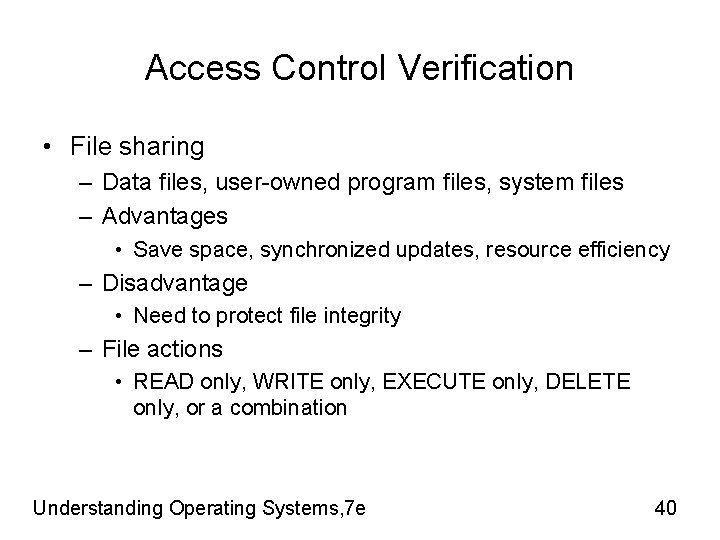
Access Control Verification • File sharing – Data files, user-owned program files, system files – Advantages • Save space, synchronized updates, resource efficiency – Disadvantage • Need to protect file integrity – File actions • READ only, WRITE only, EXECUTE only, DELETE only, or a combination Understanding Operating Systems, 7 e 40
Access Control Lists • Contains user names granted file access – User denied access grouped under “WORLD” • Shorten list by categorizing users – SYSTEM (ADMIN) • Personnel with unlimited access to all files – OWNER (USER) • Absolute control over all files created in own account – GROUP • All users belonging to appropriate group have access – WORLD • All other users in system Understanding Operating Systems, 7 e 41
Data Compression • Compression - technique used to reduce file size – Saves storage space required for files – Improves speed / efficiency of transferring files • Two algorithm types – Lossless: retains all data in the file • Typically used for text or arithmetic files applications • Requires decompression – Lossy: removes some data - often with minimal loss quality • Typically used for image and sound file applications Understanding Operating Systems, 7 e 42
Image and Sound Compression • Lossy compression – Irreversible: original file cannot be reconstructed • Compression algorithm highly dependent on file type – JPEG: still images – MPEG: video images • International Organization for Standardization (ISO) – World’s leading developer of international standards • MP 3 – common lossy compression technique that reduces file size (90%) to about 10% of original with some (minimal) loss of sound quality Example: 3. 5 minute song is 35 MB file (. wav or. aiff ) compresses to ~3. 5 MB file (. mp 3) Understanding Operating Systems, 7 e 43
Chapter 11 • The role of the operating system with regard to system security • The effects of system security practices on overall system performance • The levels of system security that can be implemented and the threats posed by evolving technologies • The differences among computer viruses, worms, and blended threats • The role of education and ethical practices in system security Understanding Operating Systems, 7 e 44
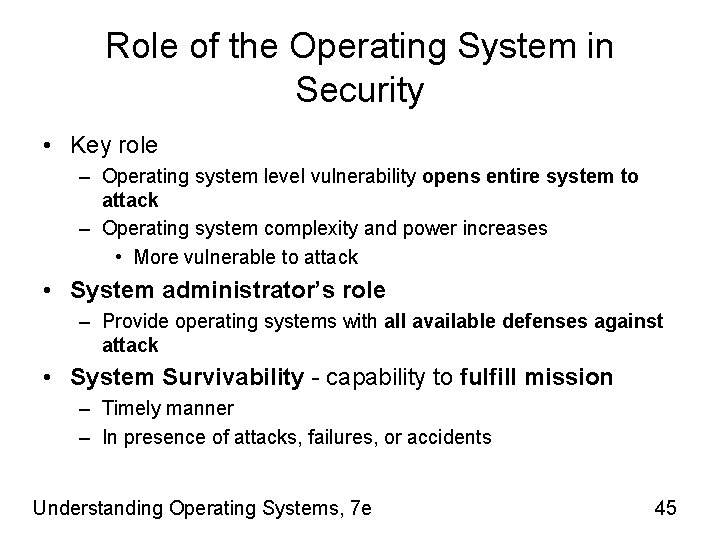
Role of the Operating System in Security • Key role – Operating system level vulnerability opens entire system to attack – Operating system complexity and power increases • More vulnerable to attack • System administrator’s role – Provide operating systems with all available defenses against attack • System Survivability - capability to fulfill mission – Timely manner – In presence of attacks, failures, or accidents Understanding Operating Systems, 7 e 45
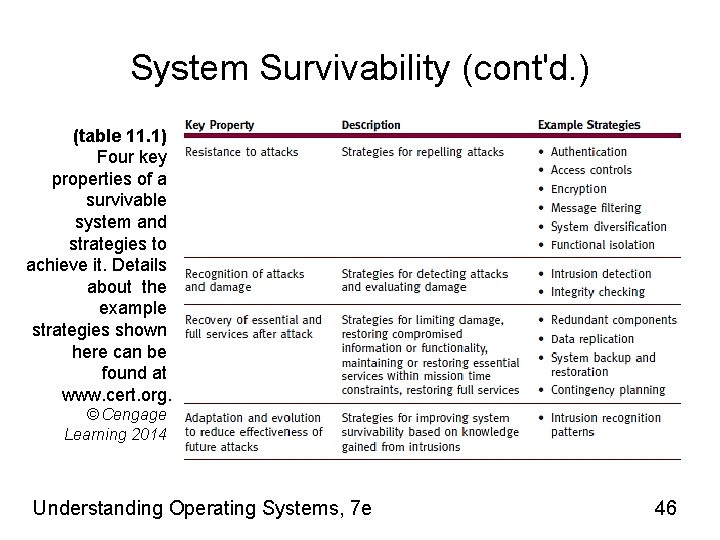
System Survivability (cont'd. ) (table 11. 1) Four key properties of a survivable system and strategies to achieve it. Details about the example strategies shown here can be found at www. cert. org. © Cengage Learning 2014 Understanding Operating Systems, 7 e 46
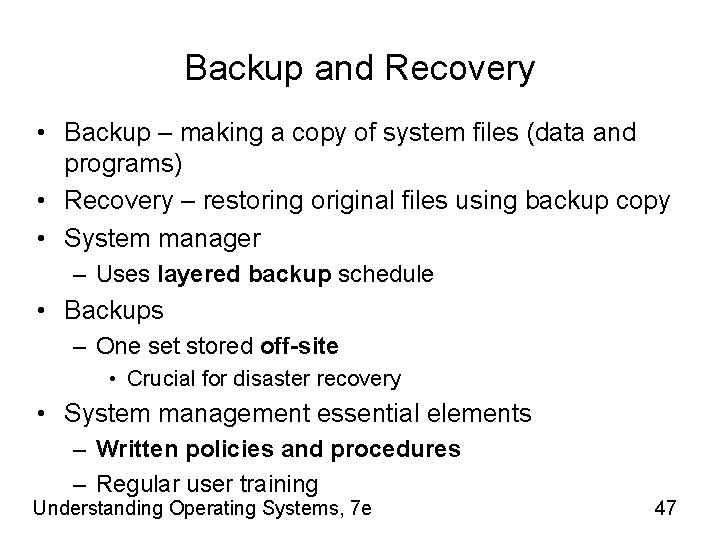
Backup and Recovery • Backup – making a copy of system files (data and programs) • Recovery – restoring original files using backup copy • System manager – Uses layered backup schedule • Backups – One set stored off-site • Crucial for disaster recovery • System management essential elements – Written policies and procedures – Regular user training Understanding Operating Systems, 7 e 47
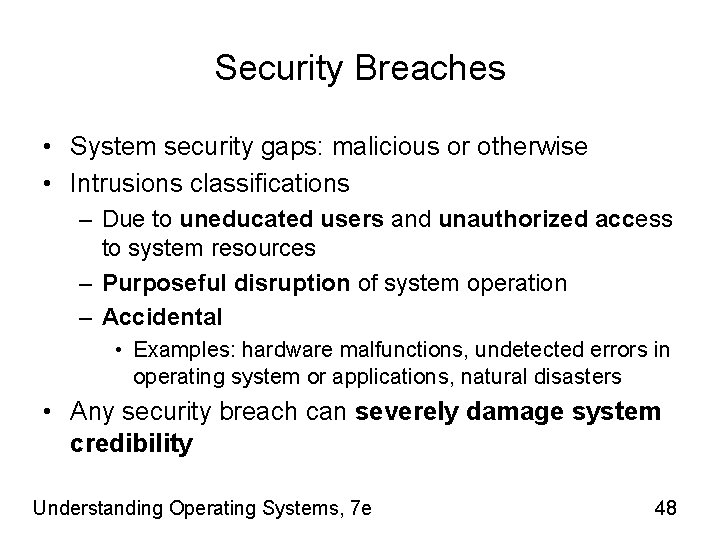
Security Breaches • System security gaps: malicious or otherwise • Intrusions classifications – Due to uneducated users and unauthorized access to system resources – Purposeful disruption of system operation – Accidental • Examples: hardware malfunctions, undetected errors in operating system or applications, natural disasters • Any security breach can severely damage system credibility Understanding Operating Systems, 7 e 48
Unintentional Intrusions • Security breach or data modification – Not resulting from planned intrusion • Examples – Accidental incomplete modification of data • Nonsynchronized processes access data records • Modify some record fields – Errors due to incorrect data values storage • Field not large enough to hold numeric value stored Understanding Operating Systems, 7 e 49
Intentional Attacks Attack types: • Viruses – malicious programs altering computer operations • Worms - copies itself from one system to next • Trojans - destructive programs disguised as legitimate/ harmless program • Logic bombs - destructive programs with fuse (triggering event) • Time bombs - destructive programs triggered by specific date/time • Blended threat – single program including virus, worm, Trojan, and other malicious code • Wire tapping - uunauthorized users monitor or modify transmission • Denial of service (Do. S) - synchronized attempts denying service to authorized users by causing computer to perform repeated unproductive task • Browsing by unauthorized users Understanding Operating Systems, 7 e 50
System Protection • Threats arise from outsiders and insiders • Multifaceted system protection • Protection methods – Antivirus software, firewalls, restrictive access, and encryption Understanding Operating Systems, 7 e 51
Antivirus Software • Combats viruses only – Preventive, diagnostic, or both – Preventive programs calculate checksum for each production program – Diagnostic software compares file sizes and looks for replicating instructions or unusual file activity • Removes infection and leaves remainder intact – Sometimes • Cannot repair worms or Trojans – Malicious code in entirety Understanding Operating Systems, 7 e 52
Firewalls & Encryption Firewalls – Set of hardware and/or software designed to protect system • Disguises IP address from unauthorized users – Sits between Internet and network – Blocks curious inquiries and potentially dangerous intrusions from outside system Encryption – Extreme protection method • Sensitive data put into secret code • Communication - data encrypted, transmitted, decrypted, processed – Disadvantages • Increased system overhead • System dependent on encryption process itself Understanding Operating Systems, 7 e 53
Password Management • Basic techniques protect hardware and software – Good passwords – Careful user training • Good password – Unusual, memorable, not obvious, and changed often • Password files – Stored in encrypted form – Entered password encrypted and compared to encrypted stored password Understanding Operating Systems, 7 e 54
Password Alternatives Biometrics – Identifying individuals based on each person’s unique biological characteristics – Current research focus • Analysis of human face, fingerprints, hand measurements, iris/retina, voice prints – Positively identifies person being scanned – Critical factor - Reducing margin of error – Expensive Picture passwords – Graphics and pattern clicks – Involves touch screen, mouse, or other pointing device – Eliminates keyboard entries Understanding Operating Systems, 7 e 55
Social Engineering Technique: • System intruders gain access to information about a legitimate user (often from user) • Learn active passwords – Looking in and around user’s desk for written reminder – Trying logon ID as password – Searching logon scripts – Telephoning friends and coworkers to learn information (family member names, pet names, vacation destinations, hobbies, car model) • Phishing – Intruder pretends to be legitimate entity • Asks unwary user to reconfirm personal / financial information Understanding Operating Systems, 7 e 56
Ethics • Ethical behavior: Be good. Do good. – IEEE and ACM issued standard of ethics in 1992 – Apparent lack of computing ethics • Significant departure from other professions • Consequences of ethical lapses – Illegally copied software: lawsuits and fines – Plagiarism: illegal and punishable by law – Eavesdropping on e-mail, data, or voice communications: sometimes illegal and usually unwarranted Understanding Operating Systems, 7 e 57
Chapter 14 • Design goals for Windows operating systems designers • The role of the Memory Manager and Virtual Memory Manager in Windows • Its use of the Device, Processor, and Network Managers • Windows user interfaces Understanding Operating Systems, 7 e 58
Brief History • Windows products before Windows 95 operating system – Graphical user interfaces requiring the MS-DOS operating system – Disadvantages: • • Multitasking not supported Little built-in security Lacked interprocess communication capability Required customization to work with each system hardware component Understanding Operating Systems, 7 e 59
Brief History (cont’d. ) • Windows products since 1995 – Abandoned MS-DOS reliance – More powerful networking products • Windows product version number – – Windows XP: version 5. 1 Windows 7: version 6. 2 Windows 8: version 6. 2 Display by pressing Windows logo key and the R key together • Type winver Understanding Operating Systems, 7 e 60
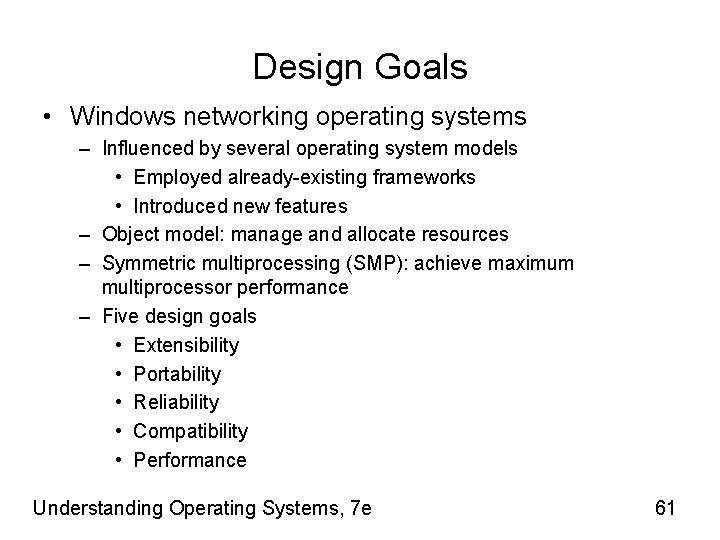
Design Goals • Windows networking operating systems – Influenced by several operating system models • Employed already-existing frameworks • Introduced new features – Object model: manage and allocate resources – Symmetric multiprocessing (SMP): achieve maximum multiprocessor performance – Five design goals • Extensibility • Portability • Reliability • Compatibility • Performance Understanding Operating Systems, 7 e 61
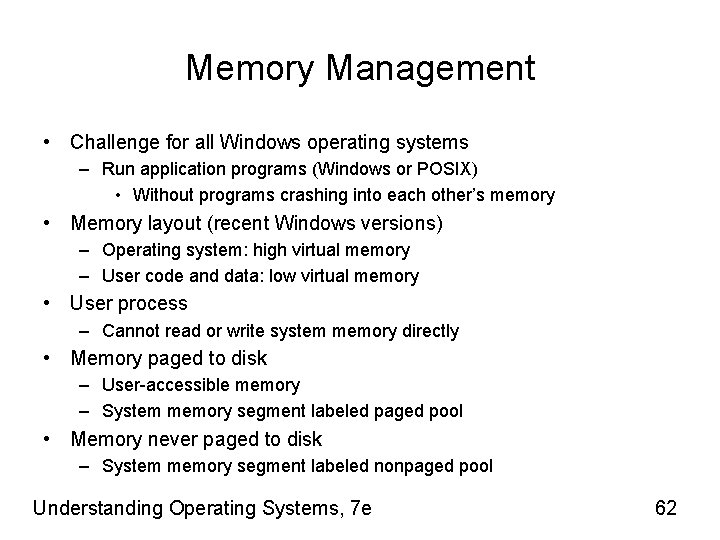
Memory Management • Challenge for all Windows operating systems – Run application programs (Windows or POSIX) • Without programs crashing into each other’s memory • Memory layout (recent Windows versions) – Operating system: high virtual memory – User code and data: low virtual memory • User process – Cannot read or write system memory directly • Memory paged to disk – User-accessible memory – System memory segment labeled paged pool • Memory never paged to disk – System memory segment labeled nonpaged pool Understanding Operating Systems, 7 e 62
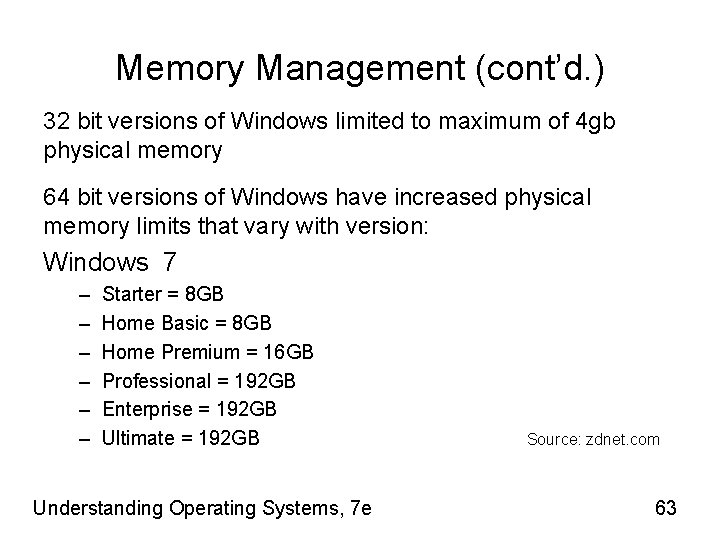
Memory Management (cont’d. ) 32 bit versions of Windows limited to maximum of 4 gb physical memory 64 bit versions of Windows have increased physical memory limits that vary with version: Windows 7 – – – Starter = 8 GB Home Basic = 8 GB Home Premium = 16 GB Professional = 192 GB Enterprise = 192 GB Ultimate = 192 GB Understanding Operating Systems, 7 e Source: zdnet. com 63
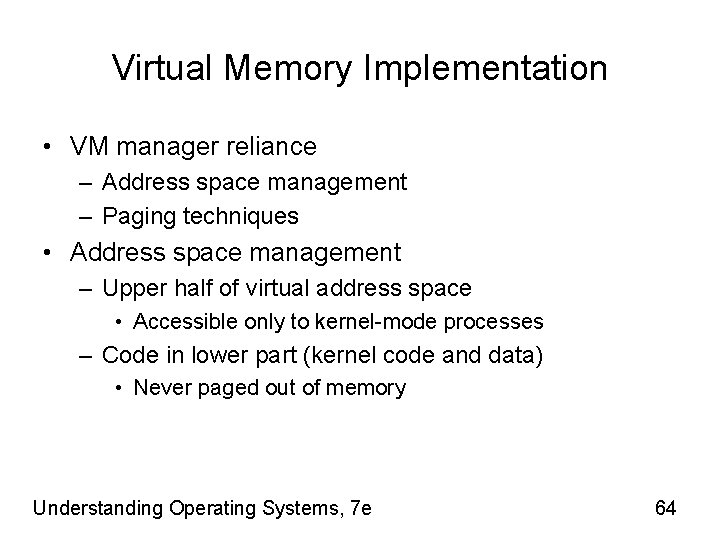
Virtual Memory Implementation • VM manager reliance – Address space management – Paging techniques • Address space management – Upper half of virtual address space • Accessible only to kernel-mode processes – Code in lower part (kernel code and data) • Never paged out of memory Understanding Operating Systems, 7 e 64
Processor Management • Windows – Preemptive-multitasking, multithreaded operating system – Process contains one thread composed of: • A unique identifier • Volatile set of registers: contents indicate processor’s state • Two stacks used during thread’s execution • Private storage area: used by subsystems and dynamic-link libraries – Multithreading • Systems with multiple processors – Process has as many threads as CPUs available – All threads belonging to one process: share global variables, heap, and environment strings Understanding Operating Systems, 7 e 65
Device Management • Windows I/O system provides: – Multiple installable file systems (FAT, CDFS, and NTFS) – Services making device-driver development easy • Workable on multiprocessor systems – Drivers: added to or removed from system dynamically • System administrators – Fast I/O processing • Drivers written in high-level language – Mapped file I/O capabilities • Image activation, file caching, and application use Understanding Operating Systems, 7 e 66
File Management • Windows current versions – Designed to be independent of file system on which they operate • Virtual file – Primary file handling concept (current Windows versions) – Programs perform I/O on virtual files • File handles manipulate them – Executive file object representing all I/O sources and destinations Understanding Operating Systems, 7 e 67
Network Management • Networking – Integral part of Windows operating system executive – Provides services: user accounts and resource security – Implements communication between computers • Named pipes: provide high-level interface for passing data between two processes (regardless of locations) • Mailslots: provide one-to-many and many-to-one communication mechanisms Understanding Operating Systems, 7 e 68
Directory Services • Active Directory – Database storing many information types – General-purpose directory service for heterogeneous network – Built entirely around DNS and LDAP – Groups machines into domains • Each domain gets a DNS domain name (e. g. , towson. edu) • Each domain must have at least one domain controller • Domain can have more than one domain controller – Active Directory clients use standard DNS and LDAP protocols: locate objects on the network Understanding Operating Systems, 7 e 69
Security Management • Windows network operating systems – Provide object-based security model – Security object • Represents any resource in system (file, device, process, program, or user) – Allows administrators to give precise security access • Monitor and record how objects used • Windows biggest concern – Aggressive patch management needed • Combat many viruses and worms Understanding Operating Systems, 7 e 70
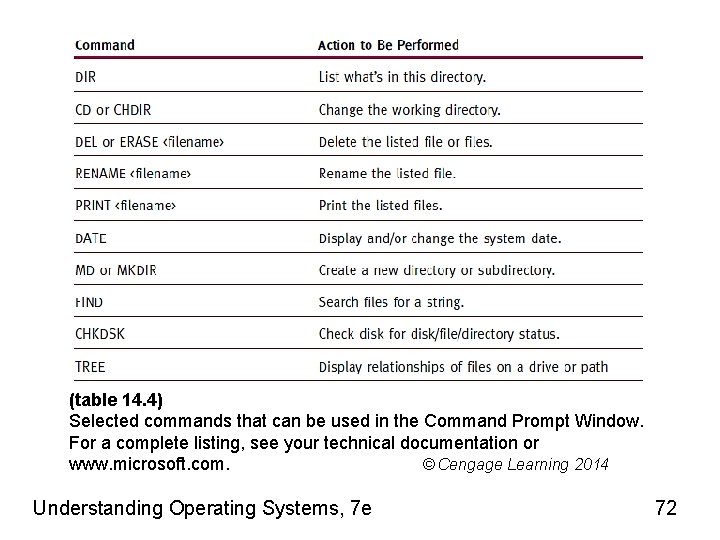
User Interface • GUI - Windows 8 – Offers same default screen • All devices running the operating system – Laptop or desktop users • Can switch between tile-populated Start screen and Desktop screen • Command-line interface – Available from most Windows desktops – Use Help feature: learn a command’s syntax Understanding Operating Systems, 7 e 71
(table 14. 4) Selected commands that can be used in the Command Prompt Window. For a complete listing, see your technical documentation or www. microsoft. com. © Cengage Learning 2014 Understanding Operating Systems, 7 e 72
Chapter 15 • The design goals for the Linux operating system • The flexibility offered by using files to manipulate devices • The roles of the Memory, Device, File, Processor, and Network Managers • The impact of open source software • Some strengths and weaknesses of Linux Understanding Operating Systems, 7 e 73
Introduction • Linux – Originally based on a version of UNIX – Powerful – Inexpensive or free to use • Portable – Versions for cell phones, supercomputers, and computing systems in between • Source code: freely available – Configurable: runs any device; meets any specification • Open source – Source code freely available to anyone for improvement – Under constant development – Contributors around the world: not paid for their work Understanding Operating Systems, 7 e 74
Brief History • Developed by Linus Torvalds (1991) • Original purpose – Maximize Intel 80386 microprocessor’s limited capabilities – Roots • MINIX: miniature UNIX with more functionality • First version meant for small microcomputer – Expensive commercial computer features • Flexibility and functionality – Brought UNIX features to small computer Understanding Operating Systems, 7 e 75
Brief History (cont'd. ) • User interface – First Linux operating systems: command-driven interface • Sometimes cryptic commands – Recent years • Graphical user interfaces (GUI) • Written and distributed under the GNU General Public License • Fedora Project responsible for the open-source development of the Linux kernel • Common popular distributions: Fedora, Ubuntu, Cent OS • The foundation of Android operating system (most popular mobile OS) Understanding Operating Systems, 7 e 76
Design Goals • Three goals – Modularity – Simplicity – Portability • Numerous standard utilities – Eliminate need to write special code – Used in combination for specific tasks • Numerous functions • IEEE POSIX (Portable Operating System Interface) specifications conformity – Programs’ portability Understanding Operating Systems, 7 e 77
Memory Management • Space allocation (32 bit) – Kernel: 1 GB high order memory – Executing processes: 3 GB memory • Process execution – Fixed-size segment – System calls change segment size • Memory protection – Based on information type stored in address space region for process • Memory limits vary with 64 bit Linux distributions but generally in terabytes (TB) – 1, 000 s of GBs • Uses same parent-child process management design found in UNIX • Supports “personality” concept – Allows processes from other operating systems to be executed Understanding Operating Systems, 7 e 78
Device Management • Device independent – Improves portability • Device drivers – Supervise data transmission • Between main memory and peripheral unit • Devices assigned – Name – Descriptors • Further identify each device • Stored in device directory • Three standard classes – Character devices – Block devices – Network devices Understanding Operating Systems, 7 e 79
Filename Conventions • Path name rules 1. Path name starting with slash: begins at root directory 2. Path name • One name or list of names separated by slashes • Last name on list: name of file requested 3. Two periods (. . ) in path name • Move upward in hierarchy: closer to root • Only way to go up the hierarchy Understanding Operating Systems, 7 e 80
User Interface • Early Linux versions – Required typed commands • Thorough knowledge of valid commands required • Current versions – Include powerful and intuitive menu-driven interfaces – Several graphical user interfaces available – Can still use Terminal mode - type commands similar to those used for UNIX • Many Linux versions – Equipped with Windows-compatible word processors, spreadsheet, and presentation applications Understanding Operating Systems, 7 e 81
Setting Permissions • Network administrators – Full control: manage access to files and directories • Three levels of access – Owner – Group – Others • Access level settings: under properties option • Access types – Create and delete files, list files only, access files, and none Understanding Operating Systems, 7 e 82