
Understanding e Transfers Through JSU P A W
- Slides: 25
Understanding e. Transfers Through JSU P. A. W. S. Office of Budget & Financial Analysis (OBFA) 1
How to contact OBFA Location H. P. Jacobs Administrative Building 5 th Floor Staff Tammiko L. Harrison, Executive Director tammiko. l. harrison@jsums. edu, 979 -2345, Room #513 Latashia Chambers, Budget Analyst latashia. c. chambers@jsums. edu, 979 -2936, Room #514 Tina Collier, Budget Analyst tina. collier@jsums. edu, 979 -2938, Room # 515 2
Before Completing e. Transfers Ask Yourself ● Do I have access to JSU P. A. W. S? If not, how to get access? http: //www. jsums. edu/finance/files/2014/08/JSU-PAWS-Finance -Access. pdf Send completed forms to the Business Office Attn: Keilani Vanish JSU Box 17250 Jackson, MS 39217 3
Before Completing e. Transfers Ask Yourself ● Do I have authorization to do e. Transfers for my area? ● Do I know how to perform a Budget Query? ● Do I know my F-O-A-P? ● Do I know the Account Codes to use? ● Do I know what the Budget/Fiscal Periods are? 4
What is e. Transfers e-Transfers - Process that is used to move funds after the original budget is approved. The transfer of funds is accomplished by deducting an amount from one or more account codes and adding that same amount to one or more account codes. The net change total must always equal zero. 5
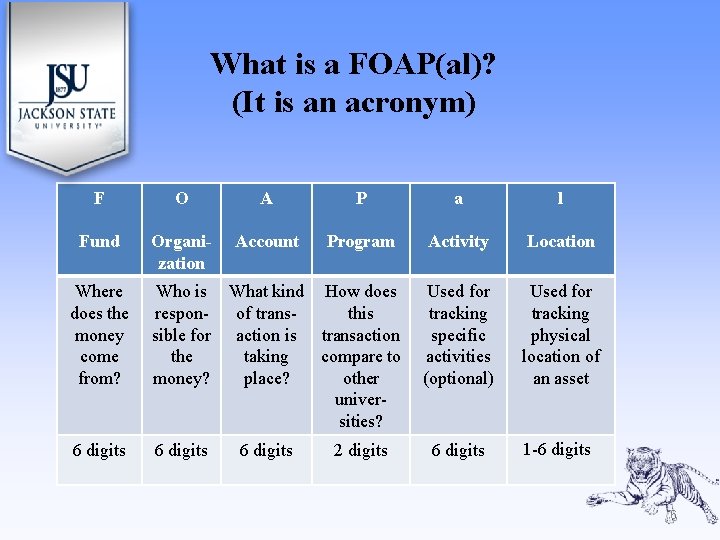
What is a FOAP(al)? (It is an acronym) F O A P a l Fund Organization Account Program Activity Location Used for tracking specific activities (optional) Used for tracking physical location of an asset 6 digits 1 -6 digits Where does the money come from? Who is What kind How does responof transthis sible for action is transaction the taking compare to money? place? other universities? 6 digits 2 digits 6
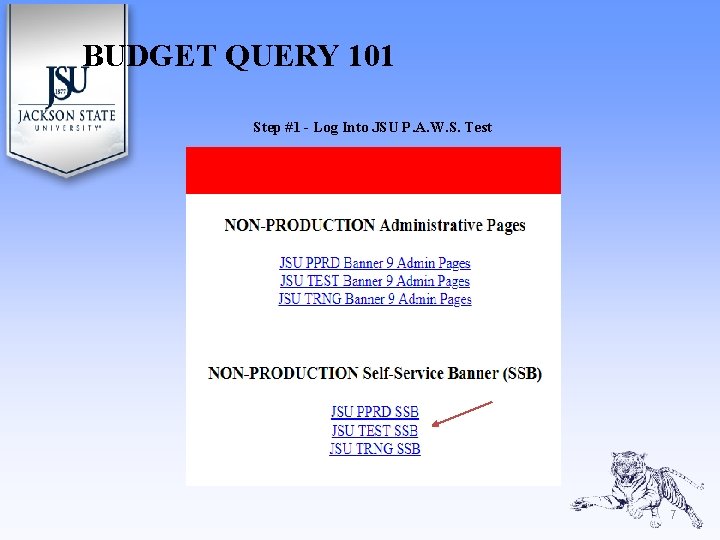
BUDGET QUERY 101 Step #1 - Log Into JSU P. A. W. S. Test 7
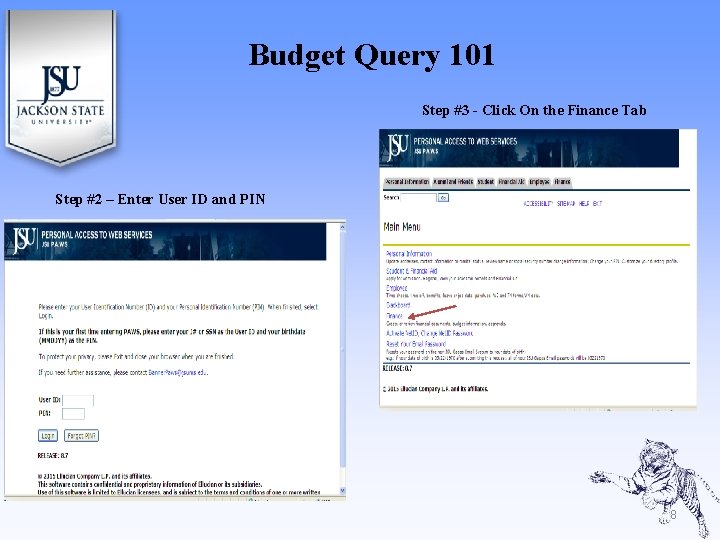
Budget Query 101 Step #3 - Click On the Finance Tab Step #2 – Enter User ID and PIN 8
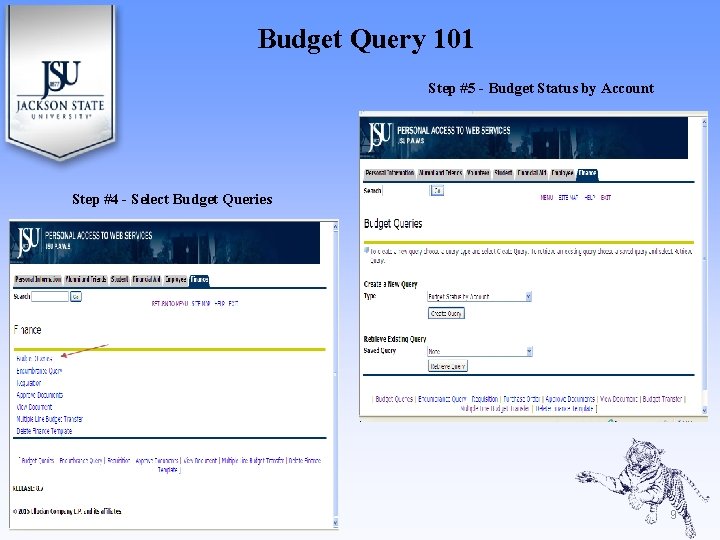
Budget Query 101 Step #5 - Budget Status by Account Step #4 - Select Budget Queries 9
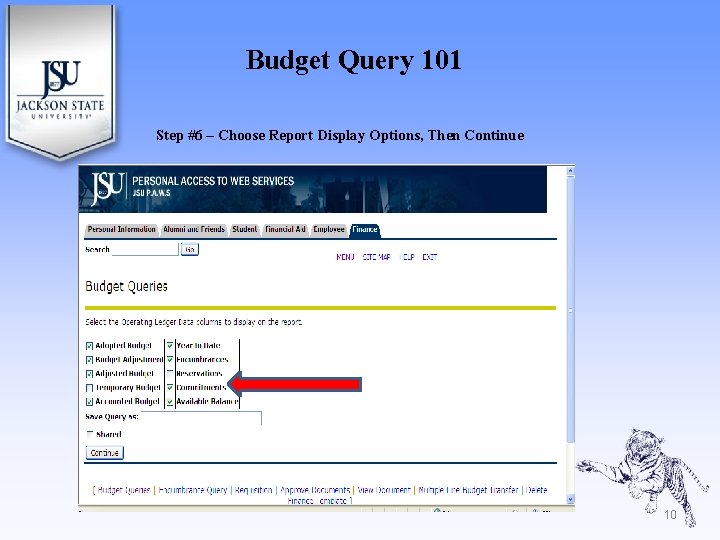
Budget Query 101 Step #6 – Choose Report Display Options, Then Continue 10
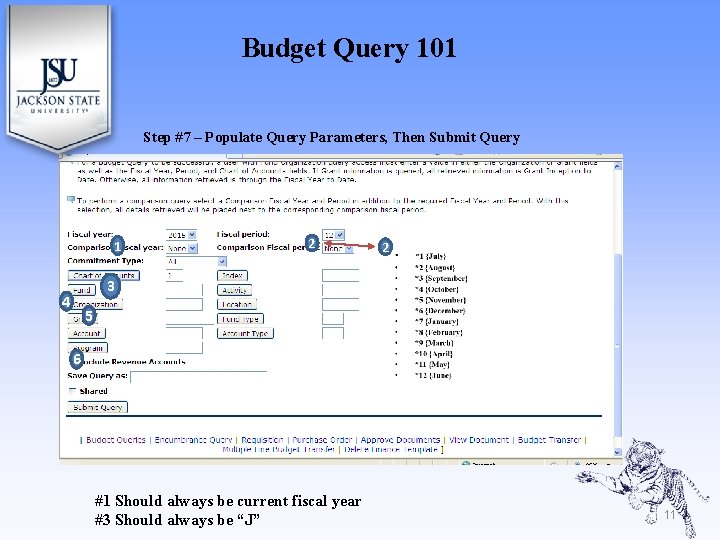
Budget Query 101 Step #7 – Populate Query Parameters, Then Submit Query 1 2 2 3 4 5 6 #1 Should always be current fiscal year #3 Should always be “J” 11
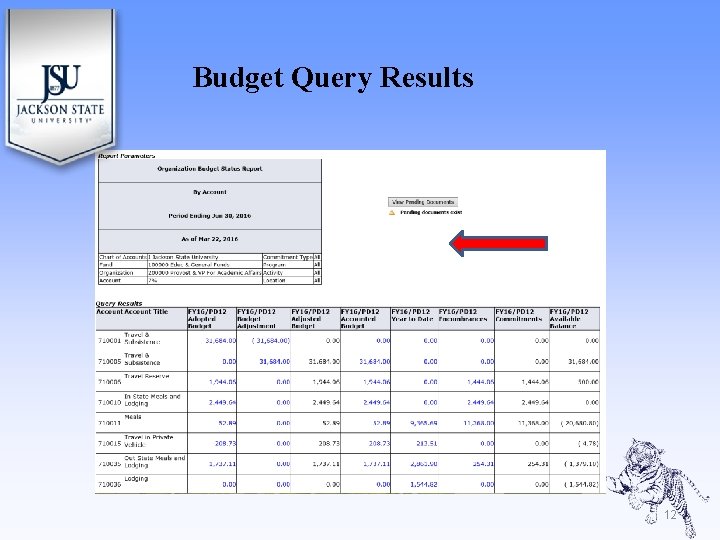
Budget Query Results 12
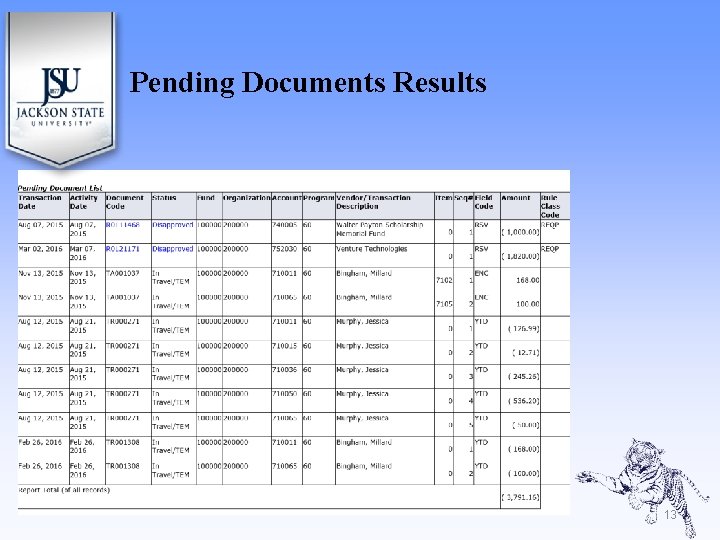
Pending Documents Results 13
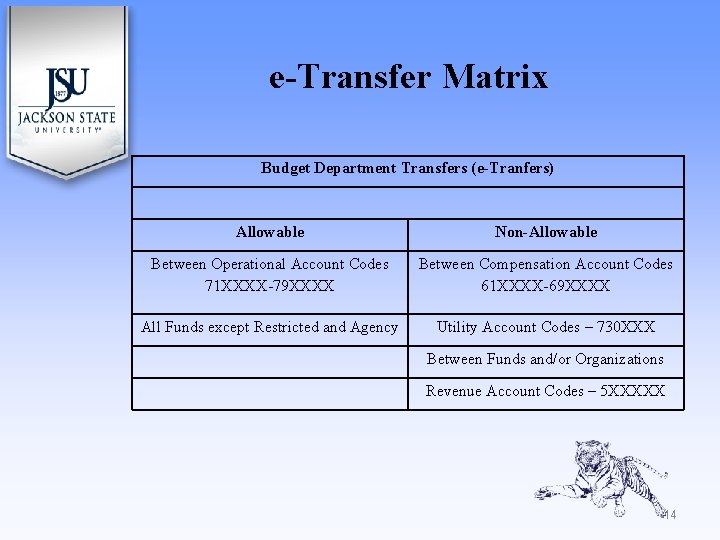
e-Transfer Matrix Budget Department Transfers (e-Tranfers) Allowable Non-Allowable Between Operational Account Codes 71 XXXX-79 XXXX Between Compensation Account Codes 61 XXXX-69 XXXX All Funds except Restricted and Agency Utility Account Codes – 730 XXX Between Funds and/or Organizations Revenue Account Codes – 5 XXXXX 14
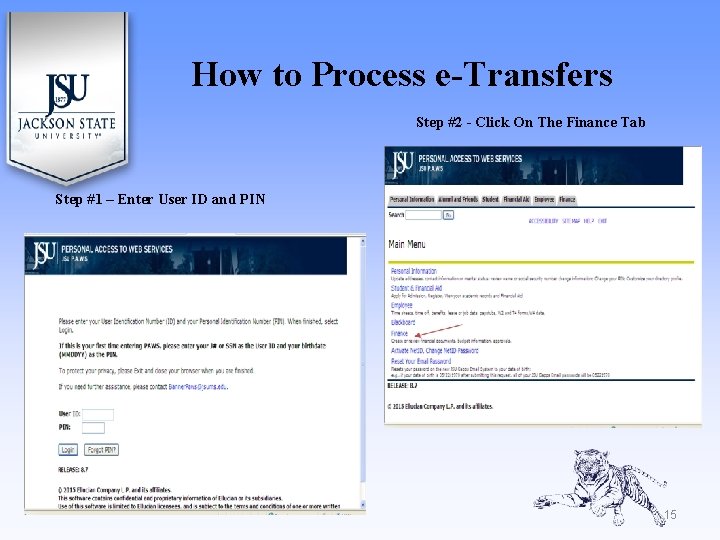
How to Process e-Transfers Step #2 - Click On The Finance Tab Step #1 – Enter User ID and PIN 15
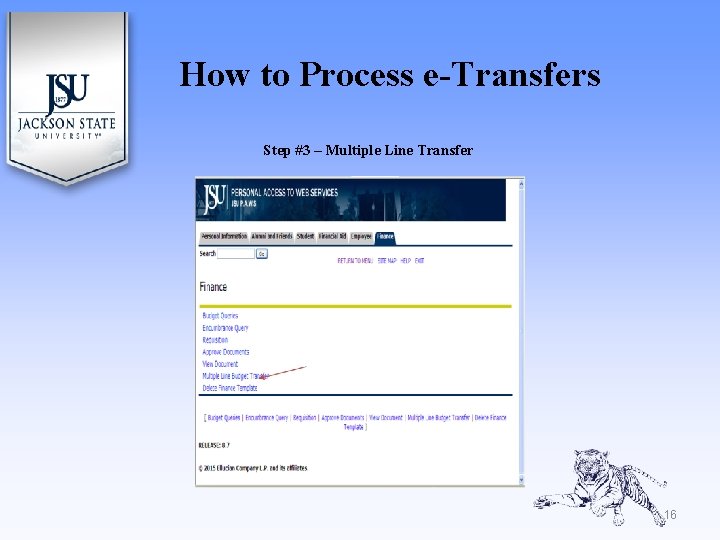
How to Process e-Transfers Step #3 – Multiple Line Transfer 16
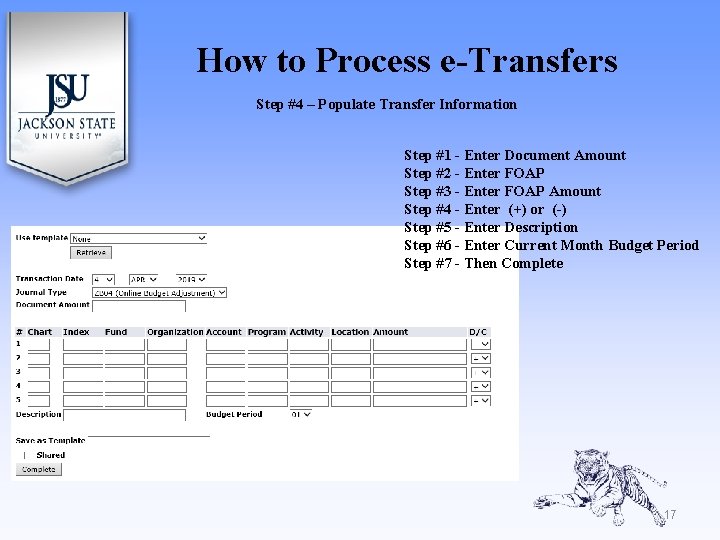
How to Process e-Transfers Step #4 – Populate Transfer Information Step #1 - Enter Document Amount Step #2 - Enter FOAP Step #3 - Enter FOAP Amount Step #4 - Enter (+) or (-) Step #5 - Enter Description Step #6 - Enter Current Month Budget Period Step #7 - Then Complete 17
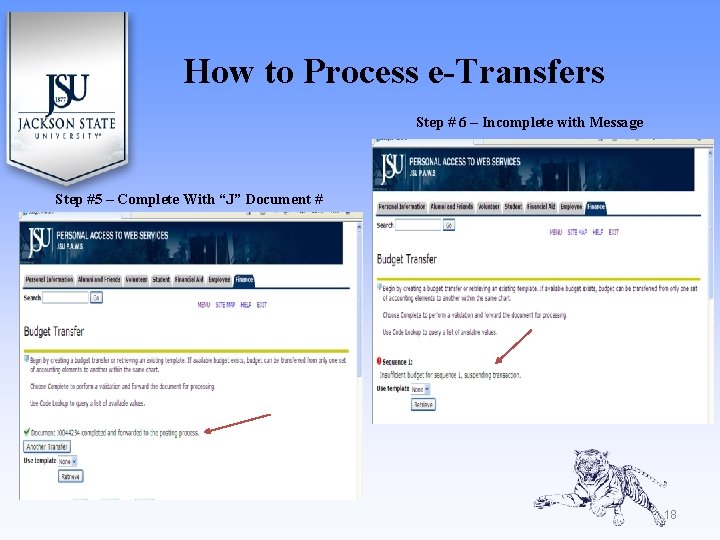
How to Process e-Transfers Step # 6 – Incomplete with Message Step #5 – Complete With “J” Document # 18
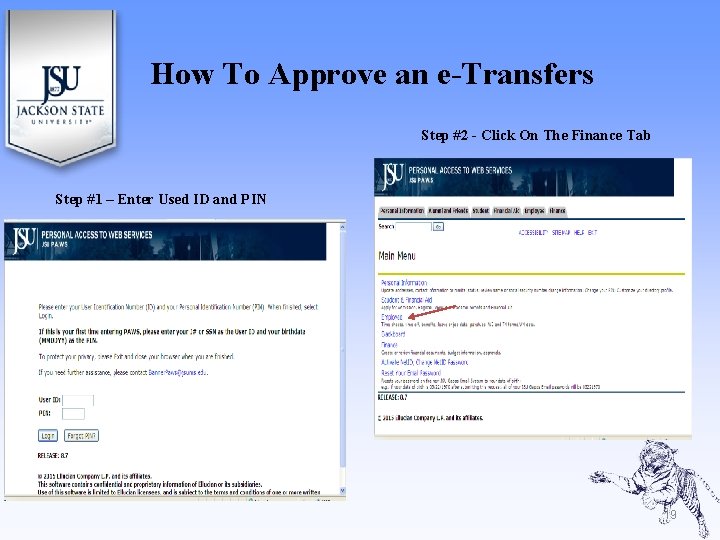
How To Approve an e-Transfers Step #2 - Click On The Finance Tab Step #1 – Enter Used ID and PIN 19
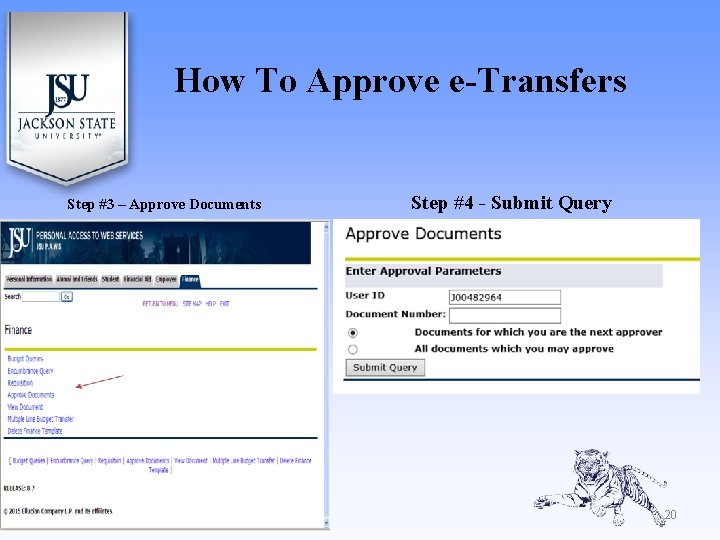
How To Approve e-Transfers Step #3 – Approve Documents Step #4 - Submit Query 20
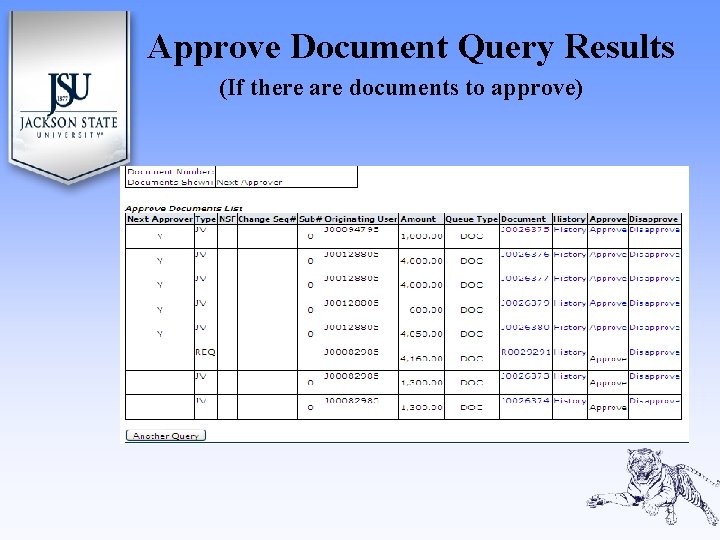
Approve Document Query Results (If there are documents to approve) 21
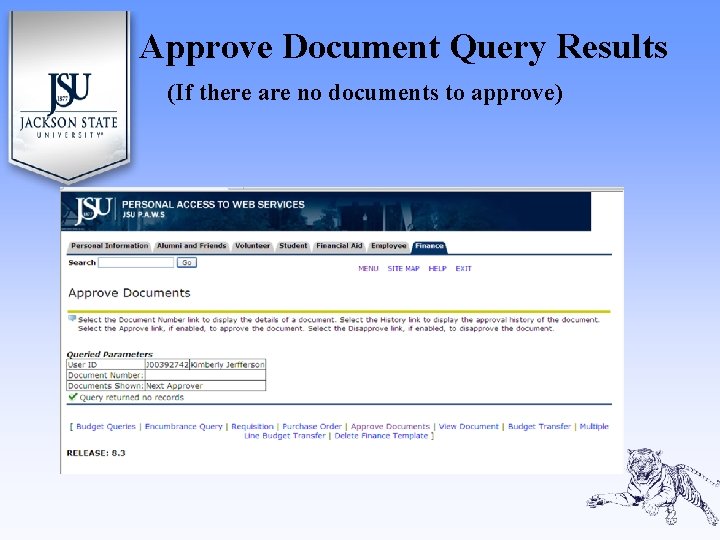
Approve Document Query Results (If there are no documents to approve) 22
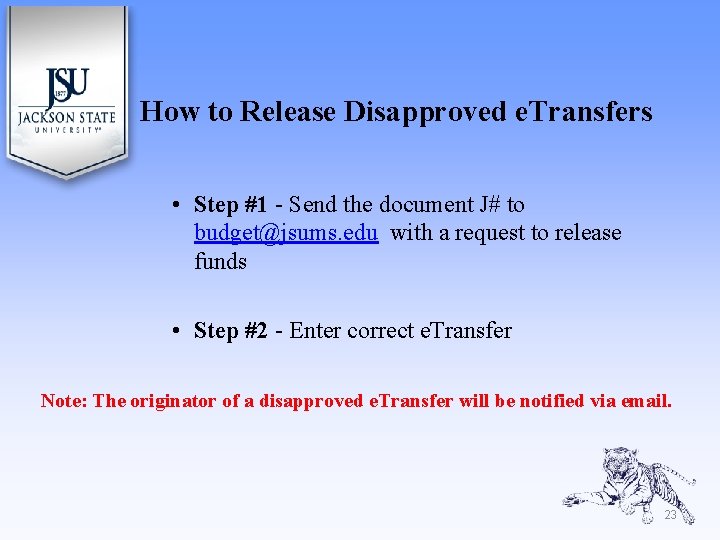
How to Release Disapproved e. Transfers • Step #1 - Send the document J# to budget@jsums. edu with a request to release funds • Step #2 - Enter correct e. Transfer Note: The originator of a disapproved e. Transfer will be notified via email. 23
Questions and Answers 24
How to contact OBFA Location H. P. Jacobs Administrative Building 5 th Floor Staff Tammiko L. Harrison, Executive Director tammiko. l. harrison@jsums. edu, 979 -2345, Room #513 Latashia Chambers, Budget Analyst latashia. c. chambers@jsums. edu, 979 -2936, Room #514 Tina Collier, Budget Analyst tina. collier@jsums. edu, 979 -2938, Room # 515 25