
UMPlan Strategic Financial Planning Analysis Tool Position Budget
UM-Plan: Strategic Financial Planning & Analysis Tool Position Budget Planning Last update: November 2019
Guiding Principles § Position management incumbent employee information in People. Soft is the source of position data in UM-Plan. § Position data has been fed to UM-Plan on a snapshot date December 13, 2019. § All positions should be reviewed by your department to ensure complete and accurate information. § Some fields will be managed by the budget office to ensure consistency (for example, fringe rate, merit, and step increases). § New position requests or the re-organization of current positions should be completed using the budget tool and will then be reviewed with your department; impact on the number of FTEs and budgeted funds must be considered. § Once approved, updates to position data in People. Soft will be made by the Budget and HR offices to reflect approved changes. 2
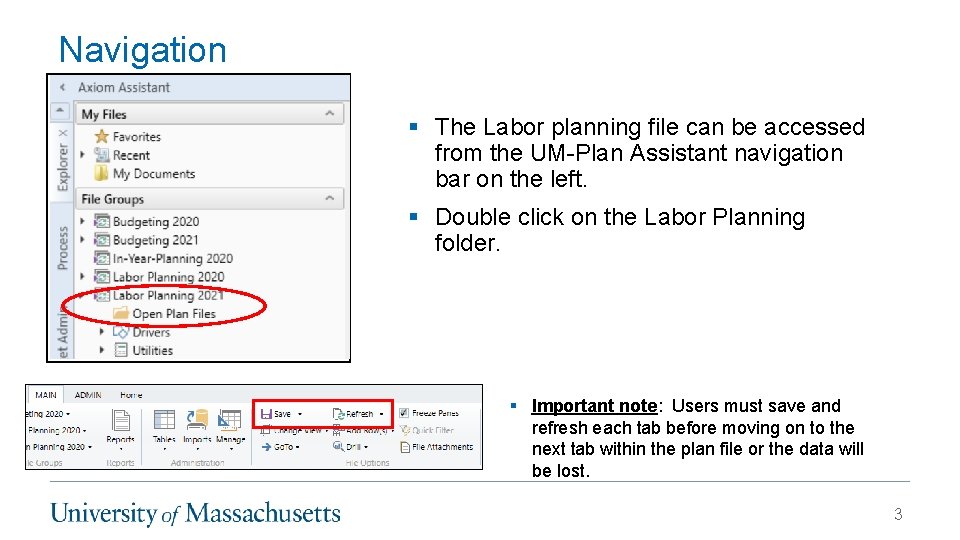
Navigation § The Labor planning file can be accessed from the UM-Plan Assistant navigation bar on the left. § Double click on the Labor Planning folder. § Important note: Users must save and refresh each tab before moving on to the next tab within the plan file or the data will be lost. 3
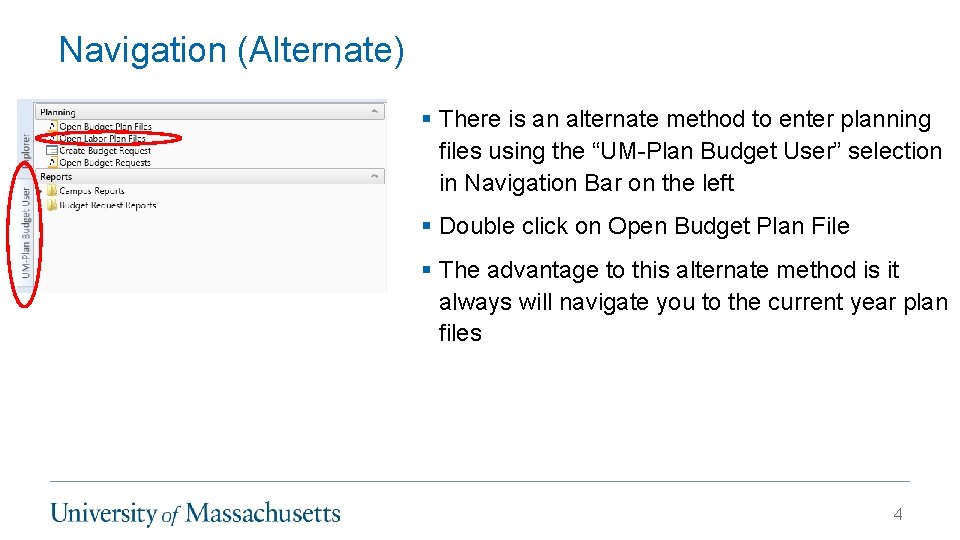
Navigation (Alternate) § There is an alternate method to enter planning files using the “UM-Plan Budget User” selection in Navigation Bar on the left § Double click on Open Budget Plan File § The advantage to this alternate method is it always will navigate you to the current year plan files 4

Navigation Cont’d § Double click on the Open Plan File. § Your department’s Labor plan file will open. 5

Labor Plan file: Pre-populated Positions Tab: Review each position block and confirm that employee information is correct for that position, including: § Start Date § FTE § Working Hours § Pay Type (Salary or Hourly) § Base Salary § Salary Plan Information § Distribution information 6
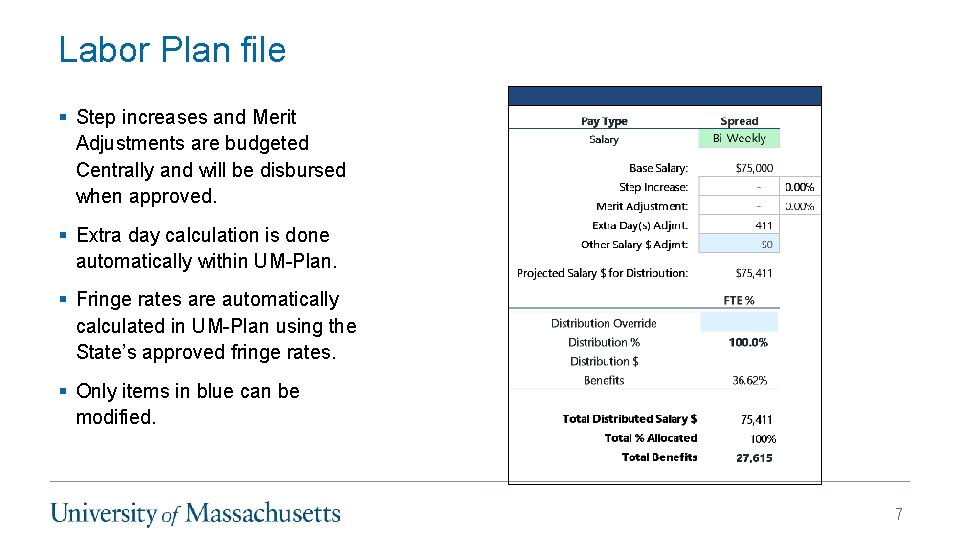
Labor Plan file § Step increases and Merit Adjustments are budgeted Centrally and will be disbursed when approved. § Extra day calculation is done automatically within UM-Plan. § Fringe rates are automatically calculated in UM-Plan using the State’s approved fringe rates. § Only items in blue can be modified. 7
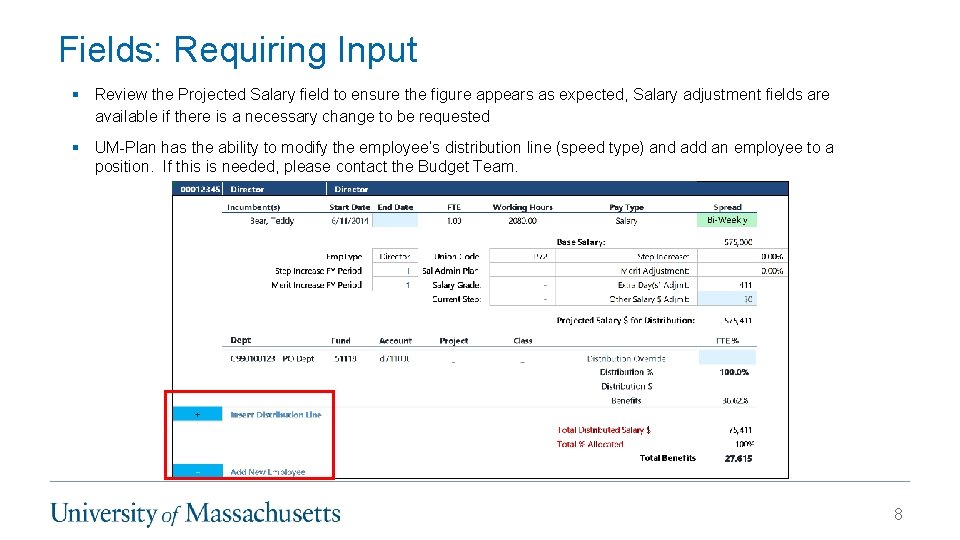
Fields: Requiring Input § Review the Projected Salary field to ensure the figure appears as expected, Salary adjustment fields are available if there is a necessary change to be requested § UM-Plan has the ability to modify the employee’s distribution line (speed type) and add an employee to a position. If this is needed, please contact the Budget Team. 8
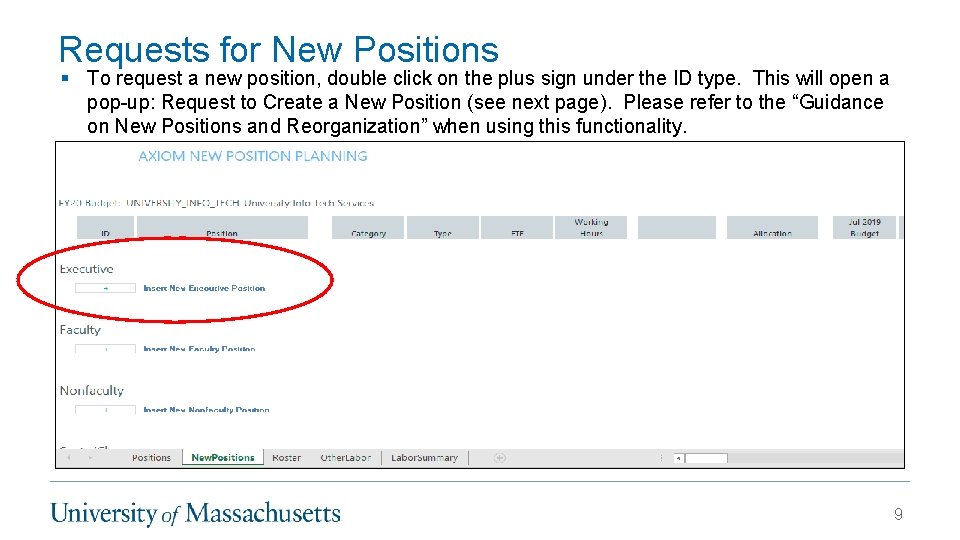
Requests for New Positions § To request a new position, double click on the plus sign under the ID type. This will open a pop-up: Request to Create a New Position (see next page). Please refer to the “Guidance on New Positions and Reorganization” when using this functionality. 9
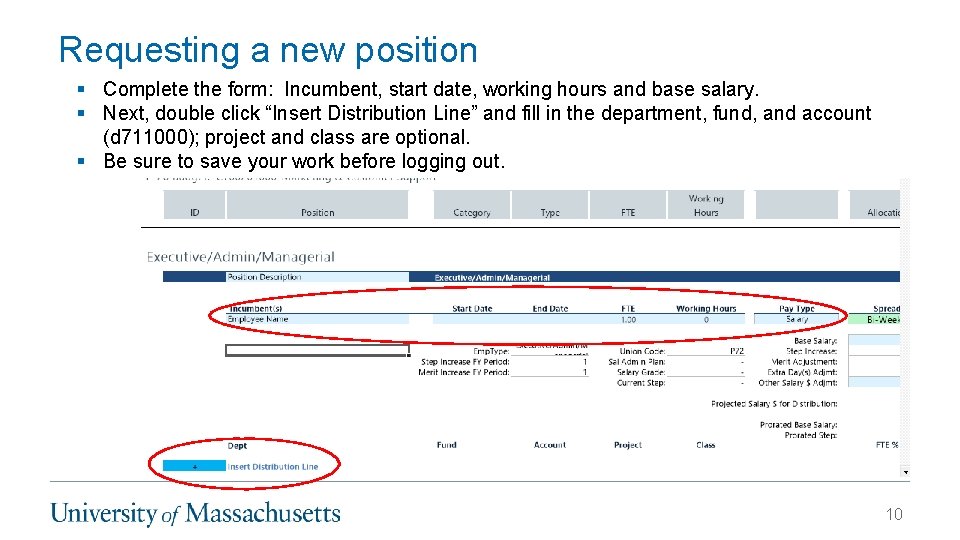
Requesting a new position § Complete the form: Incumbent, start date, working hours and base salary. § Next, double click “Insert Distribution Line” and fill in the department, fund, and account (d 711000); project and class are optional. § Be sure to save your work before logging out. 10
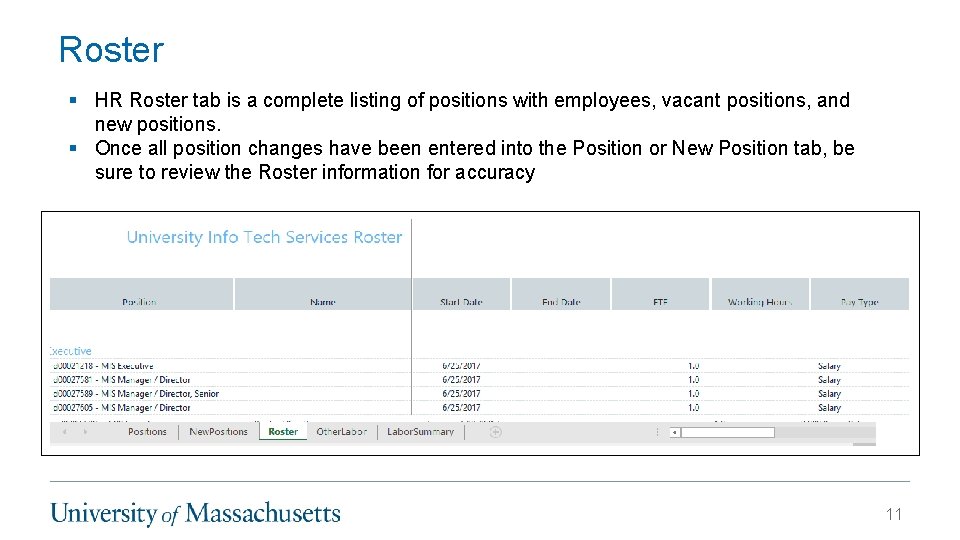
Roster § HR Roster tab is a complete listing of positions with employees, vacant positions, and new positions. § Once all position changes have been entered into the Position or New Position tab, be sure to review the Roster information for accuracy 11
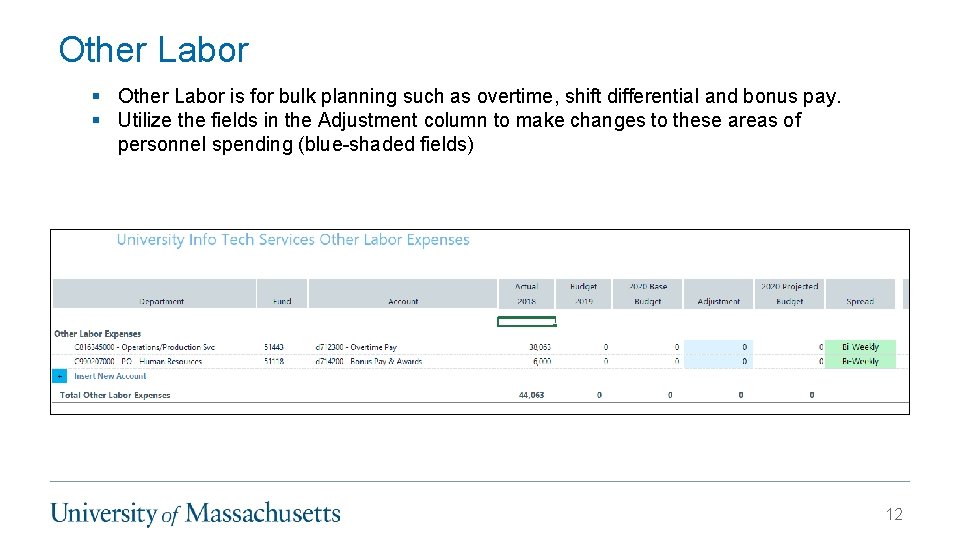
Other Labor § Other Labor is for bulk planning such as overtime, shift differential and bonus pay. § Utilize the fields in the Adjustment column to make changes to these areas of personnel spending (blue-shaded fields) 12
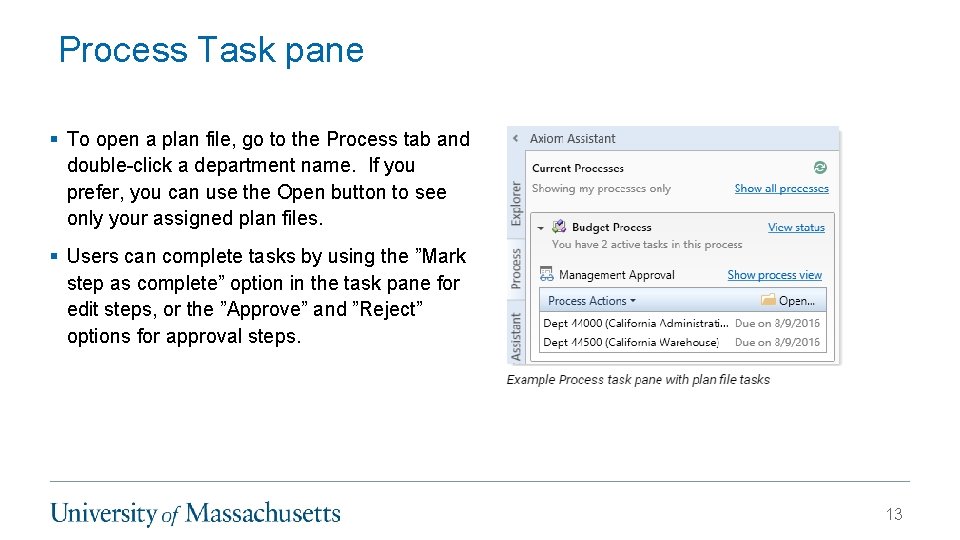
Process Task pane § To open a plan file, go to the Process tab and double-click a department name. If you prefer, you can use the Open button to see only your assigned plan files. § Users can complete tasks by using the ”Mark step as complete” option in the task pane for edit steps, or the ”Approve” and ”Reject” options for approval steps. 13
- Slides: 13