
UI Components By Keren Haddad and Max Panasenkov
UI Components By Keren Haddad and Max Panasenkov
UI Components l Introduction to. NET Framework l Understanding UI Components l Using VS. NET l Examples
Introduction to. NET Framework l The . NET Evolution l How does it work? l Why. NET?
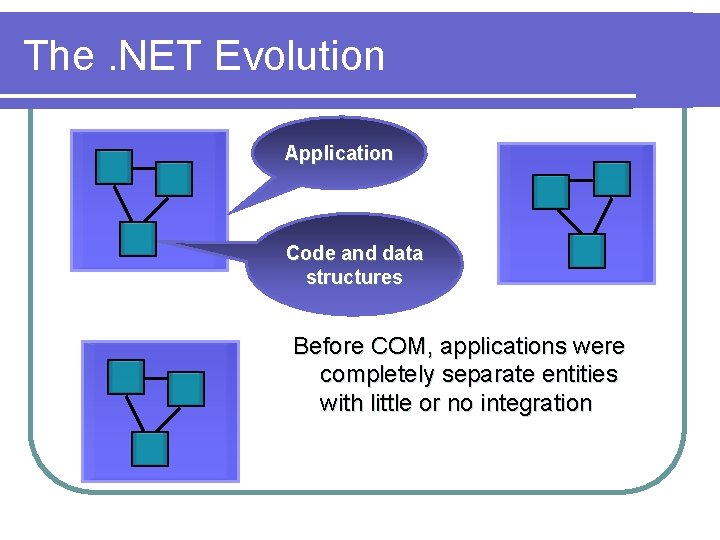
The. NET Evolution Application Code and data structures Before COM, applications were completely separate entities with little or no integration
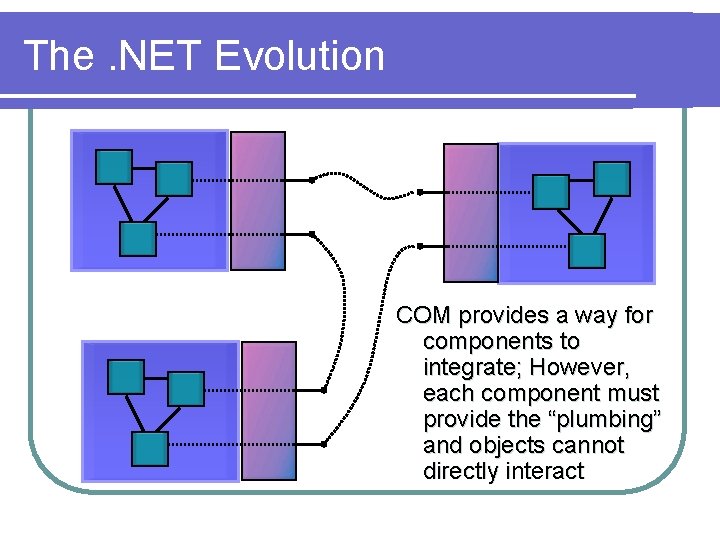
The. NET Evolution COM provides a way for components to integrate; However, each component must provide the “plumbing” and objects cannot directly interact
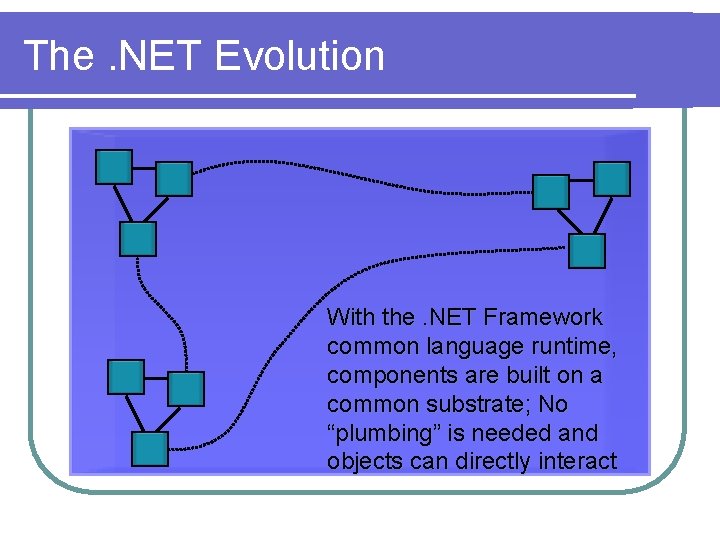
The. NET Evolution With the. NET Framework common language runtime, components are built on a common substrate; No “plumbing” is needed and objects can directly interact
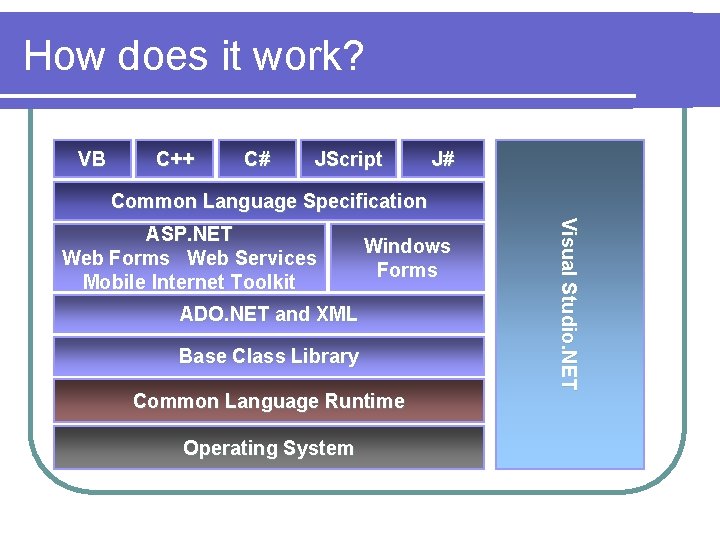
How does it work? VB C++ C# JScript J# Common Language Specification Windows Forms ADO. NET and XML Base Class Library Common Language Runtime Operating System V i s u a l S tu d i o. N E T ASP. NET Web Forms Web Services Mobile Internet Toolkit
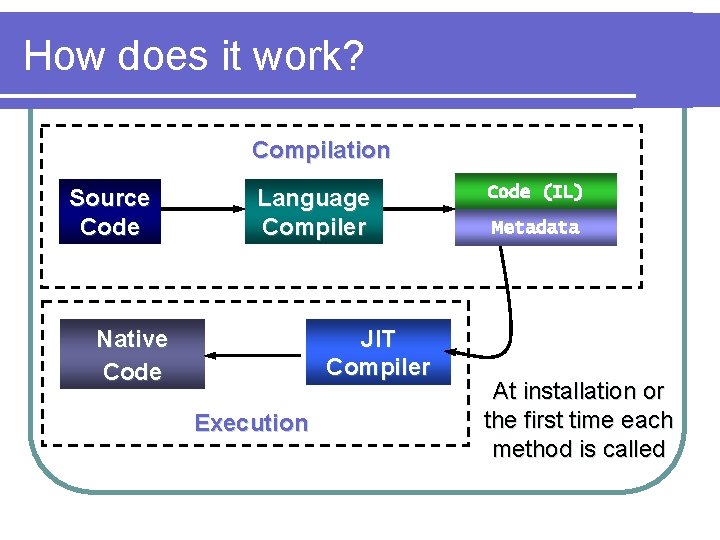
How does it work? Compilation Source Code Language Compiler Native Code JIT Compiler Execution Code (IL) Assembly Metadata At installation or the first time each method is called
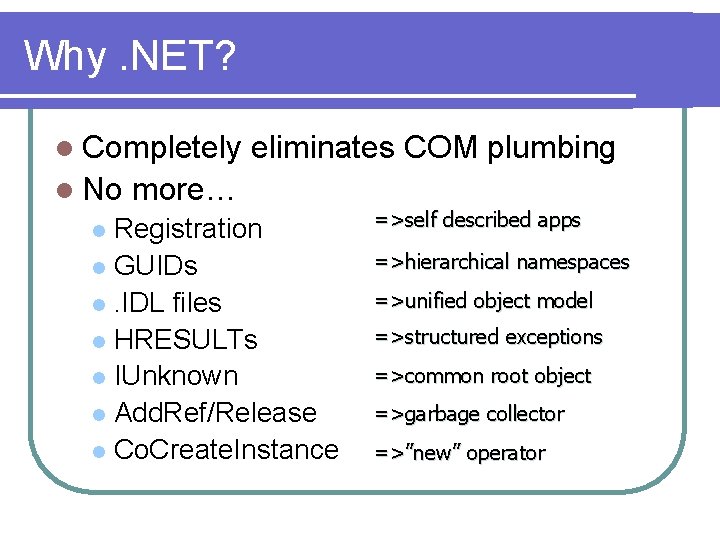
Why. NET? l Completely l No eliminates COM plumbing more… Registration l GUIDs l. IDL files l HRESULTs l IUnknown l Add. Ref/Release l Co. Create. Instance l =>self described apps =>hierarchical namespaces =>unified object model =>structured exceptions =>common root object =>garbage collector =>”new” operator
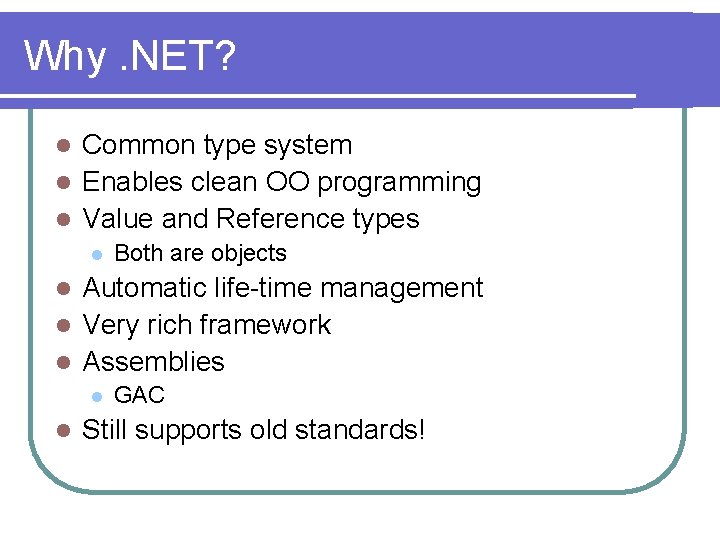
Why. NET? Common type system l Enables clean OO programming l Value and Reference types l l Both are objects Automatic life-time management l Very rich framework l Assemblies l l l GAC Still supports old standards!
UI Components l Introduction to. NET Framework l Understanding UI Components l Using VS. NET l Examples
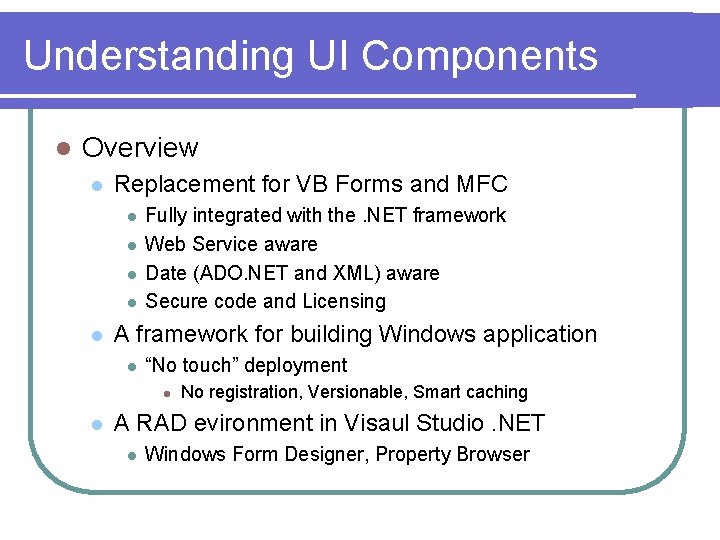
Understanding UI Components l Overview l Replacement for VB Forms and MFC l l l Fully integrated with the. NET framework Web Service aware Date (ADO. NET and XML) aware Secure code and Licensing A framework for building Windows application l “No touch” deployment l l No registration, Versionable, Smart caching A RAD evironment in Visaul Studio. NET l Windows Form Designer, Property Browser
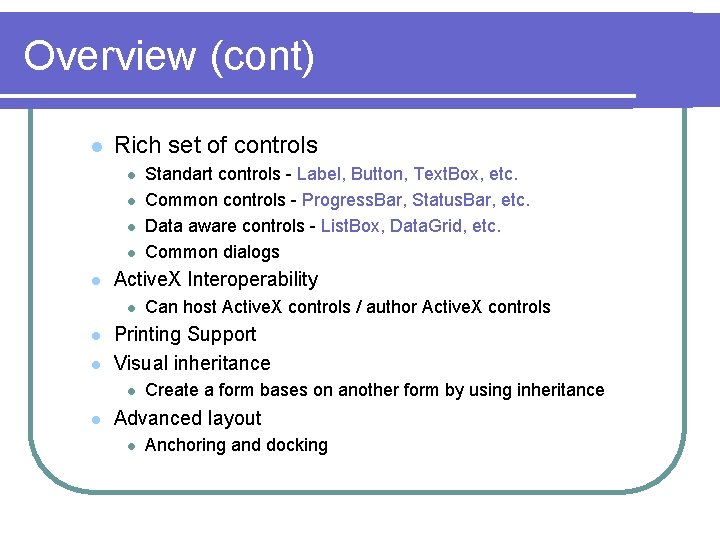
Overview (cont) l Rich set of controls l l l Active. X Interoperability l l l Can host Active. X controls / author Active. X controls Printing Support Visual inheritance l l Standart controls - Label, Button, Text. Box, etc. Common controls - Progress. Bar, Status. Bar, etc. Data aware controls - List. Box, Data. Grid, etc. Common dialogs Create a form bases on another form by using inheritance Advanced layout l Anchoring and docking
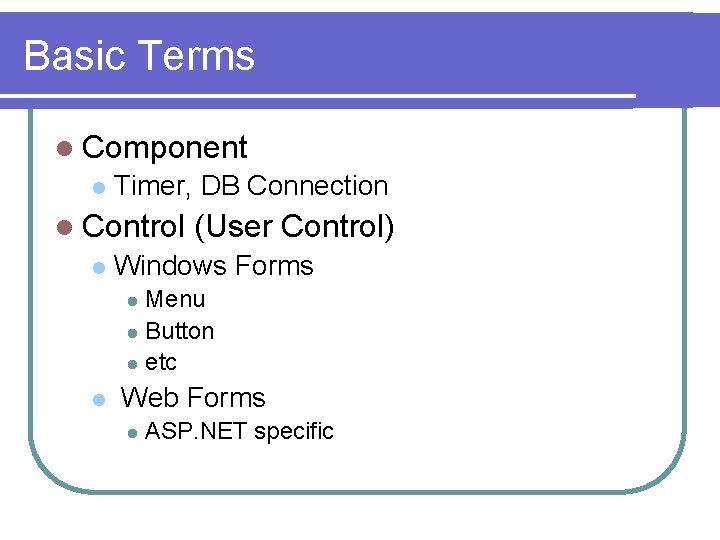
Basic Terms l Component l Timer, DB Connection l Control l (User Control) Windows Forms Menu l Button l etc l l Web Forms l ASP. NET specific

UI Components l Introduction to. NET Framework l Understanding UI Components l Using VS. NET l Examples
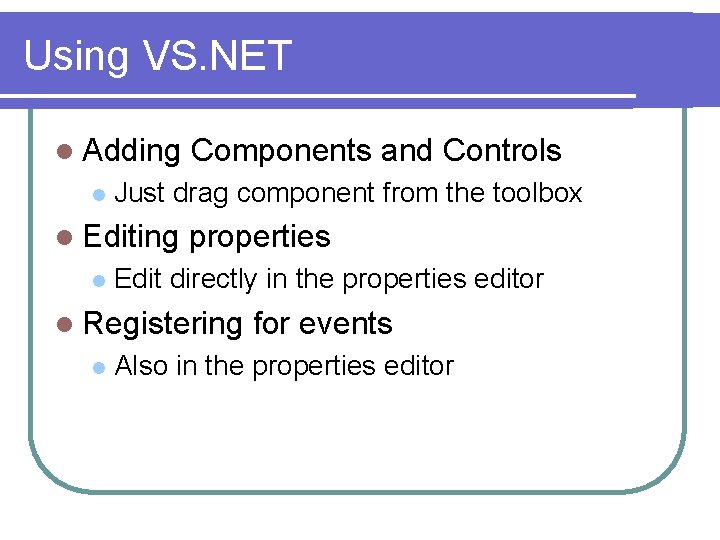
Using VS. NET l Adding l Just drag component from the toolbox l Editing l Components and Controls properties Edit directly in the properties editor l Registering l for events Also in the properties editor
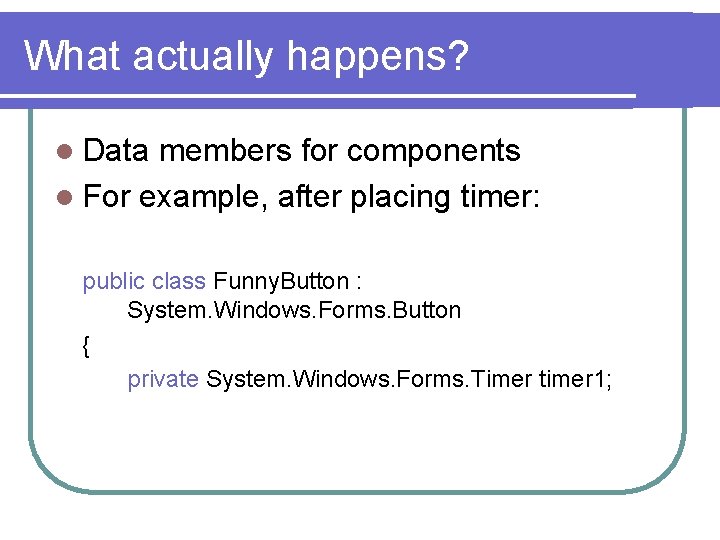
What actually happens? l Data members for components l For example, after placing timer: public class Funny. Button : System. Windows. Forms. Button { private System. Windows. Forms. Timer timer 1;
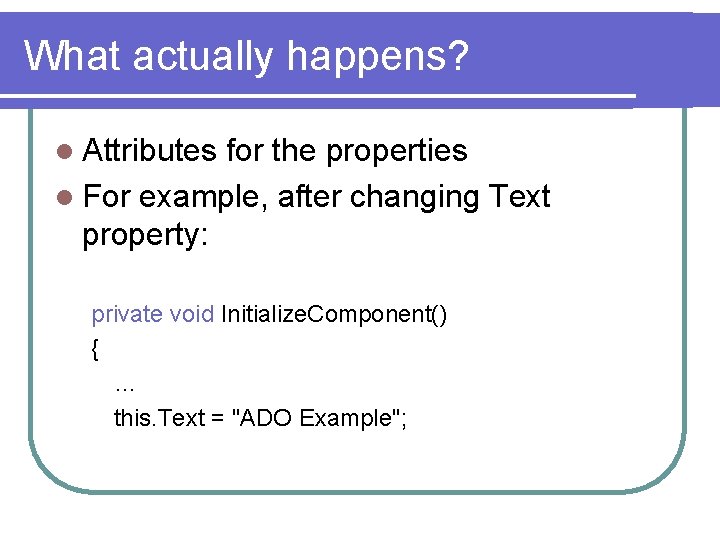
What actually happens? l Attributes for the properties l For example, after changing Text property: private void Initialize. Component() { … this. Text = "ADO Example";
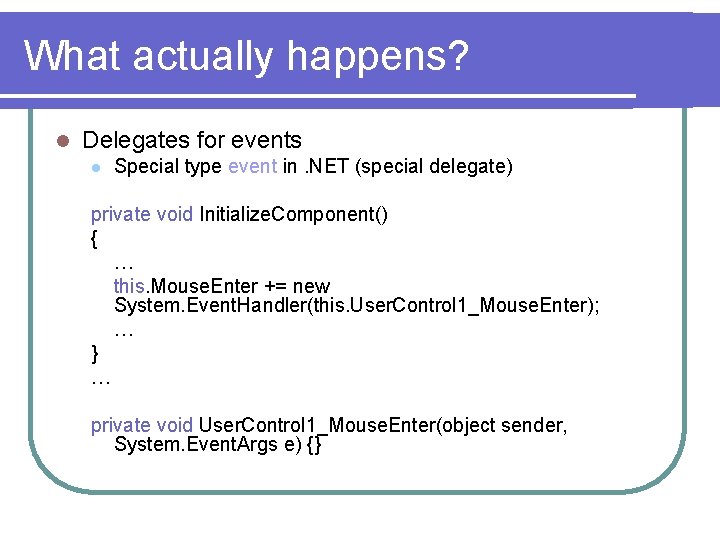
What actually happens? l Delegates for events l Special type event in. NET (special delegate) private void Initialize. Component() { … this. Mouse. Enter += new System. Event. Handler(this. User. Control 1_Mouse. Enter); … } … private void User. Control 1_Mouse. Enter(object sender, System. Event. Args e) {}
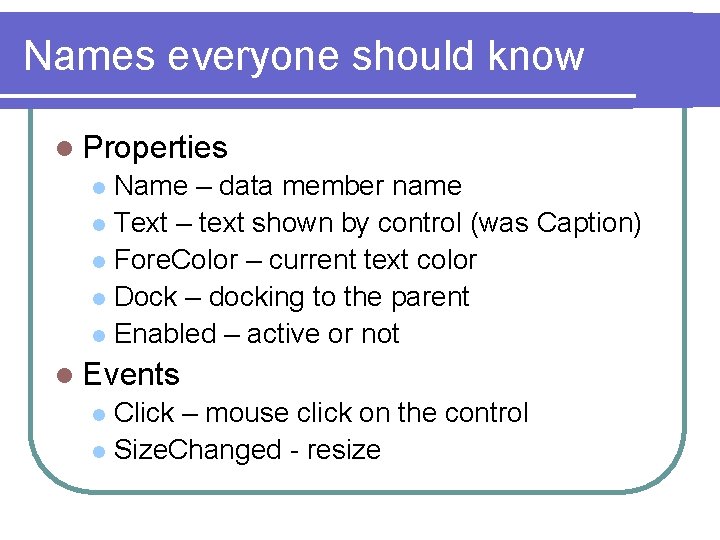
Names everyone should know l Properties Name – data member name l Text – text shown by control (was Caption) l Fore. Color – current text color l Dock – docking to the parent l Enabled – active or not l l Events Click – mouse click on the control l Size. Changed - resize l
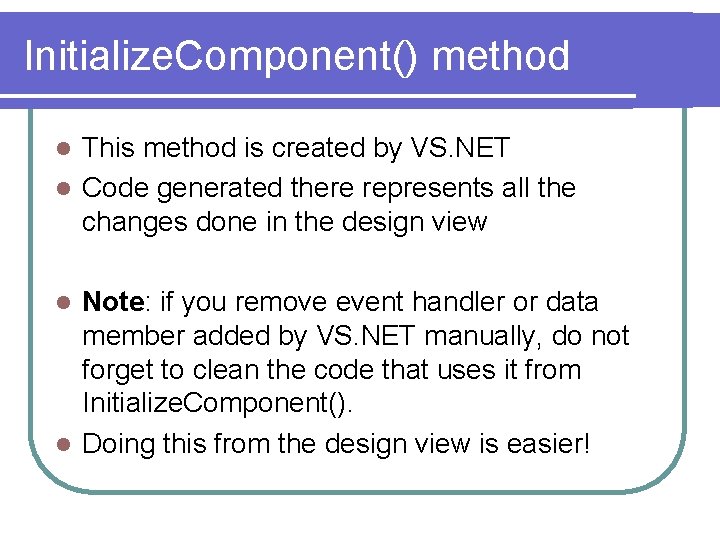
Initialize. Component() method This method is created by VS. NET l Code generated there represents all the changes done in the design view l Note: if you remove event handler or data member added by VS. NET manually, do not forget to clean the code that uses it from Initialize. Component(). l Doing this from the design view is easier! l
UI Components l Introduction to. NET Framework l Understanding UI Components l Using VS. NET l Examples
Writing our first control! l Circle button Creating custom component in components library l Deployment l GDI+ l
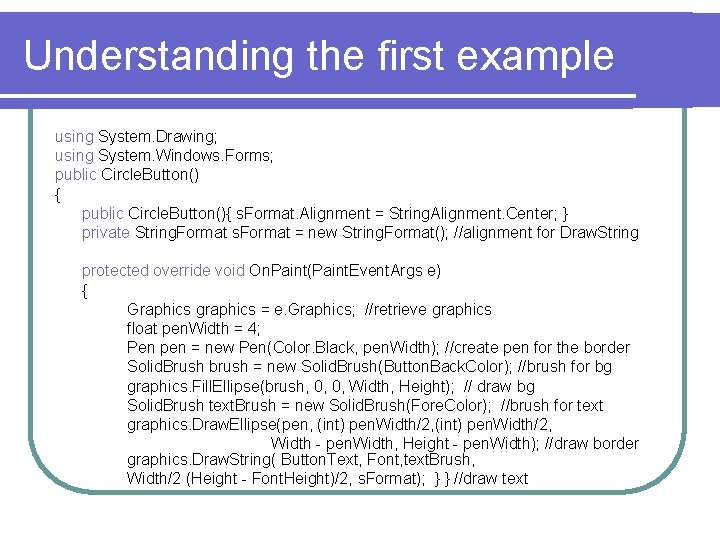
Understanding the first example using System. Drawing; using System. Windows. Forms; public Circle. Button() { public Circle. Button(){ s. Format. Alignment = String. Alignment. Center; } private String. Format s. Format = new String. Format(); //alignment for Draw. String protected override void On. Paint(Paint. Event. Args e) { Graphics graphics = e. Graphics; //retrieve graphics float pen. Width = 4; Pen pen = new Pen(Color. Black, pen. Width); //create pen for the border Solid. Brush brush = new Solid. Brush(Button. Back. Color); //brush for bg graphics. Fill. Ellipse(brush, 0, 0, Width, Height); // draw bg Solid. Brush text. Brush = new Solid. Brush(Fore. Color); //brush for text graphics. Draw. Ellipse(pen, (int) pen. Width/2, Width - pen. Width, Height - pen. Width); //draw border graphics. Draw. String( Button. Text, Font, text. Brush, Width/2 (Height - Font. Height)/2, s. Format); } } //draw text
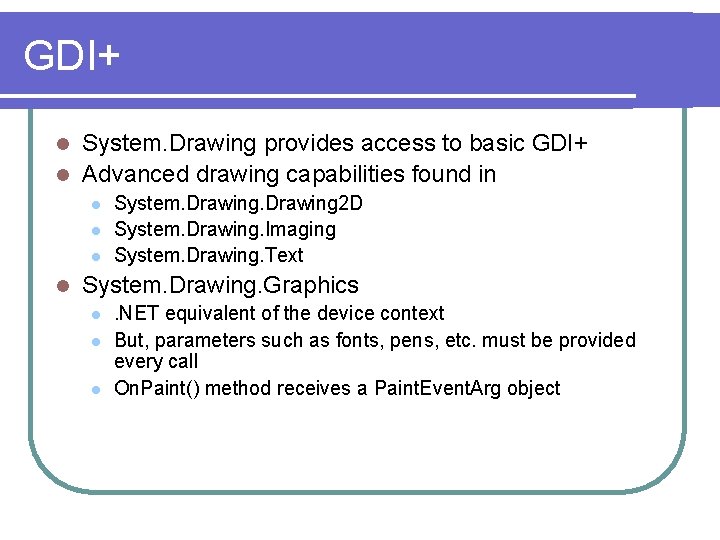
GDI+ System. Drawing provides access to basic GDI+ l Advanced drawing capabilities found in l l l System. Drawing 2 D System. Drawing. Imaging System. Drawing. Text System. Drawing. Graphics l l l . NET equivalent of the device context But, parameters such as fonts, pens, etc. must be provided every call On. Paint() method receives a Paint. Event. Arg object
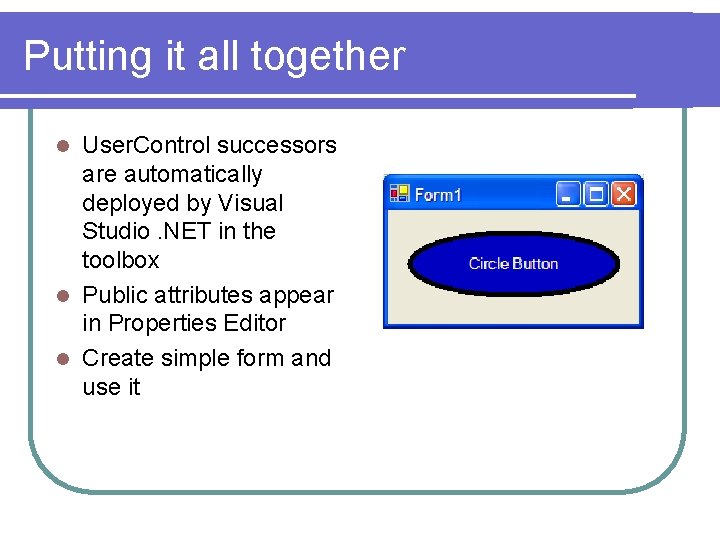
Putting it all together User. Control successors are automatically deployed by Visual Studio. NET in the toolbox l Public attributes appear in Properties Editor l Create simple form and use it l
Another example l Funny button l l No more reinventing the wheel – inherit from System. Windows. Forms. Button class Just putting existing things together Note: There is no direct way to ask Visual Studio. NET to create descendant of the system classes like Form, Button and etc. , so you just create a User. Control and then manually change its parent Note: Another documented feature is that you cannot use designer view to edit you component after you do that
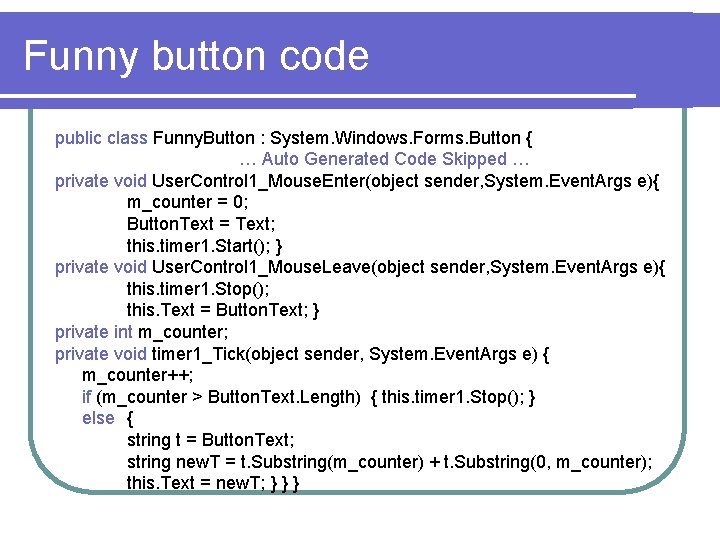
Funny button code public class Funny. Button : System. Windows. Forms. Button { … Auto Generated Code Skipped … private void User. Control 1_Mouse. Enter(object sender, System. Event. Args e){ m_counter = 0; Button. Text = Text; this. timer 1. Start(); } private void User. Control 1_Mouse. Leave(object sender, System. Event. Args e){ this. timer 1. Stop(); this. Text = Button. Text; } private int m_counter; private void timer 1_Tick(object sender, System. Event. Args e) { m_counter++; if (m_counter > Button. Text. Length) { this. timer 1. Stop(); } else { string t = Button. Text; string new. T = t. Substring(m_counter) + t. Substring(0, m_counter); this. Text = new. T; } } }
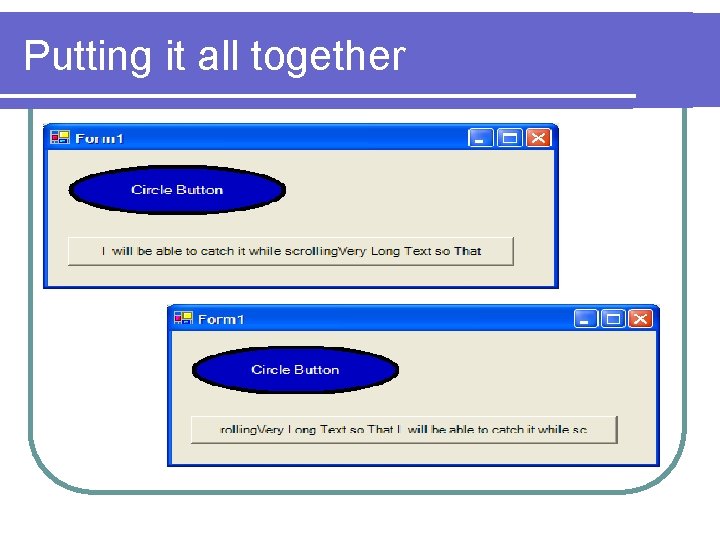
Putting it all together
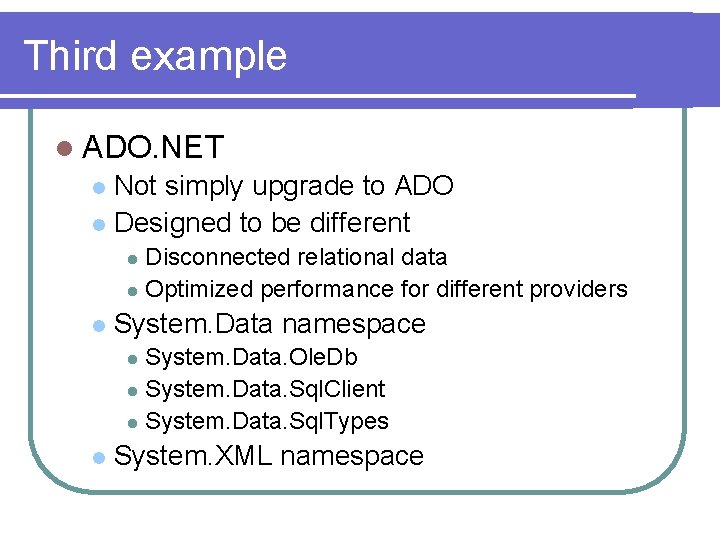
Third example l ADO. NET Not simply upgrade to ADO l Designed to be different l Disconnected relational data l Optimized performance for different providers l l System. Data namespace System. Data. Ole. Db l System. Data. Sql. Client l System. Data. Sql. Types l l System. XML namespace
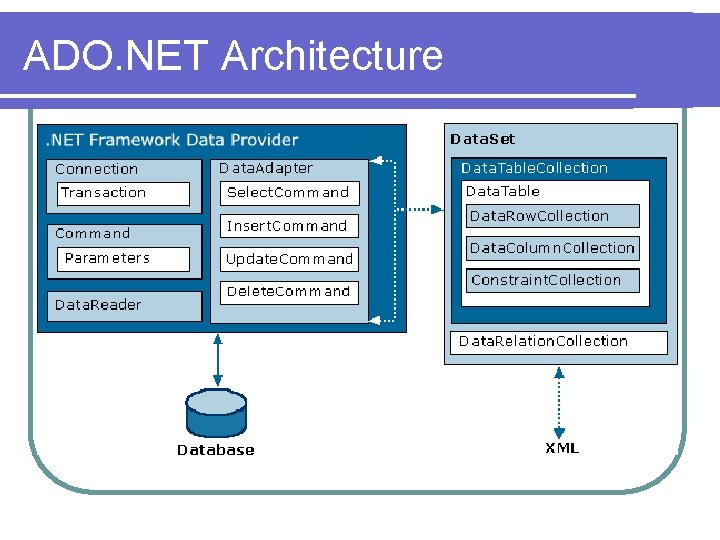
ADO. NET Architecture
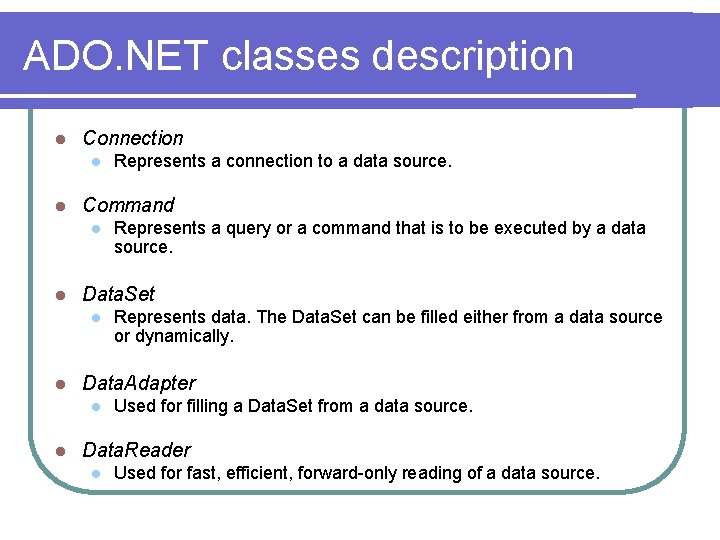
ADO. NET classes description l Connection l l Command l l Represents data. The Data. Set can be filled either from a data source or dynamically. Data. Adapter l l Represents a query or a command that is to be executed by a data source. Data. Set l l Represents a connection to a data source. Used for filling a Data. Set from a data source. Data. Reader l Used for fast, efficient, forward-only reading of a data source.
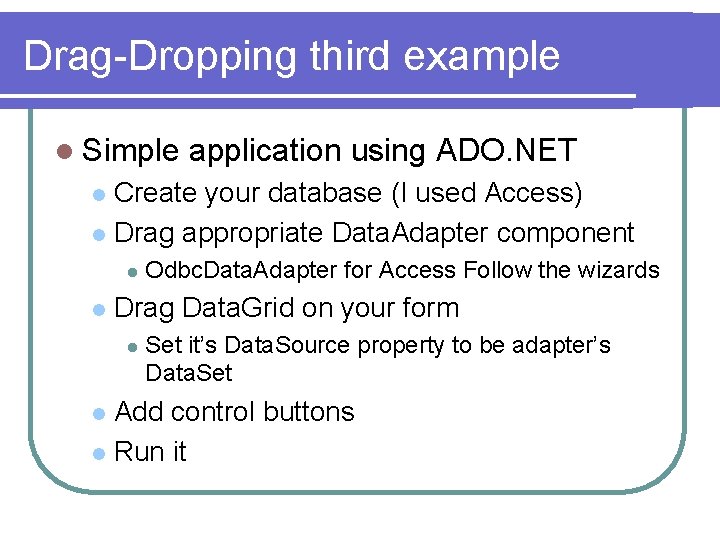
Drag-Dropping third example l Simple application using ADO. NET Create your database (I used Access) l Drag appropriate Data. Adapter component l l l Odbc. Data. Adapter for Access Follow the wizards Drag Data. Grid on your form l Set it’s Data. Source property to be adapter’s Data. Set Add control buttons l Run it l
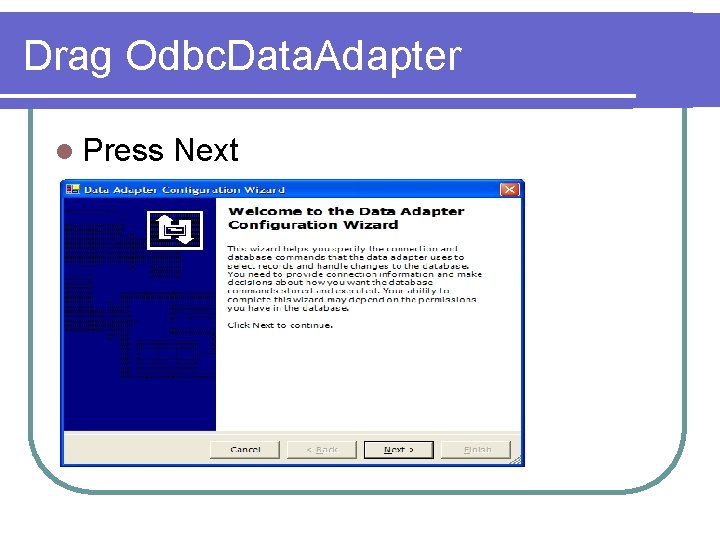
Drag Odbc. Data. Adapter l Press Next
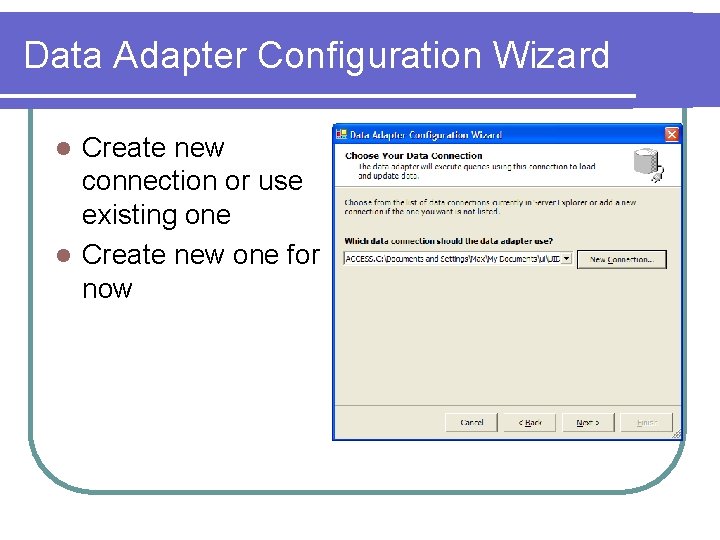
Data Adapter Configuration Wizard Create new connection or use existing one l Create new one for now l
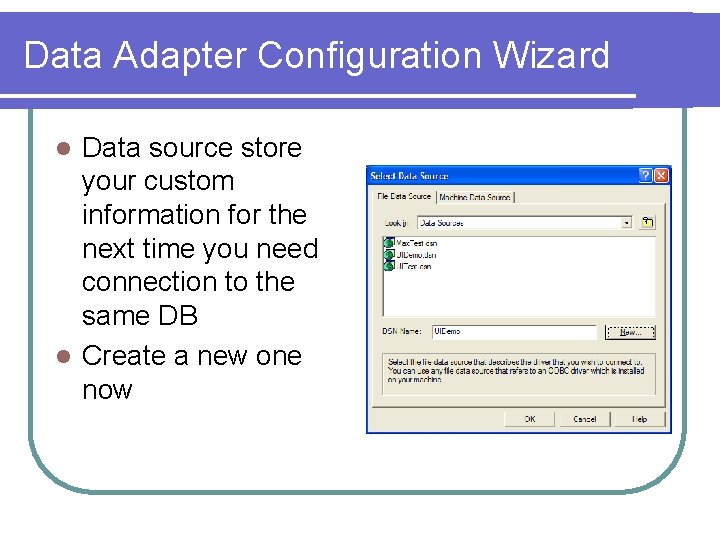
Data Adapter Configuration Wizard Data source store your custom information for the next time you need connection to the same DB l Create a new one now l
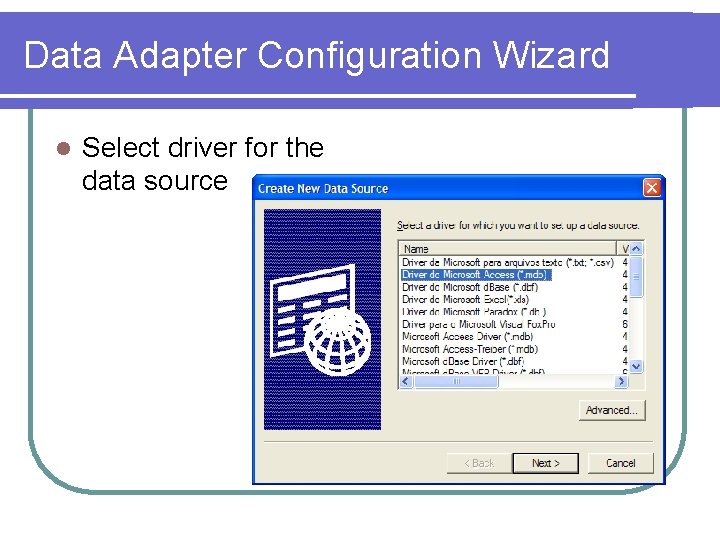
Data Adapter Configuration Wizard l Select driver for the data source
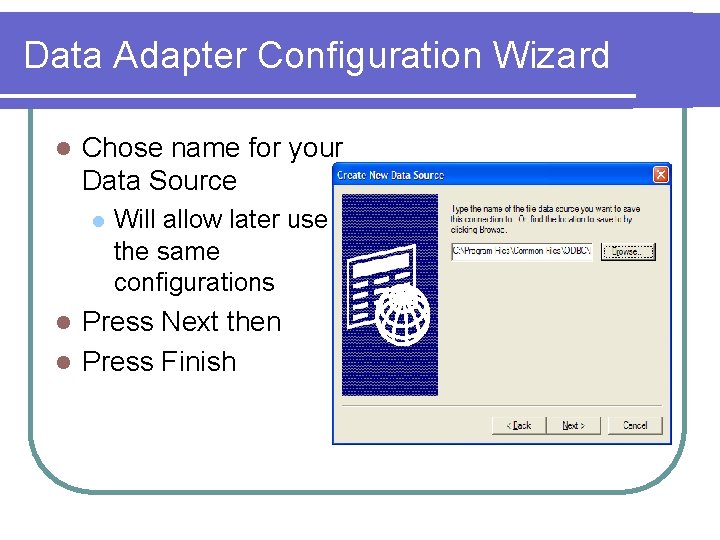
Data Adapter Configuration Wizard l Chose name for your Data Source l Will allow later use the same configurations Press Next then l Press Finish l
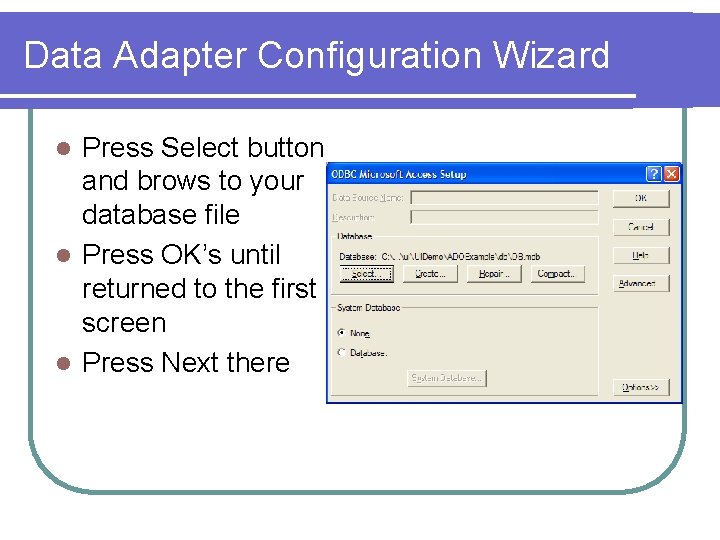
Data Adapter Configuration Wizard Press Select button and brows to your database file l Press OK’s until returned to the first screen l Press Next there l
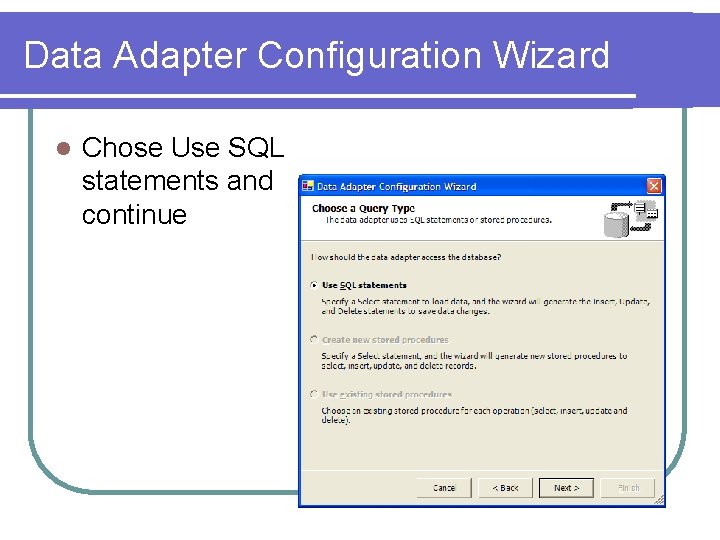
Data Adapter Configuration Wizard l Chose Use SQL statements and continue
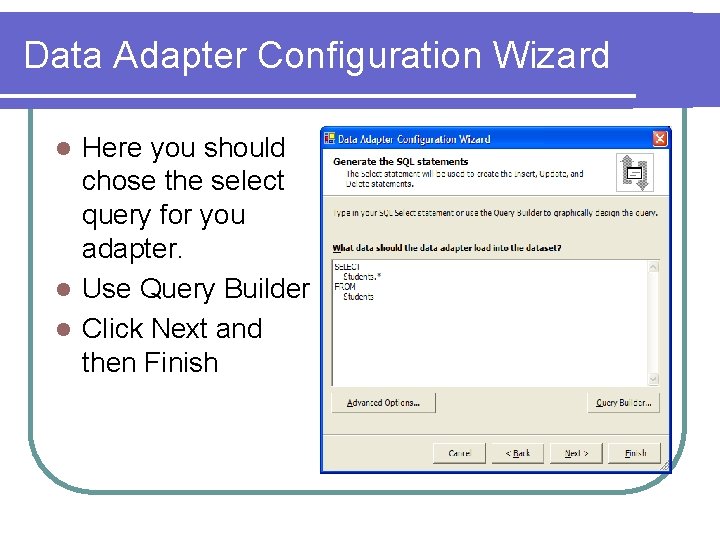
Data Adapter Configuration Wizard Here you should chose the select query for you adapter. l Use Query Builder l Click Next and then Finish l
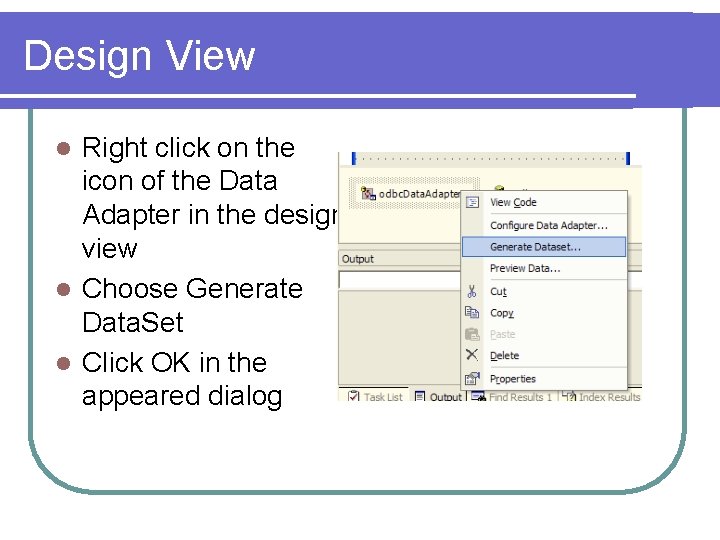
Design View Right click on the icon of the Data Adapter in the design view l Choose Generate Data. Set l Click OK in the appeared dialog l
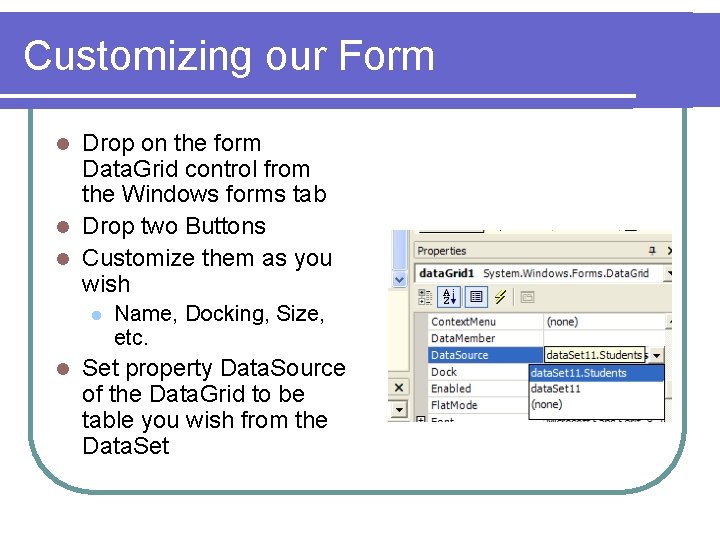
Customizing our Form Drop on the form Data. Grid control from the Windows forms tab l Drop two Buttons l Customize them as you wish l l l Name, Docking, Size, etc. Set property Data. Source of the Data. Grid to be table you wish from the Data. Set
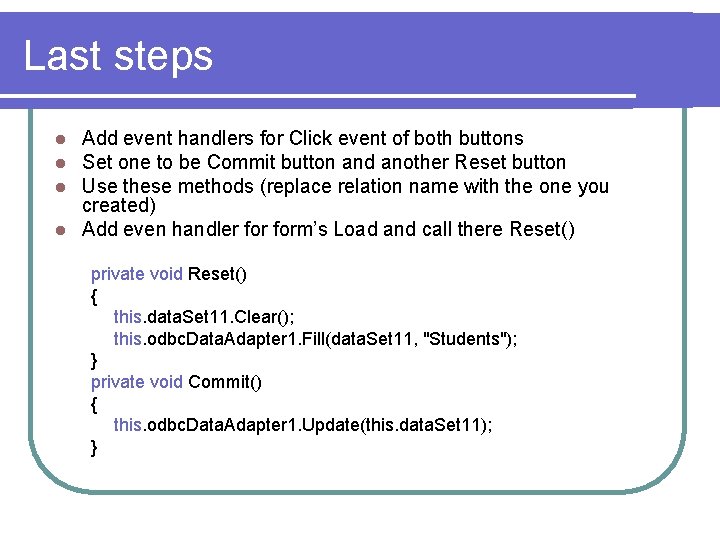
Last steps Add event handlers for Click event of both buttons Set one to be Commit button and another Reset button Use these methods (replace relation name with the one you created) l Add even handler form’s Load and call there Reset() l l l private void Reset() { this. data. Set 11. Clear(); this. odbc. Data. Adapter 1. Fill(data. Set 11, "Students"); } private void Commit() { this. odbc. Data. Adapter 1. Update(this. data. Set 11); }
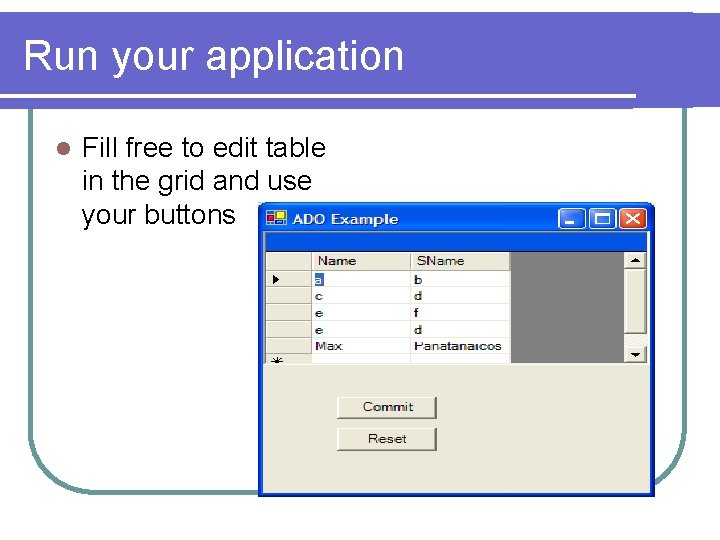
Run your application l Fill free to edit table in the grid and use your buttons
Useful resources www. google. com l Small ADO tutorial l Custom shape window tutorial l l http: //www. ondotnet. com/pub/a/dotnet/excerpt/progvisbasi c_ch 08/index. html http: //www. thecodeproject. com/csharp/Custom. Forms. asp Customizing components properties view l l http: //msdn. microsoft. com/msdnmag/issues/03/04/Design %2 DTime. Controls/ http: //msdn. microsoft. com/msdnmag/issues/03/05/Design %2 DTime. Controls/
Summary. NET – Future of the Windows platform l Cross language l New model for components usage l Windows Forms offer great GUI potential l Rich control set Supports Active. X Improved GDI+ l Excellent IDE to extract 100% from it l Tries to look perfect – no official bug repositories l
- Slides: 47