
UCSB Business Financial Services Procurement Gateway Systems Receiving
UCSB Business & Financial Services Procurement Gateway Systems Receiving Overview (6/19/18) Presented By: Kathleen Yabsley Last Modified Date: 11/3/2017
Why should we receive? – It is your department’s way of indicating the status of all of your goods and/or services for that particular order. – In many cases your receipt is the key for releasing payment on your purchase orders’ invoices.
When should we receive? – Best practice is to receive on every single purchase order, for which you have direct knowledge of receipt, in order to indicate that your goods and/or services have been received. – However, on orders $5, 000 and below, a receipt is not needed for the invoice to pay if the invoice and purchase order match. – Please note: Bypassing the Receiving step may, however, raise audit issues. – Receipts are always required to release the invoice to pay on any order over $5, 000. – Receipts are always required to release the invoice to pay Vendor Blankets, Contracts and Walk-In Forms. – Please note that receipts are not necessary to release payment on Arrowhead Water Vendor Blankets. However, it is still best practice to continue creating receipts to maintain audit standards.
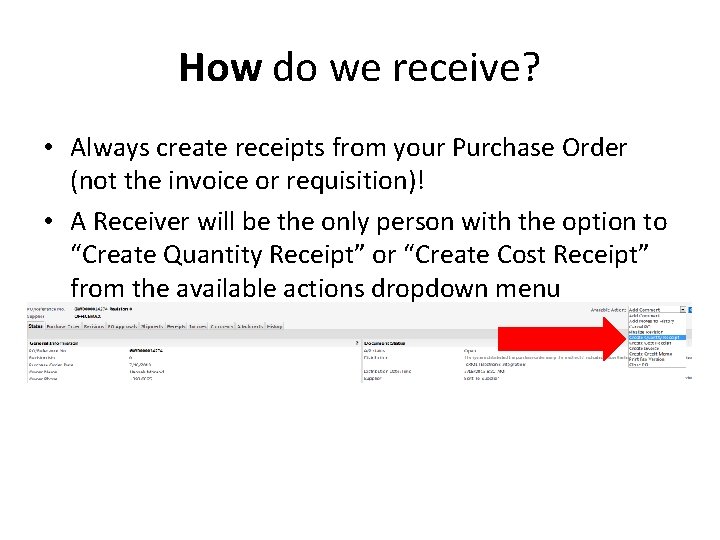
How do we receive? • Always create receipts from your Purchase Order (not the invoice or requisition)! • A Receiver will be the only person with the option to “Create Quantity Receipt” or “Create Cost Receipt” from the available actions dropdown menu
What kind of receipt should we create? – Quantity Receipts are typically used for simple receiving on purchase orders. • They are used to reflect the quantity of items ordered on the purchase order and received. • Quantity receipts are most often seen with supply orders, like Office Depot or Fisher Scientific. • Do not use with multiple shipments – Cost Receipts are typically used for receiving the actual amount reflected on an invoice against your purchase order. • They are always to be used with Forms, Contracts and Vendor Blankets as they need to match the exact amount of the invoice for payment against your purchase order.
Quantity Receipt • From your “Available Actions” drop down menu, select “Create Quantity Receipt” and hit “Go”. • When you select this option, the receipt will populate as if you have received all line items for your order. If you received everything perfectly for your order, then leave it as is! – Partial Shipment - If you did not receive all of your shipment, change the quantity to reflect what you did receive. That will leave the line open for you to receive at a later time on a new receipt. If you are waiting to receive a full line of your order, you can delete the entire line off of your receipt, leaving it open to receive at a later time when your goods arrive. – Returns – If you received an item and need to return it, select the “Receive & Return” button. It will duplicate your line, showing that you’ve received that quantity of goods and also returning the same. This leaves the line open for receiving again at a later date. – Cancellation – If you are not going to receive the goods (the supplier does not carry the item anymore, etc), change the “received” drop down to “cancelled”. This ensures that line item closes as you do not expect a future shipment.
Cost Receipt • From your “Available Actions” drop down menu, select “Create Cost Receipt” and hit “Go”. • When you select this option, the receipt will populate filling in the entire amount of your purchase order. – This is good to remember especially for Vendor Blankets, so you do not cost receive the entire amount of your order if your intent is to just receive for a specific invoice! • When cost receiving for Vendor Blankets, Contracts, Walk-In and Confirming Forms where you would like to alter the amount of the cost receipt first, all you need to do is edit the amount in the “Cost” field by deleting the pre-populated amount and typing in your desired amount.
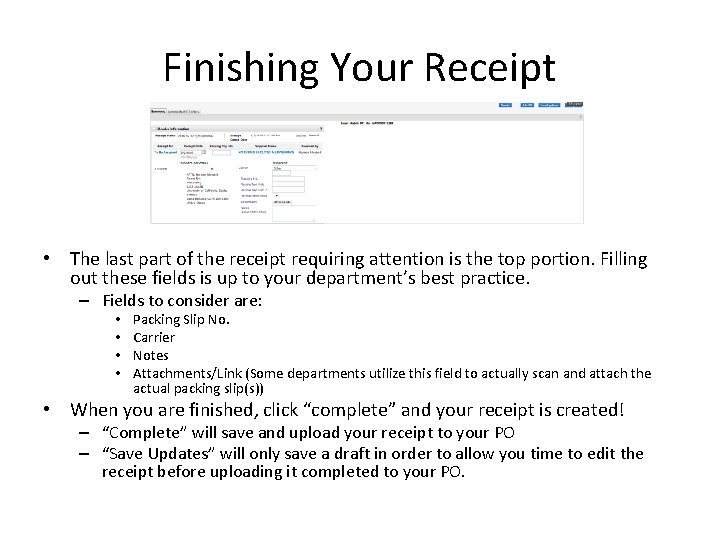
Finishing Your Receipt • The last part of the receipt requiring attention is the top portion. Filling out these fields is up to your department’s best practice. – Fields to consider are: • • Packing Slip No. Carrier Notes Attachments/Link (Some departments utilize this field to actually scan and attach the actual packing slip(s)) • When you are finished, click “complete” and your receipt is created! – “Complete” will save and upload your receipt to your PO – “Save Updates” will only save a draft in order to allow you time to edit the receipt before uploading it completed to your PO.
Tips and Tricks! • Q: What do I do if I make a mistake on a receipt and I cannot re-open the receipt to delete it or make edits? – A: If your receipt has already closed because an invoice hit workflow on your purchase order, you should create another receipt for the same amount, using a negative amount. This will essentially cancel out the incorrect receipt, bringing your PO back into balance. • • • For example: If you accidently created a cost receipt for $40, just create another cost receipt for -$40. Q: If I have several cost receipts to create for one Vendor Blanket, can I just create one cost receipt reflecting the total balance of all of the cost receipts needed instead of having to create several individual receipts? – A: Yes! The system will accept that as well as several individual cost receipts. Q: I received a notification from the system that my order needs a receipt, but I do not see the options to “Create Quantity Receipt” or to “Create Cost Receipt”, what should I do? – A: If you do not see either of the two options to create receipts from your “Available Actions” drop down menu while you are on your purchase order, then you do not have the role of Receiver. • • When the system notices that an order needs receiving, it will send a notification to the purchase order’s owner to let them know that receiving needs to take place. If you are not the Receiver, please forward the notification on to the correct person in your department. If you feel you should have this role, contact your Department Purchasing Administrator (DPA). Q: How do I become a Receiver? – A: Your Department’s Purchasing Administrator has assigned roles in Gateway using the Gateway Management – Console. If you feel that you need further roles in the system, please contact your DPA and ask about the addition of roles to your profile. You can check your current roles by going to: – Your Name > View My Profile > Assigned Roles (Under User Access and Security)
Reporting There a few reports that we recommend setting up in your department and running periodically to get a better picture of the receiving needs of your department. These reports are: • Vendor Blankets in your department • Purchase Orders in your department that do not show any receiving • Purchase Orders in your department that show partial receiving • Invoices for your department These reports are easy to set up, save to your profile and re-run at any time that you need order status snapshots. You can also request Help desk to create a shared folder for your department, so that your co-workers can access the reports. • Gateway Reporting Guide
Contacts and Help • Gateway Help Desk: – Log a Ticket! Gatewayhelp@bfs. ucsb. edu • Gateway Website: – http: //www. bfs. ucsb. edu/procurement/gateway • Who Can I Talk To? – Kathleen Yabsley– Gateway Systems Manager x 3542, kathleen. yabsley@ucsb. edu • Any Questions, Training & Content Enablement – Lara Anderson – Procurement Coordinator x 8025, lara. anderson@ucsb. edu • Any Questions – Donna Baumann – Supplier Enablement Specialist x 4266, donna. baumann@ucsb. edu • Any “Add Supplier Form” Request Follow-up – Vaughn Boyle - Vendor Settlement Manager x 7377, vaughn. boyle@ucsb. edu • Flex. Card and Gateway Invoices
- Slides: 11