
UCAS Apply Online application at www ucas com
- Slides: 20
UCAS Apply Online application at; www. ucas. com
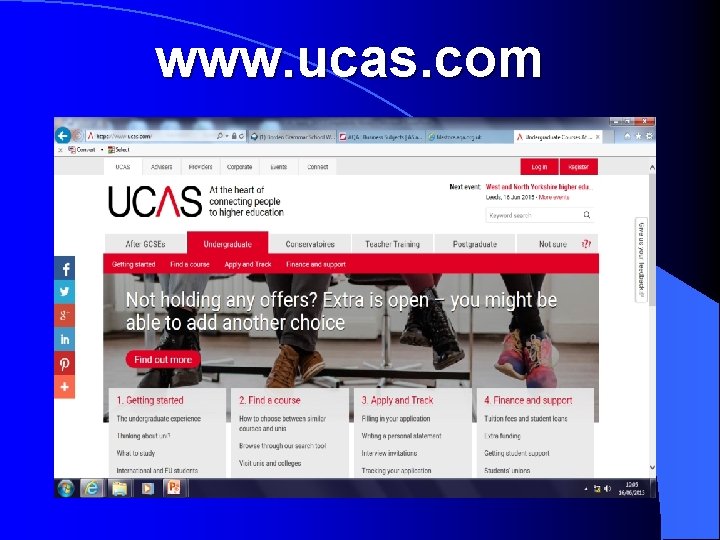
www. ucas. com
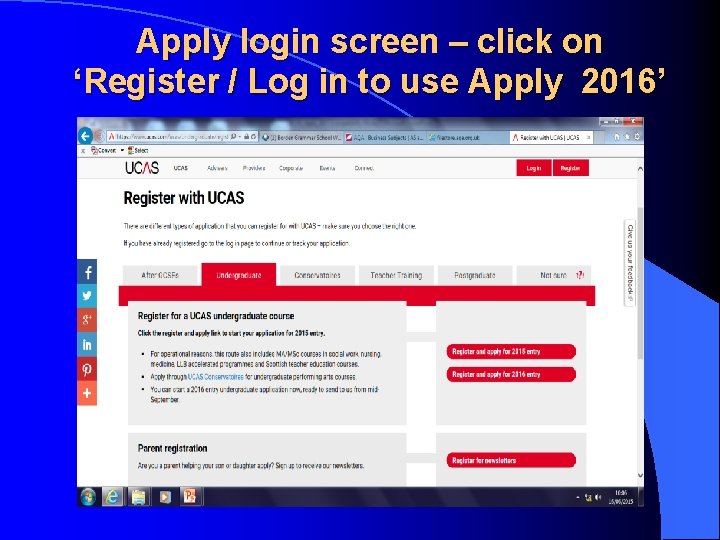
Apply login screen – click on ‘Register / Log in to use Apply 2016’
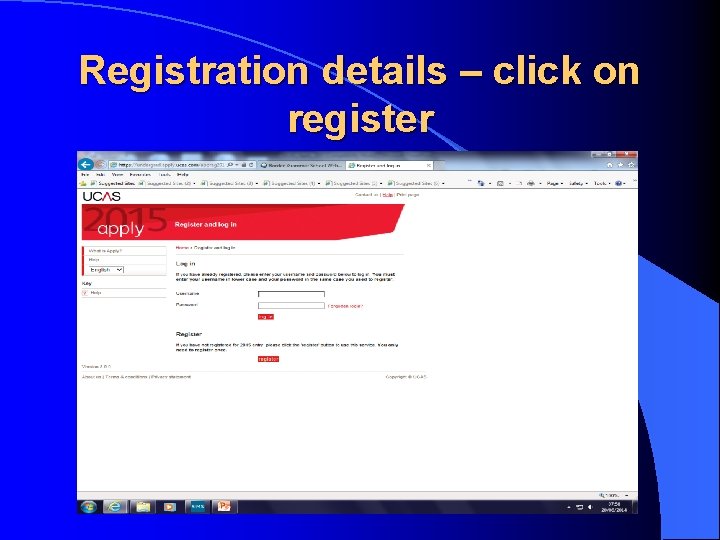
Registration details – click on register
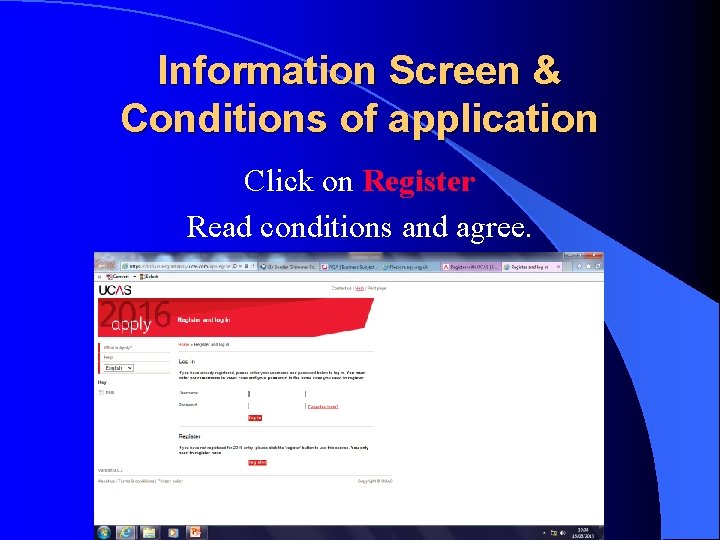
Information Screen & Conditions of application Click on Register Read conditions and agree.
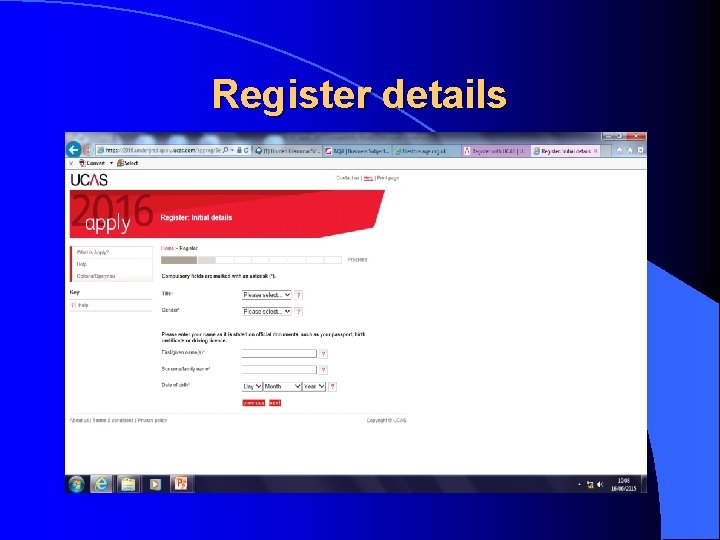
Register details
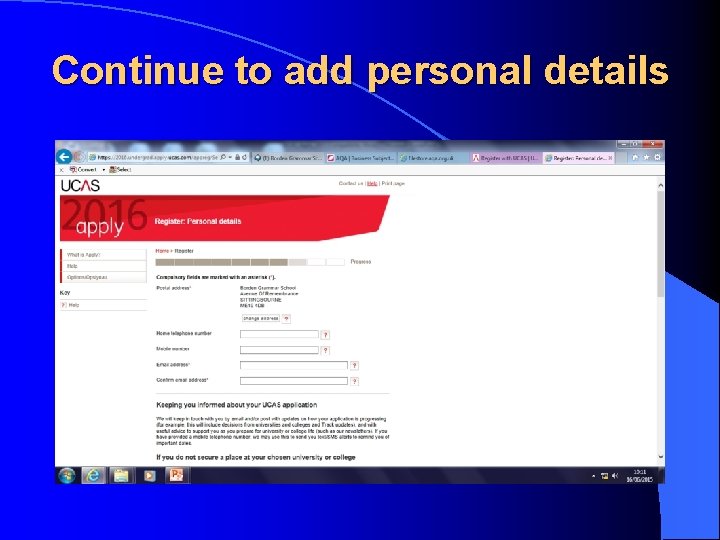
Continue to add personal details
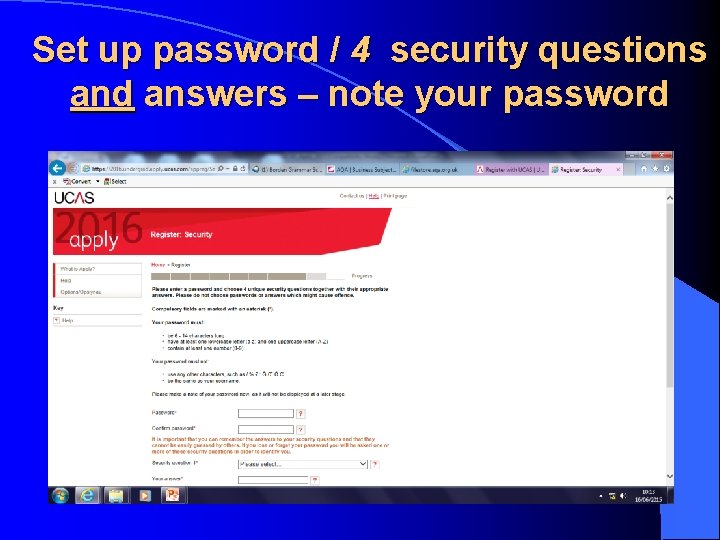
Set up password / 4 security questions and answers – note your password
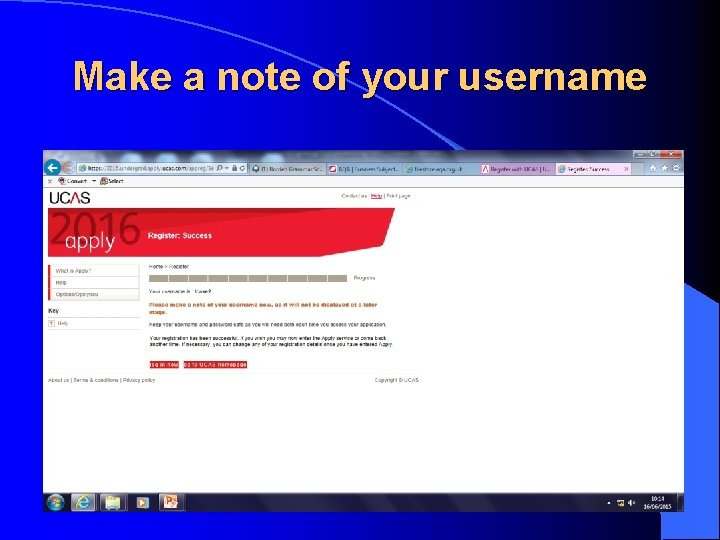
Make a note of your username
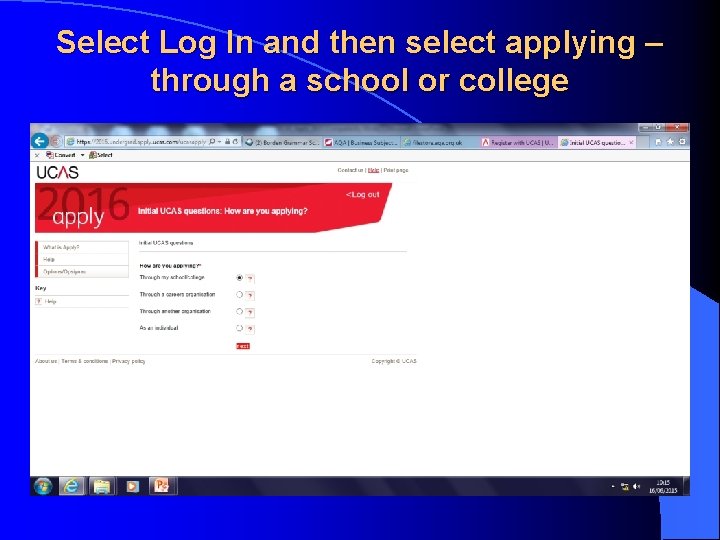
Select Log In and then select applying – through a school or college
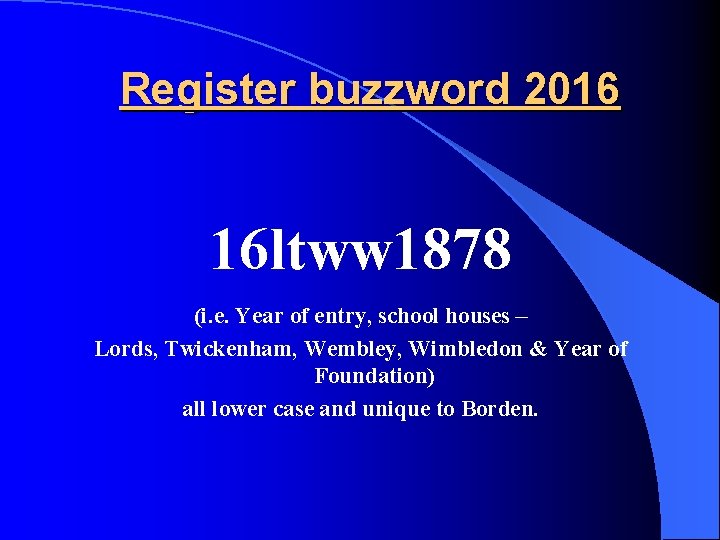
Register buzzword 2016 16 ltww 1878 (i. e. Year of entry, school houses – Lords, Twickenham, Wembley, Wimbledon & Year of Foundation) all lower case and unique to Borden.
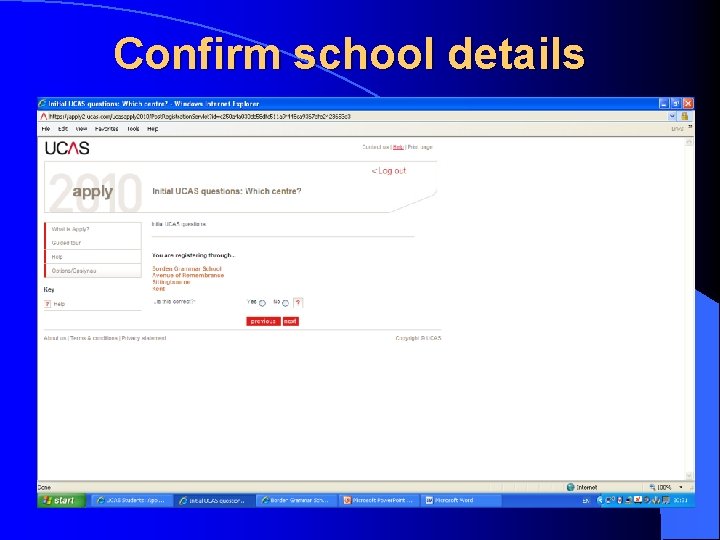
Confirm school details
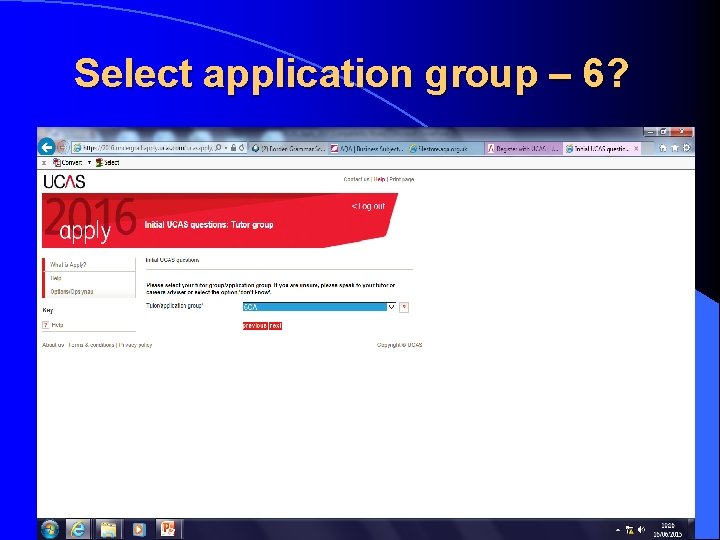
Select application group – 6?
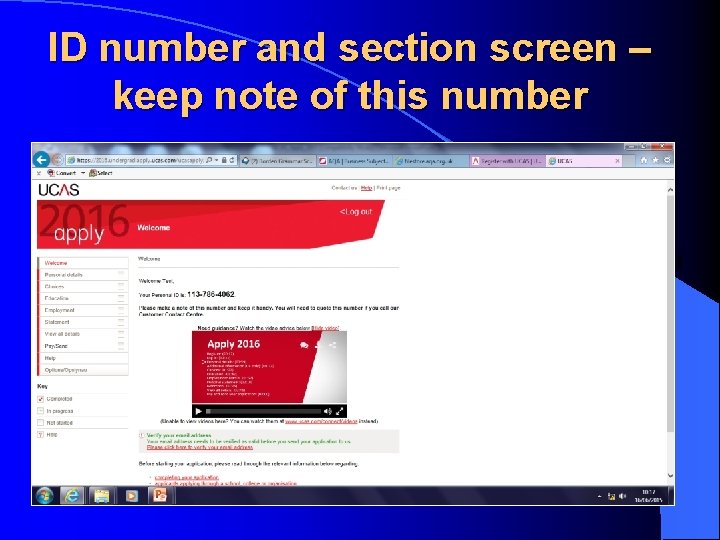
ID number and section screen – keep note of this number Verify your e-mail Read this
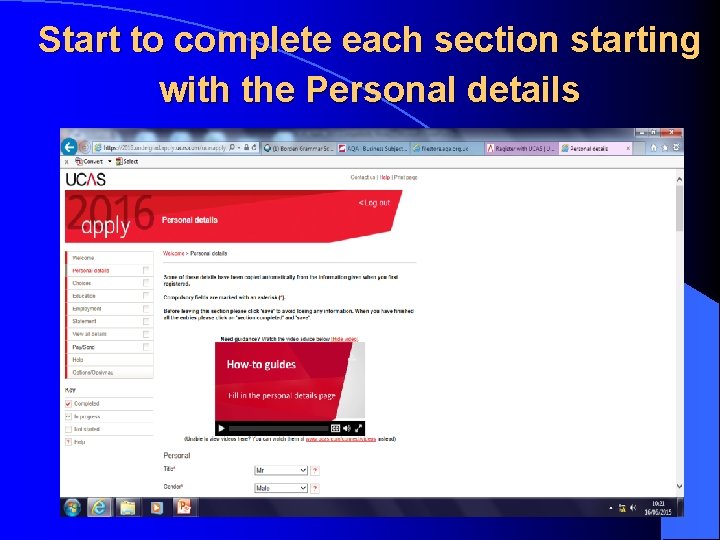
Start to complete each section starting with the Personal details
Remember Essential to make note of; Username ID Password Pass details to a member of staff
Student login • Enter username, password, memorable answer and begin to enter details of; • Education • Employment • Personal Details • Statement • Choices – 5 only
Personal information can be entered now Education (centre 61361) Enter GCSE / GCE qualifications Pending subjects to be entered Enter ‘other qualifications’ e. g. Music
Examinations • You will need details of GCSEs and AS exams including exam board • A 2 subjects will be ‘pending’ and again needing exam board.
‘View all’ to confirm details • Corrections possible from ‘view all’ screen • ‘Section finished’ only when you have confirmed accuracy • LOGOUT rather than closing window X