
Ubuntu Unleashed Chapter 13 Managing Users Managing Users
Ubuntu Unleashed Chapter 13 Managing Users
Managing Users ● Good User Management includes ● Allocating and managing /home directories ● Establishing good password policies ● Proper use of permissions ● Using Disc Quotas
User Accounts ● Three types of user ● super user/root user ● day-to-day user ● system user ● All users must have accounts ● /etc/passwd file stores info on all user accounts –One line entry has username, password field (encrypted), user ID (UID), group ID (GID), home directory & default shell
Super User/Root User ● Total and complete control over all aspects of the system ● UID & GID are both 0 ● Ubuntu disables root account so you cannot log in as root ● You can however change this. . . Ubuntu allows first user access to root level power with sudo command ● ● Look at your prompt! ● A pound sign (#) in the prompt indicates root privileges
day to day user & system user ● Day to day user/regular user ● Logs on to perform non-admin tasks –Word ● processing, e-mail, web browsing, etc Granted permissions from the super user –Can be granted as much or as little power as needed ● System user ● Not a human ● An admin account for managing day to day services, etc
User and Group IDs User ID and Group ID are assigned by the system (can be changed) ● ● UID and GID are usually the same ● root UID is 0 (zero) ● UID 1 -499, 65, 534 are reserved for the system user Unlike Windoze, groups can't be added to other groups in Ubuntu ●
Managing Groups In Ubuntu all users belong to a group with their own name – so for every user there is a group with the same name ● ● Known as a UPG (user private group) ● All groups listed in /etc/group ● Use cat /etc/group to view
Group Management Tools ● Commonly used commands ● groupadd – creates and adds new group ● groupdel – deletes existing group ● groupmod – creates group – doesn't add or remove members ● gpasswd – creates a group password ● useradd -G – adds user to a group during user creation usermod -G – adds user to group as long as user is not logged in ● ● grpck – checks for typos in /etc/group
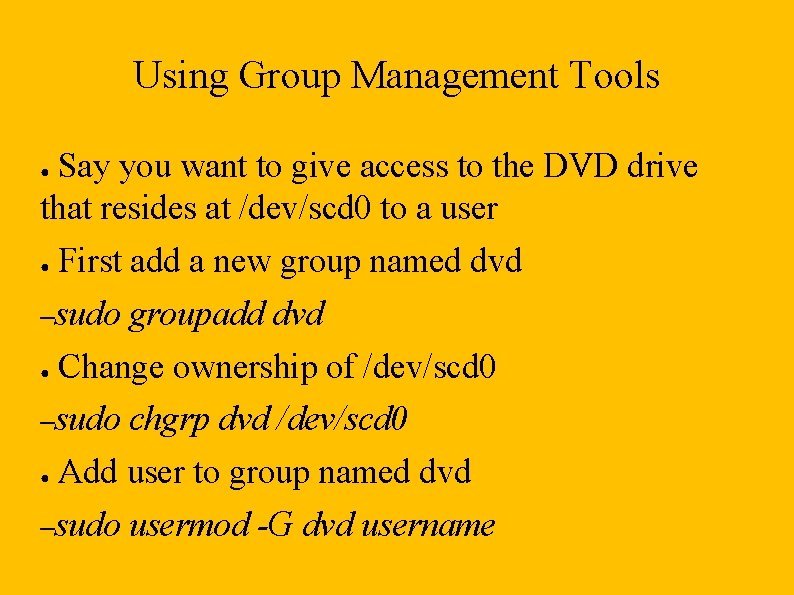
Using Group Management Tools Say you want to give access to the DVD drive that resides at /dev/scd 0 to a user ● ● First add a new group named dvd –sudo ● Change ownership of /dev/scd 0 –sudo ● groupadd dvd chgrp dvd /dev/scd 0 Add user to group named dvd –sudo usermod -G dvd username
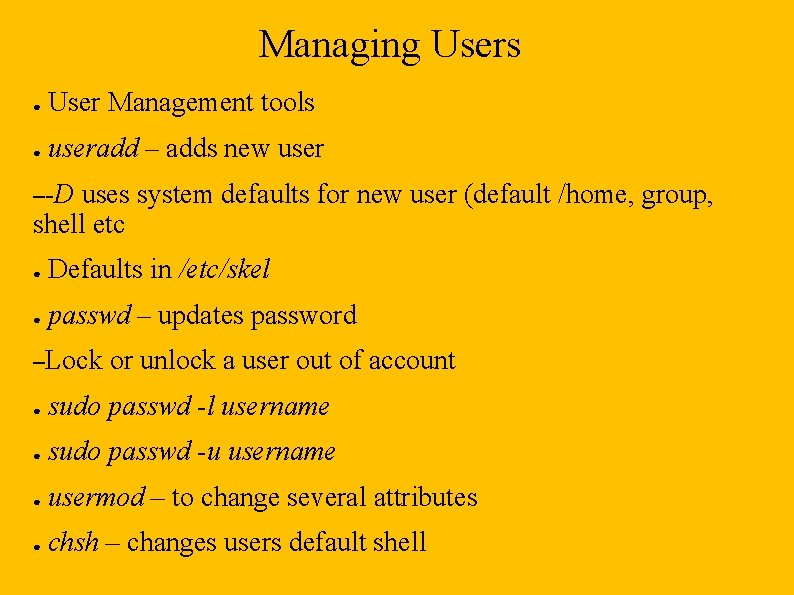
Managing Users ● User Management tools ● useradd – adds new user –-D uses system defaults for new user (default /home, group, shell etc ● Defaults in /etc/skel ● passwd – updates password –Lock or unlock a user out of account ● sudo passwd -l username ● sudo passwd -u username ● usermod – to change several attributes ● chsh – changes users default shell
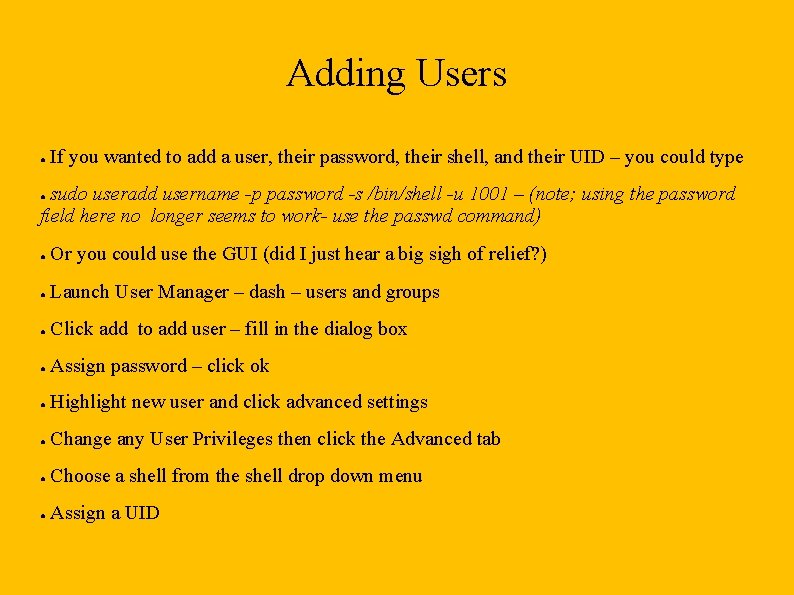
Adding Users ● If you wanted to add a user, their password, their shell, and their UID – you could type sudo useradd username -p password -s /bin/shell -u 1001 – (note; using the password field here no longer seems to work- use the passwd command) ● ● Or you could use the GUI (did I just hear a big sigh of relief? ) ● Launch User Manager – dash – users and groups ● Click add to add user – fill in the dialog box ● Assign password – click ok ● Highlight new user and click advanced settings ● Change any User Privileges then click the Advanced tab ● Choose a shell from the shell drop down menu ● Assign a UID
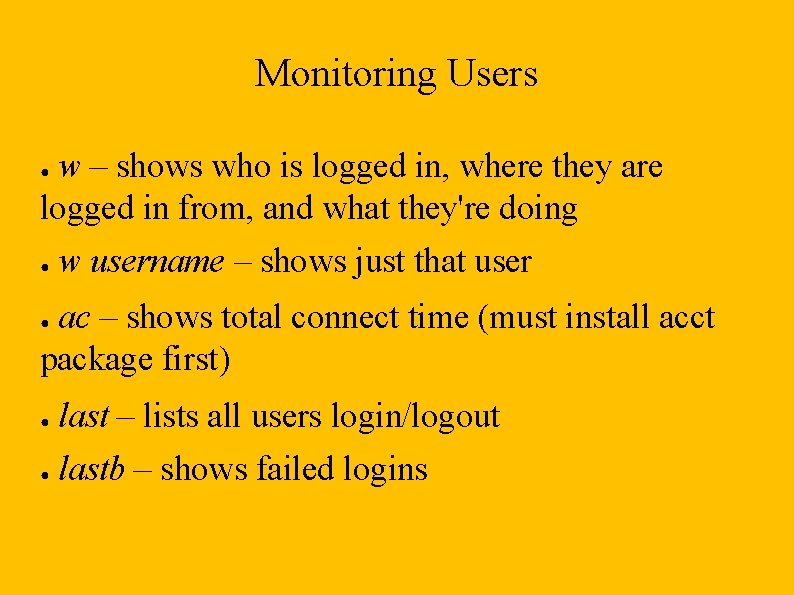
Monitoring Users w – shows who is logged in, where they are logged in from, and what they're doing ● ● w username – shows just that user ac – shows total connect time (must install acct package first) ● ● last – lists all users login/logout ● lastb – shows failed logins
Managing Passwords ● In a multi-user or business environment there should be a effective password policy ● Elements of a password policy –Allowed ● Don't use real words, personal anniversary or birthday, names of family members, etc –Change ● and forbidden passwords password every ___ days Length of password rotation – can you use the same password over and over. . . –Retrieving/replacing –Password lost passwords (mis)handling by users ● Don't write it down and stick it to your monitor or under your keyboard ● Don't tell anyone your password – even if they seem really nice.
Giving sudo to users ● The good news – you can edit the sudoers file to add users to it ● The bad news – you're supposed to use vi to do the editing (visudo actually) ● Using visudo both checks for errors and locks the file while you're editing it ● Check the sudoers man page to get some idea of how this file works If I wanted to give the group “students” the ability to delete any file on the system without a password. . . ● –%students ALL=NOPASSWD: /bin/rm
Disc Quotas Disc quotas are only necessary on shared computers – work environment ● ● Must have “quota” & “quotatool” packages installed Commands include ● ● edquota – to set and edit user quotas ● quotaon/quotaoff – to control the service ● warnquota – to automatically e-mail users nearing quota
DOL and CCBY
- Slides: 16