
Typing Your Commands Console Command Line and Movies
- Slides: 24
Typing Your Commands Console, Command Line and Movies Copyright © 2015 Curt Hill
Introduction • We need to consider a couple of topics Console commands • Command Line parameters • Recording video Copyright © 2015 Curt Hill
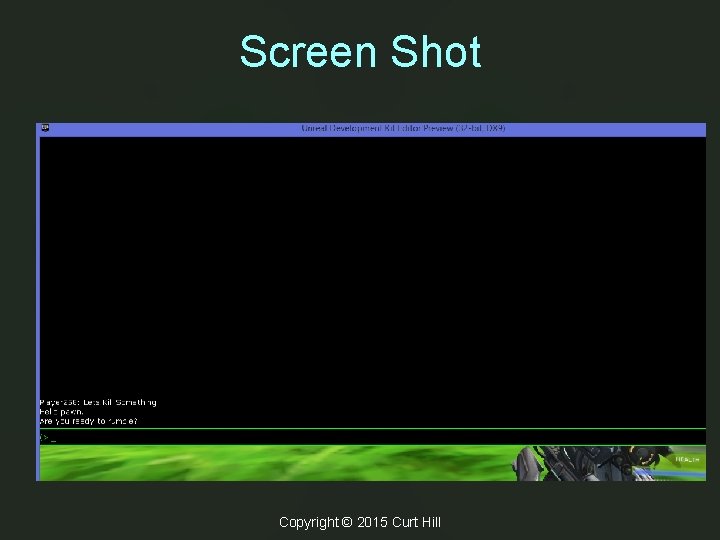
Console Commands • These are also known as exec commands • These can also be started from within Unreal. Script • The console is a command line interface • From there we may enter commands not necessarily having to do with game play Copyright © 2015 Curt Hill
Opening the Console • The console may be opened or closed by the tilde (~) key • This also shuts the console • Game play is not suspended when in console – Should only be done when nothing else is going on Copyright © 2015 Curt Hill
Screen Shot Copyright © 2015 Curt Hill
Commands • Commands may be categorized thus: – General – Statistics – Display – Rendering – Physics – Movie Capture – Others • A reference is at: https: //udn. epicgames. com/Three/Console. Commands. html Copyright © 2015 Curt Hill
General • Quit or Exit – Ends the game • Open – Starts a new level – Does not work in PIE – The level to start on may be specified on command line Copyright © 2015 Curt Hill
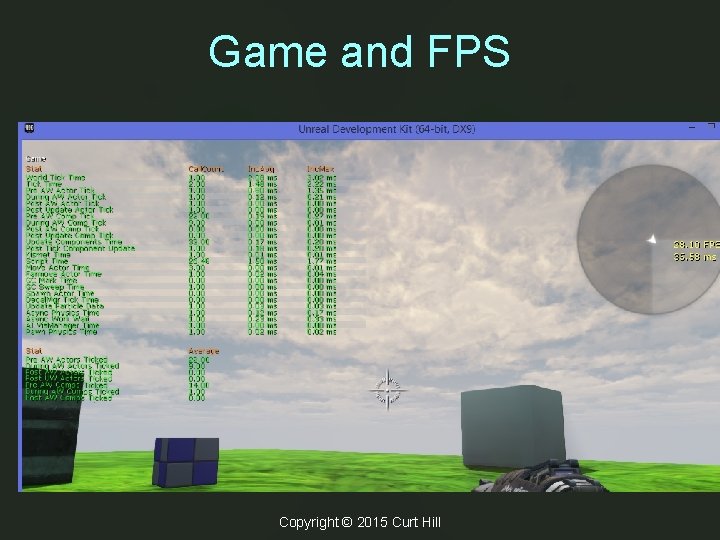
Statistics • Stat fps – Shows the time elapsed and frames per second that it is rendering • Stat game • See next screen Copyright © 2015 Curt Hill
Game and FPS Copyright © 2015 Curt Hill
Others • Mem – Will show memory allocation • Viewmode – the same parameters as in editor – Lighting. Only – Detail. Lighting – Wireframe Copyright © 2015 Curt Hill
Demos • DEMOREC - Record a demo for later playback. • DEMOSTOP - Stop demo playbackrecording. • DEMOPLAY - Play a previously recorded demo. • Demos are stored in UDKGameDemos – Only in the game not pie – Do no have the same view as play – Only playable in UDK Copyright © 2015 Curt Hill
Screen Shot • SHOT – Takes a screenshot at the current screen resolution. • Occurs immediately, so console version is sort of pointless • Should use an exec command to do during game play Copyright © 2015 Curt Hill
Movie Capture • Startmoviecapture • Stopmoviecapture • Captured movies end up in: …UDKGameMovie. Captures • They are not really movies but. AVI files – There is no sound • The bad news about. AVIs is there is no compression – 10 seconds per gigabyte for full resolution Copyright © 2015 Curt Hill
Command Line • There are several commands that you can enter via command line • Recall that we set up the original icon with: udk. exe editor –log • If the game is to be played with a specific level that should be the first parameter instead of the editor • There are other parameters as well Copyright © 2015 Curt Hill
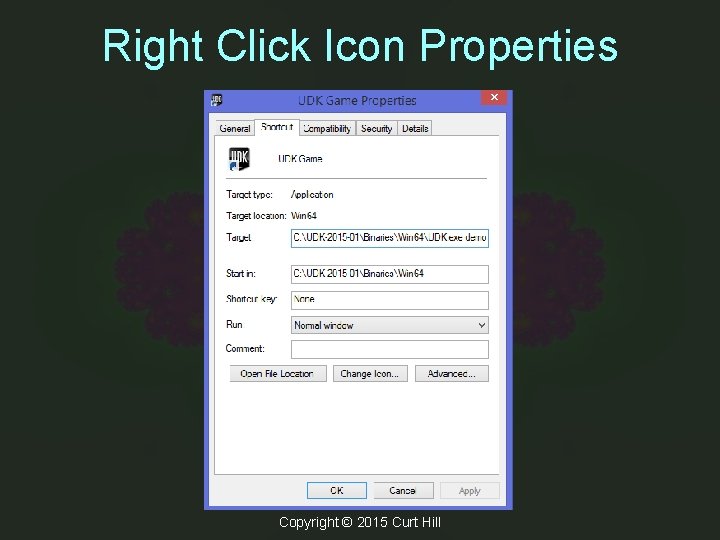
Where? • In a Windows environment the command line occurs in several places: – In a DOS box – In a. BAT file – In the target item of the properties of a desktop icon – Menu properties Copyright © 2015 Curt Hill
Right Click Icon Properties Copyright © 2015 Curt Hill
The Program • The first part of the command line is the executable: – UDK. EXE – The. exe is optional • This is followed by a space and the world that you want to execute – This has a. UDK extension, which is optional • Most command line parameters follow and are separated by blacks • That is not the case for a few Copyright © 2015 Curt Hill
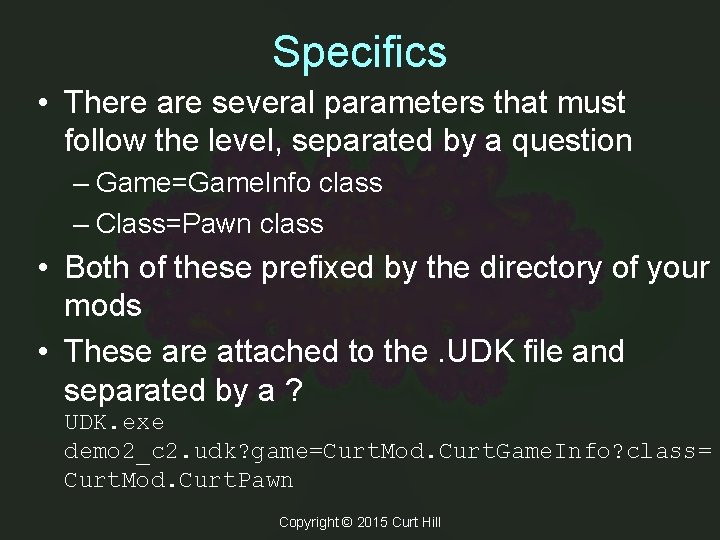
Specifics • There are several parameters that must follow the level, separated by a question – Game=Game. Info class – Class=Pawn class • Both of these prefixed by the directory of your mods • These are attached to the. UDK file and separated by a ? UDK. exe demo 2_c 2. udk? game=Curt. Mod. Curt. Game. Info? class= Curt. Mod. Curt. Pawn Copyright © 2015 Curt Hill
Command Line Parameters • You may set the size of the window, that is its resolution with: – Set. X=xxx – Set. Y=yyy • Frames per second is: – FPS=xx – 30 is needed for video • Benchmark is needed to process each frame so no skips occur Copyright © 2015 Curt Hill
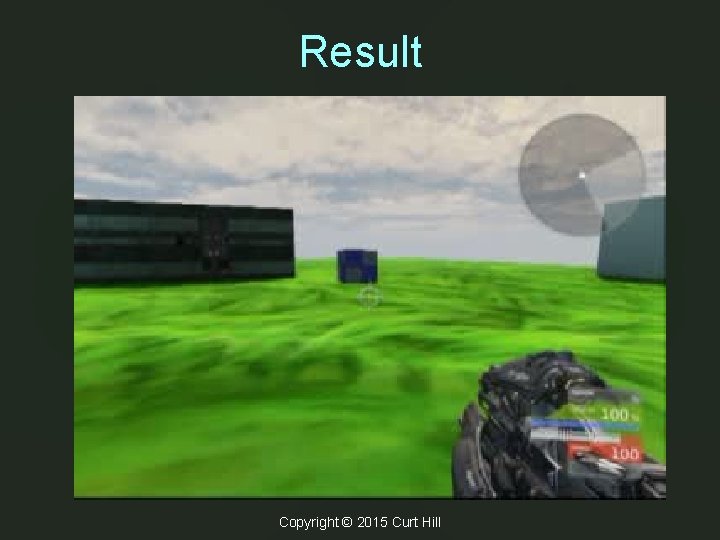
Making a Movie • To do properly needs hardware capture or good software capture • With just UDK and a movie maker a noaudio version can be made • This requires several steps: – Record – Convert Copyright © 2015 Curt Hill
Record • Start UDK with the following command line parameters: – Level resx resy benchmark fps – Such as: demo 2_c 2 res. X=1024 res. Y=530 benchmark fps=30 • Enter console – Start. Movie. Capture • Do what is to be demonstrated • Console – Stop. Movie. Capture and Quit Copyright © 2015 Curt Hill
Convert • Load up Pinnacle Studio • Import the. AVI • Clip off the beginning and ending console • Create a file – Use the MPEG-1 encoding Copyright © 2015 Curt Hill
Result Copyright © 2015 Curt Hill
Finally • We will try a demo now • Lets make a movie Copyright © 2015 Curt Hill