
Tyler SIS Mobile When a Tyler SIS site

Tyler SIS Mobile
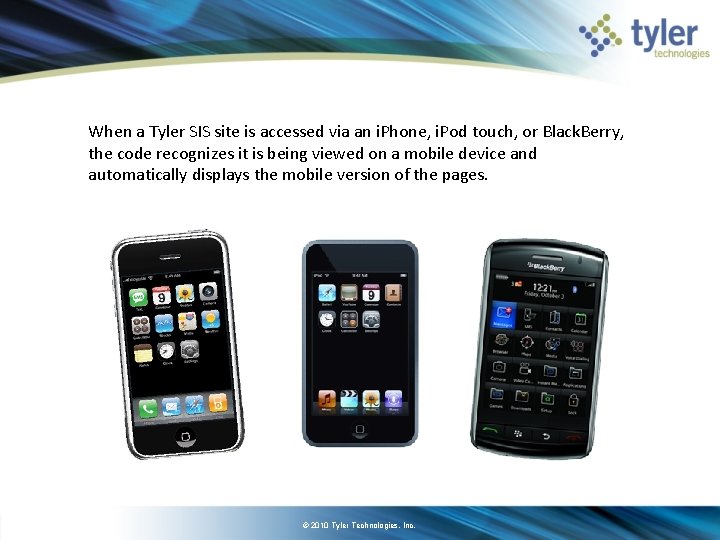
When a Tyler SIS site is accessed via an i. Phone, i. Pod touch, or Black. Berry, the code recognizes it is being viewed on a mobile device and automatically displays the mobile version of the pages. © 2010 Tyler Technologies, Inc.
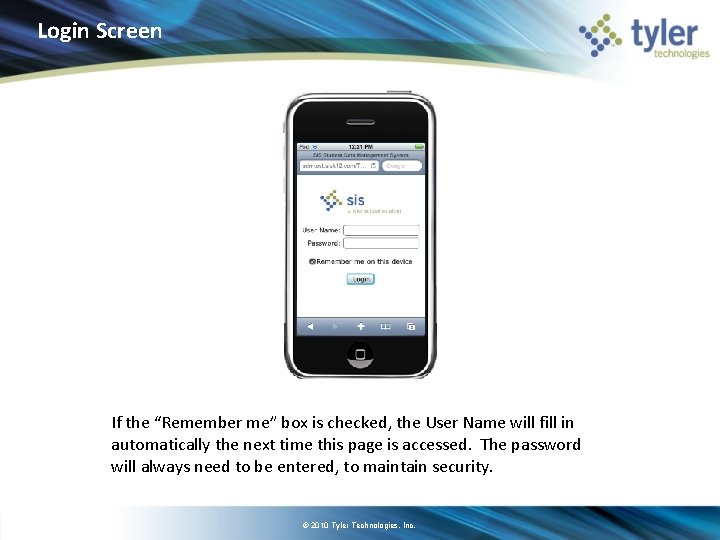
Login Screen If the “Remember me” box is checked, the User Name will fill in automatically the next time this page is accessed. The password will always need to be entered, to maintain security. © 2010 Tyler Technologies, Inc.
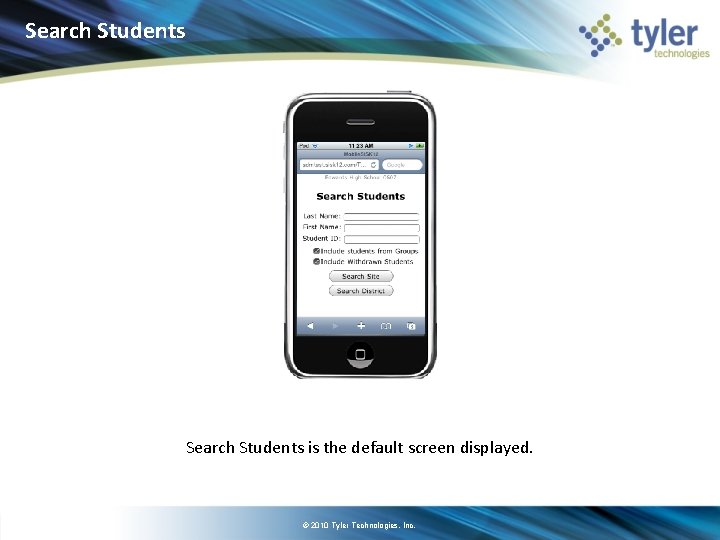
Search Students is the default screen displayed. © 2010 Tyler Technologies, Inc.
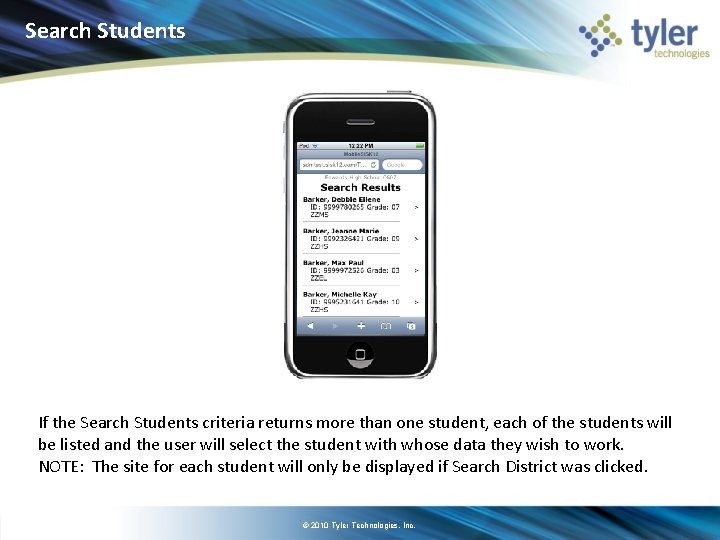
Search Students If the Search Students criteria returns more than one student, each of the students will be listed and the user will select the student with whose data they wish to work. NOTE: The site for each student will only be displayed if Search District was clicked. © 2010 Tyler Technologies, Inc.
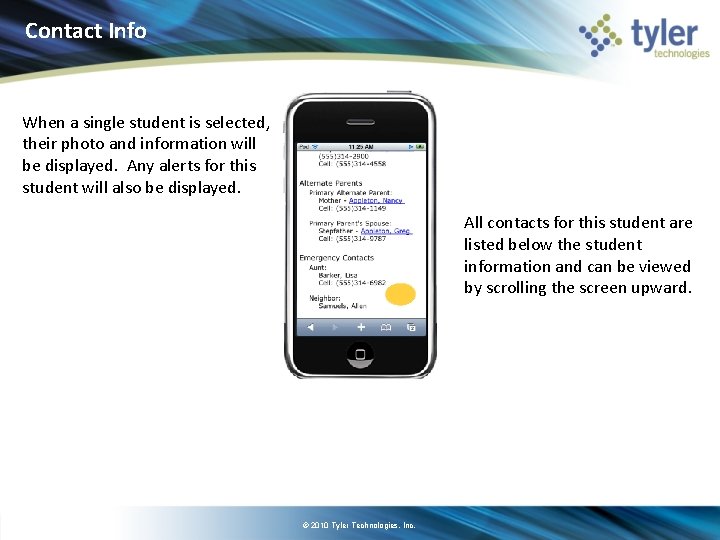
Contact Info When a single student is selected, their photo and information will be displayed. Any alerts for this student will also be displayed. All contacts for this student are listed below the student information and can be viewed by scrolling the screen upward. © 2010 Tyler Technologies, Inc.
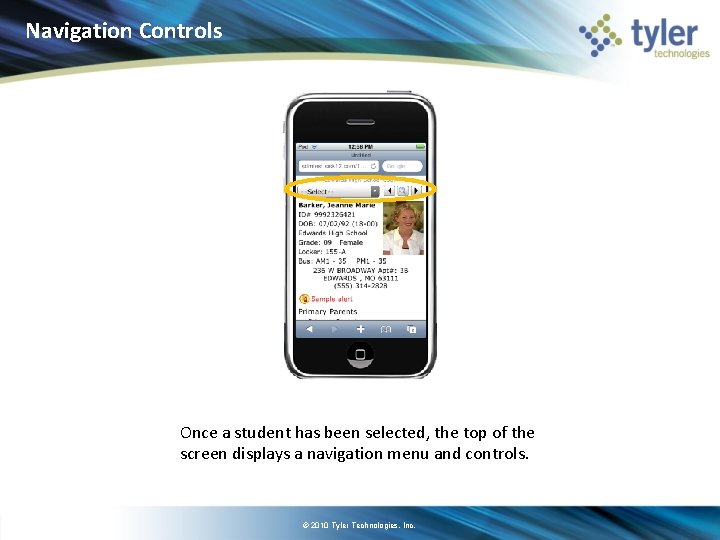
Navigation Controls Once a student has been selected, the top of the screen displays a navigation menu and controls. © 2010 Tyler Technologies, Inc.
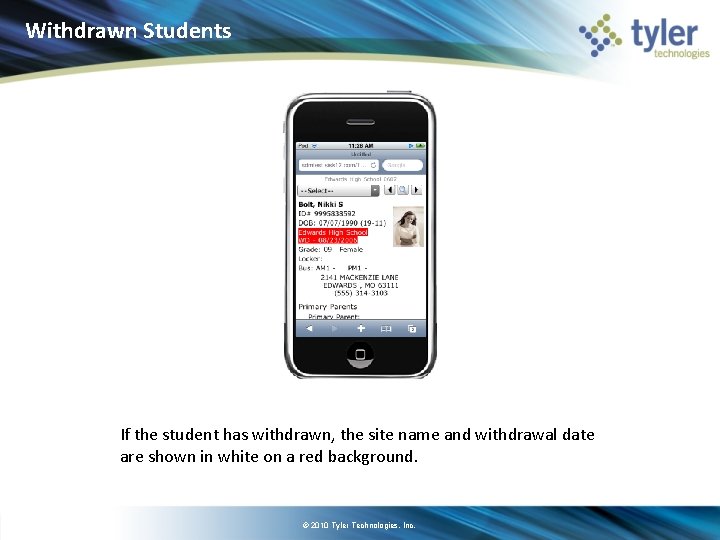
Withdrawn Students If the student has withdrawn, the site name and withdrawal date are shown in white on a red background. © 2010 Tyler Technologies, Inc.
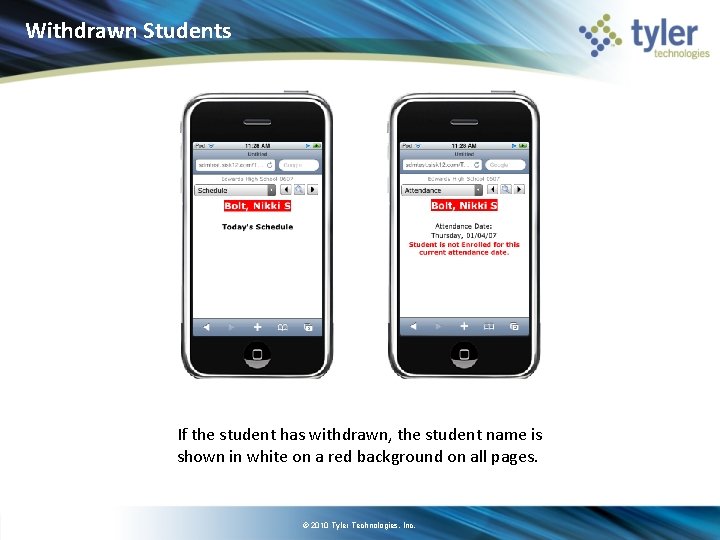
Withdrawn Students If the student has withdrawn, the student name is shown in white on a red background on all pages. © 2010 Tyler Technologies, Inc.
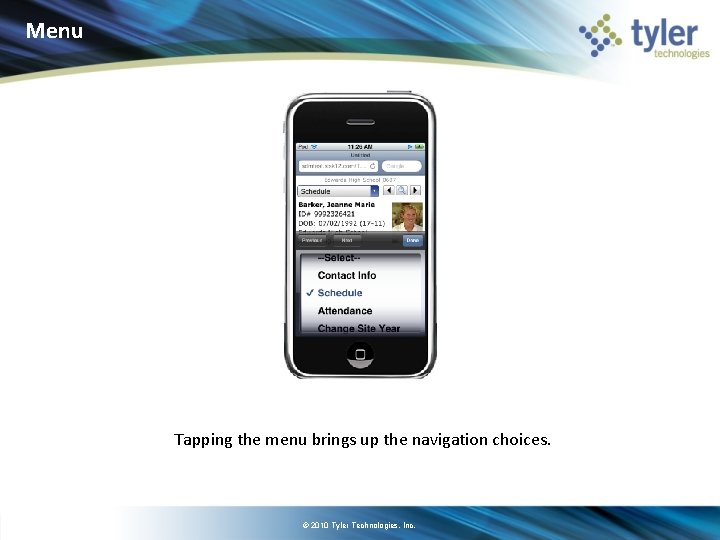
Menu Tapping the menu brings up the navigation choices. © 2010 Tyler Technologies, Inc.
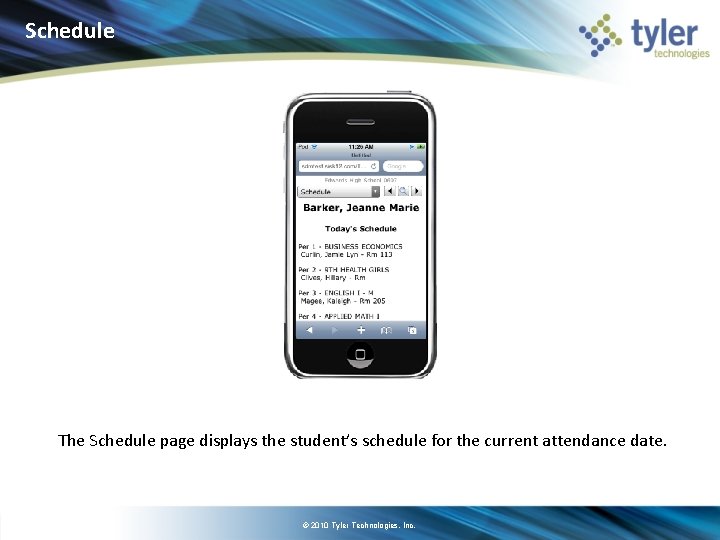
Schedule The Schedule page displays the student’s schedule for the current attendance date. © 2010 Tyler Technologies, Inc.
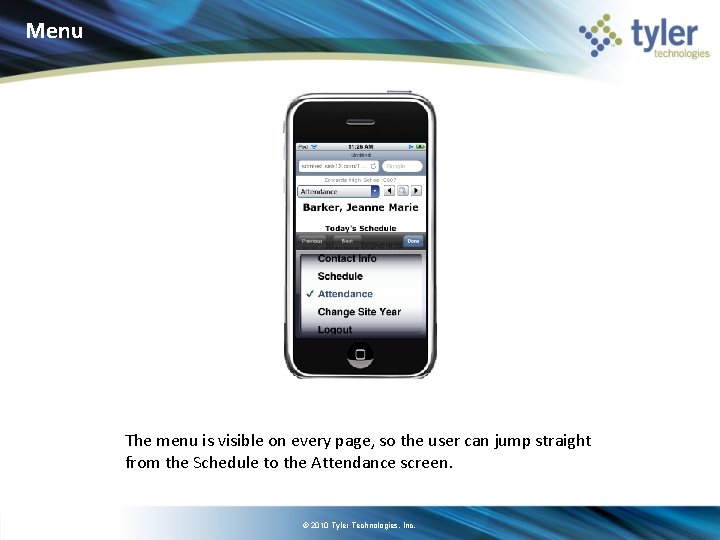
Menu The menu is visible on every page, so the user can jump straight from the Schedule to the Attendance screen. © 2010 Tyler Technologies, Inc.
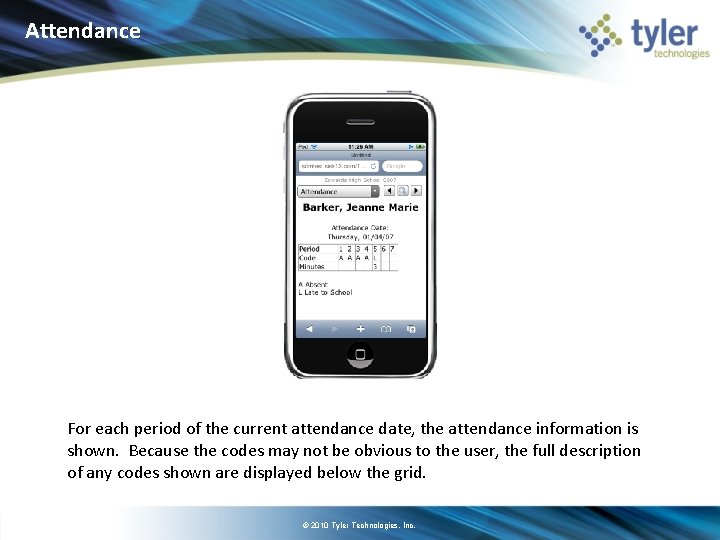
Attendance For each period of the current attendance date, the attendance information is shown. Because the codes may not be obvious to the user, the full description of any codes shown are displayed below the grid. © 2010 Tyler Technologies, Inc.
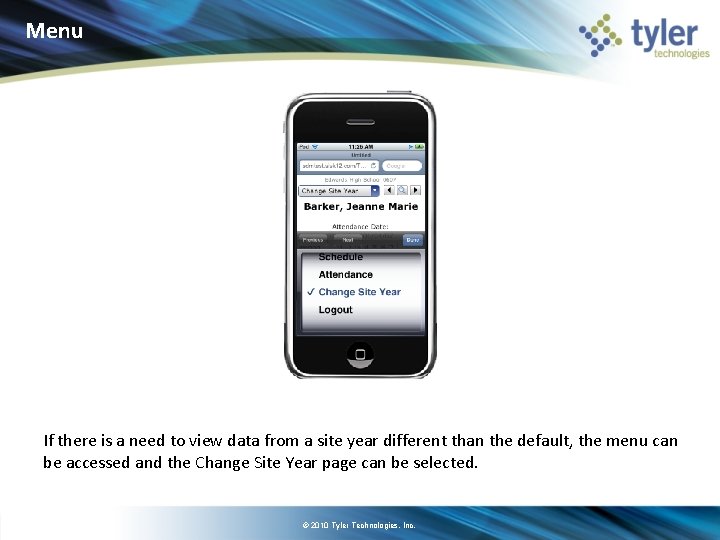
Menu If there is a need to view data from a site year different than the default, the menu can be accessed and the Change Site Year page can be selected. © 2010 Tyler Technologies, Inc.
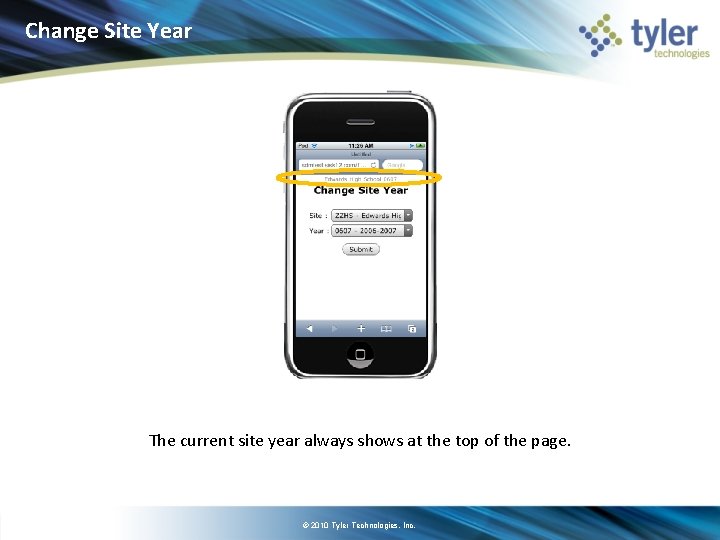
Change Site Year The current site year always shows at the top of the page. © 2010 Tyler Technologies, Inc.
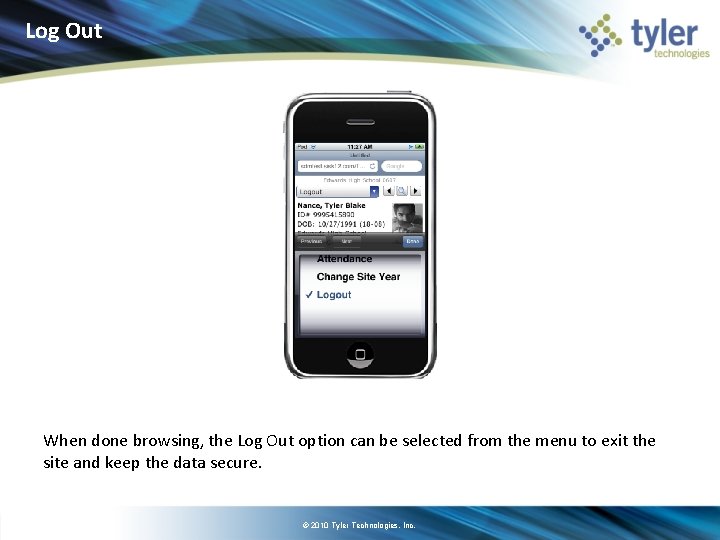
Log Out When done browsing, the Log Out option can be selected from the menu to exit the site and keep the data secure. © 2010 Tyler Technologies, Inc.
- Slides: 16