
Two methods to observe tutorial 1 Standard Method
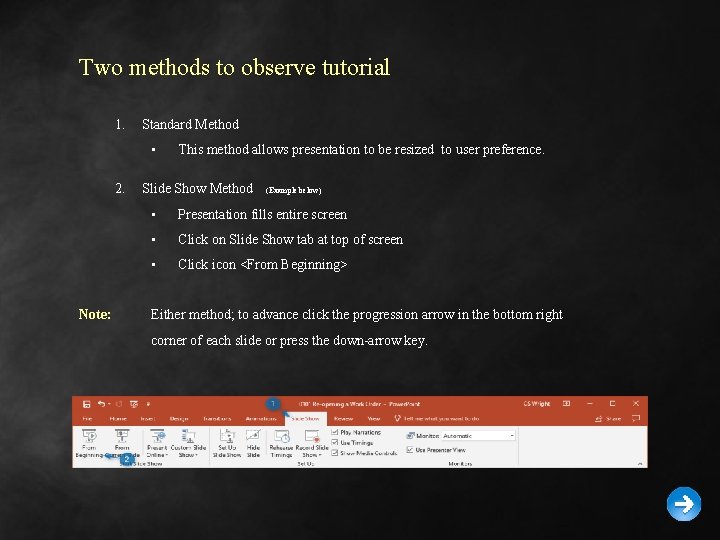
Two methods to observe tutorial 1. Standard Method • 2. Note: This method allows presentation to be resized to user preference. Slide Show Method (Example below) • Presentation fills entire screen • Click on Slide Show tab at top of screen • Click icon <From Beginning> Either method; to advance click the progression arrow in the bottom right corner of each slide or press the down-arrow key.
Welcome to BSIP 101 Transaction Procedures Annual Inventory Display Multiple Phys Inv Docs Instructor: Stephen Wright DPI Technical Consultant
Purpose: Use this transaction if you forget to record your inv doc numbers or if your SAP session times out or you get logged off the system while MI 31 is processing.
Note: Physical Inventory Item must not have been posted
Note: This will NOT allow you to enter the initial count of an item. It will only change an existing count. To enter the initial item count of a material use Transaction MI 04 (Step 3).
One transaction is required to complete this procedure: • MI 05 Let’s get started -
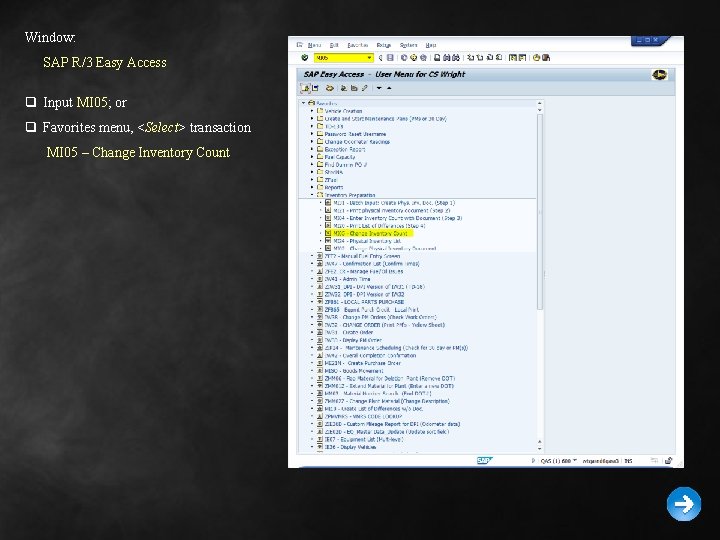
Window: SAP R/3 Easy Access q Input MI 05; or q Favorites menu, <Select> transaction MI 05 – Change Inventory Count
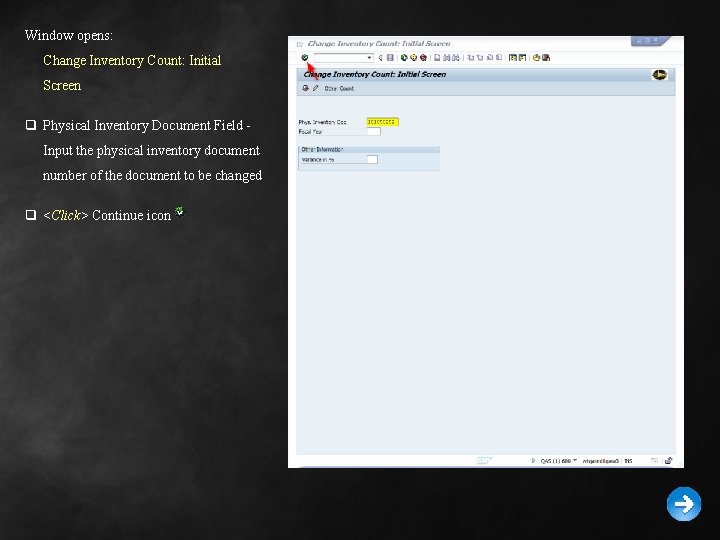
Window opens: Change Inventory Count: Initial Screen q Physical Inventory Document Field Input the physical inventory document number of the document to be changed q <Click> Continue icon
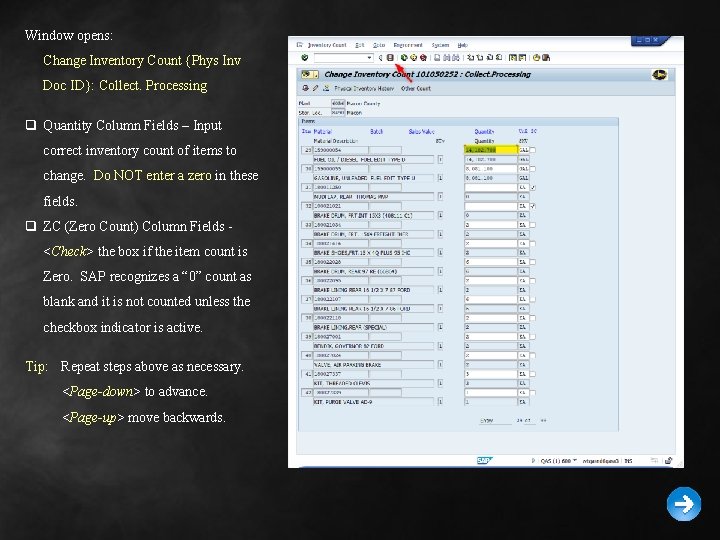
Window opens: Change Inventory Count {Phys Inv Doc ID}: Collect. Processing q Quantity Column Fields – Input correct inventory count of items to change. Do NOT enter a zero in these fields. q ZC (Zero Count) Column Fields <Check> the box if the item count is Zero. SAP recognizes a “ 0” count as blank and it is not counted unless the checkbox indicator is active. Tip: Repeat steps above as necessary. <Page-down> to advance. <Page-up> move backwards.
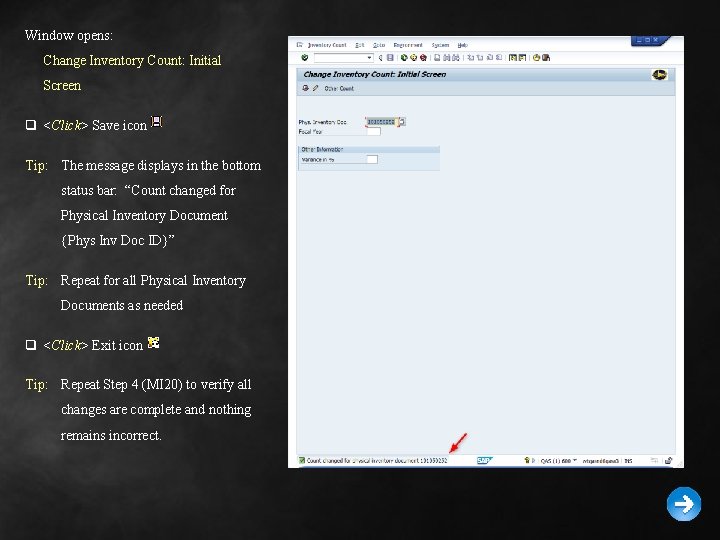
Window opens: Change Inventory Count: Initial Screen q <Click> Save icon Tip: The message displays in the bottom status bar: “Count changed for Physical Inventory Document {Phys Inv Doc ID}” Tip: Repeat for all Physical Inventory Documents as needed q <Click> Exit icon Tip: Repeat Step 4 (MI 20) to verify all changes are complete and nothing remains incorrect.

Questions Email: Stephen. Wright@dpi. nc. gov

Thank You! Stephen Wright Technical Consultant
- Slides: 12