
Tuya WIFI Energy monitoring Circuit Breaker Zhejiang Sichuang
Tuya WIFI Energy monitoring Circuit Breaker Zhejiang Sichuang Power Technology Shares Co. , LTD Zhejiang Science and Technology Manufacturer Establish from 1998
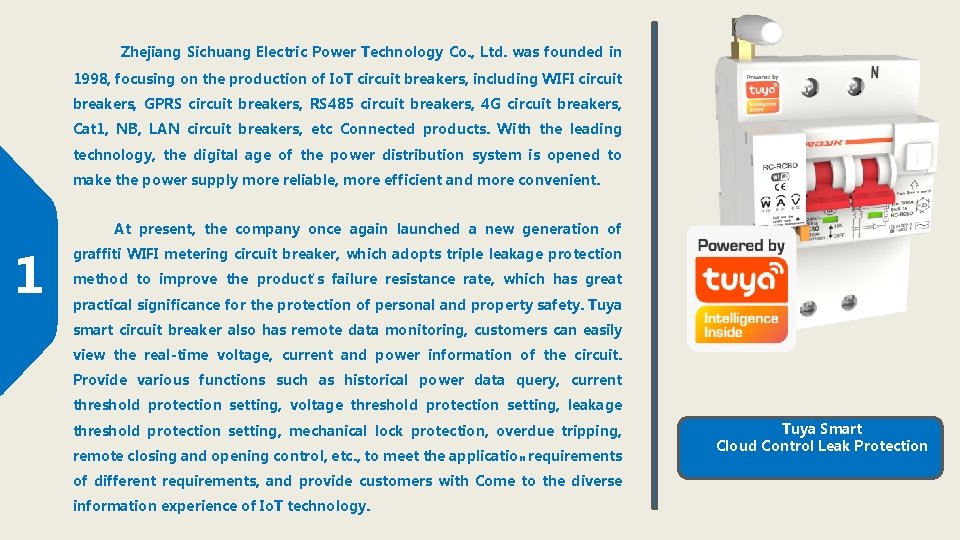
Zhejiang Sichuang Electric Power Technology Co. , Ltd. was founded in 1998, focusing on the production of Io. T circuit breakers, including WIFI circuit breakers, GPRS circuit breakers, RS 485 circuit breakers, 4 G circuit breakers, Cat 1, NB, LAN circuit breakers, etc Connected products. With the leading technology, the digital age of the power distribution system is opened to make the power supply more reliable, more efficient and more convenient. At present, the company once again launched a new generation of 1 graffiti WIFI metering circuit breaker, which adopts triple leakage protection method to improve the product's failure resistance rate, which has great practical significance for the protection of personal and property safety. Tuya smart circuit breaker also has remote data monitoring, customers can easily view the real-time voltage, current and power information of the circuit. Provide various functions such as historical power data query, current threshold protection setting, voltage threshold protection setting, leakage threshold protection setting, mechanical lock protection, overdue tripping, remote closing and opening control, etc. , to meet the application requirements of different requirements, and provide customers with Come to the diverse information experience of Io. T technology. Tuya Smart Cloud Control Leak Protection
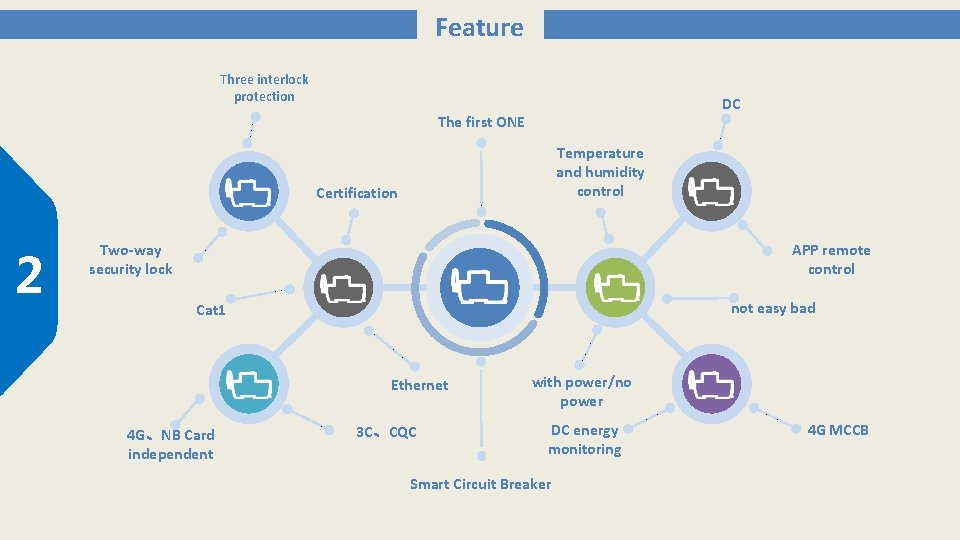
Feature Three interlock protection DC The first ONE Temperature and humidity control Certification 2 Two-way security lock APP remote control not easy bad Cat 1 Ethernet 4 G、NB Card independent 3 C、CQC with power/no power DC energy monitoring Smart Circuit Breaker 4 G MCCB

01 Feature
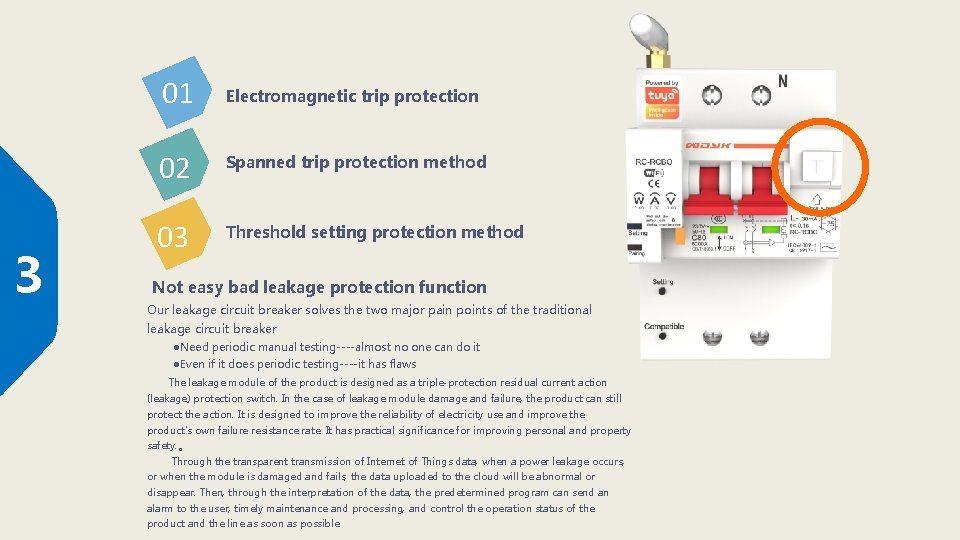
3 01 Electromagnetic trip protection 02 Spanned trip protection method 03 Threshold setting protection method Not easy bad leakage protection function Our leakage circuit breaker solves the two major pain points of the traditional leakage circuit breaker ●Need periodic manual testing----almost no one can do it ●Even if it does periodic testing----it has flaws The leakage module of the product is designed as a triple-protection residual current action (leakage) protection switch. In the case of leakage module damage and failure, the product can still protect the action. It is designed to improve the reliability of electricity use and improve the product's own failure resistance rate. It has practical significance for improving personal and property safety. 。 Through the transparent transmission of Internet of Things data, when a power leakage occurs, or when the module is damaged and fails, the data uploaded to the cloud will be abnormal or disappear. Then, through the interpretation of the data, the predetermined program can send an alarm to the user, timely maintenance and processing, and control the operation status of the product and the line as soon as possible.
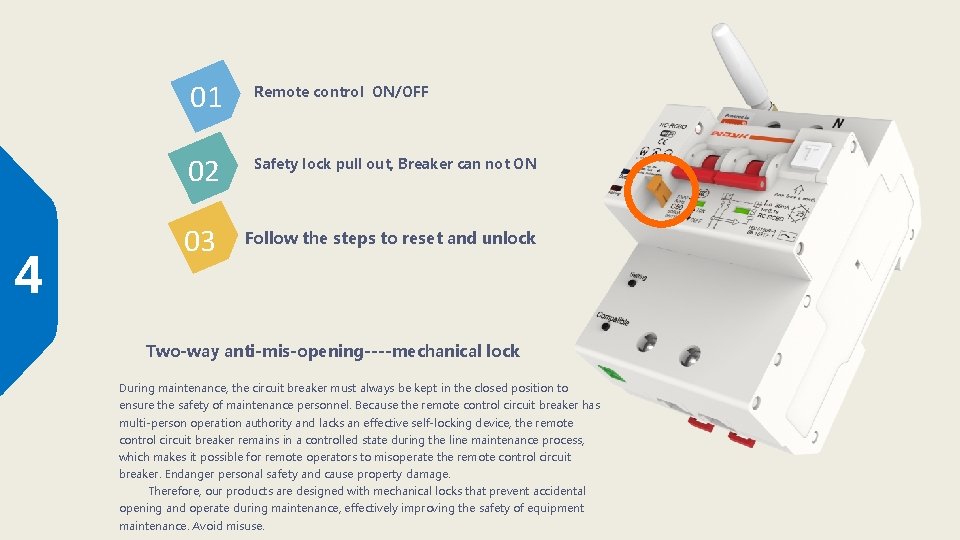
4 01 Remote control ON/OFF 02 Safety lock pull out, Breaker can not ON 03 Follow the steps to reset and unlock Two-way anti-mis-opening----mechanical lock During maintenance, the circuit breaker must always be kept in the closed position to ensure the safety of maintenance personnel. Because the remote control circuit breaker has multi-person operation authority and lacks an effective self-locking device, the remote control circuit breaker remains in a controlled state during the line maintenance process, which makes it possible for remote operators to misoperate the remote control circuit breaker. Endanger personal safety and cause property damage. Therefore, our products are designed with mechanical locks that prevent accidental opening and operate during maintenance, effectively improving the safety of equipment maintenance. Avoid misuse.
02 Pairing
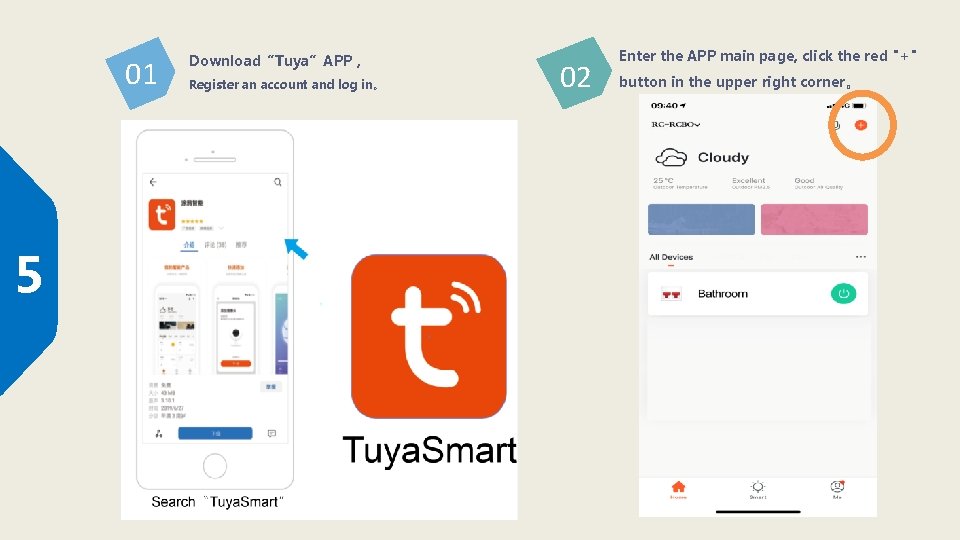
01 5 Download“Tuya”APP, Register an account and log in。 02 Enter the APP main page, click the red "+" button in the upper right corner。
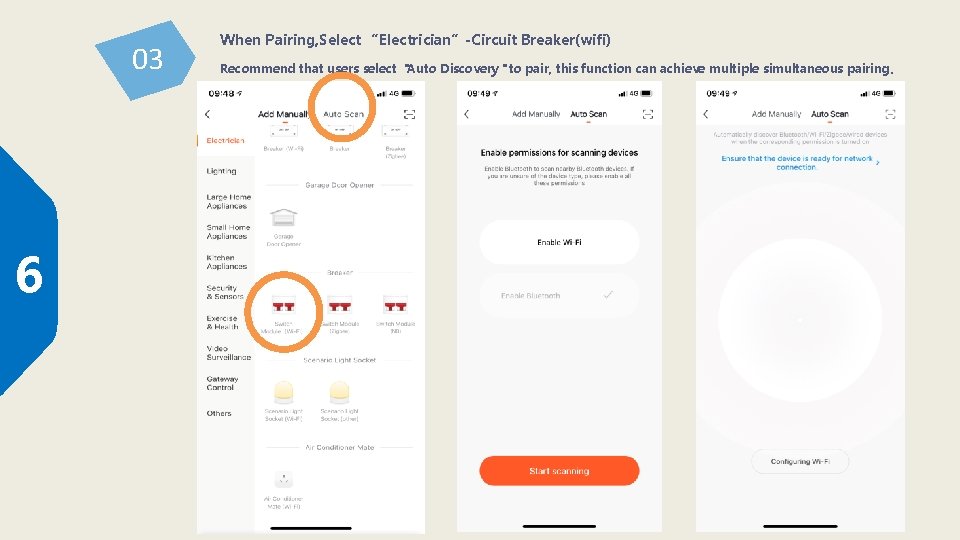
03 6 When Pairing, Select “Electrician”-Circuit Breaker(wifi) Recommend that users select "Auto Discovery" to pair, this function can achieve multiple simultaneous pairing 。
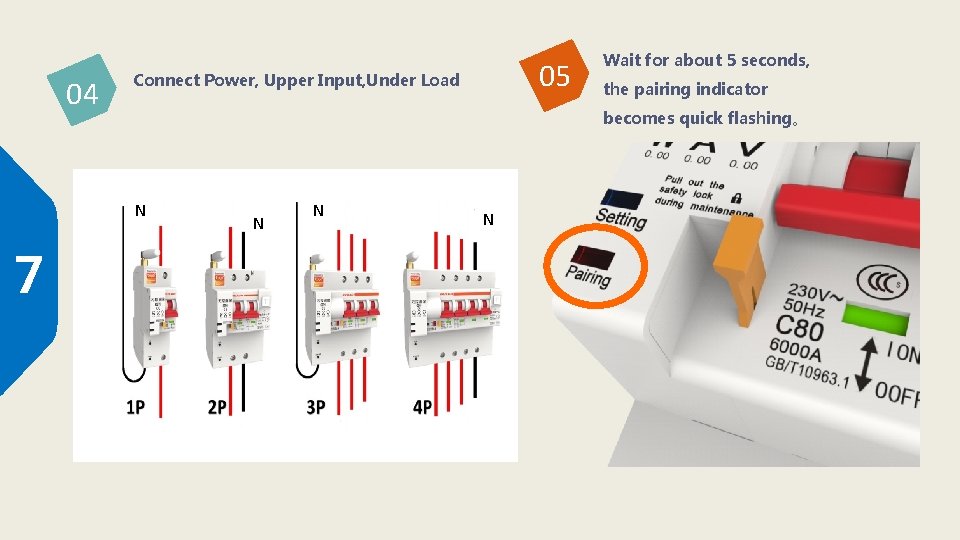
04 the pairing indicator becomes quick flashing。 N 7 05 Connect Power, Upper Input, Under Load Wait for about 5 seconds, N N N
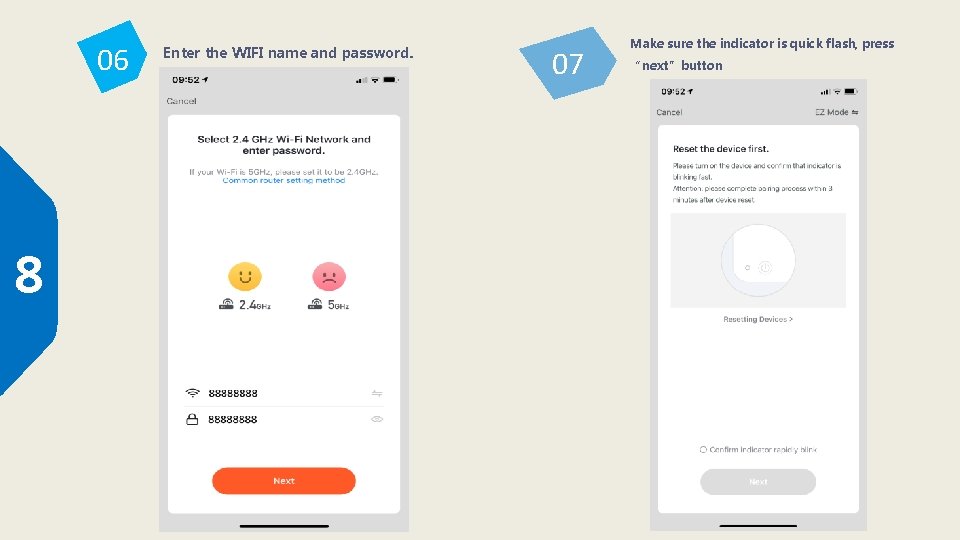
06 8 Enter the WIFI name and password. 07 Make sure the indicator is quick flash, press “next”button
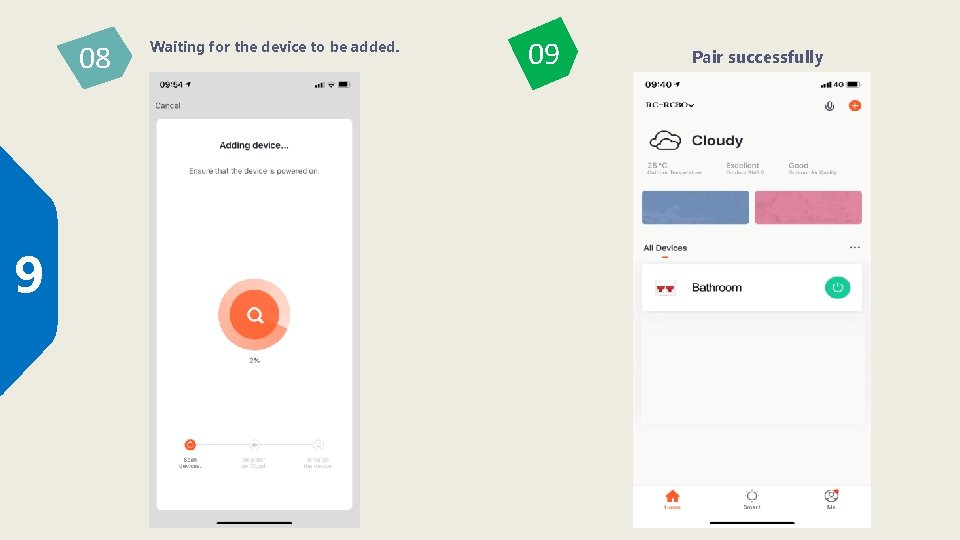
08 9 Waiting for the device to be added. 09 Pair successfully
3 Troubleshooting
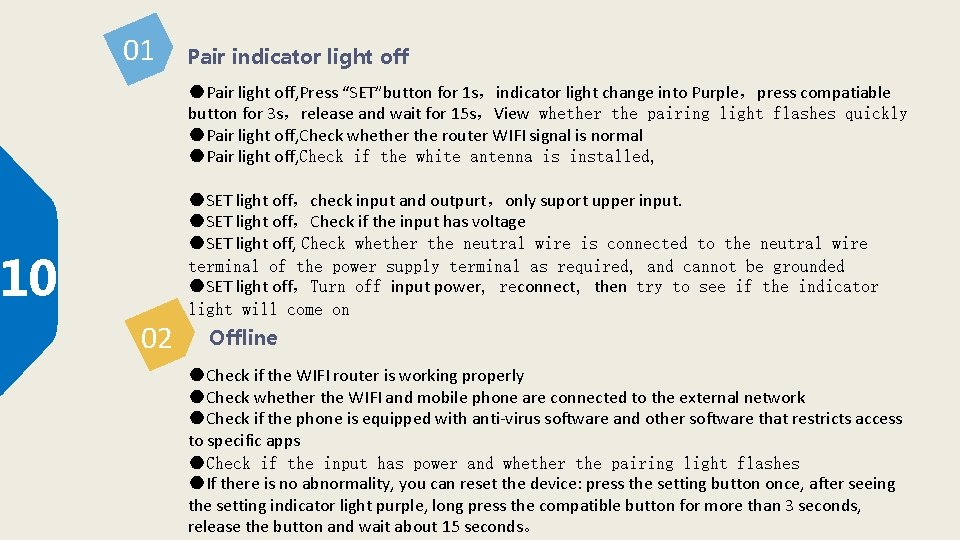
01 Pair indicator light off ●Pair light off, Press “SET”button for 1 s,indicator light change into Purple,press compatiable button for 3 s,release and wait for 15 s,View whether the pairing light flashes quickly ●Pair light off, Check whether the router WIFI signal is normal ●Pair light off, Check if the white antenna is installed, 10 02 ●SET light off,check input and outpurt,only suport upper input. ●SET light off,Check if the input has voltage ●SET light off, Check whether the neutral wire is connected to the neutral wire terminal of the power supply terminal as required, and cannot be grounded ●SET light off,Turn off input power, reconnect, then try to see if the indicator light will come on Offline ●Check if the WIFI router is working properly ●Check whether the WIFI and mobile phone are connected to the external network ●Check if the phone is equipped with anti-virus software and other software that restricts access to specific apps ●Check if the input has power and whether the pairing light flashes ●If there is no abnormality, you can reset the device: press the setting button once, after seeing the setting indicator light purple, long press the compatible button for more than 3 seconds, release the button and wait about 15 seconds。
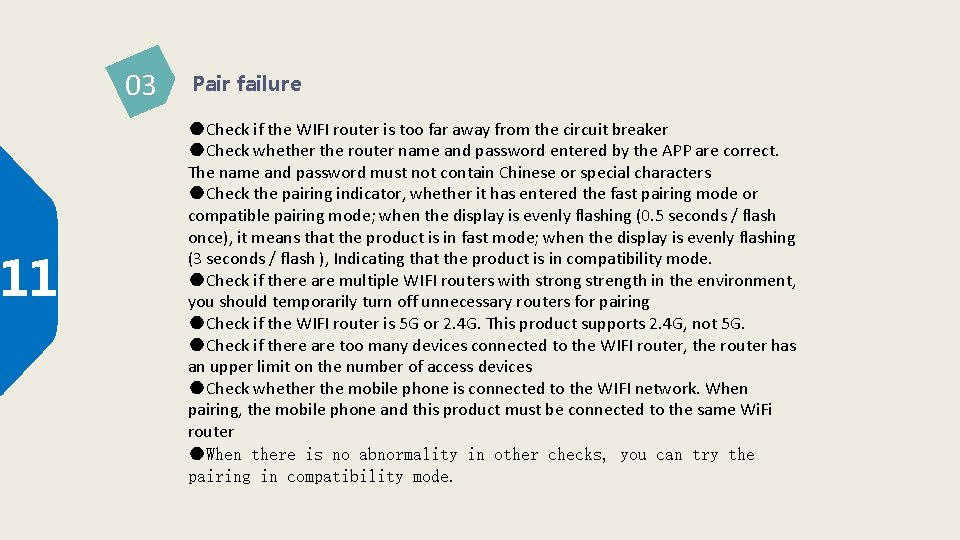
11 03 Pair failure ●Check if the WIFI router is too far away from the circuit breaker ●Check whether the router name and password entered by the APP are correct. The name and password must not contain Chinese or special characters ●Check the pairing indicator, whether it has entered the fast pairing mode or compatible pairing mode; when the display is evenly flashing (0. 5 seconds / flash once), it means that the product is in fast mode; when the display is evenly flashing (3 seconds / flash ), Indicating that the product is in compatibility mode. ●Check if there are multiple WIFI routers with strong strength in the environment, you should temporarily turn off unnecessary routers for pairing ●Check if the WIFI router is 5 G or 2. 4 G. This product supports 2. 4 G, not 5 G. ●Check if there are too many devices connected to the WIFI router, the router has an upper limit on the number of access devices ●Check whether the mobile phone is connected to the WIFI network. When pairing, the mobile phone and this product must be connected to the same Wi. Fi router ●When there is no abnormality in other checks, you can try the pairing in compatibility mode.
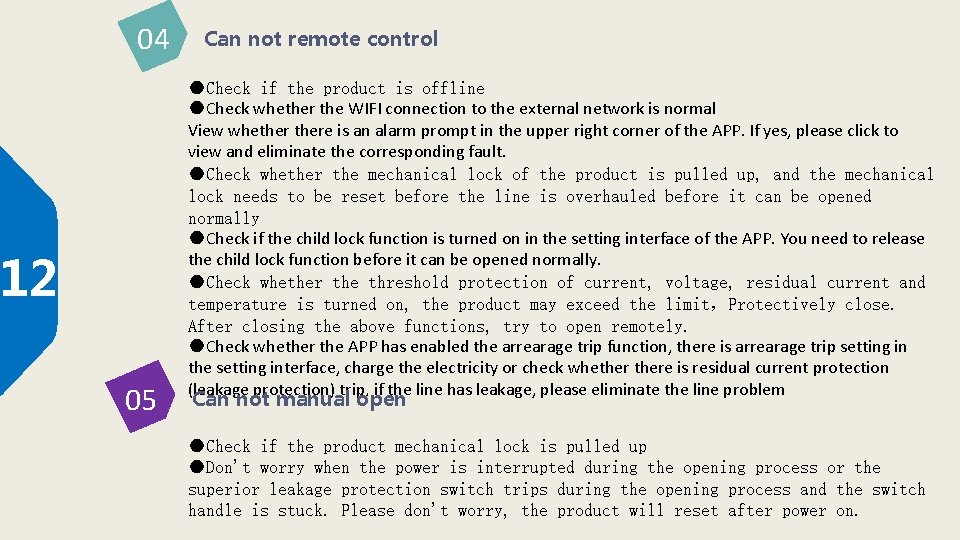
04 12 05 Can not remote control ●Check if the product is offline ●Check whether the WIFI connection to the external network is normal View whethere is an alarm prompt in the upper right corner of the APP. If yes, please click to view and eliminate the corresponding fault. ●Check whether the mechanical lock of the product is pulled up, and the mechanical lock needs to be reset before the line is overhauled before it can be opened normally ●Check if the child lock function is turned on in the setting interface of the APP. You need to release the child lock function before it can be opened normally. ●Check whether the threshold protection of current, voltage, residual current and temperature is turned on, the product may exceed the limit,Protectively close. After closing the above functions, try to open remotely. ●Check whether the APP has enabled the arrearage trip function, there is arrearage trip setting in the setting interface, charge the electricity or check whethere is residual current protection (leakage protection) trip, if the line has leakage, please eliminate the line problem Can not manual open ●Check if the product mechanical lock is pulled up ●Don't worry when the power is interrupted during the opening process or the superior leakage protection switch trips during the opening process and the switch handle is stuck. Please don't worry, the product will reset after power on.
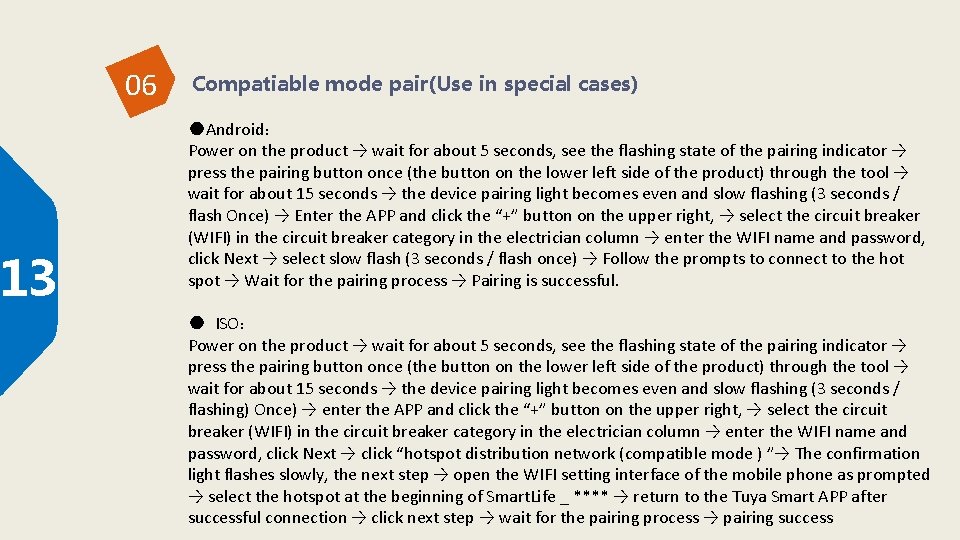
13 06 Compatiable mode pair(Use in special cases) ●Android: Power on the product → wait for about 5 seconds, see the flashing state of the pairing indicator → press the pairing button once (the button on the lower left side of the product) through the tool → wait for about 15 seconds → the device pairing light becomes even and slow flashing (3 seconds / flash Once) → Enter the APP and click the “+” button on the upper right, → select the circuit breaker (WIFI) in the circuit breaker category in the electrician column → enter the WIFI name and password, click Next → select slow flash (3 seconds / flash once) → Follow the prompts to connect to the hot spot → Wait for the pairing process → Pairing is successful. ● ISO: Power on the product → wait for about 5 seconds, see the flashing state of the pairing indicator → press the pairing button once (the button on the lower left side of the product) through the tool → wait for about 15 seconds → the device pairing light becomes even and slow flashing (3 seconds / flashing) Once) → enter the APP and click the “+” button on the upper right, → select the circuit breaker (WIFI) in the circuit breaker category in the electrician column → enter the WIFI name and password, click Next → click “hotspot distribution network (compatible mode ) ”→ The confirmation light flashes slowly, the next step → open the WIFI setting interface of the mobile phone as prompted → select the hotspot at the beginning of Smart. Life _ **** → return to the Tuya Smart APP after successful connection → click next step → wait for the pairing process → pairing success
14 07 How to set RS 485 ●Use a USB to RS 485 converter to connect the device to the USB port of the computer → power on the product → press the setting button once with a tool (or paperclip) → the setting light turns purple at this time → the software can be modified by the test software or user data frame at this time Device address information threshold setting value, etc. → After setting modification is completed → Press the setting button once with the tool, or wait for 15 minutes → The device returns to normal working state. 08 How to delete device ●Enter the mobile phone doodle smart app → click the product to enter the large operation interface → click the button in the upper right corner to enter the device information to the bottom → click remove the device → unbind and clear the data.
4 APP USE
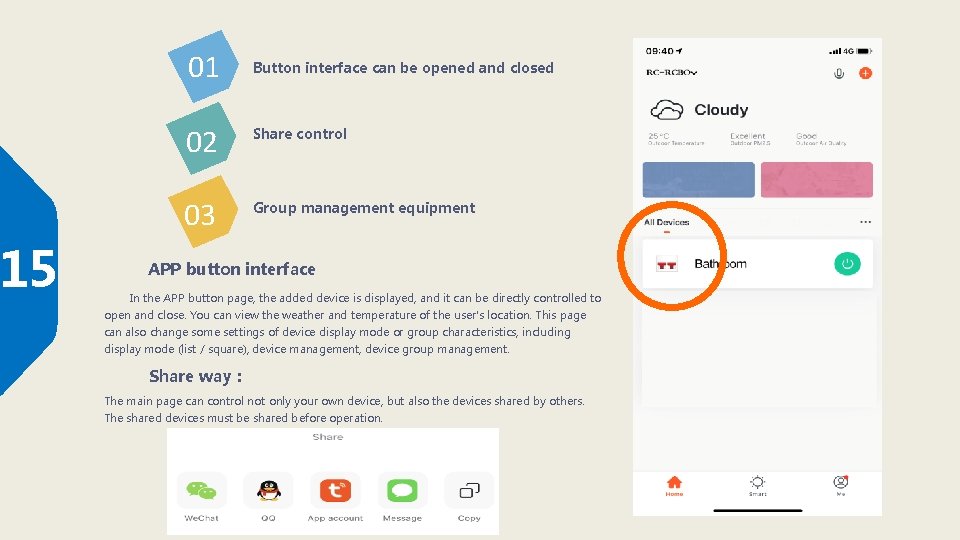
15 01 Button interface can be opened and closed 02 Share control 03 Group management equipment APP button interface In the APP button page, the added device is displayed, and it can be directly controlled to open and close. You can view the weather and temperature of the user's location. This page can also change some settings of device display mode or group characteristics, including display mode (list / square), device management, device group management. Share way: The main page can control not only your own device, but also the devices shared by others. The shared devices must be shared before operation.
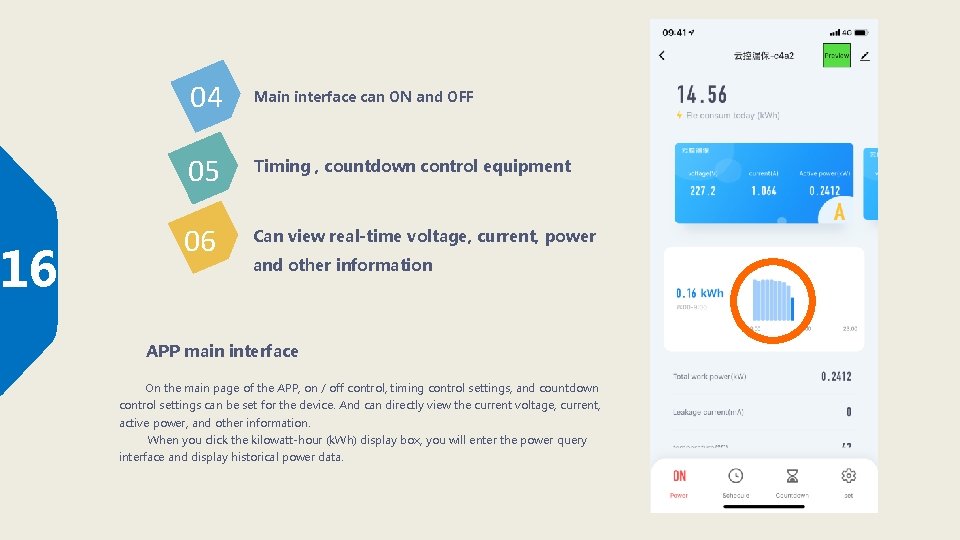
16 04 Main interface can ON and OFF 05 Timing , countdown control equipment 06 Can view real-time voltage, current, power and other information APP main interface On the main page of the APP, on / off control, timing control settings, and countdown control settings can be set for the device. And can directly view the current voltage, current, active power, and other information. When you click the kilowatt-hour (k. Wh) display box, you will enter the power query interface and display historical power data.
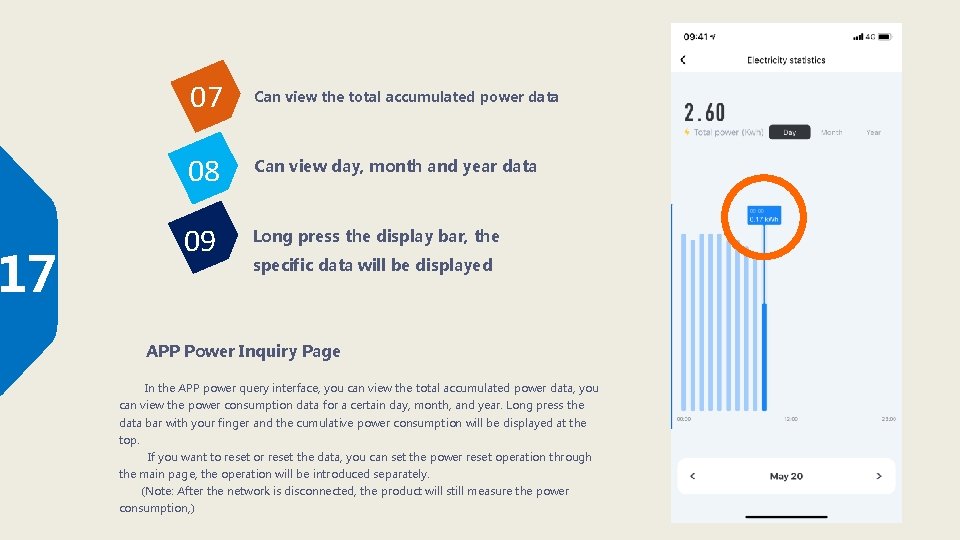
17 07 Can view the total accumulated power data 08 Can view day, month and year data 09 Long press the display bar, the specific data will be displayed APP Power Inquiry Page In the APP power query interface, you can view the total accumulated power data, you can view the power consumption data for a certain day, month, and year. Long press the data bar with your finger and the cumulative power consumption will be displayed at the top. If you want to reset or reset the data, you can set the power reset operation through the main page, the operation will be introduced separately. (Note: After the network is disconnected, the product will still measure the power consumption, )
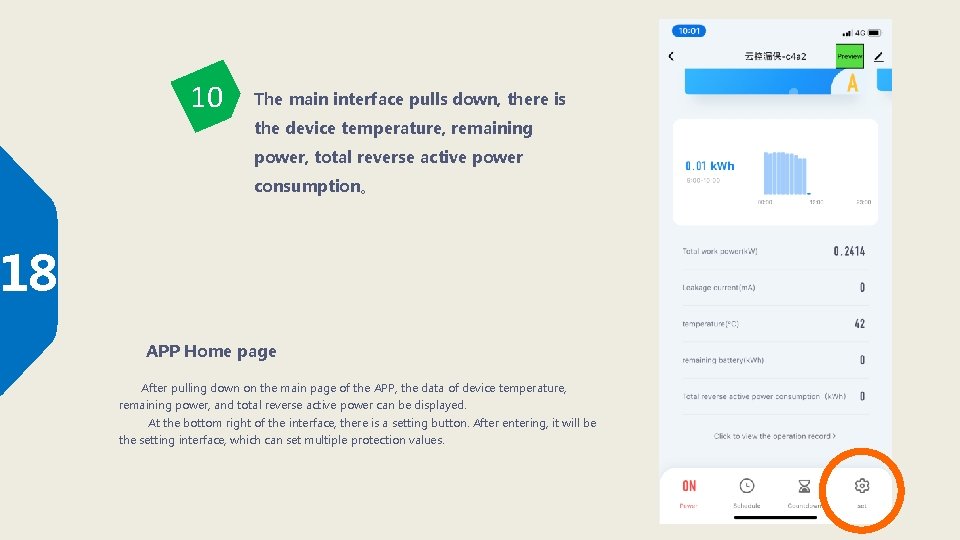
10 The main interface pulls down, there is the device temperature, remaining power, total reverse active power consumption。 18 APP Home page After pulling down on the main page of the APP, the data of device temperature, remaining power, and total reverse active power can be displayed. At the bottom right of the interface, there is a setting button. After entering, it will be the setting interface, which can set multiple protection values.
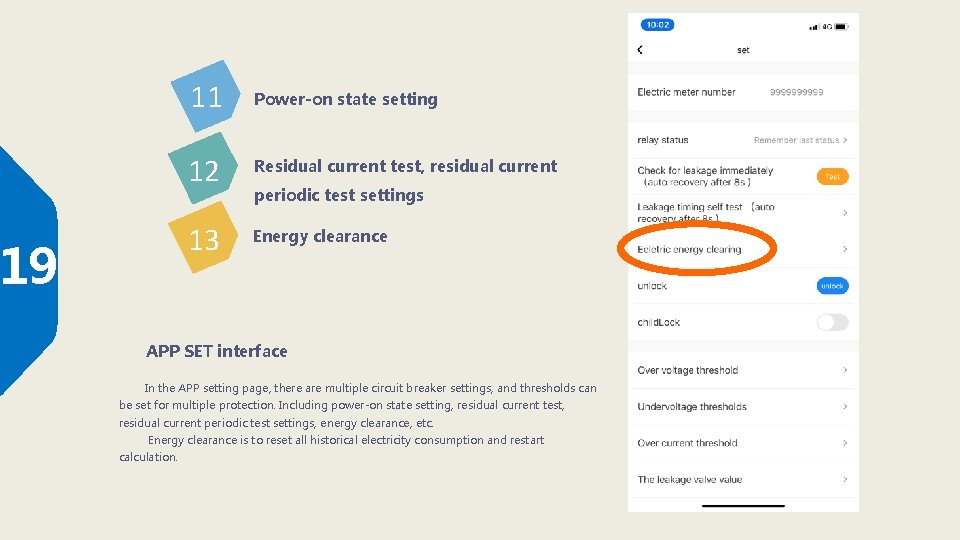
19 11 Power-on state setting 12 Residual current test, residual current 13 Energy clearance periodic test settings APP SET interface In the APP setting page, there are multiple circuit breaker settings, and thresholds can be set for multiple protection. Including power-on state setting, residual current test, residual current periodic test settings, energy clearance, etc. Energy clearance is to reset all historical electricity consumption and restart calculation.
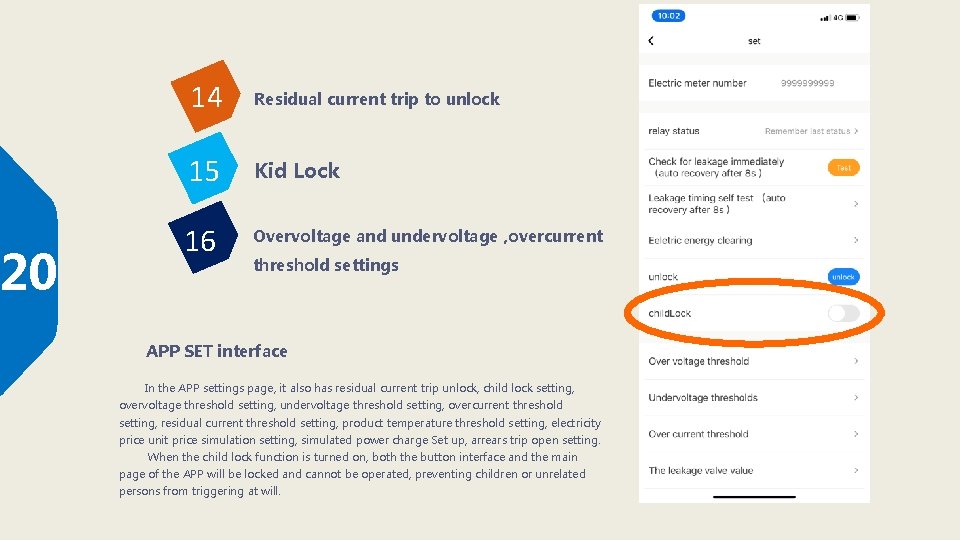
20 14 Residual current trip to unlock 15 Kid Lock 16 Overvoltage and undervoltage , overcurrent threshold settings APP SET interface In the APP settings page, it also has residual current trip unlock, child lock setting, overvoltage threshold setting, undervoltage threshold setting, overcurrent threshold setting, residual current threshold setting, product temperature threshold setting, electricity price unit price simulation setting, simulated power charge Set up, arrears trip open setting. When the child lock function is turned on, both the button interface and the main page of the APP will be locked and cannot be operated, preventing children or unrelated persons from triggering at will.
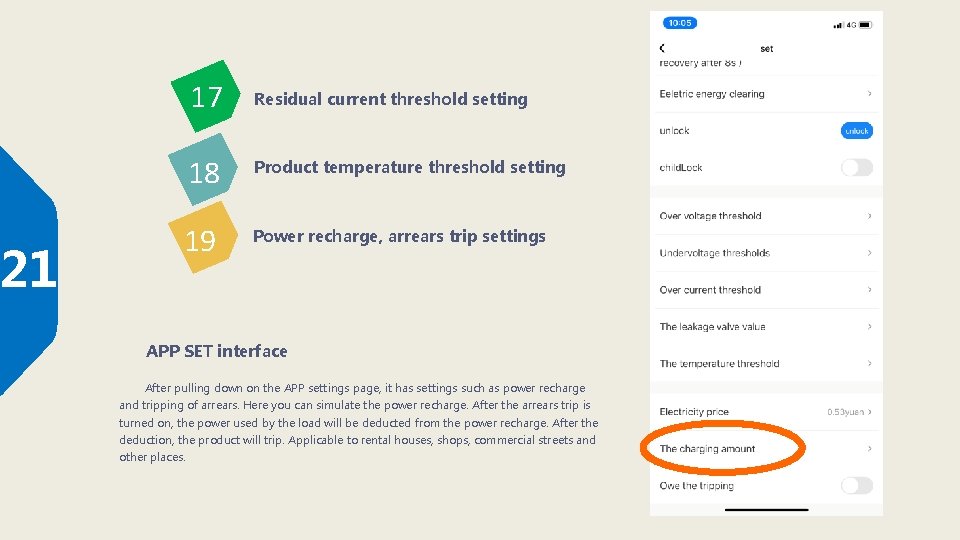
21 17 Residual current threshold setting 18 Product temperature threshold setting 19 Power recharge, arrears trip settings APP SET interface After pulling down on the APP settings page, it has settings such as power recharge and tripping of arrears. Here you can simulate the power recharge. After the arrears trip is turned on, the power used by the load will be deducted from the power recharge. After the deduction, the product will trip. Applicable to rental houses, shops, commercial streets and other places.
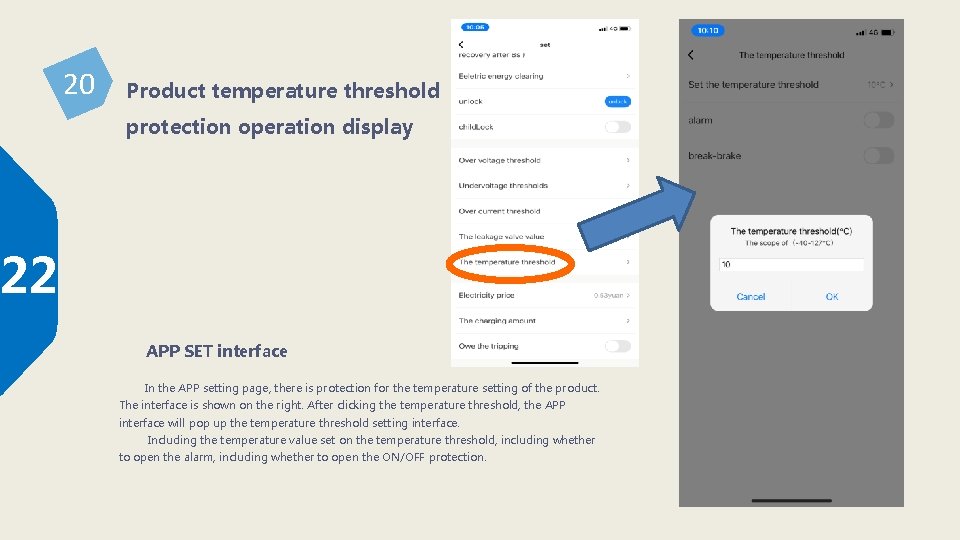
20 Product temperature threshold protection operation display 22 APP SET interface In the APP setting page, there is protection for the temperature setting of the product. The interface is shown on the right. After clicking the temperature threshold, the APP interface will pop up the temperature threshold setting interface. Including the temperature value set on the temperature threshold, including whether to open the alarm, including whether to open the ON/OFF protection.
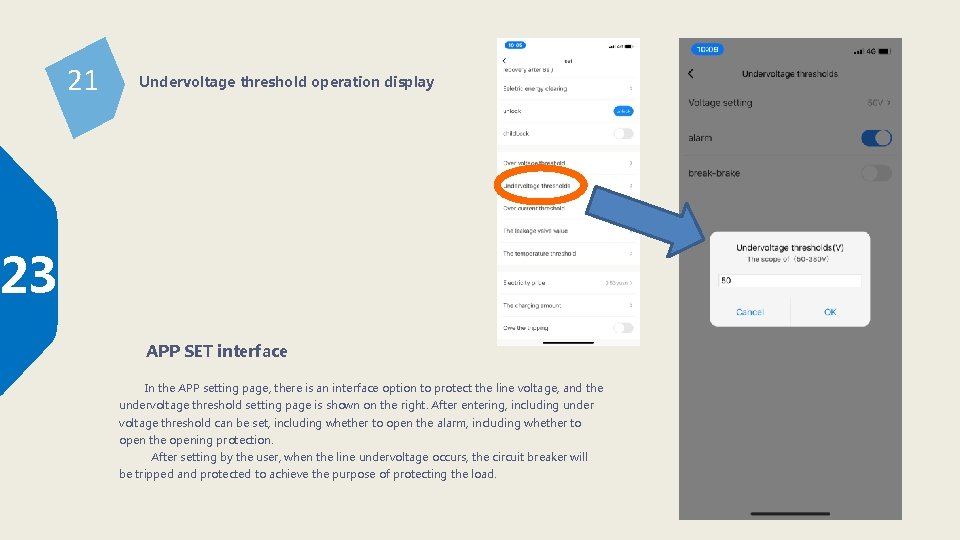
21 Undervoltage threshold operation display 23 APP SET interface In the APP setting page, there is an interface option to protect the line voltage, and the undervoltage threshold setting page is shown on the right. After entering, including under voltage threshold can be set, including whether to open the alarm, including whether to open the opening protection. After setting by the user, when the line undervoltage occurs, the circuit breaker will be tripped and protected to achieve the purpose of protecting the load.
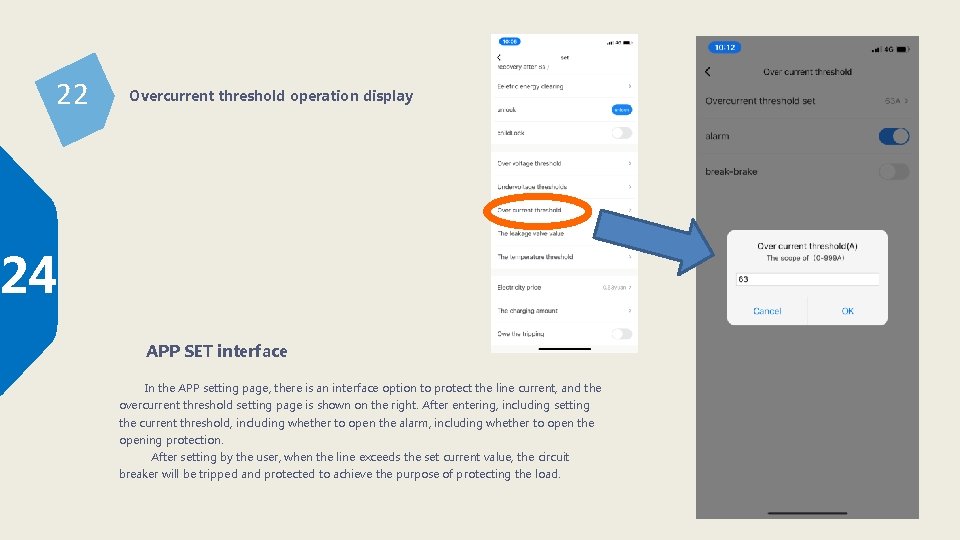
22 Overcurrent threshold operation display 24 APP SET interface In the APP setting page, there is an interface option to protect the line current, and the overcurrent threshold setting page is shown on the right. After entering, including setting the current threshold, including whether to open the alarm, including whether to open the opening protection. After setting by the user, when the line exceeds the set current value, the circuit breaker will be tripped and protected to achieve the purpose of protecting the load.
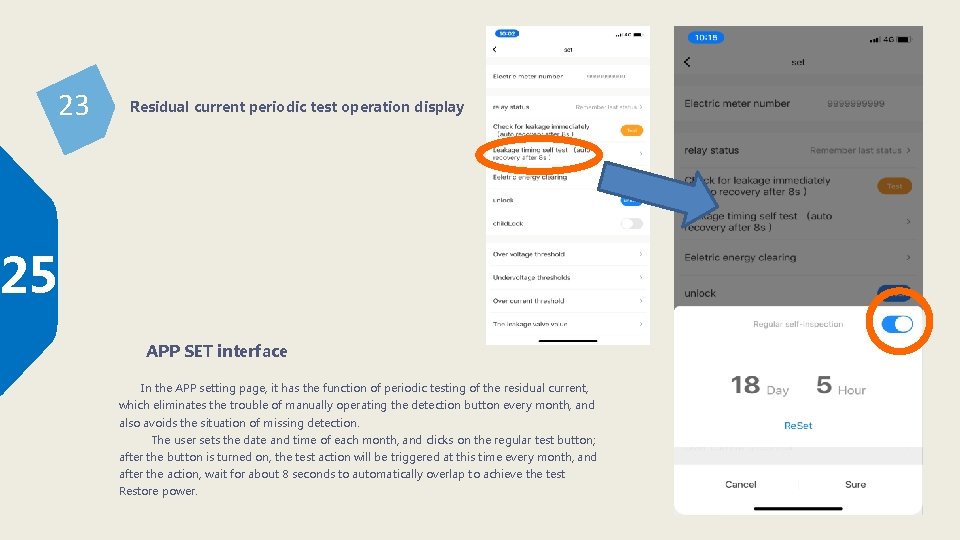
23 Residual current periodic test operation display 25 APP SET interface In the APP setting page, it has the function of periodic testing of the residual current, which eliminates the trouble of manually operating the detection button every month, and also avoids the situation of missing detection. The user sets the date and time of each month, and clicks on the regular test button; after the button is turned on, the test action will be triggered at this time every month, and after the action, wait for about 8 seconds to automatically overlap to achieve the test Restore power.
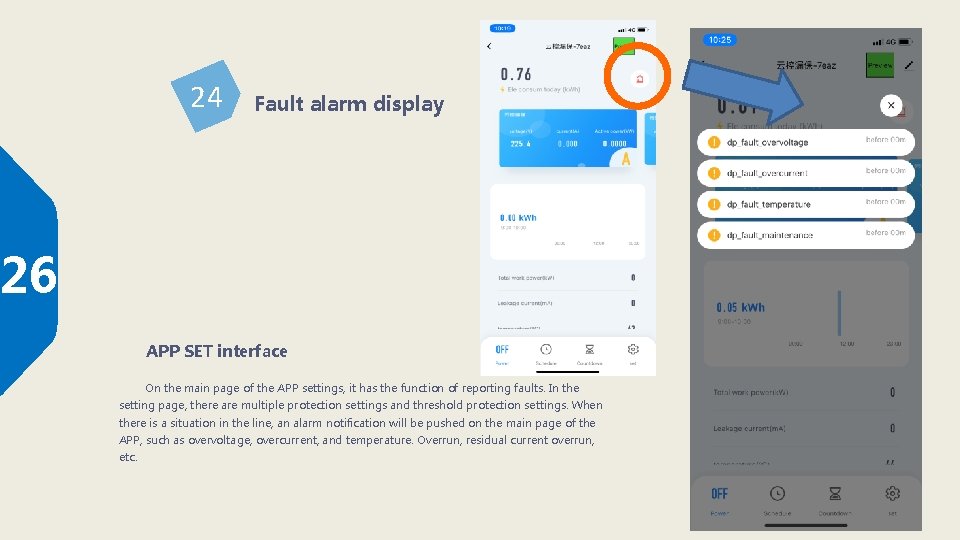
24 Fault alarm display 26 APP SET interface On the main page of the APP settings, it has the function of reporting faults. In the setting page, there are multiple protection settings and threshold protection settings. When there is a situation in the line, an alarm notification will be pushed on the main page of the APP, such as overvoltage, overcurrent, and temperature. Overrun, residual current overrun, etc.
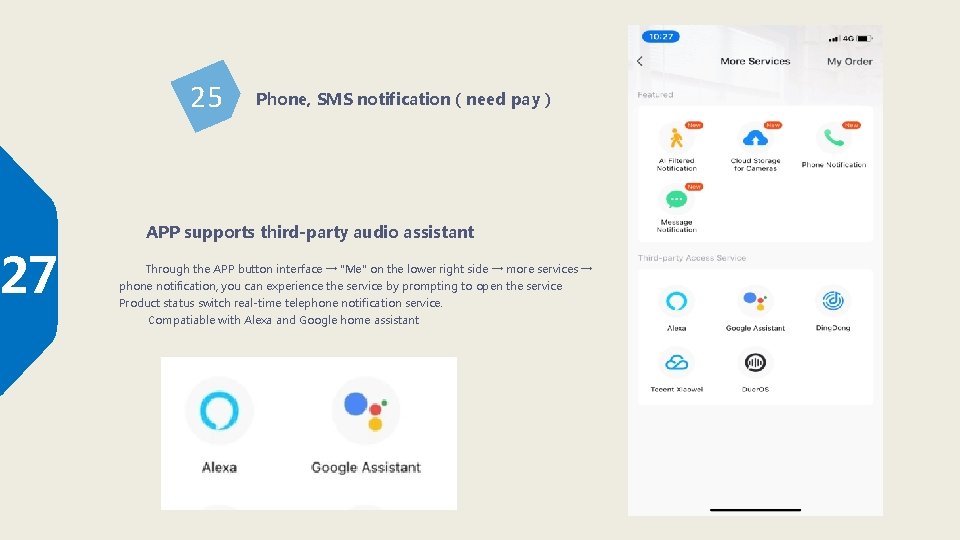
27 25 Phone, SMS notification(need pay) APP supports third-party audio assistant Through the APP button interface → "Me" on the lower right side → more services → phone notification, you can experience the service by prompting to open the service Product status switch real-time telephone notification service. Compatiable with Alexa and Google home assistant
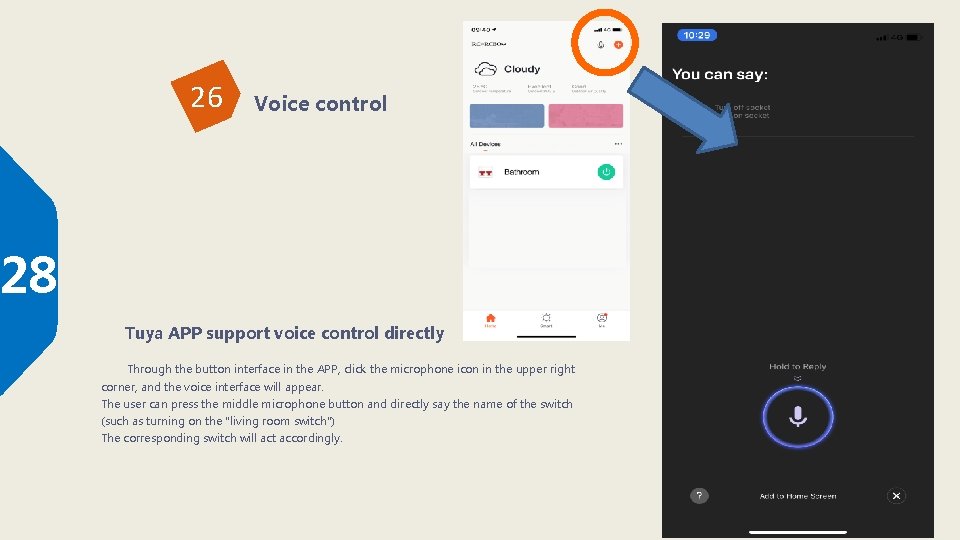
26 Voice control 28 Tuya APP support voice control directly Through the button interface in the APP, click the microphone icon in the upper right corner, and the voice interface will appear. The user can press the middle microphone button and directly say the name of the switch (such as turning on the "living room switch") The corresponding switch will act accordingly.
applic ation
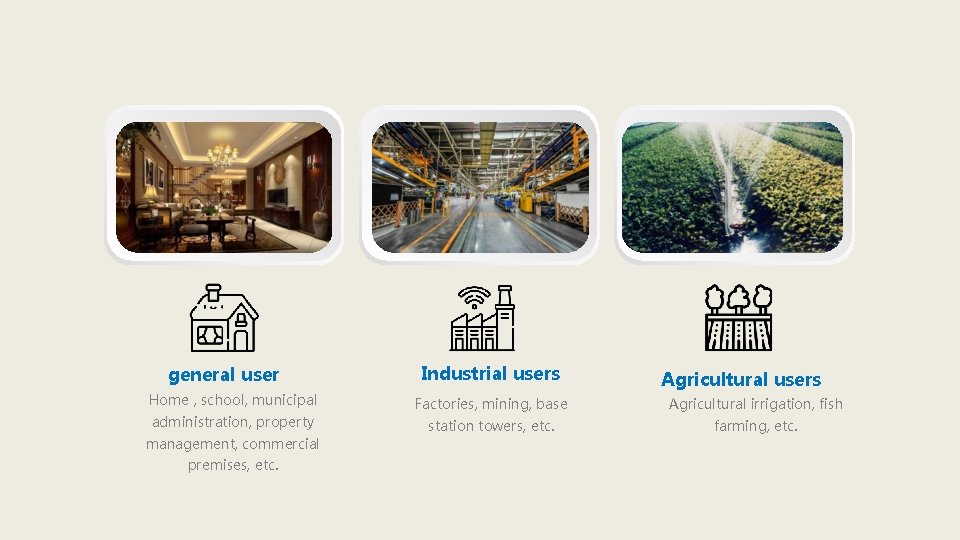
general user Home , school, municipal administration, property management, commercial premises, etc. Industrial users Agricultural users Factories, mining, base Agricultural irrigation, fish station towers, etc. farming, etc.

THANKS 浙江省乐清市经济开发区纬三路 192弄22号 No. 22, 192 Lane, Weisan Road, Yueqing Economic Development Zone, Zhejiang , China 网址:www. wifimcb. com 邮箱:wdyk@wifimcb. com 电话: 400 -9057118
- Slides: 36