
Tutorial Reading in EBSCOhost help ebsco com Welcome

Tutorial Reading in EBSCOhost help. ebsco. com
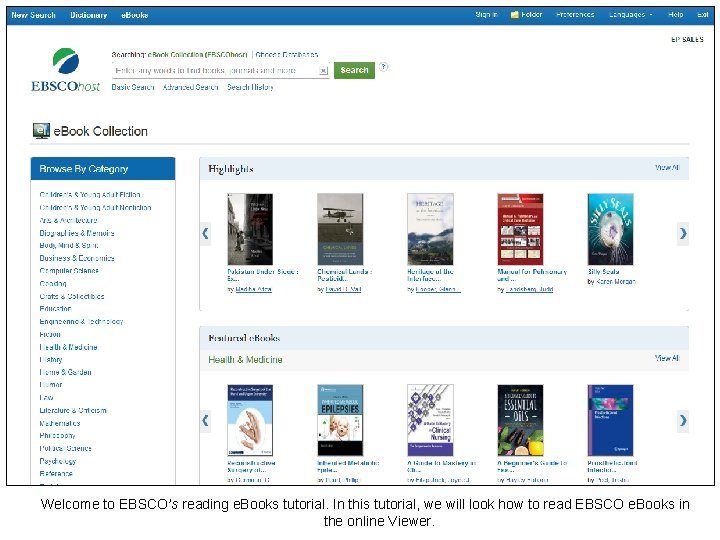
Welcome to EBSCO’s reading e. Books tutorial. In this tutorial, we will look how to read EBSCO e. Books in the online Viewer.
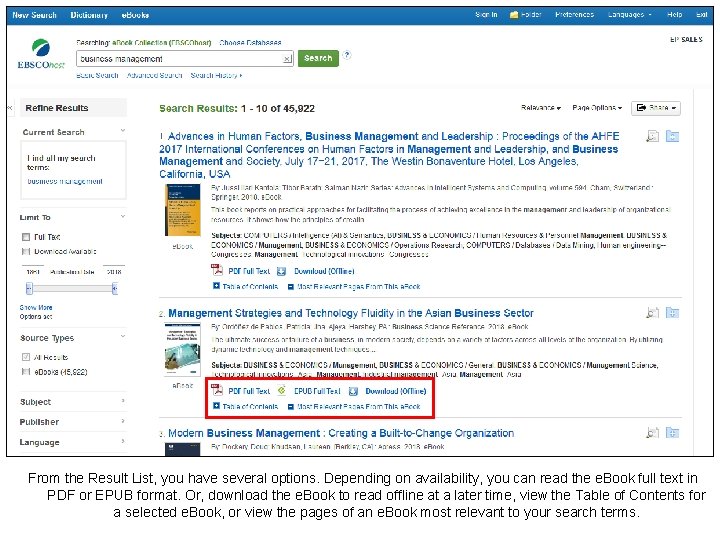
From the Result List, you have several options. Depending on availability, you can read the e. Book full text in PDF or EPUB format. Or, download the e. Book to read offline at a later time, view the Table of Contents for a selected e. Book, or view the pages of an e. Book most relevant to your search terms.
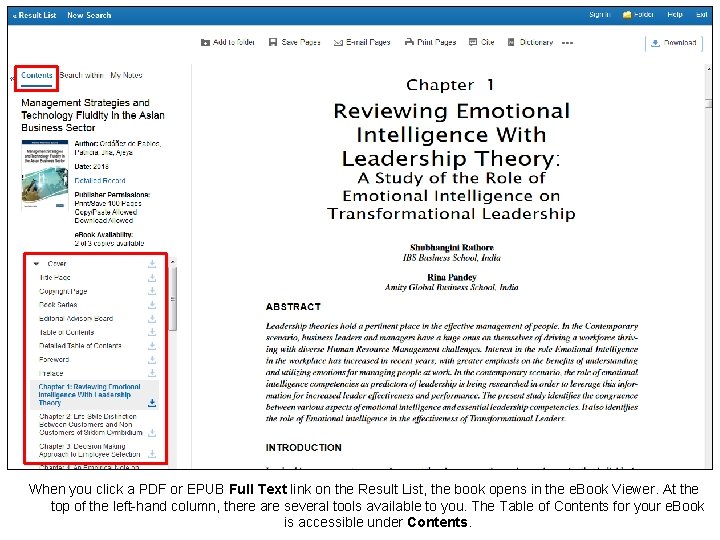
When you click a PDF or EPUB Full Text link on the Result List, the book opens in the e. Book Viewer. At the top of the left-hand column, there are several tools available to you. The Table of Contents for your e. Book is accessible under Contents.
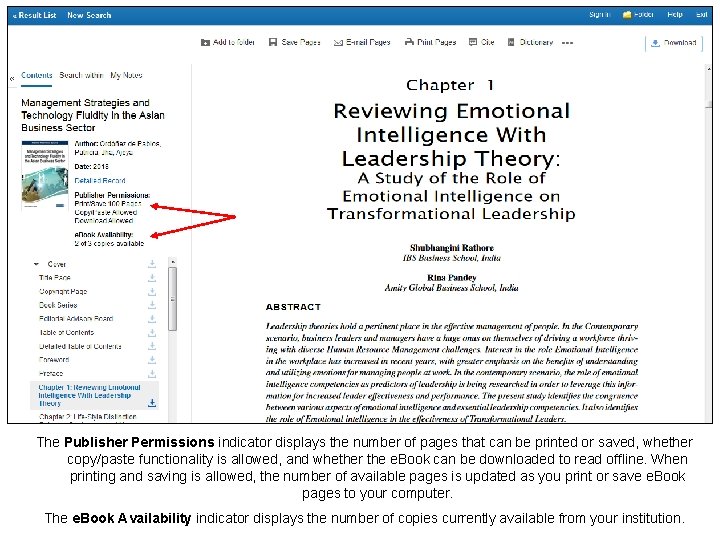
The Publisher Permissions indicator displays the number of pages that can be printed or saved, whether copy/paste functionality is allowed, and whether the e. Book can be downloaded to read offline. When printing and saving is allowed, the number of available pages is updated as you print or save e. Book pages to your computer. The e. Book Availability indicator displays the number of copies currently available from your institution.
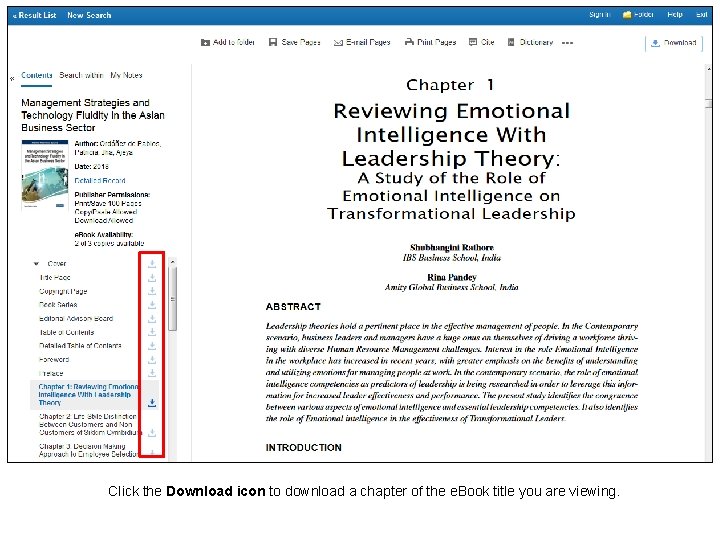
Click the Download icon to download a chapter of the e. Book title you are viewing.
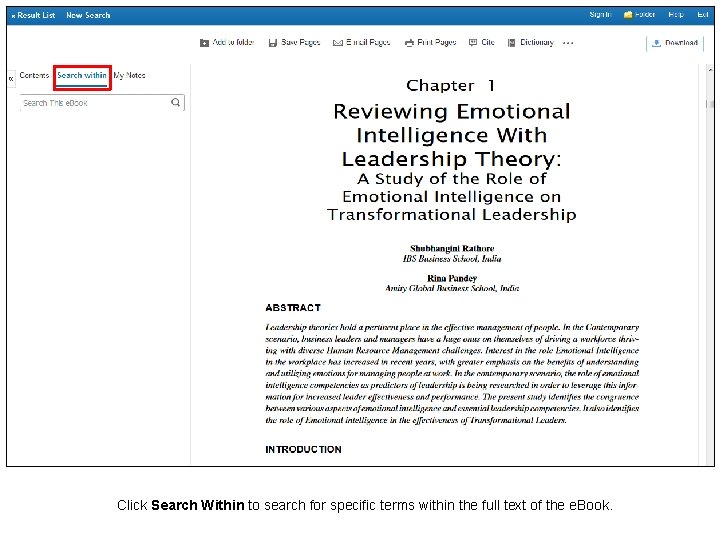
Click Search Within to search for specific terms within the full text of the e. Book.
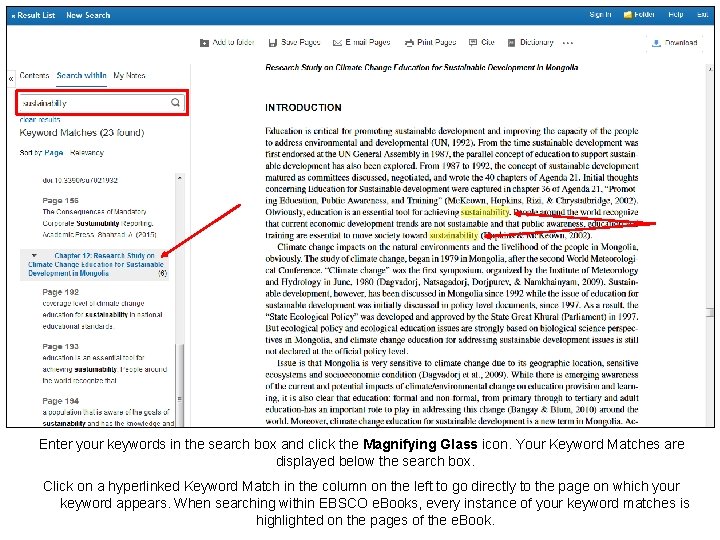
Enter your keywords in the search box and click the Magnifying Glass icon. Your Keyword Matches are displayed below the search box. Click on a hyperlinked Keyword Match in the column on the left to go directly to the page on which your keyword appears. When searching within EBSCO e. Books, every instance of your keyword matches is highlighted on the pages of the e. Book.

Click My Notes to create a note about the text that can be saved to your personal My EBSCOhost folder. Look up words in the dictionary by clicking Dictionary in the Tools menu above the e. Book text. Click the Download button click to download the e. Book to your computer.
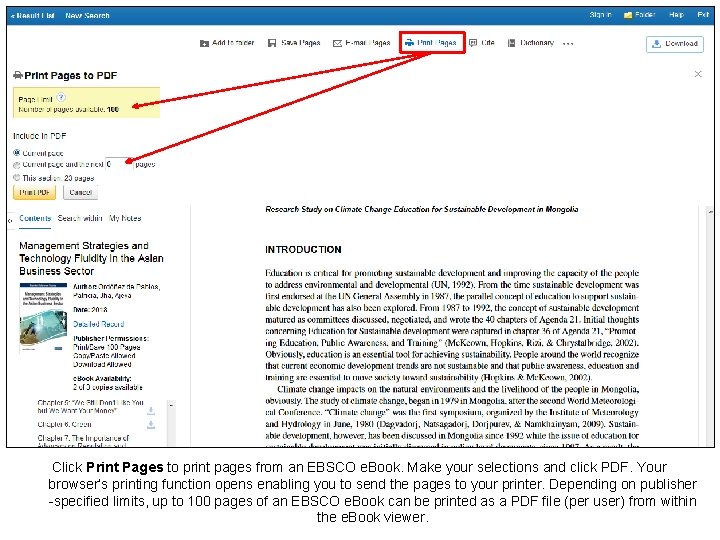
Click Print Pages to print pages from an EBSCO e. Book. Make your selections and click PDF. Your browser’s printing function opens enabling you to send the pages to your printer. Depending on publisher -specified limits, up to 100 pages of an EBSCO e. Book can be printed as a PDF file (per user) from within the e. Book viewer.
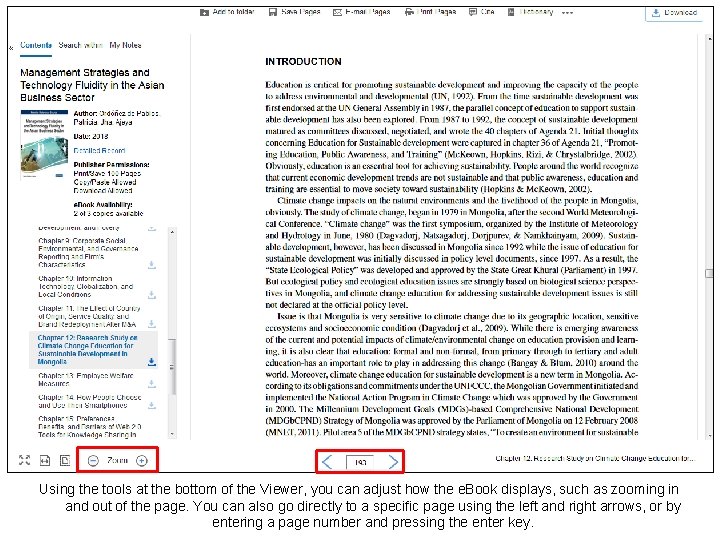
Using the tools at the bottom of the Viewer, you can adjust how the e. Book displays, such as zooming in and out of the page. You can also go directly to a specific page using the left and right arrows, or by entering a page number and pressing the enter key.
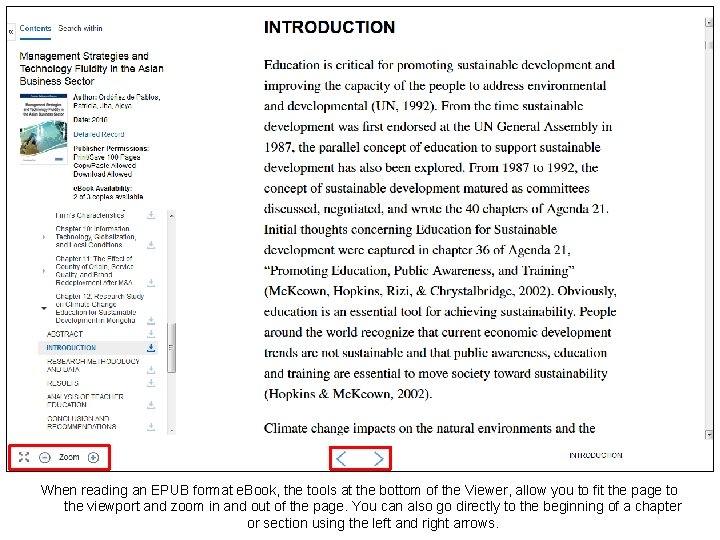
When reading an EPUB format e. Book, the tools at the bottom of the Viewer, allow you to fit the page to the viewport and zoom in and out of the page. You can also go directly to the beginning of a chapter or section using the left and right arrows.
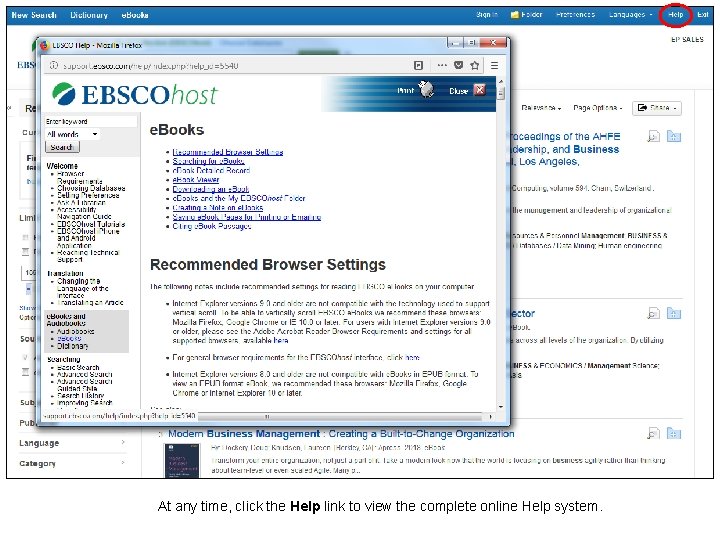
At any time, click the Help link to view the complete online Help system.
- Slides: 14