
Tutorial 4 Phone Directory BPSDial Quick Start Tutorial
Tutorial #4 Phone Directory BPSDial Quick Start Tutorial Series Buffalo Public Schools 8/18/15 BPSDial Tutorial #4 - Phone Directory 1
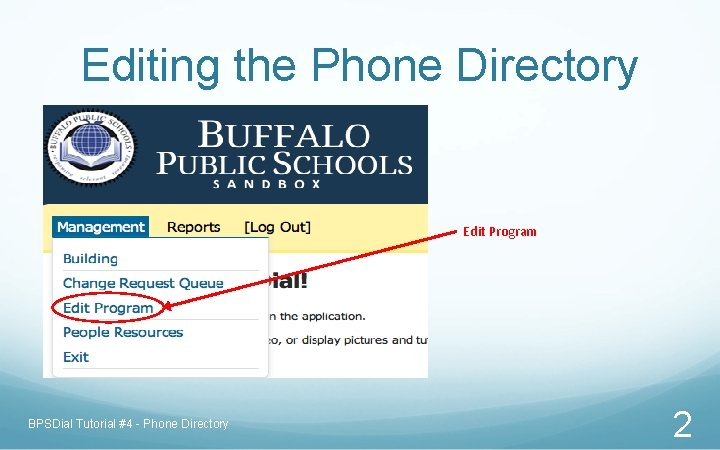
Editing the Phone Directory Edit Program BPSDial Tutorial #4 - Phone Directory 2
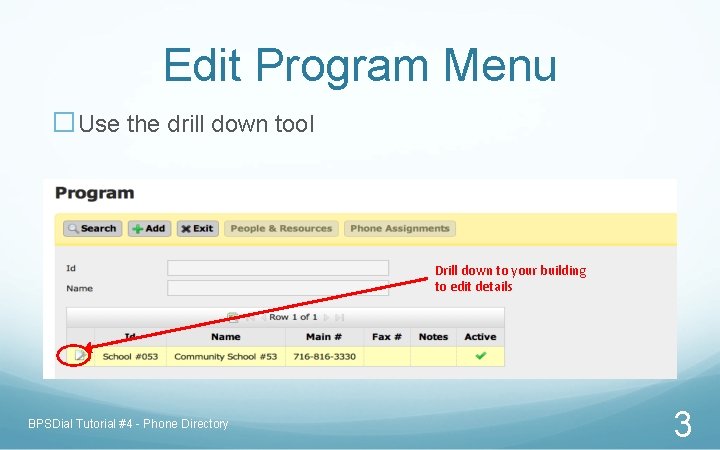
Edit Program Menu �Use the drill down tool Drill down to your building to edit details BPSDial Tutorial #4 - Phone Directory 3
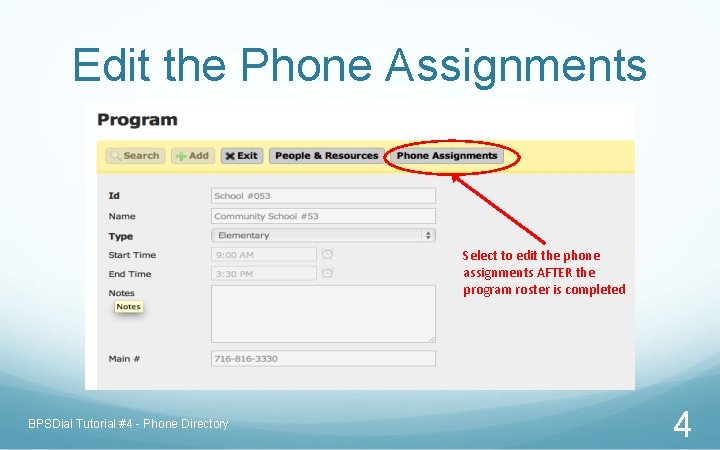
Edit the Phone Assignments Select to edit the phone assignments AFTER the program roster is completed BPSDial Tutorial #4 - Phone Directory 4
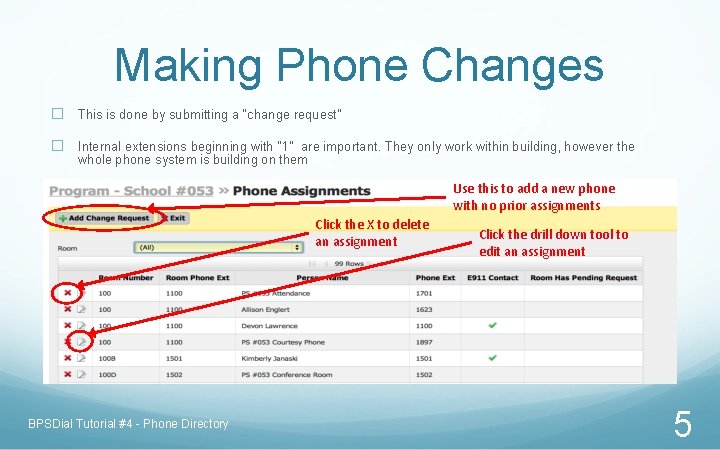
Making Phone Changes � This is done by submitting a “change request” � Internal extensions beginning with “ 1” are important. They only work within building, however the whole phone system is building on them Use this to add a new phone with no prior assignments Click the X to delete an assignment BPSDial Tutorial #4 - Phone Directory Click the drill down tool to edit an assignment 5
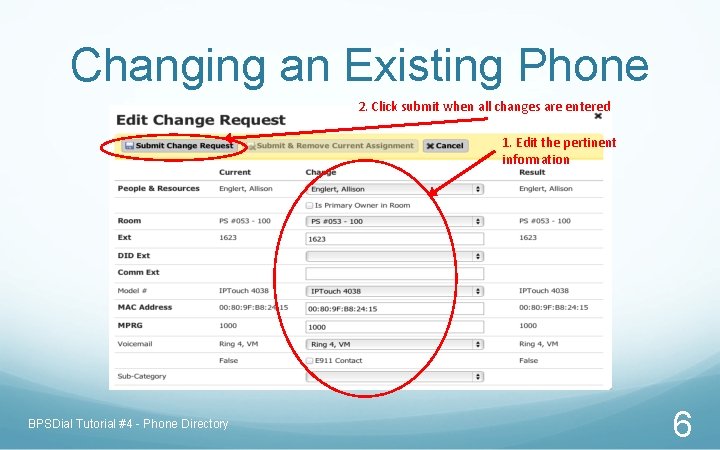
Changing an Existing Phone 2. Click submit when all changes are entered 1. Edit the pertinent information BPSDial Tutorial #4 - Phone Directory 6
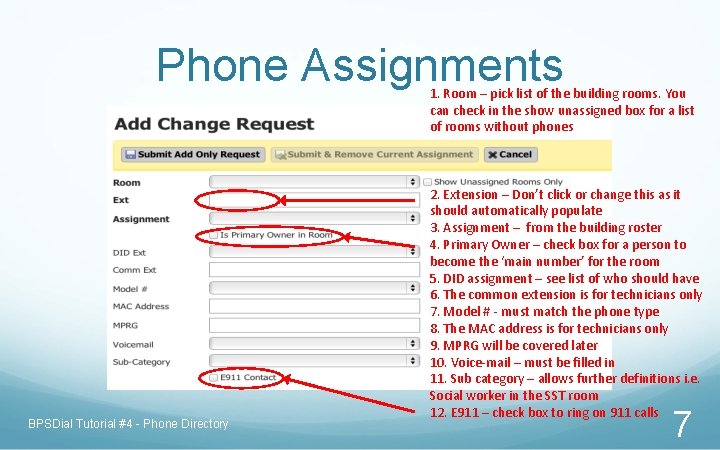
Phone Assignments 1. Room – pick list of the building rooms. You can check in the show unassigned box for a list of rooms without phones BPSDial Tutorial #4 - Phone Directory 2. Extension – Don’t click or change this as it should automatically populate 3. Assignment – from the building roster 4. Primary Owner – check box for a person to become the ‘main number’ for the room 5. DID assignment – see list of who should have 6. The common extension is for technicians only 7. Model # - must match the phone type 8. The MAC address is for technicians only 9. MPRG will be covered later 10. Voice-mail – must be filled in 11. Sub category – allows further definitions i. e. Social worker in the SST room 12. E 911 – check box to ring on 911 calls 7
Intermission �Take a break. There is more information you should have before making changes. �Next step - Watch the next training video “BPSDial Change Requests” BPSDial Tutorial #4 - Phone Directory 8
- Slides: 8