
Tutorial 3 Inventory Application Introducing Variables Input Memory
Tutorial 3 – Inventory Application: Introducing Variables, Input, Memory Concepts and Arithmetic Outline 3. 1 3. 2 3. 3 3. 4 3. 5 3. 6 3. 7 3. 8 3. 9 Test-Driving the Inventory Application Variables Performing Stream Input Using cin Performing a Calculation and Displaying the Result Memory Concepts Arithmetic Using the Debugger: Breakpoints Web Resources Wrap-Up © Copyright 1992– 2005 by Deitel & Associates, Inc. and Pearson Education Inc. All Rights Reserved.
Objectives • In this tutorial, you will learn to: – Define variables. – Enable your applications to accept input that the user types at the keyboard. – Use arithmetic operators. – Use cin to store user input in an int. – Apply basic memory concepts using variables. – Use the precedence rules of arithmetic operators. – Set breakpoints to debug applications. © Copyright 1992– 2005 by Deitel & Associates, Inc. and Pearson Education Inc. All Rights Reserved.

3. 1 Test-Driving the Inventory Application © Copyright 1992– 2005 by Deitel & Associates, Inc. and Pearson Education Inc. All Rights Reserved.
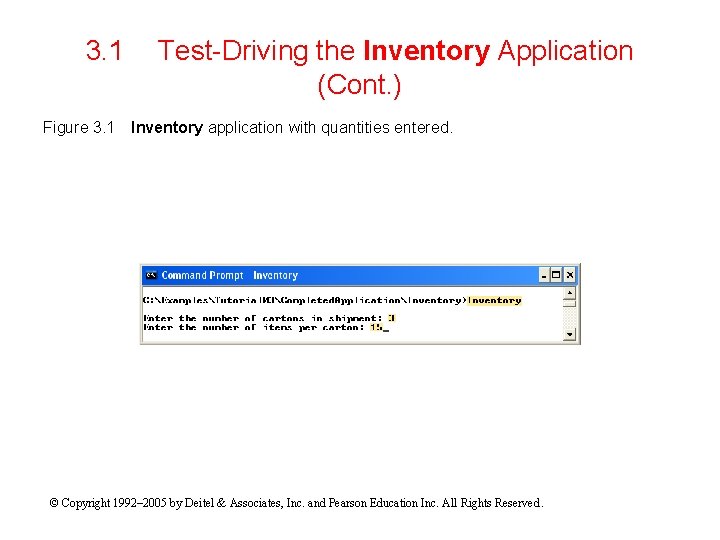
3. 1 Figure 3. 1 Test-Driving the Inventory Application (Cont. ) Inventory application with quantities entered. © Copyright 1992– 2005 by Deitel & Associates, Inc. and Pearson Education Inc. All Rights Reserved.
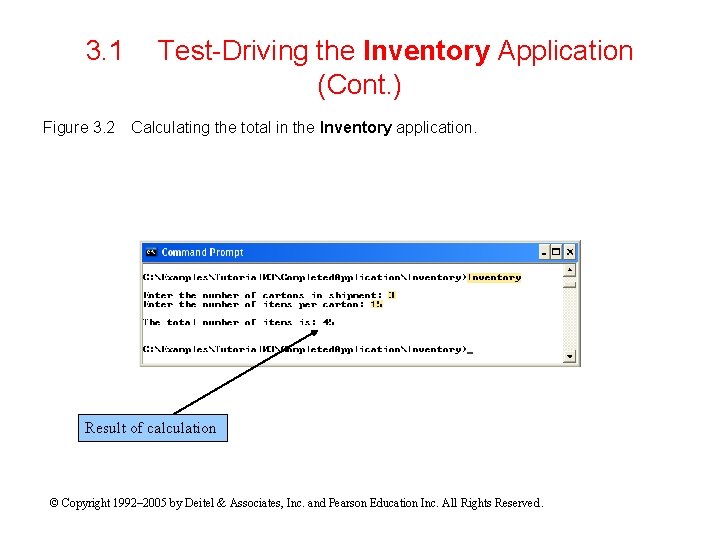
3. 1 Figure 3. 2 Test-Driving the Inventory Application (Cont. ) Calculating the total in the Inventory application. Result of calculation © Copyright 1992– 2005 by Deitel & Associates, Inc. and Pearson Education Inc. All Rights Reserved.
3. 2 Variables • Area of computer’s memory that holds data – Defining a variable • Specify a variable type • Can also specify an optional initialization value – Variable names • Must be a valid identifier – Can contain letters, digits and underscores (Number_5 is valid) – Cannot begin with a digit (“ 4 th. Variable” is invalid) – Cannot be the same as a C++ reserved keyword (“true” is invalid) – Identifiers are case sensitive (“A” and “a” are different) © Copyright 1992– 2005 by Deitel & Associates, Inc. and Pearson Education Inc. All Rights Reserved.
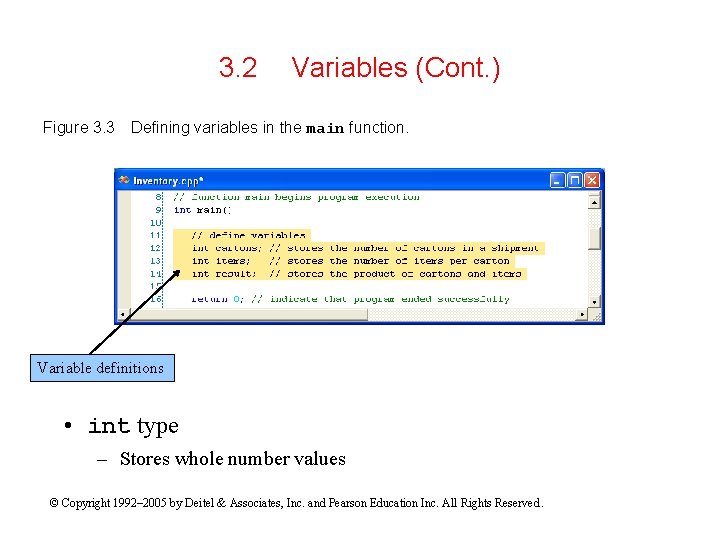
3. 2 Figure 3. 3 Variables (Cont. ) Defining variables in the main function. Variable definitions • int type – Stores whole number values © Copyright 1992– 2005 by Deitel & Associates, Inc. and Pearson Education Inc. All Rights Reserved.
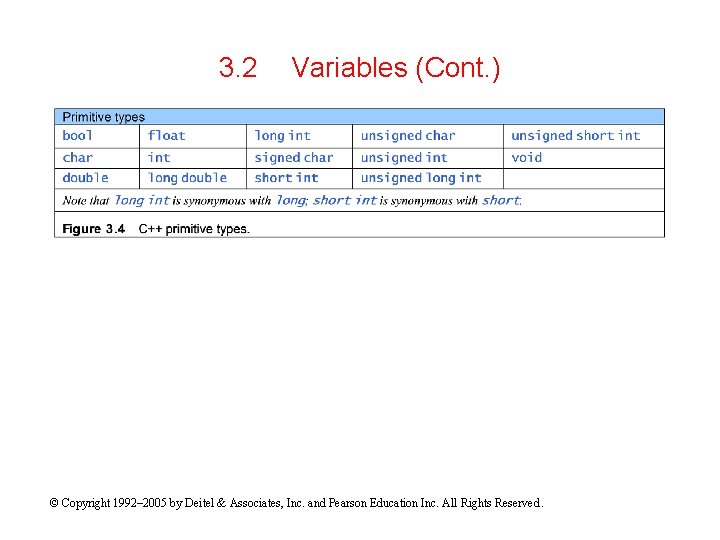
3. 2 Variables (Cont. ) © Copyright 1992– 2005 by Deitel & Associates, Inc. and Pearson Education Inc. All Rights Reserved.
3. 3 Performing Stream Input Using cin • Stream input – – Stream extraction operator >> Input stream object cin Use both together to retrieve input from the keyboard Example: cin >> integer 1 (“cin inputs a value into integer 1”) © Copyright 1992– 2005 by Deitel & Associates, Inc. and Pearson Education Inc. All Rights Reserved.
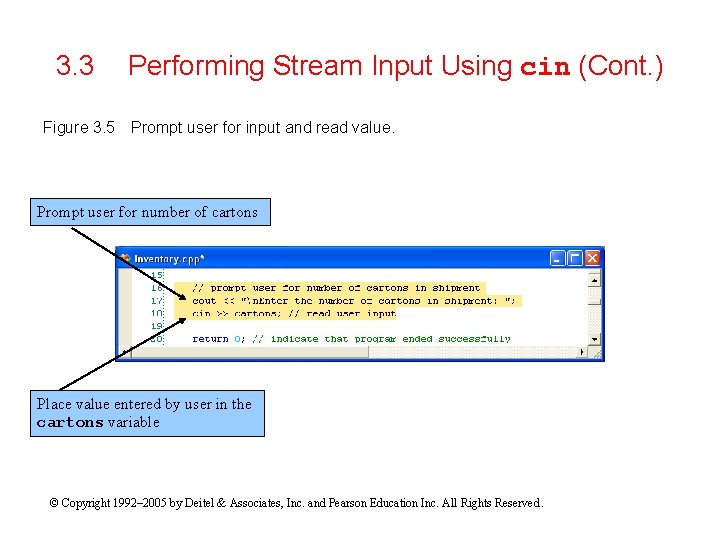
3. 3 Figure 3. 5 Performing Stream Input Using cin (Cont. ) Prompt user for input and read value. Prompt user for number of cartons Place value entered by user in the cartons variable © Copyright 1992– 2005 by Deitel & Associates, Inc. and Pearson Education Inc. All Rights Reserved.
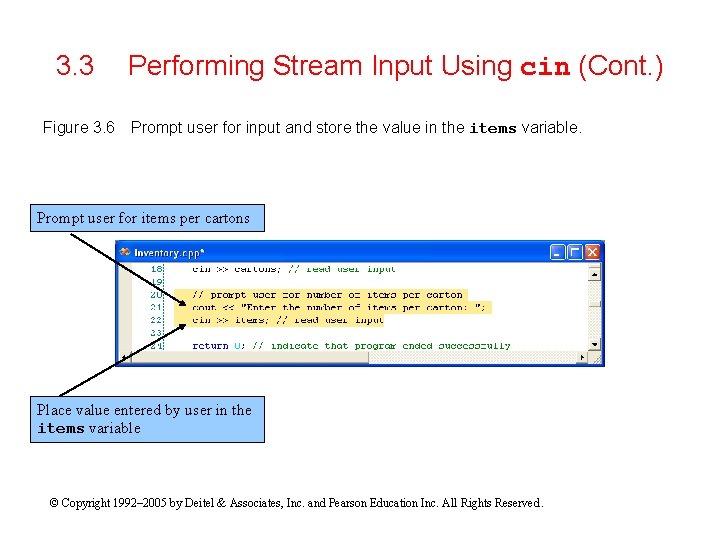
3. 3 Figure 3. 6 Performing Stream Input Using cin (Cont. ) Prompt user for input and store the value in the items variable. Prompt user for items per cartons Place value entered by user in the items variable © Copyright 1992– 2005 by Deitel & Associates, Inc. and Pearson Education Inc. All Rights Reserved.
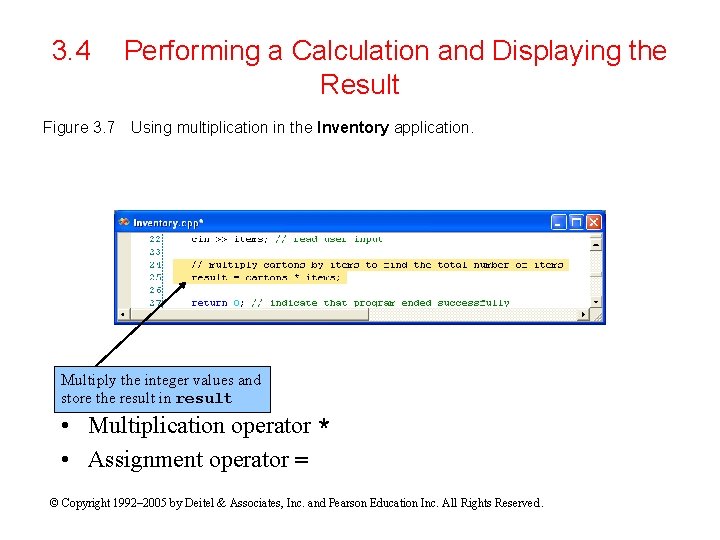
3. 4 Figure 3. 7 Performing a Calculation and Displaying the Result Using multiplication in the Inventory application. Multiply the integer values and store the result in result • Multiplication operator * • Assignment operator = © Copyright 1992– 2005 by Deitel & Associates, Inc. and Pearson Education Inc. All Rights Reserved.
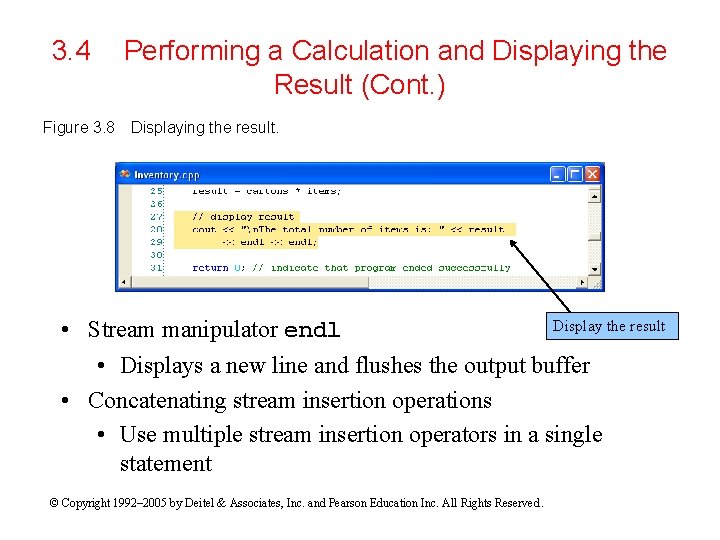
3. 4 Figure 3. 8 Performing a Calculation and Displaying the Result (Cont. ) Displaying the result. Display the result • Stream manipulator endl • Displays a new line and flushes the output buffer • Concatenating stream insertion operations • Use multiple stream insertion operators in a single statement © Copyright 1992– 2005 by Deitel & Associates, Inc. and Pearson Education Inc. All Rights Reserved.
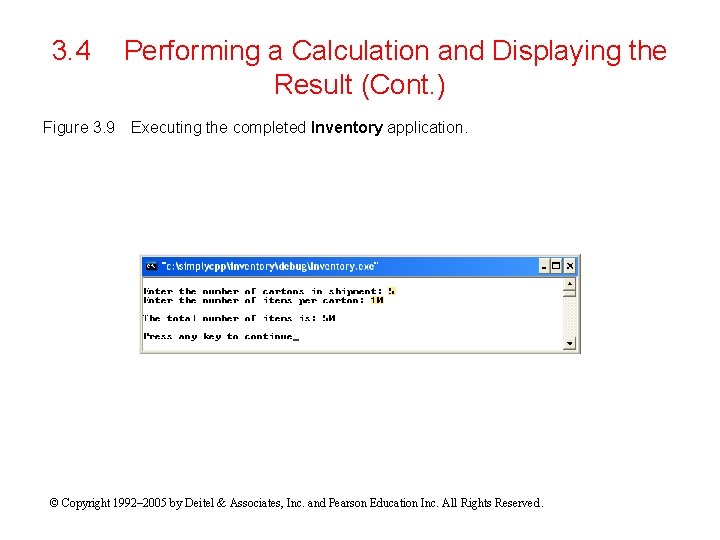
3. 4 Figure 3. 9 Performing a Calculation and Displaying the Result (Cont. ) Executing the completed Inventory application. © Copyright 1992– 2005 by Deitel & Associates, Inc. and Pearson Education Inc. All Rights Reserved.
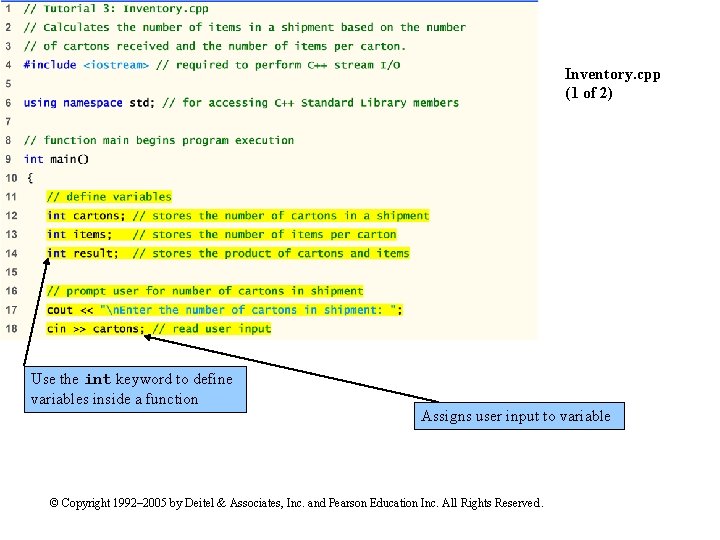
Inventory. cpp (1 of 2) Use the int keyword to define variables inside a function Assigns user input to variable © Copyright 1992– 2005 by Deitel & Associates, Inc. and Pearson Education Inc. All Rights Reserved.
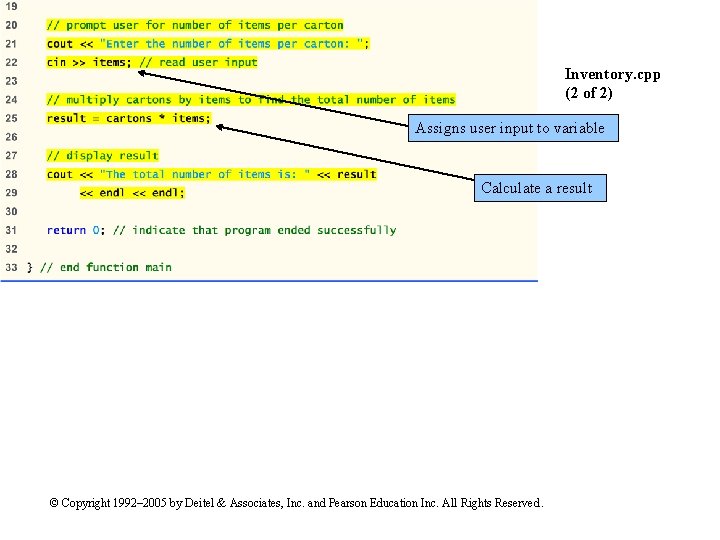
Inventory. cpp (2 of 2) Assigns user input to variable Calculate a result © Copyright 1992– 2005 by Deitel & Associates, Inc. and Pearson Education Inc. All Rights Reserved.
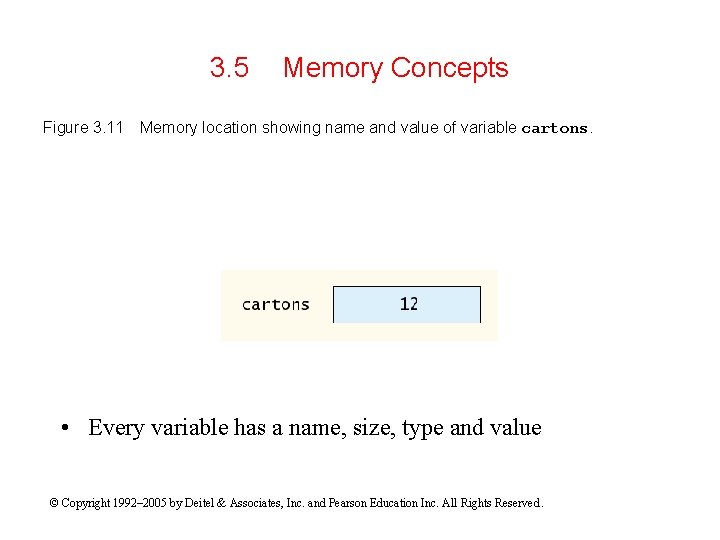
3. 5 Figure 3. 11 Memory Concepts Memory location showing name and value of variable cartons. • Every variable has a name, size, type and value © Copyright 1992– 2005 by Deitel & Associates, Inc. and Pearson Education Inc. All Rights Reserved.
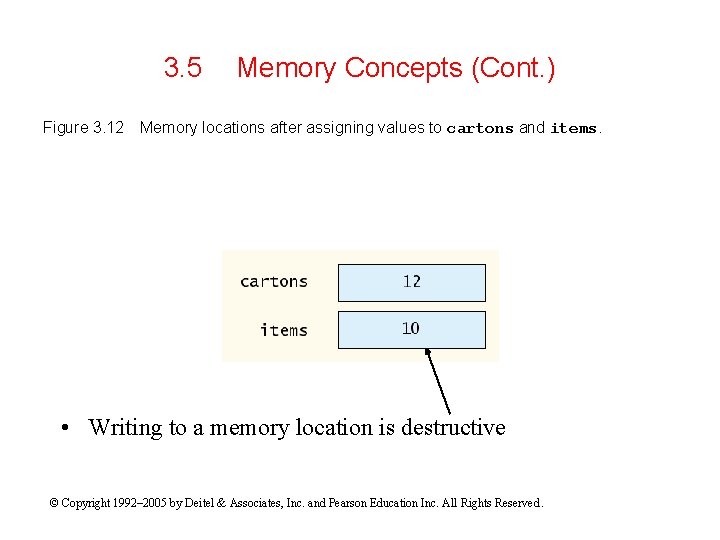
3. 5 Figure 3. 12 Memory Concepts (Cont. ) Memory locations after assigning values to cartons and items. • Writing to a memory location is destructive © Copyright 1992– 2005 by Deitel & Associates, Inc. and Pearson Education Inc. All Rights Reserved.
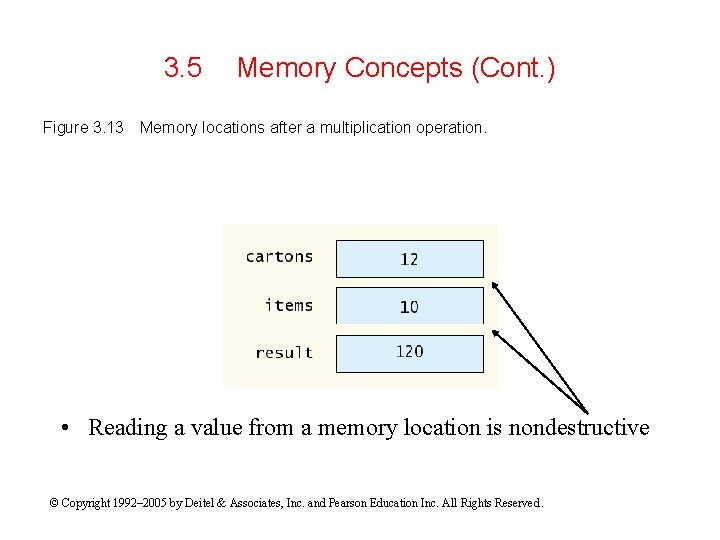
3. 5 Figure 3. 13 Memory Concepts (Cont. ) Memory locations after a multiplication operation. • Reading a value from a memory location is nondestructive © Copyright 1992– 2005 by Deitel & Associates, Inc. and Pearson Education Inc. All Rights Reserved.
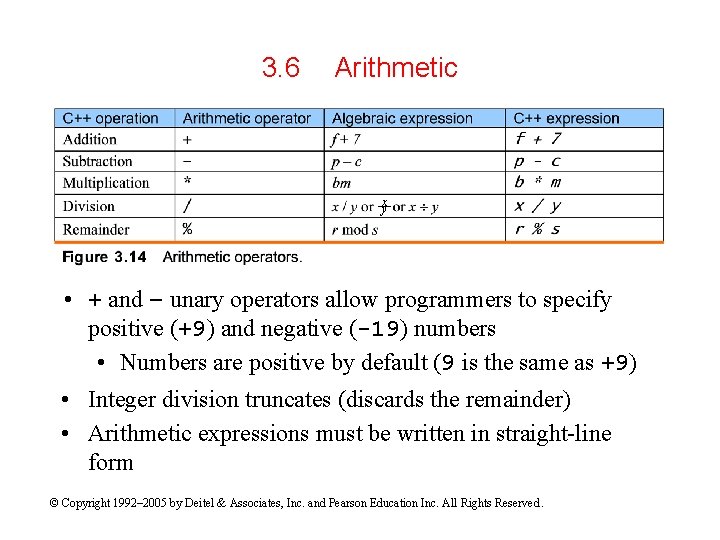
3. 6 Arithmetic x y • + and – unary operators allow programmers to specify positive (+9) and negative (-19) numbers • Numbers are positive by default (9 is the same as +9) • Integer division truncates (discards the remainder) • Arithmetic expressions must be written in straight-line form © Copyright 1992– 2005 by Deitel & Associates, Inc. and Pearson Education Inc. All Rights Reserved.
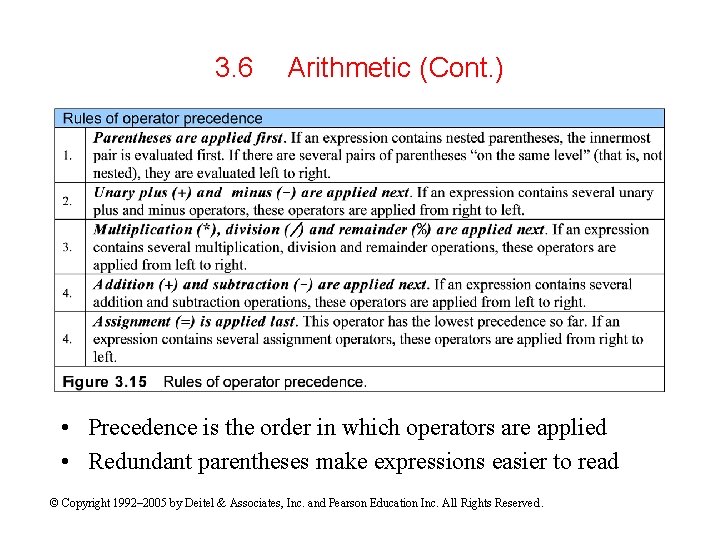
3. 6 Arithmetic (Cont. ) • Precedence is the order in which operators are applied • Redundant parentheses make expressions easier to read © Copyright 1992– 2005 by Deitel & Associates, Inc. and Pearson Education Inc. All Rights Reserved.
3. 7 Using the Debugger: Breakpoints • Logic errors (also called bugs) – Do not prevent code from compiling – Cause applications to produce erroneous results • Breakpoint – Pauses execution before executing a specified line – If a breakpoint is placed on a non-executable line, execution is paused before the next executable line – Add a breakpoint by: • Clicking inside the margin indicator bar or • Right-clicking a line of code and selecting Insert Breakpoint © Copyright 1992– 2005 by Deitel & Associates, Inc. and Pearson Education Inc. All Rights Reserved.
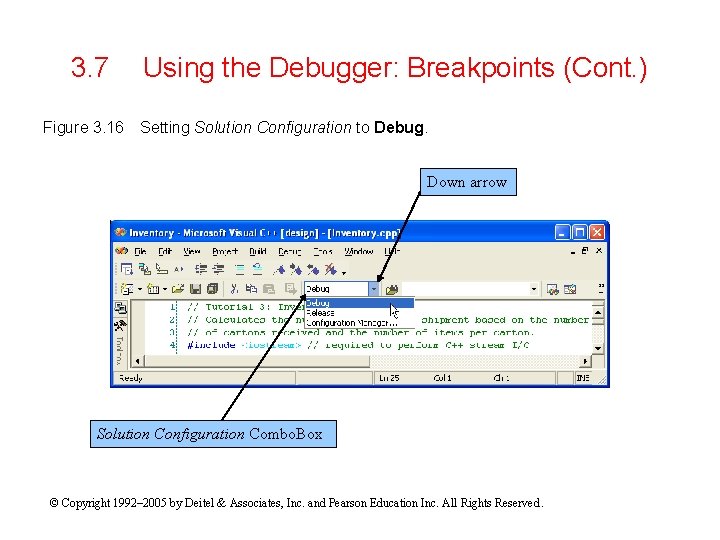
3. 7 Figure 3. 16 Using the Debugger: Breakpoints (Cont. ) Setting Solution Configuration to Debug. Down arrow Solution Configuration Combo. Box © Copyright 1992– 2005 by Deitel & Associates, Inc. and Pearson Education Inc. All Rights Reserved.
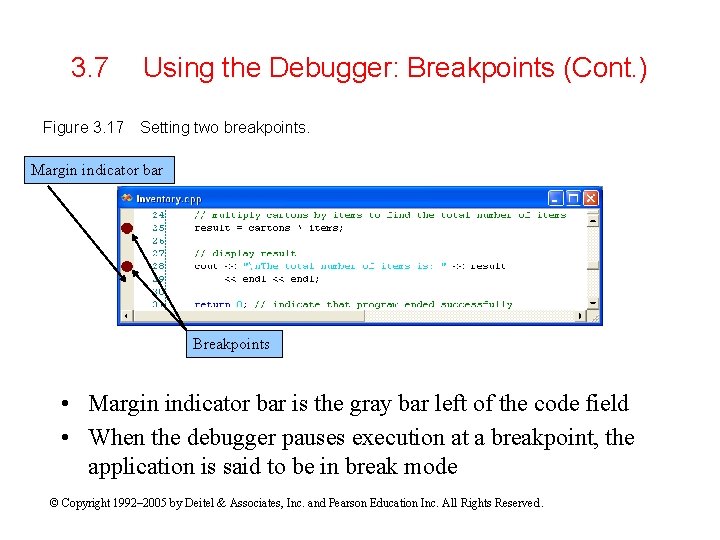
3. 7 Figure 3. 17 Using the Debugger: Breakpoints (Cont. ) Setting two breakpoints. Margin indicator bar Breakpoints • Margin indicator bar is the gray bar left of the code field • When the debugger pauses execution at a breakpoint, the application is said to be in break mode © Copyright 1992– 2005 by Deitel & Associates, Inc. and Pearson Education Inc. All Rights Reserved.
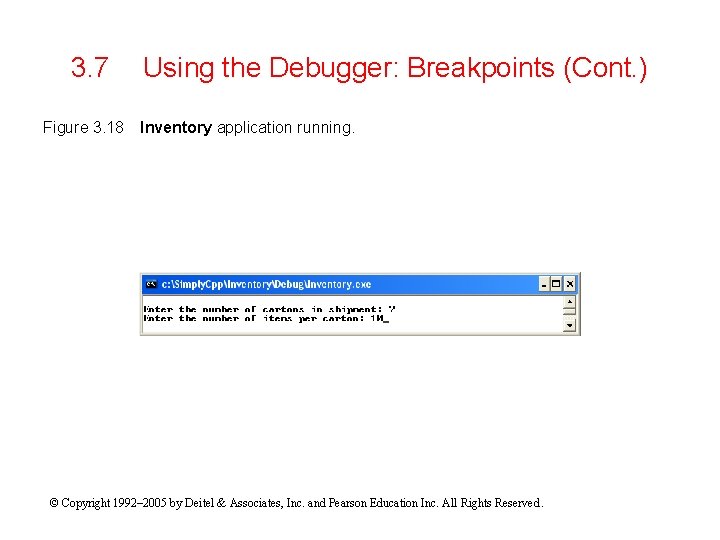
3. 7 Figure 3. 18 Using the Debugger: Breakpoints (Cont. ) Inventory application running. © Copyright 1992– 2005 by Deitel & Associates, Inc. and Pearson Education Inc. All Rights Reserved.
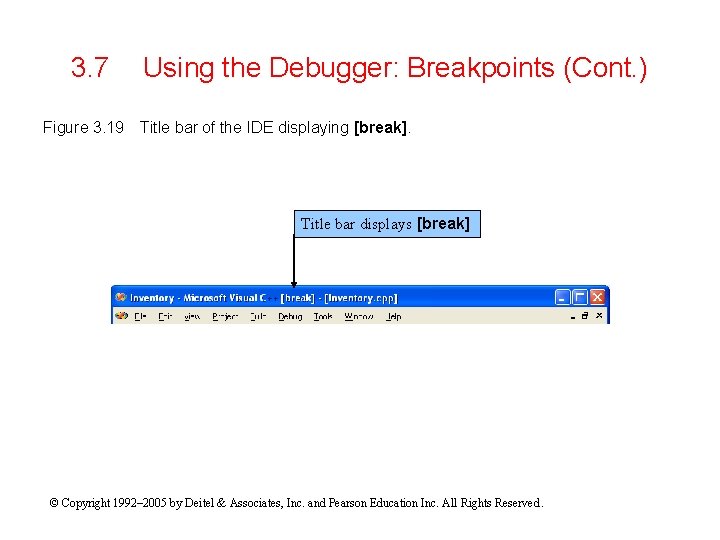
3. 7 Figure 3. 19 Using the Debugger: Breakpoints (Cont. ) Title bar of the IDE displaying [break]. Title bar displays [break] © Copyright 1992– 2005 by Deitel & Associates, Inc. and Pearson Education Inc. All Rights Reserved.
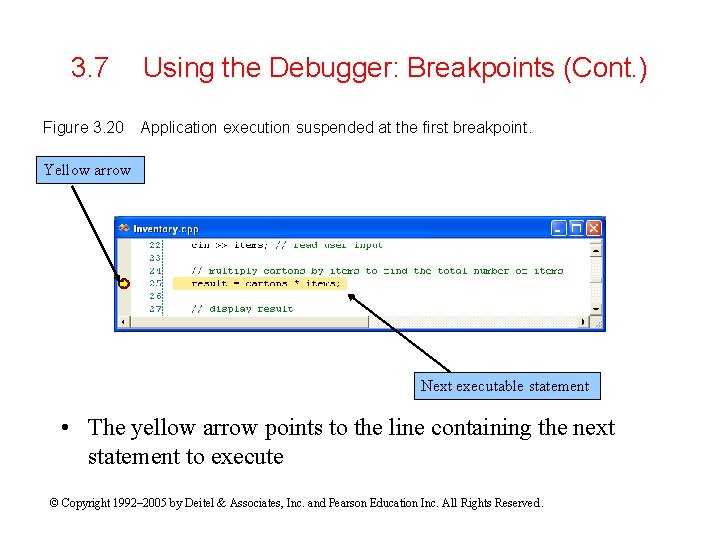
3. 7 Figure 3. 20 Using the Debugger: Breakpoints (Cont. ) Application execution suspended at the first breakpoint. Yellow arrow Next executable statement • The yellow arrow points to the line containing the next statement to execute © Copyright 1992– 2005 by Deitel & Associates, Inc. and Pearson Education Inc. All Rights Reserved.
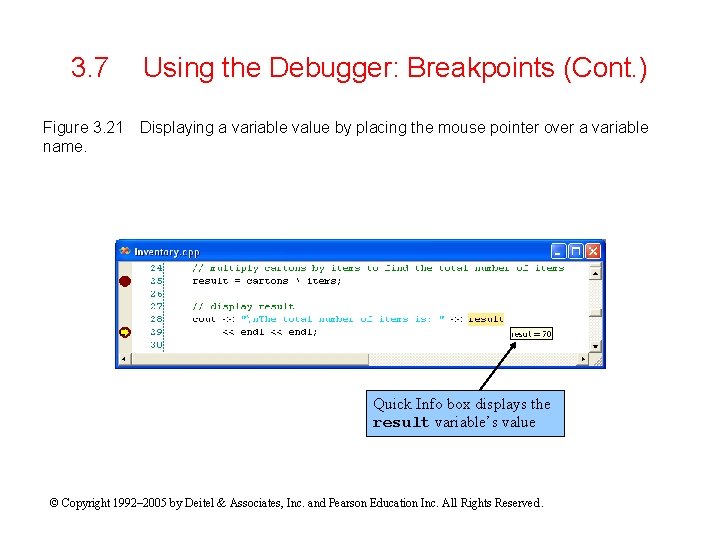
3. 7 Figure 3. 21 name. Using the Debugger: Breakpoints (Cont. ) Displaying a variable value by placing the mouse pointer over a variable Quick Info box displays the result variable’s value © Copyright 1992– 2005 by Deitel & Associates, Inc. and Pearson Education Inc. All Rights Reserved.
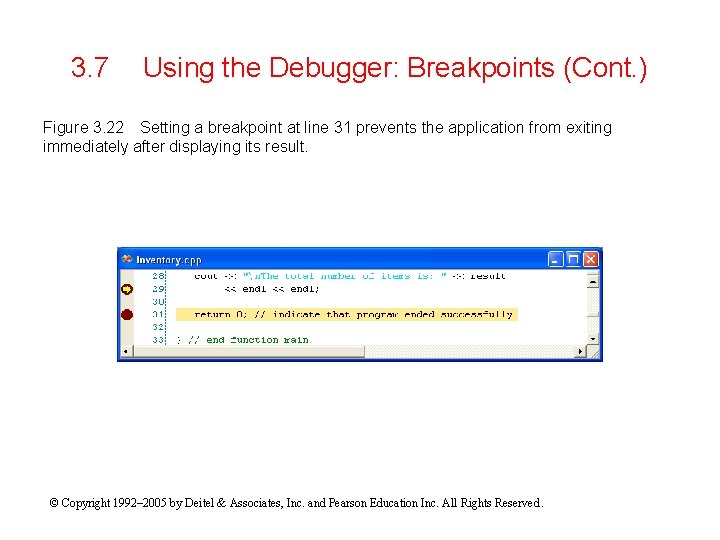
3. 7 Using the Debugger: Breakpoints (Cont. ) Figure 3. 22 Setting a breakpoint at line 31 prevents the application from exiting immediately after displaying its result. © Copyright 1992– 2005 by Deitel & Associates, Inc. and Pearson Education Inc. All Rights Reserved.
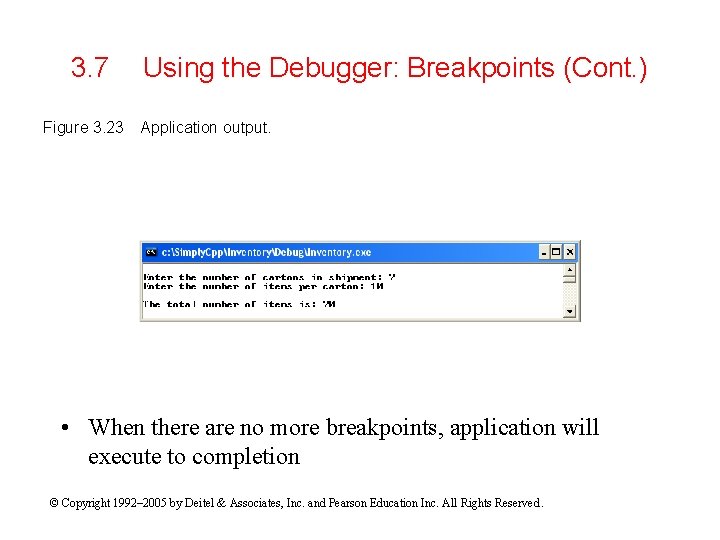
3. 7 Figure 3. 23 Using the Debugger: Breakpoints (Cont. ) Application output. • When there are no more breakpoints, application will execute to completion © Copyright 1992– 2005 by Deitel & Associates, Inc. and Pearson Education Inc. All Rights Reserved.
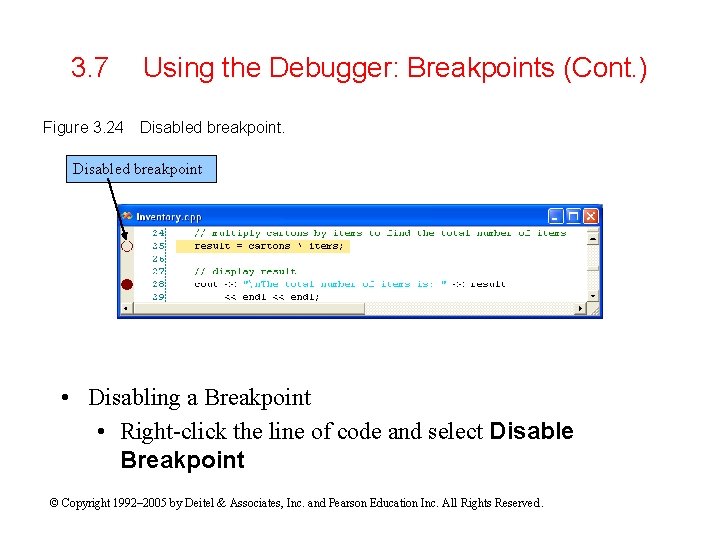
3. 7 Figure 3. 24 Using the Debugger: Breakpoints (Cont. ) Disabled breakpoint • Disabling a Breakpoint • Right-click the line of code and select Disable Breakpoint © Copyright 1992– 2005 by Deitel & Associates, Inc. and Pearson Education Inc. All Rights Reserved.
3. 7 Using the Debugger: Breakpoints (Cont. ) • Removing a Breakpoint – Click the maroon circle in the margin indicator bar or – Right-click the line of code and select Remove Breakpoint © Copyright 1992– 2005 by Deitel & Associates, Inc. and Pearson Education Inc. All Rights Reserved.
3. 8 • • • Web Resources www. cplus. com www. cppreference. com www. cpp-home. com www. cprogramming. com www. research. att. com/~bs/C++. html msdn. microsoft. com/visualc © Copyright 1992– 2005 by Deitel & Associates, Inc. and Pearson Education Inc. All Rights Reserved.
- Slides: 33