
Tutorial 3 Calculating Data with Formulas and Functions

- Slides: 47
Tutorial 3 Calculating Data with Formulas and Functions Microsoft Excel 2013 ® ®
Objectives XP Make a workbook user friendly Translate an equation into an Excel formula Understand function syntax Enter formulas and functions with the Quick Analysis tool • Enter functions with the Insert Function dialog box • Interpret error values • • New Perspectives on Microsoft Excel 2013 2
Objectives XP • Change cell references between relative and absolute • Use the Auto. Fill tool to enter formulas and data and complete a series • Display the current date with the TODAY function • Find the next weekday with the WORKDAY function • Use the COUNT and COUNTA functions New Perspectives on Microsoft Excel 2013 3
Objectives XP • Use an IF function to return a value based on a condition • Perform an exact match lookup with the VLOOKUP function • Perform what-if analysis using trial and error and Goal Seek New Perspectives on Microsoft Excel 2013 4
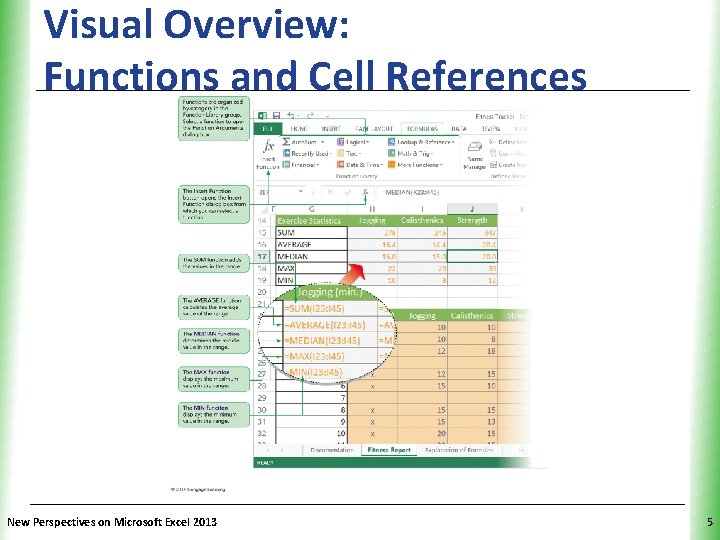
Visual Overview: Functions and Cell References New Perspectives on Microsoft Excel 2013 XP 5
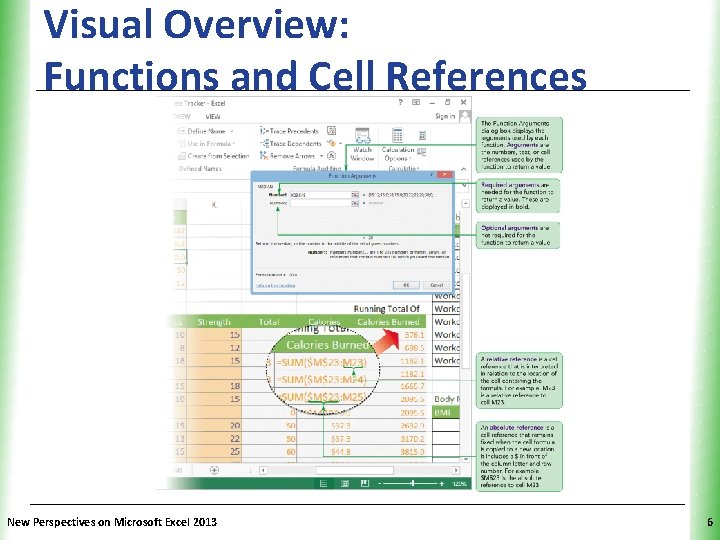
Visual Overview: Functions and Cell References New Perspectives on Microsoft Excel 2013 XP 6
Making Workbooks User-Friendly XP • Many users may use the workbook so it is important they understand the contents • An explanatory worksheet can be added explaining concepts including: – Industry jargon (industry-specific terms, or technical terms) or unusual terms – What is being calculated and why – How the equations make those calculations New Perspectives on Microsoft Excel 2013 7
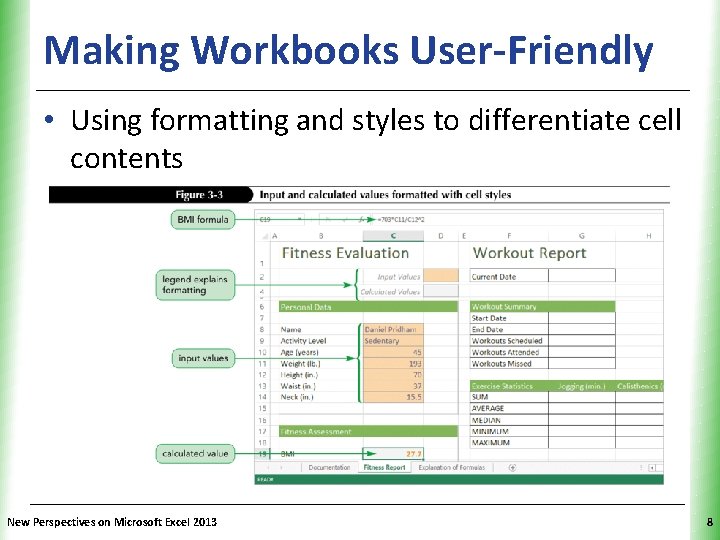
Making Workbooks User-Friendly XP • Using formatting and styles to differentiate cell contents New Perspectives on Microsoft Excel 2013 8
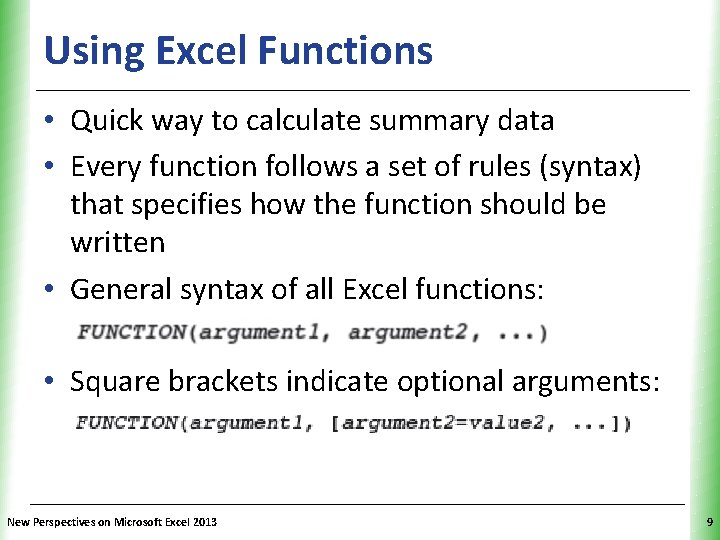
Using Excel Functions XP • Quick way to calculate summary data • Every function follows a set of rules (syntax) that specifies how the function should be written • General syntax of all Excel functions: • Square brackets indicate optional arguments: New Perspectives on Microsoft Excel 2013 9
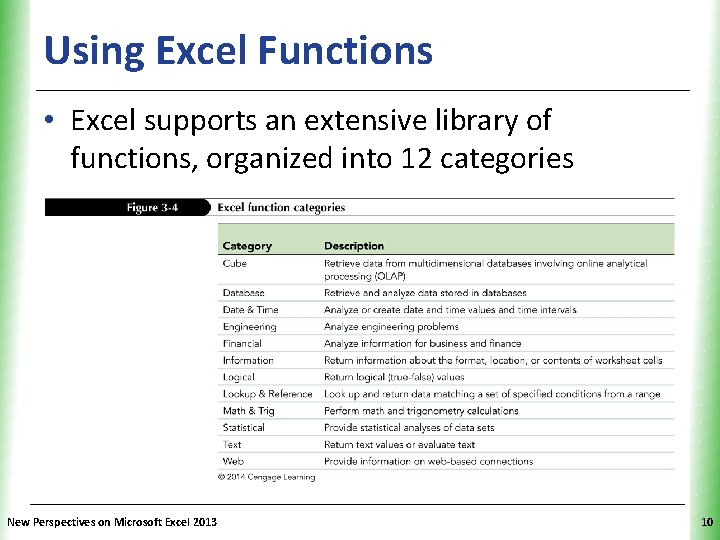
Using Excel Functions XP • Excel supports an extensive library of functions, organized into 12 categories New Perspectives on Microsoft Excel 2013 10
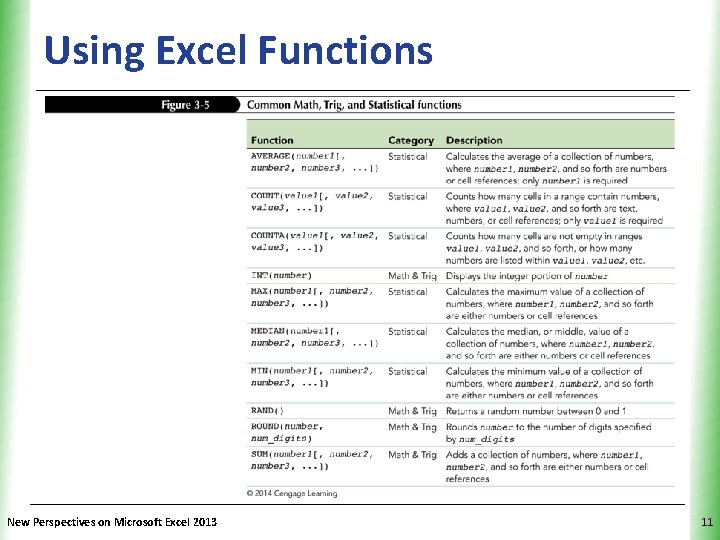
Using Excel Functions New Perspectives on Microsoft Excel 2013 XP 11
Using Excel Functions XP • An argument can be any type of value including text, numbers, cell references, or even other formulas or functions • Functions can be placed inside another function, or nested; nested functions must include all parentheses New Perspectives on Microsoft Excel 2013 12
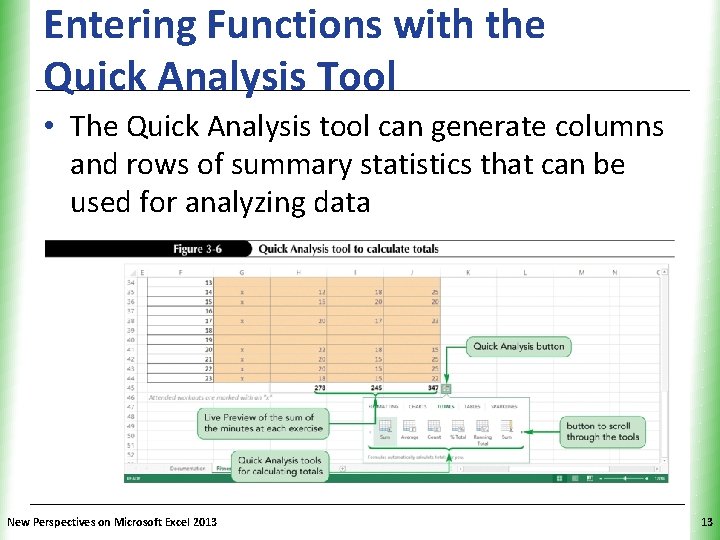
Entering Functions with the Quick Analysis Tool XP • The Quick Analysis tool can generate columns and rows of summary statistics that can be used for analyzing data New Perspectives on Microsoft Excel 2013 13
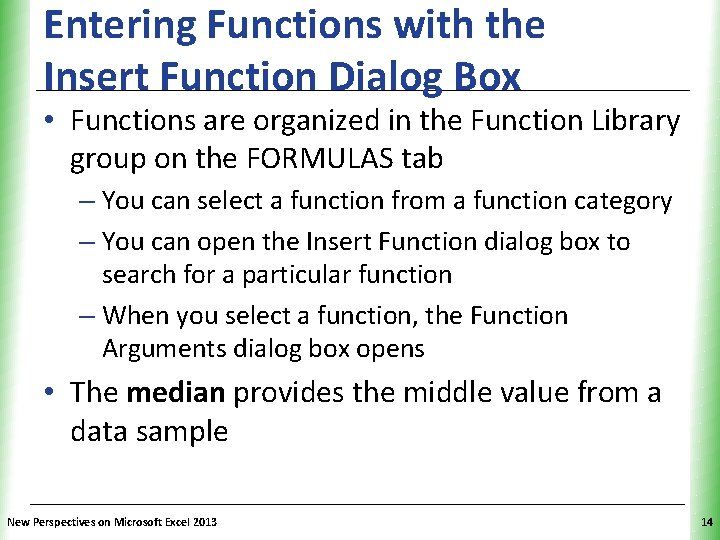
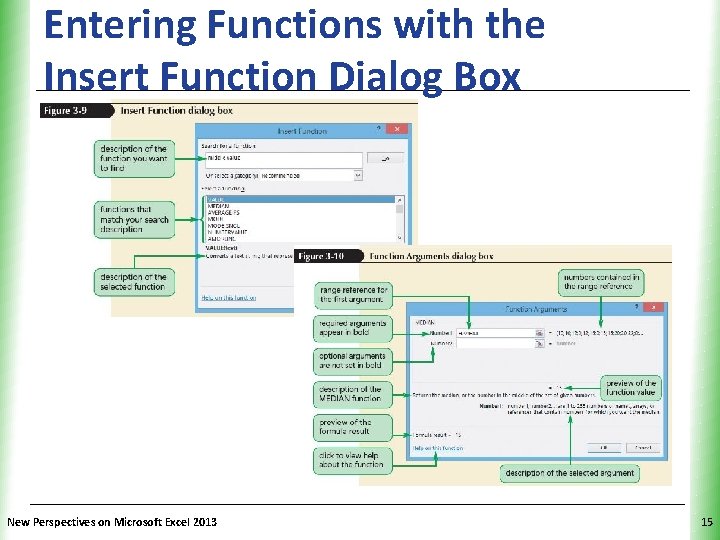
Entering Functions with the Insert Function Dialog Box XP • Functions are organized in the Function Library group on the FORMULAS tab – You can select a function from a function category – You can open the Insert Function dialog box to search for a particular function – When you select a function, the Function Arguments dialog box opens • The median provides the middle value from a data sample New Perspectives on Microsoft Excel 2013 14
Entering Functions with the Insert Function Dialog Box New Perspectives on Microsoft Excel 2013 XP 15
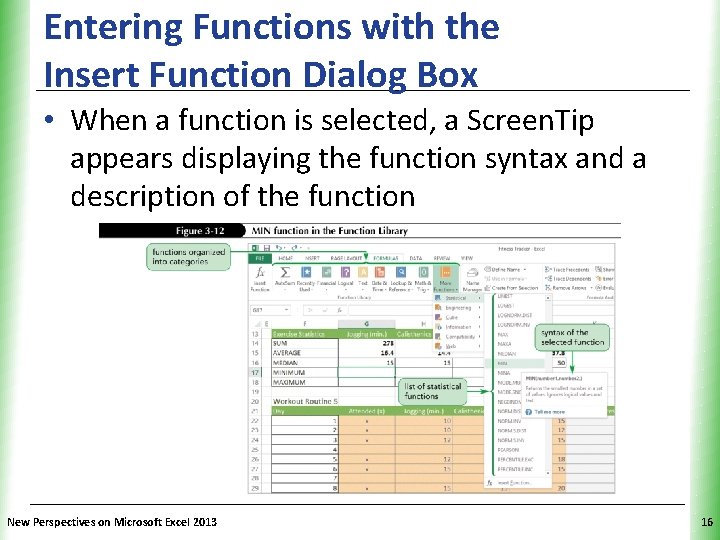
Entering Functions with the Insert Function Dialog Box XP • When a function is selected, a Screen. Tip appears displaying the function syntax and a description of the function New Perspectives on Microsoft Excel 2013 16
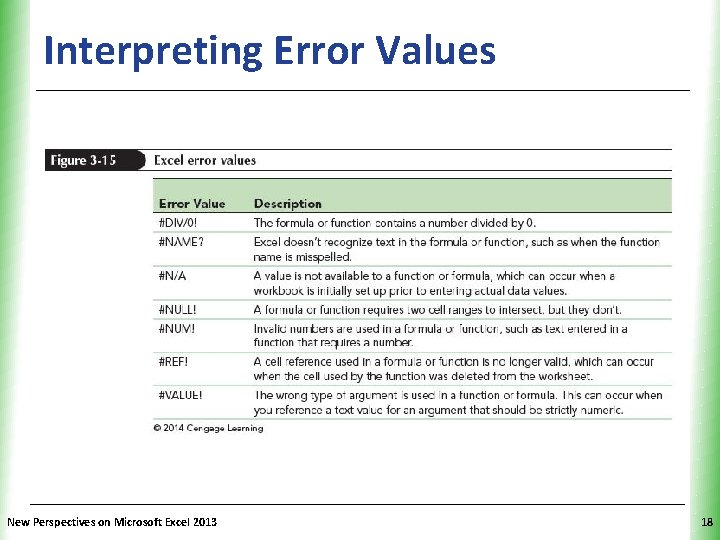
Interpreting Error Values XP • An error value indicates that some part of a formula is preventing Excel from returning a calculated value • An error value begins with a pound sign (#) followed by an error name that indicates the type of error New Perspectives on Microsoft Excel 2013 17
Interpreting Error Values New Perspectives on Microsoft Excel 2013 XP 18
Exploring Cell References XP • Workbooks can include data entered in cells that are then referenced in formulas to perform calculations on that data • Types of cell references – Relative – Absolute – Mixed New Perspectives on Microsoft Excel 2013 19
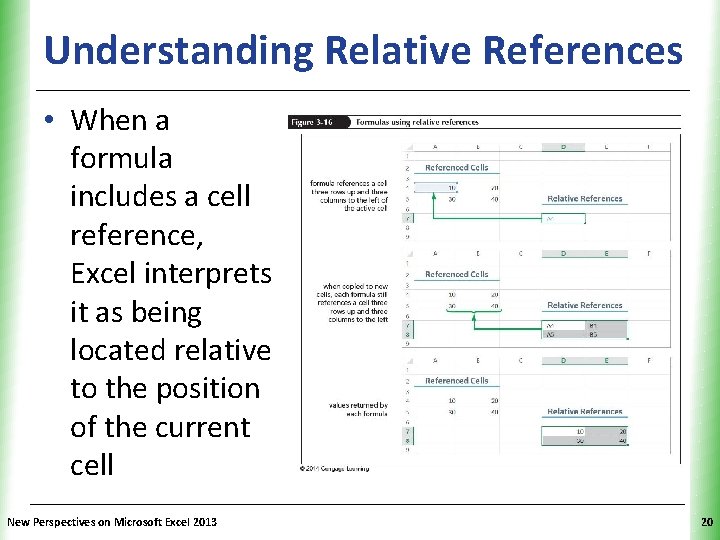
XP Understanding Relative References • When a formula includes a cell reference, Excel interprets it as being located relative to the position of the current cell New Perspectives on Microsoft Excel 2013 20
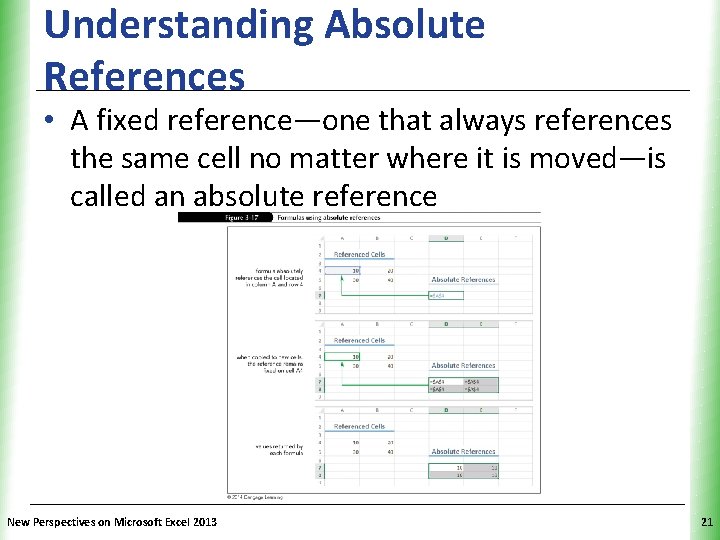
Understanding Absolute References XP • A fixed reference—one that always references the same cell no matter where it is moved—is called an absolute reference New Perspectives on Microsoft Excel 2013 21
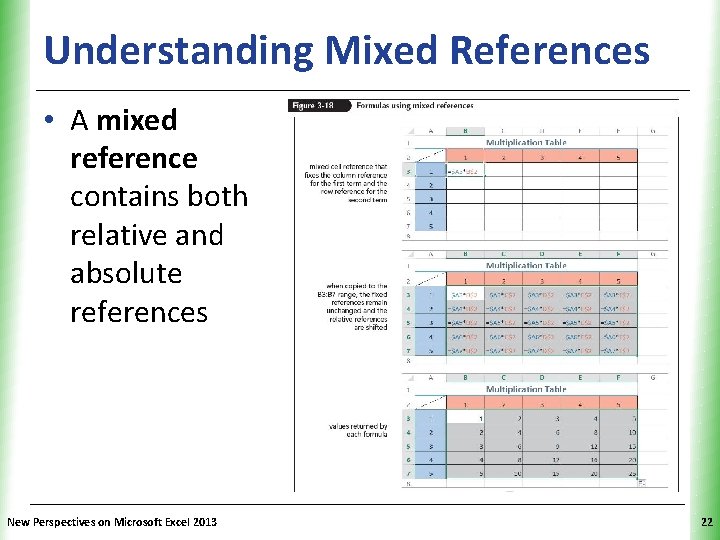
Understanding Mixed References XP • A mixed reference contains both relative and absolute references New Perspectives on Microsoft Excel 2013 22
Changing Cell References in a Formula XP • To quickly switch a cell reference from relative to absolute or mixed – Select the cell reference in Edit mode – Press the F 4 key – Excel cycles through the different reference types —starting with the relative reference, followed by the absolute reference, then to a mixed reference with the row absolute, and finally to a mixed reference with the column absolute New Perspectives on Microsoft Excel 2013 23
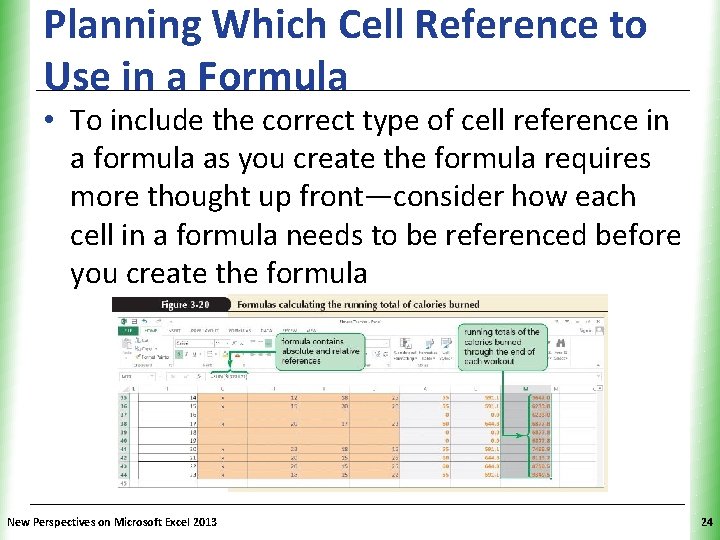
Planning Which Cell Reference to XP Use in a Formula • To include the correct type of cell reference in a formula as you create the formula requires more thought up front—consider how each cell in a formula needs to be referenced before you create the formula New Perspectives on Microsoft Excel 2013 24
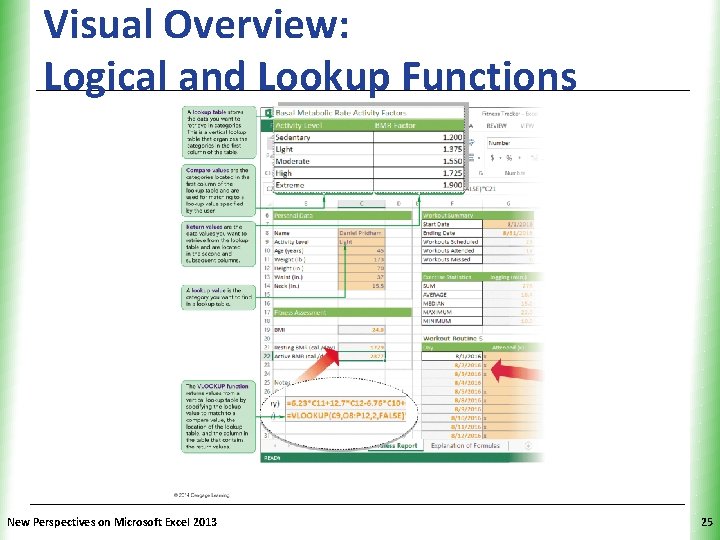
Visual Overview: Logical and Lookup Functions New Perspectives on Microsoft Excel 2013 XP 25
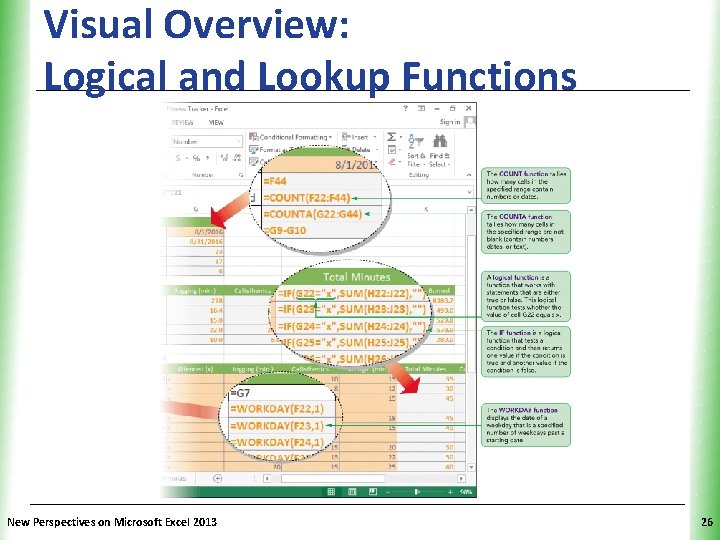
Visual Overview: Logical and Lookup Functions New Perspectives on Microsoft Excel 2013 XP 26
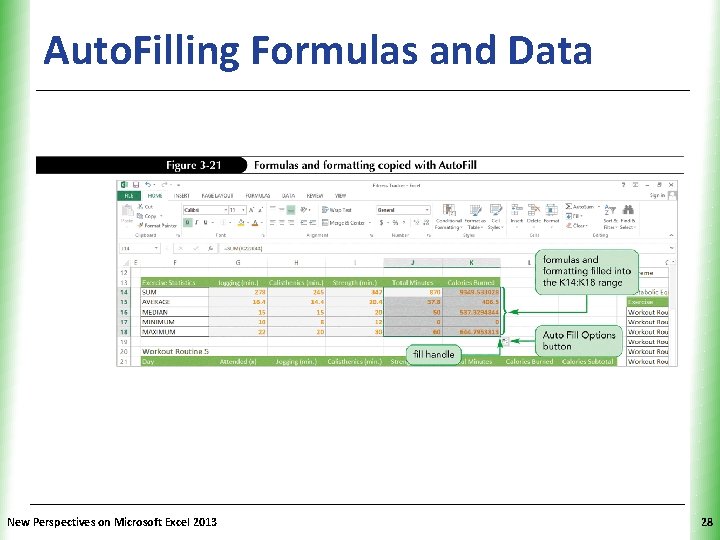
Auto. Filling Formulas and Data XP • Auto. Fill provides a quick way to enter content and formatting in cells based on existing entries in adjacent cells • After you select a range, a fill handle appears in the lower-right corner of the selection – When you drag the fill handle over an adjacent cell or range, Auto. Fill copies the content and formats from the original cell or range into the adjacent cell or range – More efficient than the two-step process of copying and pasting New Perspectives on Microsoft Excel 2013 27
Auto. Filling Formulas and Data New Perspectives on Microsoft Excel 2013 XP 28
Using the Auto Fill Options Button. XP • By default, Auto. Fill copies both the content and the formatting of the original range to the selected range • Use Auto Fill Options button to specify what is copied New Perspectives on Microsoft Excel 2013 29
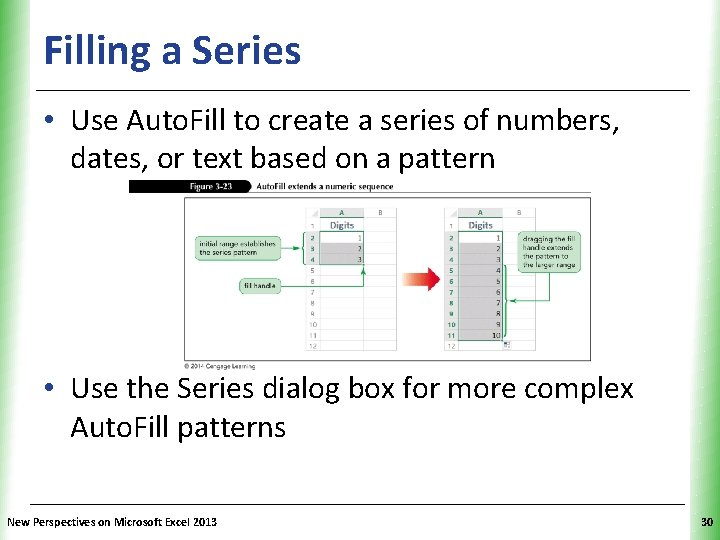
Filling a Series XP • Use Auto. Fill to create a series of numbers, dates, or text based on a pattern • Use the Series dialog box for more complex Auto. Fill patterns New Perspectives on Microsoft Excel 2013 30
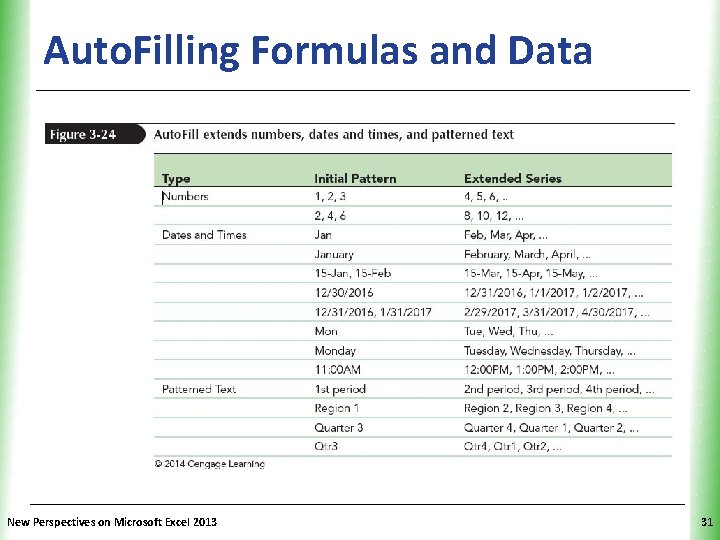
Auto. Filling Formulas and Data New Perspectives on Microsoft Excel 2013 XP 31
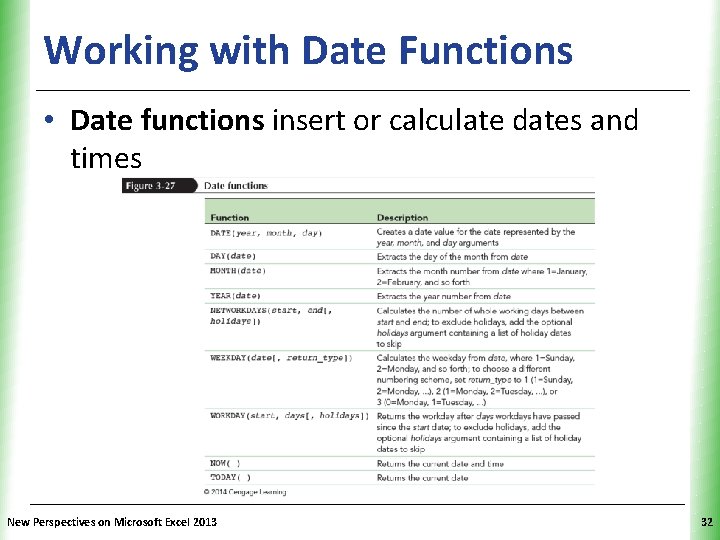
Working with Date Functions XP • Date functions insert or calculate dates and times New Perspectives on Microsoft Excel 2013 32
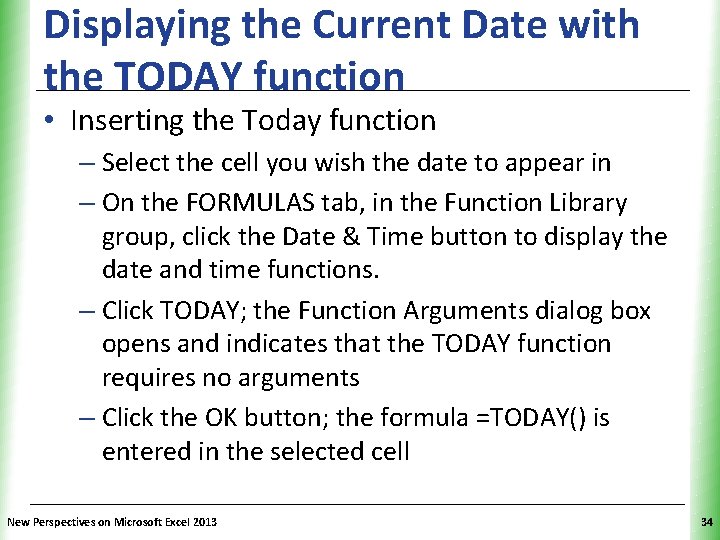
Displaying the Current Date with the TODAY function XP • Many workbooks include the current date • Use the TODAY function to display the current date in a worksheet • The TODAY function has the following syntax: =TODAY() • The date displayed by the TODAY function is updated automatically whenever you reopen the workbook or enter a new calculation New Perspectives on Microsoft Excel 2013 33
Displaying the Current Date with the TODAY function XP • Inserting the Today function – Select the cell you wish the date to appear in – On the FORMULAS tab, in the Function Library group, click the Date & Time button to display the date and time functions. – Click TODAY; the Function Arguments dialog box opens and indicates that the TODAY function requires no arguments – Click the OK button; the formula =TODAY() is entered in the selected cell New Perspectives on Microsoft Excel 2013 34
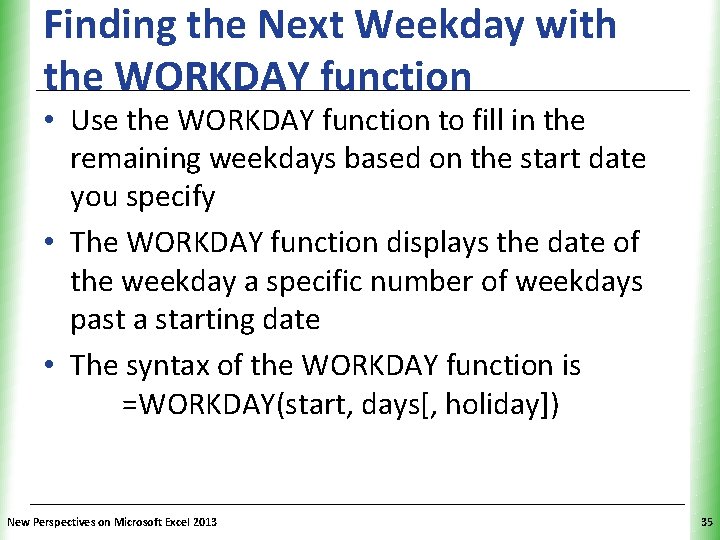
Finding the Next Weekday with the WORKDAY function XP • Use the WORKDAY function to fill in the remaining weekdays based on the start date you specify • The WORKDAY function displays the date of the weekday a specific number of weekdays past a starting date • The syntax of the WORKDAY function is =WORKDAY(start, days[, holiday]) New Perspectives on Microsoft Excel 2013 35
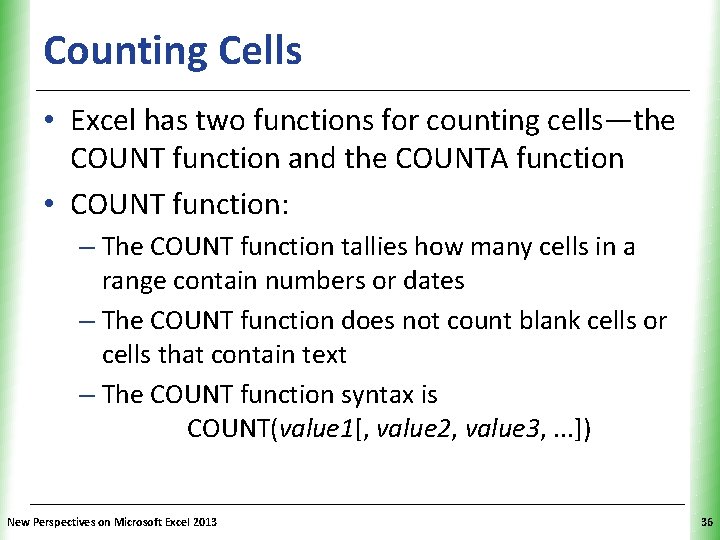
Counting Cells XP • Excel has two functions for counting cells—the COUNT function and the COUNTA function • COUNT function: – The COUNT function tallies how many cells in a range contain numbers or dates – The COUNT function does not count blank cells or cells that contain text – The COUNT function syntax is COUNT(value 1[, value 2, value 3, . . . ]) New Perspectives on Microsoft Excel 2013 36
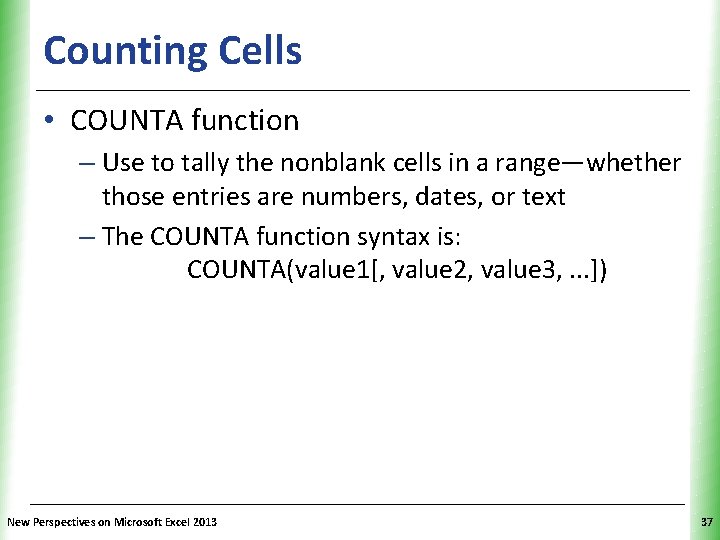
Counting Cells XP • COUNTA function – Use to tally the nonblank cells in a range—whether those entries are numbers, dates, or text – The COUNTA function syntax is: COUNTA(value 1[, value 2, value 3, . . . ]) New Perspectives on Microsoft Excel 2013 37
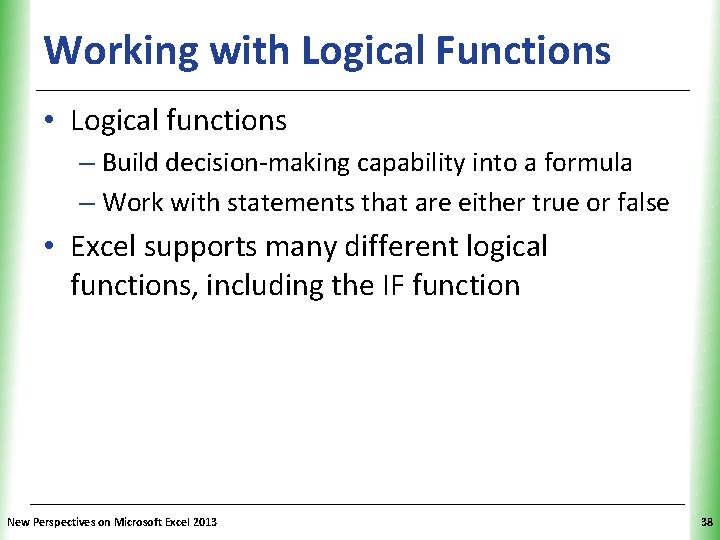
Working with Logical Functions XP • Logical functions – Build decision-making capability into a formula – Work with statements that are either true or false • Excel supports many different logical functions, including the IF function New Perspectives on Microsoft Excel 2013 38
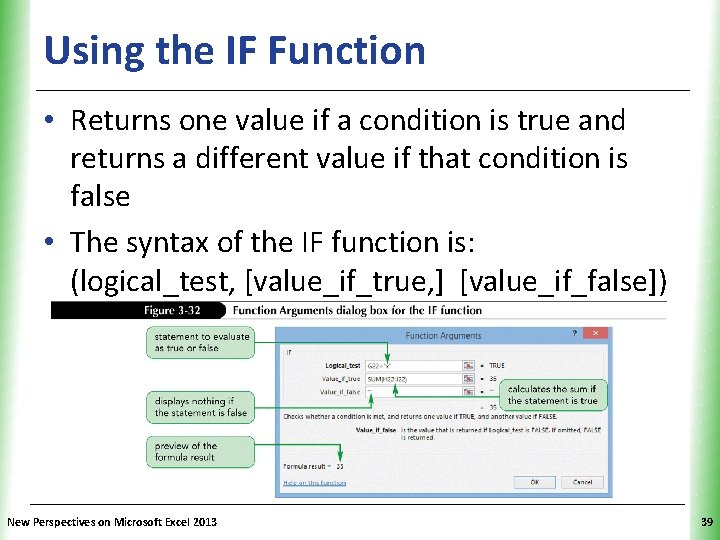
Using the IF Function XP • Returns one value if a condition is true and returns a different value if that condition is false • The syntax of the IF function is: (logical_test, [value_if_true, ] [value_if_false]) New Perspectives on Microsoft Excel 2013 39
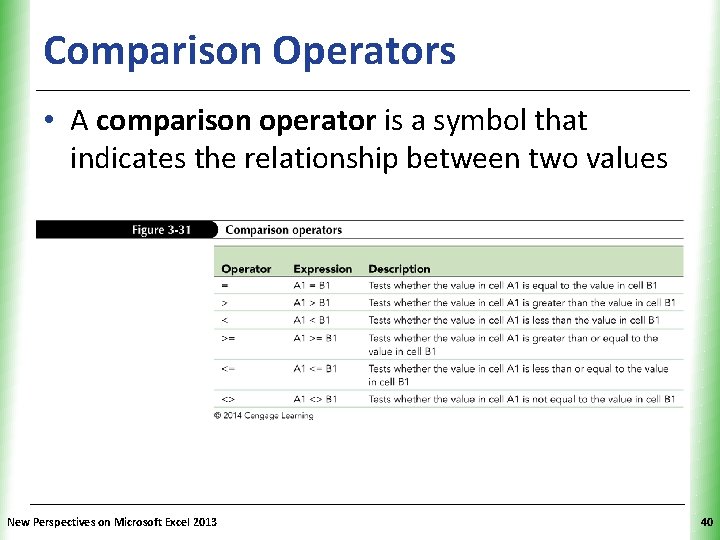
Comparison Operators XP • A comparison operator is a symbol that indicates the relationship between two values New Perspectives on Microsoft Excel 2013 40
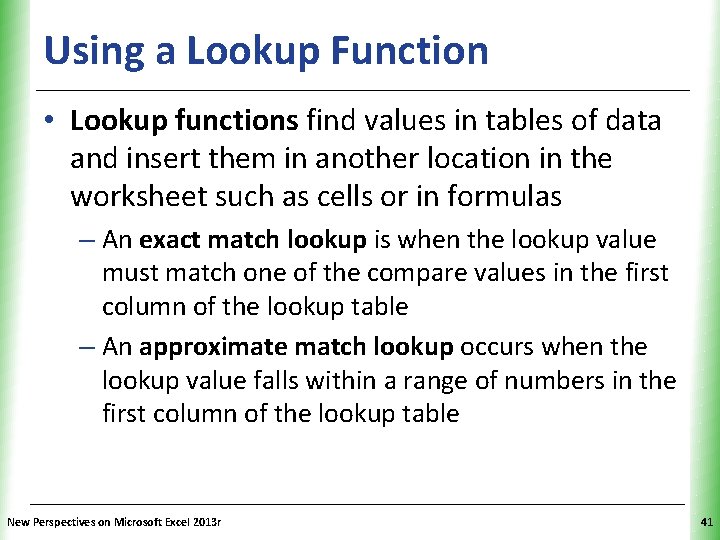
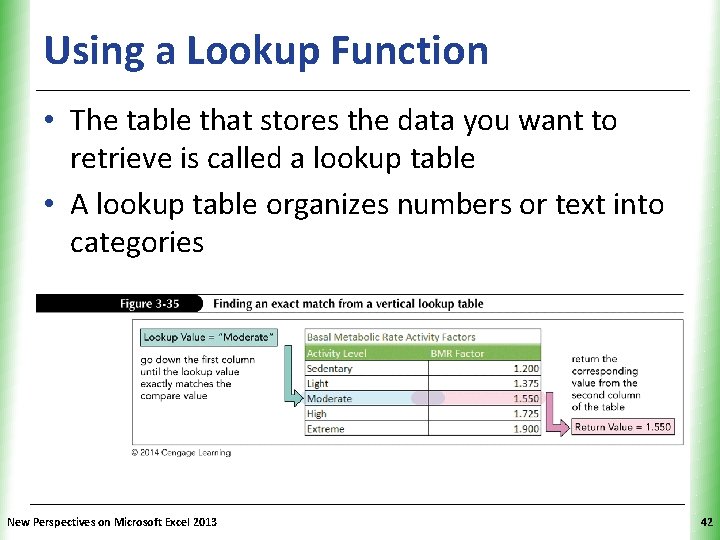
Using a Lookup Function XP • Lookup functions find values in tables of data and insert them in another location in the worksheet such as cells or in formulas – An exact match lookup is when the lookup value must match one of the compare values in the first column of the lookup table – An approximate match lookup occurs when the lookup value falls within a range of numbers in the first column of the lookup table New Perspectives on Microsoft Excel 2013 r 41
Using a Lookup Function XP • The table that stores the data you want to retrieve is called a lookup table • A lookup table organizes numbers or text into categories New Perspectives on Microsoft Excel 2013 42
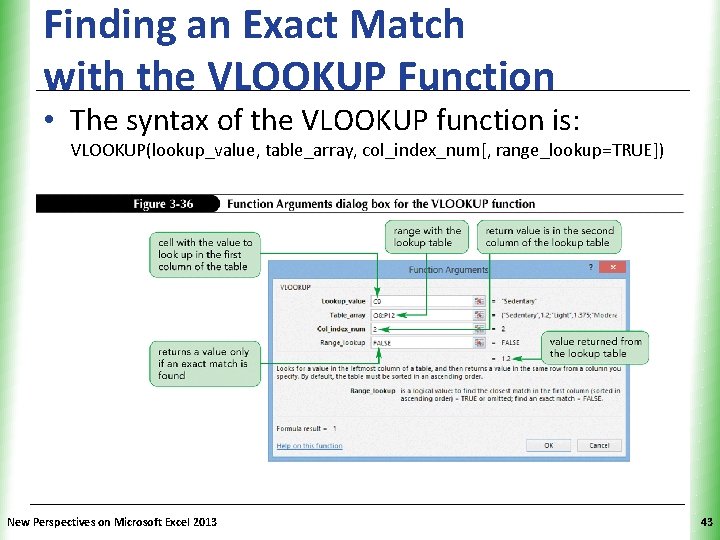
Finding an Exact Match with the VLOOKUP Function XP • The syntax of the VLOOKUP function is: VLOOKUP(lookup_value, table_array, col_index_num[, range_lookup=TRUE]) New Perspectives on Microsoft Excel 2013 43
Performing What-If Analysis XP • A what-if analysis lets you explore the impact that changing input values has on the calculated values in the workbook • One way to perform a what-if analysis is by changing one or more of the input values to see how they affect the calculated results New Perspectives on Microsoft Excel 2013 44
Using Trial and Error XP • The trial-and-error method requires some guesswork as you estimate which values to change and by how much • To perform a what-if analysis by trial and error: – Change the value of a worksheet cell (the input cell) – Observe its impact on one or more calculated cells (the result cells) – Repeat until the desired results are achieved New Perspectives on Microsoft Excel 2013 45
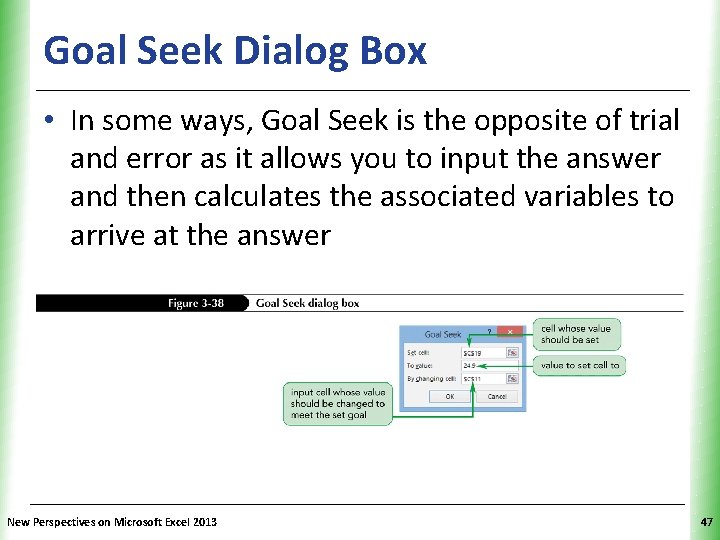
Using Goal Seek XP • Goal Seek automates the trial-and-error process by specifying a value for a calculated item • To perform a what-if analysis using Goal Seek: – On the DATA tab, in the Data Tools group, click the What-If Analysis button, and then click Goal Seek – Select the result cell in the Set cell box, and then specify its value (goal) in the To value box – In the By changing cell box, specify the input cell – Click the OK button; the value of the input cell changes to set the value of the result cell New Perspectives on Microsoft Excel 2013 46
Goal Seek Dialog Box XP • In some ways, Goal Seek is the opposite of trial and error as it allows you to input the answer and then calculates the associated variables to arrive at the answer New Perspectives on Microsoft Excel 2013 47