
Tutorial 2 Developing a Web Site Objectives XP
Tutorial 2 Developing a Web Site
Objectives XP • Learn how to storyboard various Web site structures • Create links among documents in a Web site • Understand relative and absolute folder paths • Work with the base element • Mark a location with the id attribute • Create a link to an id • Mark an image as a link New Perspectives on HTML and XHTML, Comprehensive 2
Objectives • • XP Create an image map from an inline image Remove an image border Understand URLs Link to a site on the Web Link to an FTP site Link to an e-mail address Work with hypertext attributes Work with metadata New Perspectives on HTML and XHTML, Comprehensive 3
Working with Web Site Structures XP • A storyboard is a diagram of a Web site’s structure, showing all the pages in the site and indicating how they are linked together • It is important to storyboard your Web site before you start creating your pages in order to determine which structure works best for the type of information the site contains • A well-designed structure can ensure that users will be able to navigate the site without getting lost or missing important information New Perspectives on HTML and XHTML, Comprehensive 4
Linear Structures XP • In a linear structure, each page is linked with the pages that follow and precede it in an ordered chain • Linear structure works best for Web pages with a clearly defined order • In an augmented linear structure, each page contains an additional link back to an opening page New Perspectives on HTML and XHTML, Comprehensive 5
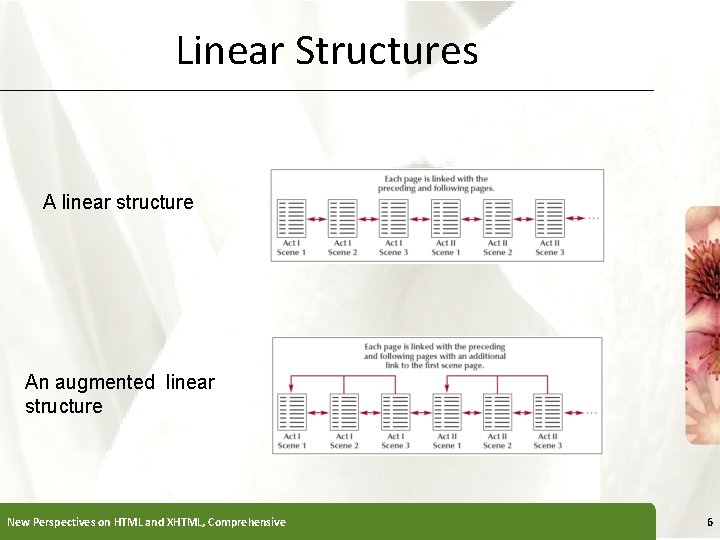
Linear Structures XP A linear structure An augmented linear structure New Perspectives on HTML and XHTML, Comprehensive 6
Hierarchical Structures XP • In the hierarchical structure, the pages are linked going from the home page down to more specific pages • Users can easily move from general to specific and back again • Within this structure, a user can move quickly to a specific scene within the page, bypassing the need to move through each scene in the play New Perspectives on HTML and XHTML, Comprehensive 7
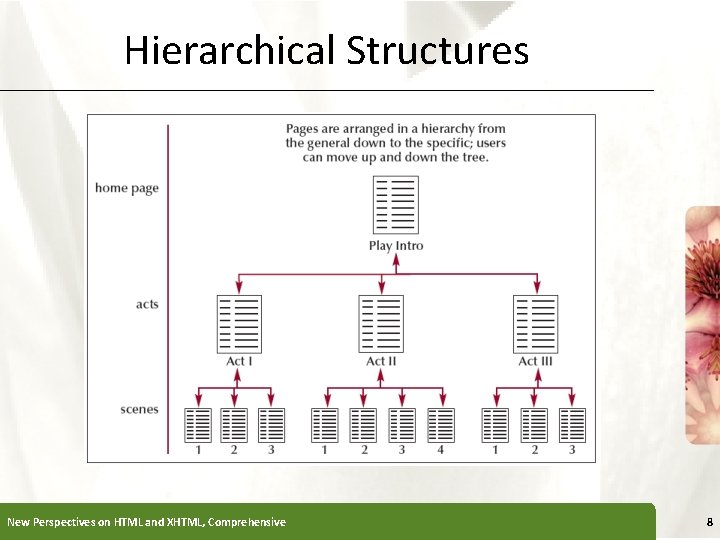
Hierarchical Structures New Perspectives on HTML and XHTML, Comprehensive XP 8
Mixed Structures XP • As Web sites become larger and more complex, you often need to use a combination of several different structures • The overall form can be hierarchical, allowing the user to move from general to specific; however, the links also allow users to move through the site in a linear fashion • A site index is a page containing an outline of the entire site and its contents New Perspectives on HTML and XHTML, Comprehensive 9
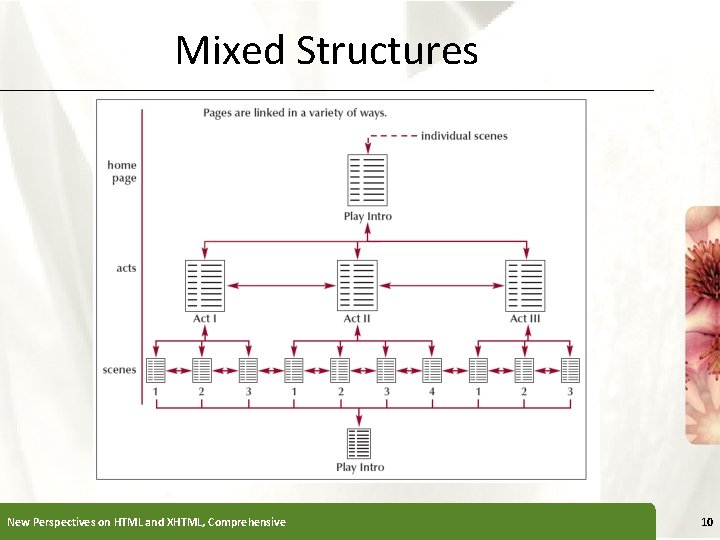
Mixed Structures New Perspectives on HTML and XHTML, Comprehensive XP 10
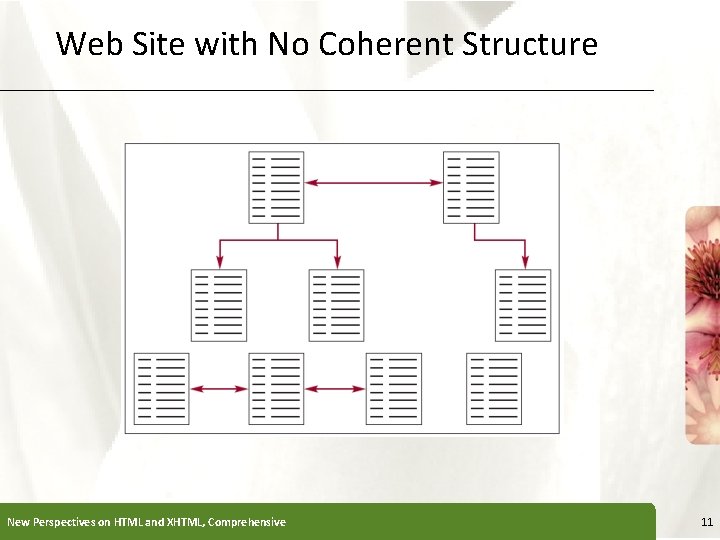
Web Site with No Coherent Structure New Perspectives on HTML and XHTML, Comprehensive XP 11
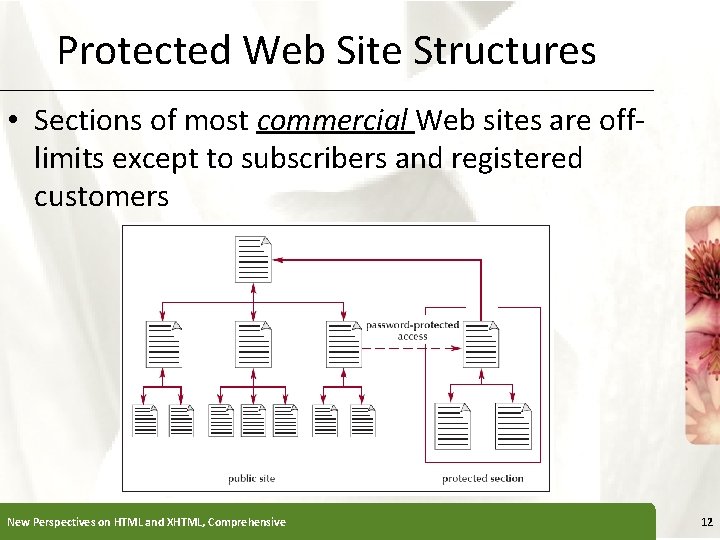
Protected Web Site Structures XP • Sections of most commercial Web sites are offlimits except to subscribers and registered customers New Perspectives on HTML and XHTML, Comprehensive 12
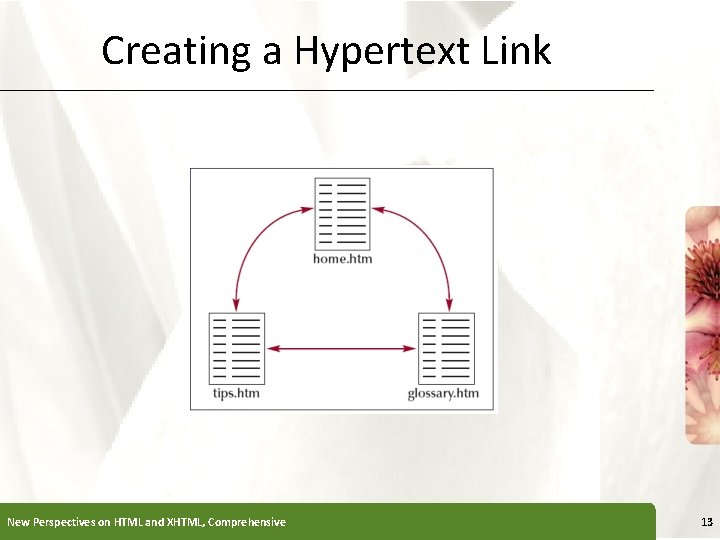
Creating a Hypertext Link New Perspectives on HTML and XHTML, Comprehensive XP 13

Creating a Hypertext Link XP • To link to a page, you specify the name of the file using the href attribute of the <a> tag (anchor tag) – <a href = “reference” > content </a> • Where reference is the location being linked to and content is the document content that is being marked as a link. • For example: – < a href = “home. htm” > Home </a> – The word “Home” will be underlined, providing a visual clue to the user that the text is linked to another document (home. htm) New Perspectives on HTML and XHTML, Comprehensive 14
Creating a Hypertext Link XP • Filenames are case sensitive on some operating systems, including the UNIX and Macintosh, but not on others • The current standard is to use lowercase filenames for all files on a Website and to avoid special characters such as blanks and slashes • You should also keep filenames short to avoid typing errors New Perspectives on HTML and XHTML, Comprehensive 15
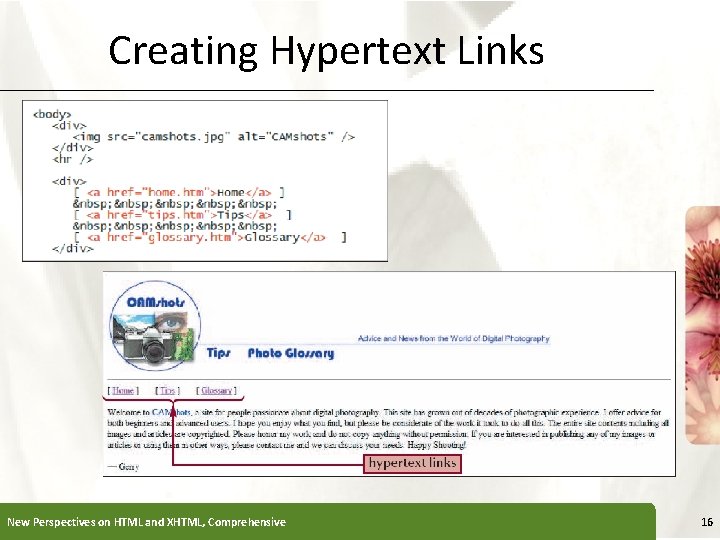
Creating Hypertext Links New Perspectives on HTML and XHTML, Comprehensive XP 16
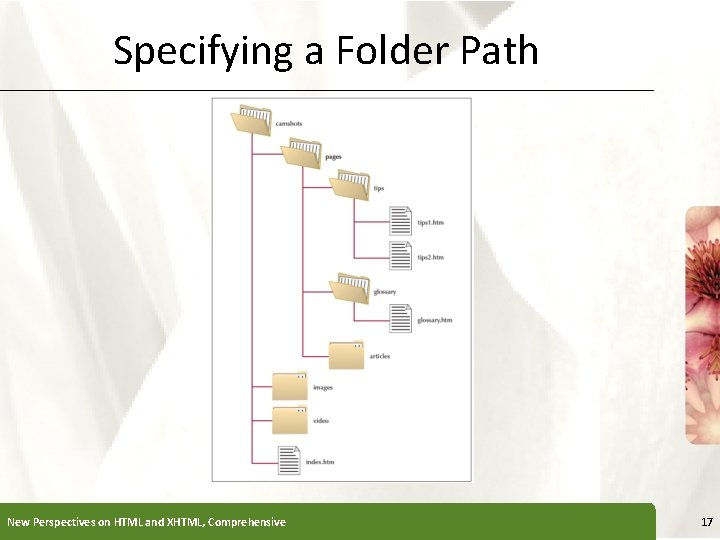
Specifying a Folder Path New Perspectives on HTML and XHTML, Comprehensive XP 17
Specifying a Folder Path XP • To create a link to a file located in a different folder than the current document, you must specify the file’s location, or path • HTML supports two kinds of paths: absolute and relative. New Perspectives on HTML and XHTML, Comprehensive 18
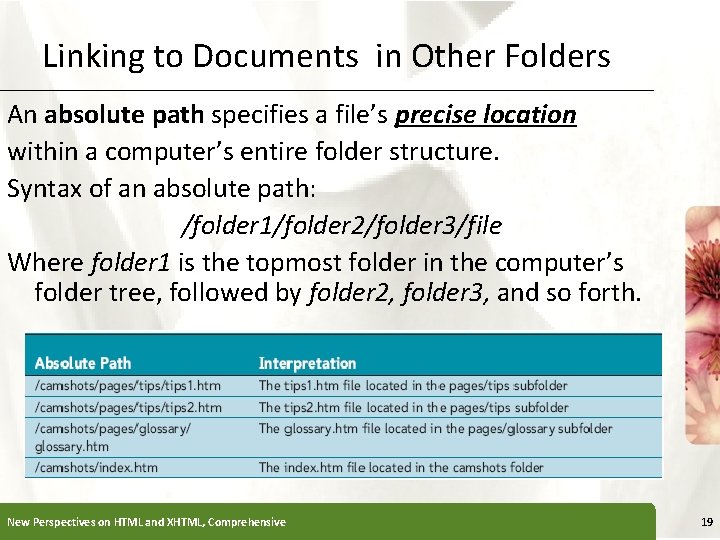
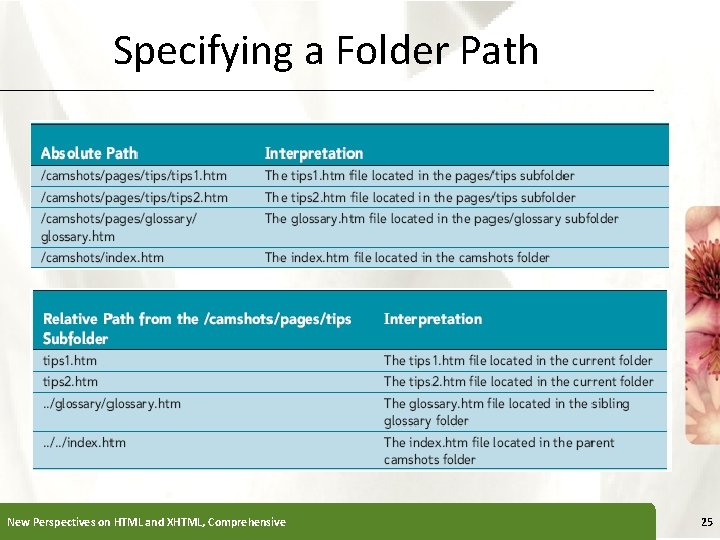
Linking to Documents in Other Folders XP An absolute path specifies a file’s precise location within a computer’s entire folder structure. Syntax of an absolute path: /folder 1/folder 2/folder 3/file Where folder 1 is the topmost folder in the computer’s folder tree, followed by folder 2, folder 3, and so forth. New Perspectives on HTML and XHTML, Comprehensive 19
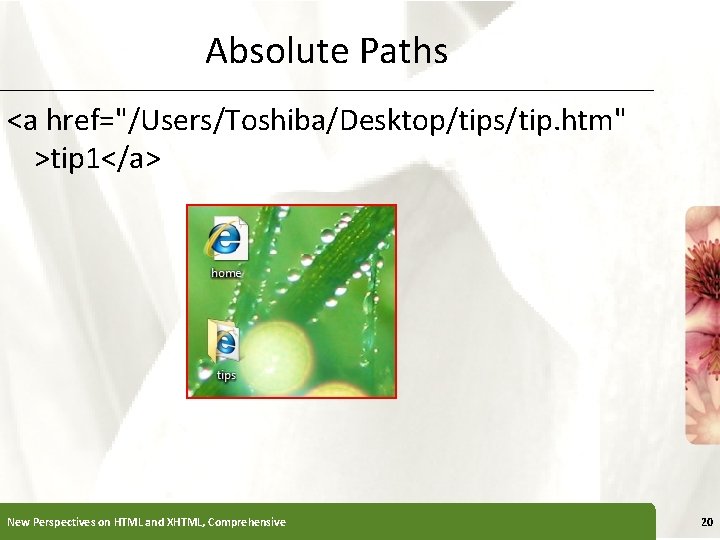
Absolute Paths XP <a href="/Users/Toshiba/Desktop/tips/tip. htm" >tip 1</a> New Perspectives on HTML and XHTML, Comprehensive 20
Absolute Paths XP If files are located on different drives as well as in different folders, you must include the driver letter in the form /drive|/folder 1/folder 2/folder 3/file For example /C|/cameshots/pages/tips 1. html Note: The drive letter C does NOT have to be included if the documents are located on the same hard drive New Perspectives on HTML and XHTML, Comprehensive 21
Relative Paths XP • A relative path specifies a file’s location in relation to the location of the current document. • If the file is in the same location as the current document, you do not have to specify the folder name. • If the file is in a subfolder of the current document, you have to include the name of the subfolder/file New Perspectives on HTML and XHTML, Comprehensive 22
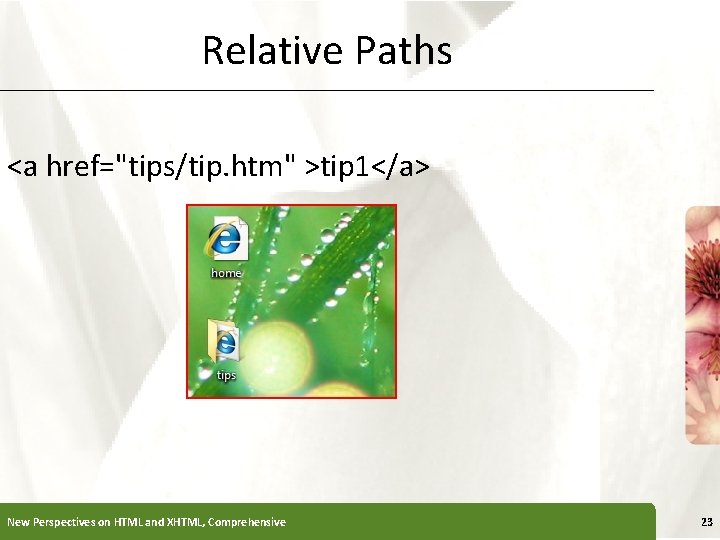
Relative Paths XP <a href="tips/tip. htm" >tip 1</a> New Perspectives on HTML and XHTML, Comprehensive 23
Relative Paths XP • If you want to go one level up the folder tree, you start the relative path with a double period (. . ) and then provide the name of the file. . . /file • To specify a different folder on the same level, known as a sibling folder, you move up the folder tree using the double period (. . ) and then down the tree using the name of the sibling folder. . . /folder/file • You should almost always use relative paths in your links. New Perspectives on HTML and XHTML, Comprehensive 24
Specifying a Folder Path New Perspectives on HTML and XHTML, Comprehensive XP 25
Linking to Locations within Documents XP • To jump to a specific location within a document, you first need to mark that location • One way to identify elements in an HTML document is to use the id attribute • The id element uses the syntax: id=“id ” where id is the id name assigned to the element. <h 2 id=“H”>H</h 2> New Perspectives on HTML and XHTML, Comprehensive 26
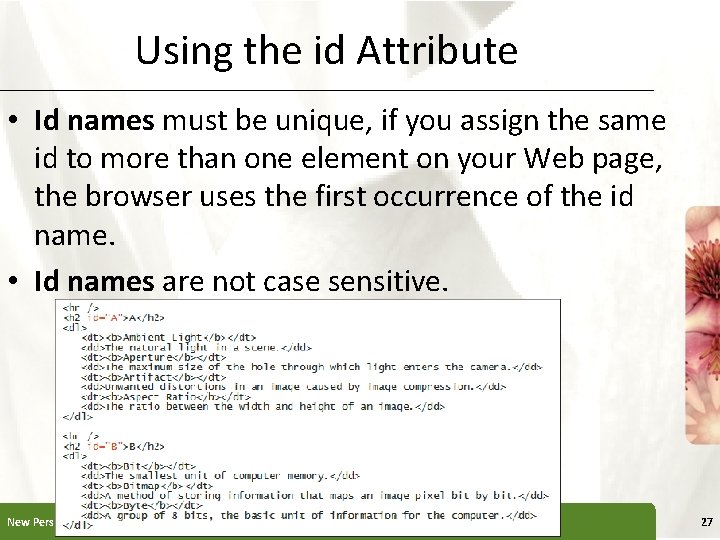
Using the id Attribute XP • Id names must be unique, if you assign the same id to more than one element on your Web page, the browser uses the first occurrence of the id name. • Id names are not case sensitive. New Perspectives on HTML and XHTML, Comprehensive 27
Linking to an id XP • Once you’ve marked an element using the id attribute, you can create a hypertext link to that element using the hypertext link <a href = “#id”>content </a> For example to create a link to h 2 heading for the letter A in the glossary document, you would enter the following code: <a href=“#A”>A</a> New Perspectives on HTML and XHTML, Comprehensive 28
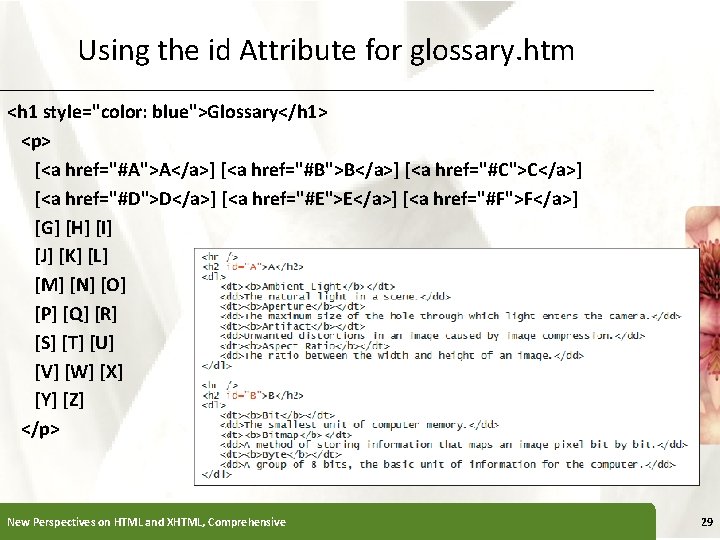
Using the id Attribute for glossary. htm XP <h 1 style="color: blue">Glossary</h 1> <p> [<a href="#A">A</a>] [<a href="#B">B</a>] [<a href="#C">C</a>] [<a href="#D">D</a>] [<a href="#E">E</a>] [<a href="#F">F</a>] [G] [H] [I] [J] [K] [L] [M] [N] [O] [P] [Q] [R] [S] [T] [U] [V] [W] [X] [Y] [Z] </p> New Perspectives on HTML and XHTML, Comprehensive 29
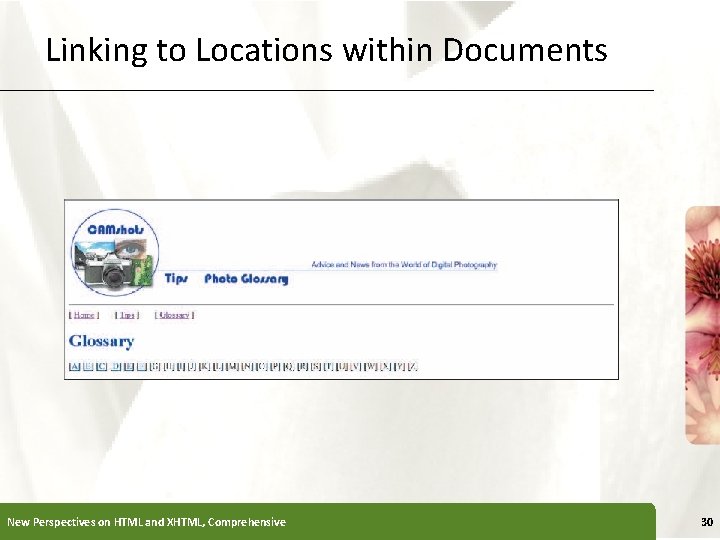
Linking to Locations within Documents New Perspectives on HTML and XHTML, Comprehensive XP 30
The id Attribute (top of page) XP • Use the id attribute to mark the top of the page <body> <div id="top"> <img src="camshots. jpg" alt="CAMshots" /> </div> … etc. …. Much more follows … <hr /> <div><a href="#top">Return to Top</a> ⇑ </div> <hr /> <address> CAMshots › Advice and News from the World of Digital Photography by Patrick Healy </address> </body> </html> New Perspectives on HTML and XHTML, Comprehensive 31
Creating Links between Documents XP • To create a link to a specific location in another file, enter the code <a href="reference#id">content</a> where reference is a reference to an HTML or XHTML file and id is the id of an element marked within that file <a href =“glossary. htm#D>”D” terms in the Glossary</a> New Perspectives on HTML and XHTML, Comprehensive 32
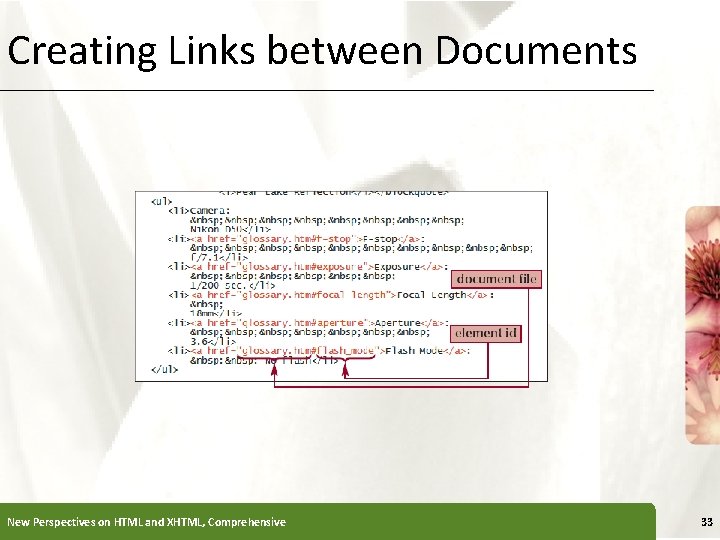
Creating Links between Documents New Perspectives on HTML and XHTML, Comprehensive XP 33
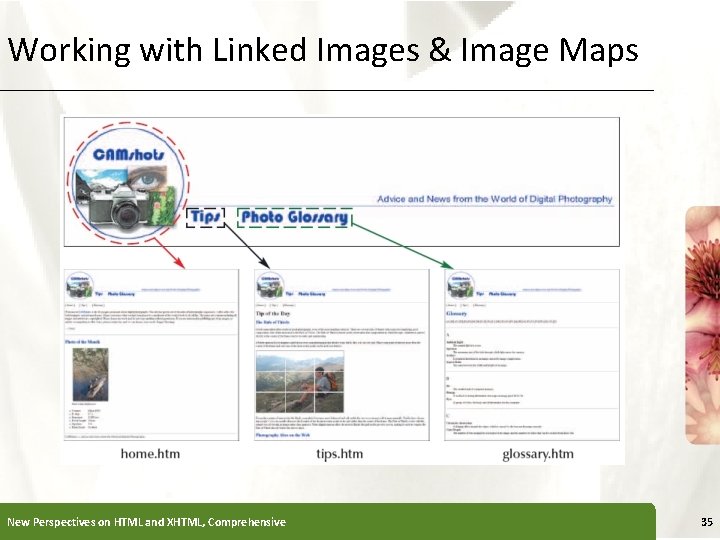
Working with Linked Images & Image Maps XP • A standard practice on the Web is to turn the Web site’s logo into a hypertext link pointing to the home page <a href="reference"><img src="file" alt="text" /></a> • HTML also allows you to divide an image into different zones, or hotspots, each linked to a different destination New Perspectives on HTML and XHTML, Comprehensive 34
Working with Linked Images & Image Maps New Perspectives on HTML and XHTML, Comprehensive XP 35
Removing the border from an inline XP image • To remove a border from an inline image, add the following attribute to the <img> tag: style = “border-width: 0” • Example: • <img src="camshots. jpg" alt="CAMshots" style="border-width: 0" /> New Perspectives on HTML and XHTML, Comprehensive 36
Introducing URLs XP • To create a link to a resource on the Internet, you need to know its URL • A Uniform Resource Locator (URL) specifies the precise location of a resource on the Internet • A protocol is a set of rules defining how information is exchanged between two resources New Perspectives on HTML and XHTML, Comprehensive 37
Introducing URLs XP • Your Web browser communicates with Web servers using the Hypertext Transfer Protocol (HTTP) • The URLs for all Web pages must start with the scheme “http” • Other Internet resources use different protocols and have different scheme names New Perspectives on HTML and XHTML, Comprehensive 38
Linking to a Web Site XP To create a link to a Web site from your document, use the URL of the Web site as the value of the href attribute. <a href="http: //www. apogeephoto. com">Apogee Photo</a> New Perspectives on HTML and XHTML, Comprehensive 39
Linking to an E-Mail Address XP To create a hypertext link to an e-mail address, use the following syntax: <a href="mailto: address">content</a> Exampel: <a href="mailto : mohammed@hotmail. com">E-mail us</a> New Perspectives on HTML and XHTML, Comprehensive 40
Tutorial- 2 Summary XP Create a Web site with several linked pages Storyboarding and complex Web structures Creating Web pages linked together Links to locations within documents and from another document • Inline images and image maps • • New Perspectives on HTML and XHTML, Comprehensive 41
- Slides: 41