
Tutorial 1 2 3 4 1 Play with

- Slides: 9
Tutorial 1. 2. 3. 4. 1 Play with Lively Kernel Example application Creating My. Project. js Grouping Institute of Software Systems/Janne Lautamäki 31. 10. 2021
2 Play with Lively Kernel • • • Use safari web browser to open page: http: //livelykernel. cs. tut. fi/ Open resources Go thru next steps: – Go thru Lively Kernel tutorial – Play with Lively Kernel – Read the Technical Overview Institute of Software Systems/Janne Lautamäki 31. 10. 2021
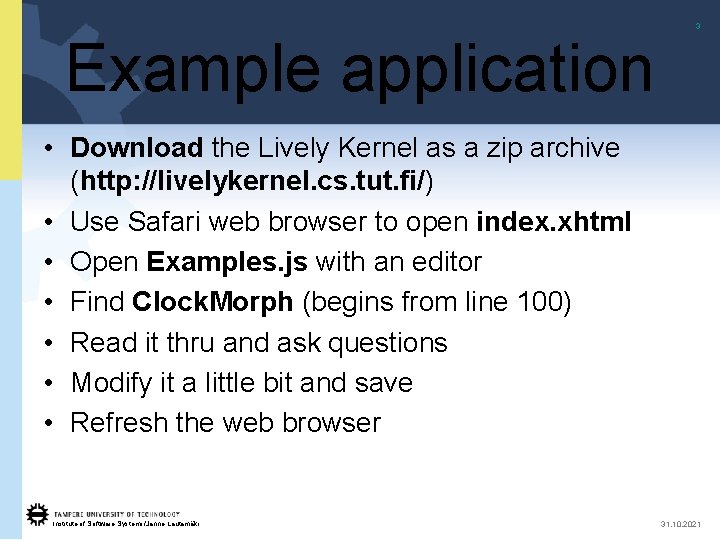
3 Example application • Download the Lively Kernel as a zip archive (http: //livelykernel. cs. tut. fi/) • Use Safari web browser to open index. xhtml • Open Examples. js with an editor • Find Clock. Morph (begins from line 100) • Read it thru and ask questions • Modify it a little bit and save • Refresh the web browser Institute of Software Systems/Janne Lautamäki 31. 10. 2021
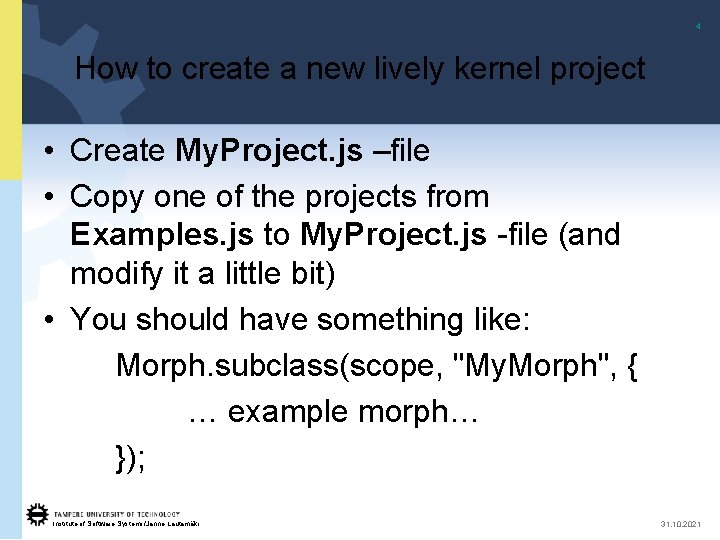
4 How to create a new lively kernel project • Create My. Project. js –file • Copy one of the projects from Examples. js to My. Project. js -file (and modify it a little bit) • You should have something like: Morph. subclass(scope, "My. Morph", { … example morph… }); Institute of Software Systems/Janne Lautamäki 31. 10. 2021
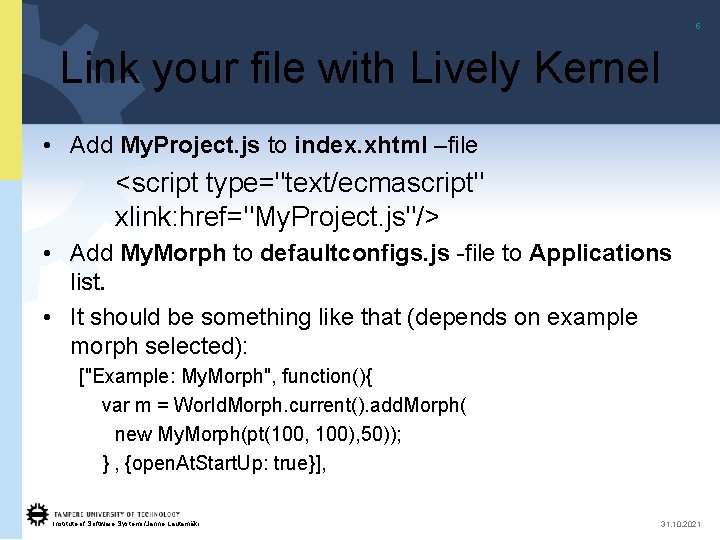
5 Link your file with Lively Kernel • Add My. Project. js to index. xhtml –file <script type="text/ecmascript" xlink: href="My. Project. js"/> • Add My. Morph to defaultconfigs. js -file to Applications list. • It should be something like that (depends on example morph selected): ["Example: My. Morph", function(){ var m = World. Morph. current(). add. Morph( new My. Morph(pt(100, 100), 50)); } , {open. At. Start. Up: true}], Institute of Software Systems/Janne Lautamäki 31. 10. 2021
6 Using Aptana • Open Aptana • Create a new general project (file->new>General->Project) • Import lively kernel (import->file system->) Institute of Software Systems/Janne Lautamäki 31. 10. 2021
7 Enabling develop menu in Safari • Edit -> preferences ->Advanced -> Show Develop menu in menu bar • Develop -> show error console Institute of Software Systems/Janne Lautamäki 31. 10. 2021
8 Presentations • Power. Point presentation (10 minutes) • Application demo (10 minutes) • Conversation (10 minutes) • PPT-presentation and full source for demo Institute of Software Systems/Janne Lautamäki 31. 10. 2021
9 Final report • Proposed Outline –Idea description –Non-Technical Description –Technical Details Institute of Software Systems/Janne Lautamäki 31. 10. 2021