
Turas Appraisal How to Use the Manager Team
- Slides: 9
Turas Appraisal How to: - Use the Manager Team Progress Dashboard
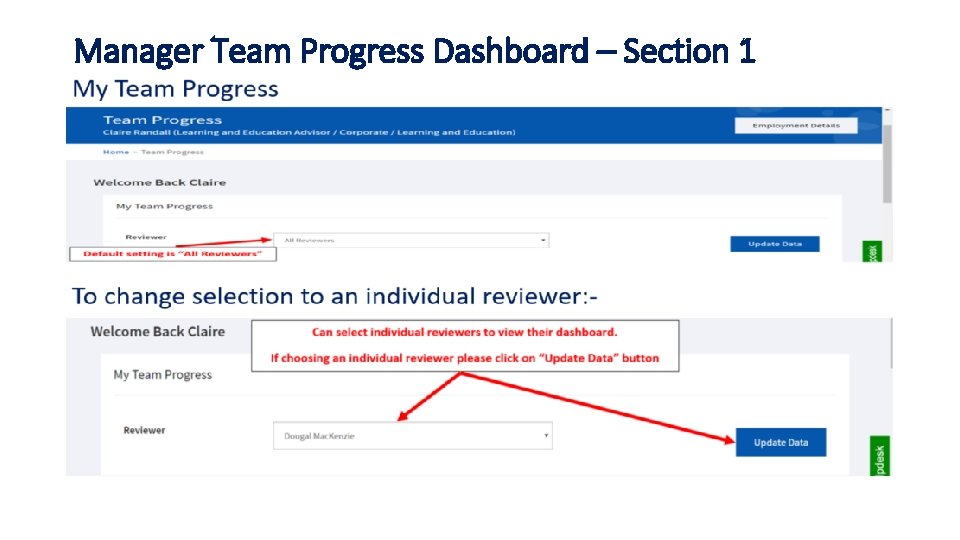
Manager’s Team Progress Dashboard The Manager’s Team Progress Dashboard has 3 sections and provides “real time” information on progress and shows: Section 1 • Team Progress selection ØCan be run to show details of all staff assigned to the manager ØIf the manager has assigned reviewers to some or all the staff assigned to them, the reports can be run for individual reviewers
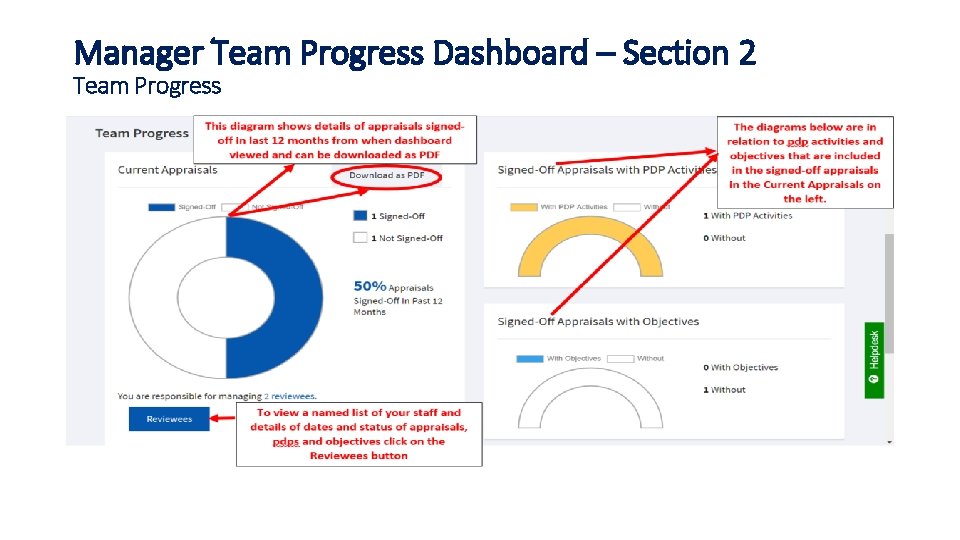
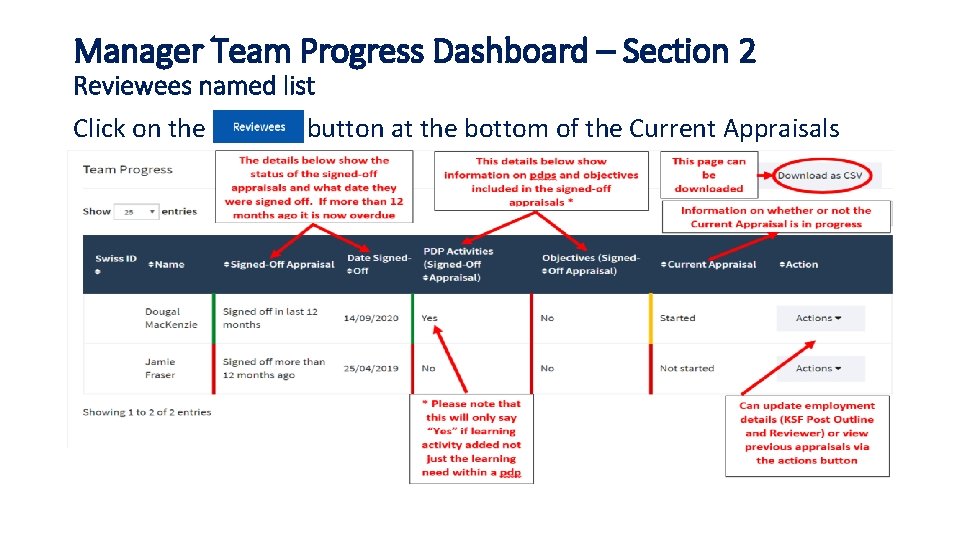
Manager’s Team Progress Dashboard cont’d Section 2 • Current Appraisals Ø Percentage of signed-off appraisals in past 12 months Ø Number of appraisals signed-off Ø Number of appraisals not signed off Ø Named list with sign off dates and status of appraisals, pdps and objectives • Signed-off appraisals with PDP Activities Ø Number of signed off appraisals that have a PDP activity recorded and the number without PDP activity recorded • Signed-off appraisals with Objectives Ø Number of signed off appraisals that have an objective recorded and the number without an objective recorded
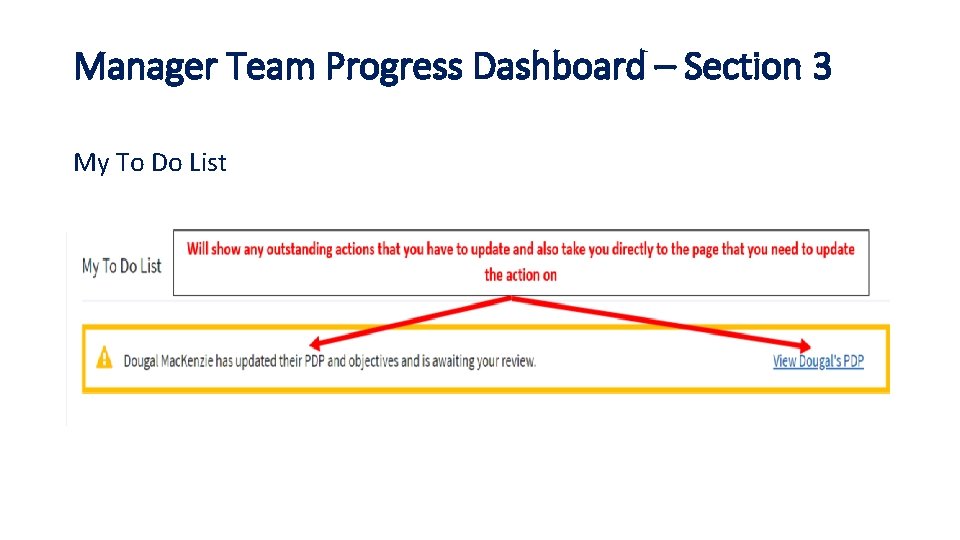
Manager’s Team Progress Dashboard cont’d Section 3 • To do list ØThe Team Progress Dashboard provides a to do list showing any outstanding actions e. g. where information required to be “accepted” or “signed-off” ØWhere there is an outstanding action there will be a link to take you to the page that requires to be updated
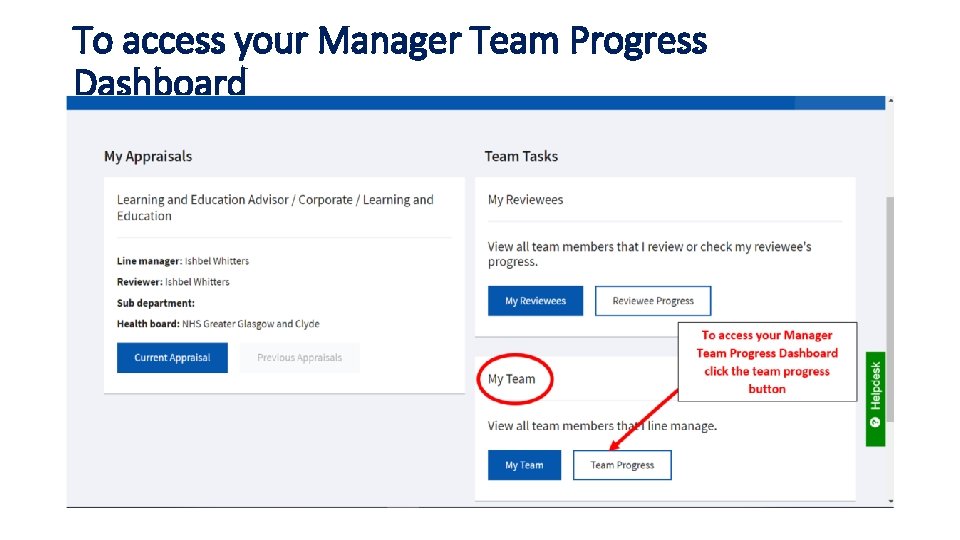
To access your Manager Team Progress Dashboard
Manager Team Progress Dashboard – Section 1
Manager Team Progress Dashboard – Section 2 Team Progress
Manager Team Progress Dashboard – Section 2 Reviewees named list Click on the button at the bottom of the Current Appraisals
Manager Team Progress Dashboard – Section 3 My To Do List