
Troubleshooting When good computers go bad Check your
Troubleshooting – When good computers go bad! �Check your cables �Here are the cables on the back of your computers and where they are supposed to be plugged in
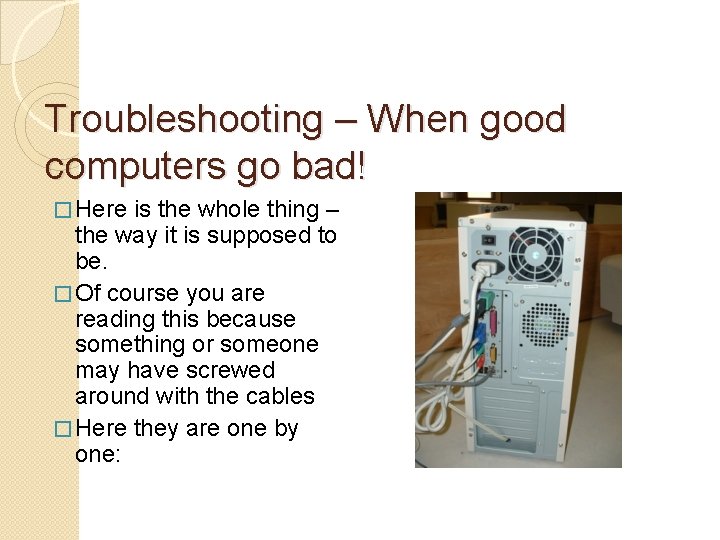
Troubleshooting – When good computers go bad! � Here is the whole thing – the way it is supposed to be. � Of course you are reading this because something or someone may have screwed around with the cables � Here they are one by one:
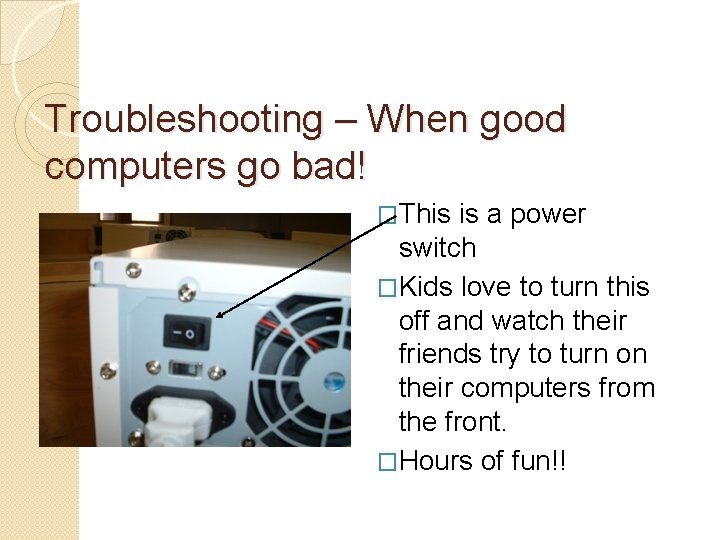
Troubleshooting – When good computers go bad! �This is a power switch �Kids love to turn this off and watch their friends try to turn on their computers from the front. �Hours of fun!!
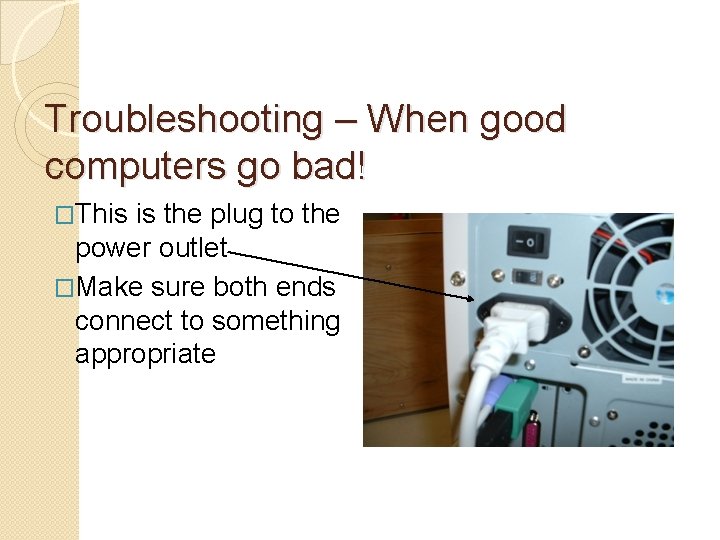
Troubleshooting – When good computers go bad! �This is the plug to the power outlet �Make sure both ends connect to something appropriate

Troubleshooting – When good computers go bad! �These are the connections for the keyboard and mouse. �Have they been reversed? ? If so change them back.
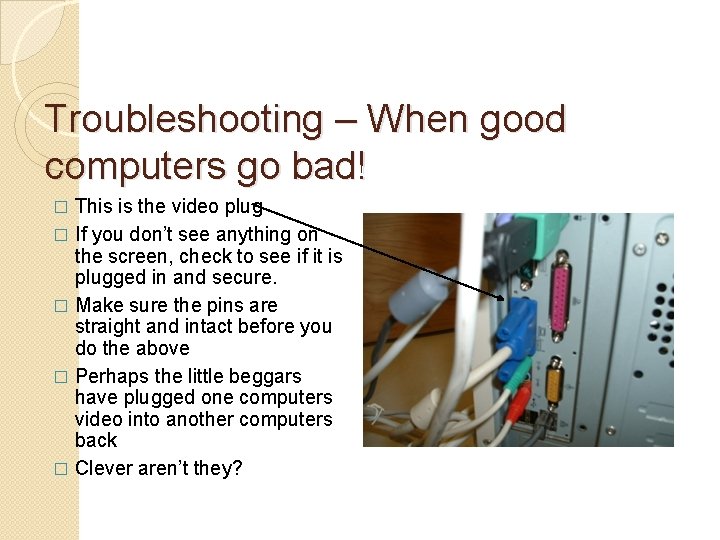
Troubleshooting – When good computers go bad! This is the video plug � If you don’t see anything on the screen, check to see if it is plugged in and secure. � Make sure the pins are straight and intact before you do the above � Perhaps the little beggars have plugged one computers video into another computers back � Clever aren’t they? �
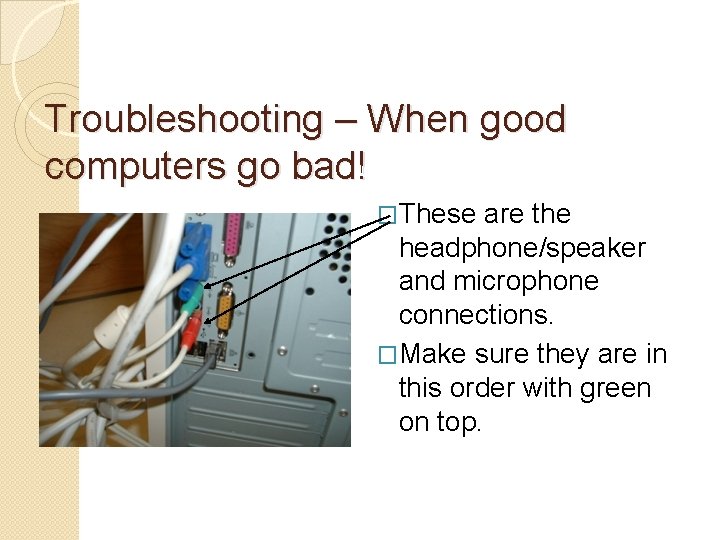
Troubleshooting – When good computers go bad! �These are the headphone/speaker and microphone connections. �Make sure they are in this order with green on top.
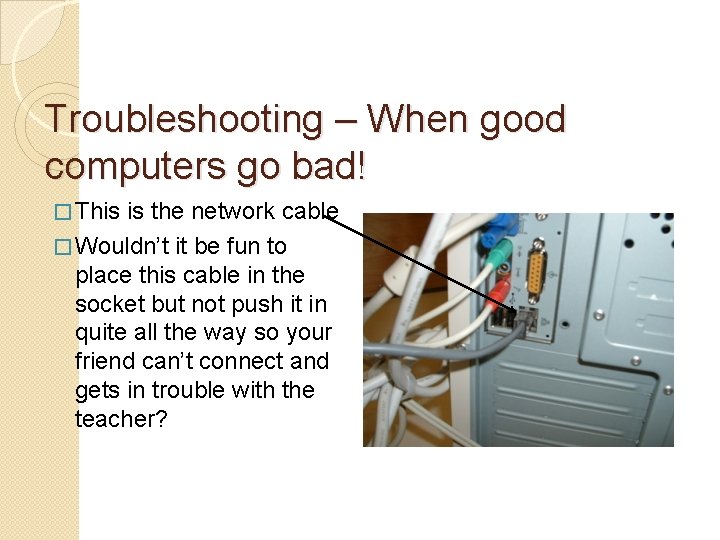
Troubleshooting – When good computers go bad! � This is the network cable � Wouldn’t it be fun to place this cable in the socket but not push it in quite all the way so your friend can’t connect and gets in trouble with the teacher?
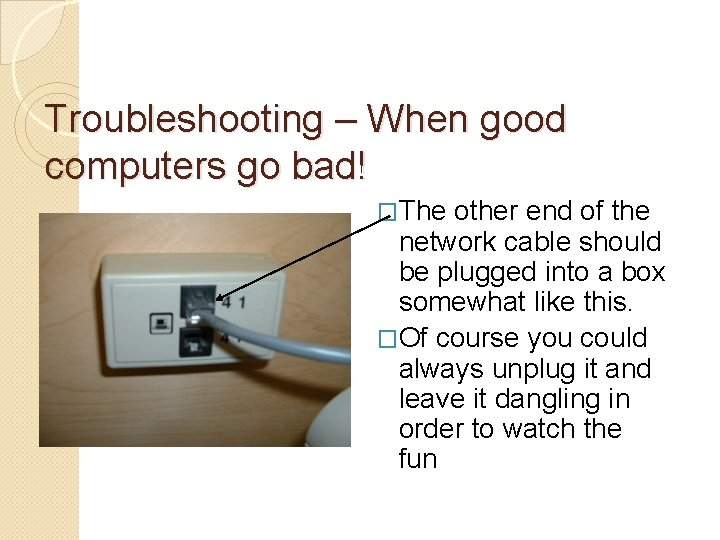
Troubleshooting – When good computers go bad! �The other end of the network cable should be plugged into a box somewhat like this. �Of course you could always unplug it and leave it dangling in order to watch the fun
Troubleshooting – When good computers go bad! �That’s about it really. �Cables are basic but offer endless opportunities for fun in the classroom. �On to other things you might do before calling the techies in and having to listen to them berate you!!!
Troubleshooting – When good computers go bad! Printing problems usually come from two sources: � The person is not logged in correctly and therefore his computer can’t see the printer � OR the printer has run out of paper or jammed and a huge lineup of print jobs have accumulated � Here’s how to check: �
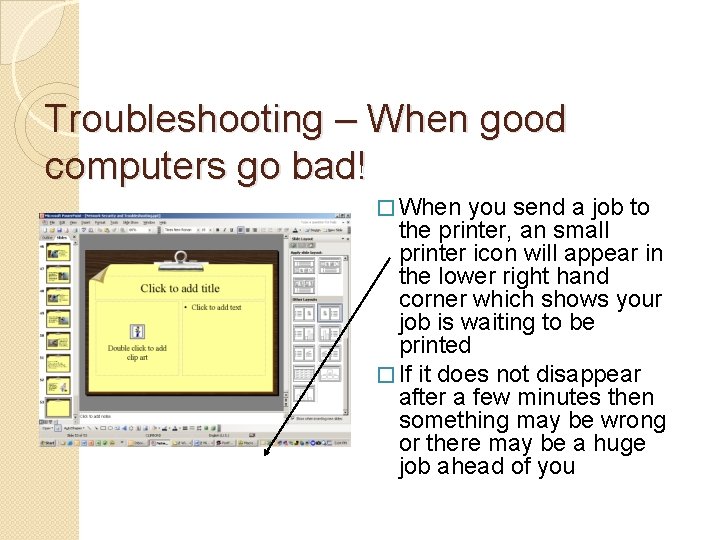
Troubleshooting – When good computers go bad! � When you send a job to the printer, an small printer icon will appear in the lower right hand corner which shows your job is waiting to be printed � If it does not disappear after a few minutes then something may be wrong or there may be a huge job ahead of you
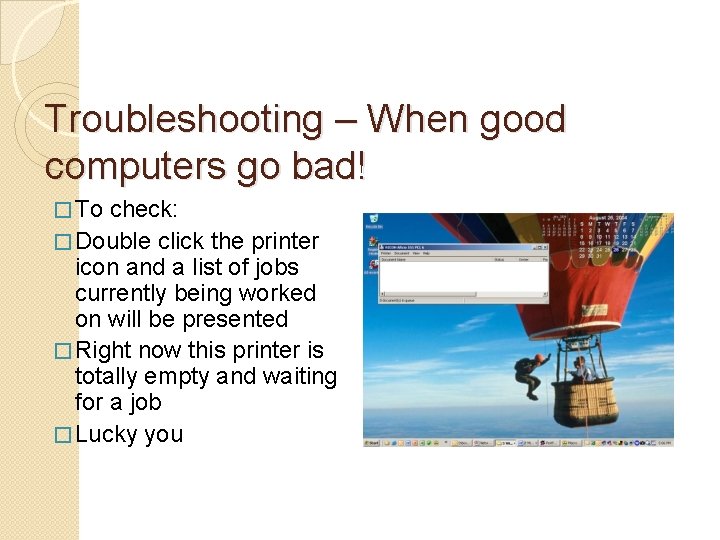
Troubleshooting – When good computers go bad! � To check: � Double click the printer icon and a list of jobs currently being worked on will be presented � Right now this printer is totally empty and waiting for a job � Lucky you
Troubleshooting – When good computers go bad! � Now the bad news: � If there is a long line in the print queue, you can only delete your print jobs. � Call an administrator to go to the printer in questions and clean out the print queue or turn the printer power off and on (oops I didn’t tell you this)
- Slides: 14