
Treasure Hunt A Point Click Adventure Game in
- Slides: 51
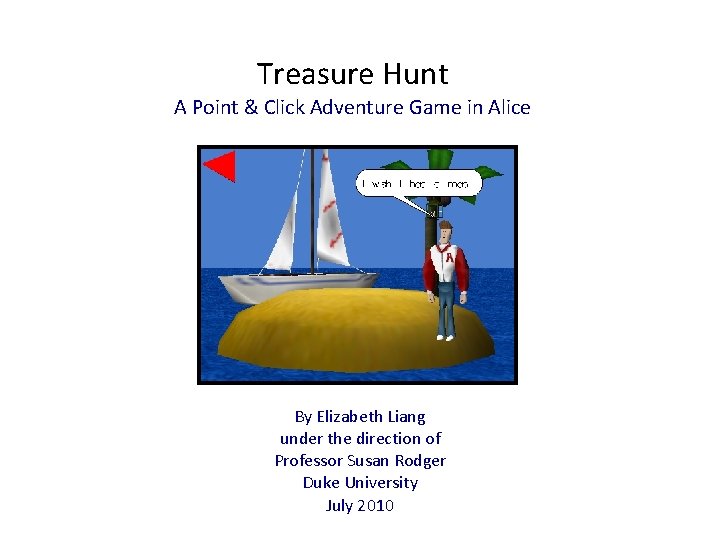
Treasure Hunt A Point & Click Adventure Game in Alice By Elizabeth Liang under the direction of Professor Susan Rodger Duke University July 2010
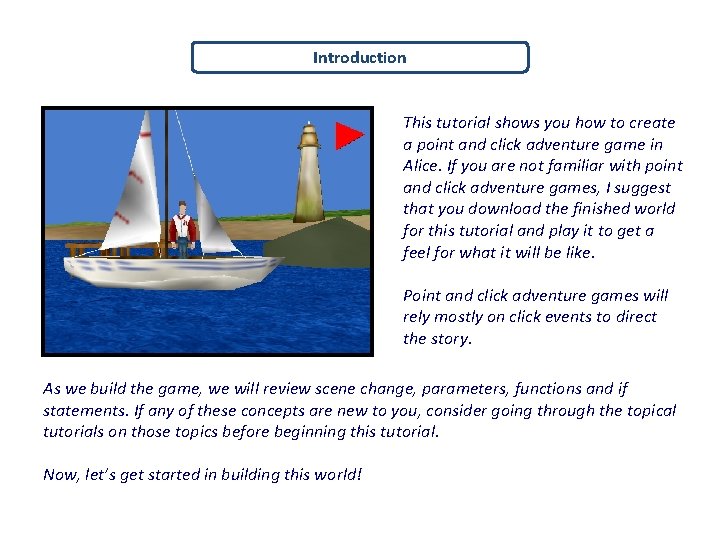
Introduction This tutorial shows you how to create a point and click adventure game in Alice. If you are not familiar with point and click adventure games, I suggest that you download the finished world for this tutorial and play it to get a feel for what it will be like. Point and click adventure games will rely mostly on click events to direct the story. As we build the game, we will review scene change, parameters, functions and if statements. If any of these concepts are new to you, consider going through the topical tutorials on those topics before beginning this tutorial. Now, let’s get started in building this world!
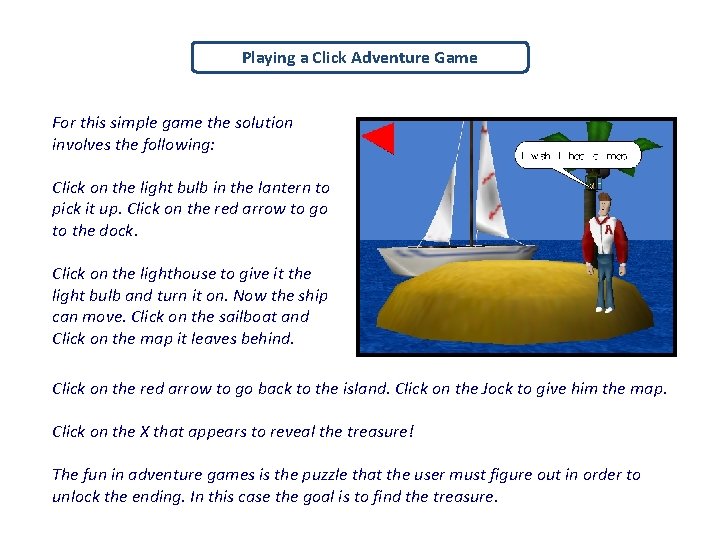
Playing a Click Adventure Game For this simple game the solution involves the following: Click on the light bulb in the lantern to pick it up. Click on the red arrow to go to the dock. Click on the lighthouse to give it the light bulb and turn it on. Now the ship can move. Click on the sailboat and Click on the map it leaves behind. Click on the red arrow to go back to the island. Click on the Jock to give him the map. Click on the X that appears to reveal the treasure! The fun in adventure games is the puzzle that the user must figure out in order to unlock the ending. In this case the goal is to find the treasure.
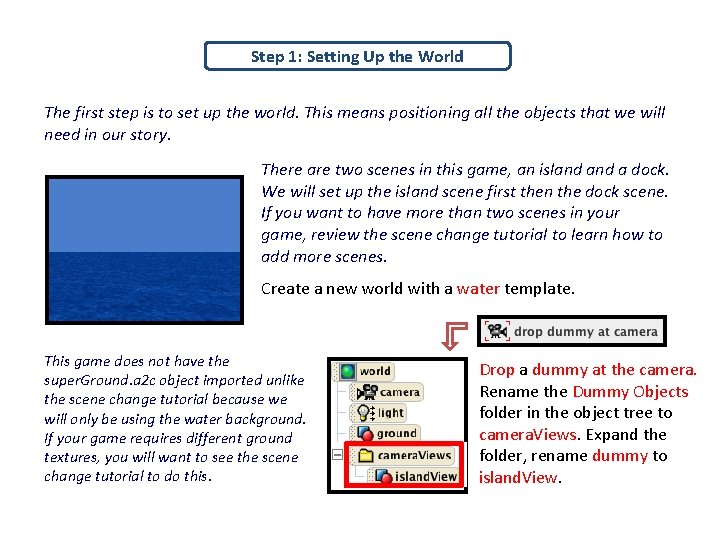
Step 1: Setting Up the World The first step is to set up the world. This means positioning all the objects that we will need in our story. There are two scenes in this game, an island a dock. We will set up the island scene first then the dock scene. If you want to have more than two scenes in your game, review the scene change tutorial to learn how to add more scenes. Create a new world with a water template. This game does not have the super. Ground. a 2 c object imported unlike the scene change tutorial because we will only be using the water background. If your game requires different ground textures, you will want to see the scene change tutorial to do this. Drop a dummy at the camera. Rename the Dummy Objects folder in the object tree to camera. Views. Expand the folder, rename dummy to island. View.
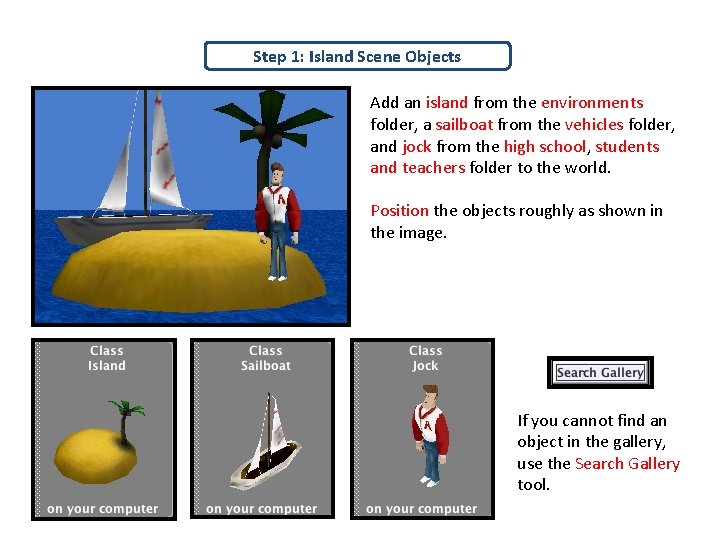
Step 1: Island Scene Objects Add an island from the environments folder, a sailboat from the vehicles folder, and jock from the high school, students and teachers folder to the world. Position the objects roughly as shown in the image. If you cannot find an object in the gallery, use the Search Gallery tool.
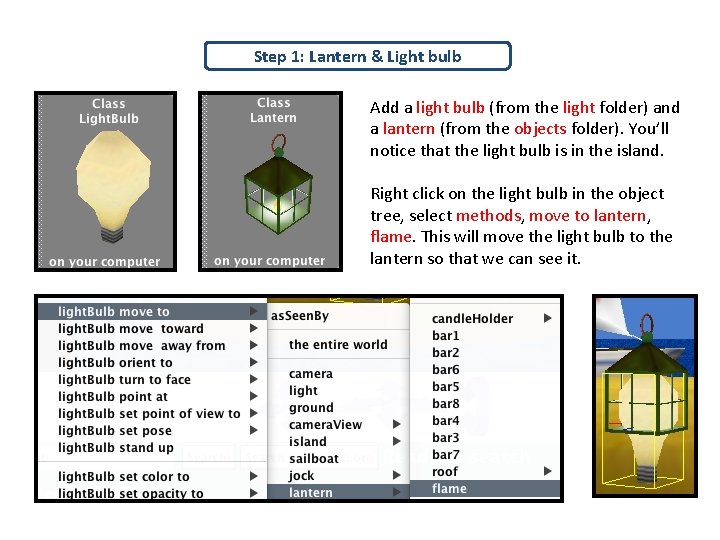
Step 1: Lantern & Light bulb Add a light bulb (from the light folder) and a lantern (from the objects folder). You’ll notice that the light bulb is in the island. Right click on the light bulb in the object tree, select methods, move to lantern, flame. This will move the light bulb to the lantern so that we can see it.
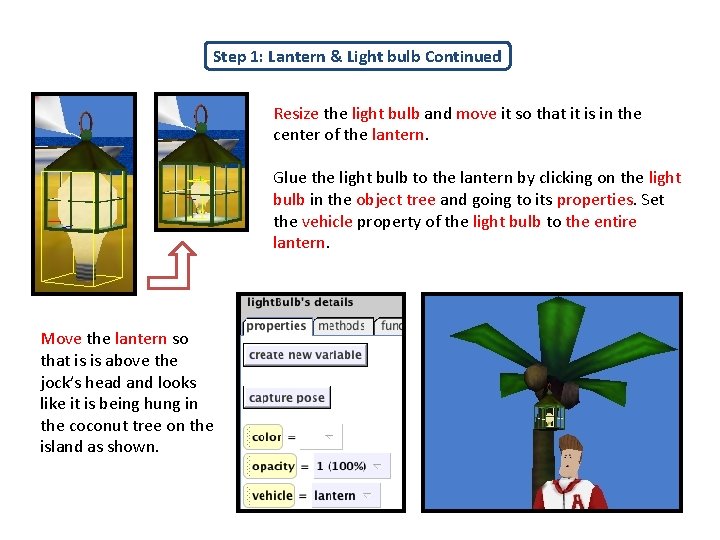
Step 1: Lantern & Light bulb Continued Resize the light bulb and move it so that it is in the center of the lantern. Glue the light bulb to the lantern by clicking on the light bulb in the object tree and going to its properties. Set the vehicle property of the light bulb to the entire lantern. Move the lantern so that is is above the jock’s head and looks like it is being hung in the coconut tree on the island as shown.
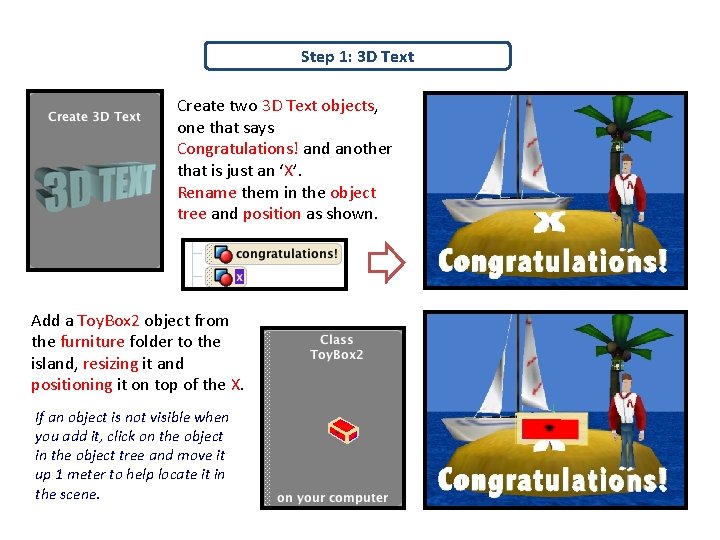
Step 1: 3 D Text Create two 3 D Text objects, one that says Congratulations! and another that is just an ‘X’. Rename them in the object tree and position as shown. Add a Toy. Box 2 object from the furniture folder to the island, resizing it and positioning it on top of the X. If an object is not visible when you add it, click on the object in the object tree and move it up 1 meter to help locate it in the scene.
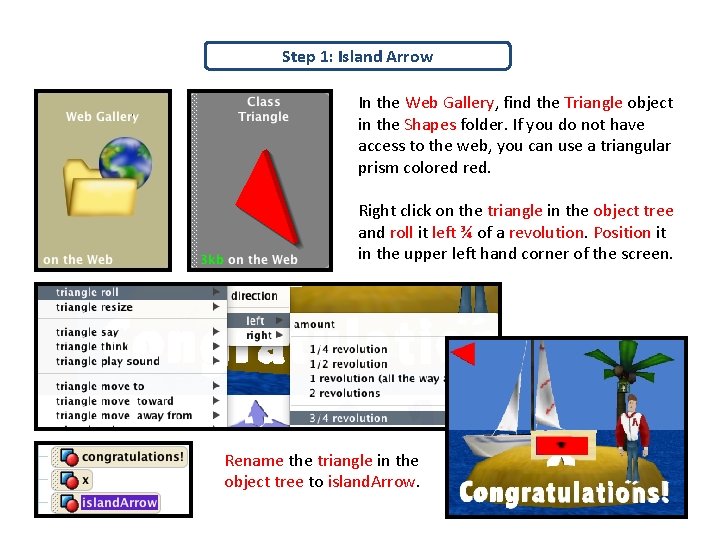
Step 1: Island Arrow In the Web Gallery, find the Triangle object in the Shapes folder. If you do not have access to the web, you can use a triangular prism colored red. Right click on the triangle in the object tree and roll it left ¾ of a revolution. Position it in the upper left hand corner of the screen. Rename the triangle in the object tree to island. Arrow.
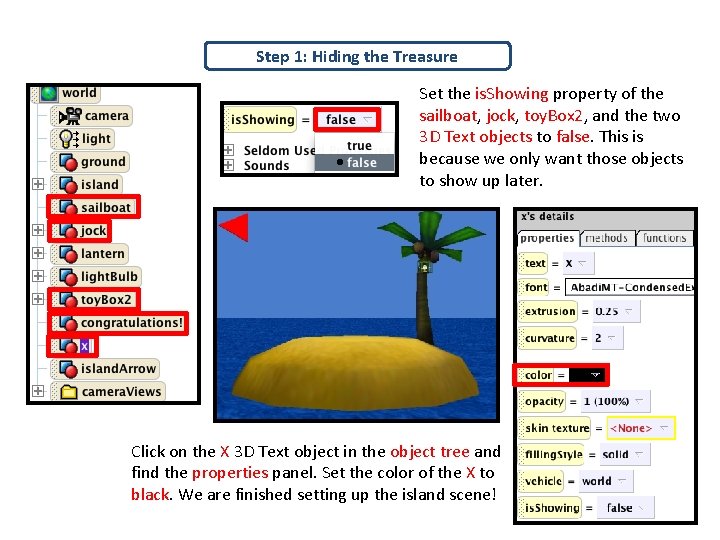
Step 1: Hiding the Treasure Set the is. Showing property of the sailboat, jock, toy. Box 2, and the two 3 D Text objects to false. This is because we only want those objects to show up later. Click on the X 3 D Text object in the object tree and find the properties panel. Set the color of the X to black. We are finished setting up the island scene!
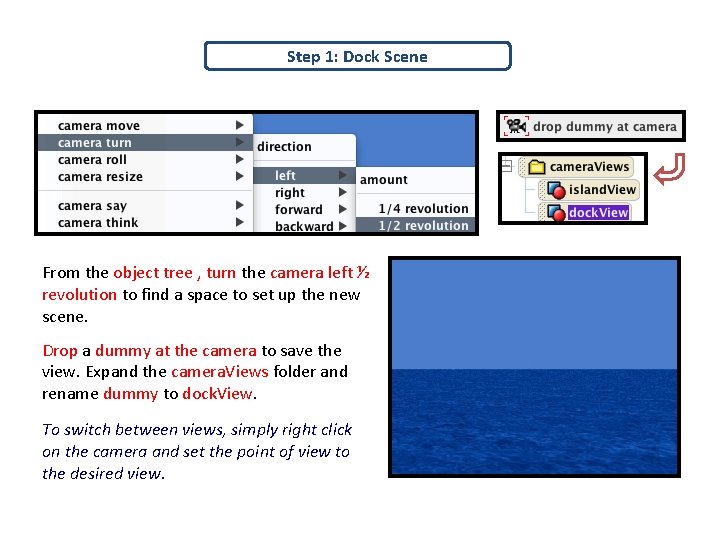
Step 1: Dock Scene From the object tree , turn the camera left ½ revolution to find a space to set up the new scene. Drop a dummy at the camera to save the view. Expand the camera. Views folder and rename dummy to dock. View. To switch between views, simply right click on the camera and set the point of view to the desired view.
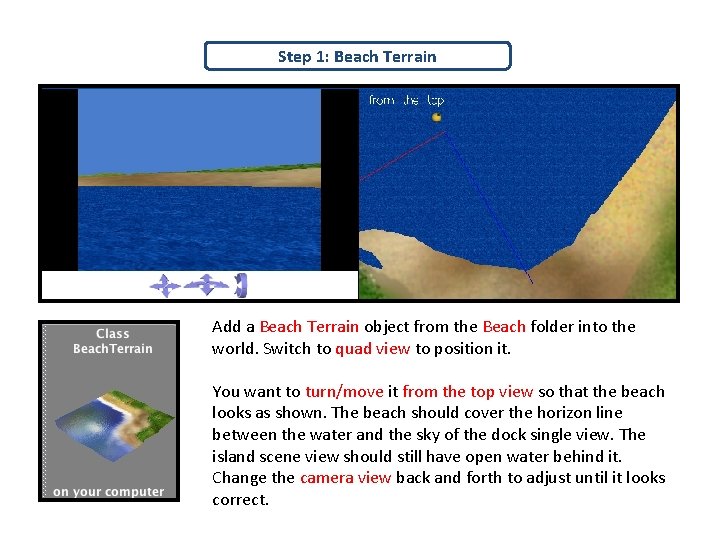
Step 1: Beach Terrain Add a Beach Terrain object from the Beach folder into the world. Switch to quad view to position it. You want to turn/move it from the top view so that the beach looks as shown. The beach should cover the horizon line between the water and the sky of the dock single view. The island scene view should still have open water behind it. Change the camera view back and forth to adjust until it looks correct.
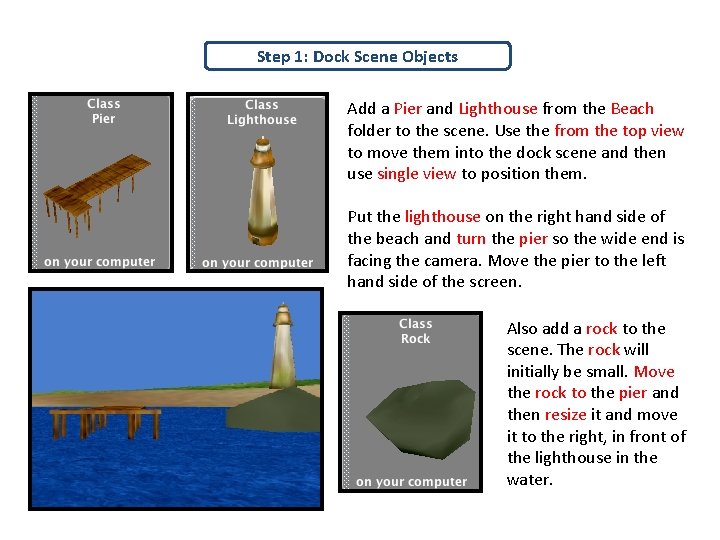
Step 1: Dock Scene Objects Add a Pier and Lighthouse from the Beach folder to the scene. Use the from the top view to move them into the dock scene and then use single view to position them. Put the lighthouse on the right hand side of the beach and turn the pier so the wide end is facing the camera. Move the pier to the left hand side of the screen. Also add a rock to the scene. The rock will initially be small. Move the rock to the pier and then resize it and move it to the right, in front of the lighthouse in the water.
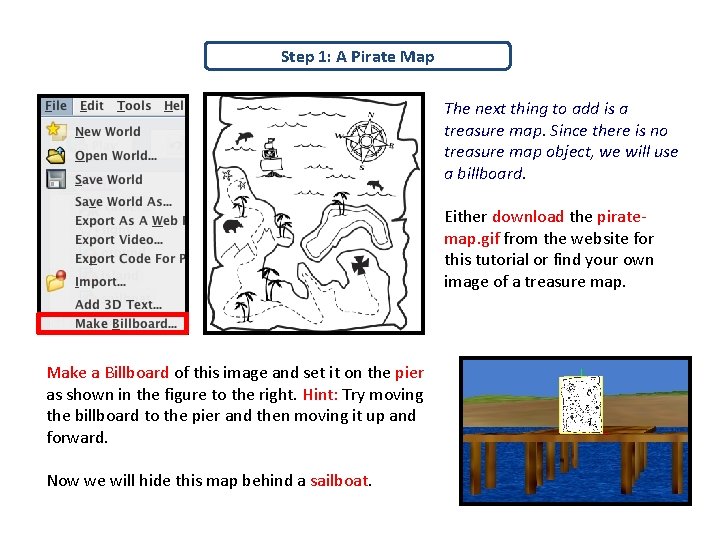
Step 1: A Pirate Map The next thing to add is a treasure map. Since there is no treasure map object, we will use a billboard. Either download the piratemap. gif from the website for this tutorial or find your own image of a treasure map. Make a Billboard of this image and set it on the pier as shown in the figure to the right. Hint: Try moving the billboard to the pier and then moving it up and forward. Now we will hide this map behind a sailboat.
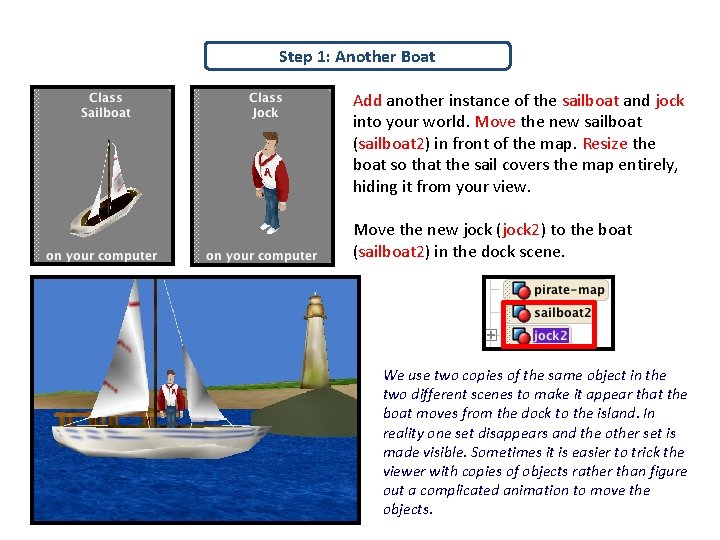
Step 1: Another Boat Add another instance of the sailboat and jock into your world. Move the new sailboat (sailboat 2) in front of the map. Resize the boat so that the sail covers the map entirely, hiding it from your view. Move the new jock (jock 2) to the boat (sailboat 2) in the dock scene. We use two copies of the same object in the two different scenes to make it appear that the boat moves from the dock to the island. In reality one set disappears and the other set is made visible. Sometimes it is easier to trick the viewer with copies of objects rather than figure out a complicated animation to move the objects.
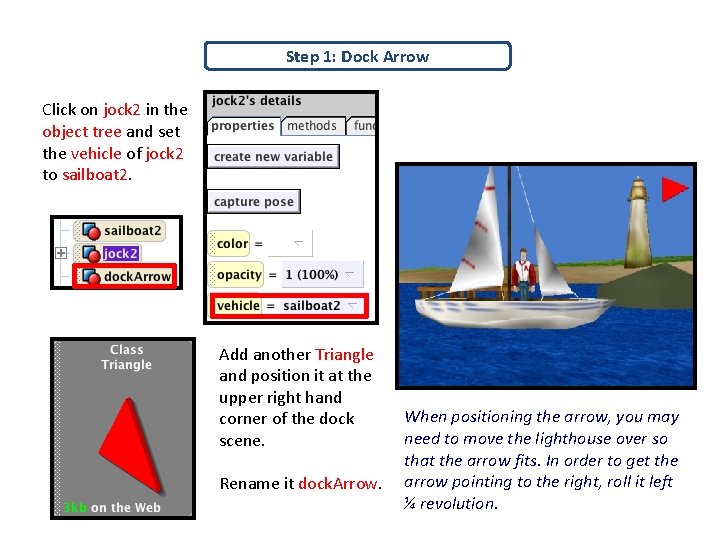
Step 1: Dock Arrow Click on jock 2 in the object tree and set the vehicle of jock 2 to sailboat 2. Add another Triangle and position it at the upper right hand corner of the dock scene. Rename it dock. Arrow. When positioning the arrow, you may need to move the lighthouse over so that the arrow fits. In order to get the arrow pointing to the right, roll it left ¼ revolution.
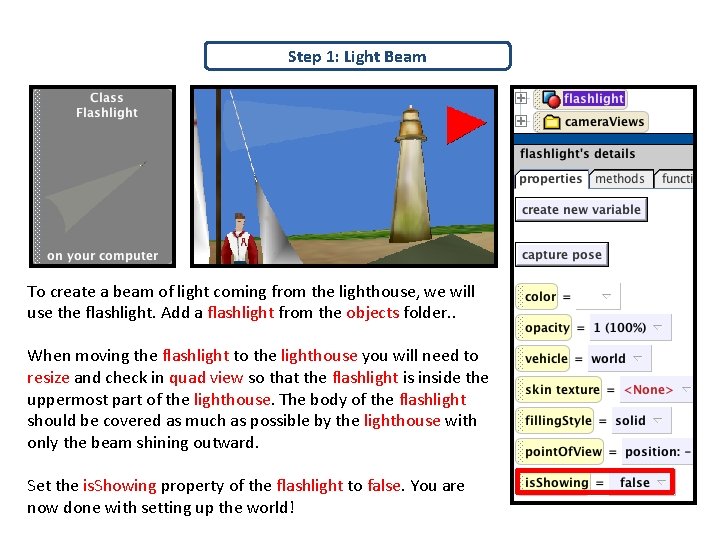
Step 1: Light Beam To create a beam of light coming from the lighthouse, we will use the flashlight. Add a flashlight from the objects folder. . When moving the flashlight to the lighthouse you will need to resize and check in quad view so that the flashlight is inside the uppermost part of the lighthouse. The body of the flashlight should be covered as much as possible by the lighthouse with only the beam shining outward. Set the is. Showing property of the flashlight to false. You are now done with setting up the world!
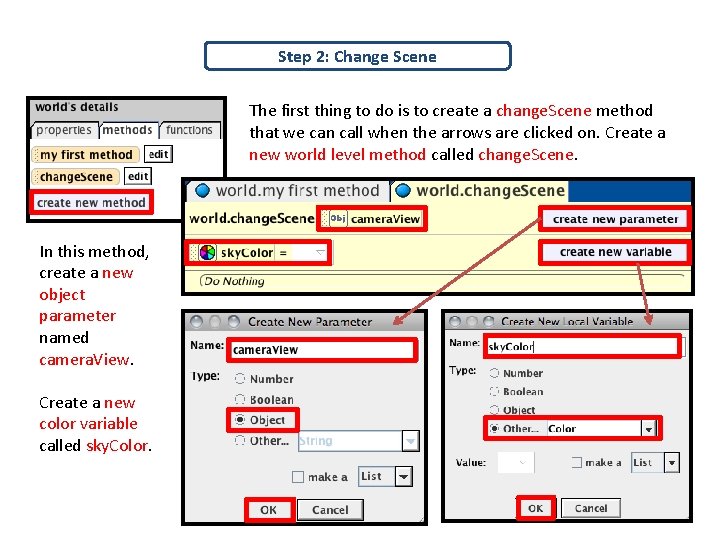
Step 2: Change Scene The first thing to do is to create a change. Scene method that we can call when the arrows are clicked on. Create a new world level method called change. Scene. In this method, create a new object parameter named camera. View. Create a new color variable called sky. Color.
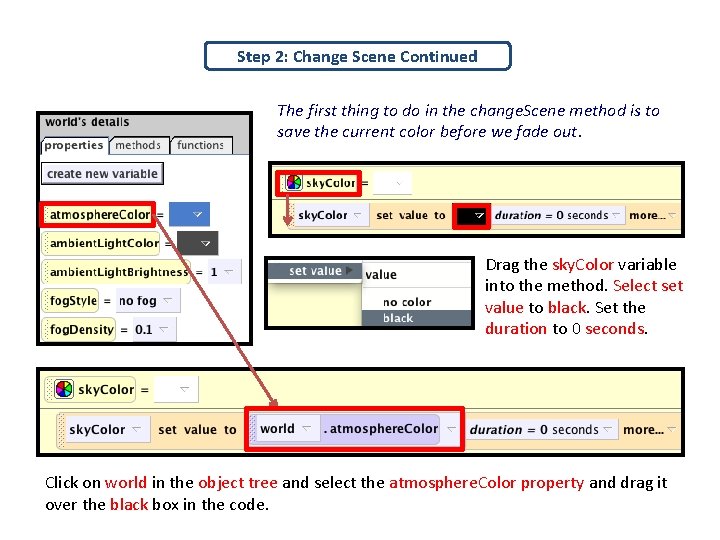
Step 2: Change Scene Continued The first thing to do in the change. Scene method is to save the current color before we fade out. Drag the sky. Color variable into the method. Select set value to black. Set the duration to 0 seconds. Click on world in the object tree and select the atmosphere. Color property and drag it over the black box in the code.
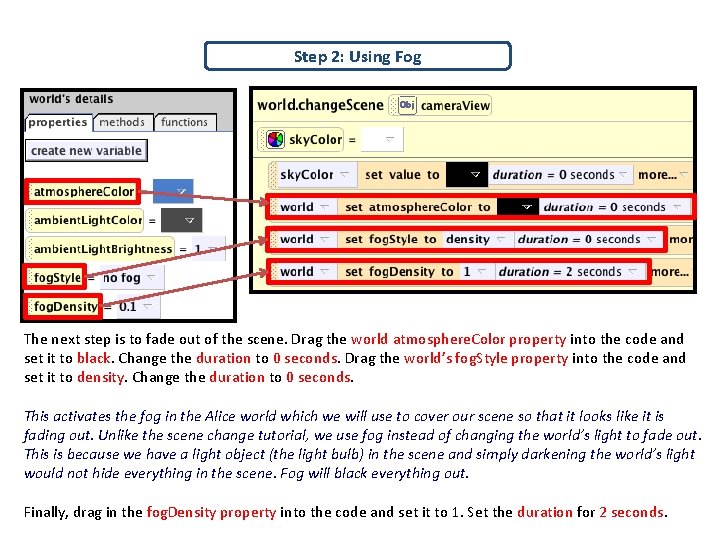
Step 2: Using Fog The next step is to fade out of the scene. Drag the world atmosphere. Color property into the code and set it to black. Change the duration to 0 seconds. Drag the world’s fog. Style property into the code and set it to density. Change the duration to 0 seconds. This activates the fog in the Alice world which we will use to cover our scene so that it looks like it is fading out. Unlike the scene change tutorial, we use fog instead of changing the world’s light to fade out. This is because we have a light object (the light bulb) in the scene and simply darkening the world’s light would not hide everything in the scene. Fog will black everything out. Finally, drag in the fog. Density property into the code and set it to 1. Set the duration for 2 seconds.
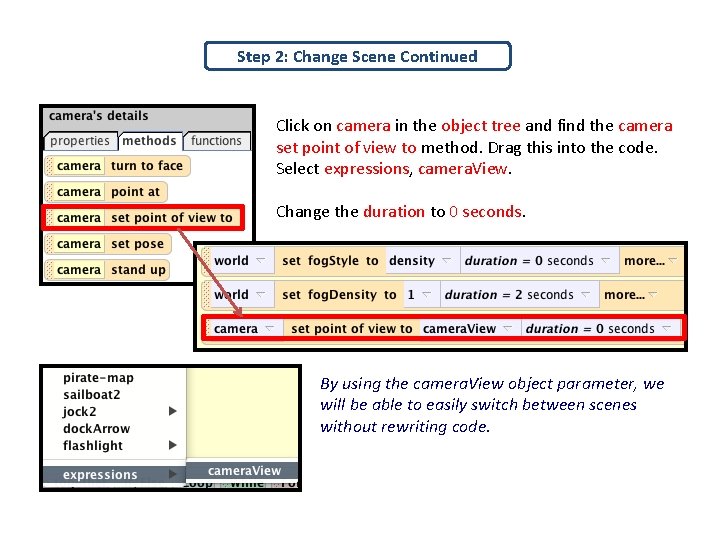
Step 2: Change Scene Continued Click on camera in the object tree and find the camera set point of view to method. Drag this into the code. Select expressions, camera. View. Change the duration to 0 seconds. By using the camera. View object parameter, we will be able to easily switch between scenes without rewriting code.
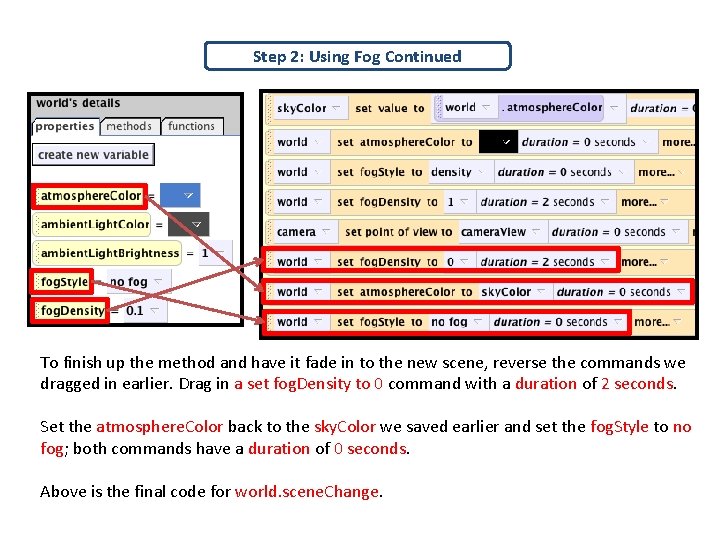
Step 2: Using Fog Continued To finish up the method and have it fade in to the new scene, reverse the commands we dragged in earlier. Drag in a set fog. Density to 0 command with a duration of 2 seconds. Set the atmosphere. Color back to the sky. Color we saved earlier and set the fog. Style to no fog; both commands have a duration of 0 seconds. Above is the final code for world. scene. Change.
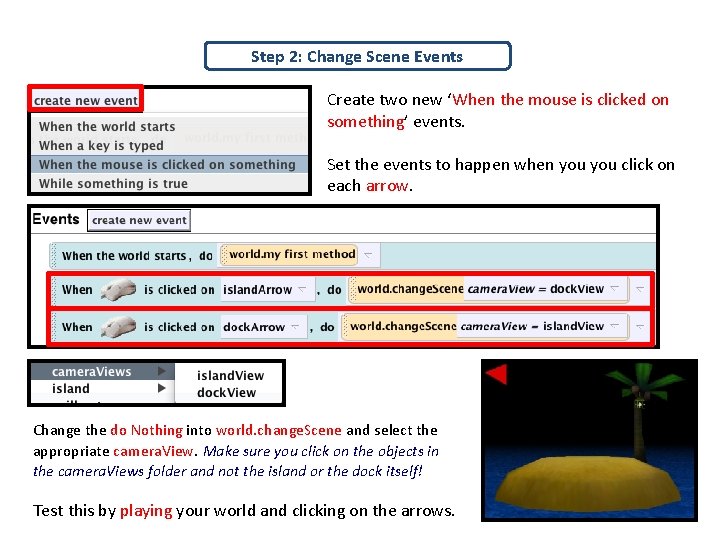
Step 2: Change Scene Events Create two new ‘When the mouse is clicked on something’ events. Set the events to happen when you click on each arrow. Change the do Nothing into world. change. Scene and select the appropriate camera. View. Make sure you click on the objects in the camera. Views folder and not the island or the dock itself! Test this by playing your world and clicking on the arrows.
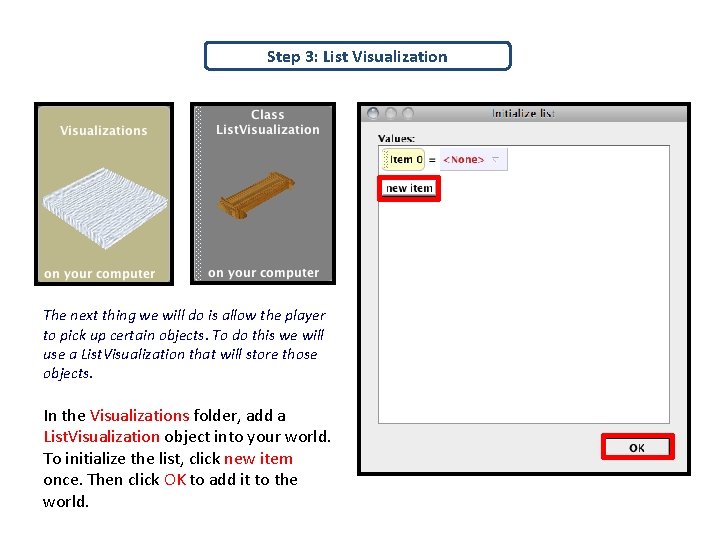
Step 3: List Visualization The next thing we will do is allow the player to pick up certain objects. To do this we will use a List. Visualization that will store those objects. In the Visualizations folder, add a List. Visualization object into your world. To initialize the list, click new item once. Then click OK to add it to the world.
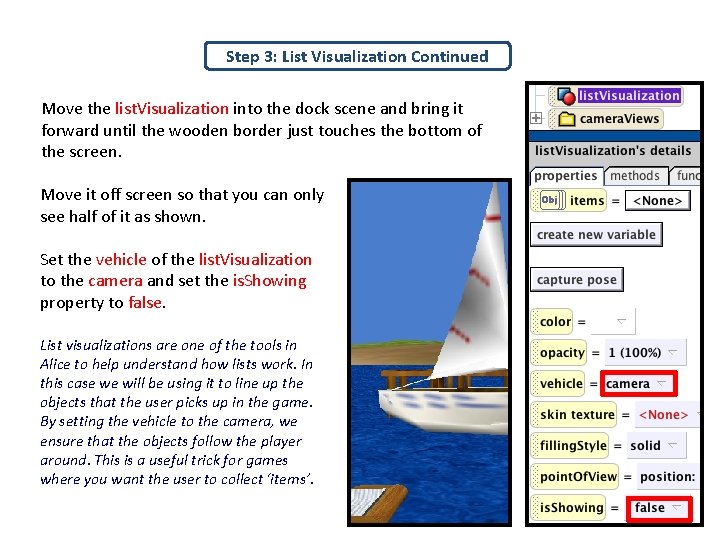
Step 3: List Visualization Continued Move the list. Visualization into the dock scene and bring it forward until the wooden border just touches the bottom of the screen. Move it off screen so that you can only see half of it as shown. Set the vehicle of the list. Visualization to the camera and set the is. Showing property to false. List visualizations are one of the tools in Alice to help understand how lists work. In this case we will be using it to line up the objects that the user picks up in the game. By setting the vehicle to the camera, we ensure that the objects follow the player around. This is a useful trick for games where you want the user to collect ‘items’.
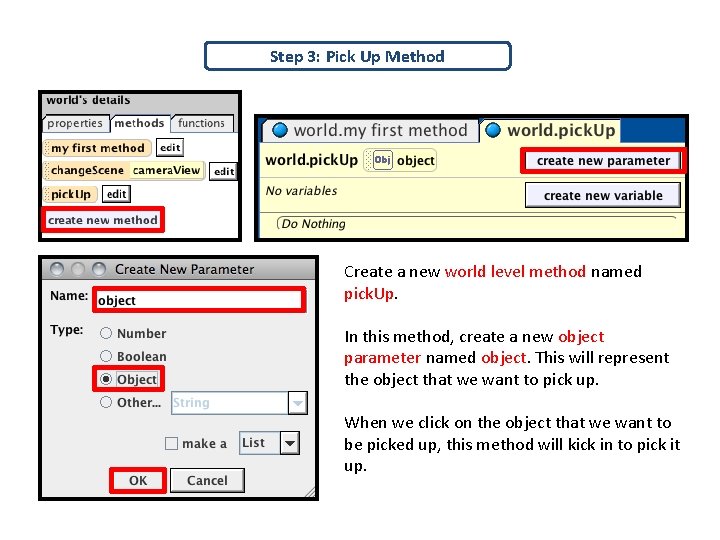
Step 3: Pick Up Method Create a new world level method named pick. Up. In this method, create a new object parameter named object. This will represent the object that we want to pick up. When we click on the object that we want to be picked up, this method will kick in to pick it up.
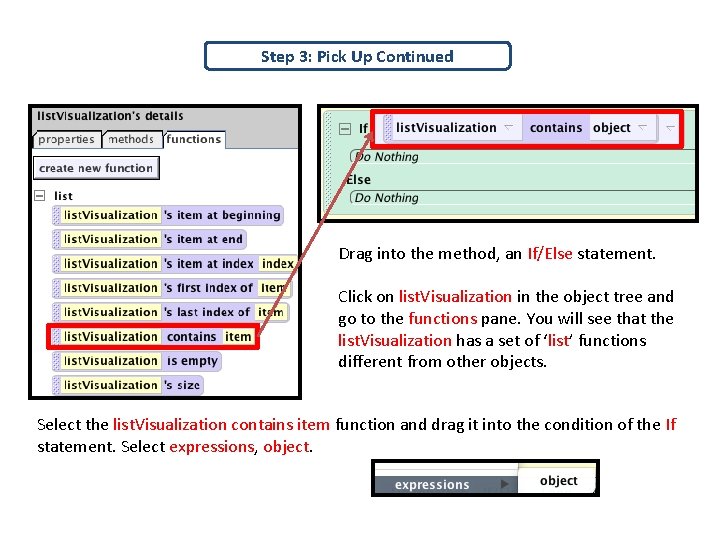
Step 3: Pick Up Continued Drag into the method, an If/Else statement. Click on list. Visualization in the object tree and go to the functions pane. You will see that the list. Visualization has a set of ‘list’ functions different from other objects. Select the list. Visualization contains item function and drag it into the condition of the If statement. Select expressions, object.
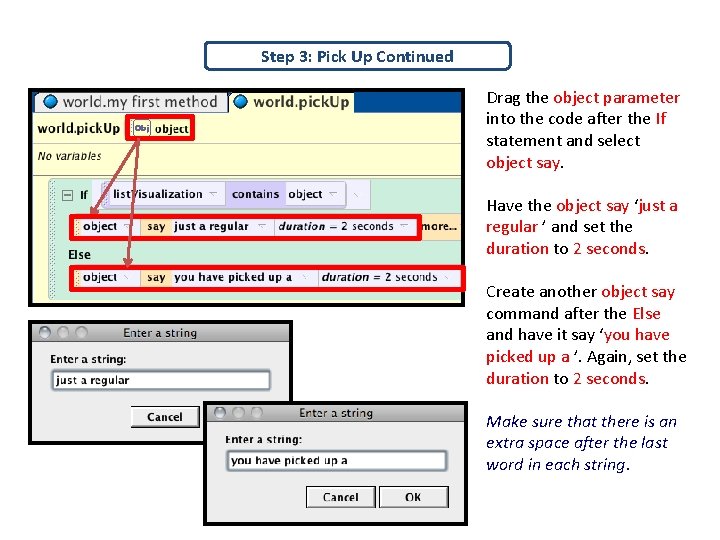
Step 3: Pick Up Continued Drag the object parameter into the code after the If statement and select object say. Have the object say ‘just a regular ’ and set the duration to 2 seconds. Create another object say command after the Else and have it say ‘you have picked up a ’. Again, set the duration to 2 seconds. Make sure that there is an extra space after the last word in each string.
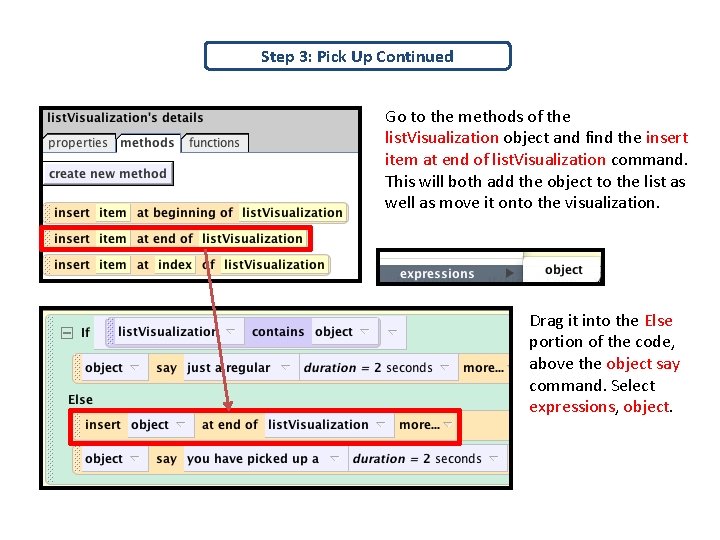
Step 3: Pick Up Continued Go to the methods of the list. Visualization object and find the insert item at end of list. Visualization command. This will both add the object to the list as well as move it onto the visualization. Drag it into the Else portion of the code, above the object say command. Select expressions, object.
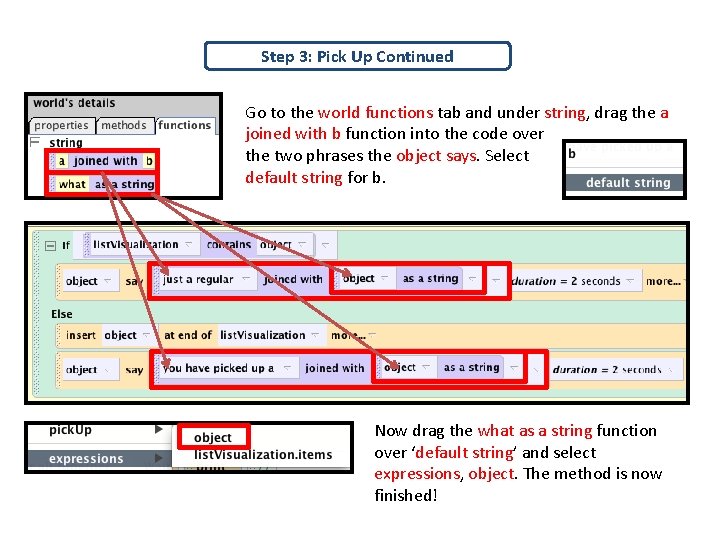
Step 3: Pick Up Continued Go to the world functions tab and under string, drag the a joined with b function into the code over the two phrases the object says. Select default string for b. Now drag the what as a string function over ‘default string’ and select expressions, object. The method is now finished!
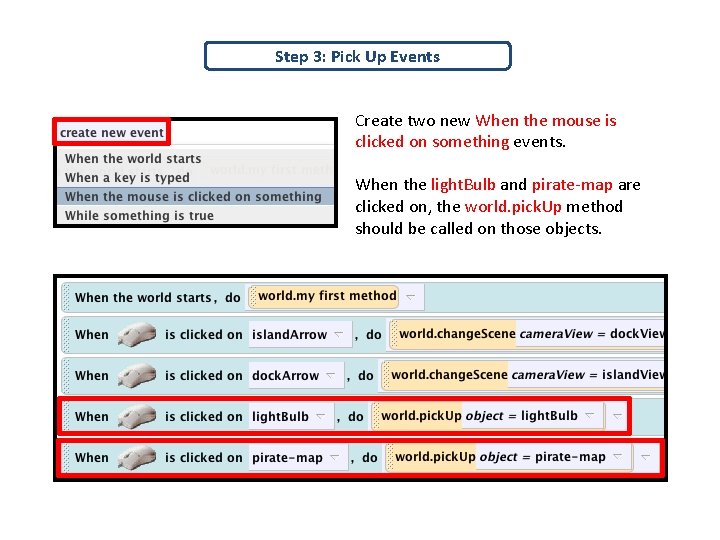
Step 3: Pick Up Events Create two new When the mouse is clicked on something events. When the light. Bulb and pirate-map are clicked on, the world. pick. Up method should be called on those objects.
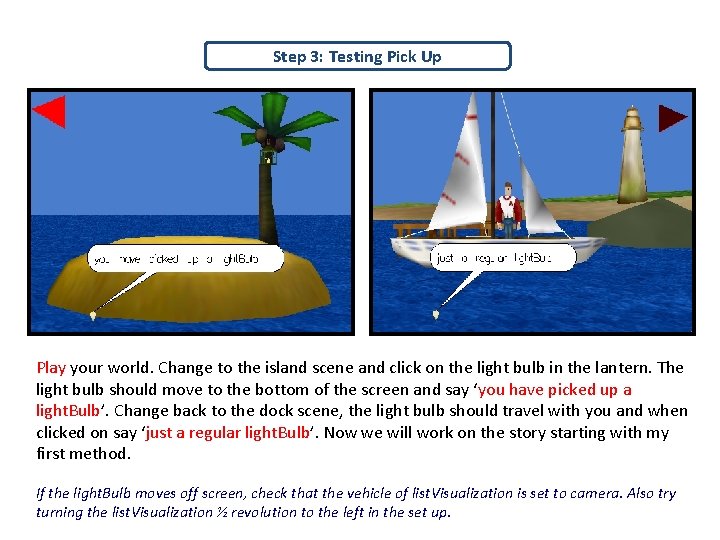
Step 3: Testing Pick Up Play your world. Change to the island scene and click on the light bulb in the lantern. The light bulb should move to the bottom of the screen and say ‘you have picked up a light. Bulb’. Change back to the dock scene, the light bulb should travel with you and when clicked on say ‘just a regular light. Bulb’. Now we will work on the story starting with my first method. If the light. Bulb moves off screen, check that the vehicle of list. Visualization is set to camera. Also try turning the list. Visualization ½ revolution to the left in the set up.
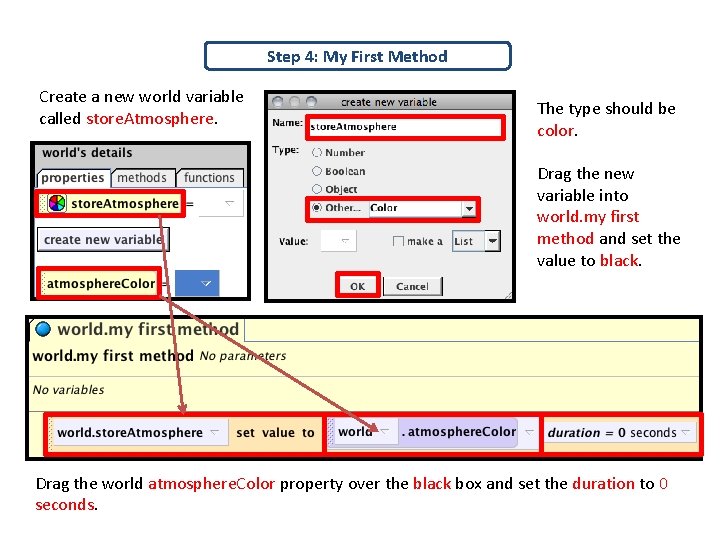
Step 4: My First Method Create a new world variable called store. Atmosphere. The type should be color. Drag the new variable into world. my first method and set the value to black. Drag the world atmosphere. Color property over the black box and set the duration to 0 seconds.
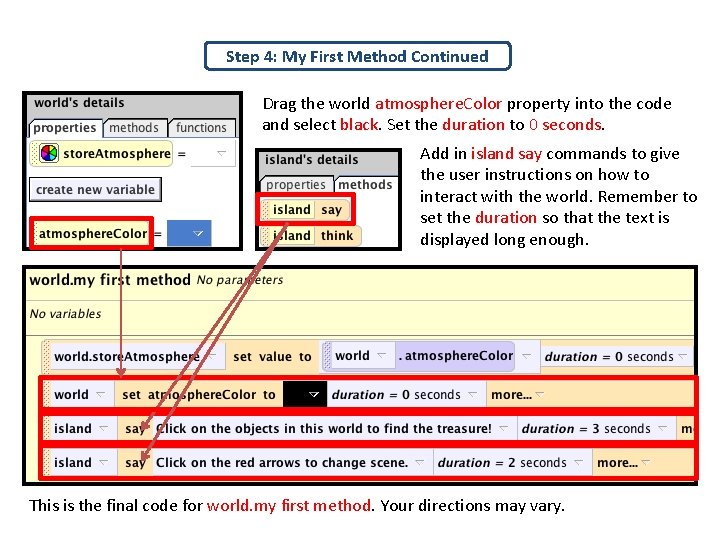
Step 4: My First Method Continued Drag the world atmosphere. Color property into the code and select black. Set the duration to 0 seconds. Add in island say commands to give the user instructions on how to interact with the world. Remember to set the duration so that the text is displayed long enough. This is the final code for world. my first method. Your directions may vary.
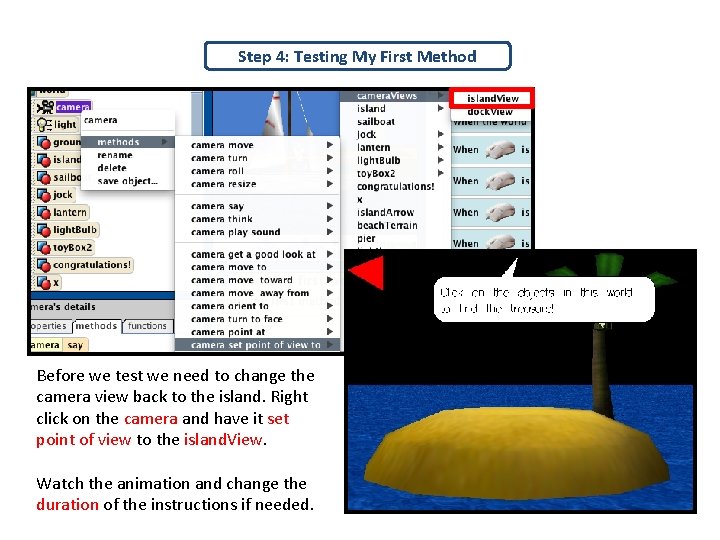
Step 4: Testing My First Method Before we test we need to change the camera view back to the island. Right click on the camera and have it set point of view to the island. View. Watch the animation and change the duration of the instructions if needed.
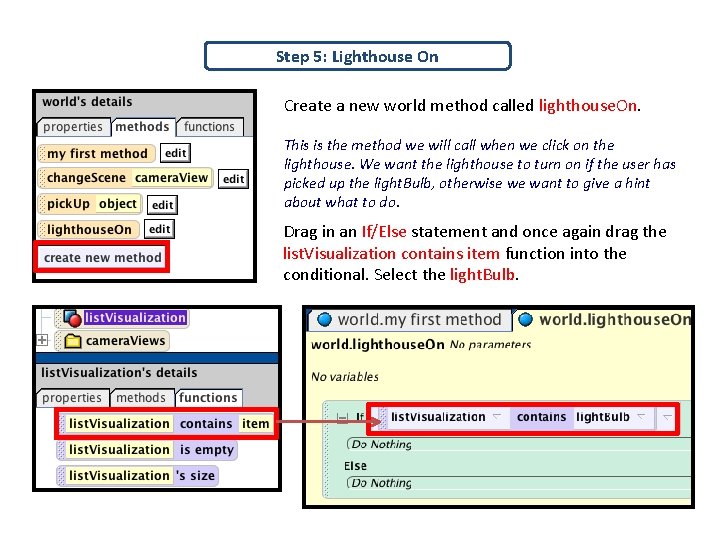
Step 5: Lighthouse On Create a new world method called lighthouse. On. This is the method we will call when we click on the lighthouse. We want the lighthouse to turn on if the user has picked up the light. Bulb, otherwise we want to give a hint about what to do. Drag in an If/Else statement and once again drag the list. Visualization contains item function into the conditional. Select the light. Bulb.
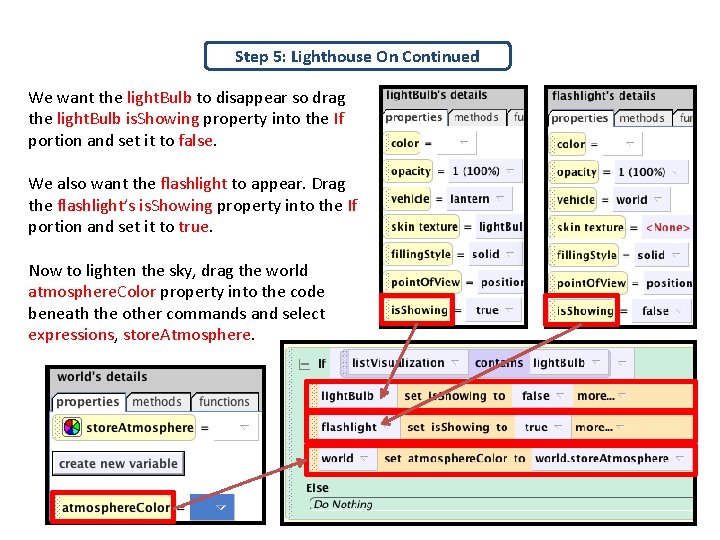
Step 5: Lighthouse On Continued We want the light. Bulb to disappear so drag the light. Bulb is. Showing property into the If portion and set it to false. We also want the flashlight to appear. Drag the flashlight’s is. Showing property into the If portion and set it to true. Now to lighten the sky, drag the world atmosphere. Color property into the code beneath the other commands and select expressions, store. Atmosphere.
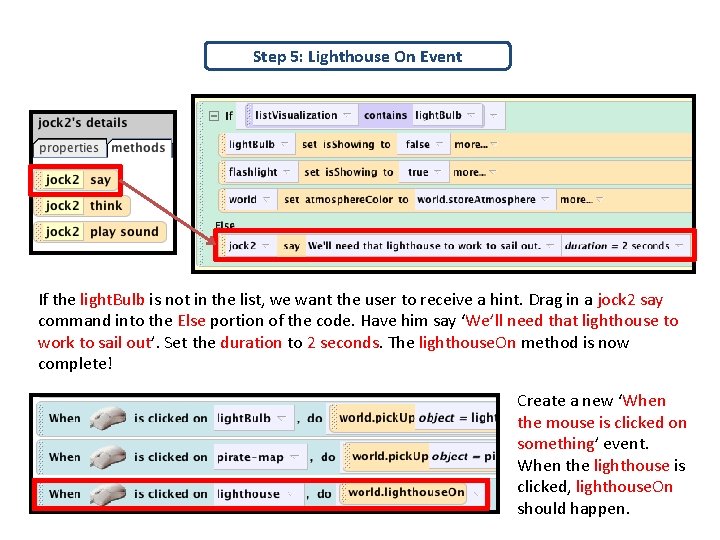
Step 5: Lighthouse On Event If the light. Bulb is not in the list, we want the user to receive a hint. Drag in a jock 2 say command into the Else portion of the code. Have him say ‘We’ll need that lighthouse to work to sail out’. Set the duration to 2 seconds. The lighthouse. On method is now complete! Create a new ‘When the mouse is clicked on something’ event. When the lighthouse is clicked, lighthouse. On should happen.
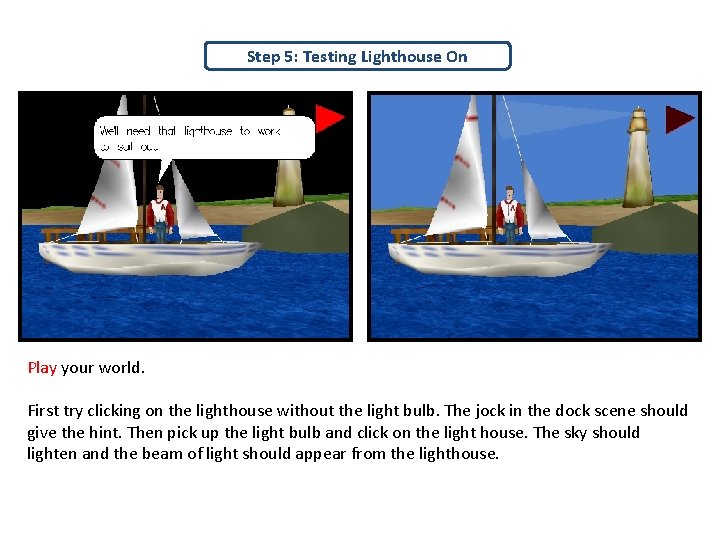
Step 5: Testing Lighthouse On Play your world. First try clicking on the lighthouse without the light bulb. The jock in the dock scene should give the hint. Then pick up the light bulb and click on the light house. The sky should lighten and the beam of light should appear from the lighthouse.
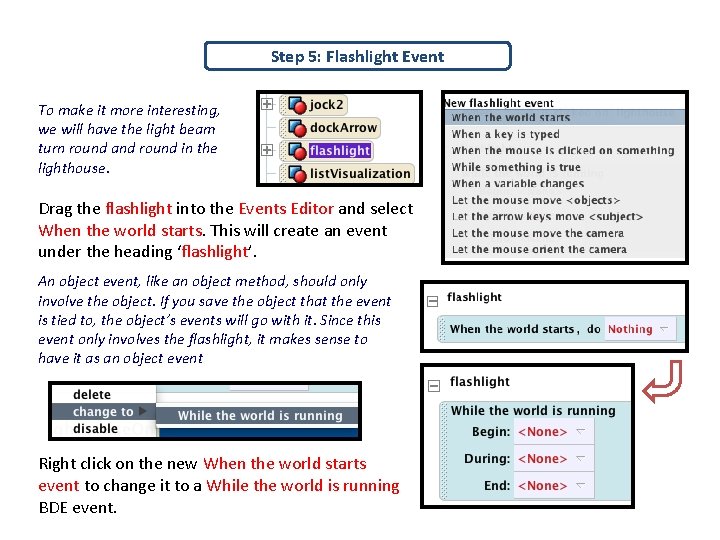
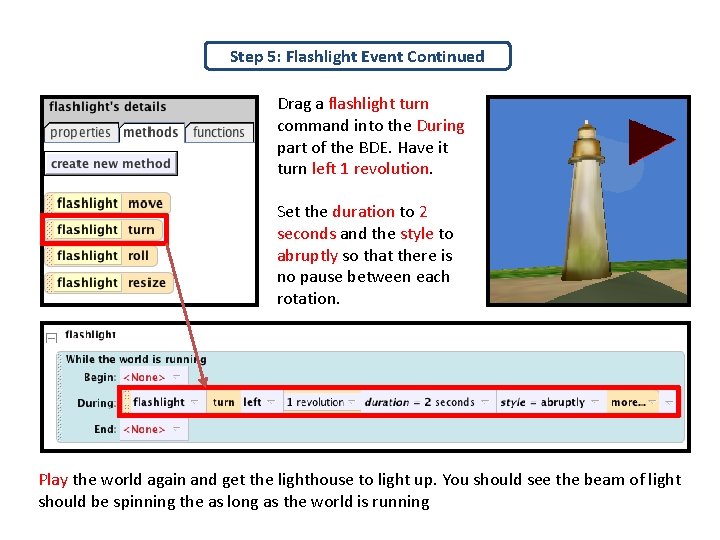
Step 5: Flashlight Event To make it more interesting, we will have the light beam turn round and round in the lighthouse. Drag the flashlight into the Events Editor and select When the world starts. This will create an event under the heading ‘flashlight’. An object event, like an object method, should only involve the object. If you save the object that the event is tied to, the object’s events will go with it. Since this event only involves the flashlight, it makes sense to have it as an object event Right click on the new When the world starts event to change it to a While the world is running BDE event.
Step 5: Flashlight Event Continued Drag a flashlight turn command into the During part of the BDE. Have it turn left 1 revolution. Set the duration to 2 seconds and the style to abruptly so that there is no pause between each rotation. Play the world again and get the lighthouse to light up. You should see the beam of light should be spinning the as long as the world is running
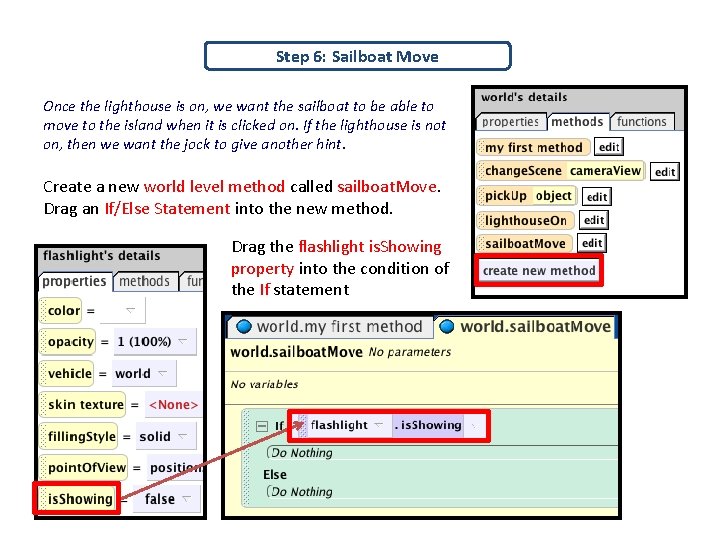
Step 6: Sailboat Move Once the lighthouse is on, we want the sailboat to be able to move to the island when it is clicked on. If the lighthouse is not on, then we want the jock to give another hint. Create a new world level method called sailboat. Move. Drag an If/Else Statement into the new method. Drag the flashlight is. Showing property into the condition of the If statement
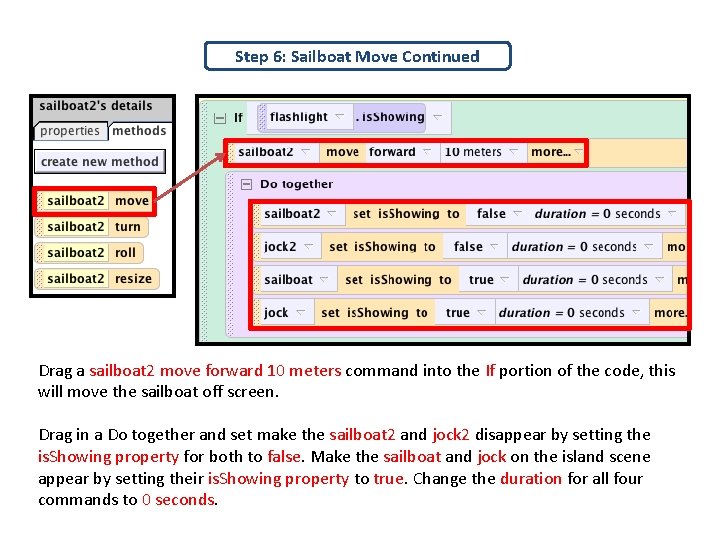
Step 6: Sailboat Move Continued Drag a sailboat 2 move forward 10 meters command into the If portion of the code, this will move the sailboat off screen. Drag in a Do together and set make the sailboat 2 and jock 2 disappear by setting the is. Showing property for both to false. Make the sailboat and jock on the island scene appear by setting their is. Showing property to true. Change the duration for all four commands to 0 seconds.
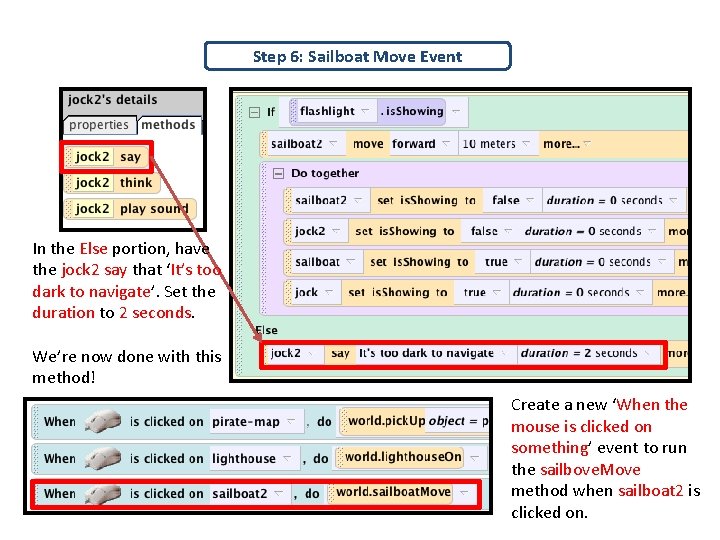
Step 6: Sailboat Move Event In the Else portion, have the jock 2 say that ‘It’s too dark to navigate’. Set the duration to 2 seconds. We’re now done with this method! Create a new ‘When the mouse is clicked on something’ event to run the sailbove. Move method when sailboat 2 is clicked on.
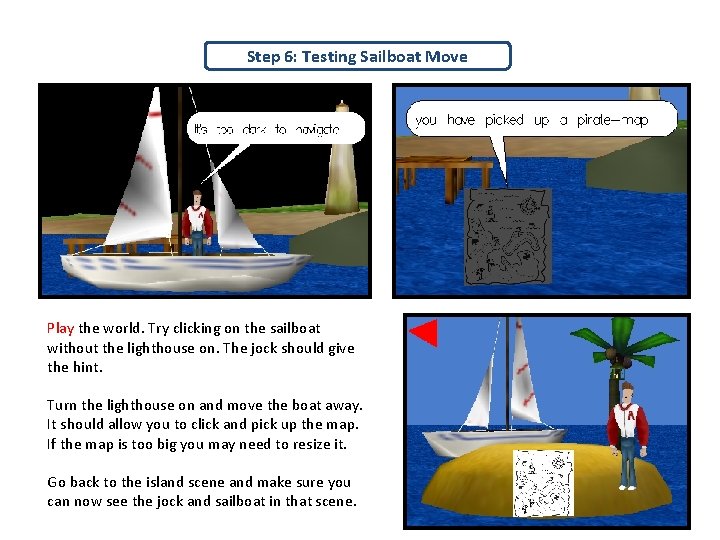
Step 6: Testing Sailboat Move Play the world. Try clicking on the sailboat without the lighthouse on. The jock should give the hint. Turn the lighthouse on and move the boat away. It should allow you to click and pick up the map. If the map is too big you may need to resize it. Go back to the island scene and make sure you can now see the jock and sailboat in that scene.
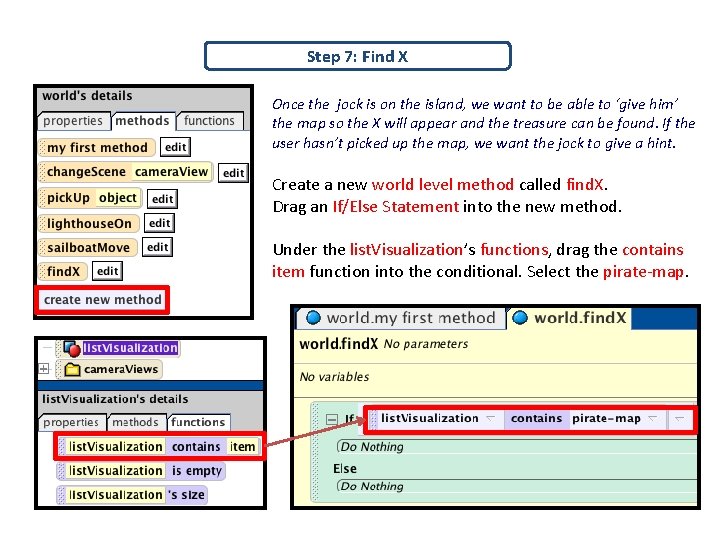
Step 7: Find X Once the jock is on the island, we want to be able to ‘give him’ the map so the X will appear and the treasure can be found. If the user hasn’t picked up the map, we want the jock to give a hint. Create a new world level method called find. X. Drag an If/Else Statement into the new method. Under the list. Visualization’s functions, drag the contains item function into the conditional. Select the pirate-map.
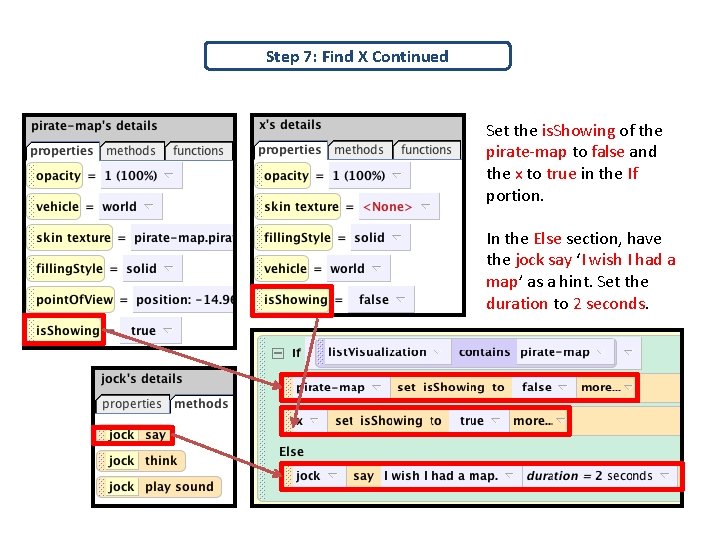
Step 7: Find X Continued Set the is. Showing of the pirate-map to false and the x to true in the If portion. In the Else section, have the jock say ‘I wish I had a map’ as a hint. Set the duration to 2 seconds.
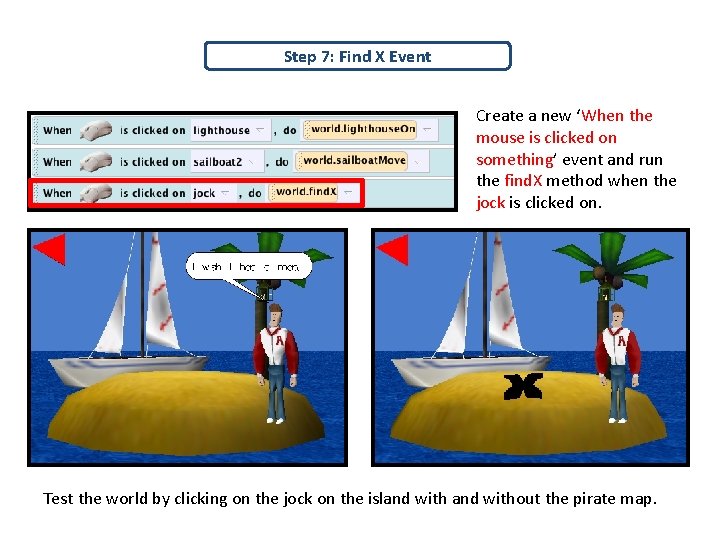
Step 7: Find X Event Create a new ‘When the mouse is clicked on something’ event and run the find. X method when the jock is clicked on. Test the world by clicking on the jock on the island without the pirate map.
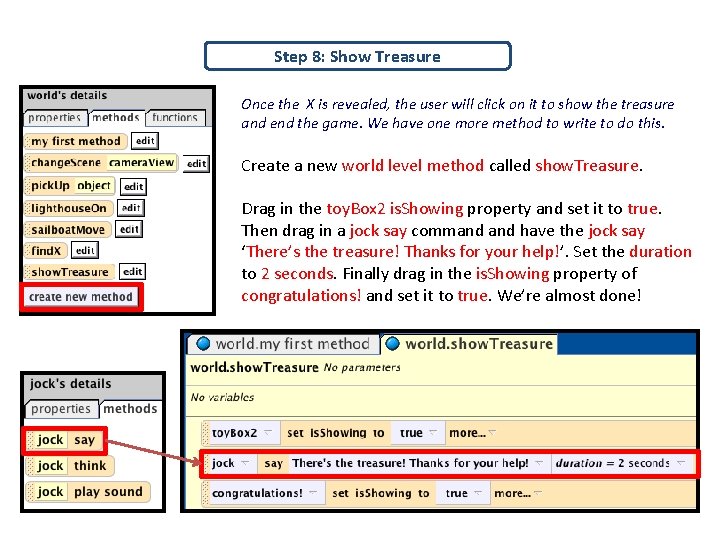
Step 8: Show Treasure Once the X is revealed, the user will click on it to show the treasure and end the game. We have one more method to write to do this. Create a new world level method called show. Treasure. Drag in the toy. Box 2 is. Showing property and set it to true. Then drag in a jock say command have the jock say ‘There’s the treasure! Thanks for your help!’. Set the duration to 2 seconds. Finally drag in the is. Showing property of congratulations! and set it to true. We’re almost done!
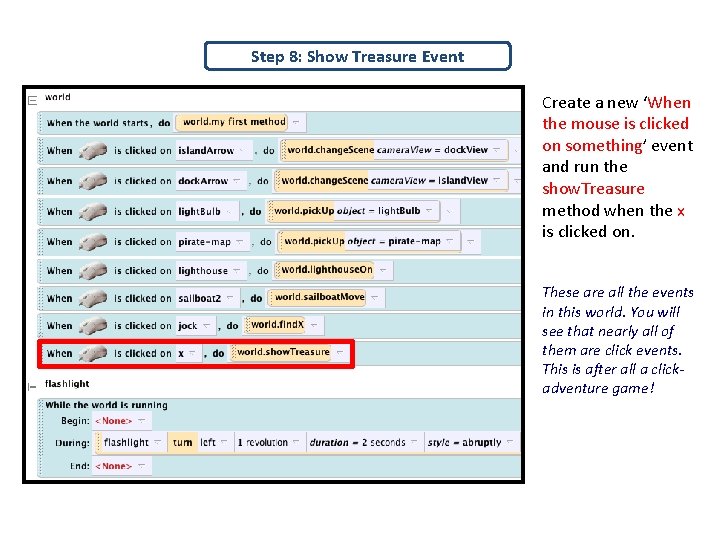
Step 8: Show Treasure Event Create a new ‘When the mouse is clicked on something’ event and run the show. Treasure method when the x is clicked on. These are all the events in this world. You will see that nearly all of them are click events. This is after all a clickadventure game!
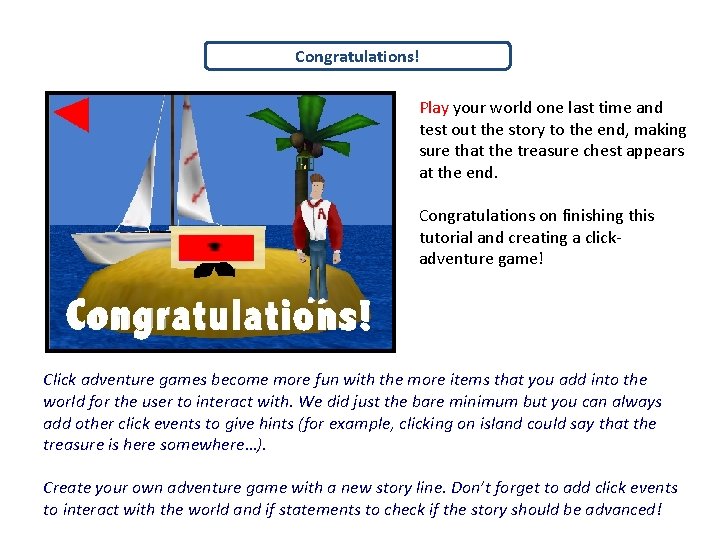
Congratulations! Play your world one last time and test out the story to the end, making sure that the treasure chest appears at the end. Congratulations on finishing this tutorial and creating a clickadventure game! Click adventure games become more fun with the more items that you add into the world for the user to interact with. We did just the bare minimum but you can always add other click events to give hints (for example, clicking on island could say that the treasure is here somewhere…). Create your own adventure game with a new story line. Don’t forget to add click events to interact with the world and if statements to check if the story should be advanced!