
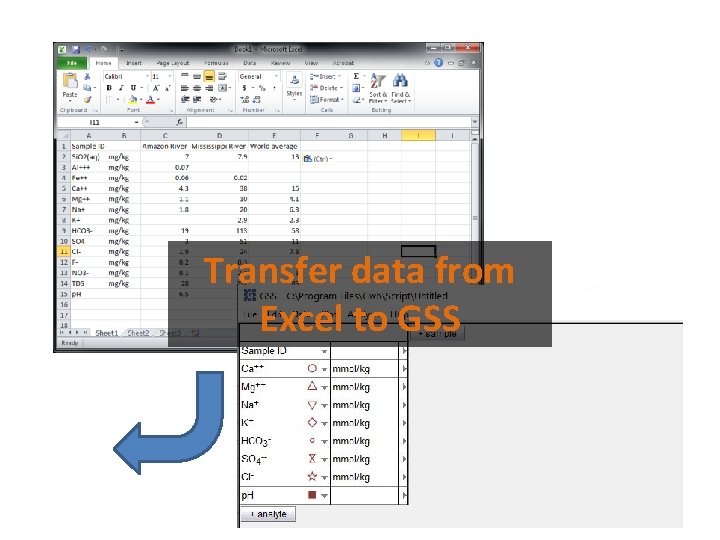
Transfer data from Excel to GSS You can
- Slides: 10
Transfer data from Excel to GSS
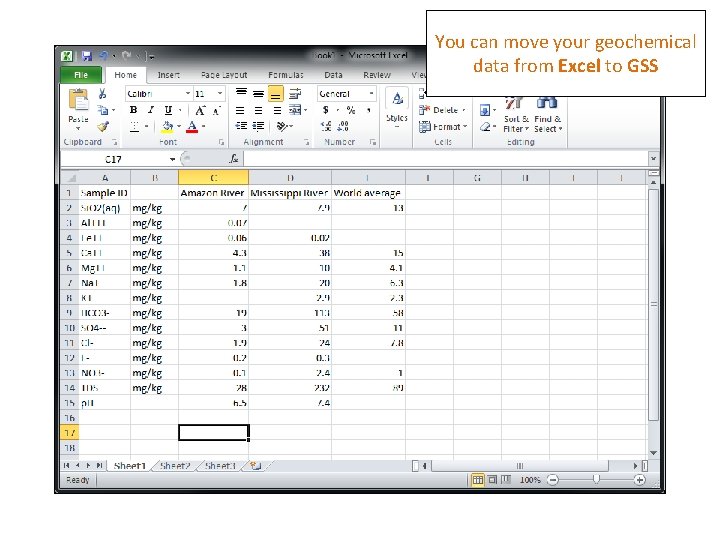
You can move your geochemical data from Excel to GSS
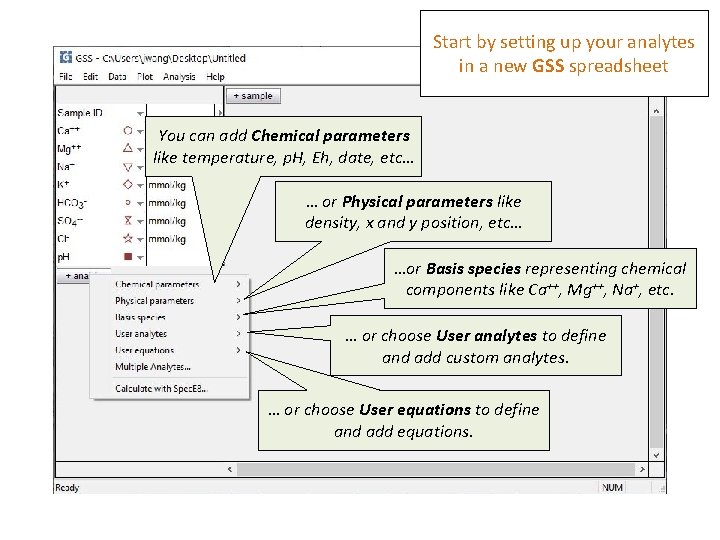
Start by setting up your analytes in a new GSS spreadsheet You can add Chemical parameters like temperature, p. H, Eh, date, etc… … or Physical parameters like density, x and y position, etc… …or Basis species representing chemical components like Ca++, Mg++, Na+, etc. … or choose User analytes to define and add custom analytes. … or choose User equations to define and add equations.
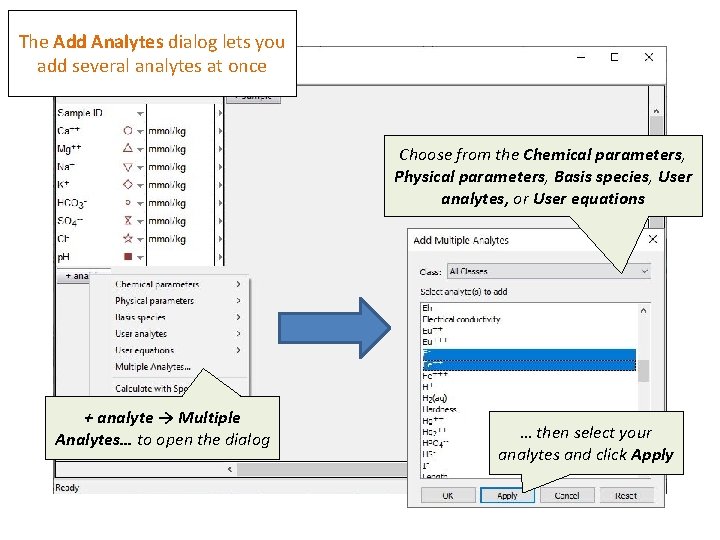
The Add Analytes dialog lets you add several analytes at once Choose from the Chemical parameters, Physical parameters, Basis species, User analytes, or User equations + analyte → Multiple Analytes… to open the dialog … then select your analytes and click Apply
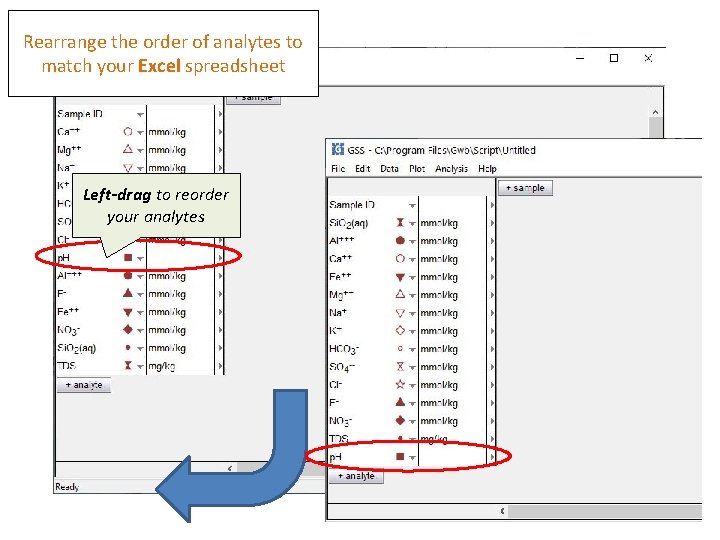
Rearrange the order of analytes to match your Excel spreadsheet Left-drag to reorder your analytes
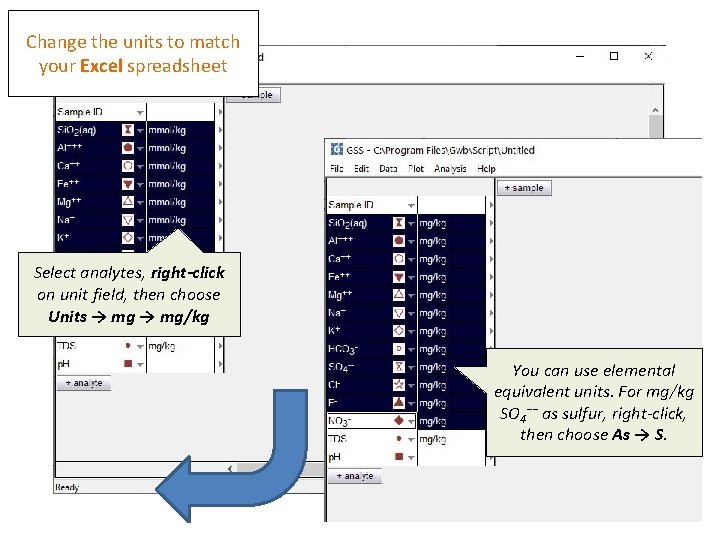
Change the units to match your Excel spreadsheet Select analytes, right-click on unit field, then choose Units → mg/kg You can use elemental equivalent units. For mg/kg SO 4−− as sulfur, right-click, then choose As → S.
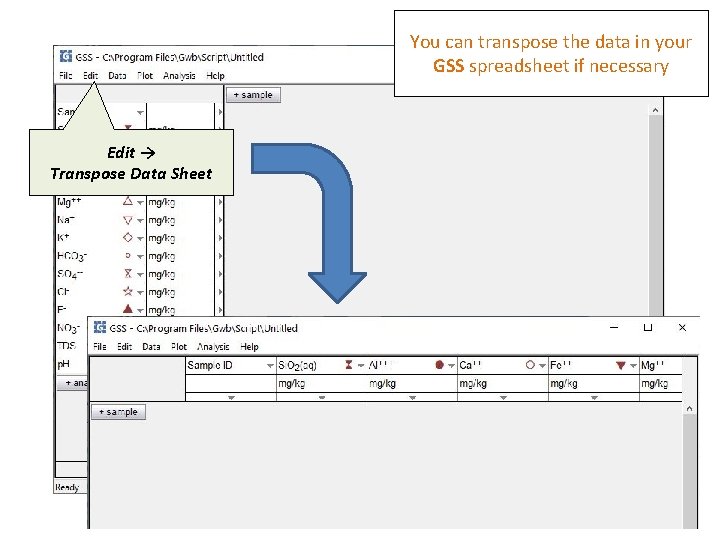
You can transpose the data in your GSS spreadsheet if necessary Edit → Transpose Data Sheet
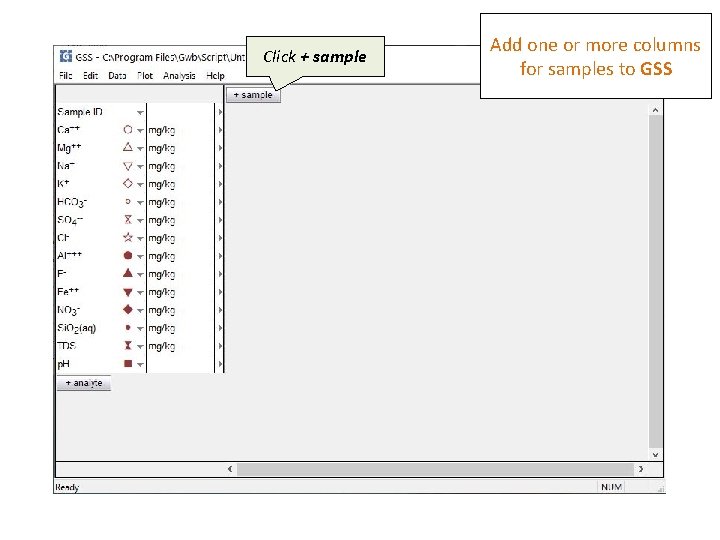
Click + sample Add one or more columns for samples to GSS
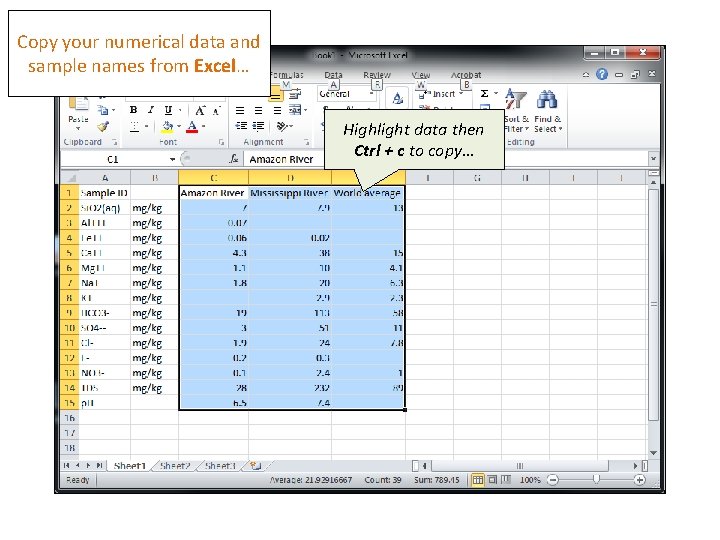
Copy your numerical data and sample names from Excel… Highlight data then Ctrl + c to copy…
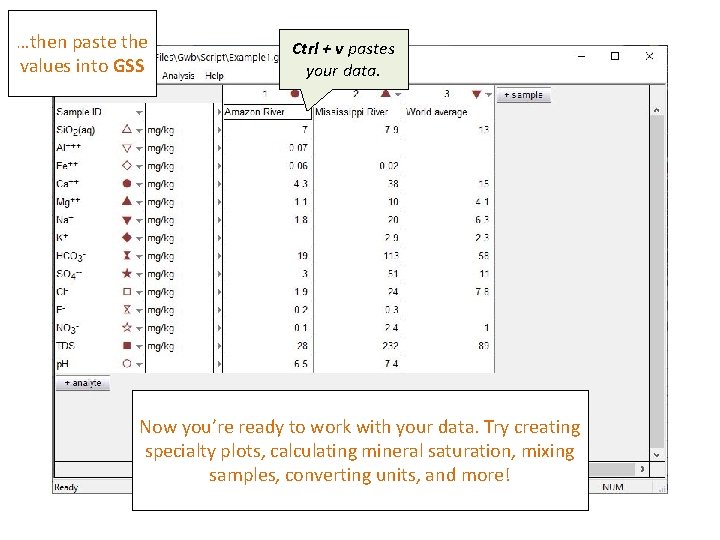
…then paste the values into GSS Ctrl + v pastes your data. Now you’re ready to work with your data. Try creating specialty plots, calculating mineral saturation, mixing samples, converting units, and more!