
Training Module Translation Workspace XLIFF Editor 1 Training

- Slides: 42
Training Module Translation Workspace XLIFF Editor 1
Training Module Overview Course Objective: This course provides information on the installation, user interface, and use of the XLIFF Editor translation client. Upon course completion, you will be a confident user of the Translation Workspace Client – XLIFF Editor. Duration: 90 minutes Prerequisites: • Introduction to Translation Tools Suggested Subsequent Training: • • • 2 Translation Workspace Tools Introduction to File Pre- and Post-Processing Microsoft Word Plug-in Copyright 2010 Geo. Workz
Learning Agenda 1. Introduction • • • 2. Translating in the XLIFF Editor • • • 3. Opening and saving files Analysis and auto-translation Common translation functions Terminology & Concordance Search Working with tags and special characters Navigating segments using Filters and Search Spell Check and Auto. Text Notes Chat Target File Preview QA checks for tags, segment length, and file format Storing data to a TM and back conversion XLIFF Editor Advanced Functions • • • 3 XLIFF format and XLIFF Editor highlights Installation and Access User Interface and Toolbars Converting To and From Other CAT Formats Configuring accelerators (keyboard shortcuts) XLIFF Editor plug-ins Copyright 2010 Geo. Workz
Introduction to XLIFF Format What is XLIFF? Why use it? XML Localization Interchange File Format (XLIFF) is a tool neutral, XML-based format used to store extracted translatable text. It is a standard developed specifically for the localization process: • Separates translatable text from formatting to allow translators to focus on the text to be translated • Enables control over what gets translated, and over information flow (developer notes, string properties, etc. ) • Enables translation work using multiple localization tools and reduces dependency on specific tools 4 Copyright 2010 Geo. Workz
XLIFF Editor Introduction Highlights XLIFF Editor Highlights • Adheres to XLIFF 1. 2 standard • Ideal for translation of tag-based formats (HTML, XML, DOCX, etc. ) because tags are protected • Integrated with Translation Workspaces Translation Memories (TMs) and Glossaries • Configurable user interface • Supports segment metadata • Supports automatic conversion of some file types • Comprehensive functionality includes: • • 5 TM leverage analysis and auto-translation Terminology and Concordance searches Segment filtering Chat Preview and Quality Assurance checks Batch Operations Customizability using APIs Copyright 2010 Geo. Workz
XLIFF Editor Introduction Installation To install the XLIFF Editor: 1. Download the install executable from the Geo. Workz. com Support page or from the Translation Workspace server’s "Resources" menu. 2. Launch the XLIFF Editor Setup Wizard • Accept the License Agreement • Select the install location • Select a shortcut name for the Start > All Programs menu • Choose to create a desktop icon and/or a Quick Launch icon 3. Click "Install" XLIFF Editor and Release Notes are now installed on your machine. 6 Copyright 2010 Geo. Workz
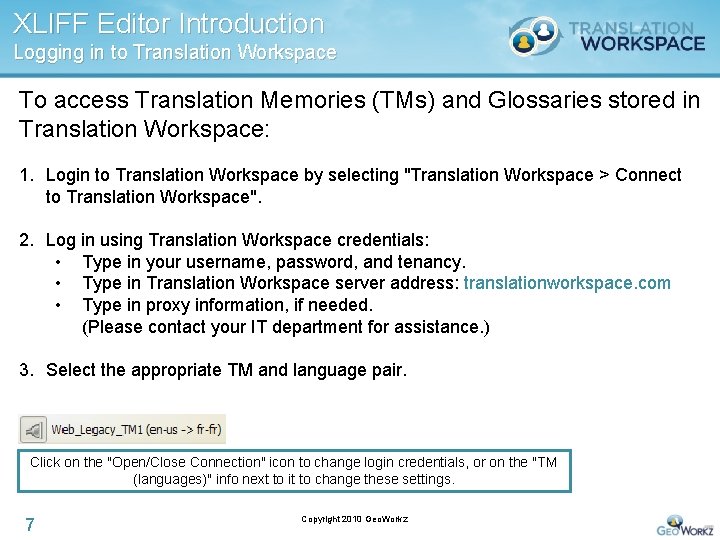
XLIFF Editor Introduction Logging in to Translation Workspace To access Translation Memories (TMs) and Glossaries stored in Translation Workspace: 1. Login to Translation Workspace by selecting "Translation Workspace > Connect to Translation Workspace". 2. Log in using Translation Workspace credentials: • Type in your username, password, and tenancy. • Type in Translation Workspace server address: translationworkspace. com • Type in proxy information, if needed. (Please contact your IT department for assistance. ) 3. Select the appropriate TM and language pair. Click on the "Open/Close Connection" icon to change login credentials, or on the "TM (languages)" info next to it to change these settings. 7 Copyright 2010 Geo. Workz
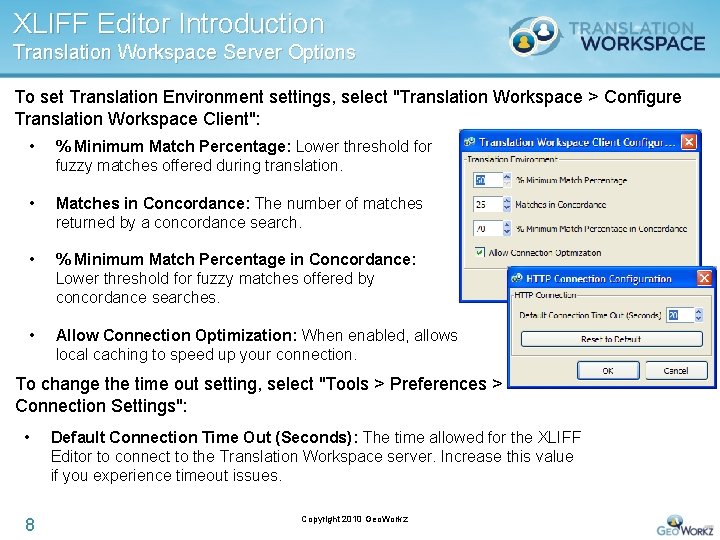
XLIFF Editor Introduction Translation Workspace Server Options To set Translation Environment settings, select "Translation Workspace > Configure Translation Workspace Client": • % Minimum Match Percentage: Lower threshold for fuzzy matches offered during translation. • Matches in Concordance: The number of matches returned by a concordance search. • % Minimum Match Percentage in Concordance: Lower threshold for fuzzy matches offered by concordance searches. • Allow Connection Optimization: When enabled, allows local caching to speed up your connection. To change the time out setting, select "Tools > Preferences > Connection Settings": • 8 Default Connection Time Out (Seconds): The time allowed for the XLIFF Editor to connect to the Translation Workspace server. Increase this value if you experience timeout issues. Copyright 2010 Geo. Workz
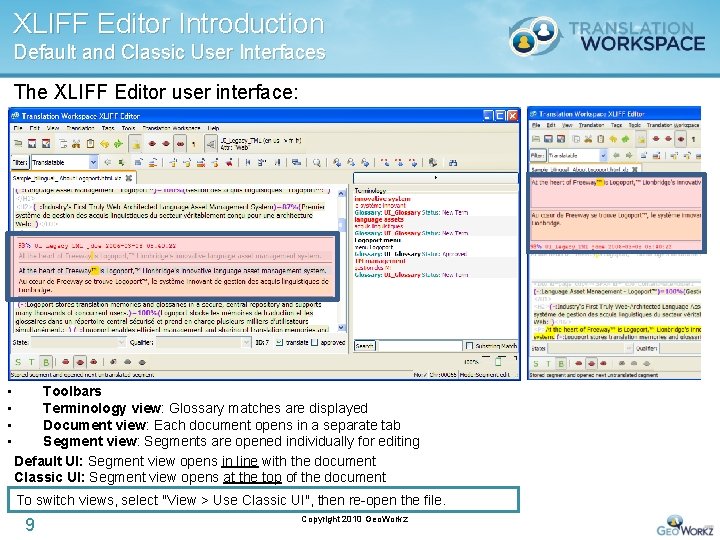
XLIFF Editor Introduction Default and Classic User Interfaces The XLIFF Editor user interface: • • Toolbars Terminology view: Glossary matches are displayed Document view: Each document opens in a separate tab Segment view: Segments are opened individually for editing Default UI: Segment view opens in line with the document Classic UI: Segment view opens at the top of the document To switch views, select "View > Use Classic UI", then re-open the file. 9 Copyright 2010 Geo. Workz
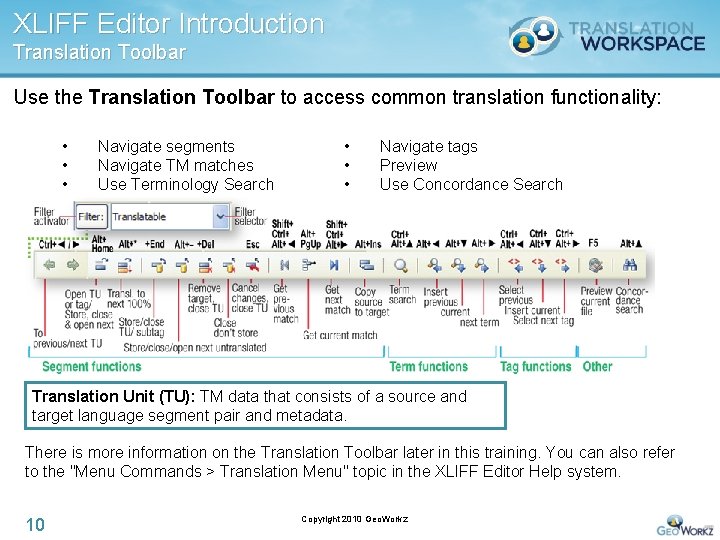
XLIFF Editor Introduction Translation Toolbar Use the Translation Toolbar to access common translation functionality: • • • Navigate segments Navigate TM matches Use Terminology Search • • • Navigate tags Preview Use Concordance Search Translation Unit (TU): TM data that consists of a source and target language segment pair and metadata. There is more information on the Translation Toolbar later in this training. You can also refer to the "Menu Commands > Translation Menu" topic in the XLIFF Editor Help system. 10 Copyright 2010 Geo. Workz
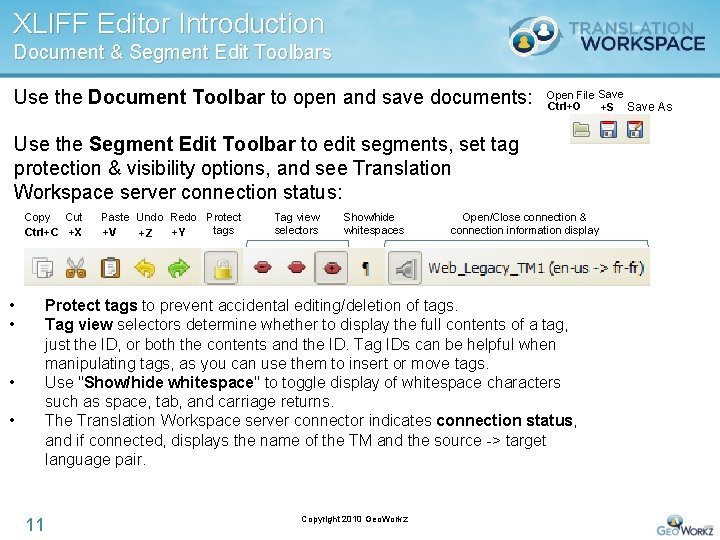
XLIFF Editor Introduction Document & Segment Edit Toolbars Use the Document Toolbar to open and save documents: Open File Save Ctrl+O +S Save As Use the Segment Edit Toolbar to edit segments, set tag protection & visibility options, and see Translation Workspace server connection status: Copy Cut Ctrl+C +X • • Paste Undo Redo Protect tags +V +Y +Z Tag view selectors Show/hide whitespaces Open/Close connection & connection information display Protect tags to prevent accidental editing/deletion of tags. Tag view selectors determine whether to display the full contents of a tag, just the ID, or both the contents and the ID. Tag IDs can be helpful when manipulating tags, as you can use them to insert or move tags. Use "Show/hide whitespace" to toggle display of whitespace characters such as space, tab, and carriage returns. The Translation Workspace server connector indicates connection status, and if connected, displays the name of the TM and the source -> target language pair. 11 Copyright 2010 Geo. Workz
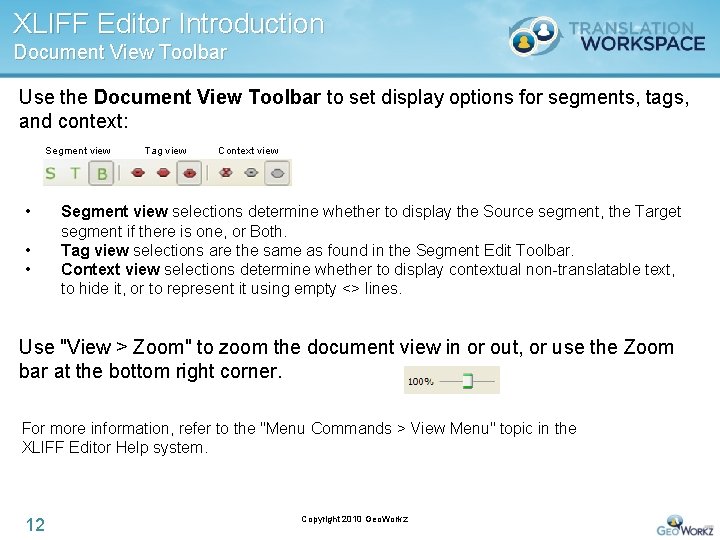
XLIFF Editor Introduction Document View Toolbar Use the Document View Toolbar to set display options for segments, tags, and context: Segment view • • • Tag view Context view Segment view selections determine whether to display the Source segment, the Target segment if there is one, or Both. Tag view selections are the same as found in the Segment Edit Toolbar. Context view selections determine whether to display contextual non-translatable text, to hide it, or to represent it using empty <> lines. Use "View > Zoom" to zoom the document view in or out, or use the Zoom bar at the bottom right corner. For more information, refer to the "Menu Commands > View Menu" topic in the XLIFF Editor Help system. 12 Copyright 2010 Geo. Workz
XLIFF Editor Introduction Segment State Toolbar Use the Segment State Toolbar to associate attributes to each segment pair. • • State: The status of the target segment. Qualifier: A description of the target segment state. For more information on Segment State and Qualifier values, refer to the "Toolbars" topic in the XLIFF Editor Help system. The Segment State Toolbar also indicates if a segment needs translation or if it has been approved: • Translate: Indicates whether or not the selected text should be translated. When selected, the segment can be modified. When deselected, the segment is locked from editing. Approved: Indicates if a translation has passed final review. When selected, the segment is locked from editing. When deselected, the segment can be modified. • 13 Copyright 2010 Geo. Workz
Learning Agenda 1. Introduction • • • 2. Translating in the XLIFF Editor • • • 3. Opening and saving files Analysis and auto-translation Common translation functions Terminology & Concordance Search Working with tags and special characters Navigating segments using Filters and Search Spell Check and Auto. Text Notes Chat Target File Preview QA checks for tags, segment length, and file format Storing data to a TM and back conversion XLIFF Editor Advanced Functions • • • 14 XLIFF format and XLIFF Editor highlights Installation and Access User Interface and Toolbars Converting To and From Other CAT Formats Configuring accelerators (keyboard shortcuts) XLIFF Editor plug-ins Copyright 2010 Geo. Workz
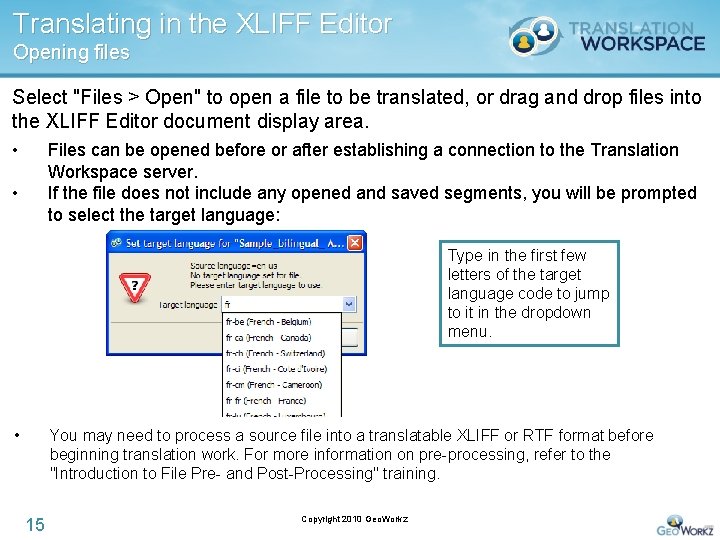
Translating in the XLIFF Editor Opening files Select "Files > Open" to open a file to be translated, or drag and drop files into the XLIFF Editor document display area. • Files can be opened before or after establishing a connection to the Translation Workspace server. If the file does not include any opened and saved segments, you will be prompted to select the target language: • Type in the first few letters of the target language code to jump to it in the dropdown menu. • You may need to process a source file into a translatable XLIFF or RTF format before beginning translation work. For more information on pre-processing, refer to the "Introduction to File Pre- and Post-Processing" training. 15 Copyright 2010 Geo. Workz
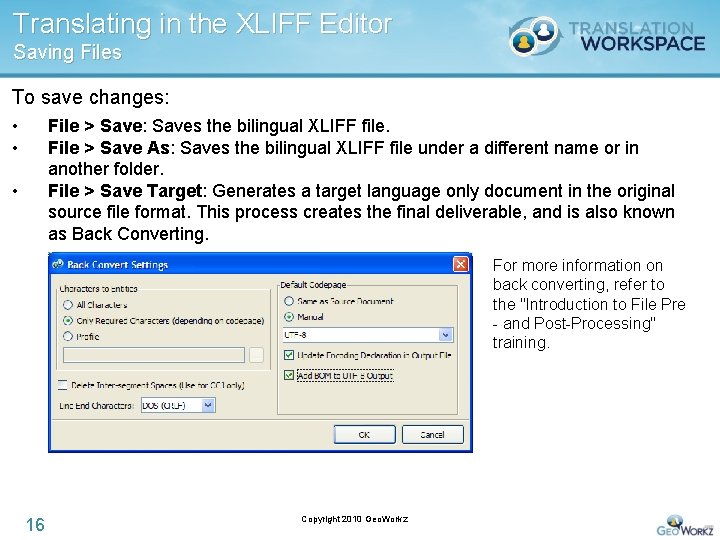
Translating in the XLIFF Editor Saving Files To save changes: • • File > Save: Saves the bilingual XLIFF file. File > Save As: Saves the bilingual XLIFF file under a different name or in another folder. File > Save Target: Generates a target language only document in the original source file format. This process creates the final deliverable, and is also known as Back Converting. • For more information on back converting, refer to the "Introduction to File Pre - and Post-Processing" training. 16 Copyright 2010 Geo. Workz
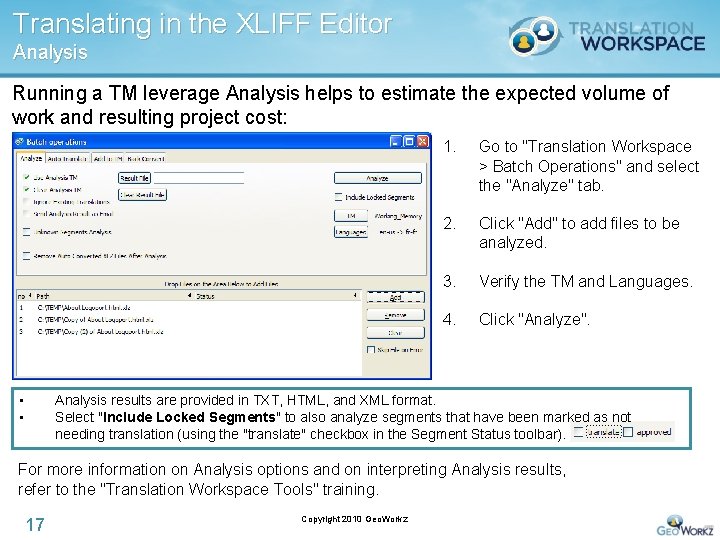
Translating in the XLIFF Editor Analysis Running a TM leverage Analysis helps to estimate the expected volume of work and resulting project cost: • • 1. Go to "Translation Workspace > Batch Operations" and select the "Analyze" tab. 2. Click "Add" to add files to be analyzed. 3. Verify the TM and Languages. 4. Click "Analyze". Analysis results are provided in TXT, HTML, and XML format. Select "Include Locked Segments" to also analyze segments that have been marked as not needing translation (using the "translate" checkbox in the Segment Status toolbar). For more information on Analysis options and on interpreting Analysis results, refer to the "Translation Workspace Tools" training. 17 Copyright 2010 Geo. Workz
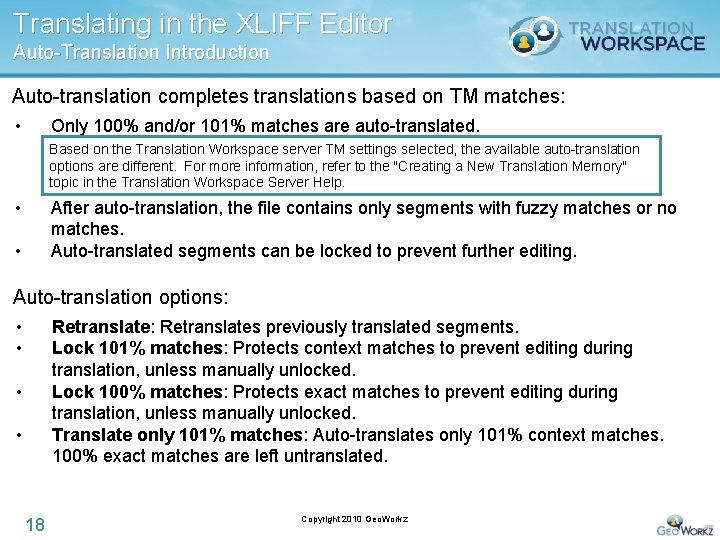
Translating in the XLIFF Editor Auto-Translation Introduction Auto-translation completes translations based on TM matches: • Only 100% and/or 101% matches are auto-translated. Based on the Translation Workspace server TM settings selected, the available auto-translation options are different. For more information, refer to the "Creating a New Translation Memory" topic in the Translation Workspace Server Help. • After auto-translation, the file contains only segments with fuzzy matches or no matches. Auto-translated segments can be locked to prevent further editing. • Auto-translation options: • • Retranslate: Retranslates previously translated segments. Lock 101% matches: Protects context matches to prevent editing during translation, unless manually unlocked. Lock 100% matches: Protects exact matches to prevent editing during translation, unless manually unlocked. Translate only 101% matches: Auto-translates only 101% context matches. 100% exact matches are left untranslated. • • 18 Copyright 2010 Geo. Workz
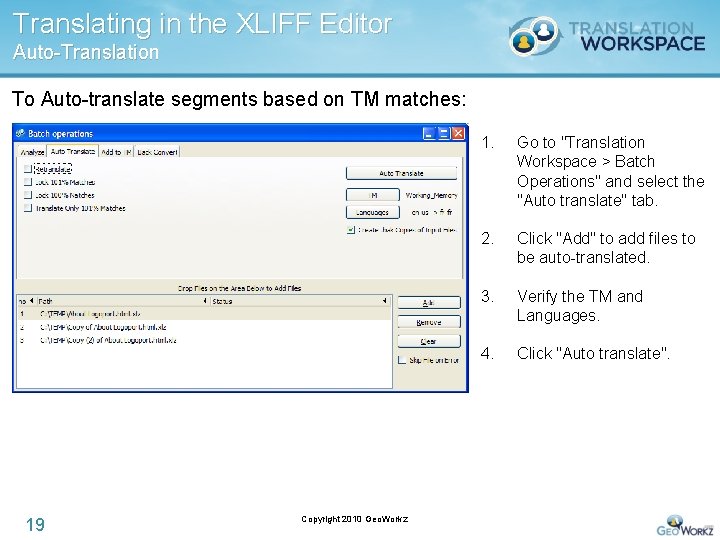
Translating in the XLIFF Editor Auto-Translation To Auto-translate segments based on TM matches: 19 Copyright 2010 Geo. Workz 1. Go to "Translation Workspace > Batch Operations" and select the "Auto translate" tab. 2. Click "Add" to add files to be auto-translated. 3. Verify the TM and Languages. 4. Click "Auto translate".
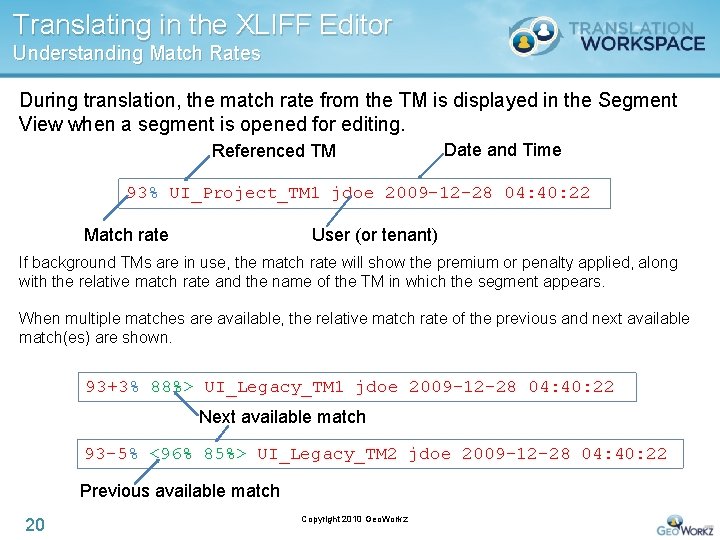
Translating in the XLIFF Editor Understanding Match Rates During translation, the match rate from the TM is displayed in the Segment View when a segment is opened for editing. Referenced TM Date and Time 93% UI_Project_TM 1 jdoe 2009 -12 -28 04: 40: 22 User (or tenant) Match rate If background TMs are in use, the match rate will show the premium or penalty applied, along with the relative match rate and the name of the TM in which the segment appears. When multiple matches are available, the relative match rate of the previous and next available match(es) are shown. 93+3% 88%> UI_Legacy_TM 1 jdoe 2009 -12 -28 04: 40: 22 Next available match 93 -5% <96% 85%> UI_Legacy_TM 2 jdoe 2009 -12 -28 04: 40: 22 Previous available match 20 Copyright 2010 Geo. Workz
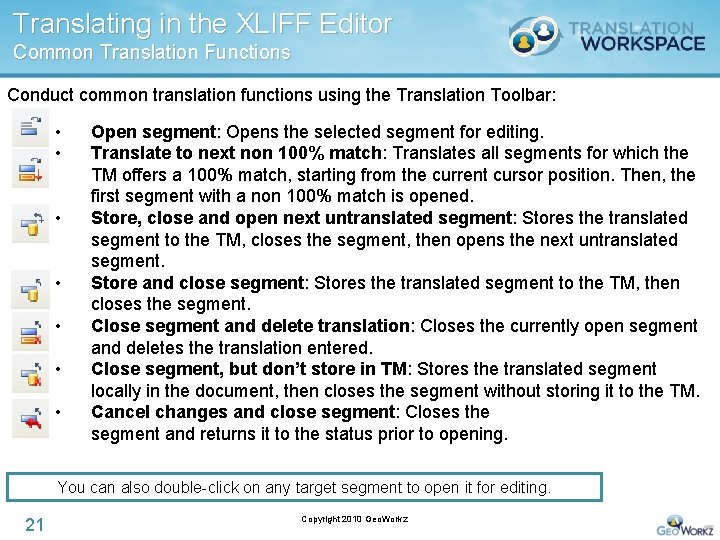
Translating in the XLIFF Editor Common Translation Functions Conduct common translation functions using the Translation Toolbar: • • Open segment: Opens the selected segment for editing. Translate to next non 100% match: Translates all segments for which the TM offers a 100% match, starting from the current cursor position. Then, the first segment with a non 100% match is opened. Store, close and open next untranslated segment: Stores the translated segment to the TM, closes the segment, then opens the next untranslated segment. Store and close segment: Stores the translated segment to the TM, then closes the segment. Close segment and delete translation: Closes the currently open segment and deletes the translation entered. Close segment, but don’t store in TM: Stores the translated segment locally in the document, then closes the segment without storing it to the TM. Cancel changes and close segment: Closes the segment and returns it to the status prior to opening. You can also double-click on any target segment to open it for editing. 21 Copyright 2010 Geo. Workz
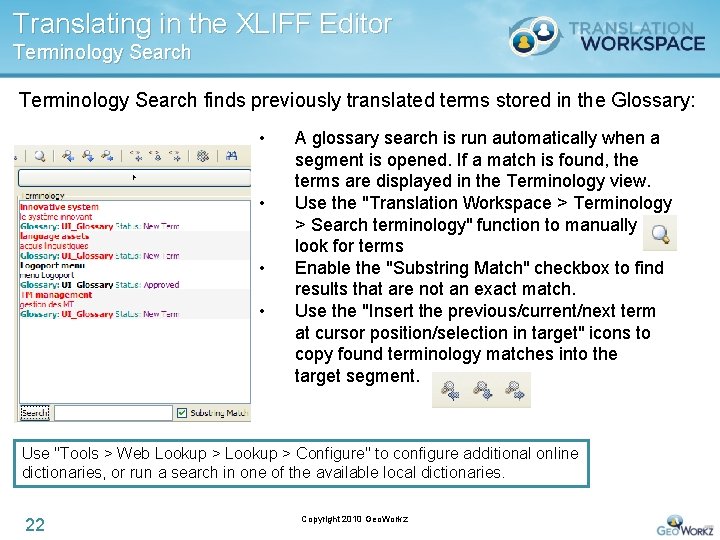
Translating in the XLIFF Editor Terminology Search finds previously translated terms stored in the Glossary: • • A glossary search is run automatically when a segment is opened. If a match is found, the terms are displayed in the Terminology view. Use the "Translation Workspace > Terminology > Search terminology" function to manually look for terms Enable the "Substring Match" checkbox to find results that are not an exact match. Use the "Insert the previous/current/next term at cursor position/selection in target" icons to copy found terminology matches into the target segment. Use "Tools > Web Lookup > Configure" to configure additional online dictionaries, or run a search in one of the available local dictionaries. 22 Copyright 2010 Geo. Workz
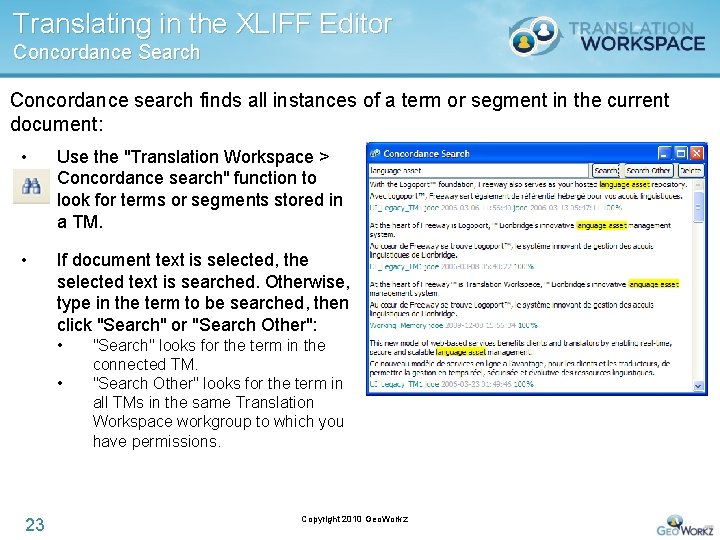
Translating in the XLIFF Editor Concordance Search Concordance search finds all instances of a term or segment in the current document: • Use the "Translation Workspace > Concordance search" function to look for terms or segments stored in a TM. • If document text is selected, the selected text is searched. Otherwise, type in the term to be searched, then click "Search" or "Search Other": • • 23 "Search" looks for the term in the connected TM. "Search Other" looks for the term in all TMs in the same Translation Workspace workgroup to which you have permissions. Copyright 2010 Geo. Workz
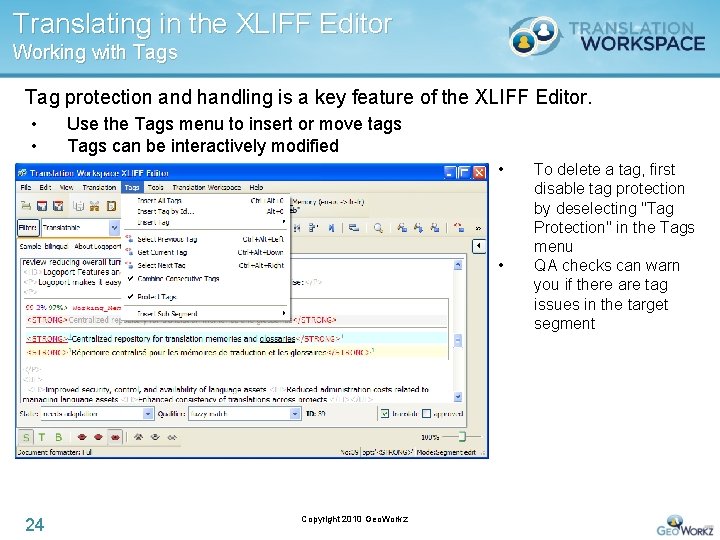
Translating in the XLIFF Editor Working with Tags Tag protection and handling is a key feature of the XLIFF Editor. • • Use the Tags menu to insert or move tags Tags can be interactively modified • • 24 Copyright 2010 Geo. Workz To delete a tag, first disable tag protection by deselecting "Tag Protection" in the Tags menu QA checks can warn you if there are tag issues in the target segment
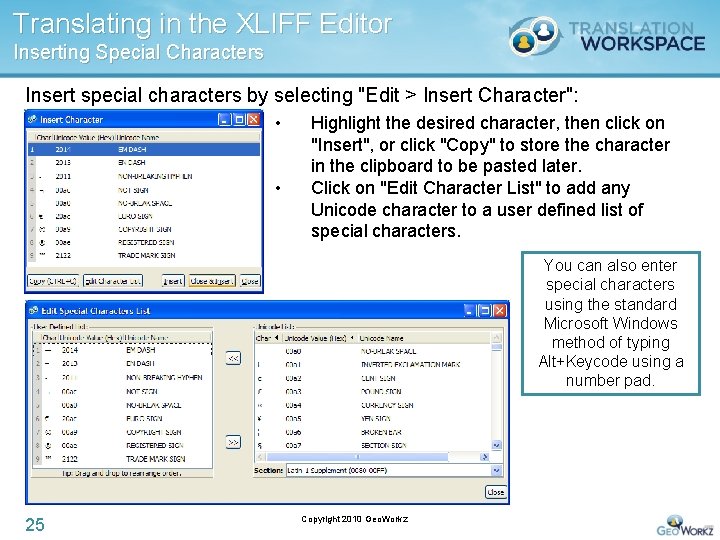
Translating in the XLIFF Editor Inserting Special Characters Insert special characters by selecting "Edit > Insert Character": • • Highlight the desired character, then click on "Insert", or click "Copy" to store the character in the clipboard to be pasted later. Click on "Edit Character List" to add any Unicode character to a user defined list of special characters. You can also enter special characters using the standard Microsoft Windows method of typing Alt+Keycode using a number pad. 25 Copyright 2010 Geo. Workz
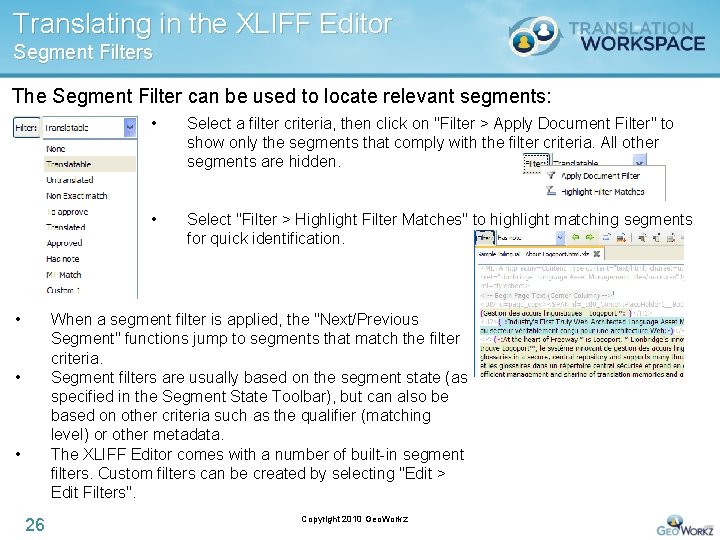
Translating in the XLIFF Editor Segment Filters The Segment Filter can be used to locate relevant segments: • • Select a filter criteria, then click on "Filter > Apply Document Filter" to show only the segments that comply with the filter criteria. All other segments are hidden. • Select "Filter > Highlight Filter Matches" to highlight matching segments for quick identification. When a segment filter is applied, the "Next/Previous Segment" functions jump to segments that match the filter criteria. Segment filters are usually based on the segment state (as specified in the Segment State Toolbar), but can also be based on other criteria such as the qualifier (matching level) or other metadata. The XLIFF Editor comes with a number of built-in segment filters. Custom filters can be created by selecting "Edit > Edit Filters". • • 26 Copyright 2010 Geo. Workz
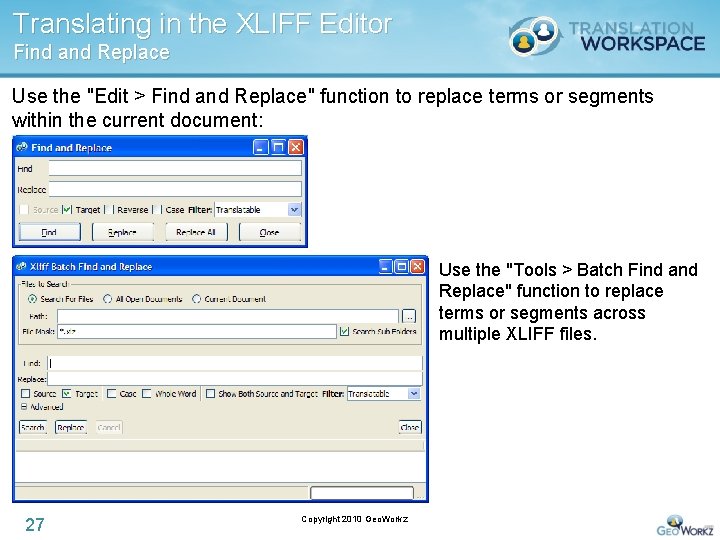
Translating in the XLIFF Editor Find and Replace Use the "Edit > Find and Replace" function to replace terms or segments within the current document: Use the "Tools > Batch Find and Replace" function to replace terms or segments across multiple XLIFF files. 27 Copyright 2010 Geo. Workz
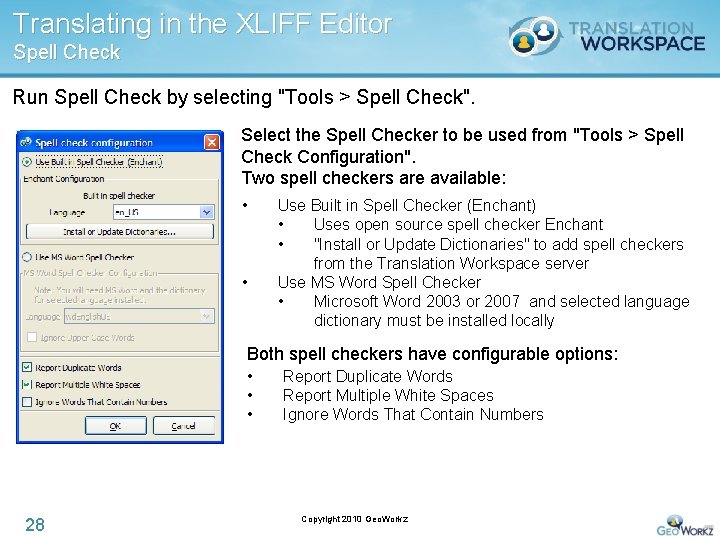
Translating in the XLIFF Editor Spell Check Run Spell Check by selecting "Tools > Spell Check". Select the Spell Checker to be used from "Tools > Spell Check Configuration". Two spell checkers are available: • • Use Built in Spell Checker (Enchant) • Uses open source spell checker Enchant • "Install or Update Dictionaries" to add spell checkers from the Translation Workspace server Use MS Word Spell Checker • Microsoft Word 2003 or 2007 and selected language dictionary must be installed locally Both spell checkers have configurable options: • • • 28 Report Duplicate Words Report Multiple White Spaces Ignore Words That Contain Numbers Copyright 2010 Geo. Workz
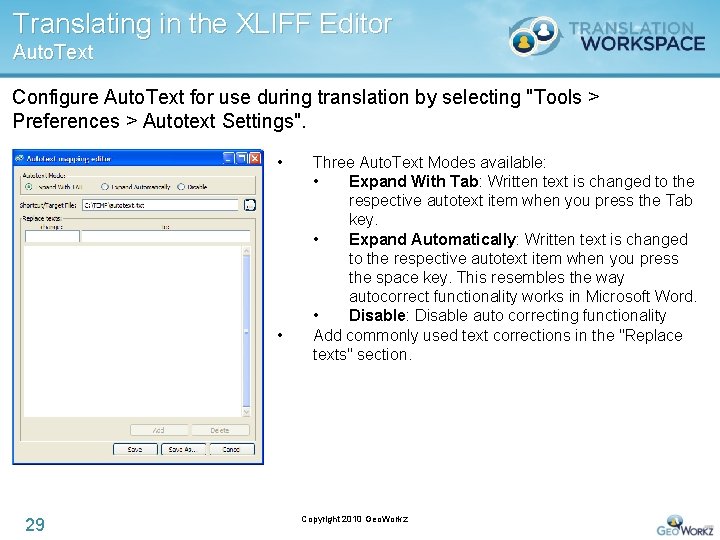
Translating in the XLIFF Editor Auto. Text Configure Auto. Text for use during translation by selecting "Tools > Preferences > Autotext Settings". • • 29 Three Auto. Text Modes available: • Expand With Tab: Written text is changed to the respective autotext item when you press the Tab key. • Expand Automatically: Written text is changed to the respective autotext item when you press the space key. This resembles the way autocorrect functionality works in Microsoft Word. • Disable: Disable auto correcting functionality Add commonly used text corrections in the "Replace texts" section. Copyright 2010 Geo. Workz
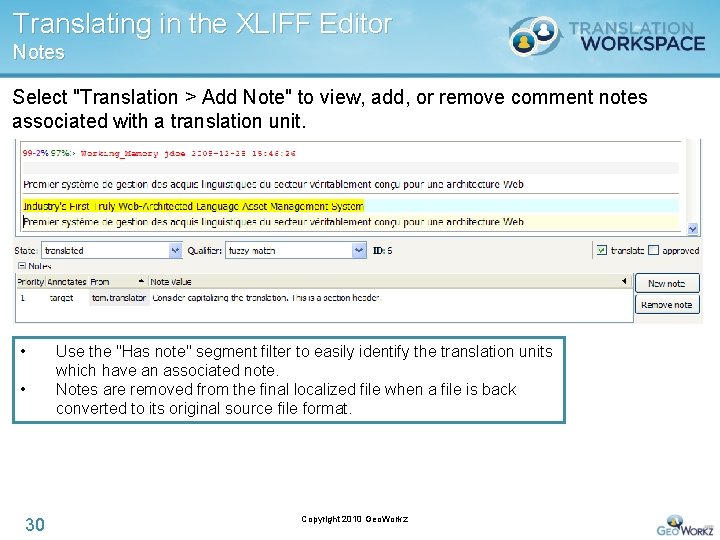
Translating in the XLIFF Editor Notes Select "Translation > Add Note" to view, add, or remove comment notes associated with a translation unit. • • 30 Use the "Has note" segment filter to easily identify the translation units which have an associated note. Notes are removed from the final localized file when a file is back converted to its original source file format. Copyright 2010 Geo. Workz
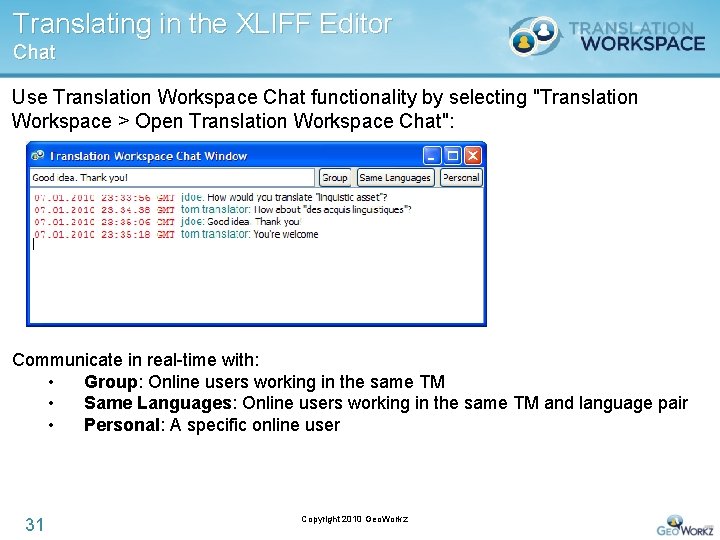
Translating in the XLIFF Editor Chat Use Translation Workspace Chat functionality by selecting "Translation Workspace > Open Translation Workspace Chat": Communicate in real-time with: • Group: Online users working in the same TM • Same Languages: Online users working in the same TM and language pair • Personal: A specific online user 31 Copyright 2010 Geo. Workz
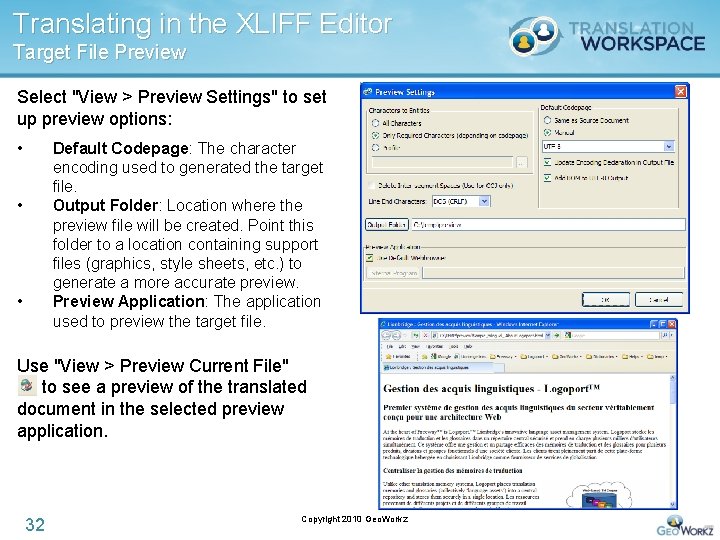
Translating in the XLIFF Editor Target File Preview Select "View > Preview Settings" to set up preview options: • Default Codepage: The character encoding used to generated the target file. Output Folder: Location where the preview file will be created. Point this folder to a location containing support files (graphics, style sheets, etc. ) to generate a more accurate preview. Preview Application: The application used to preview the target file. • • Use "View > Preview Current File" to see a preview of the translated document in the selected preview application. 32 Copyright 2010 Geo. Workz
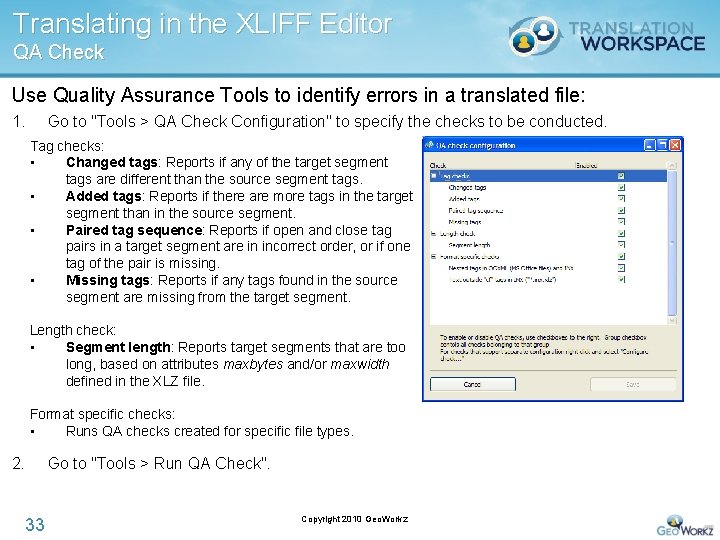
Translating in the XLIFF Editor QA Check Use Quality Assurance Tools to identify errors in a translated file: 1. Go to "Tools > QA Check Configuration" to specify the checks to be conducted. Tag checks: • Changed tags: Reports if any of the target segment tags are different than the source segment tags. • Added tags: Reports if there are more tags in the target segment than in the source segment. • Paired tag sequence: Reports if open and close tag pairs in a target segment are in incorrect order, or if one tag of the pair is missing. • Missing tags: Reports if any tags found in the source segment are missing from the target segment. Length check: • Segment length: Reports target segments that are too long, based on attributes maxbytes and/or maxwidth defined in the XLZ file. Format specific checks: • Runs QA checks created for specific file types. 2. Go to "Tools > Run QA Check". 33 Copyright 2010 Geo. Workz
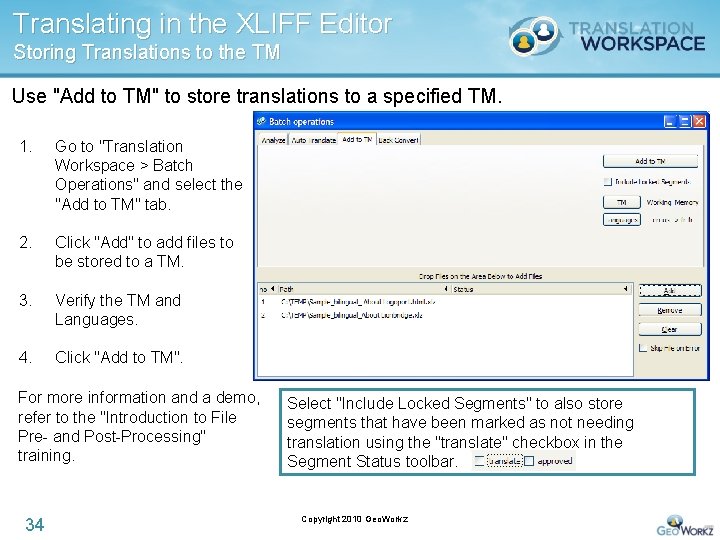
Translating in the XLIFF Editor Storing Translations to the TM Use "Add to TM" to store translations to a specified TM. 1. Go to "Translation Workspace > Batch Operations" and select the "Add to TM" tab. 2. Click "Add" to add files to be stored to a TM. 3. Verify the TM and Languages. 4. Click "Add to TM". For more information and a demo, refer to the "Introduction to File Pre- and Post-Processing" training. 34 Select "Include Locked Segments" to also store segments that have been marked as not needing translation using the "translate" checkbox in the Segment Status toolbar. Copyright 2010 Geo. Workz
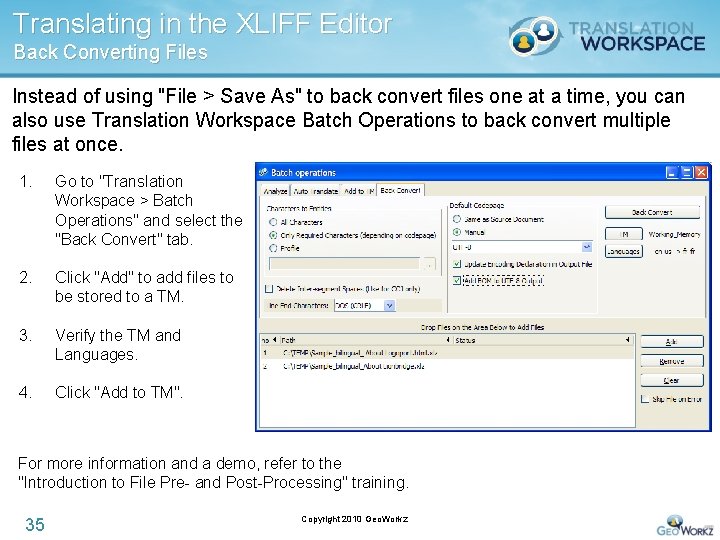
Translating in the XLIFF Editor Back Converting Files Instead of using "File > Save As" to back convert files one at a time, you can also use Translation Workspace Batch Operations to back convert multiple files at once. 1. Go to "Translation Workspace > Batch Operations" and select the "Back Convert" tab. 2. Click "Add" to add files to be stored to a TM. 3. Verify the TM and Languages. 4. Click "Add to TM". For more information and a demo, refer to the "Introduction to File Pre- and Post-Processing" training. 35 Copyright 2010 Geo. Workz
Learning Agenda 1. Introduction • • • 2. Translating in the XLIFF Editor • • • 3. Opening and saving files Analysis and auto-translation Common translation functions Terminology & Concordance Search Working with tags and special characters Navigating segments using Filters and Search Spell Check and Auto. Text Notes Chat Target File Preview QA checks for tags, segment length, and file format Storing data to a TM and back conversion XLIFF Editor Advanced Functions • • • 36 XLIFF format and XLIFF Editor highlights Installation and Access User Interface and Toolbars Converting To and From Other CAT Formats Configuring accelerators (keyboard shortcuts) XLIFF Editor plug-ins Copyright 2010 Geo. Workz
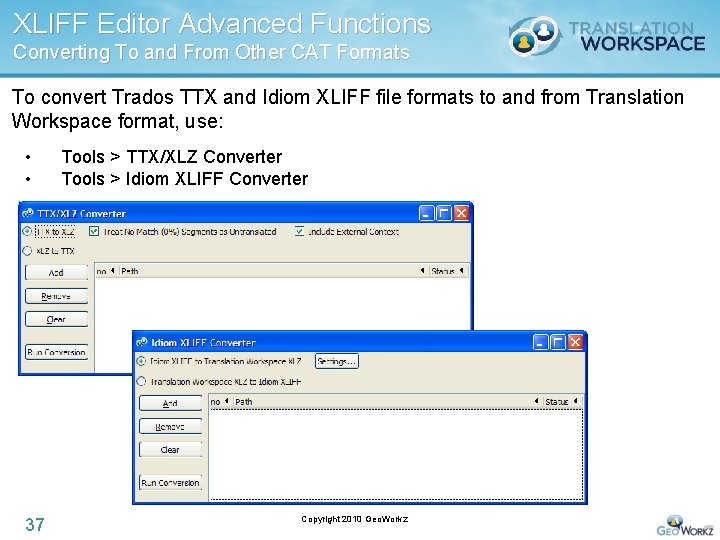
XLIFF Editor Advanced Functions Converting To and From Other CAT Formats To convert Trados TTX and Idiom XLIFF file formats to and from Translation Workspace format, use: • • 37 Tools > TTX/XLZ Converter Tools > Idiom XLIFF Converter Copyright 2010 Geo. Workz
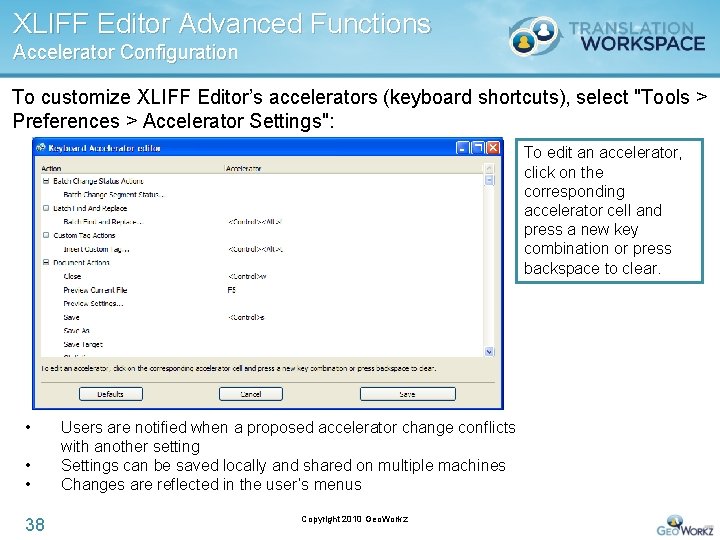
XLIFF Editor Advanced Functions Accelerator Configuration To customize XLIFF Editor’s accelerators (keyboard shortcuts), select "Tools > Preferences > Accelerator Settings": To edit an accelerator, click on the corresponding accelerator cell and press a new key combination or press backspace to clear. • • • 38 Users are notified when a proposed accelerator change conflicts with another setting Settings can be saved locally and shared on multiple machines Changes are reflected in the user’s menus Copyright 2010 Geo. Workz
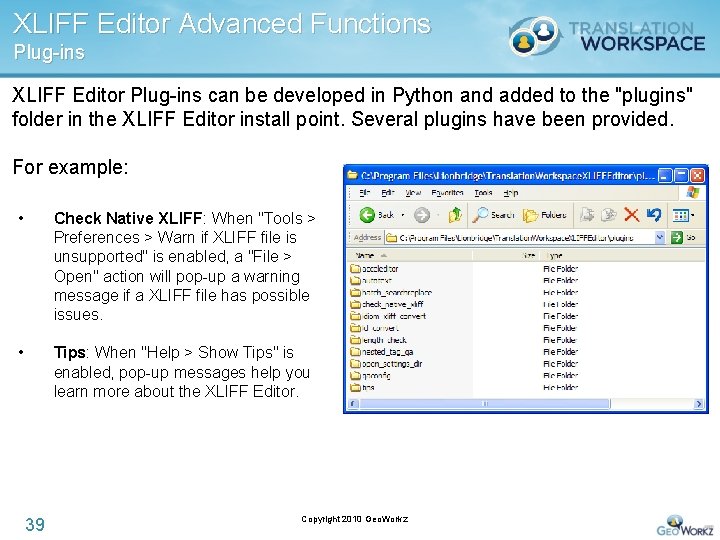
XLIFF Editor Advanced Functions Plug-ins XLIFF Editor Plug-ins can be developed in Python and added to the "plugins" folder in the XLIFF Editor install point. Several plugins have been provided. For example: • Check Native XLIFF: When "Tools > Preferences > Warn if XLIFF file is unsupported" is enabled, a "File > Open" action will pop-up a warning message if a XLIFF file has possible issues. • Tips: When "Help > Show Tips" is enabled, pop-up messages help you learn more about the XLIFF Editor. 39 Copyright 2010 Geo. Workz
XLIFF Editor Advanced Functions Other Alt-trans segments represent translation alternatives for the source segment and are stored as metadata. Alternative translations: • • Are typically fuzzy matches. Can be used during translation from the "Translation > Copy Alt-trans" menu. Set preferred bidirectional (bidi) cursor movement behavior by selecting "Tools > Preferences > Bidi cursor movement": • Use visual Bidi cursor movement: Cursor movement directly follows user input. • Use logical Bidi cursor movement: Resembles the way traditional Windows applications move the cursor 40 Copyright 2010 Geo. Workz
Summary • XML Localization Interchange File Format (XLIFF) is a tool neutral, XML-based format developed specifically for the localization process. • The XLIFF Editor is ideal for translation of tag-based file formats. Comprehensive functionality includes: • • • • 41 TM leverage analysis and auto-translation Terminology and Concordance searches Tag protection Support for special characters Segment filtering Spell check and Auto. Text Support for notes and comments Chat Preview and Quality Assurance checks Batch Operations Support for working with other CAT file formats Support for custom plug-ins For more information, refer to the XLIFF Editor Help. Copyright 2010 Geo. Workz
Additional Training We suggest the following training modules: • Translation Workspace Tools • Introduction to File Pre- and Post-Processing • Microsoft Word Plug-in More information available at http: //geoworkz. com/Support/Training. aspx 42 Copyright 2010 Geo. Workz