
Training 1 Front Page Creating Web Pages Objectives

Training 1 Front. Page Creating Web Pages

Objectives 1. 2. 3. 4. 5. Open Front. Page. Create Web pages. Insert pictures Create a hyperlink from a picture Save your work. 2
Opening Front. Page • On the Windows taskbar, click the Start button , point to Programs, and then click Microsoft Front. Page. – If Front. Page has been used to edit another Web site, it will open the last Web site automatically. – To close a Web site: on the File menu, click Close Web. 3
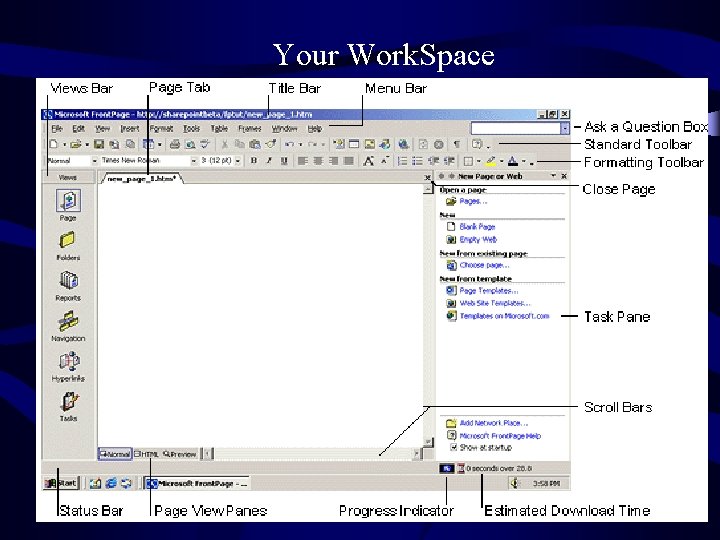
Your Work. Space 4
Create a home page 1. Home page is front door to your Web site 2. On the blank page in Page view, type Welcome to Championzone! and then press ENTER. 3. Just like in a word processor, pressing ENTER puts the cursor on a new line. 4. Next, type the sentence Take a look around to learn more about our sporting goods, see pictures of our merchandise, and look at our Sports Photo Gallery. 5. Press ENTER. 5
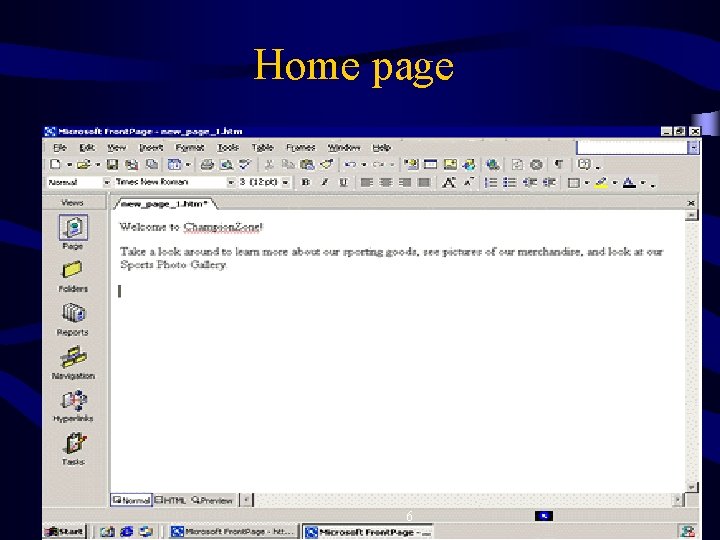
Home page 6
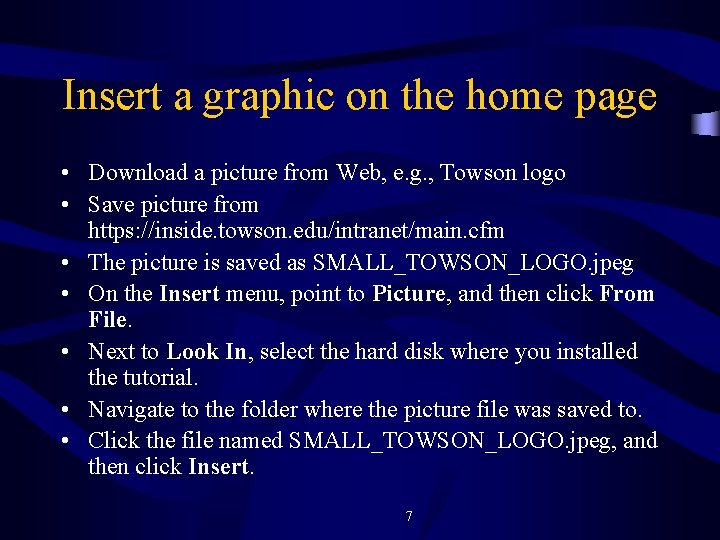
Insert a graphic on the home page • Download a picture from Web, e. g. , Towson logo • Save picture from https: //inside. towson. edu/intranet/main. cfm • The picture is saved as SMALL_TOWSON_LOGO. jpeg • On the Insert menu, point to Picture, and then click From File. • Next to Look In, select the hard disk where you installed the tutorial. • Navigate to the folder where the picture file was saved to. • Click the file named SMALL_TOWSON_LOGO. jpeg, and then click Insert. 7
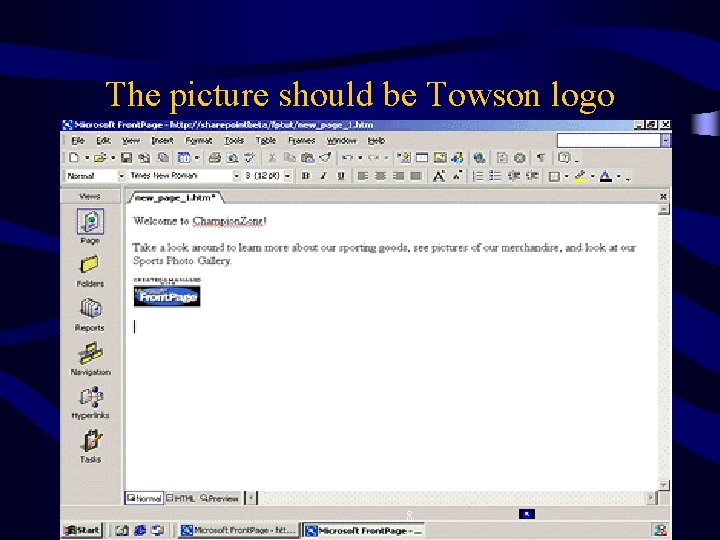
The picture should be Towson logo 8
Create a hyperlink from a picture • On the home page, click the picture of the Front. Page 2002 button you inserted. • If the Pictures toolbar doesn’t appear automatically, on View menu, point to Toolbars, and then click Pictures. • On the Insert menu, click Hyperlink. • Front. Page displays the Insert Hyperlink dialog box. Here, you specify the target of the hyperlink you are creating. • In the Address box, type www. towson. edu. • Click OK to finish creating the hyperlink. 9
Save the current page 1. On the File menu, click Save As. 2. In the Save As dialog box, click the My Documents icon on the vertical places bar. 3. Next to the Page title field, click the Change title button. 4. In the Set Page title box, type Home Page and then click OK. 5. In the File name box, change the suggested text to homepage, and then click Save. 10
Display the HTML of the current page • In Page view, click the HTML button at the bottom of the page. • Click the Normal button at the bottom of the page to return to the Normal pane. 11
Preview the current page • Click the Preview button at the bottom of the page. • Click the Normal button at the bottom of the page to return to the Normal pane once again. 12
Where to learn more? • Proper expectation: this simple tutorial just gives you a start. • Self taught web site: http: //www. runaware. com/microsoft/frontpage 200 3/ • Tutorial document http: //office. microsoft. com/downloads/2002/F PT 2002. aspx • Cook library training: you may sign up yourself. 13
Exercise: Your Resume Page • • Create resume. htm Type your resume Create a picture link to Towson Save resume. htm to your floppy disk 14
- Slides: 14