
Touch Screen Voting Device Training Election Systems Software
- Slides: 35
Touch Screen Voting Device Training Election Systems & Software 1
Voting System Components Accu. Vote TSX with Accu. Vote Printer Module (AVPM) 2
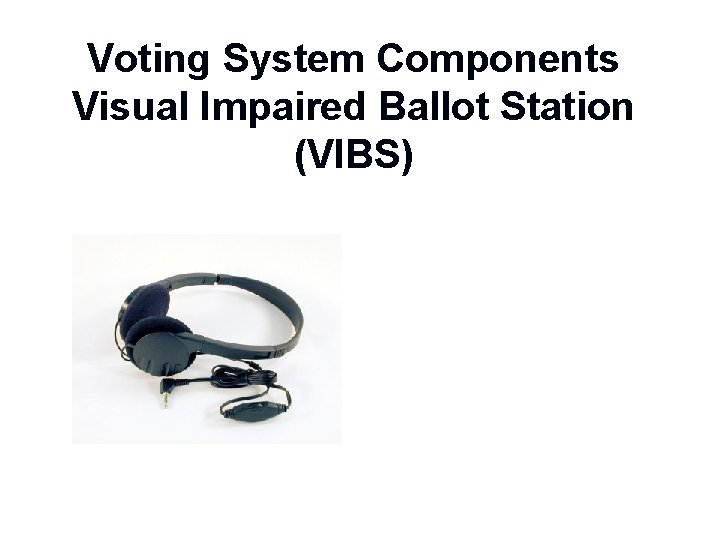
Voting System Components Visual Impaired Ballot Station (VIBS) 3
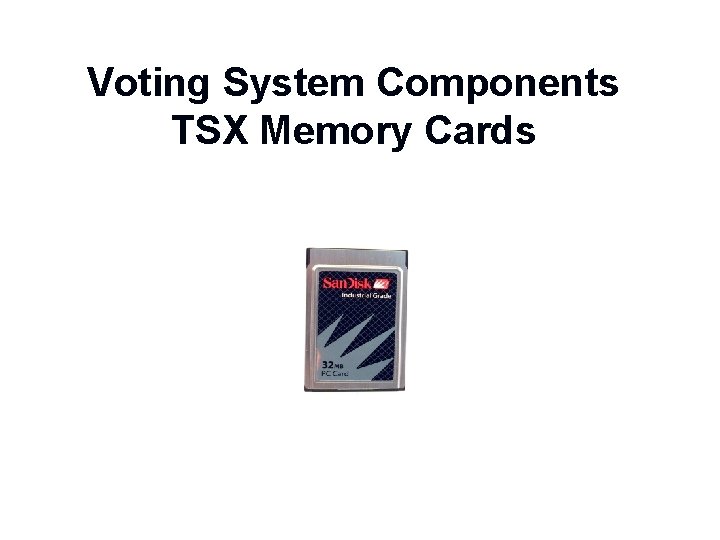
Voting System Components TSX Memory Cards 4
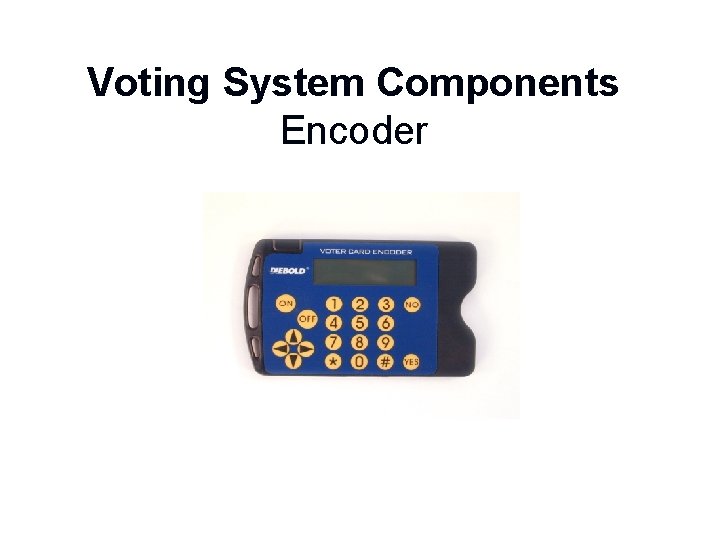
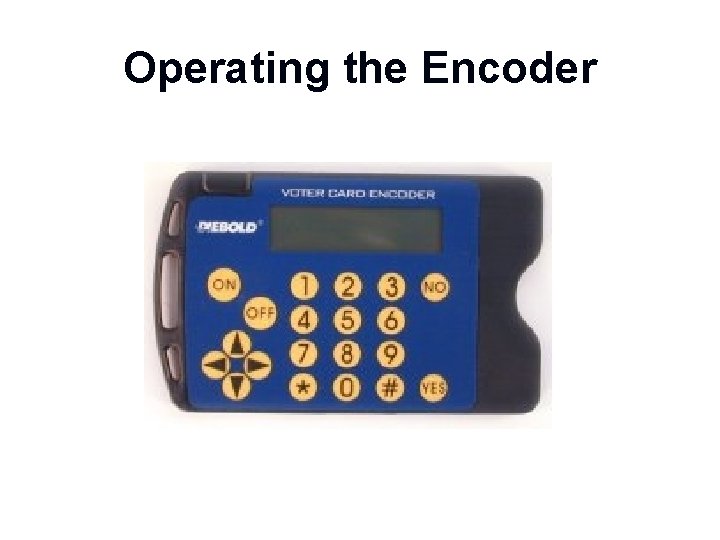
Voting System Components Encoder 5
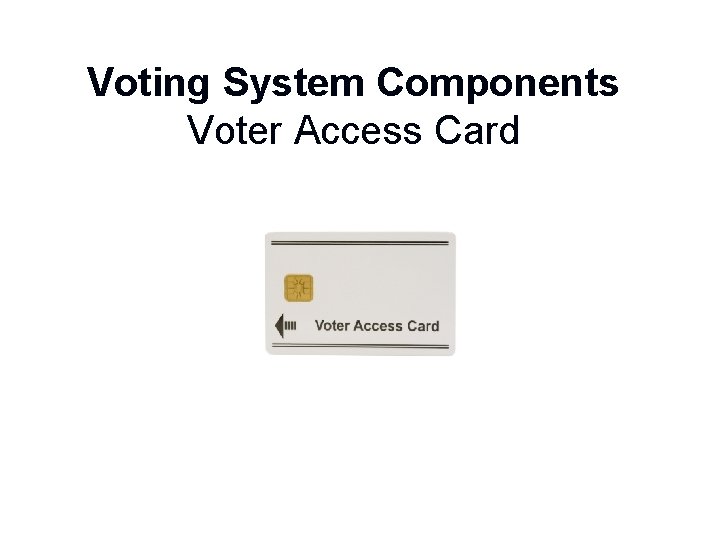
Voting System Components Voter Access Card 6
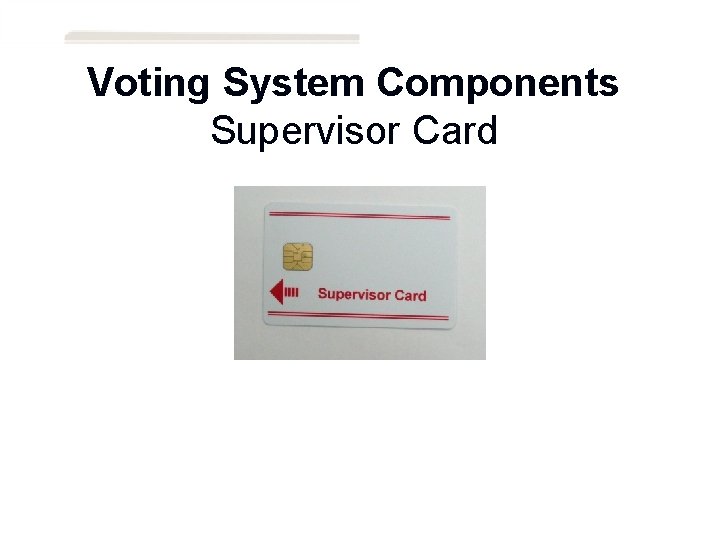
Voting System Components Supervisor Card 7
Voting Machine Setup n n n Should be completed prior to election morning Remember to install VIBS Kit Don’t force legs 8
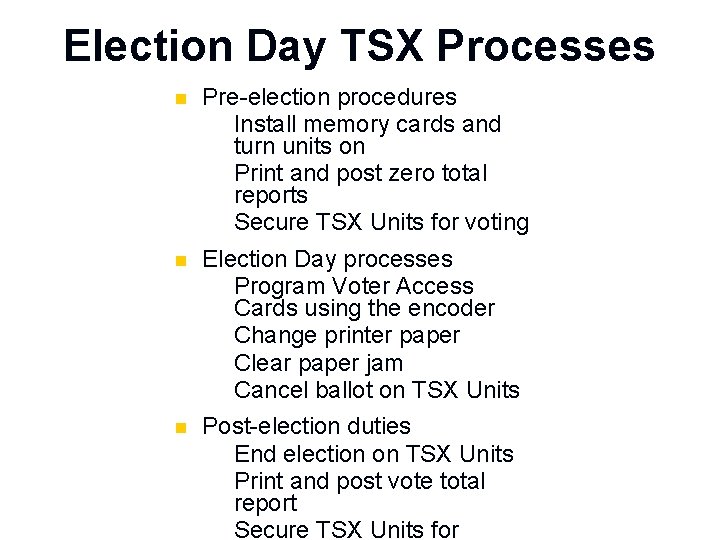
Election Day TSX Processes n Pre-election procedures n Install memory cards and turn units on n Print and post zero total reports n Secure TSX Units for voting n Election Day processes n Program Voter Access Cards using the encoder n Change printer paper n Clear paper jam n Cancel ballot on TSX Units n Post-election duties n End election on TSX Units n Print and post vote total report n Secure TSX Units for 9
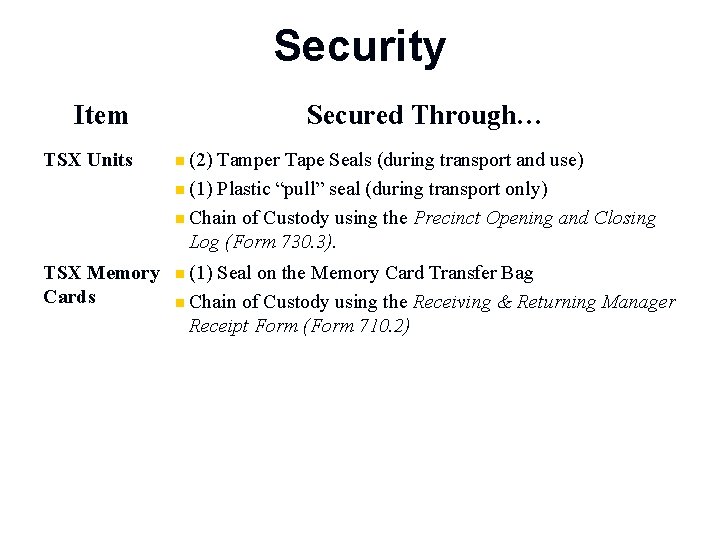
Security Item Secured Through… TSX Units n (2) Tamper Tape Seals (during transport and use) n (1) Plastic “pull” seal (during transport only) n Chain of Custody using the Precinct Opening and Closing Log (Form 730. 3). TSX Memory Cards n (1) Seal on the Memory Card Transfer Bag n Chain of Custody using the Receiving & Returning Manager Receipt Form (Form 710. 2) 10
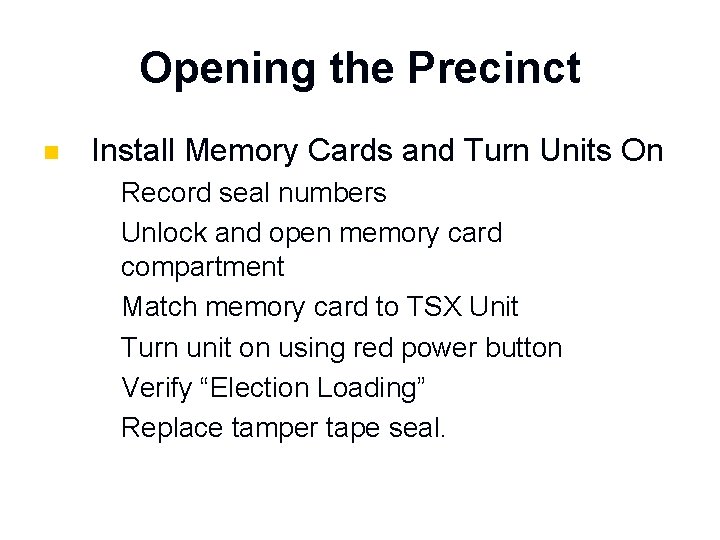
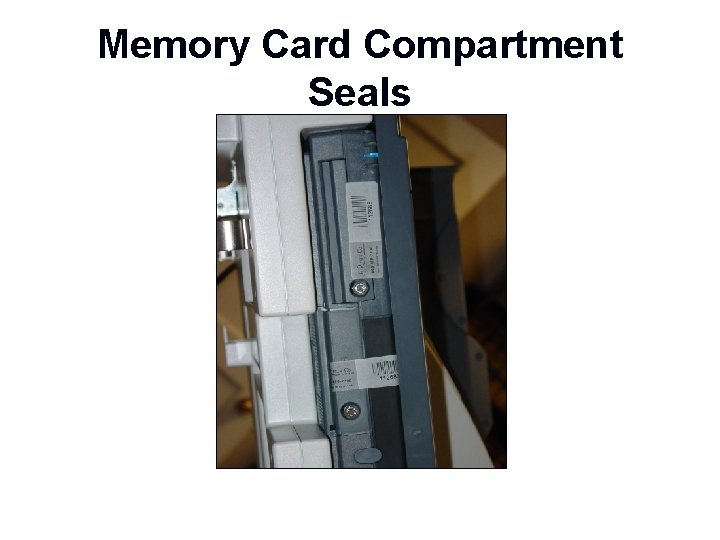
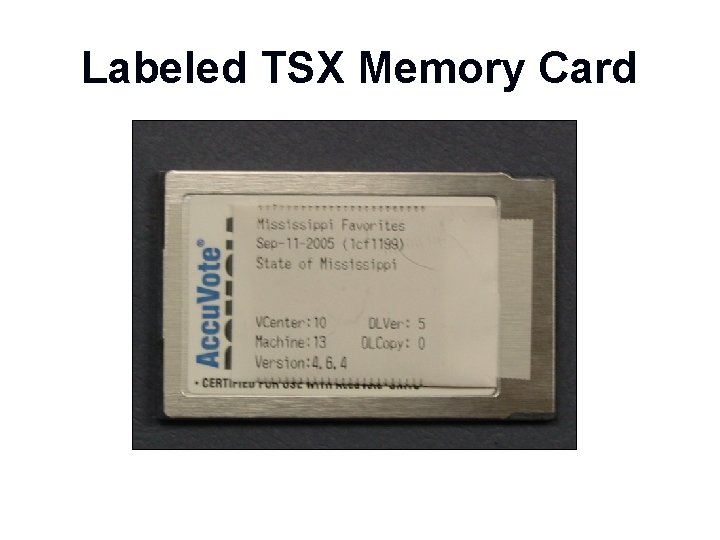
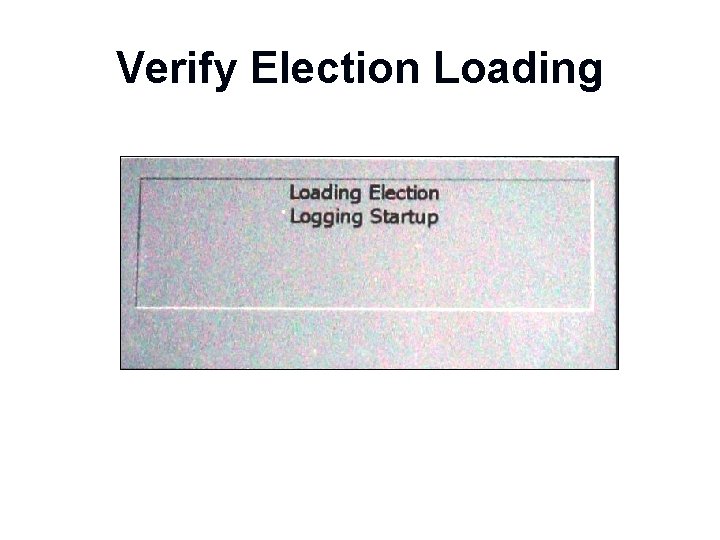
Opening the Precinct n Install Memory Cards and Turn Units On 1. 2. 3. 4. 5. 6. Record seal numbers Unlock and open memory card compartment Match memory card to TSX Unit Turn unit on using red power button Verify “Election Loading” Replace tamper tape seal. 11
Memory Card Compartment Seals 12
Labeled TSX Memory Card 13
Verify Election Loading 14
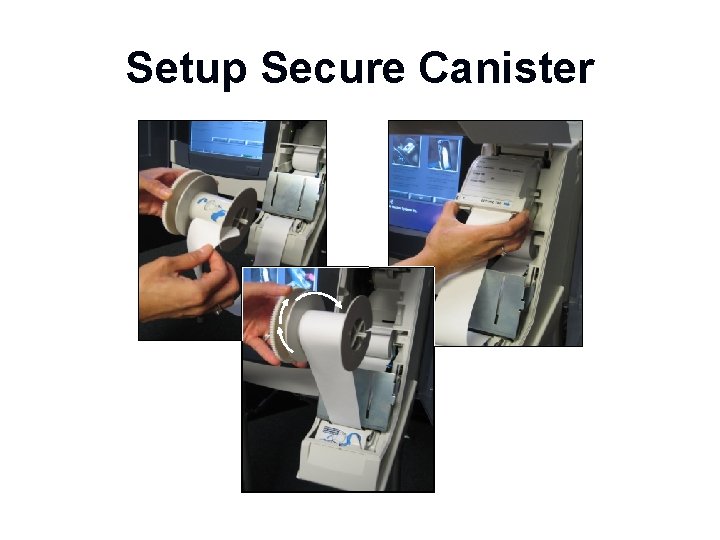
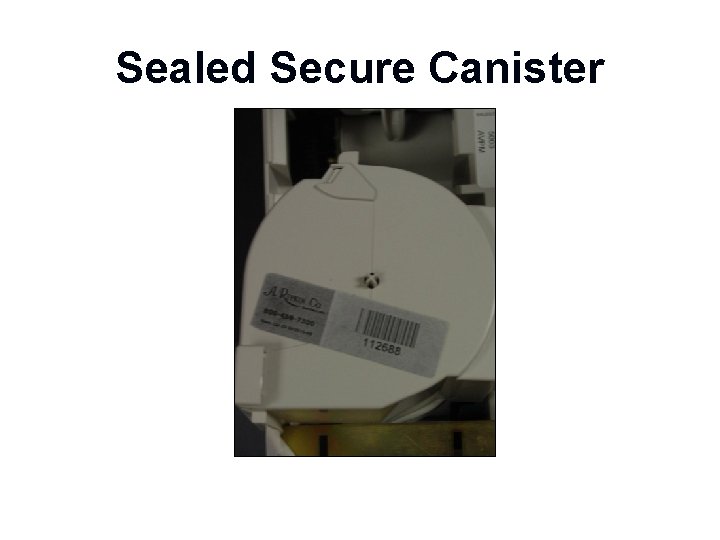
Opening the Precinct n Print and Post Zero Totals Reports 1. 2. 3. 4. 5. 6. Test printer 1 st zero report prints automatically – post in public view after two poll managers sign it Setup secure canister Print 2 nd copy of zero report to be taken up by the secure canister after it is signed by two poll managers Apply seal to secure canister Lock printer module 15
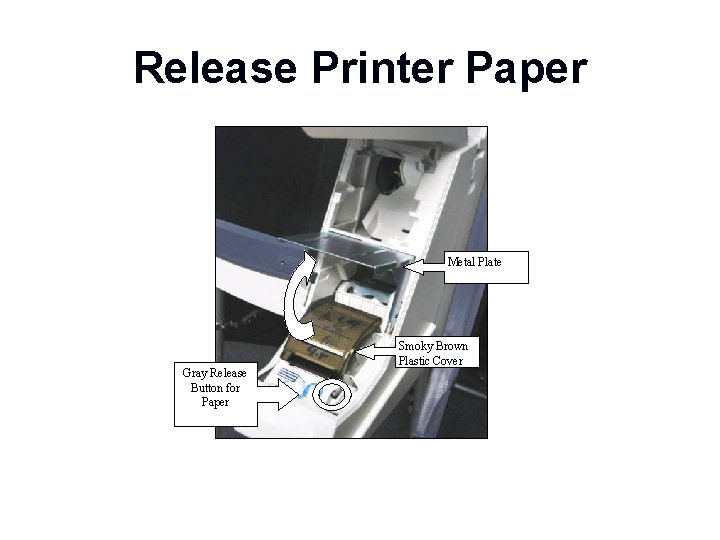
Release Printer Paper Metal Plate Gray Release Button for Paper Smoky Brown Plastic Cover 16
Setup Secure Canister 17
Sealed Secure Canister 18
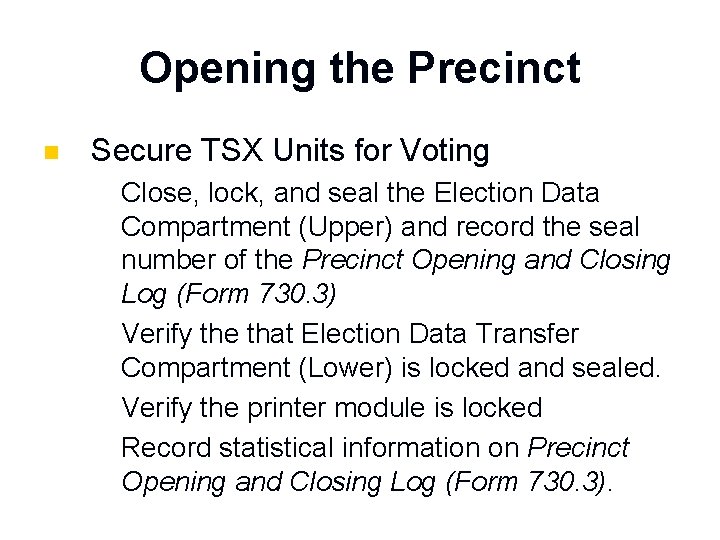
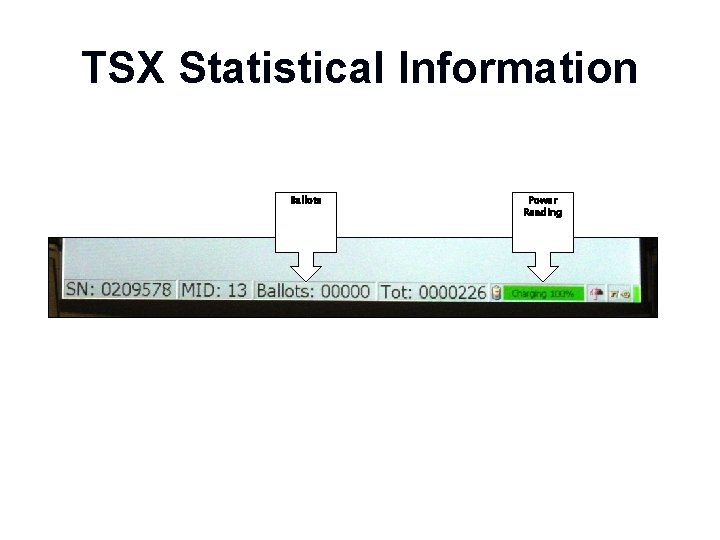
Opening the Precinct n Secure TSX Units for Voting 1. 2. 3. 4. Close, lock, and seal the Election Data Compartment (Upper) and record the seal number of the Precinct Opening and Closing Log (Form 730. 3) Verify the that Election Data Transfer Compartment (Lower) is locked and sealed. Verify the printer module is locked Record statistical information on Precinct Opening and Closing Log (Form 730. 3). 19
TSX Statistical Information Ballots Power Reading 20
Operating the Encoder 21
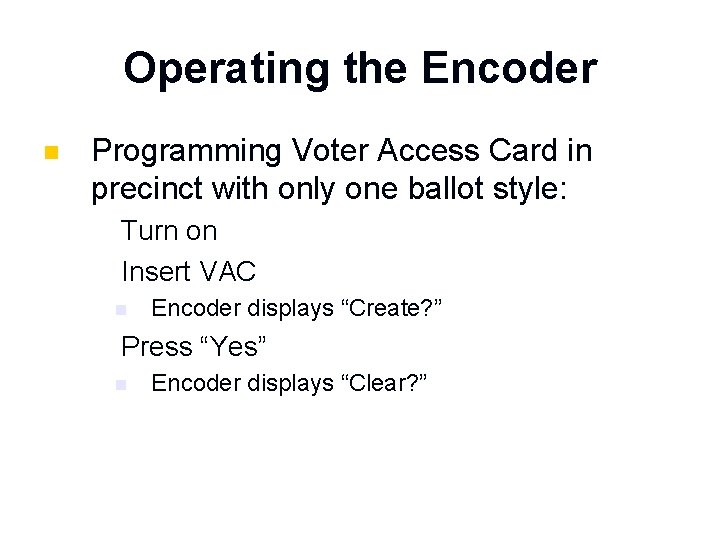
Operating the Encoder n Programming Voter Access Card in precinct with only one ballot style: 1. 2. Turn on Insert VAC n 3. Encoder displays “Create? ” Press “Yes” n Encoder displays “Clear? ” 22
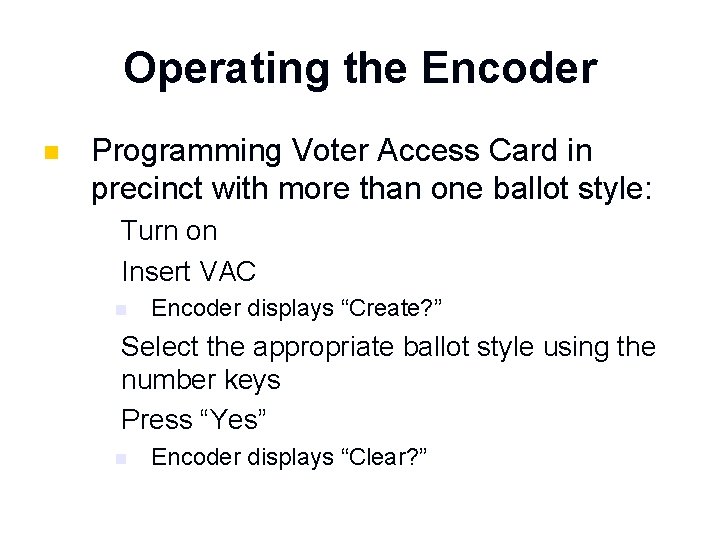
Operating the Encoder n Programming Voter Access Card in precinct with more than one ballot style: 1. 2. Turn on Insert VAC n 3. 4. Encoder displays “Create? ” Select the appropriate ballot style using the number keys Press “Yes” n Encoder displays “Clear? ” 23
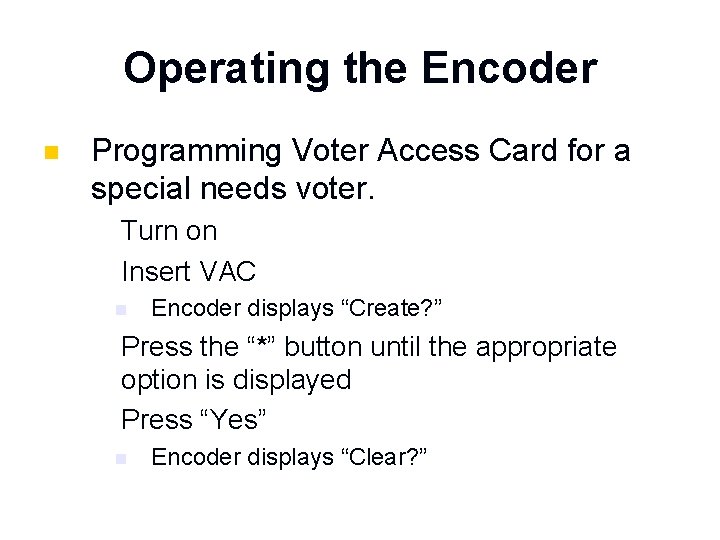
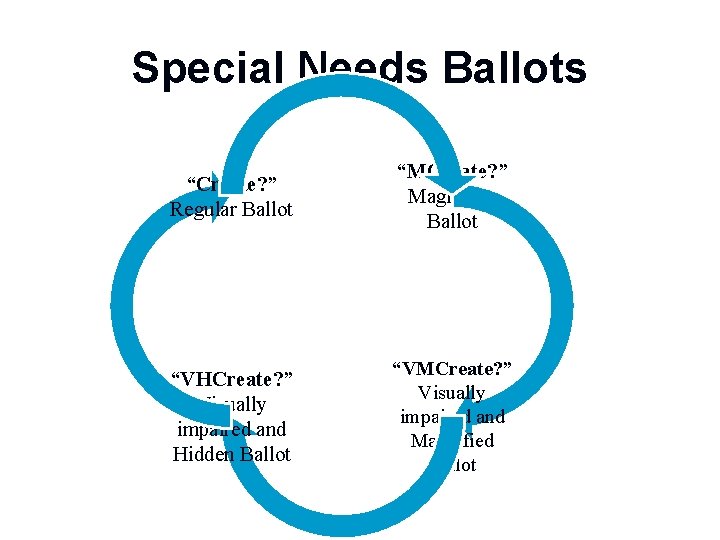
Operating the Encoder n Programming Voter Access Card for a special needs voter. 1. 2. Turn on Insert VAC n 3. 4. Encoder displays “Create? ” Press the “*” button until the appropriate option is displayed Press “Yes” n Encoder displays “Clear? ” 24
Special Needs Ballots “Create? ” Regular Ballot “MCreate? ” Magnified Ballot “VHCreate? ” Visually impaired and Hidden Ballot “VMCreate? ” Visually impaired and Magnified Ballot 25
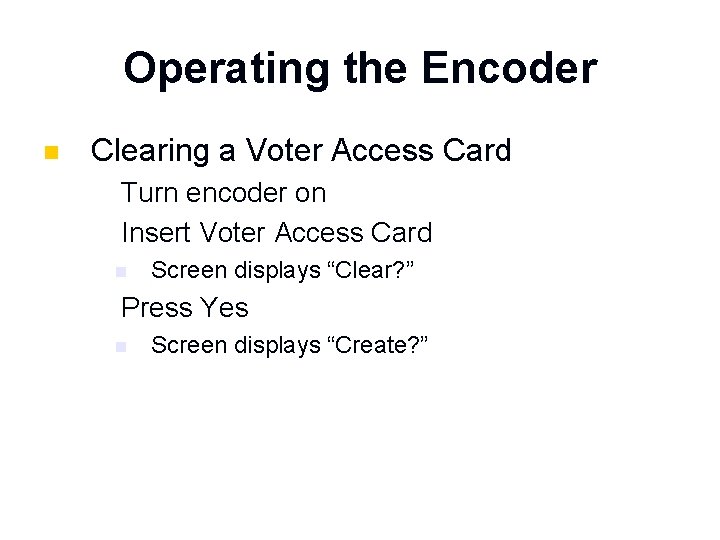
Operating the Encoder n Clearing a Voter Access Card 1. 2. Turn encoder on Insert Voter Access Card n 3. Screen displays “Clear? ” Press Yes n Screen displays “Create? ” 26
Canceling a Ballot n Two instances to cancel ballot If a voter leaves the booth without casting his or her ballot n If a voter receives the wrong ballot style n n TSX Unit should be approached by two poll managers Ballot can also cancel automatically Always record instance on TSX Event Log (Form 740. 2) 27
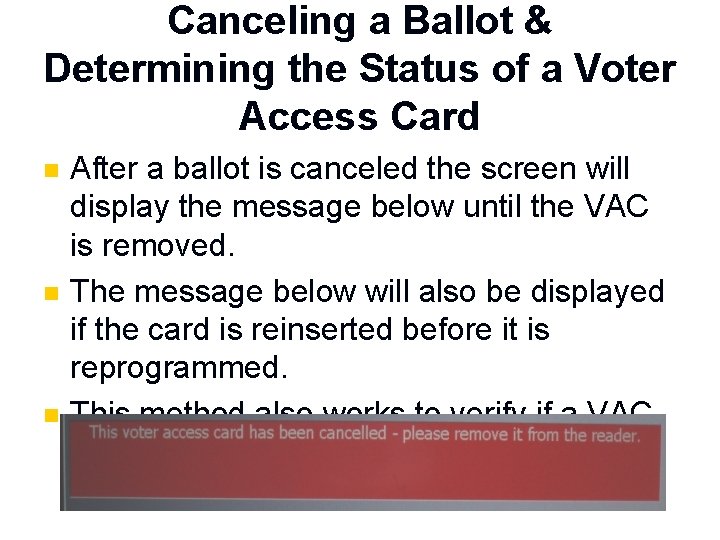
Canceling a Ballot & Determining the Status of a Voter Access Card n n n After a ballot is canceled the screen will display the message below until the VAC is removed. The message below will also be displayed if the card is reinserted before it is reprogrammed. This method also works to verify if a VAC has been voted yet or not. 28
Clearing a Paper Jam n n The TSX Unit will not give an indication of the jam. To clear a paper jam: 1. 2. 3. 4. Unlock and open printer module Press gray paper release button to release the smoky brown cover Pull enough paper from the supply roll to clear the jam and press down on the smoky brown cover until it clicks. Manually advance excess paper into the secure canister and close and lock the printer housing. 29
Clearing a Paper Jam n n n If the voter has not cast his or her ballot instruct them to reject the printed record and press “Print Ballot” again. Two mangers should perform this function Always make a note of this on the TSX Event Log (Form 740. 2) 30
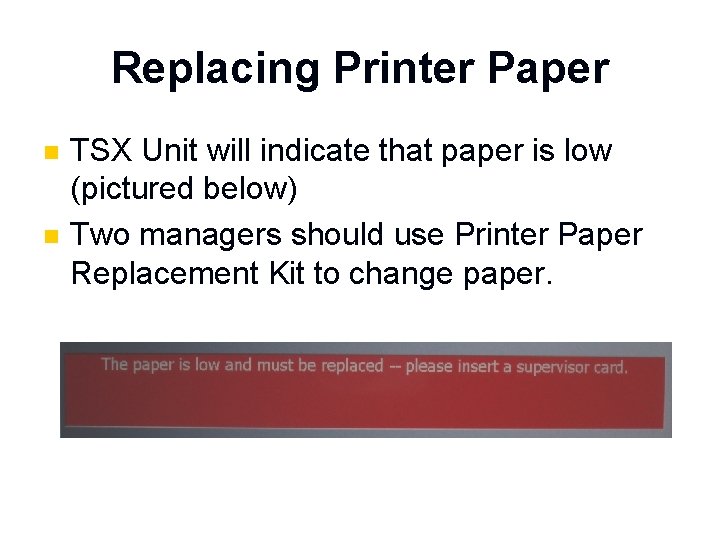
Replacing Printer Paper n n TSX Unit will indicate that paper is low (pictured below) Two managers should use Printer Paper Replacement Kit to change paper. 31
Closing the Precinct n End election on all TSX Units: 1. 2. 3. 4. 5. Complete Ballot Reading column of the Precinct Opening and Closing Log (Form 730. 3). Use Supervisor Card on first unit Touch “End Election” Confirm that you want to end the election. Repeat on ALL TSX Units assigned to your precinct 32
Closing the Precinct n Print and post vote total reports: 1. 2. 3. 4. Open Printer Module when prompted Print first long report to be signed by two poll managers and feed into the secure canister. Print second long report to be signed by two poll managers and place in the Memory Card Transport Bag. Print third long report to be signed by two poll managers and post it in public view. 33
Closing the Precinct n Securing the TSX Units for Storage: n Verify the following: n All TSX Units are turned off and sealed n All memory cards are in the memory card transport bag n All sealed canisters are in the Secure Canister Transport Bag 34
ES&S Contact Information: Bill Lowe Election Systems & Software Jackson Mississippi PMO Office 5738 Hwy 80 West Suite C Jackson, MS 39209 Phone – 601 -922 -2476 Cell – 601 -497 -4769 Fax – 601 -922 -8475 35