
Torque Reaction Arms Setup and Implementation Guide Table

Torque Reaction Arms Set-up and Implementation Guide
Table of Contents • • • Setup Checklist Hardware Structure Details Overhead Structure Details Installation Details Communication Hardware Possible Improvement Details Inclometer Communication setup Communication with LPS Integration in LPS Teaching spatial operations in LPS – Traditional – Monitored • Technical Support • Support Documents
Setup Checklist • THE DETAILS CHECK LIST. (For each application) q Select the type of torque arm. q Select the WP Balancer. q Select torque tool holder. q Atlas AXJIB workstation structure. q Install components at station. q Setup Communications with Turck module. Tag IP address on module. q Contact LPS team. q Teach spatial positions.
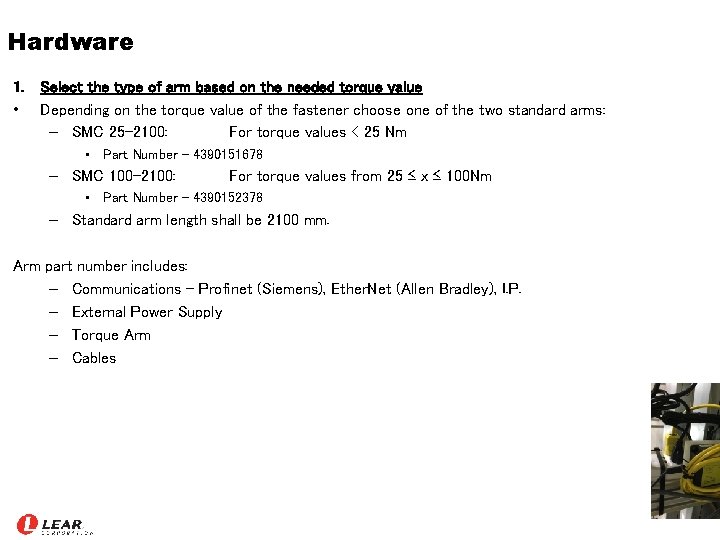
Hardware 1. Select the type of arm based on the needed torque value • Depending on the torque value of the fastener choose one of the two standard arms: – SMC 25 -2100: For torque values < 25 Nm • Part Number - 4390151678 – SMC 100 -2100: For torque values from 25 ≤ x ≤ 100 Nm • Part Number - 4390152378 – Standard arm length shall be 2100 mm. Arm part number includes: – Communications - Profinet (Siemens), Ether. Net (Allen Bradley), I. P. – External Power Supply – Torque Arm – Cables
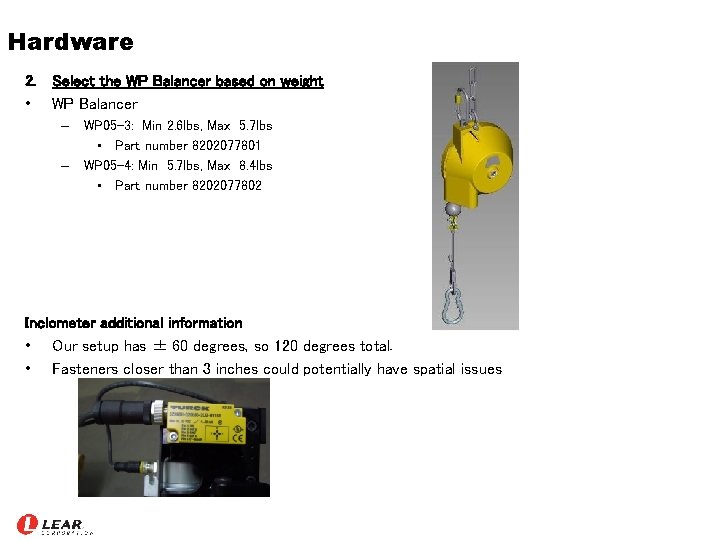
Hardware 2. Select the WP Balancer based on weight • WP Balancer – WP 05 -3: Min 2. 6 lbs, Max 5. 7 lbs • Part number 8202077801 – WP 05 -4: Min 5. 7 lbs, Max 8. 4 lbs • Part number 8202077802 Inclometer additional information • Our setup has ± 60 degrees, so 120 degrees total. • Fasteners closer than 3 inches could potentially have spatial issues
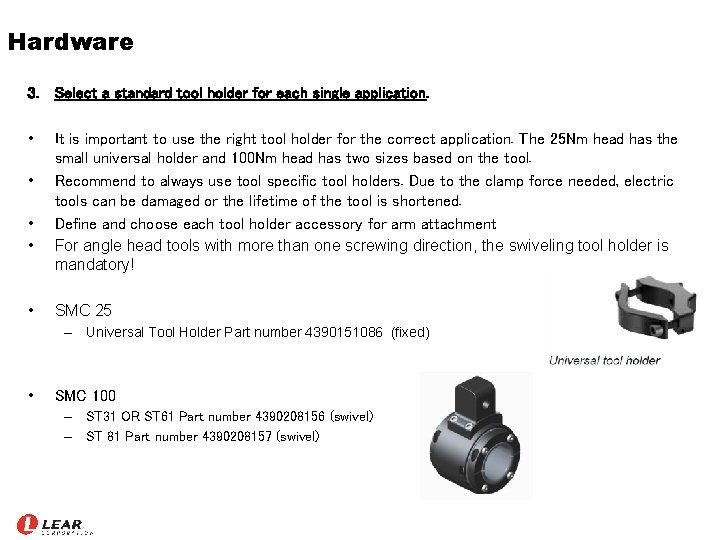
Hardware 3. Select a standard tool holder for each single application. • • • It is important to use the right tool holder for the correct application. The 25 Nm head has the small universal holder and 100 Nm head has two sizes based on the tool. Recommend to always use tool specific tool holders. Due to the clamp force needed, electric tools can be damaged or the lifetime of the tool is shortened. Define and choose each tool holder accessory for arm attachment For angle head tools with more than one screwing direction, the swiveling tool holder is mandatory! SMC 25 – Universal Tool Holder Part number 4390151086 (fixed) • SMC 100 – ST 31 OR ST 61 Part number 4390208156 (swivel) – ST 81 Part number 4390208157 (swivel)
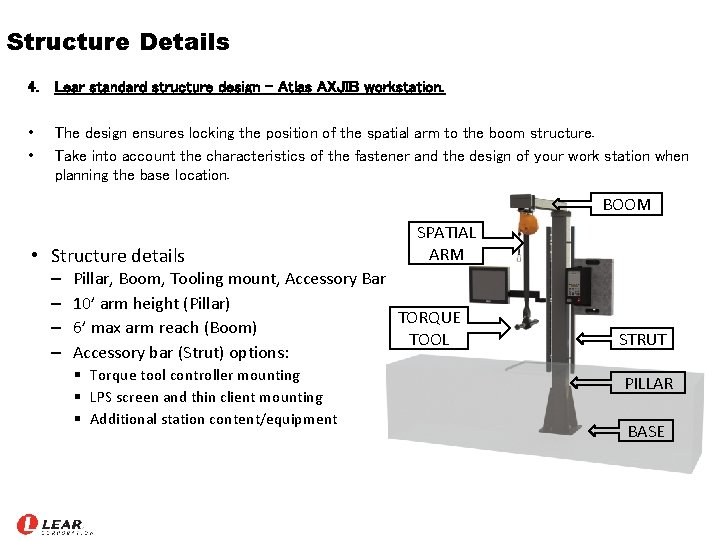
Structure Details 4. Lear standard structure design - Atlas AXJIB workstation. • • The design ensures locking the position of the spatial arm to the boom structure. Take into account the characteristics of the fastener and the design of your work station when planning the base location. BOOM • Structure details – – SPATIAL ARM Pillar, Boom, Tooling mount, Accessory Bar 10’ arm height (Pillar) TORQUE 6’ max arm reach (Boom) TOOL Accessory bar (Strut) options: § Torque tool controller mounting § LPS screen and thin client mounting § Additional station content/equipment STRUT PILLAR BASE
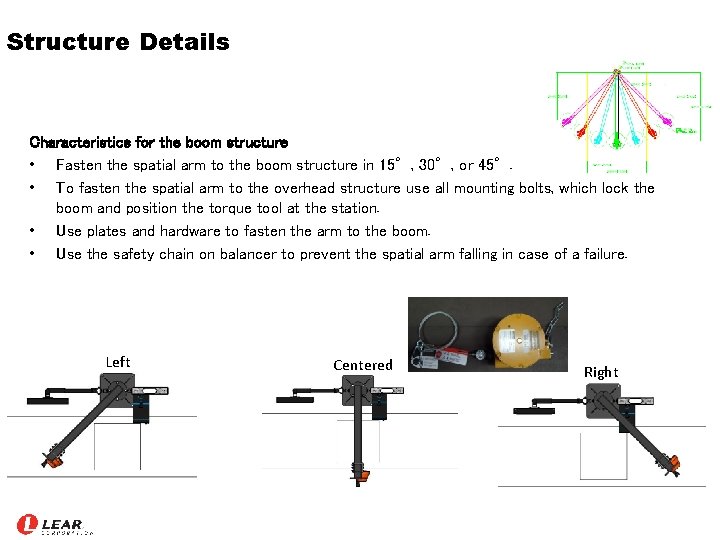
Structure Details Characteristics for the boom structure • Fasten the spatial arm to the boom structure in 15°, 30°, or 45°. • To fasten the spatial arm to the overhead structure use all mounting bolts, which lock the boom and position the torque tool at the station. • Use plates and hardware to fasten the arm to the boom. • Use the safety chain on balancer to prevent the spatial arm falling in case of a failure. Left Centered Right
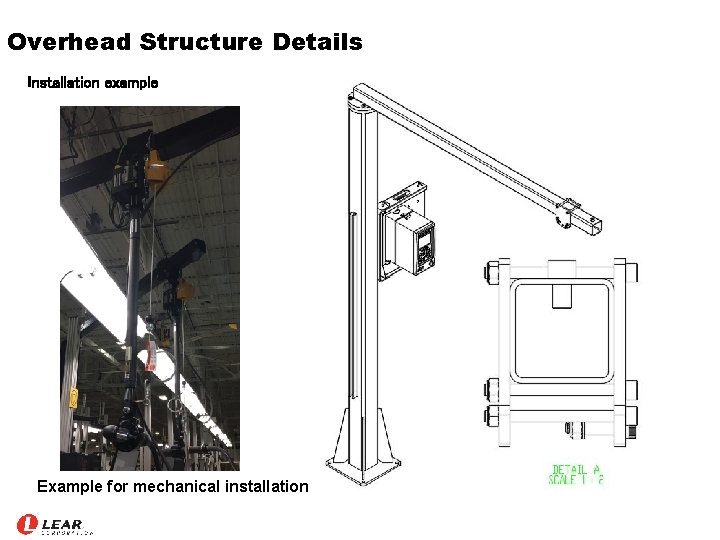
Overhead Structure Details Installation example Example for mechanical installation
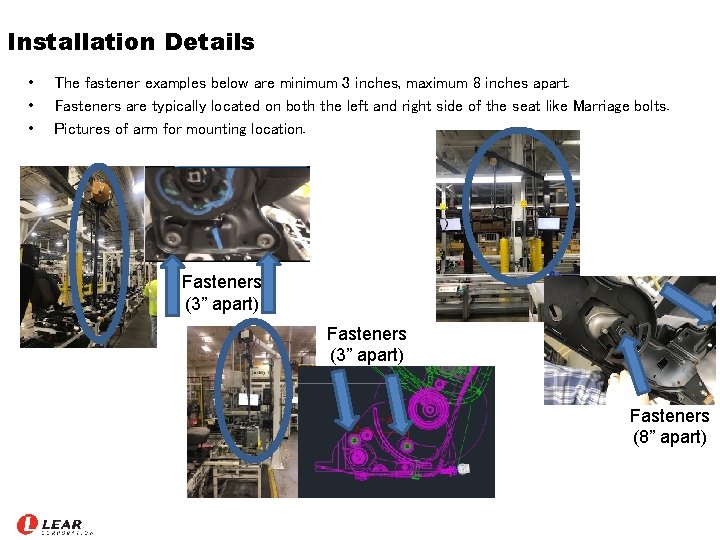
Installation Details • • • The fastener examples below are minimum 3 inches, maximum 8 inches apart. Fasteners are typically located on both the left and right side of the seat like Marriage bolts. Pictures of arm for mounting location. Fasteners (3” apart) Fasteners (8” apart)
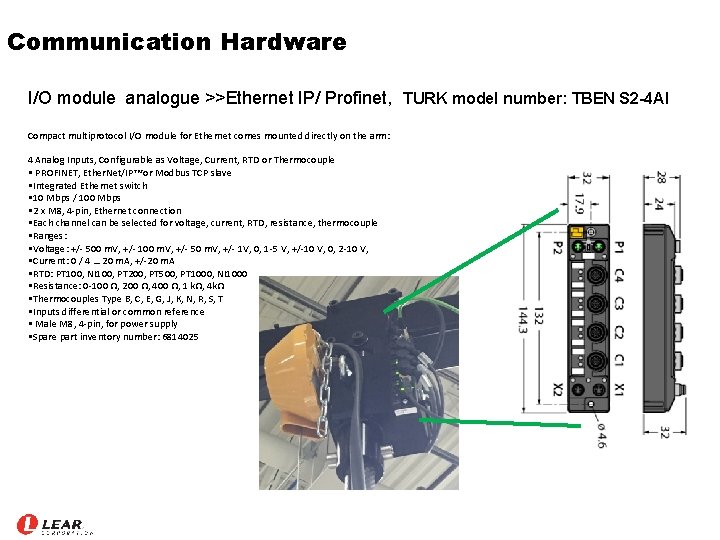
Communication Hardware I/O module analogue >>Ethernet IP/ Profinet, TURK model number: TBEN S 2 -4 AI Compact multiprotocol I/O module for Ethernet comes mounted directly on the arm: 4 Analog Inputs, Configurable as Voltage, Current, RTD or Thermocouple • PROFINET, Ether. Net/IP™ or Modbus TCP slave • Integrated Ethernet switch • 10 Mbps / 100 Mbps • 2 x M 8, 4 -pin, Ethernet connection • Each channel can be selected for voltage, current, RTD, resistance, thermocouple • Ranges: • Voltage: +/- 500 m. V, +/- 100 m. V, +/- 50 m. V, +/- 1 V, 0, 1 -5 V, +/-10 V, 0, 2 -10 V, • Current: 0 / 4 … 20 m. A, +/-20 m. A • RTD: PT 100, NI 100, PT 200, PT 500, PT 1000, NI 1000 • Resistance: 0 -100 Ω, 200 Ω, 400 Ω, 1 kΩ, 4 kΩ • Thermocouples Type B, C, E, G, J, K, N, R, S, T • Inputs differential or common reference • Male M 8, 4 -pin, for power supply • Spare part inventory number: 6814025
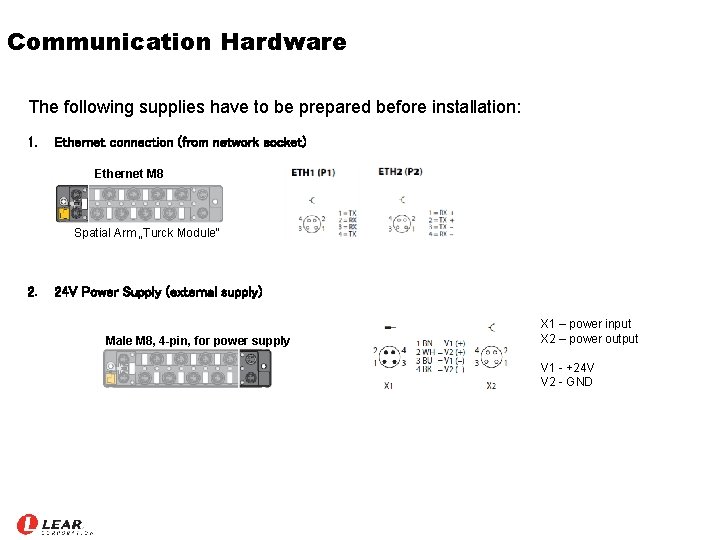
Communication Hardware The following supplies have to be prepared before installation: 1. Ethernet connection (from network socket) Ethernet M 8 Spatial Arm „Turck Module“ 2. 24 V Power Supply (external supply) Male M 8, 4 -pin, for power supply X 1 – power input X 2 – power output V 1 - +24 V V 2 - GND
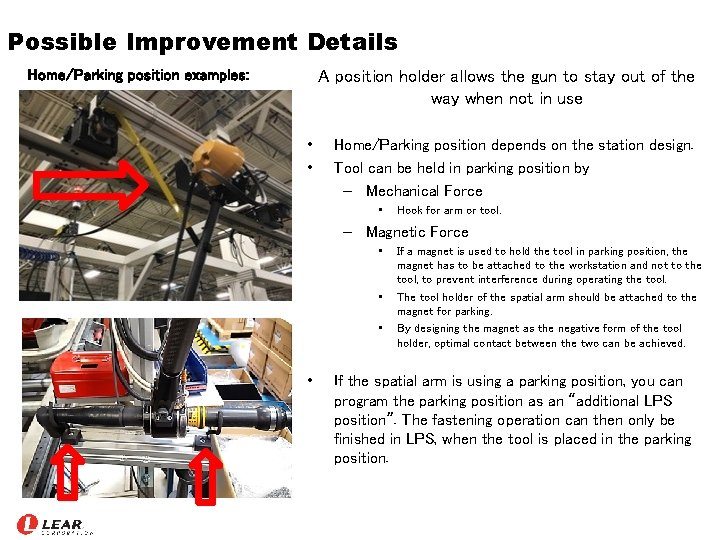
Possible Improvement Details Home/Parking position examples: A position holder allows the gun to stay out of the way when not in use • • Home/Parking position depends on the station design. Tool can be held in parking position by – Mechanical Force • Hook for arm or tool. – Magnetic Force • • If a magnet is used to hold the tool in parking position, the magnet has to be attached to the workstation and not to the tool, to prevent interference during operating the tool. The tool holder of the spatial arm should be attached to the magnet for parking. By designing the magnet as the negative form of the tool holder, optimal contact between the two can be achieved. If the spatial arm is using a parking position, you can program the parking position as an “additional LPS position”. The fastening operation can then only be finished in LPS, when the tool is placed in the parking position.
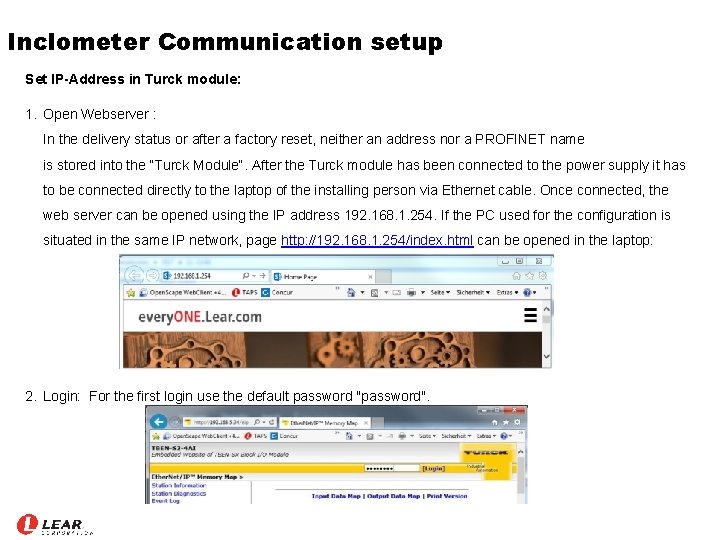
Inclometer Communication setup Set IP-Address in Turck module: 1. Open Webserver : In the delivery status or after a factory reset, neither an address nor a PROFINET name is stored into the “Turck Module“. After the Turck module has been connected to the power supply it has to be connected directly to the laptop of the installing person via Ethernet cable. Once connected, the web server can be opened using the IP address 192. 168. 1. 254. If the PC used for the configuration is situated in the same IP network, page http: //192. 168. 1. 254/index. html can be opened in the laptop: 2. Login: For the first login use the default password "password".
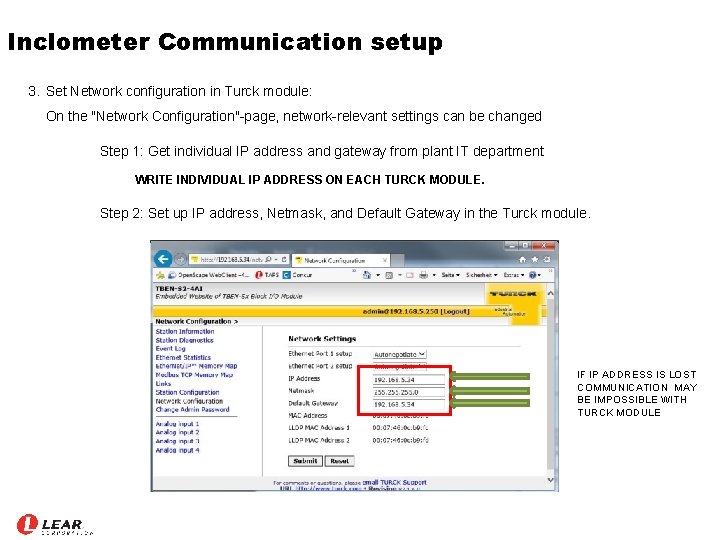
Inclometer Communication setup 3. Set Network configuration in Turck module: On the "Network Configuration"-page, network-relevant settings can be changed Step 1: Get individual IP address and gateway from plant IT department WRITE INDIVIDUAL IP ADDRESS ON EACH TURCK MODULE. Step 2: Set up IP address, Netmask, and Default Gateway in the Turck module. IF IP ADDRESS IS LOST COMMUNICATION MAY BE IMPOSSIBLE WITH TURCK MODULE
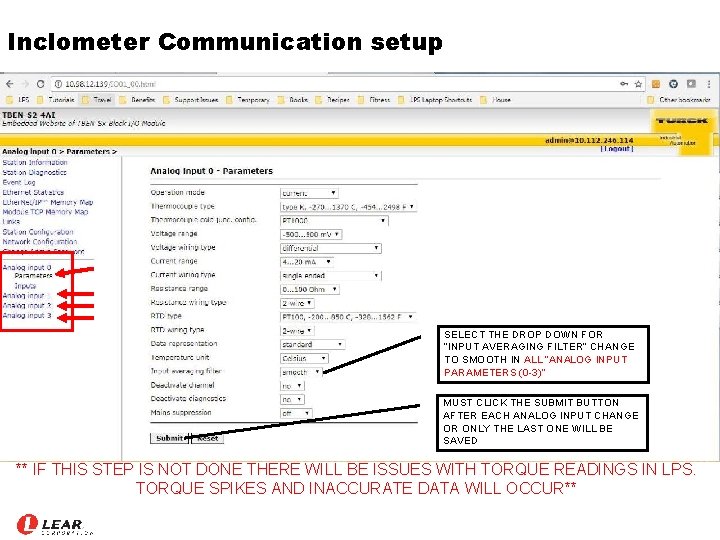
Inclometer Communication setup SELECT THE DROP DOWN FOR “INPUT AVERAGING FILTER” CHANGE TO SMOOTH IN ALL “ANALOG INPUT PARAMETERS (0 -3)” MUST CLICK THE SUBMIT BUTTON AFTER EACH ANALOG INPUT CHANGE OR ONLY THE LAST ONE WILL BE SAVED ** IF THIS STEP IS NOT DONE THERE WILL BE ISSUES WITH TORQUE READINGS IN LPS. TORQUE SPIKES AND INACCURATE DATA WILL OCCUR**
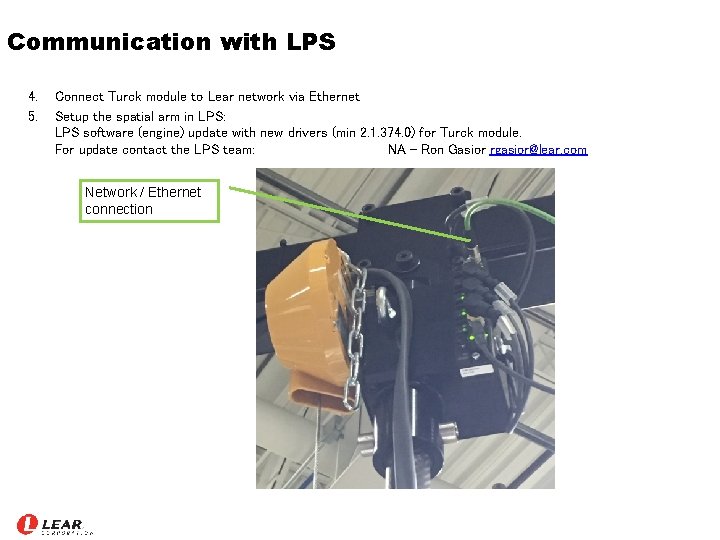
Communication with LPS 4. 5. Connect Turck module to Lear network via Ethernet Setup the spatial arm in LPS: LPS software (engine) update with new drivers (min 2. 1. 374. 0) for Turck module. For update contact the LPS team: NA - Ron Gasior rgasior@lear. com Network / Ethernet connection
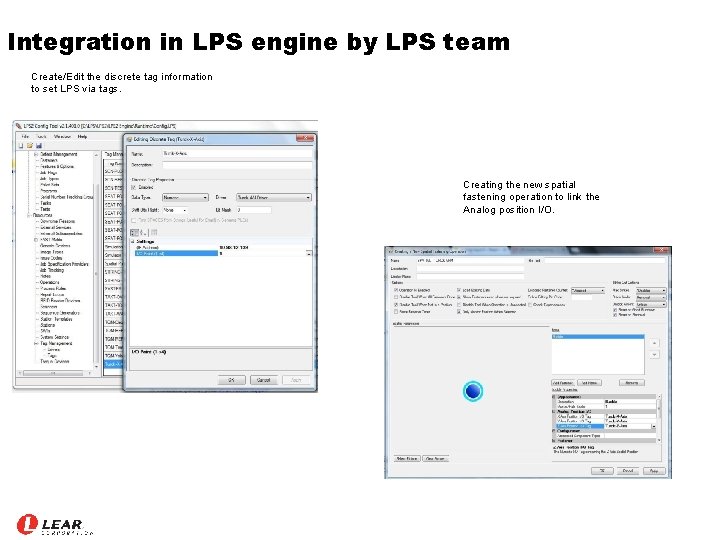
Integration in LPS engine by LPS team Create/Edit the discrete tag information to set LPS via tags. Creating the new spatial fastening operation to link the Analog position I/O.
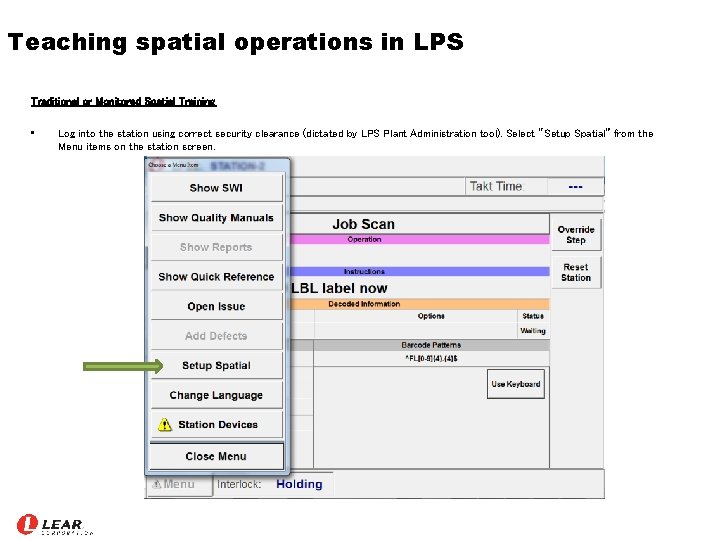
Teaching spatial operations in LPS Traditional or Monitored Spatial Training • Log into the station using correct security clearance (dictated by LPS Plant Administration tool). Select “Setup Spatial” from the Menu items on the station screen.
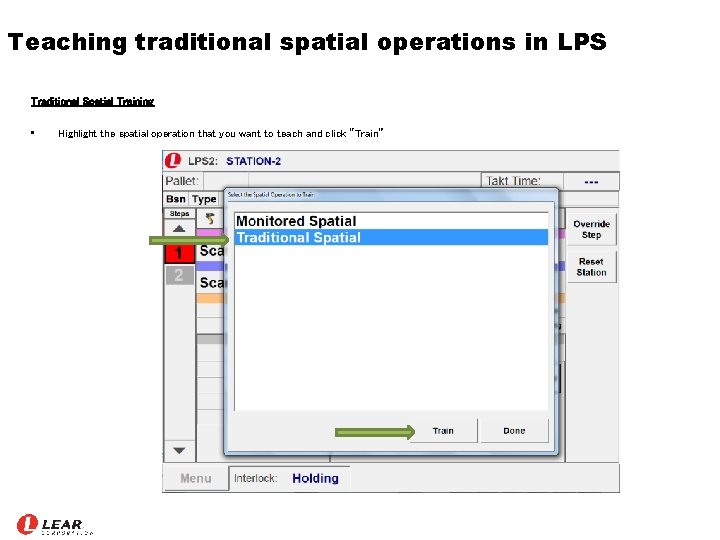
Teaching traditional spatial operations in LPS Traditional Spatial Training • Highlight the spatial operation that you want to teach and click “Train”
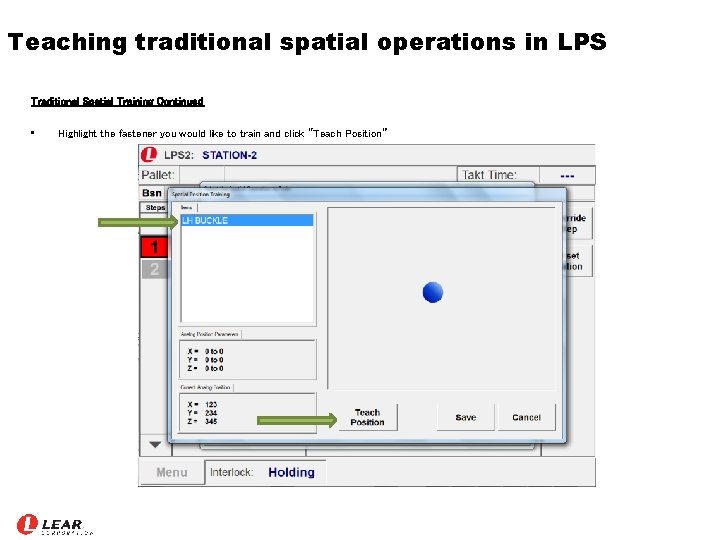
Teaching traditional spatial operations in LPS Traditional Spatial Training Continued • Highlight the fastener you would like to train and click “Teach Position”
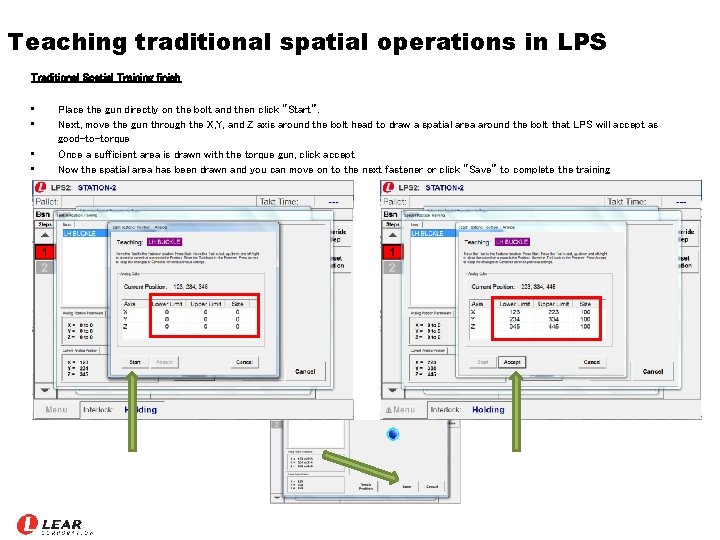
Teaching traditional spatial operations in LPS Traditional Spatial Training finish • • Place the gun directly on the bolt and then click “Start”. Next, move the gun through the X, Y, and Z axis around the bolt head to draw a spatial area around the bolt that LPS will accept as good-to-torque Once a sufficient area is drawn with the torque gun, click accept Now the spatial area has been drawn and you can move on to the next fastener or click “Save” to complete the training
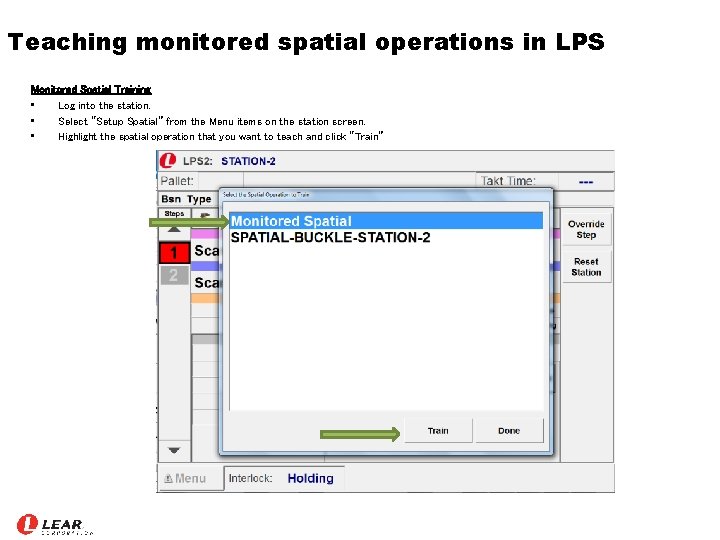
Teaching monitored spatial operations in LPS Monitored Spatial Training • Log into the station. • Select “Setup Spatial” from the Menu items on the station screen. • Highlight the spatial operation that you want to teach and click “Train”
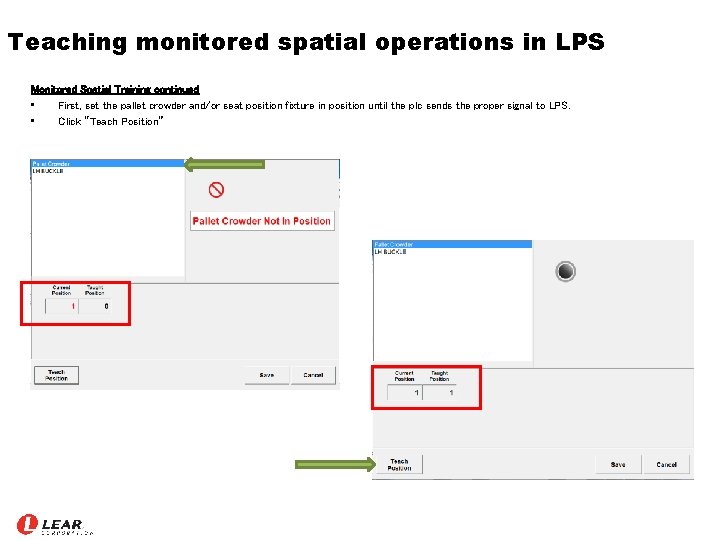
Teaching monitored spatial operations in LPS Monitored Spatial Training continued • First, set the pallet crowder and/or seat position fixture in position until the plc sends the proper signal to LPS. • Click “Teach Position”
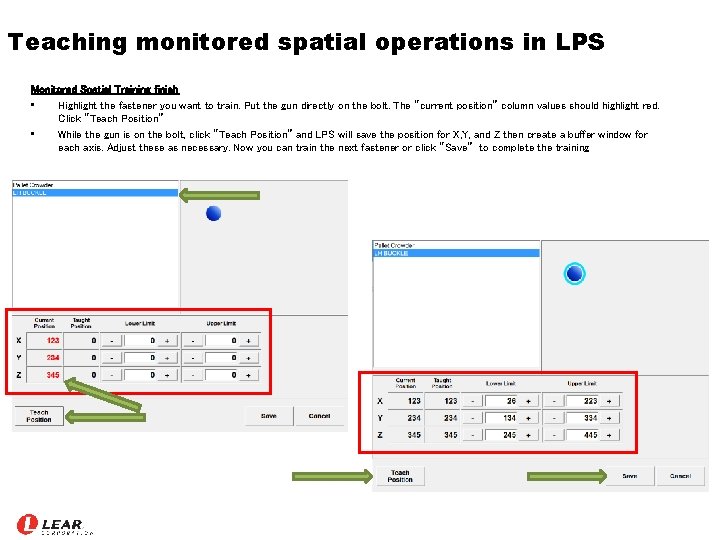
Teaching monitored spatial operations in LPS Monitored Spatial Training finish • Highlight the fastener you want to train. Put the gun directly on the bolt. The “current position” column values should highlight red. Click “Teach Position” • While the gun is on the bolt, click “Teach Position” and LPS will save the position for X, Y, and Z then create a buffer window for each axis. Adjust these as necessary. Now you can train the next fastener or click “Save” to complete the training
Technical Support • LPS Team • Local Atlas Copco representative • Plant I. T. and Engineering • Corporate AME team
Support Documents • • Turck - Compact Multiprotocol I/O Module for Ethernet – 4 Analog Inputs, Configurable as Voltage, Current, RTD or Thermocouple – TBEN-S 2 -4 AI – http: //pdb 2. turck. de/us/DE/products/00000030000223 c 50003003 a Truck - Compact power supply module in IP 67 – 24 VDC output voltage - 3. 8 A output current – PSU 67 -11 -2440/M – http: //pdb 2. turck. de/us/DE/products/000000340001 a 6390005003 a Truck - Inclinometer – With extended temperature range – B 2 N 60 H-Q 20 L 60 -2 LI 2 -H 1151/S 97 – http: //pdb 2. turck. de/us/DE/products/000000180002 aae 80002003 a Atlas Copco – torque arm and tooling positioning – https: //www. atlascopco. com/en-us/itba/products/Assembly-tools/Workplace-solutions-automation/torque-arms-and-toolpositioning
- Slides: 27