
Topics for the day Windows NT Security Windows
- Slides: 18
Topics for the day… • Windows. NT Security • Windows. NT File System (NTFS) • Viewing/Setting Document and Folder Permissions • Access Control Lists & Entries MA 194 Using Windows. NT 1
General Security In general, Windows. NT was designed with an eye towards security, both from a network aspect as well as an individual or user account point of view. When you first log into a Windows. NT system (workstation or server), there a series of checks that are performed by the system. MA 194 Using Windows. NT 2
Internal vs. External Security can be broken into two areas, internal and external. By external, we refer to the set of security issues that deal with networked environments. User authentication, machine and domain relationships and trusts and user profile storage come into play here. To better understand these, we would need to look at the NT approach networking first. Today, we’ll instead look at the internal security issues. MA 194 Using Windows. NT 3
Internal security issues • User identity verification – The operating system must have some way of uniquely identifying you from another user – The operating system also needs a way to insure that it IS you and not someone else • Filesystem permissions – Controlling access to various documents, programs and functions of the system you use MA 194 Using Windows. NT 4
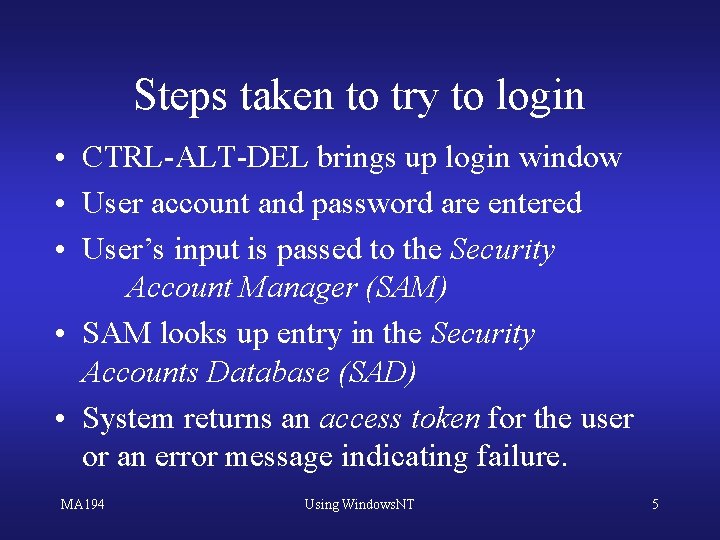
Steps taken to try to login • CTRL-ALT-DEL brings up login window • User account and password are entered • User’s input is passed to the Security Account Manager (SAM) • SAM looks up entry in the Security Accounts Database (SAD) • System returns an access token for the user or an error message indicating failure. MA 194 Using Windows. NT 5
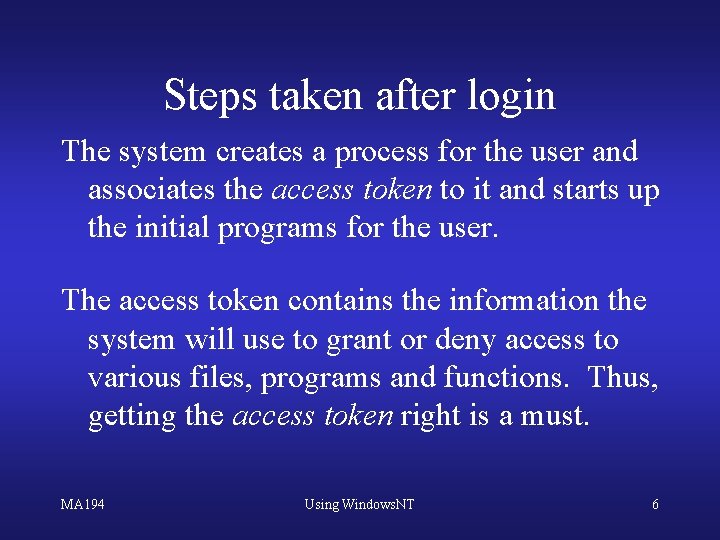
Steps taken after login The system creates a process for the user and associates the access token to it and starts up the initial programs for the user. The access token contains the information the system will use to grant or deny access to various files, programs and functions. Thus, getting the access token right is a must. MA 194 Using Windows. NT 6
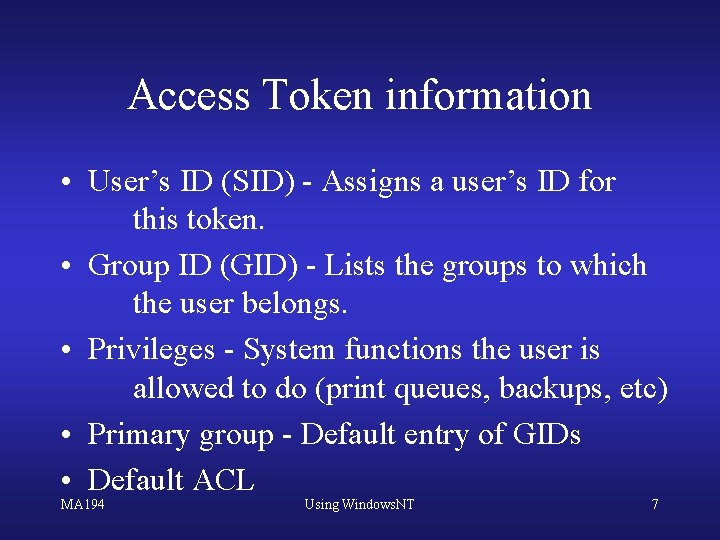
Access Token information • User’s ID (SID) - Assigns a user’s ID for this token. • Group ID (GID) - Lists the groups to which the user belongs. • Privileges - System functions the user is allowed to do (print queues, backups, etc) • Primary group - Default entry of GIDs • Default ACL MA 194 Using Windows. NT 7
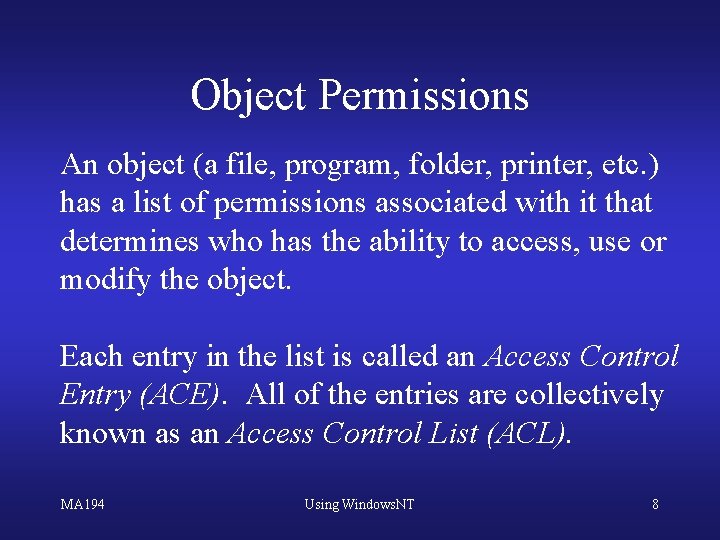
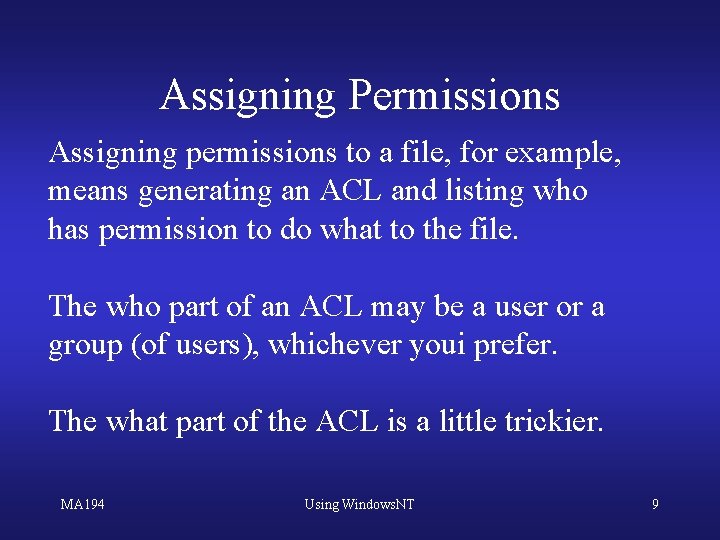
Object Permissions An object (a file, program, folder, printer, etc. ) has a list of permissions associated with it that determines who has the ability to access, use or modify the object. Each entry in the list is called an Access Control Entry (ACE). All of the entries are collectively known as an Access Control List (ACL). MA 194 Using Windows. NT 8
Assigning Permissions Assigning permissions to a file, for example, means generating an ACL and listing who has permission to do what to the file. The who part of an ACL may be a user or a group (of users), whichever youi prefer. The what part of the ACL is a little trickier. MA 194 Using Windows. NT 9
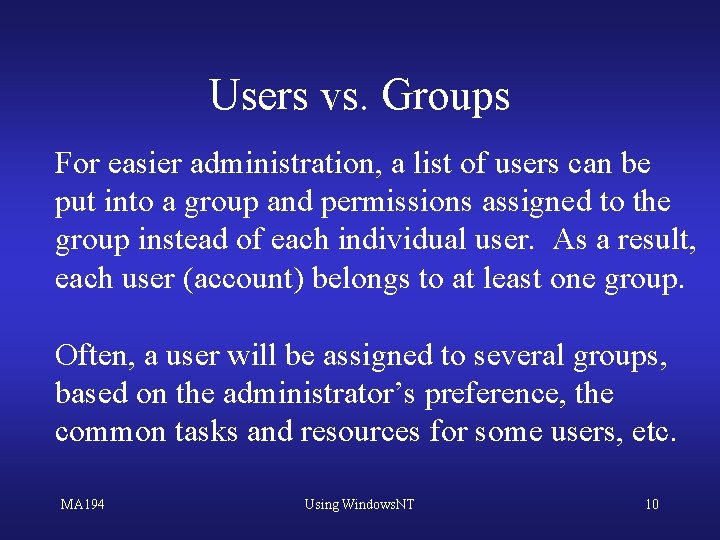
Users vs. Groups For easier administration, a list of users can be put into a group and permissions assigned to the group instead of each individual user. As a result, each user (account) belongs to at least one group. Often, a user will be assigned to several groups, based on the administrator’s preference, the common tasks and resources for some users, etc. MA 194 Using Windows. NT 10
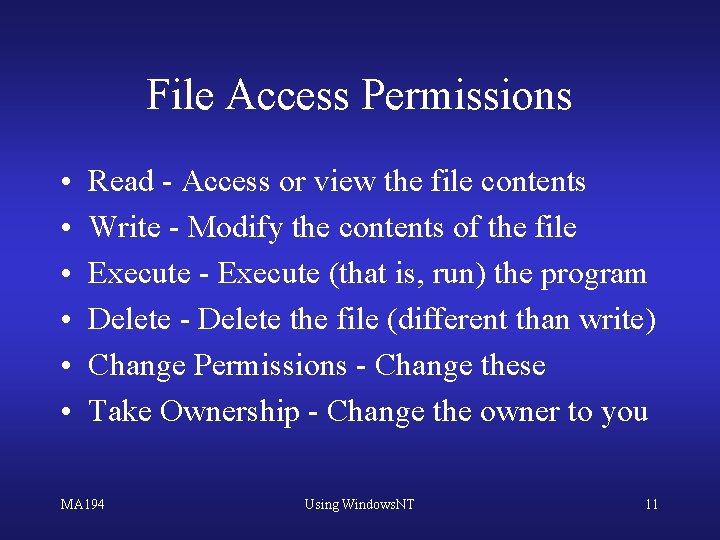
File Access Permissions • • • Read - Access or view the file contents Write - Modify the contents of the file Execute - Execute (that is, run) the program Delete - Delete the file (different than write) Change Permissions - Change these Take Ownership - Change the owner to you MA 194 Using Windows. NT 11
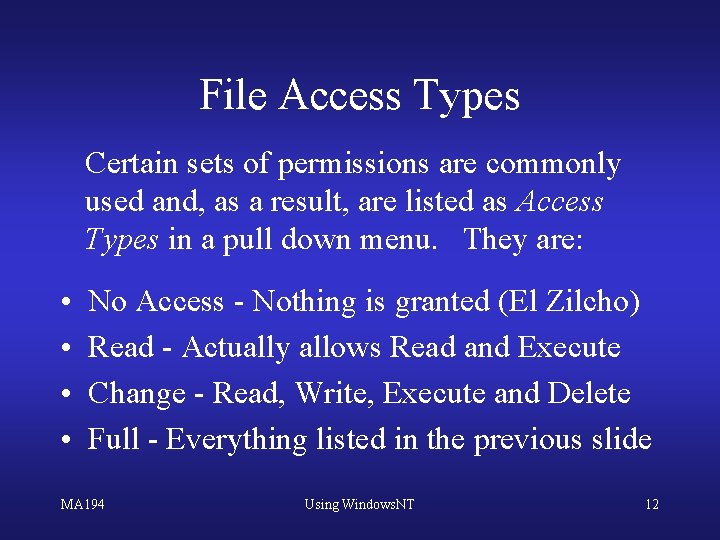
File Access Types Certain sets of permissions are commonly used and, as a result, are listed as Access Types in a pull down menu. They are: • • No Access - Nothing is granted (El Zilcho) Read - Actually allows Read and Execute Change - Read, Write, Execute and Delete Full - Everything listed in the previous slide MA 194 Using Windows. NT 12
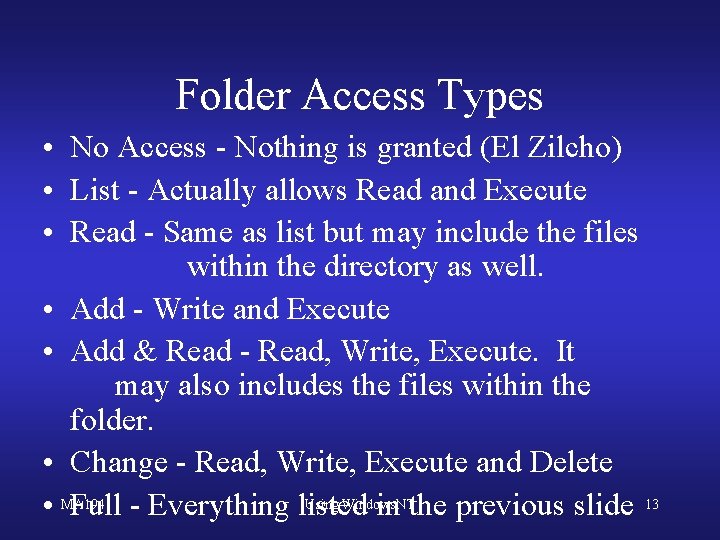
Folder Access Types • No Access - Nothing is granted (El Zilcho) • List - Actually allows Read and Execute • Read - Same as list but may include the files within the directory as well. • Add - Write and Execute • Add & Read - Read, Write, Execute. It may also includes the files within the folder. • Change - Read, Write, Execute and Delete Using Windows. NT • MA 194 Full - Everything listed in the previous slide 13
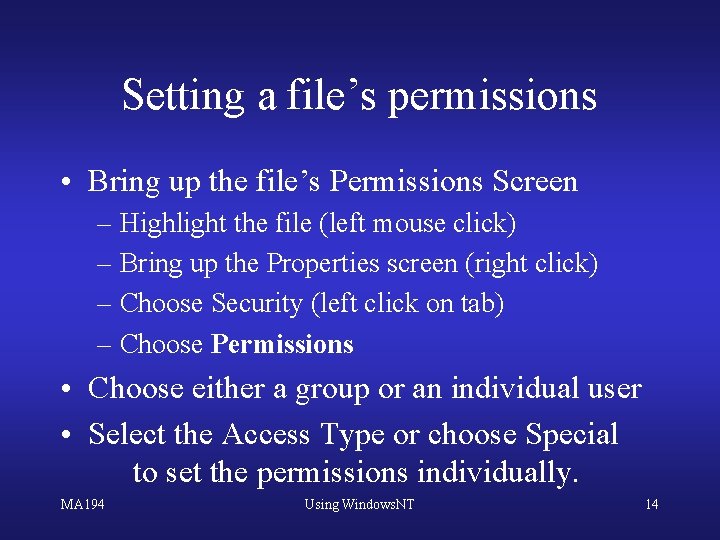
Setting a file’s permissions • Bring up the file’s Permissions Screen – Highlight the file (left mouse click) – Bring up the Properties screen (right click) – Choose Security (left click on tab) – Choose Permissions • Choose either a group or an individual user • Select the Access Type or choose Special to set the permissions individually. MA 194 Using Windows. NT 14
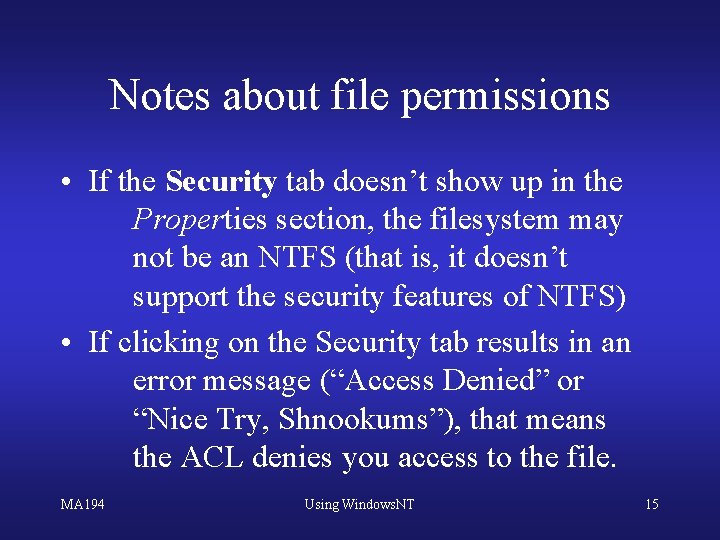
Notes about file permissions • If the Security tab doesn’t show up in the Properties section, the filesystem may not be an NTFS (that is, it doesn’t support the security features of NTFS) • If clicking on the Security tab results in an error message (“Access Denied” or “Nice Try, Shnookums”), that means the ACL denies you access to the file. MA 194 Using Windows. NT 15
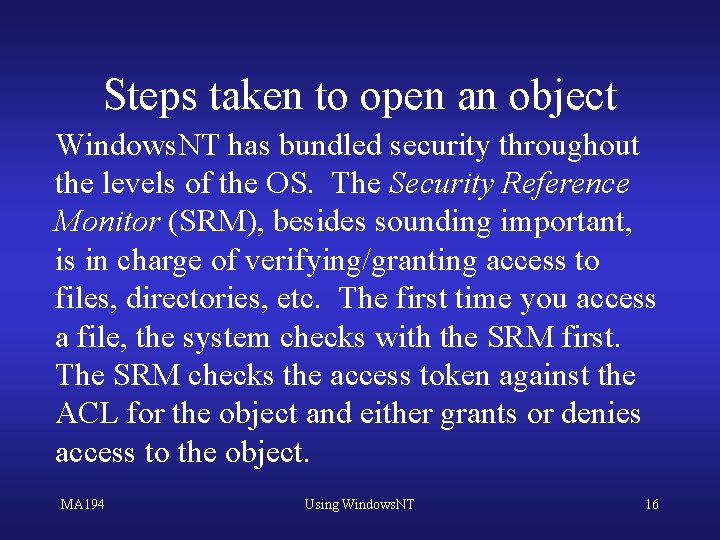
Steps taken to open an object Windows. NT has bundled security throughout the levels of the OS. The Security Reference Monitor (SRM), besides sounding important, is in charge of verifying/granting access to files, directories, etc. The first time you access a file, the system checks with the SRM first. The SRM checks the access token against the ACL for the object and either grants or denies access to the object. MA 194 Using Windows. NT 16
Fun HTTP sites • Http: //www. crayon. net • http: //www. ms. uky. edu/~chaney - Choose ‘Danews’ from the top • The IRS Home page (it’s that time again) • http: //www. washingtonpost. com MA 194 Using Windows. NT 17
Resolving access conflicts What if a user is granted access but the group they belong to is denied access? Or if the user belongs to ten groups, nine of which has access and one of which doesn’t? Denied. NT checks the ‘Deny’ list first and stops looking as soon as it finds a hit. MA 194 Using Windows. NT 18