
Topic 1 Using Post Gis To Manage Your




![Create a View [Townpopulation_top 40] It is very easy to create a view from](https://slidetodoc.com/presentation_image/bb198fcc6feb6065005fbb7e9ff69b5f/image-100.jpg "Create a View [Townpopulation_top 40] It is very easy to create a view from")

- Slides: 135
Topic 1. Using Post. Gis To Manage Your GIS Data
Outline 1. 2. 3. 4. 5. Part 1. Brief Introduction of Post. GIS and Why do we need it? Part 2. Install Postgre. SQL, Post. GIS and Tools Part 3. Load Data into Post. Gis Tables and Connect Q-GIS with Post. Gis Part 4. Simple Query Part 5. Geometry and Spatial Relations
Part 1. Brief Introduction of Post. GIS and Why we need it?
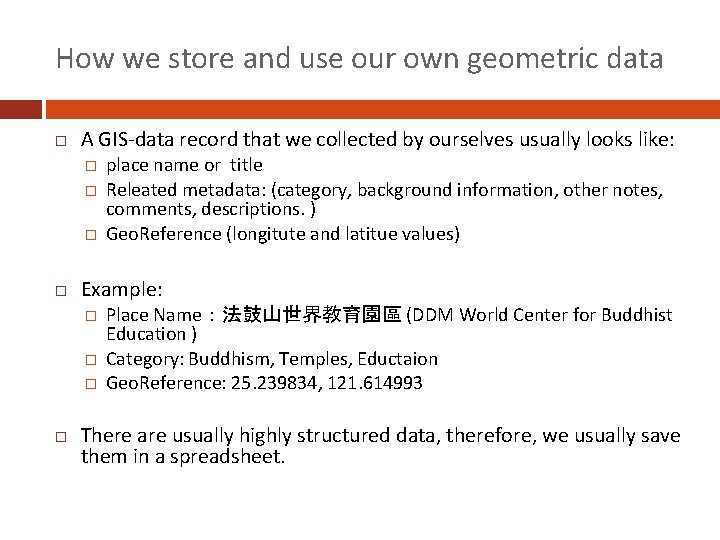
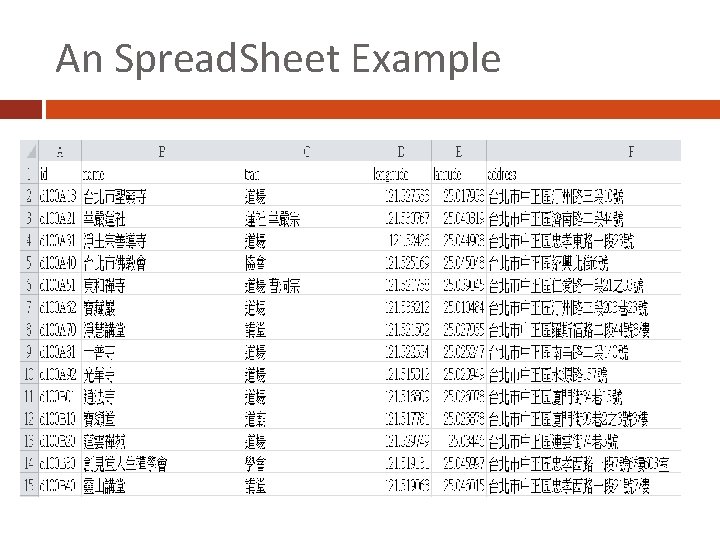
How we store and use our own geometric data A GIS-data record that we collected by ourselves usually looks like: � � � Example: � � � place name or title Releated metadata: (category, background information, other notes, comments, descriptions. ) Geo. Reference (longitute and latitue values) Place Name:法鼓山世界教育園區 (DDM World Center for Buddhist Education ) Category: Buddhism, Temples, Eductaion Geo. Reference: 25. 239834, 121. 614993 There are usually highly structured data, therefore, we usually save them in a spreadsheet.
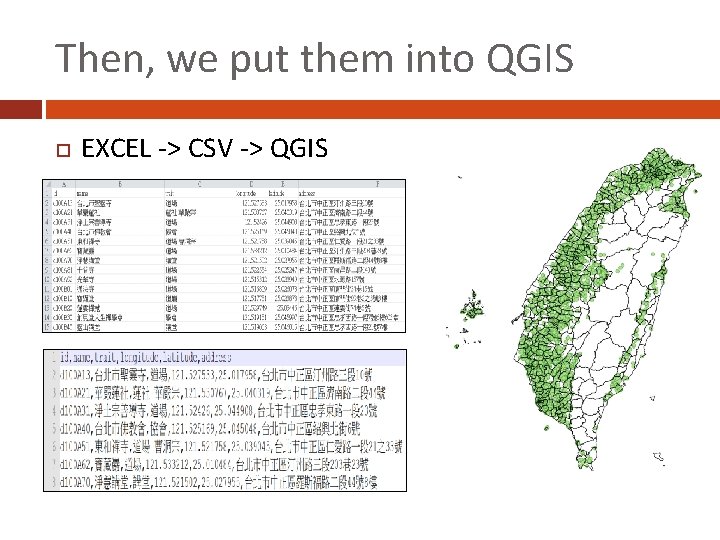
An Spread. Sheet Example
Then, we put them into QGIS EXCEL -> CSV -> QGIS
Disadvantages of spreadsheet (I) EXCEL(spreadsheet application) is not design for managing large amount data. � It doesn’t scale. As the amount of data increases, performance suffers, and the visual interface becomes a liability instead of a benefit. It also has fixed limits on how big a spreadsheet and its cells can be. � It lacks data integrity. Because every cell is a unique snowflake, things can get very inconsistent
Disadvantages of spreadsheet (II) It’s not very good for working with multiple datasets in combination. Collaborating and sharing is hard. It’s hard to control versions and have a “master” set of data, especially when many people are working on the same project (Google Spreadsheets fix some of this). EXCEL doesn't support geometric objects, and provides no function for manipulate geometric data.
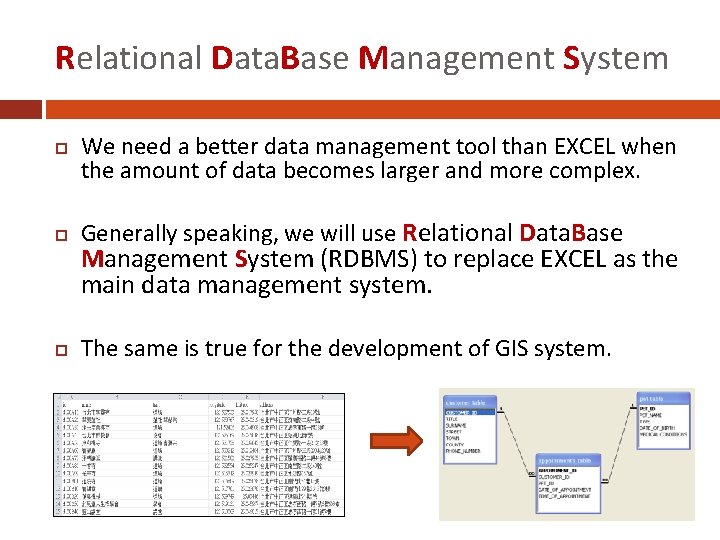
Relational Data. Base Management System We need a better data management tool than EXCEL when the amount of data becomes larger and more complex. Generally speaking, we will use Relational Data. Base The same is true for the development of GIS system. Management System (RDBMS) to replace EXCEL as the main data management system.
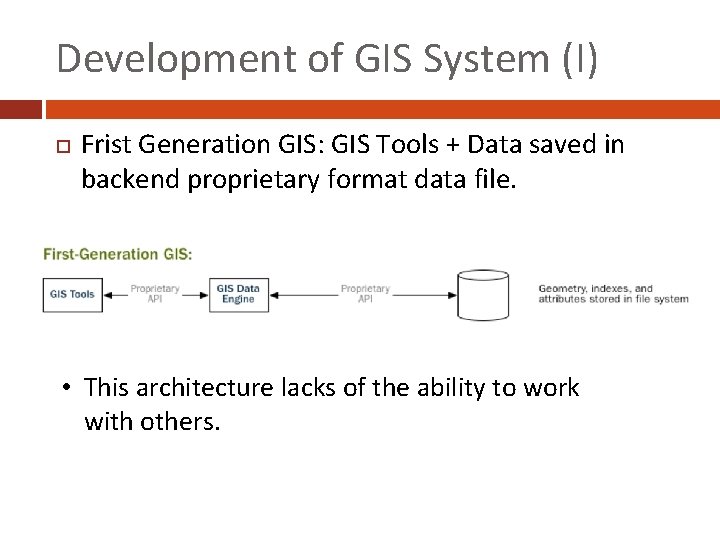
Development of GIS System (I) Frist Generation GIS: GIS Tools + Data saved in backend proprietary format data file. • This architecture lacks of the ability to work with others.
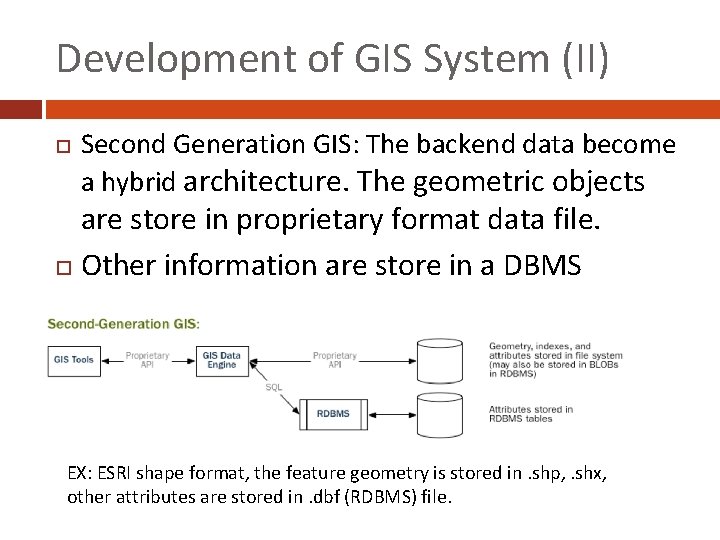
Development of GIS System (II) Second Generation GIS: The backend data become a hybrid architecture. The geometric objects are store in proprietary format data file. Other information are store in a DBMS EX: ESRI shape format, the feature geometry is stored in. shp, . shx, other attributes are stored in. dbf (RDBMS) file.
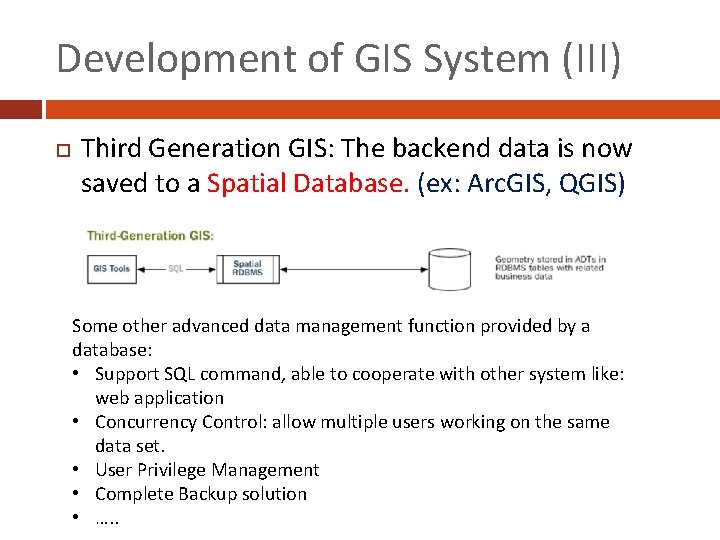
Development of GIS System (III) Third Generation GIS: The backend data is now saved to a Spatial Database. (ex: Arc. GIS, QGIS) Some other advanced data management function provided by a database: • Support SQL command, able to cooperate with other system like: web application • Concurrency Control: allow multiple users working on the same data set. • User Privilege Management • Complete Backup solution • …. .
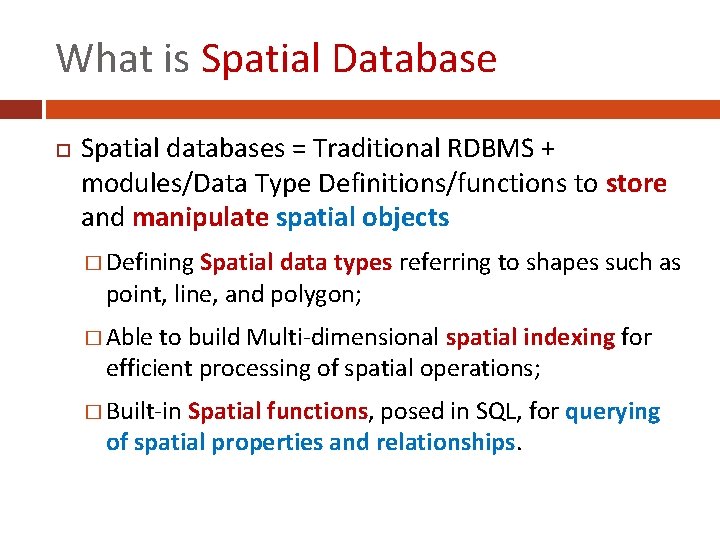
What is Spatial Database Spatial databases = Traditional RDBMS + modules/Data Type Definitions/functions to store and manipulate spatial objects � Defining Spatial data types referring to shapes such as point, line, and polygon; � Able to build Multi-dimensional spatial indexing for efficient processing of spatial operations; � Built-in Spatial functions, posed in SQL, for querying of spatial properties and relationships.
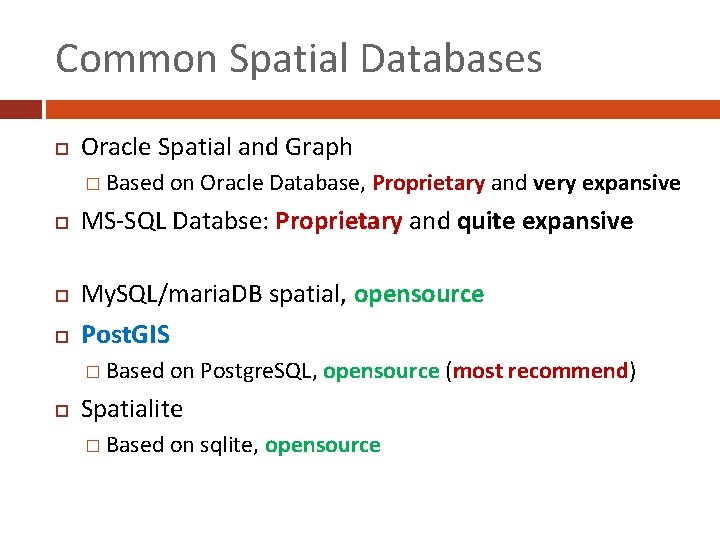
Common Spatial Databases Oracle Spatial and Graph � Based on Oracle Database, Proprietary MS-SQL Databse: Proprietary and quite expansive My. SQL/maria. DB spatial, opensource Post. GIS � Based on Postgre. SQL, opensource and very expansive Spatialite � Based on sqlite, opensource (most recommend)
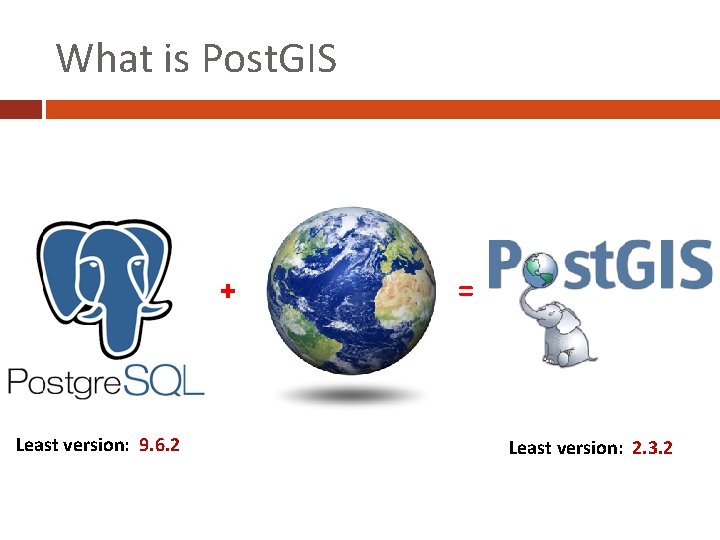
What is Post. GIS + Least version: 9. 6. 2 = Least version: 2. 3. 2
Part 2. Install Postgre. SQL, Post. GIS and Tools
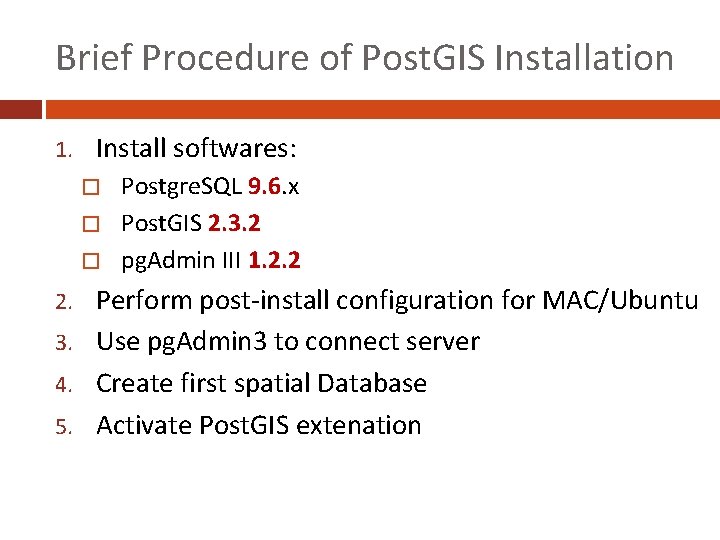
Brief Procedure of Post. GIS Installation 1. Install softwares: Postgre. SQL 9. 6. x � Post. GIS 2. 3. 2 � pg. Admin III 1. 2. 2 � Perform post-install configuration for MAC/Ubuntu 3. Use pg. Admin 3 to connect server 4. Create first spatial Database 5. Activate Post. GIS extenation 2.
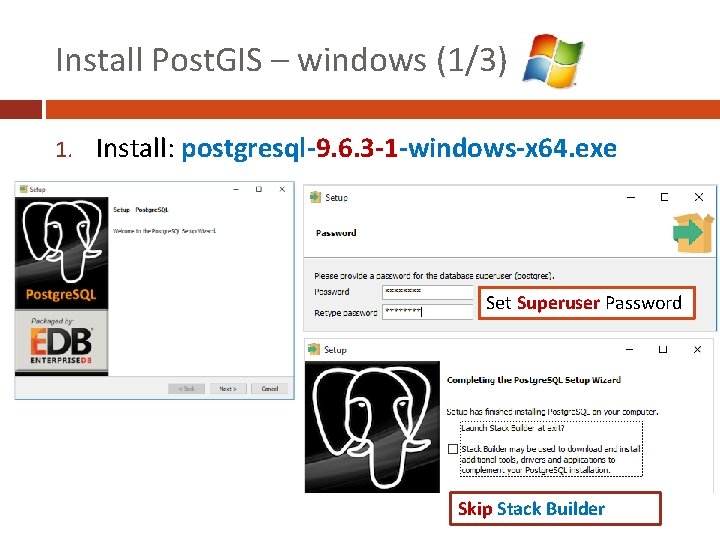
Install Post. GIS – windows (1/3) 1. Install: postgresql-9. 6. 3 -1 -windows-x 64. exe Set Superuser Password Skip Stack Builder
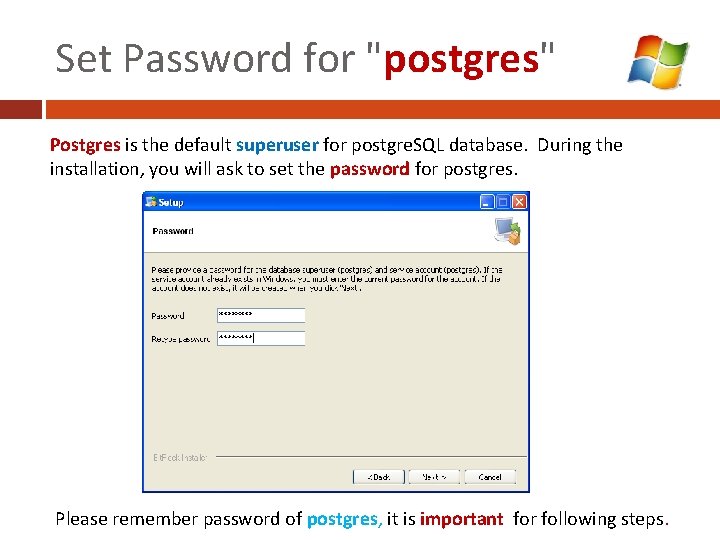
Set Password for "postgres" Postgres is the default superuser for postgre. SQL database. During the installation, you will ask to set the password for postgres. Please remember password of postgres, it is important for following steps.
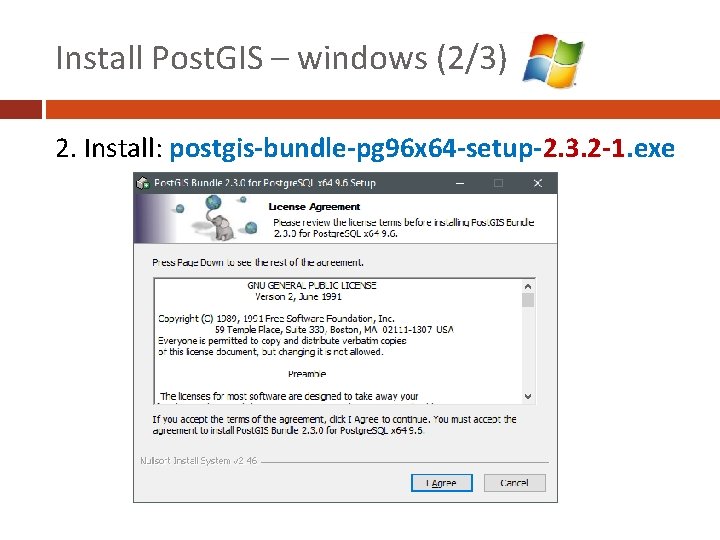
Install Post. GIS – windows (2/3) 2. Install: postgis-bundle-pg 96 x 64 -setup-2. 3. 2 -1. exe
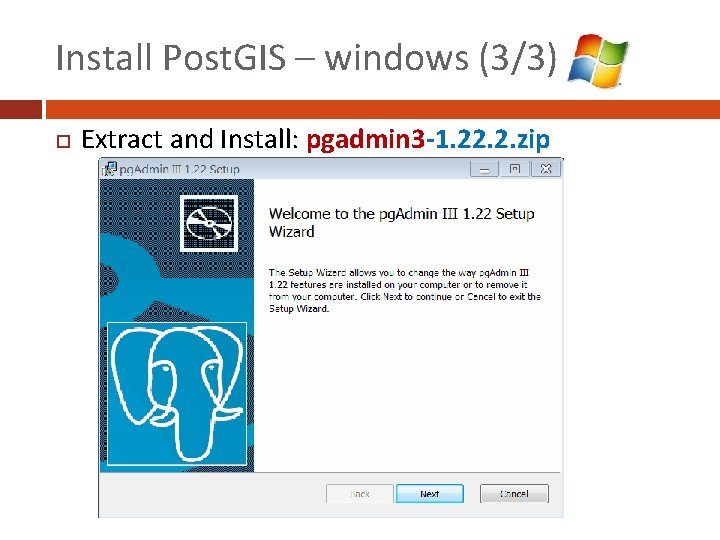
Install Post. GIS – windows (3/3) Extract and Install: pgadmin 3 -1. 22. 2. zip
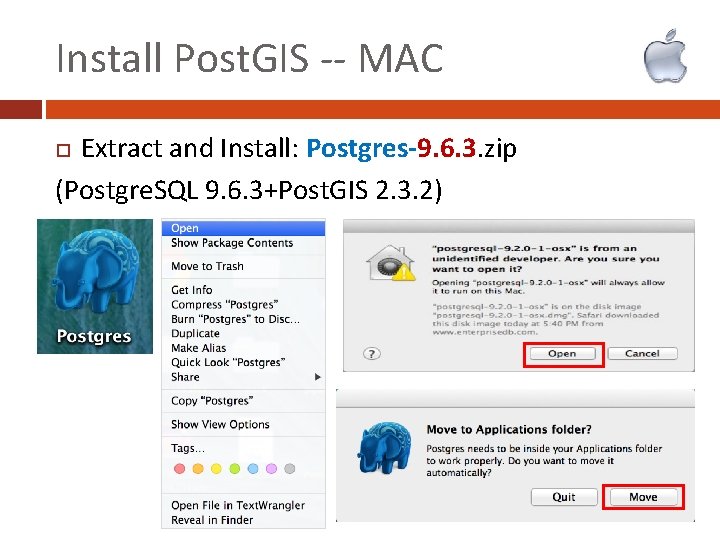
Install Post. GIS -- MAC Extract and Install: Postgres-9. 6. 3. zip (Postgre. SQL 9. 6. 3+Post. GIS 2. 3. 2)
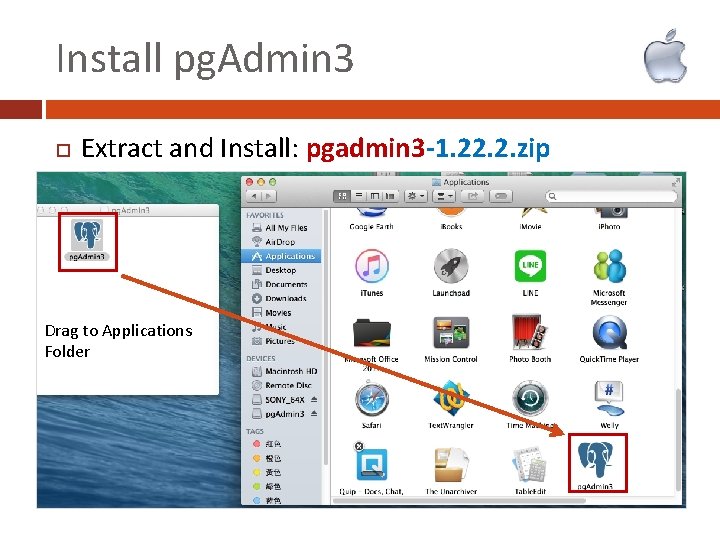
Install pg. Admin 3 Extract and Install: pgadmin 3 -1. 22. 2. zip Drag to Applications Folder
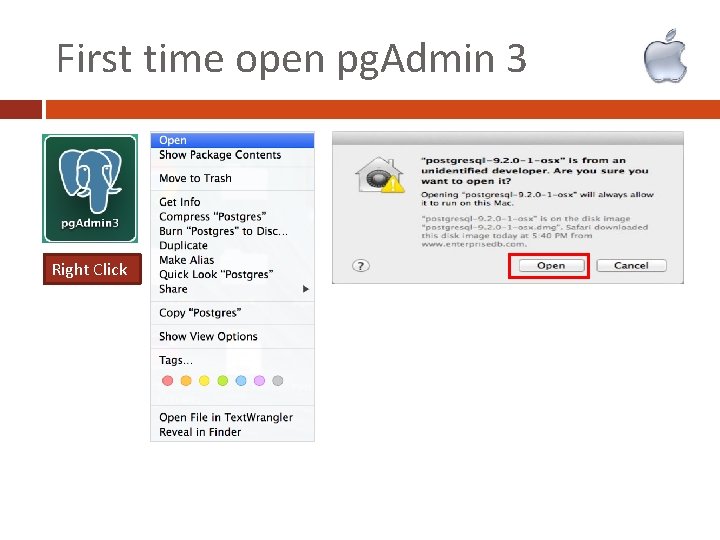
First time open pg. Admin 3 Right Click
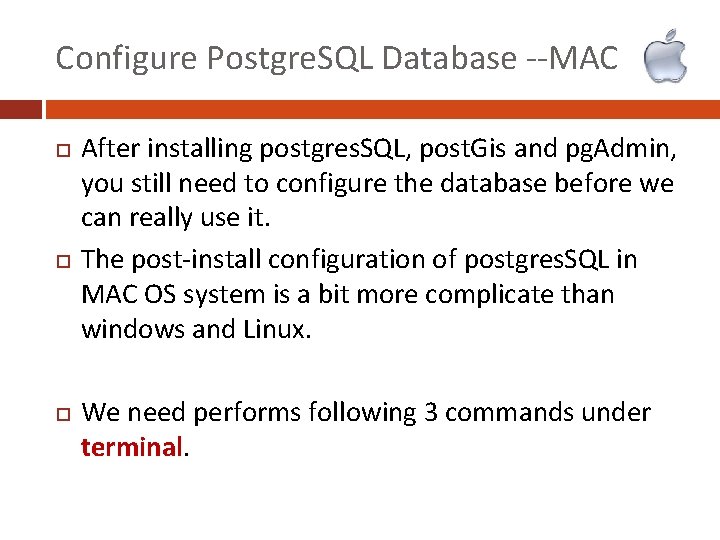
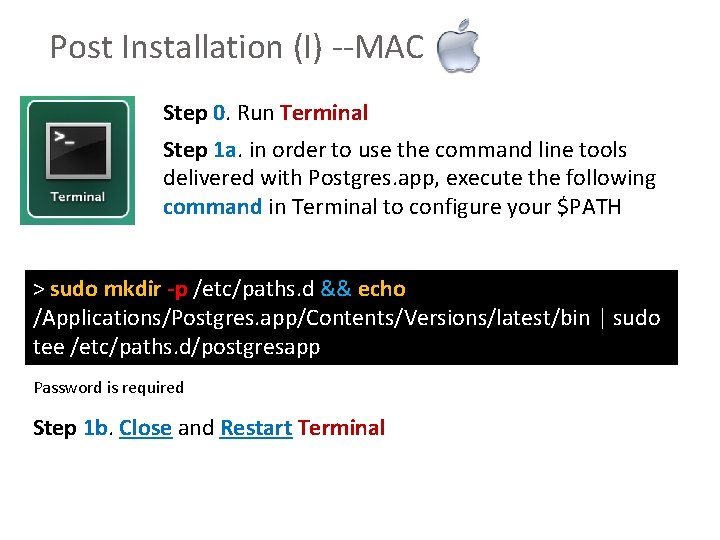
Configure Postgre. SQL Database --MAC After installing postgres. SQL, post. Gis and pg. Admin, you still need to configure the database before we can really use it. The post-install configuration of postgres. SQL in MAC OS system is a bit more complicate than windows and Linux. We need performs following 3 commands under terminal.
Post Installation (I) --MAC Step 0. Run Terminal Step 1 a. in order to use the command line tools delivered with Postgres. app, execute the following command in Terminal to configure your $PATH > sudo mkdir -p /etc/paths. d && echo /Applications/Postgres. app/Contents/Versions/latest/bin | sudo tee /etc/paths. d/postgresapp Password is required Step 1 b. Close and Restart Terminal
Post Installation (II) --MAC Step 2. Create superuser account: postgres > createuser -s postgres If no error message is shown on the screen, then you succeeded. If you see: createuser: creation of new role failed: ERROR: role "postgres" already exists That is fine, too. But If you see: -bash: createuser : command not found You probably: 1. didn't enter correct command of step 1. or 2. forget closing and restarting terminal.
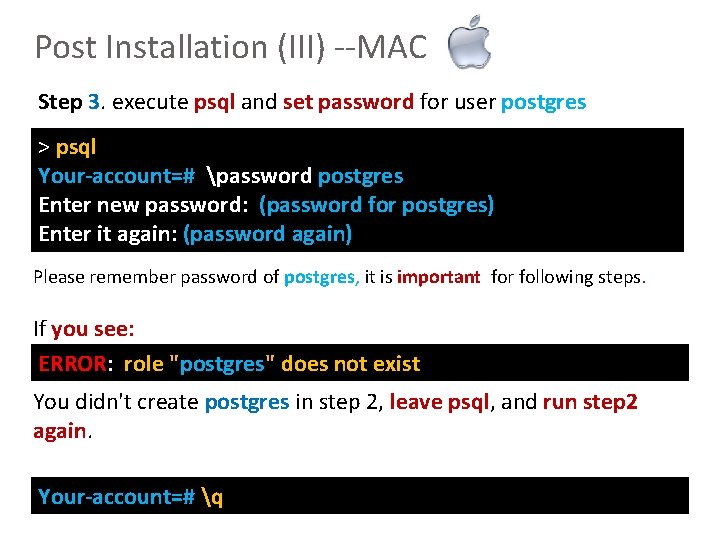
Post Installation (III) --MAC Step 3. execute psql and set password for user postgres > psql Your-account=# password postgres Enter new password: (password for postgres) Enter it again: (password again) Please remember password of postgres, it is important for following steps. If you see: ERROR: role "postgres" does not exist You didn't create postgres in step 2, leave psql, and run step 2 again. Command for exiting psql: Your-account=# q
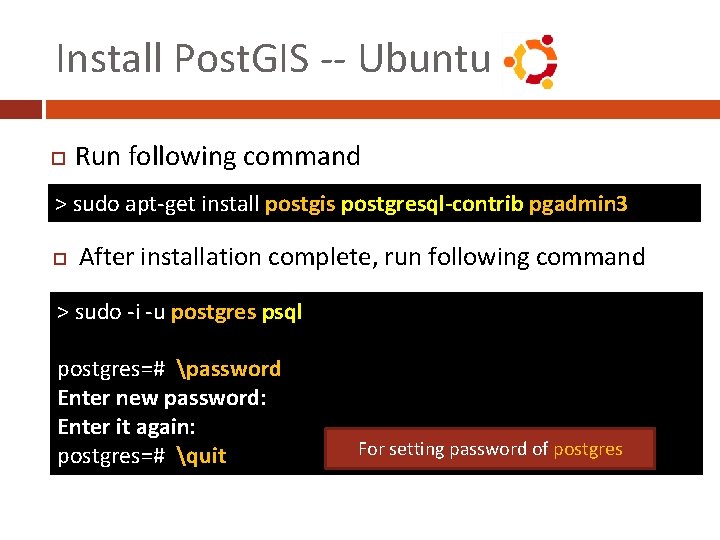
Install Post. GIS -- Ubuntu Run following command > sudo apt-get install postgis postgresql-contrib pgadmin 3 After installation complete, run following command > sudo -i -u postgres psql postgres=# password Enter new password: Enter it again: postgres=# quit For setting password of postgres
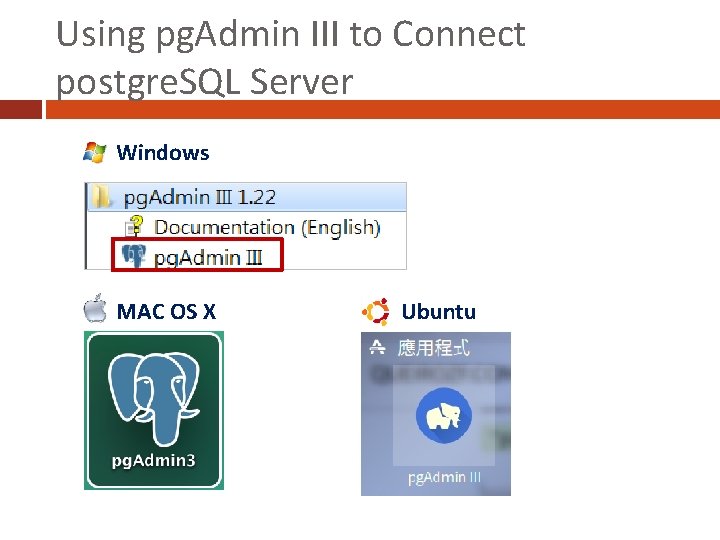
Using pg. Admin III to Connect postgre. SQL Server Windows MAC OS X Ubuntu
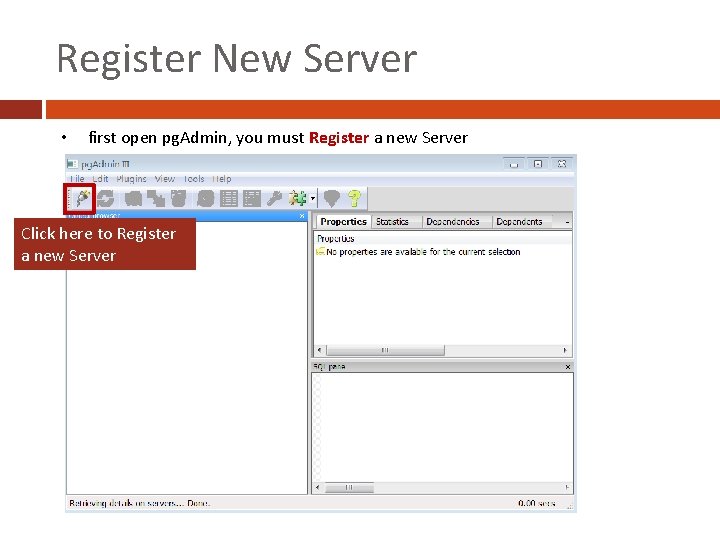
Register New Server • first open pg. Admin, you must Register a new Server Click here to Register a new Server
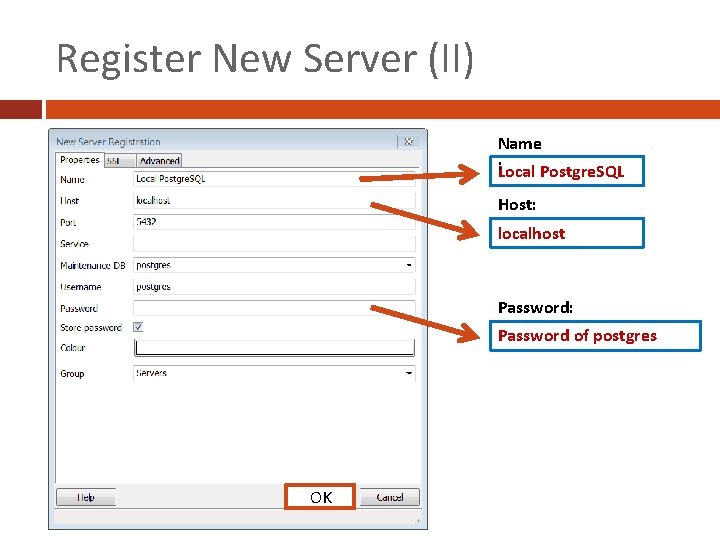
Register New Server (II) Name : Local Postgre. SQL Host: localhost Password: Password of postgres OK
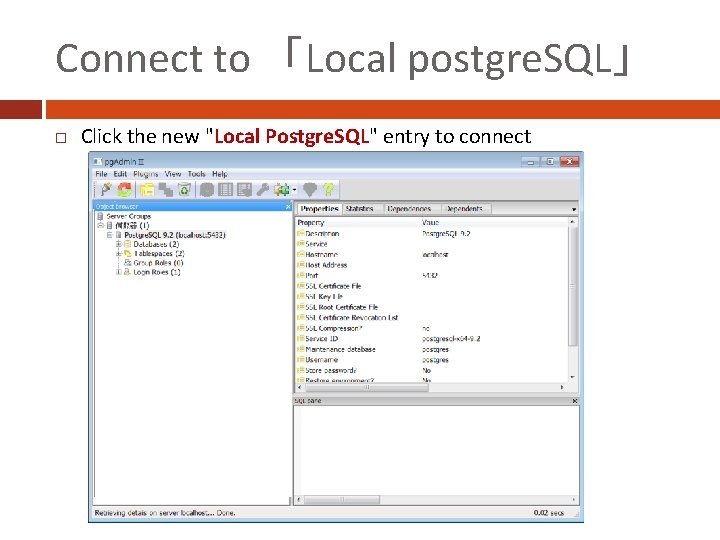
Connect to 「Local postgre. SQL」 Click the new "Local Postgre. SQL" entry to connect
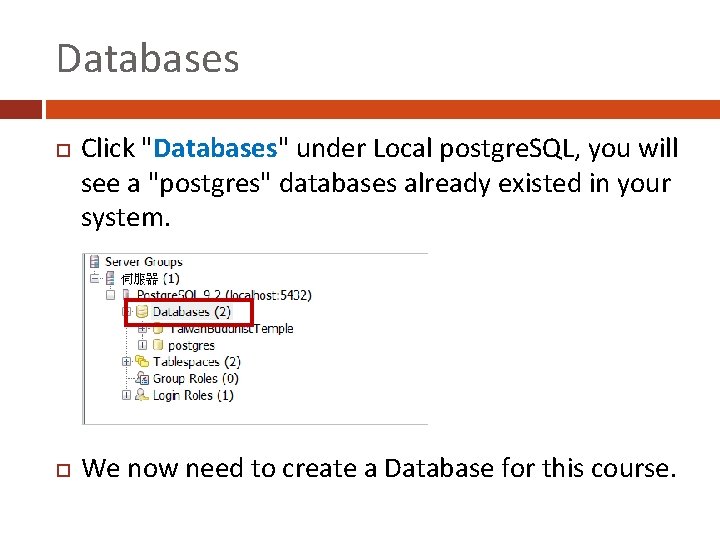
Databases Click "Databases" under Local postgre. SQL, you will see a "postgres" databases already existed in your system. We now need to create a Database for this course.
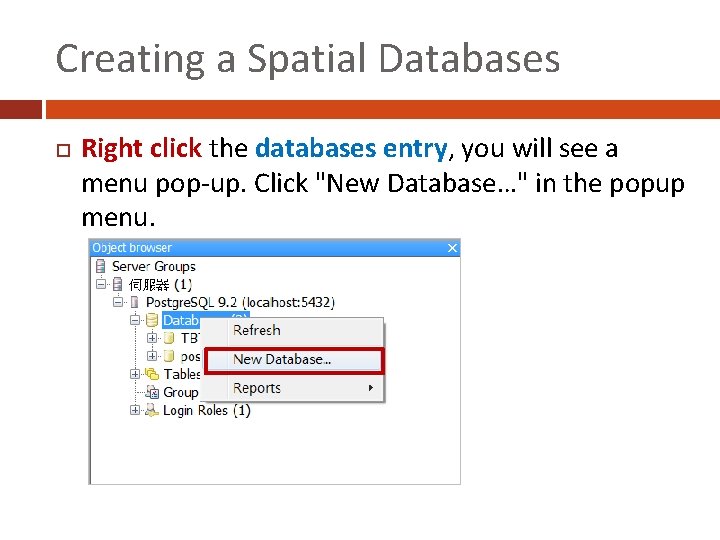
Creating a Spatial Databases Right click the databases entry, you will see a menu pop-up. Click "New Database…" in the popup menu.
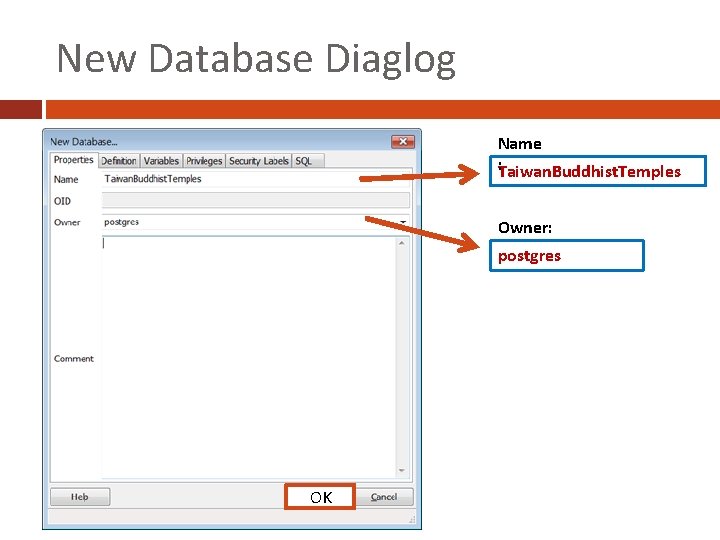
New Database Diaglog Name : Taiwan. Buddhist. Temples Owner: postgres OK
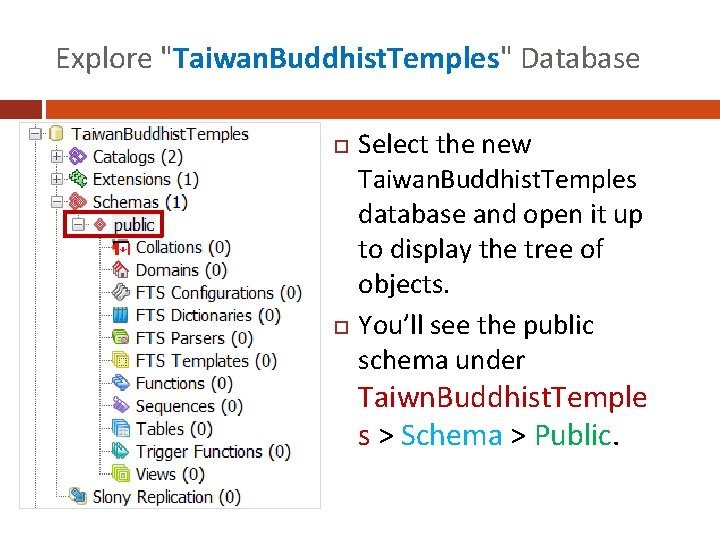
Explore "Taiwan. Buddhist. Temples" Database Select the new Taiwan. Buddhist. Temples database and open it up to display the tree of objects. You’ll see the public schema under Taiwn. Buddhist. Temple s > Schema > Public.
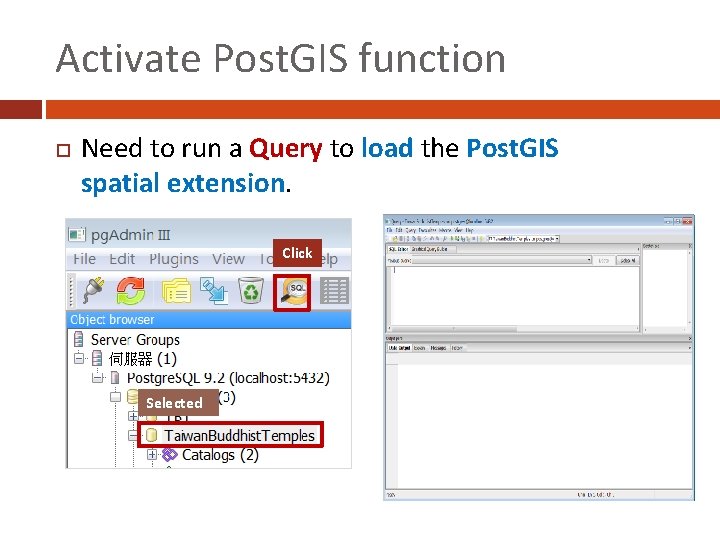
Activate Post. GIS function Need to run a Query to load the Post. GIS spatial extension. Click Selected
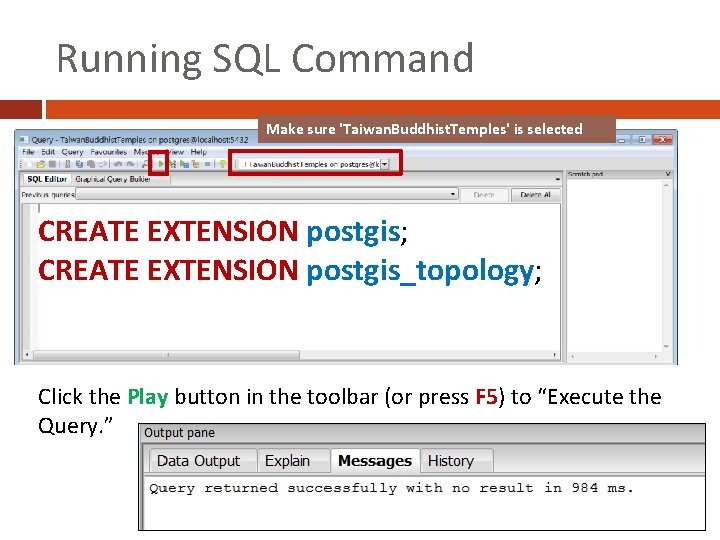
Running SQL Command Make sure 'Taiwan. Buddhist. Temples' is selected CREATE EXTENSION postgis; CREATE EXTENSION postgis_topology; Click the Play button in the toolbar (or press F 5) to “Execute the Query. ”
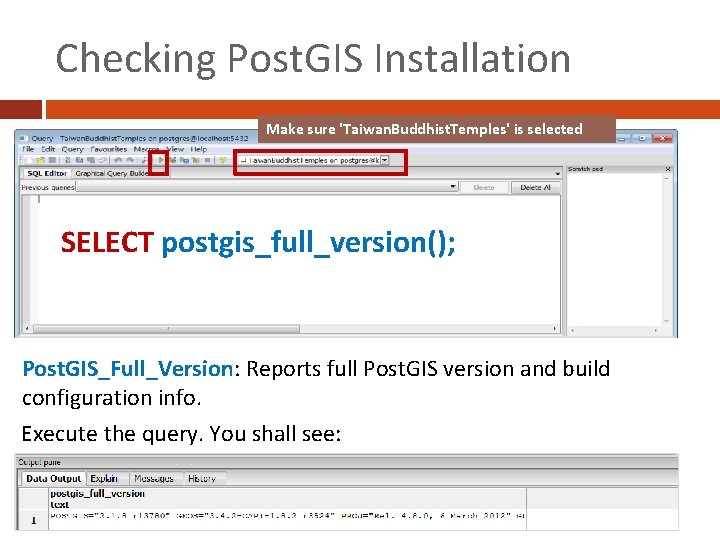
Checking Post. GIS Installation Make sure 'Taiwan. Buddhist. Temples' is selected SELECT postgis_full_version(); Post. GIS_Full_Version: Reports full Post. GIS version and build configuration info. Execute the query. You shall see:
Part 3. Load Data into Post. Gis Tables and Connect Q-GIS with Post. Gis
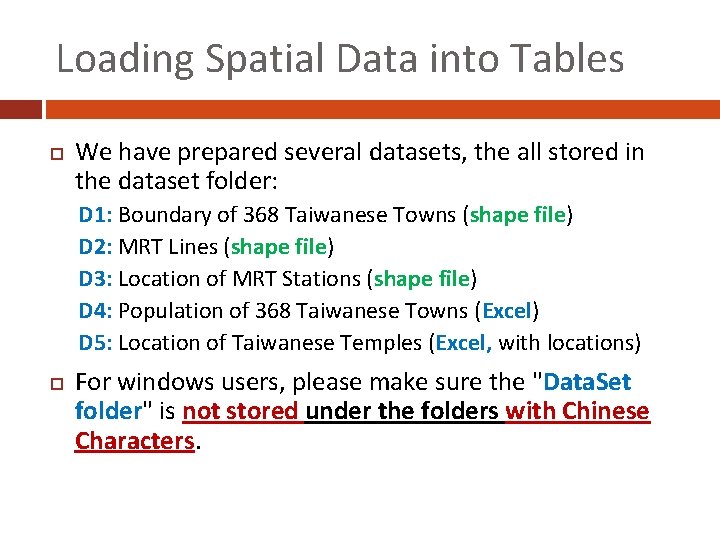
Loading Spatial Data into Tables We have prepared several datasets, the all stored in the dataset folder: D 1: Boundary of 368 Taiwanese Towns (shape file) D 2: MRT Lines (shape file) D 3: Location of MRT Stations (shape file) D 4: Population of 368 Taiwanese Towns (Excel) D 5: Location of Taiwanese Temples (Excel, with locations) For windows users, please make sure the "Data. Set folder" is not stored under the folders with Chinese Characters.
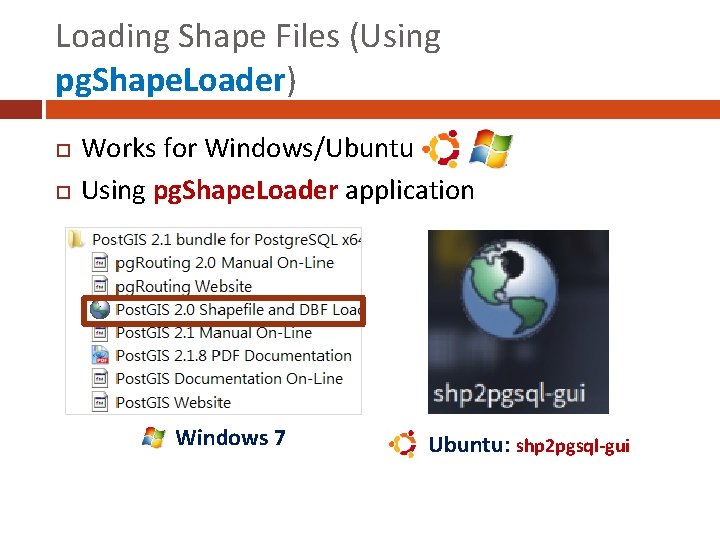
Loading Shape Files (Using pg. Shape. Loader) Works for Windows/Ubuntu Using pg. Shape. Loader application Windows 7 Ubuntu: shp 2 pgsql-gui
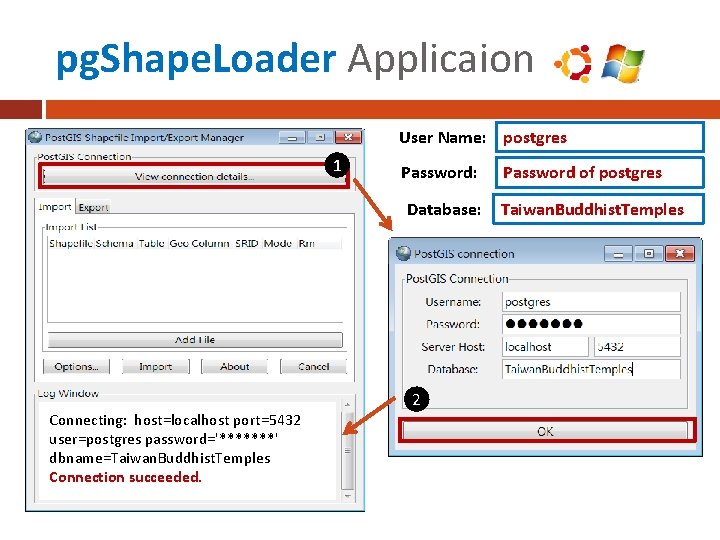
pg. Shape. Loader Applicaion User Name: postgres 1 Password: Database: Connecting: host=localhost port=5432 user=postgres password='*******' dbname=Taiwan. Buddhist. Temples Connection succeeded. 2 Password of postgres Taiwan. Buddhist. Temples
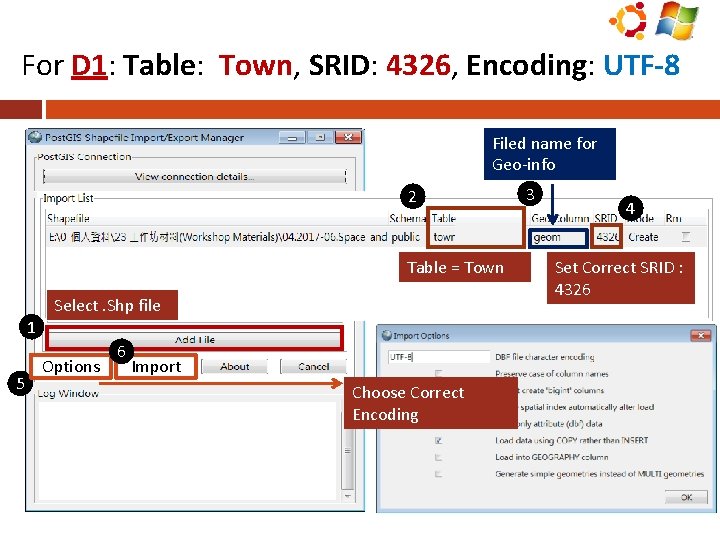
For D 1: Table: Town, SRID: 4326, Encoding: UTF-8 Filed name for Geo-info 2 Table = Town Select. Shp file 1 5 Options 6 Import Choose Correct Encoding 3 4 Set Correct SRID : 4326
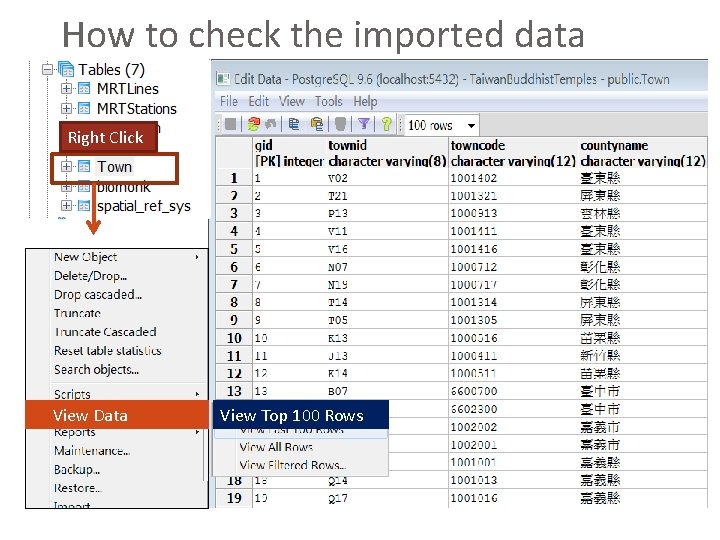
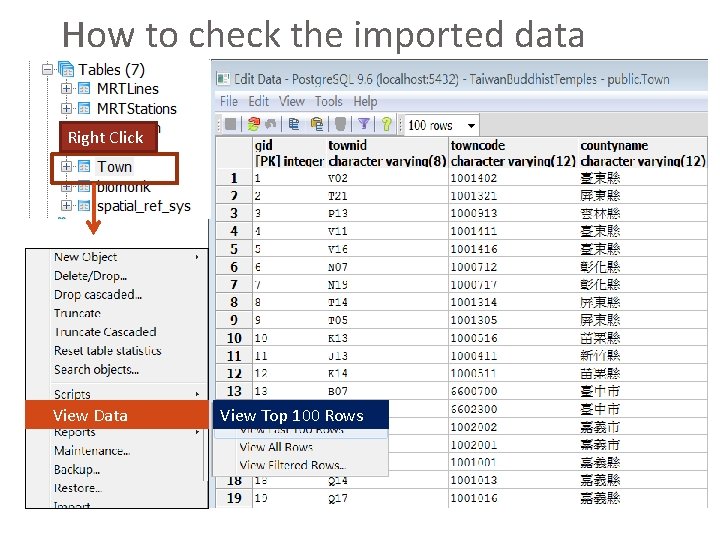
How to check the imported data Right Click View Data View Top 100 Rows
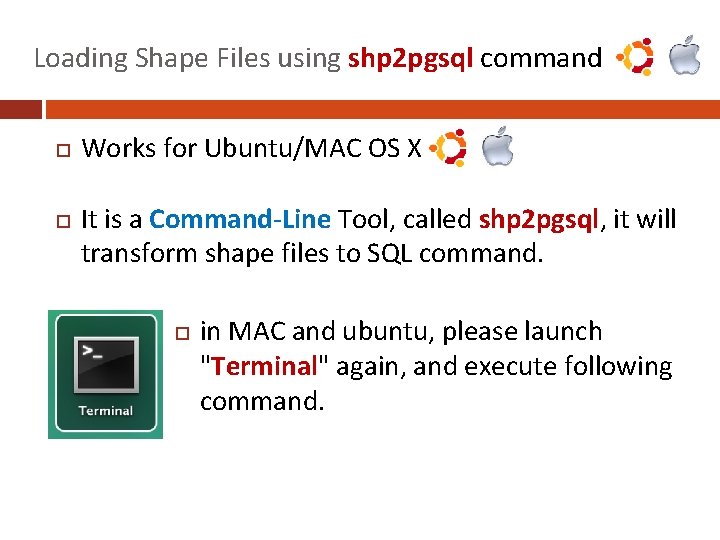
Loading Shape Files using shp 2 pgsql command Works for Ubuntu/MAC OS X It is a Command-Line Tool, called shp 2 pgsql, it will transform shape files to SQL command. in MAC and ubuntu, please launch "Terminal" again, and execute following command.
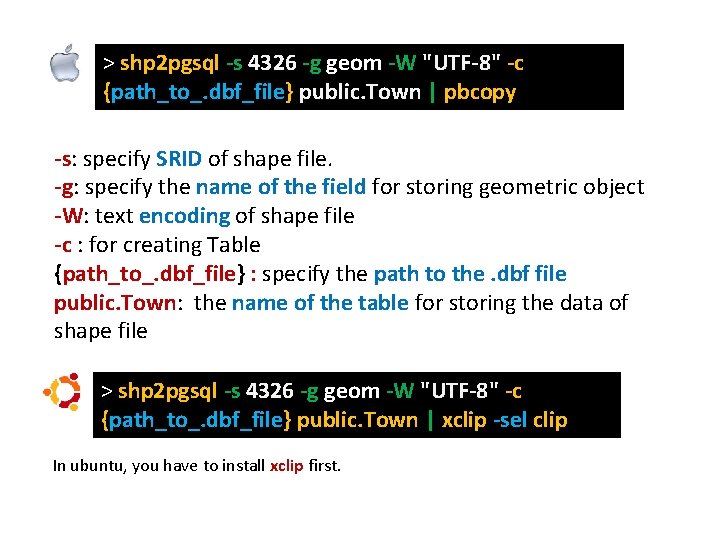
> shp 2 pgsql -s 4326 -g geom -W "UTF-8" -c {path_to_. dbf_file} public. Town | pbcopy -s: specify SRID of shape file. -g: specify the name of the field for storing geometric object -W: text encoding of shape file -c : for creating Table {path_to_. dbf_file} : specify the path to the. dbf file public. Town: the name of the table for storing the data of shape file > shp 2 pgsql -s 4326 -g geom -W "UTF-8" -c {path_to_. dbf_file} public. Town | xclip -sel clip In ubuntu, you have to install xclip first.
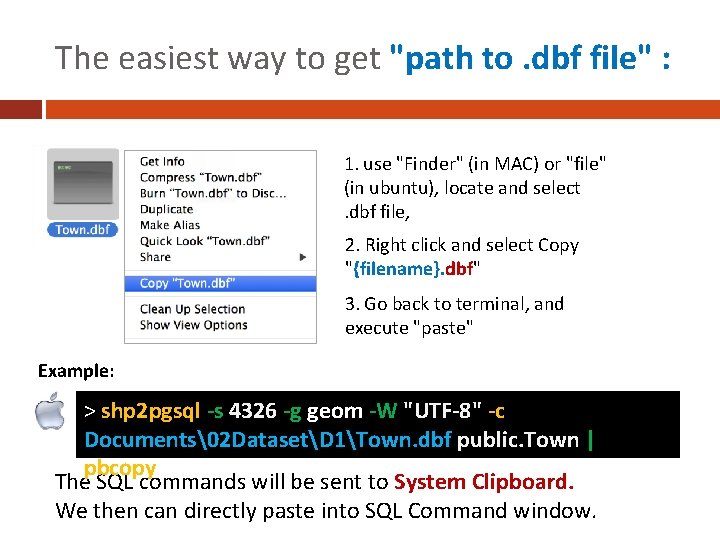
The easiest way to get "path to. dbf file" : 1. use "Finder" (in MAC) or "file" (in ubuntu), locate and select . dbf file, 2. Right click and select Copy "{filename}. dbf" 3. Go back to terminal, and execute "paste" Example: > shp 2 pgsql -s 4326 -g geom -W "UTF-8" -c Documents2 DatasetD 1Town. dbf public. Town | pbcopy The SQL commands will be sent to System Clipboard. We then can directly paste into SQL Command window.
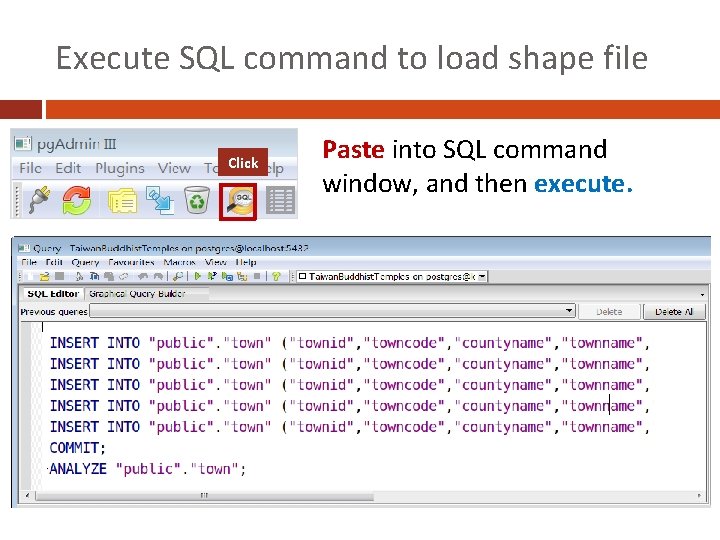
Execute SQL command to load shape file Click Paste into SQL command window, and then execute.
How to check the imported data Right Click View Data View Top 100 Rows
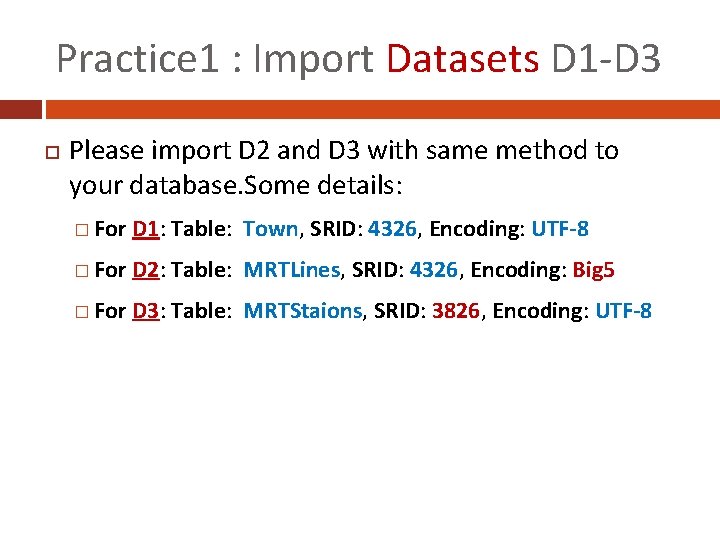
Practice 1 : Import Datasets D 1 -D 3 Please import D 2 and D 3 with same method to your database. Some details: � For D 1: Table: Town, SRID: 4326, Encoding: UTF-8 � For D 2: Table: MRTLines, SRID: 4326, Encoding: Big 5 � For D 3: Table: MRTStaions, SRID: 3826, Encoding: UTF-8
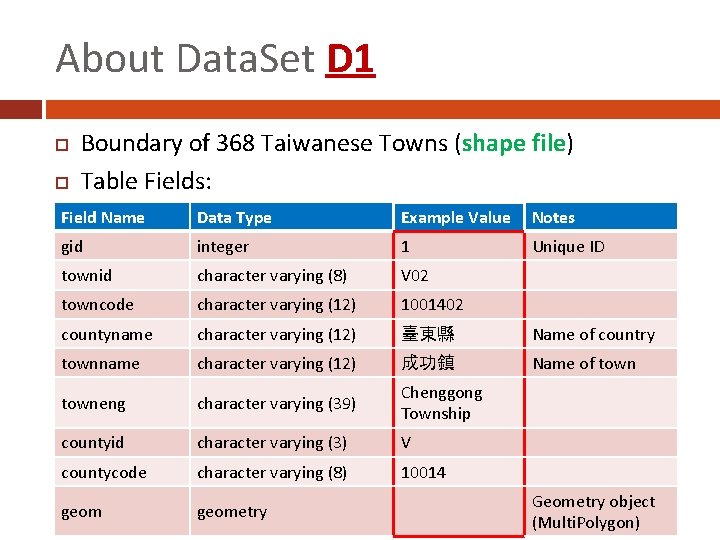
About Data. Set D 1 Boundary of 368 Taiwanese Towns (shape file) Table Fields: Field Name Data Type Example Value Notes gid integer 1 Unique ID townid character varying (8) V 02 towncode character varying (12) 1001402 countyname character varying (12) 臺東縣 Name of country townname character varying (12) 成功鎮 Name of towneng character varying (39) Chenggong Township countyid character varying (3) V countycode character varying (8) 10014 geometry Geometry object (Multi. Polygon)
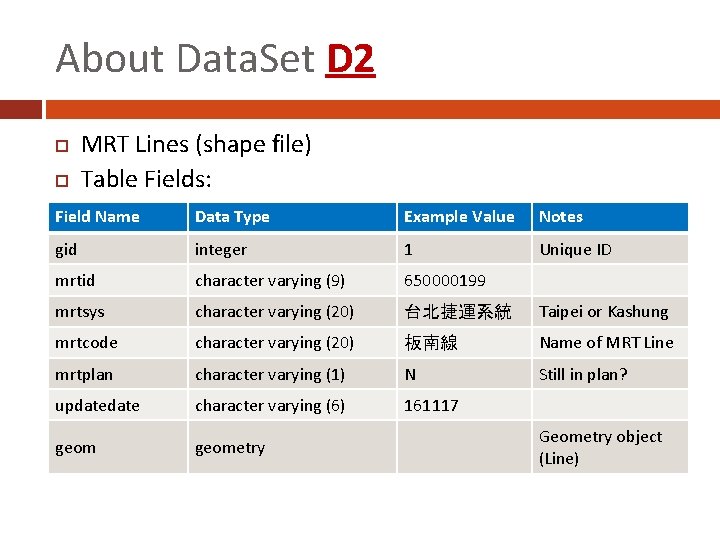
About Data. Set D 2 MRT Lines (shape file) Table Fields: Field Name Data Type Example Value Notes gid integer 1 Unique ID mrtid character varying (9) 650000199 mrtsys character varying (20) 台北捷運系統 Taipei or Kashung mrtcode character varying (20) 板南線 Name of MRT Line mrtplan character varying (1) N Still in plan? update character varying (6) 161117 geometry Geometry object (Line)
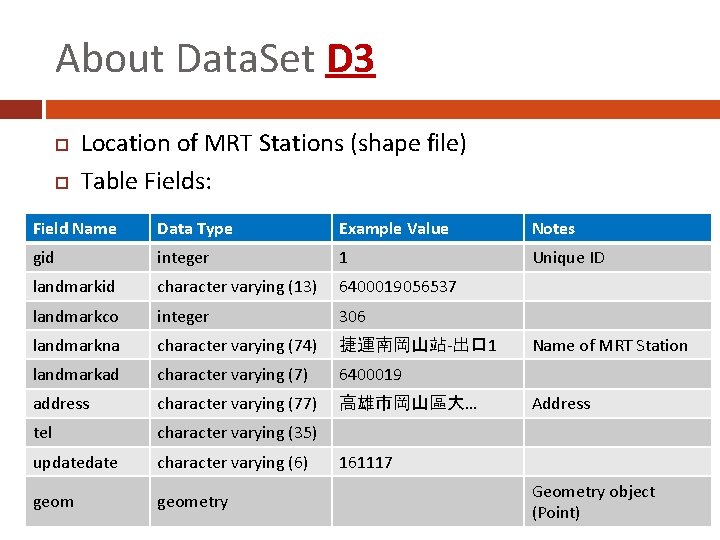
About Data. Set D 3 Location of MRT Stations (shape file) Table Fields: Field Name Data Type Example Value Notes gid integer 1 Unique ID landmarkid character varying (13) 6400019056537 landmarkco integer 306 landmarkna character varying (74) 捷運南岡山站-出口 1 landmarkad character varying (7) 6400019 address character varying (77) 高雄市岡山區大… tel character varying (35) update character varying (6) geometry Name of MRT Station Address 161117 Geometry object (Point)
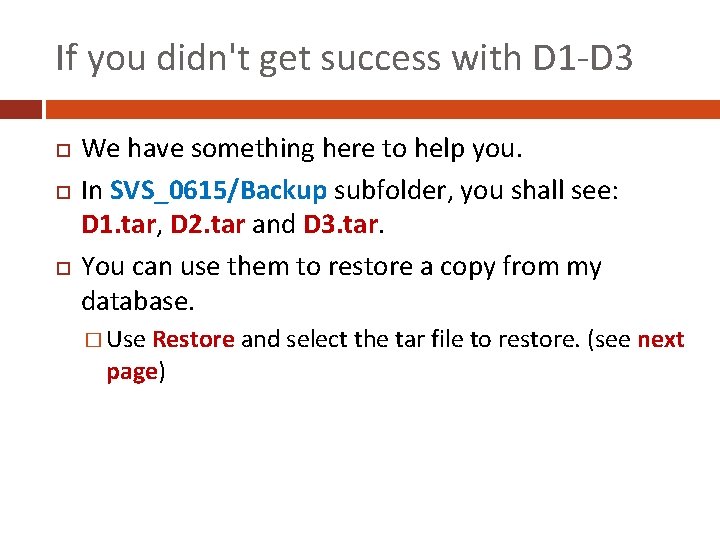
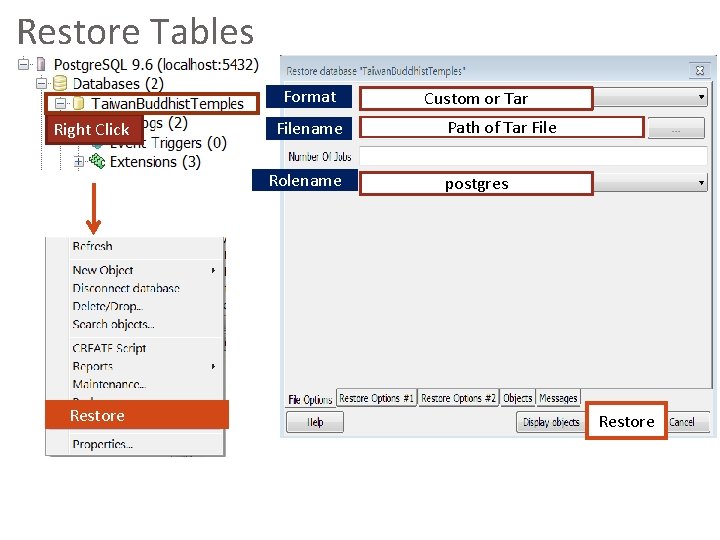
If you didn't get success with D 1 -D 3 We have something here to help you. In SVS_0615/Backup subfolder, you shall see: D 1. tar, D 2. tar and D 3. tar. You can use them to restore a copy from my database. � Use Restore and select the tar file to restore. (see next page)
Restore Tables Format Right Click Filename Rolename Restore Custom or Tar Path of Tar File postgres Restore
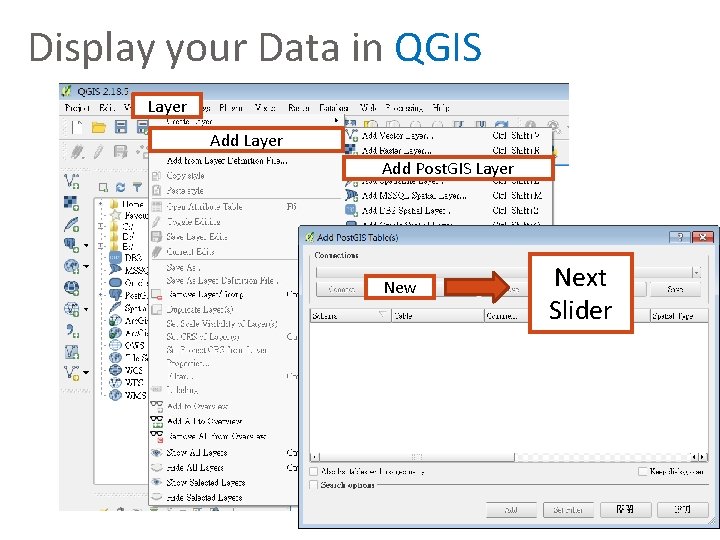
Display your Data in QGIS Layer Add Post. GIS Layer New Next Slider
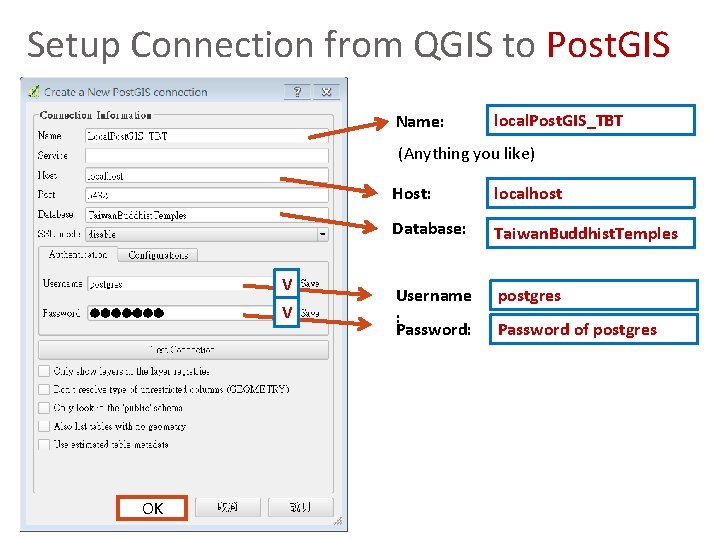
Setup Connection from QGIS to Post. GIS Name: local. Post. GIS_TBT (Anything you like) V V OK Host: localhost Database: Taiwan. Buddhist. Temples Username : Password: postgres Password of postgres
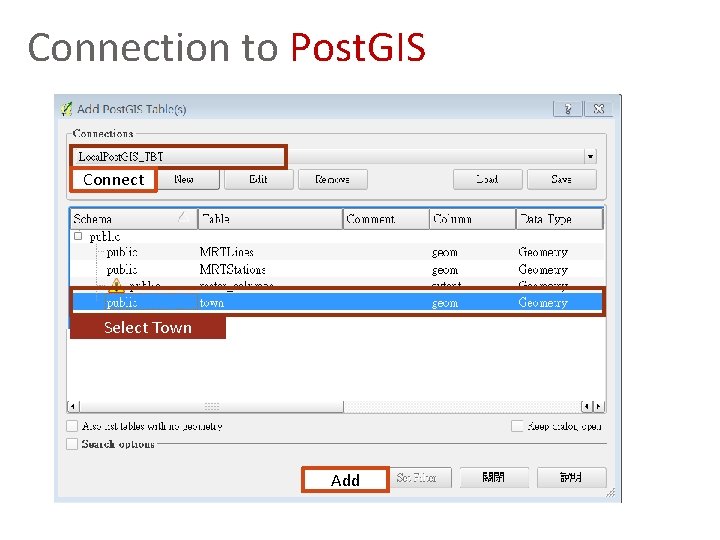
Connection to Post. GIS Connect Select Town Add
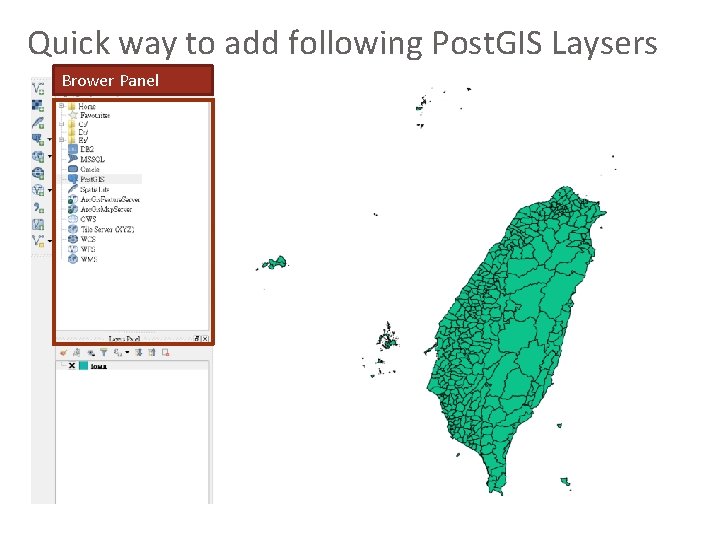
Quick way to add following Post. GIS Laysers Brower Panel
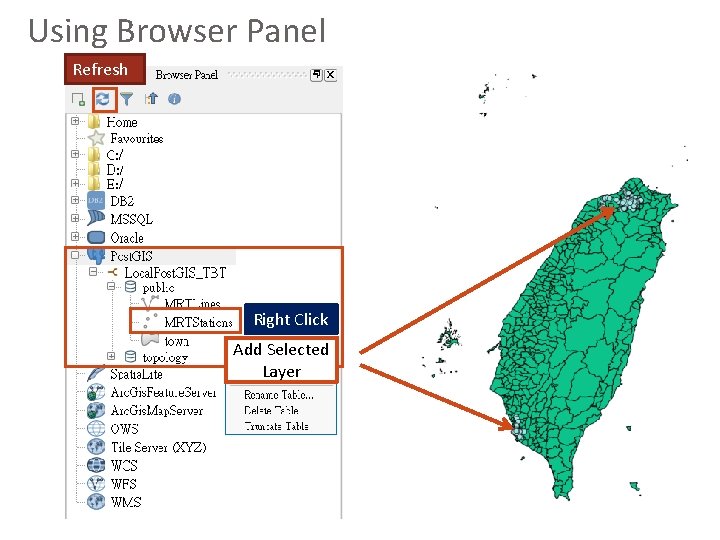
Using Browser Panel Refresh Right Click Add Selected Layer
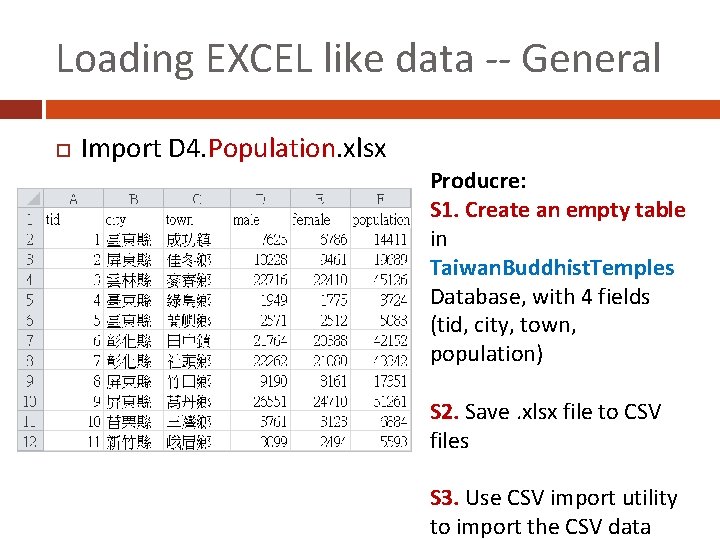
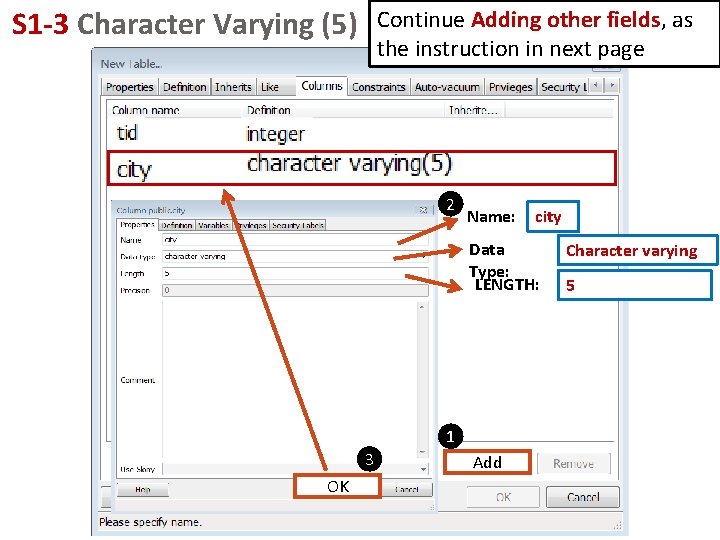
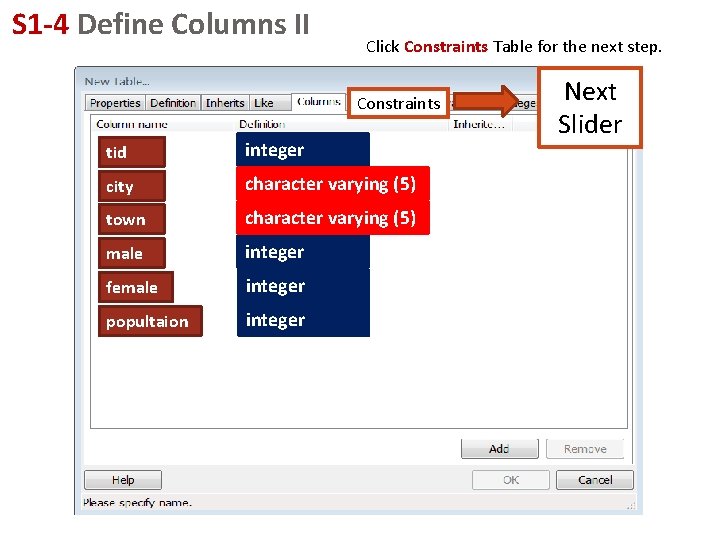
Loading EXCEL like data -- General Import D 4. Population. xlsx Producre: S 1. Create an empty table in Taiwan. Buddhist. Temples Database, with 4 fields (tid, city, town, population) S 2. Save. xlsx file to CSV files S 3. Use CSV import utility to import the CSV data
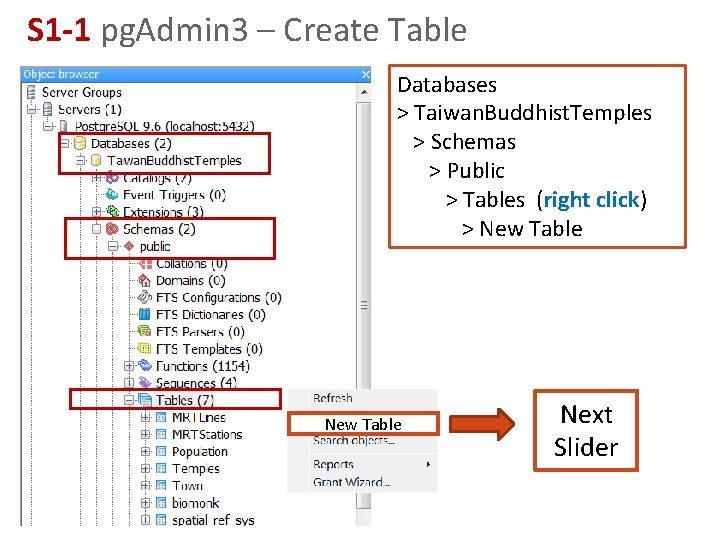
S 1 -1 pg. Admin 3 – Create Table Databases > Taiwan. Buddhist. Temples > Schemas > Public > Tables (right click) > New Table Next Slider
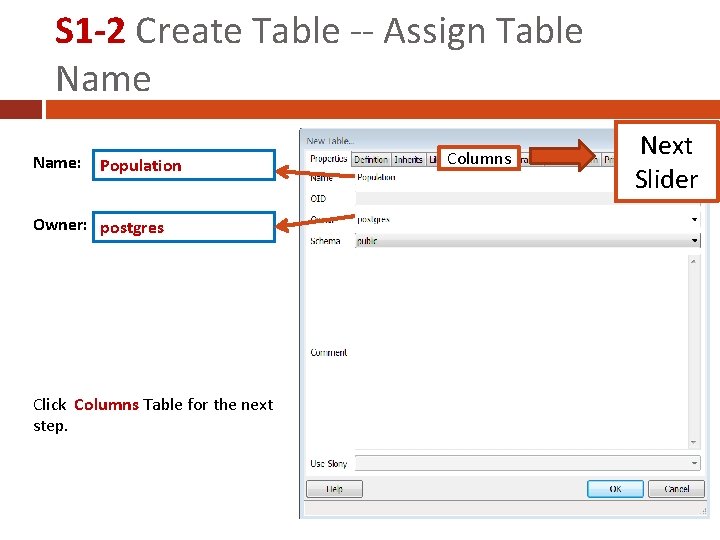
S 1 -2 Create Table -- Assign Table Name: Population Owner: postgres Click Columns Table for the next step. Columns Next Slider
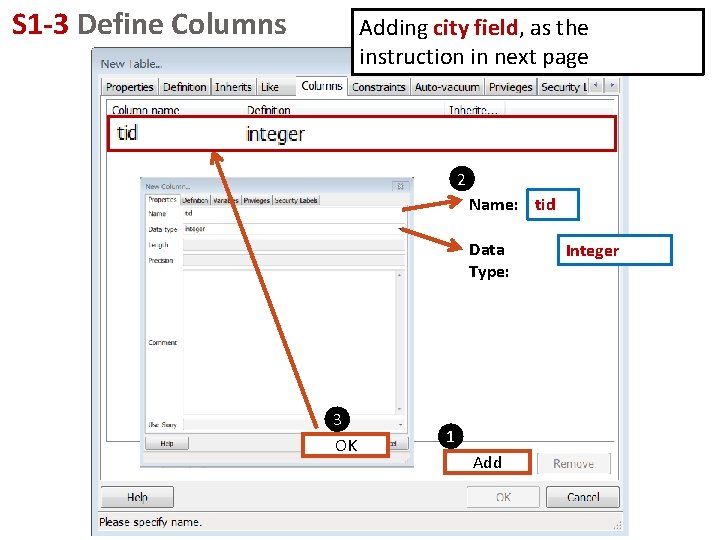
S 1 -3 Define Columns Adding city field, as the instruction in next page 2 Name: tid Data Type: 3 OK 1 Add Integer
S 1 -3 Character Varying (5) Continue Adding other fields, as the instruction in next page 2 Name: city Data Type: LENGTH: 1 3 OK Add Character varying 5
S 1 -4 Define Columns II Click Constraints Table for the next step. Constraints tid integer city character varying (5) town character varying (5) male integer female integer popultaion integer Next Slider
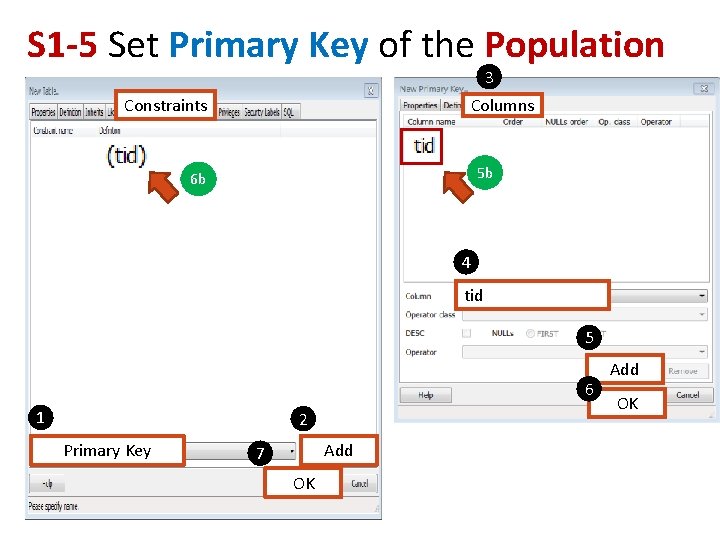
S 1 -5 Set Primary Key of the Population 3 Tables. Constraints Columns 5 b 6 b 4 tid 5 6 1 2 Primary Key Add 7 OK Add OK
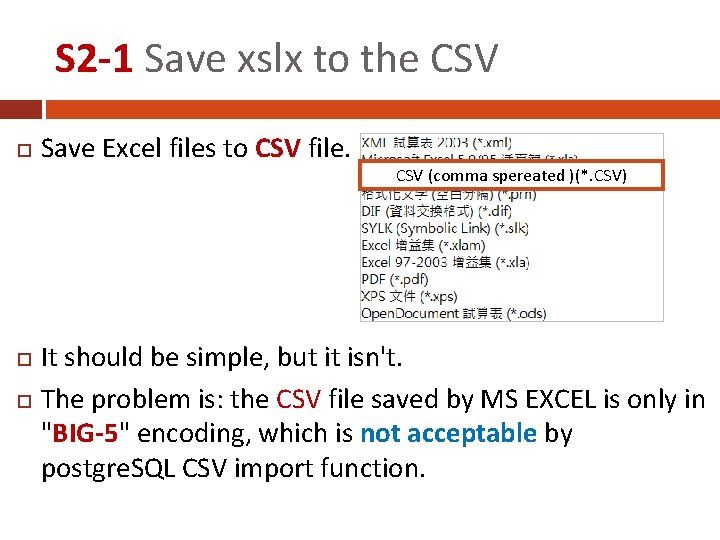
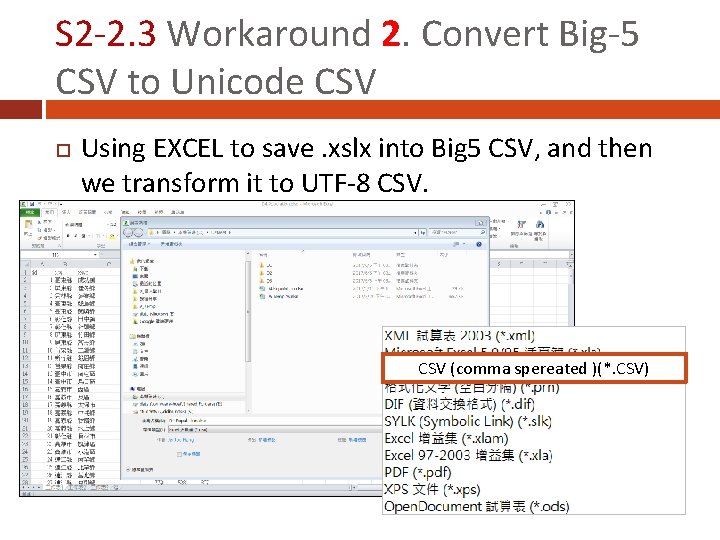
S 2 -1 Save xslx to the CSV Save Excel files to CSV file. CSV (comma spereated )(*. CSV) It should be simple, but it isn't. The problem is: the CSV file saved by MS EXCEL is only in "BIG-5" encoding, which is not acceptable by postgre. SQL CSV import function.
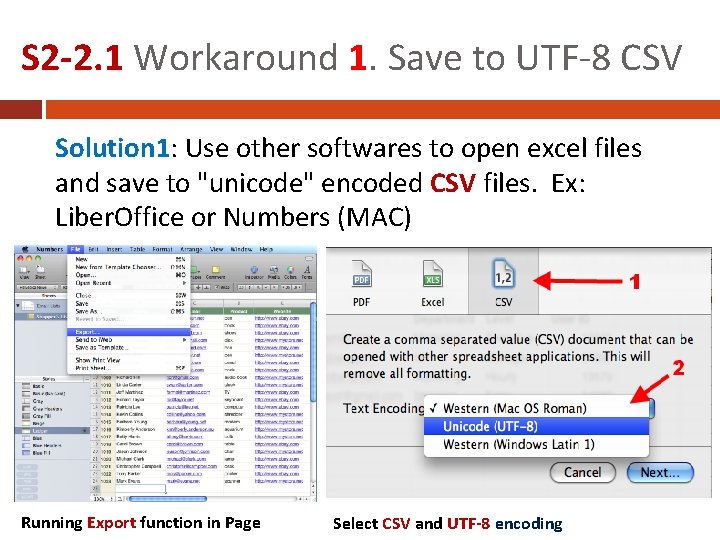
S 2 -2. 1 Workaround 1. Save to UTF-8 CSV Solution 1: Use other softwares to open excel files and save to "unicode" encoded CSV files. Ex: Liber. Office or Numbers (MAC) Running Export function in Page Select CSV and UTF-8 encoding
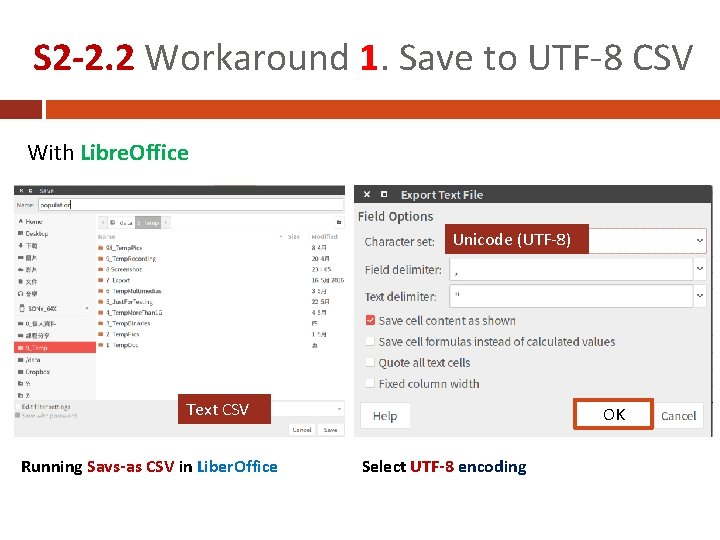
S 2 -2. 2 Workaround 1. Save to UTF-8 CSV With Libre. Office Unicode (UTF-8) Text CSV Running Savs-as CSV in Liber. Office OK Select UTF-8 encoding
S 2 -2. 3 Workaround 2. Convert Big-5 CSV to Unicode CSV Using EXCEL to save. xslx into Big 5 CSV, and then we transform it to UTF-8 CSV (comma spereated )(*. CSV)
S 2 -2. 4 Workaround 2. Convert Big-5 CSV to Unicode CSV In Windows, open the big-5 CSV with notepad. exe, and save as "utf-8" Encoding: UTF-8 In MAC, use incov command to transform encoding > iconv -f BIG-5 -t UTF-8 {path_to_Big-5_CSV} > {path_of_UTF-8_CSV}
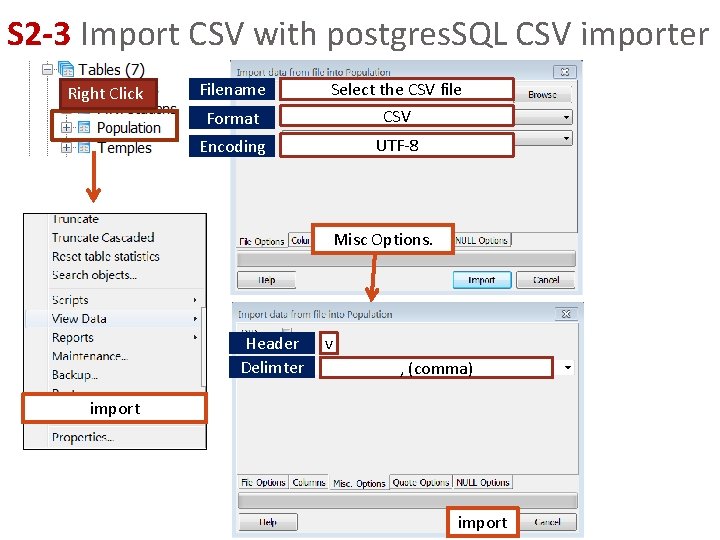
S 2 -3 Import CSV with postgres. SQL CSV importer Right Click Filename Format Select the CSV file CSV Encoding UTF-8 Misc Options. Header Delimter v , (comma) import
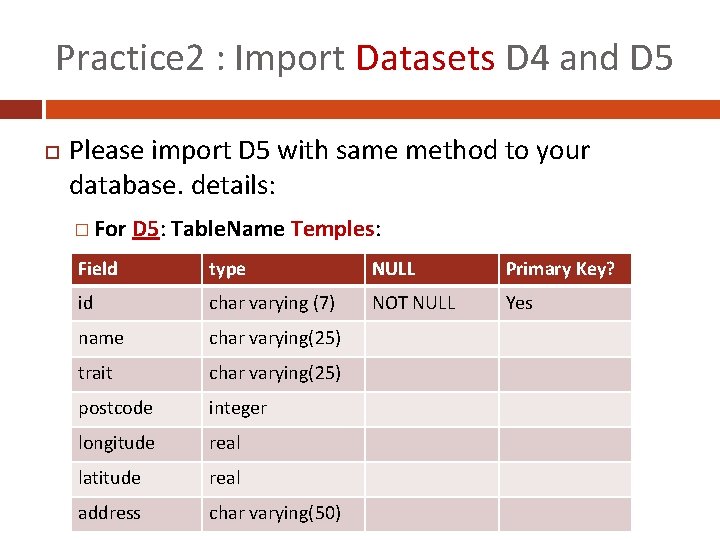
Practice 2 : Import Datasets D 4 and D 5 Please import D 5 with same method to your database. details: � For D 5: Table. Name Temples: Field type NULL Primary Key? id char varying (7) NOT NULL Yes name char varying(25) trait char varying(25) postcode integer longitude real latitude real address char varying(50)
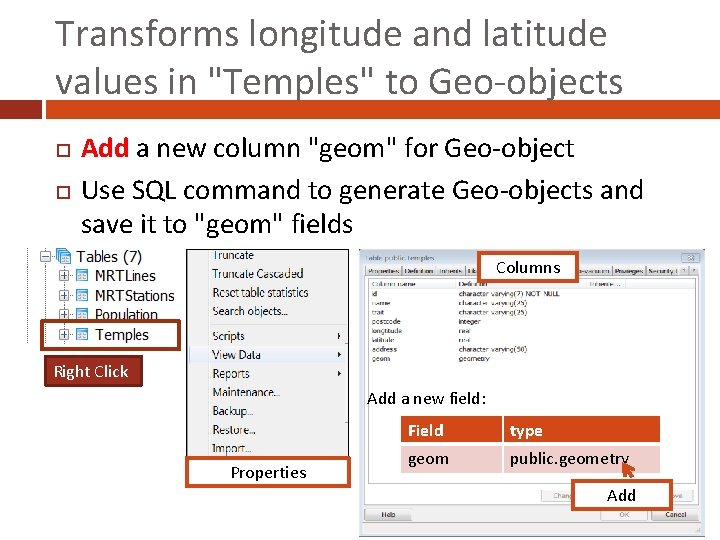
Transforms longitude and latitude values in "Temples" to Geo-objects Add a new column "geom" for Geo-object Use SQL command to generate Geo-objects and save it to "geom" fields Columns Right Click Add a new field: Properties Field type geom public. geometry Add
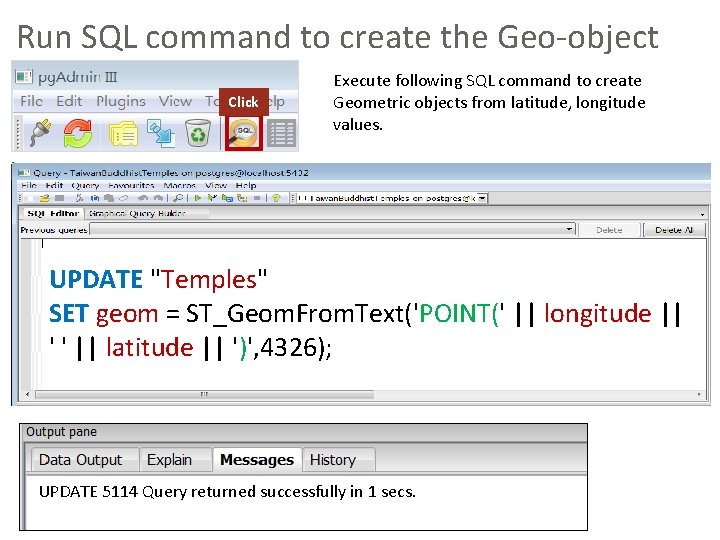
Run SQL command to create the Geo-object Click Execute following SQL command to create Geometric objects from latitude, longitude values. UPDATE "Temples" SET geom = ST_Geom. From. Text('POINT(' || longitude || ' ' || latitude || ')', 4326); UPDATE 5114 Query returned successfully in 1 secs.
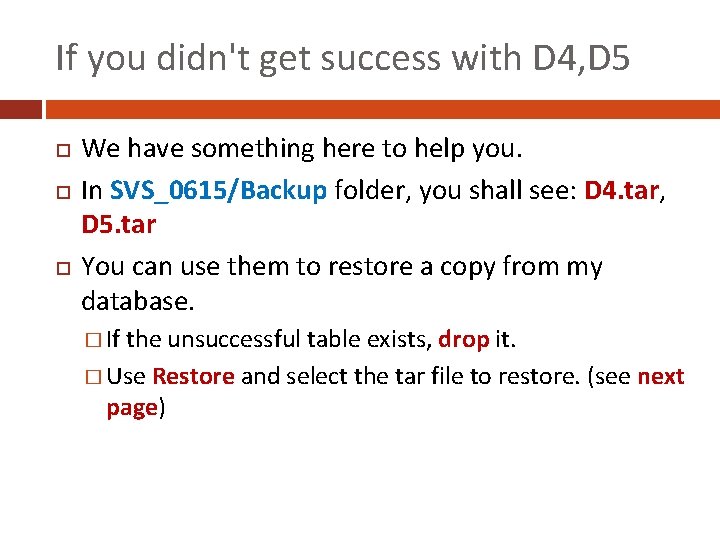
If you didn't get success with D 4, D 5 We have something here to help you. In SVS_0615/Backup folder, you shall see: D 4. tar, D 5. tar You can use them to restore a copy from my database. � If the unsuccessful table exists, drop it. � Use Restore and select the tar file to restore. (see next page)
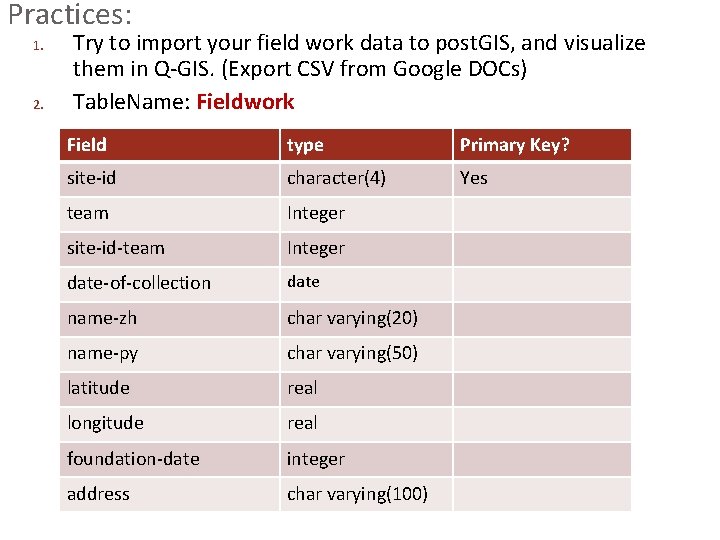
Practices: 1. 2. Try to import your field work data to post. GIS, and visualize them in Q-GIS. (Export CSV from Google DOCs) Table. Name: Fieldwork Field type Primary Key? site-id character(4) Yes team Integer site-id-team Integer date-of-collection date name-zh char varying(20) name-py char varying(50) latitude real longitude real foundation-date integer address char varying(100)
Part 4. Simple SQL
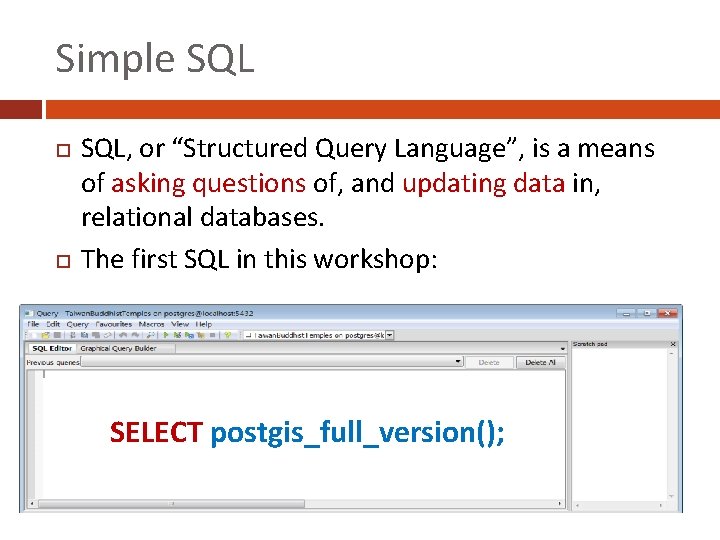
Simple SQL, or “Structured Query Language”, is a means of asking questions of, and updating data in, relational databases. The first SQL in this workshop: SELECT postgis_full_version();
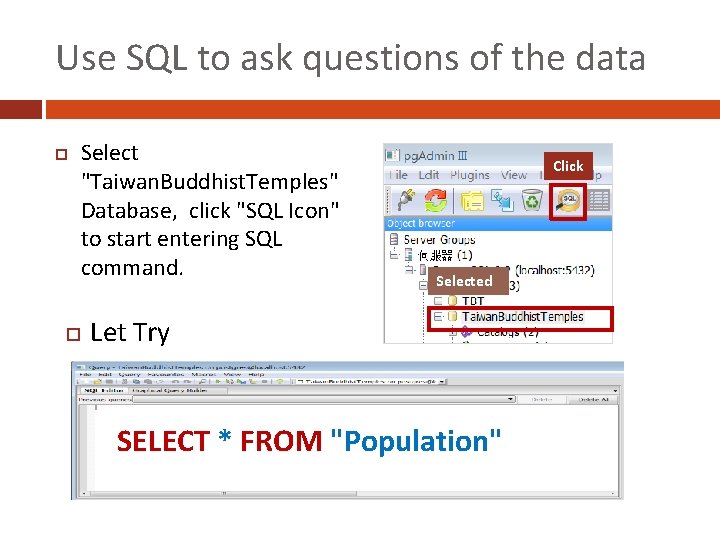
Use SQL to ask questions of the data Select "Taiwan. Buddhist. Temples" Database, click "SQL Icon" to start entering SQL command. Click Selected Let Try SELECT * FROM "Population"
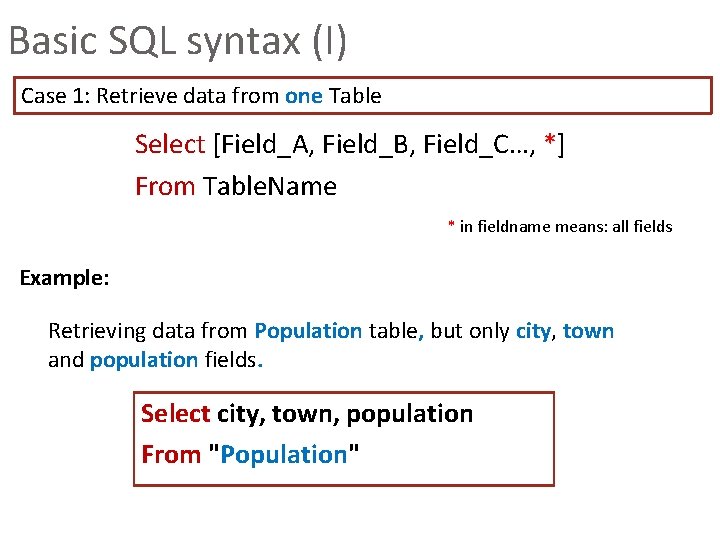
Basic SQL syntax (I) Case 1: Retrieve data from one Table Select [Field_A, Field_B, Field_C…, *] From Table. Name * in fieldname means: all fields Example: Retrieving data from Population table, but only city, town and population fields. Select city, town, population From "Population"
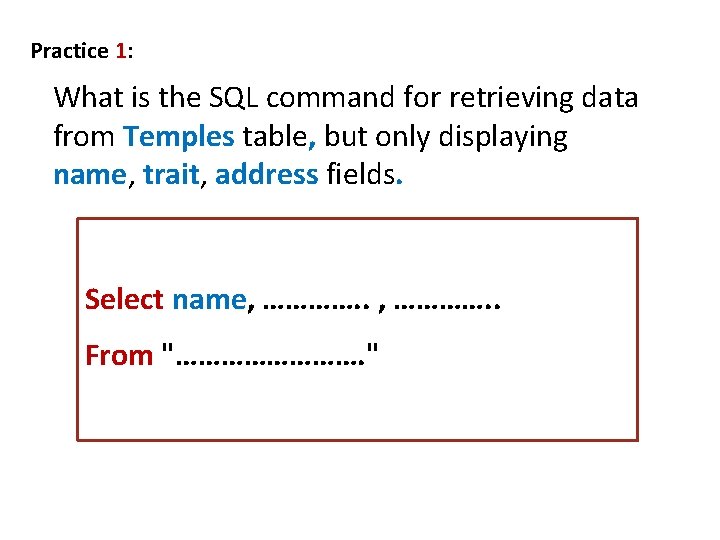
Practice 1: What is the SQL command for retrieving data from Temples table, but only displaying name, trait, address fields. Select name, …………. . From "…………. "
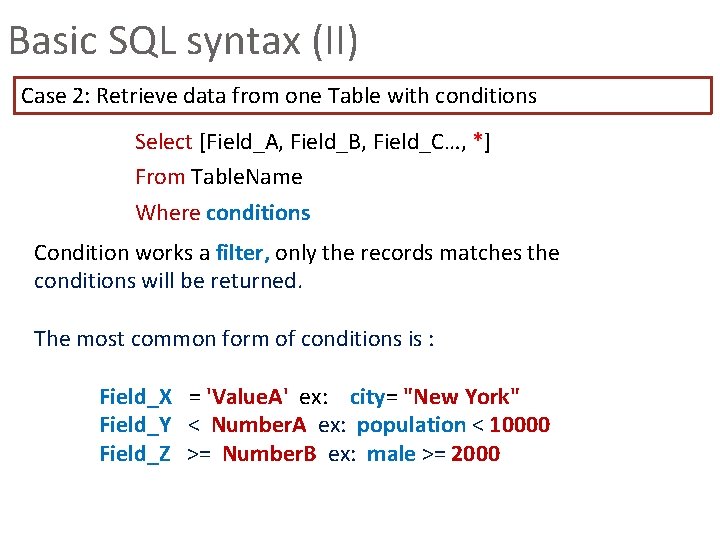
Basic SQL syntax (II) Case 2: Retrieve data from one Table with conditions Select [Field_A, Field_B, Field_C…, *] From Table. Name Where conditions Condition works a filter, only the records matches the conditions will be returned. The most common form of conditions is : Field_X = 'Value. A' ex: city= "New York" Field_Y < Number. A ex: population < 10000 Field_Z >= Number. B ex: male >= 2000
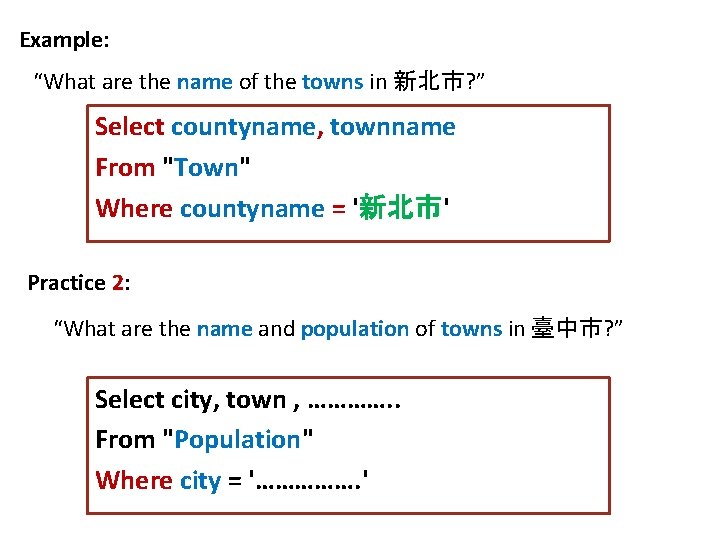
Example: “What are the name of the towns in 新北市? ” Select countyname, townname From "Town" Where countyname = '新北市' Practice 2: “What are the name and population of towns in 臺中市? ” Select city, town , …………. . From "Population" Where city = '……………. '
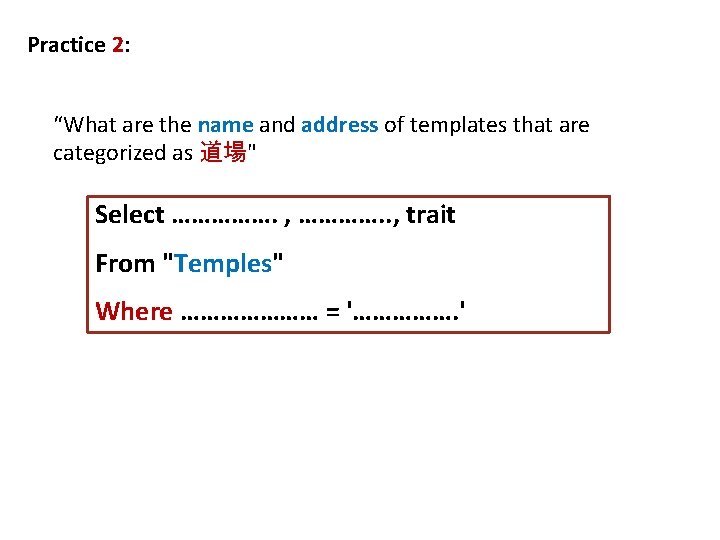
Practice 2: “What are the name and address of templates that are categorized as 道場" Select ……………. , …………. . , trait From "Temples" Where ………………… = '……………. '
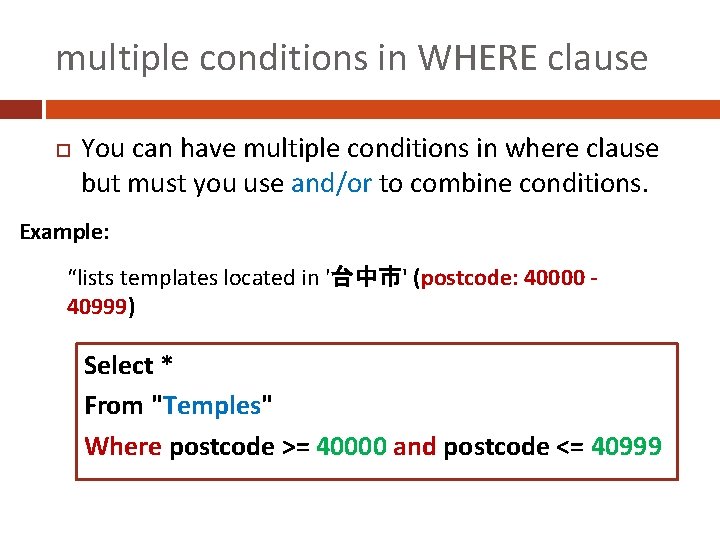
multiple conditions in WHERE clause You can have multiple conditions in where clause but must you use and/or to combine conditions. Example: “lists templates located in '台中市' (postcode: 40000 40999) Select * From "Temples" Where postcode >= 40000 and postcode <= 40999
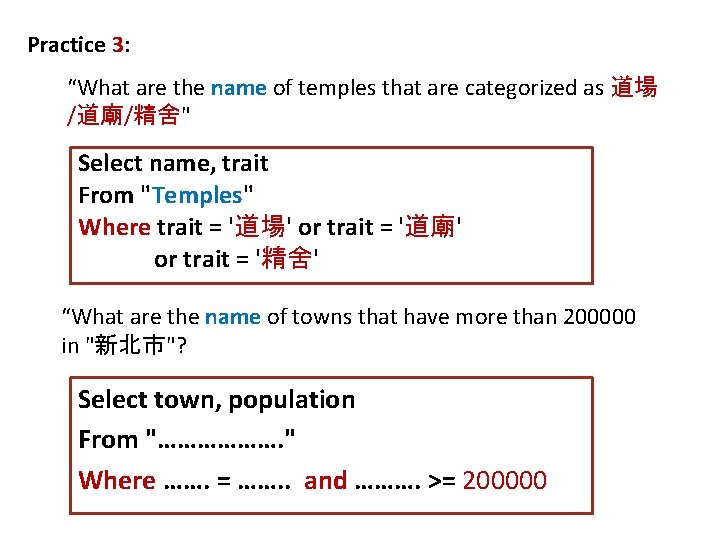
Practice 3: “What are the name of temples that are categorized as 道場 /道廟/精舍" Select name, trait From "Temples" Where trait = '道場' or trait = '道廟' or trait = '精舍' “What are the name of towns that have more than 200000 in "新北市"? Select town, population From "………………. " Where ……. = ……. . and ………. >= 200000
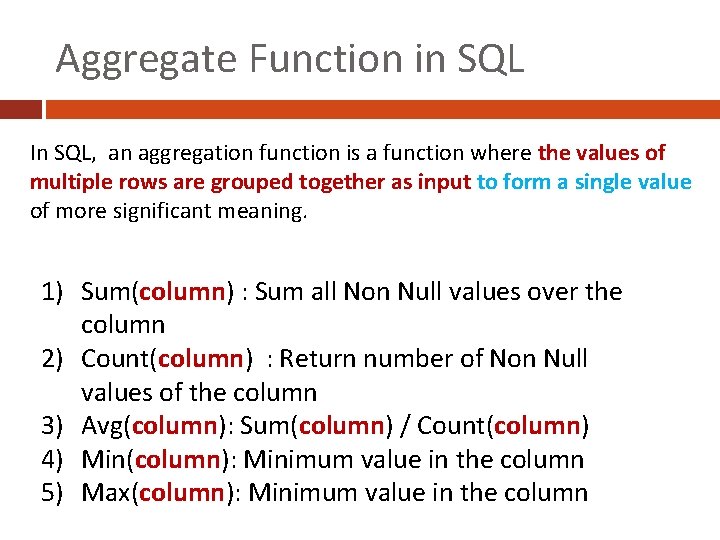
Aggregate Function in SQL In SQL, an aggregation function is a function where the values of multiple rows are grouped together as input to form a single value of more significant meaning. 1) Sum(column) : Sum all Non Null values over the column 2) Count(column) : Return number of Non Null values of the column 3) Avg(column): Sum(column) / Count(column) 4) Min(column): Minimum value in the column 5) Max(column): Minimum value in the column
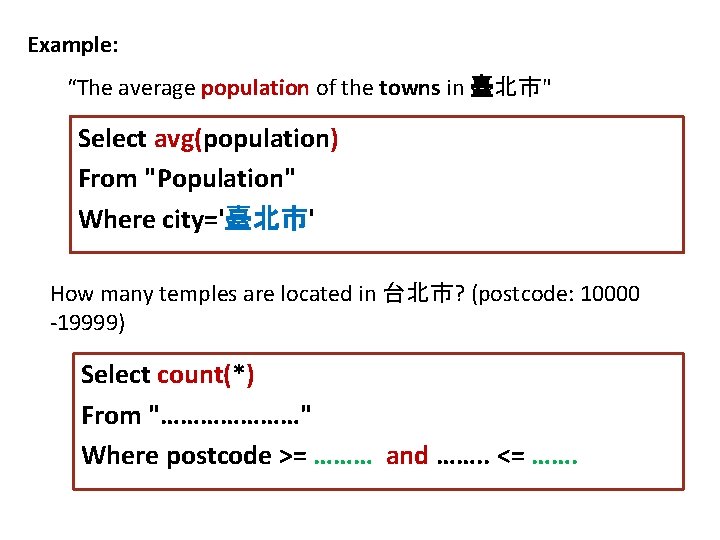
Example: “The average population of the towns in 臺北市" Select avg(population) From "Population" Where city='臺北市' How many temples are located in 台北市? (postcode: 10000 -19999) Select count(*) From "…………………" Where postcode >= ……… and ……. . <= …….
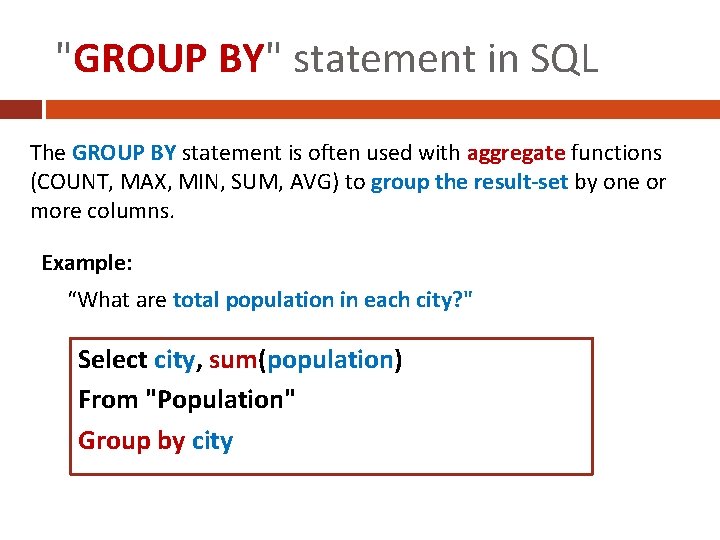
"GROUP BY" statement in SQL The GROUP BY statement is often used with aggregate functions (COUNT, MAX, MIN, SUM, AVG) to group the result-set by one or more columns. Example: “What are total population in each city? " Select city, sum(population) From "Population" Group by city
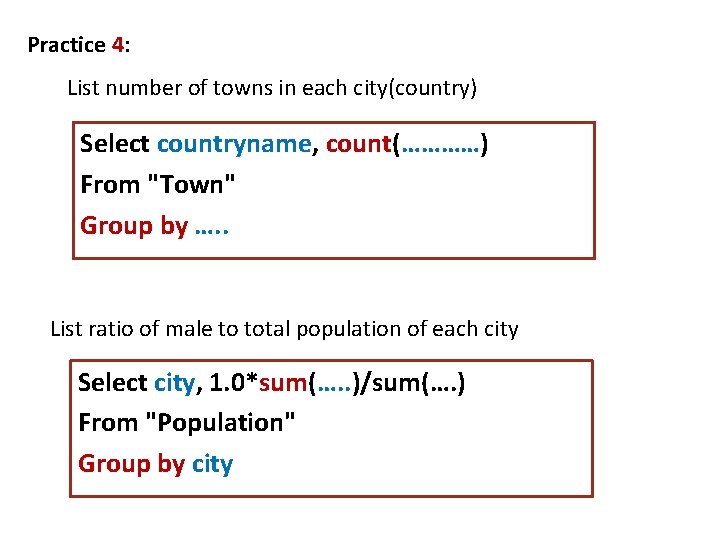
Practice 4: List number of towns in each city(country) Select countryname, count(…………) From "Town" Group by …. . List ratio of male to total population of each city Select city, 1. 0*sum(…. . )/sum(…. ) From "Population" Group by city
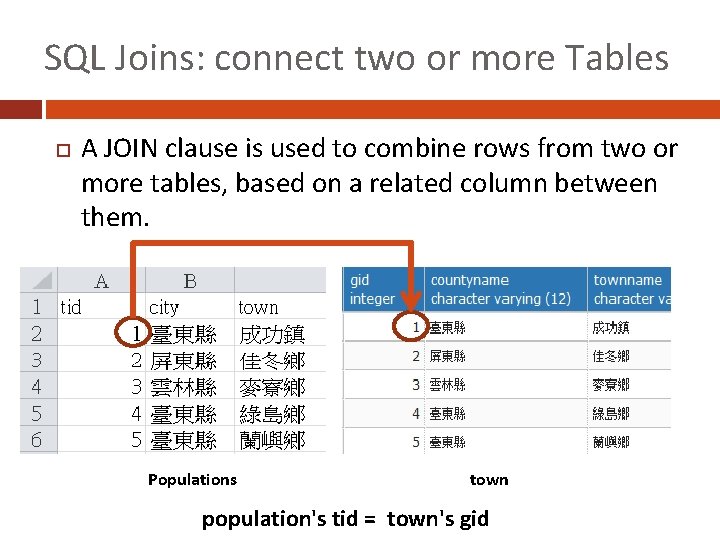
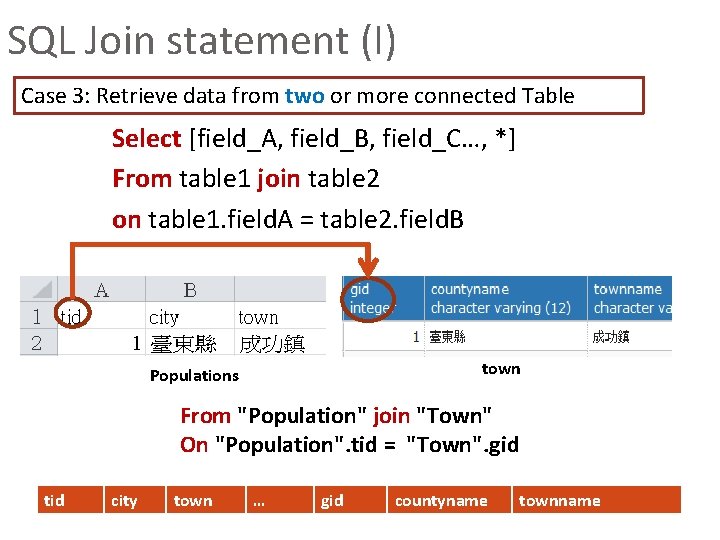
SQL Joins: connect two or more Tables A JOIN clause is used to combine rows from two or more tables, based on a related column between them. Populations town population's tid = town's gid
SQL Join statement (I) Case 3: Retrieve data from two or more connected Table Select [field_A, field_B, field_C…, *] From table 1 join table 2 on table 1. field. A = table 2. field. B town Populations From "Population" join "Town" On "Population". tid = "Town". gid tid city town … gid countyname townname
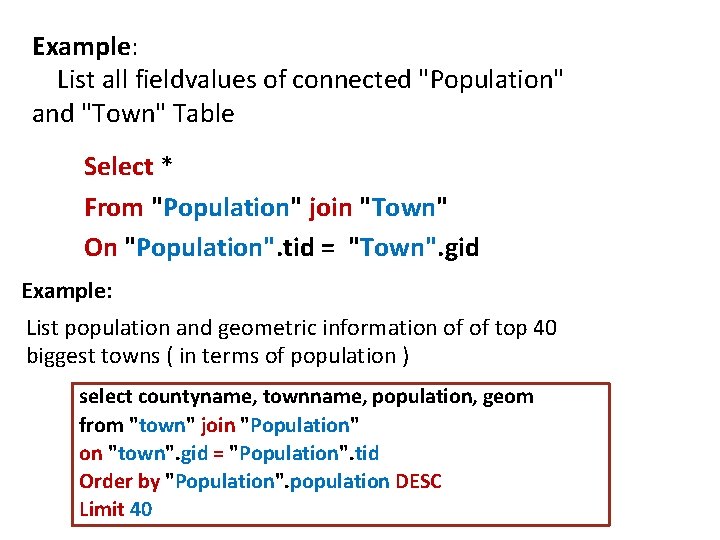
Example: List all fieldvalues of connected "Population" and "Town" Table Select * From "Population" join "Town" On "Population". tid = "Town". gid Example: List population and geometric information of of top 40 biggest towns ( in terms of population ) select countyname, townname, population, geom from "town" join "Population" on "town". gid = "Population". tid Order by "Population". population DESC Limit 40
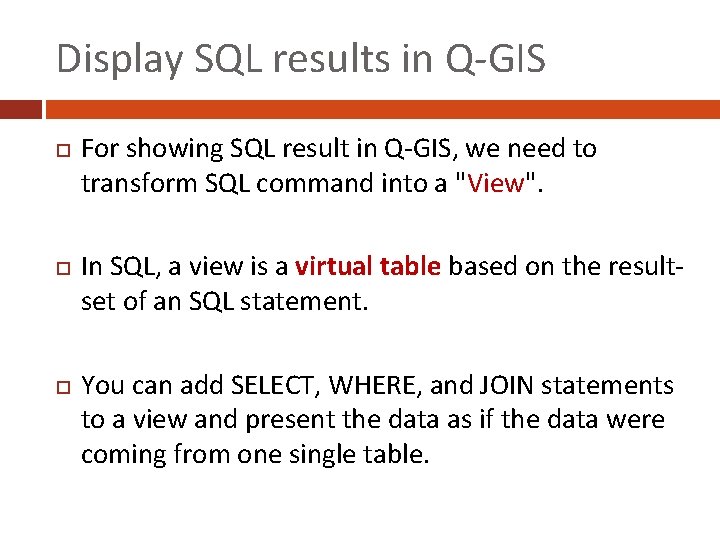
Display SQL results in Q-GIS For showing SQL result in Q-GIS, we need to transform SQL command into a "View". In SQL, a view is a virtual table based on the resultset of an SQL statement. You can add SELECT, WHERE, and JOIN statements to a view and present the data as if the data were coming from one single table.
Create a View [Townpopulation_top 40] It is very easy to create a view from a SQL command. Syntax: CREATE or REPLACE VIEW "name" AS query Example: CREATE or or REPLACE VIEW "Townpopulation_top 40" As select countyname, townname, population, geom from "town" join "Population" on "town". gid = "Population". tid Order by "Population". population DESC Limit 40
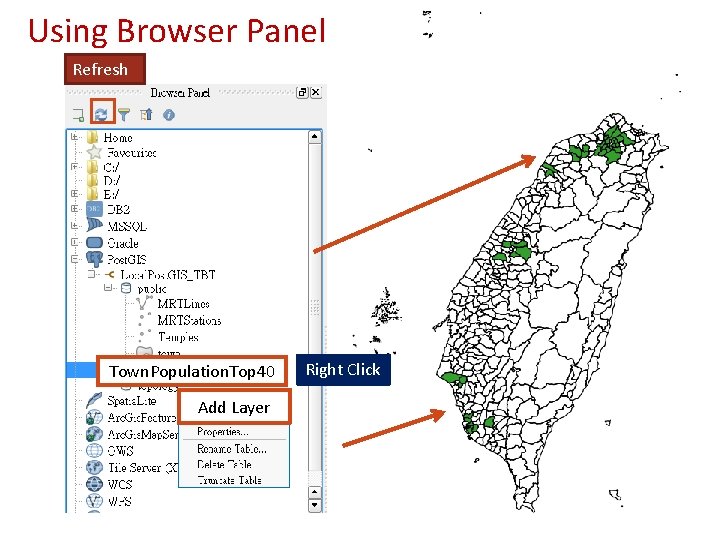
Using Browser Panel Refresh Town. Population. Top 40 Add Layer Right Click
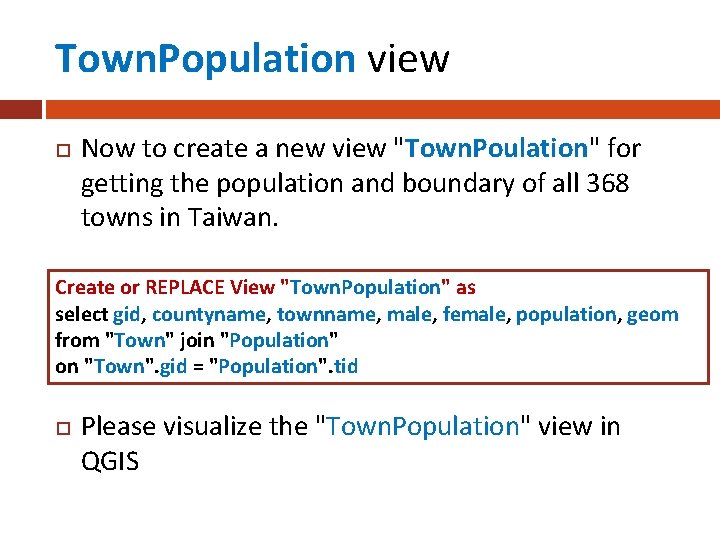
Town. Population view Now to create a new view "Town. Poulation" for getting the population and boundary of all 368 towns in Taiwan. Create or REPLACE View "Town. Population" as select gid, countyname, townname, male, female, population, geom from "Town" join "Population" on "Town". gid = "Population". tid Please visualize the "Town. Population" view in QGIS
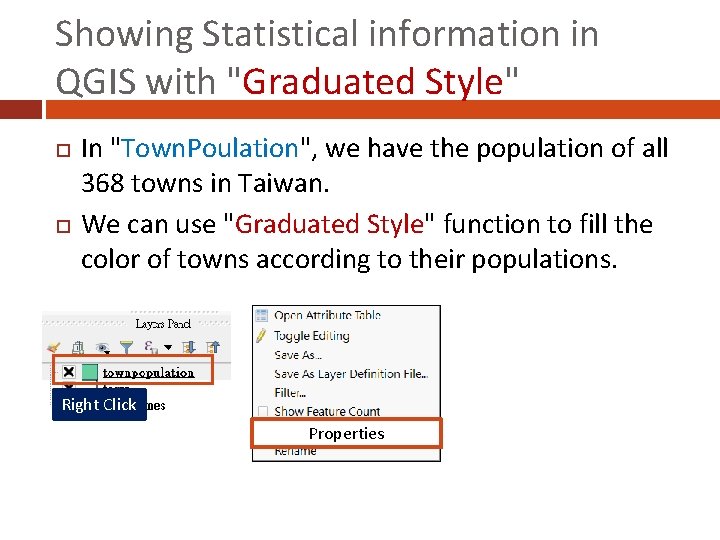
Showing Statistical information in QGIS with "Graduated Style" In "Town. Poulation", we have the population of all 368 towns in Taiwan. We can use "Graduated Style" function to fill the color of towns according to their populations. Right Click Properties
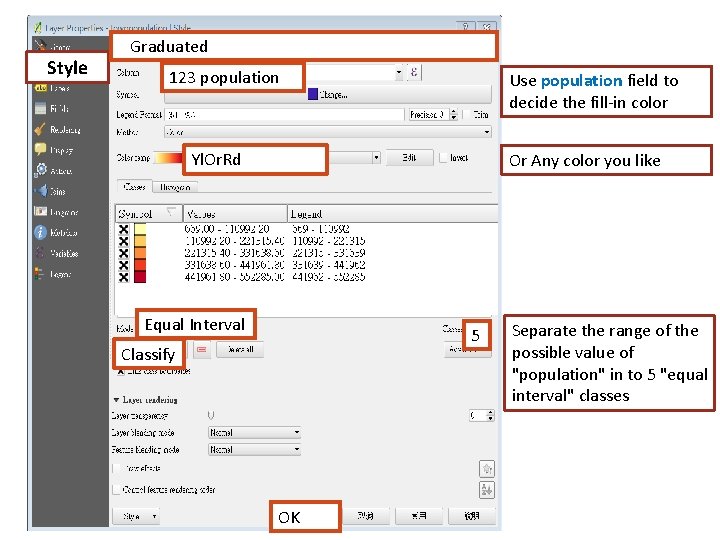
Style Graduated 123 population Use population field to decide the fill-in color Yl. Or. Rd Or Any color you like Equal Interval 5 Classify OK Separate the range of the possible value of "population" in to 5 "equal interval" classes
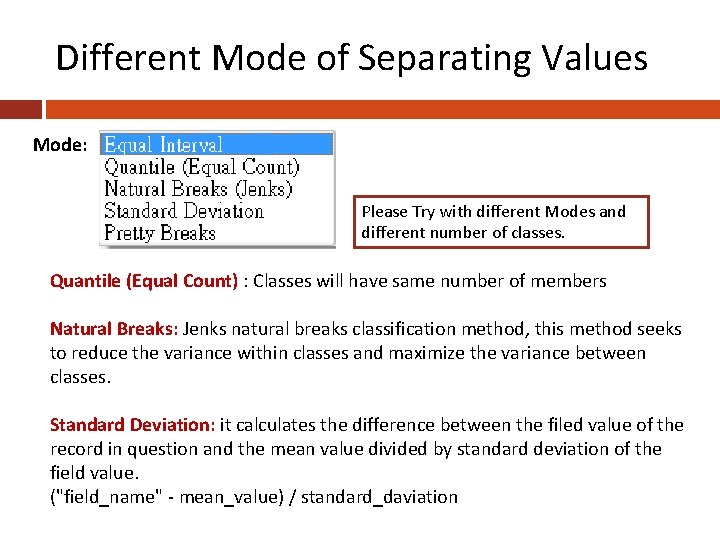
Different Mode of Separating Values Mode: Please Try with different Modes and different number of classes. Quantile (Equal Count) : Classes will have same number of members Natural Breaks: Jenks natural breaks classification method, this method seeks to reduce the variance within classes and maximize the variance between classes. Standard Deviation: it calculates the difference between the filed value of the record in question and the mean value divided by standard deviation of the field value. ("field_name" - mean_value) / standard_daviation
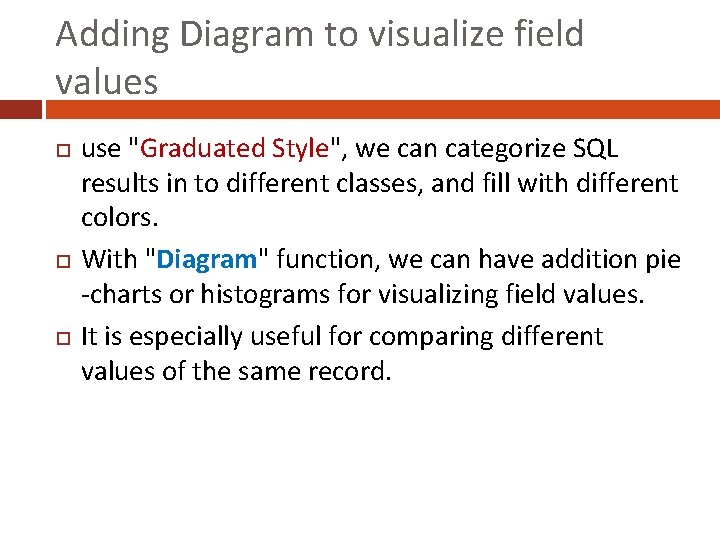
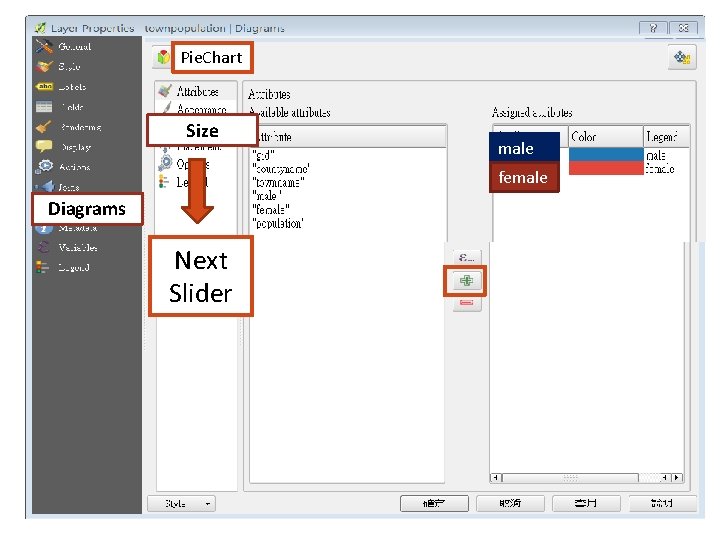
Adding Diagram to visualize field values use "Graduated Style", we can categorize SQL results in to different classes, and fill with different colors. With "Diagram" function, we can have addition pie -charts or histograms for visualizing field values. It is especially useful for comparing different values of the same record.
Pie. Chart Size male female Diagrams Next Slider
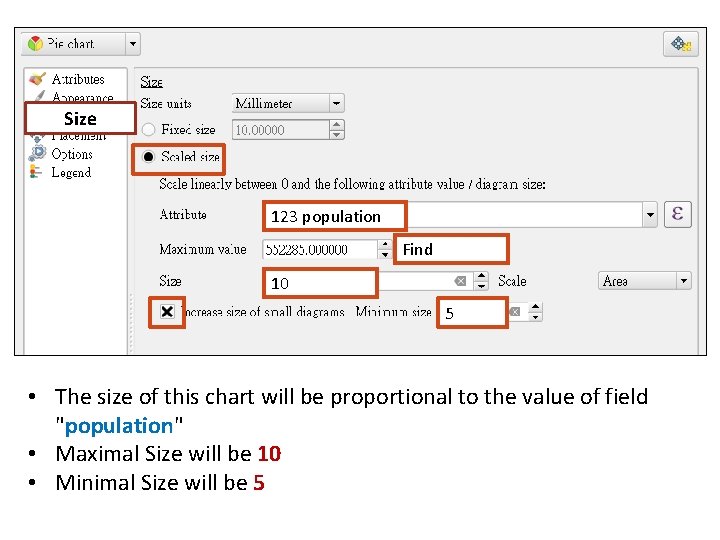
Size 123 population Find 10 5 • The size of this chart will be proportional to the value of field "population" • Maximal Size will be 10 • Minimal Size will be 5
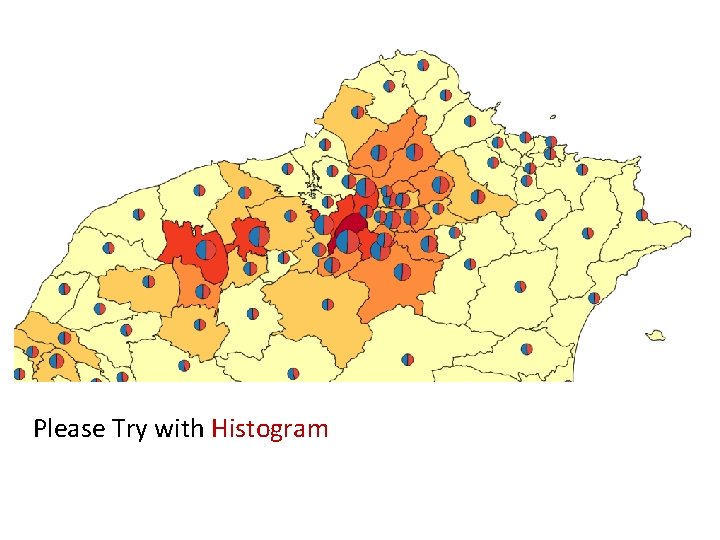
Please Try with Histogram
Part 5. Geometry and Spatial Relations
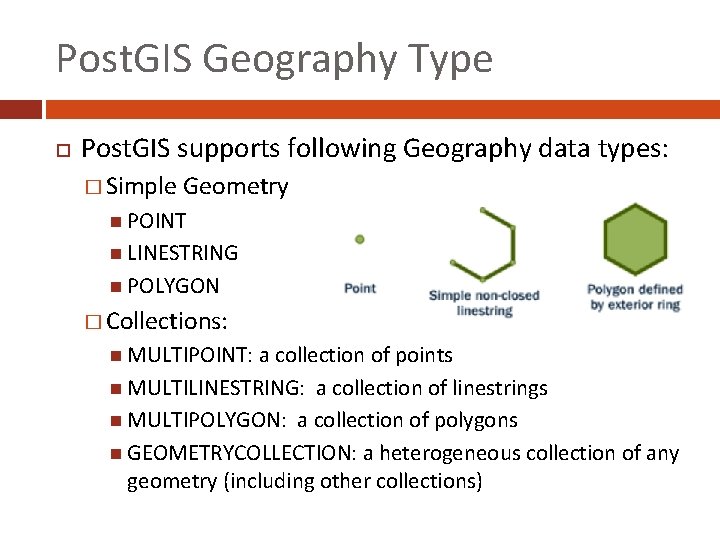
Post. GIS Geography Type Post. GIS supports following Geography data types: � Simple Geometry POINT LINESTRING POLYGON � Collections: MULTIPOINT: a collection of points MULTILINESTRING: a collection of linestrings MULTIPOLYGON: a collection of polygons GEOMETRYCOLLECTION: a heterogeneous collection of any geometry (including other collections)
Check general information about Geography data types The following threes functions can be used to retrieve some basic background information of a Geography data field: � ST_Geometry. Type(geometry) returns the type of the geometry � ST_NDims(geometry) returns the number of dimensions of the geometry � ST_SRID(geometry) returns the spatial reference identifier number of the geometry
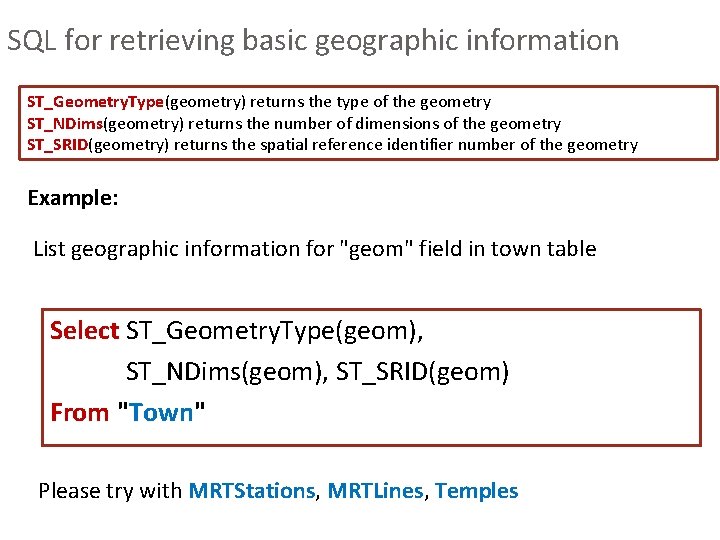
SQL for retrieving basic geographic information ST_Geometry. Type(geometry) returns the type of the geometry ST_NDims(geometry) returns the number of dimensions of the geometry ST_SRID(geometry) returns the spatial reference identifier number of the geometry Example: List geographic information for "geom" field in town table Select ST_Geometry. Type(geom), ST_NDims(geom), ST_SRID(geom) From "Town" Please try with MRTStations, MRTLines, Temples
Functions for Point Functions only for Point data type: � ST_X(geometry) returns the X ordinate � ST_Y(geometry) returns the Y ordinate � ST_As. Text(geometry) Returns the Well-Known Text (WKT) representation of the geometry/geography without SRID metadata.
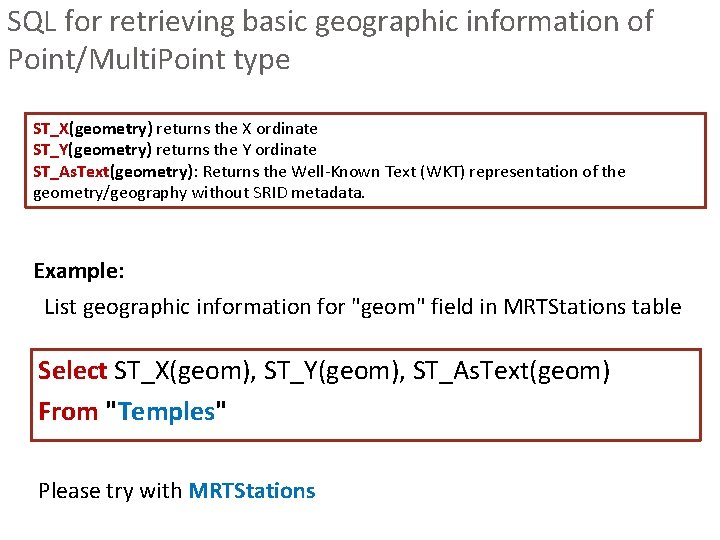
SQL for retrieving basic geographic information of Point/Multi. Point type ST_X(geometry) returns the X ordinate ST_Y(geometry) returns the Y ordinate ST_As. Text(geometry): Returns the Well-Known Text (WKT) representation of the geometry/geography without SRID metadata. Example: List geographic information for "geom" field in MRTStations table Select ST_X(geom), ST_Y(geom), ST_As. Text(geom) From "Temples" Please try with MRTStations
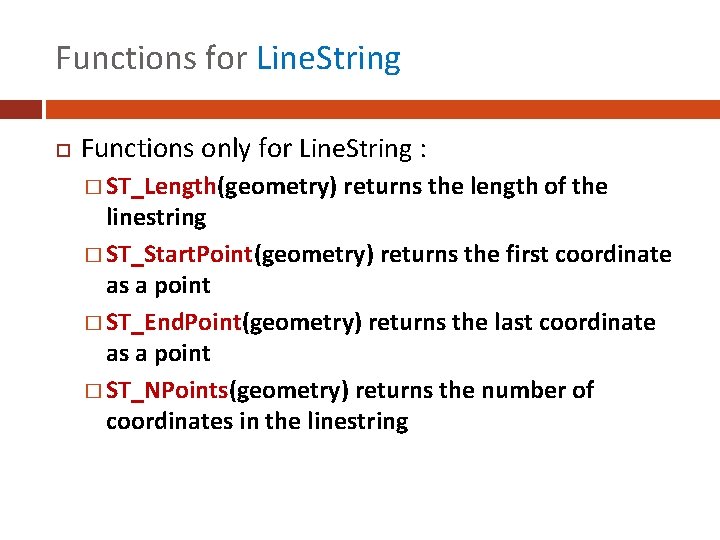
Functions for Line. String Functions only for Line. String : � ST_Length(geometry) returns the length of the linestring � ST_Start. Point(geometry) returns the first coordinate as a point � ST_End. Point(geometry) returns the last coordinate as a point � ST_NPoints(geometry) returns the number of coordinates in the linestring
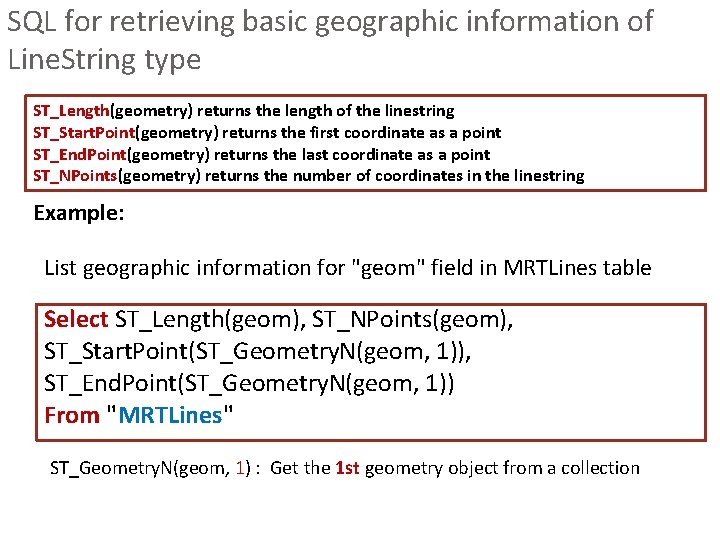
SQL for retrieving basic geographic information of Line. String type ST_Length(geometry) returns the length of the linestring ST_Start. Point(geometry) returns the first coordinate as a point ST_End. Point(geometry) returns the last coordinate as a point ST_NPoints(geometry) returns the number of coordinates in the linestring Example: List geographic information for "geom" field in MRTLines table Select ST_Length(geom), ST_NPoints(geom), ST_Start. Point(ST_Geometry. N(geom, 1)), ST_End. Point(ST_Geometry. N(geom, 1)) From "MRTLines" ST_Geometry. N(geom, 1) : Get the 1 st geometry object from a collection
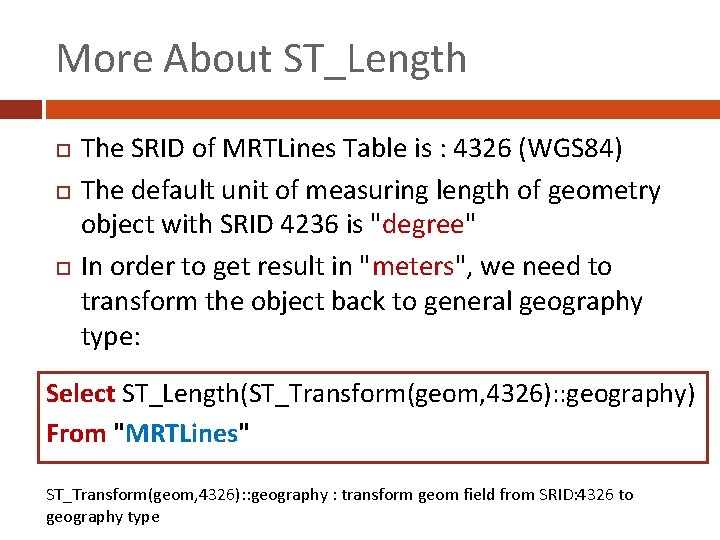
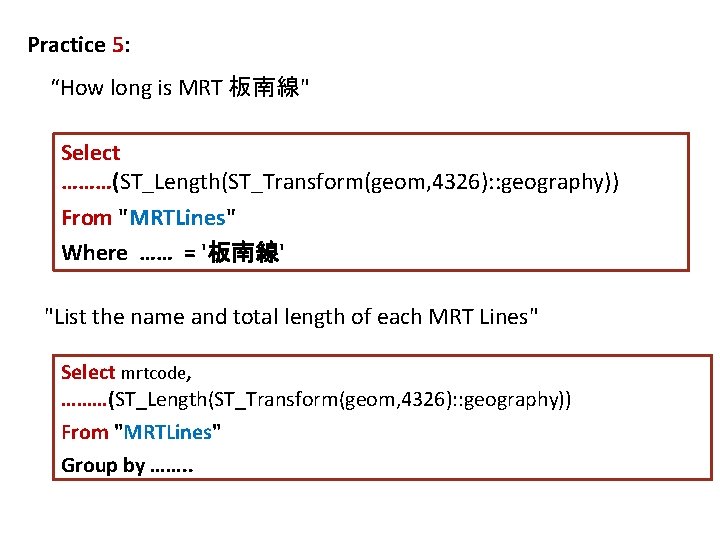
More About ST_Length The SRID of MRTLines Table is : 4326 (WGS 84) The default unit of measuring length of geometry object with SRID 4236 is "degree" In order to get result in "meters", we need to transform the object back to general geography type: Select ST_Length(ST_Transform(geom, 4326): : geography) From "MRTLines" ST_Transform(geom, 4326): : geography : transform geom field from SRID: 4326 to geography type
Practice 5: “How long is MRT 板南線" Select ………(ST_Length(ST_Transform(geom, 4326): : geography)) From "MRTLines" Where …… = '板南線' "List the name and total length of each MRT Lines" Select mrtcode, ………(ST_Length(ST_Transform(geom, 4326): : geography)) From "MRTLines" Group by ……. .
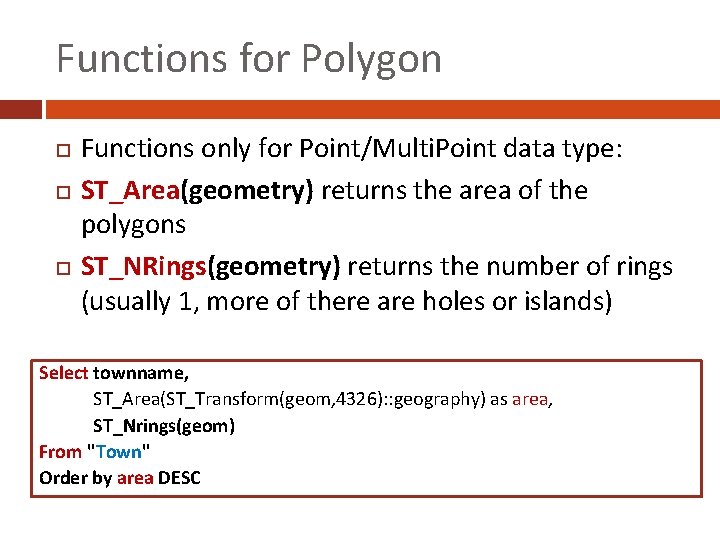
Functions for Polygon Functions only for Point/Multi. Point data type: ST_Area(geometry) returns the area of the polygons ST_NRings(geometry) returns the number of rings (usually 1, more of there are holes or islands) Select townname, ST_Area(ST_Transform(geom, 4326): : geography) as area, ST_Nrings(geom) From "Town" Order by area DESC
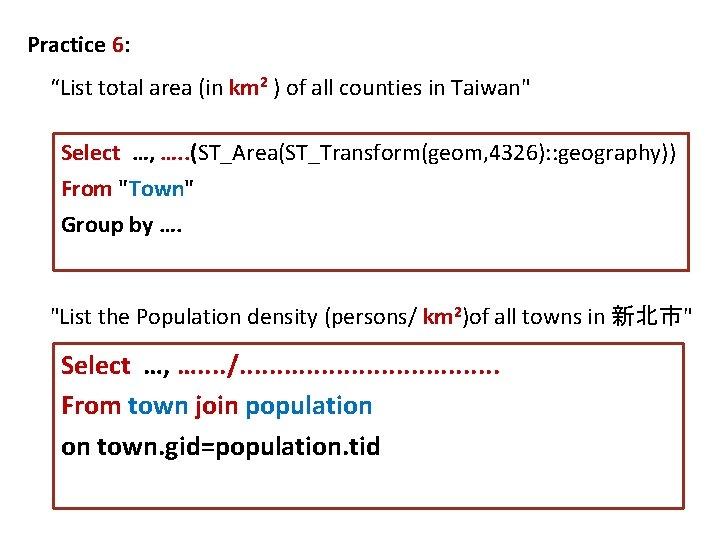
Practice 6: “List total area (in km 2 ) of all counties in Taiwan" Select …, …. . (ST_Area(ST_Transform(geom, 4326): : geography)) From "Town" Group by …. "List the Population density (persons/ km 2)of all towns in 新北市" Select …, …. . /. . . . . From town join population on town. gid=population. tid
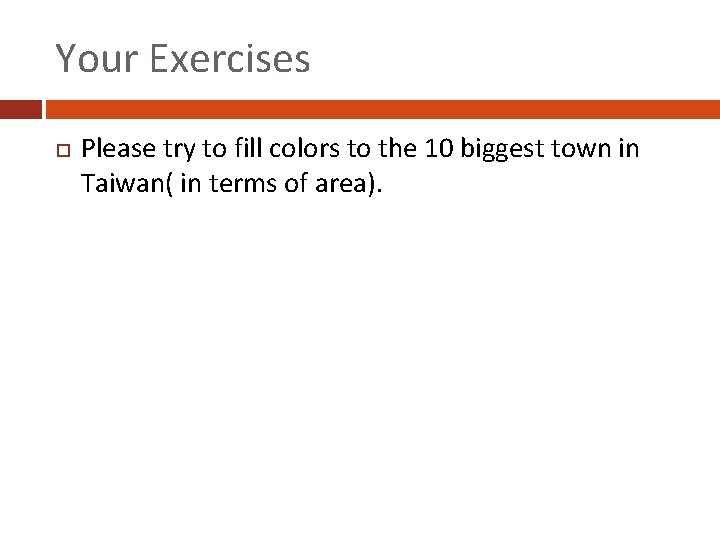
Your Exercises Please try to fill colors to the 10 biggest town in Taiwan( in terms of area).
Use of Spatial Relationships Spatial databases have the ability to compare relationships between geometries. Questions like “Which are the closest MRT Staions to a temple? ” or “How many people are live in the towns which has a least one MRT line going through. " This can only be answered by comparing geometries representing the MRT stations , MRT lines, and towns.
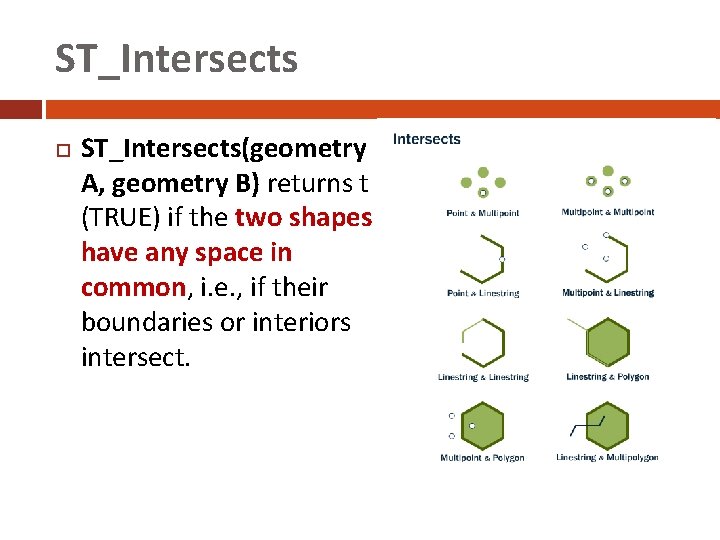
ST_Intersects ST_Intersects(geometry A, geometry B) returns t (TRUE) if the two shapes have any space in common, i. e. , if their boundaries or interiors intersect.
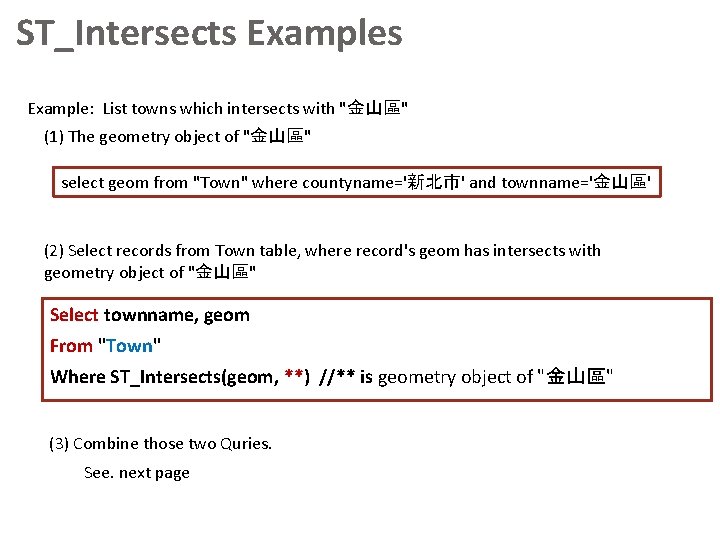
ST_Intersects Example: List towns which intersects with "金山區" (1) The geometry object of "金山區" select geom from "Town" where countyname='新北市' and townname='金山區' (2) Select records from Town table, where record's geom has intersects with geometry object of "金山區" Select townname, geom From "Town" Where ST_Intersects(geom, **) //** is geometry object of "金山區" (3) Combine those two Quries. See. next page
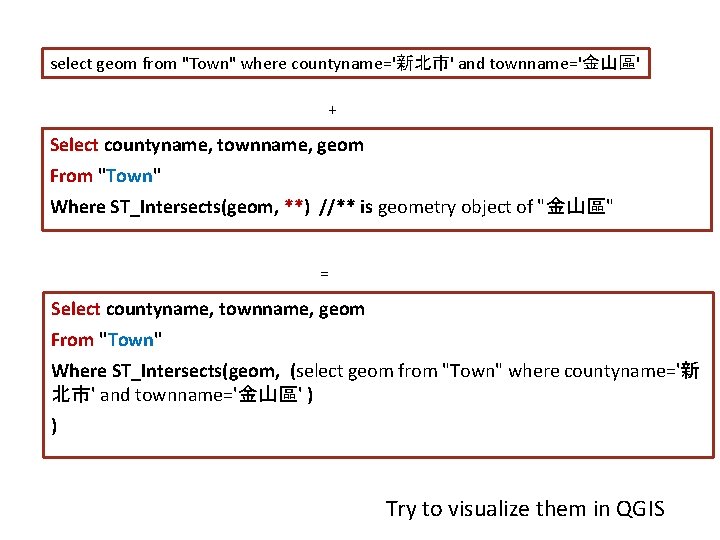
select geom from "Town" where countyname='新北市' and townname='金山區' + Select countyname, townname, geom From "Town" Where ST_Intersects(geom, **) //** is geometry object of "金山區" = Select countyname, townname, geom From "Town" Where ST_Intersects(geom, (select geom from "Town" where countyname='新 北市' and townname='金山區' ) ) Try to visualize them in QGIS
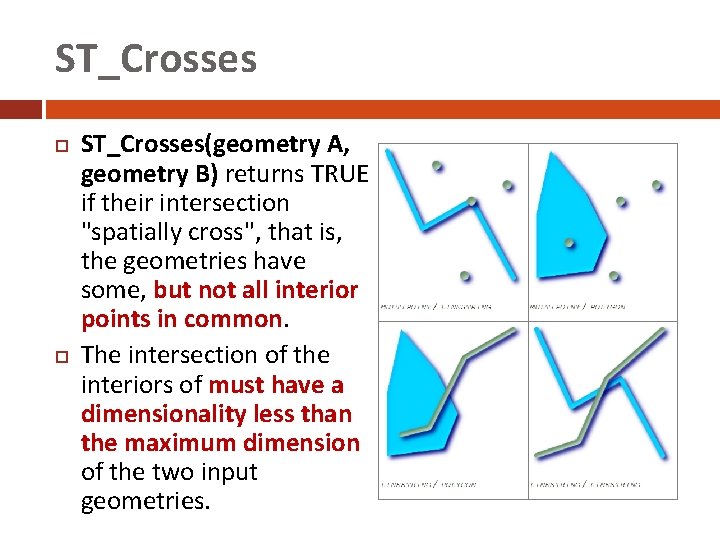
ST_Crosses ST_Crosses(geometry A, geometry B) returns TRUE if their intersection "spatially cross", that is, the geometries have some, but not all interior points in common. The intersection of the interiors of must have a dimensionality less than the maximum dimension of the two input geometries.
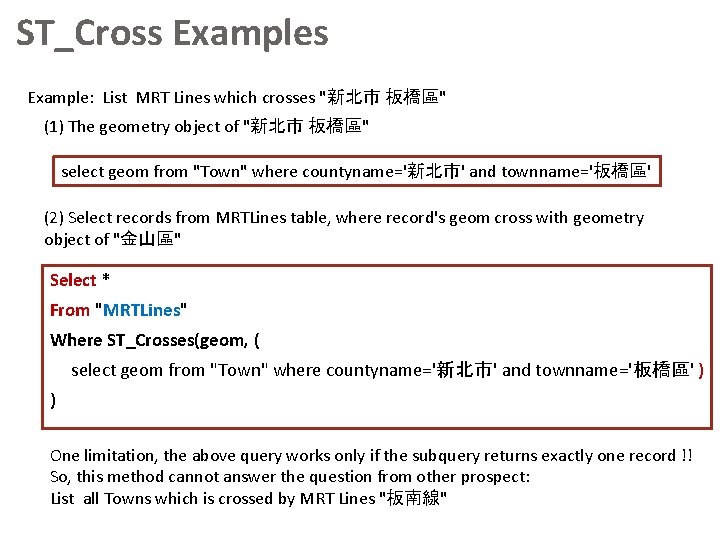
ST_Cross Example: List MRT Lines which crosses "新北市 板橋區" (1) The geometry object of "新北市 板橋區" select geom from "Town" where countyname='新北市' and townname='板橋區' (2) Select records from MRTLines table, where record's geom cross with geometry object of "金山區" Select * From "MRTLines" Where ST_Crosses(geom, ( select geom from "Town" where countyname='新北市' and townname='板橋區' ) ) One limitation, the above query works only if the subquery returns exactly one record !! So, this method cannot answer the question from other prospect: List all Towns which is crossed by MRT Lines "板南線"
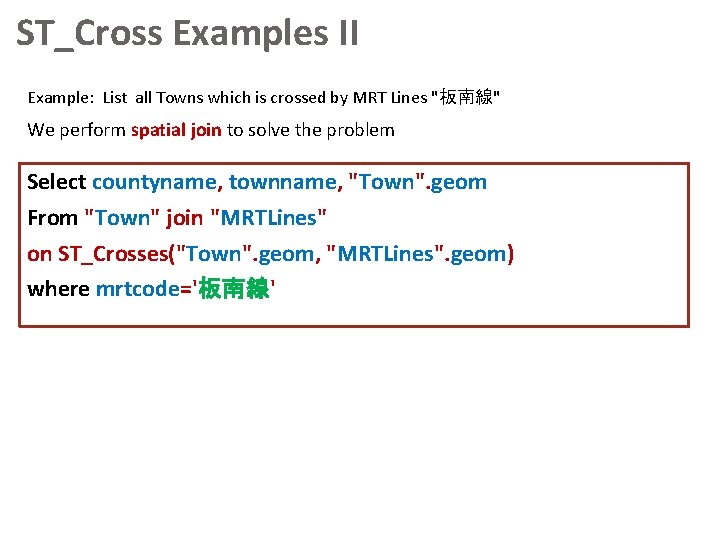
ST_Cross Examples II Example: List all Towns which is crossed by MRT Lines "板南線" We perform spatial join to solve the problem Select countyname, townname, "Town". geom From "Town" join "MRTLines" on ST_Crosses("Town". geom, "MRTLines". geom) where mrtcode='板南線'
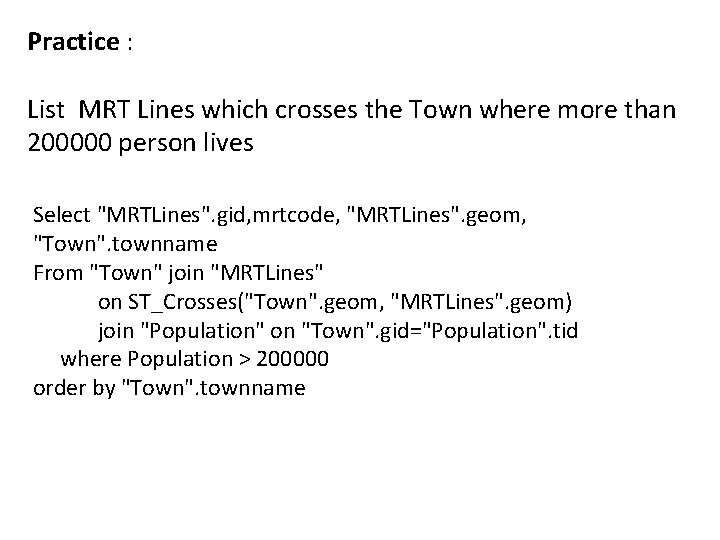
Practice : List MRT Lines which crosses the Town where more than 200000 person lives Select "MRTLines". gid, mrtcode, "MRTLines". geom, "Town". townname From "Town" join "MRTLines" on ST_Crosses("Town". geom, "MRTLines". geom) join "Population" on "Town". gid="Population". tid where Population > 200000 order by "Town". townname
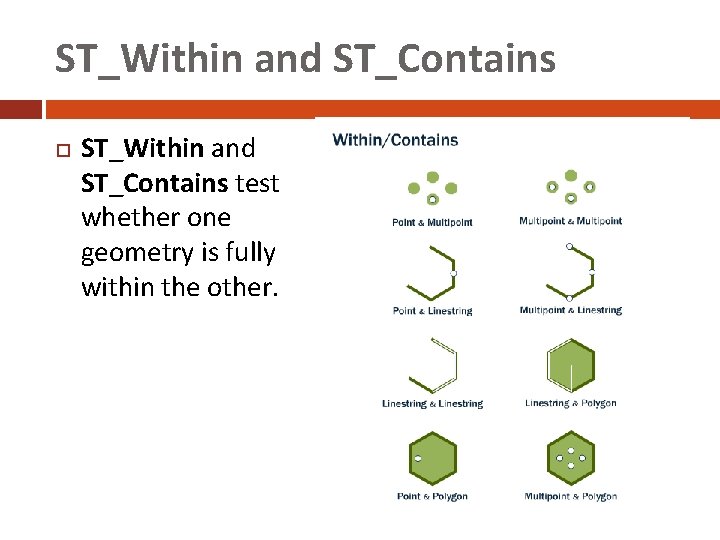
ST_Within and ST_Contains test whether one geometry is fully within the other.
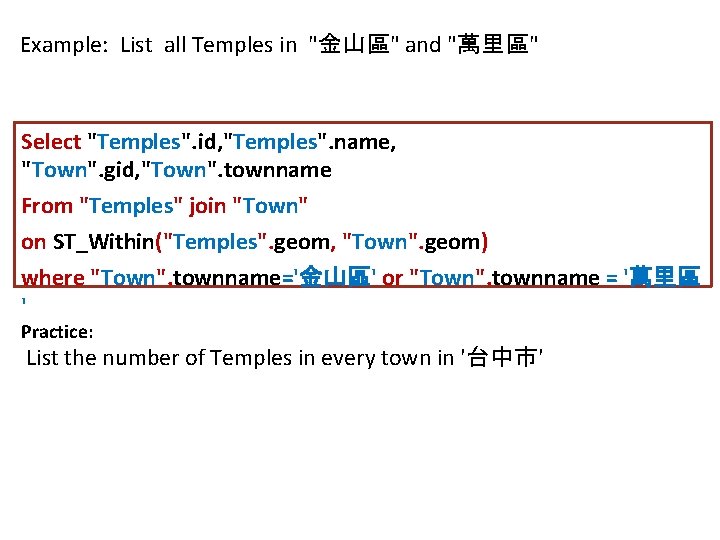
Example: List all Temples in "金山區" and "萬里區" Select "Temples". id, "Temples". name, "Town". gid, "Town". townname From "Temples" join "Town" on ST_Within("Temples". geom, "Town". geom) where "Town". townname='金山區' or "Town". townname = '萬里區 ' Practice: List the number of Temples in every town in '台中市'
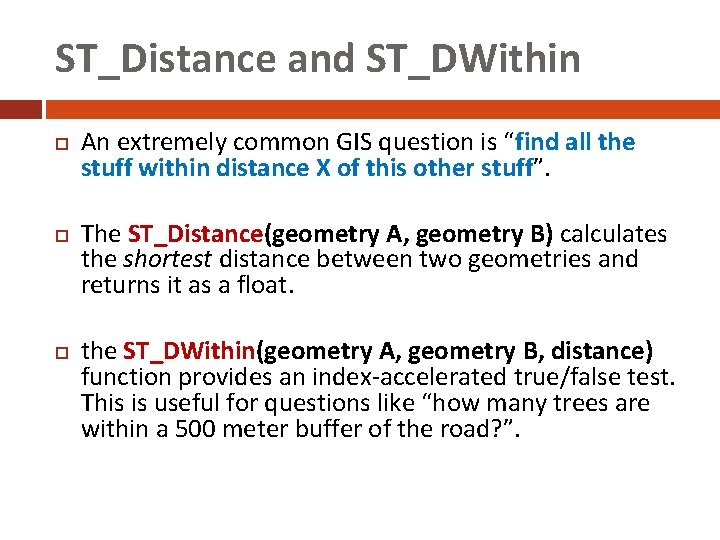
ST_Distance and ST_DWithin An extremely common GIS question is “find all the stuff within distance X of this other stuff”. The ST_Distance(geometry A, geometry B) calculates the shortest distance between two geometries and returns it as a float. the ST_DWithin(geometry A, geometry B, distance) function provides an index-accelerated true/false test. This is useful for questions like “how many trees are within a 500 meter buffer of the road? ”.
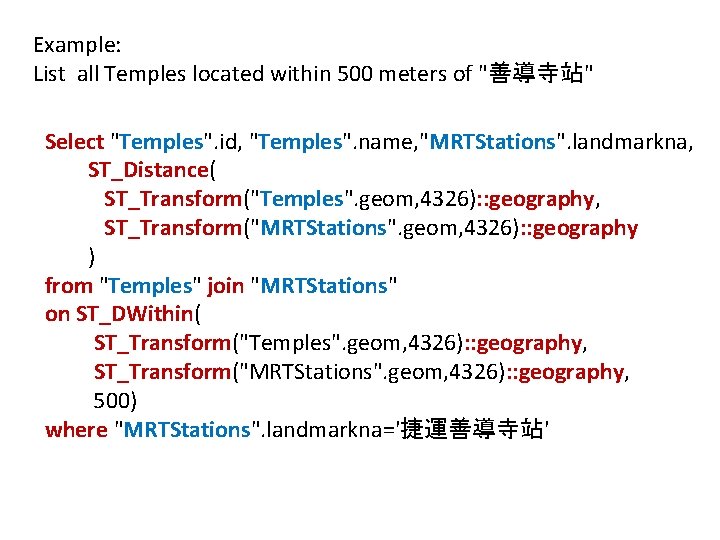
Example: List all Temples located within 500 meters of "善導寺站" Select "Temples". id, "Temples". name, "MRTStations". landmarkna, ST_Distance( ST_Transform("Temples". geom, 4326): : geography, ST_Transform("MRTStations". geom, 4326): : geography ) from "Temples" join "MRTStations" on ST_DWithin( ST_Transform("Temples". geom, 4326): : geography, ST_Transform("MRTStations". geom, 4326): : geography, 500) where "MRTStations". landmarkna='捷運善導寺站'
Practice: what is the nearest MRTStations (or exist) to the temple "金龍禪寺(d 114 A 20)" Hint: 1. use last example as template 2. if you want to join two tables without any field in common, use "cross join" instead of "join"