
Topic 1 System fundamentals 1 1 1 Identify
- Slides: 40
Topic 1 System fundamentals
1. 1. 1 Identify the context for which a new system is planned. • What is the problem that the new system is going to solve? • Alternative solutions • Staffing: numbers, training • Cost • Time • Compatibility with existing systems • Infrastructure requirements, e. g. existing network • Bespoke (custom-made) software versus off-the-shelf
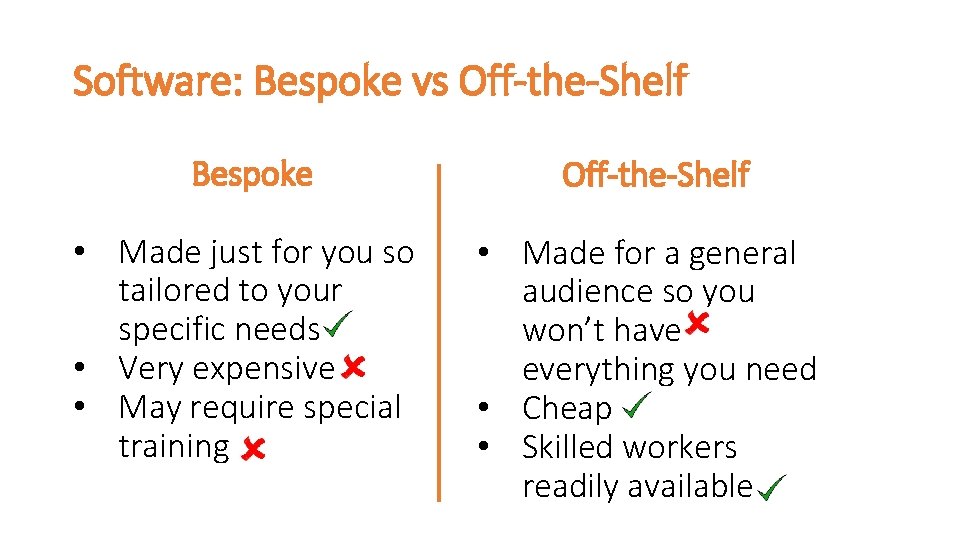
Software: Bespoke vs Off-the-Shelf Bespoke Off-the-Shelf • Made just for you so tailored to your specific needs • Very expensive • May require special training • Made for a general audience so you won’t have everything you need • Cheap • Skilled workers readily available
1. 1. 2 Describe the need for Change Management. • Communication of the need for and the benefits of change • Users may require training • Recruitment may be necessary to bring in suitable skillsets • Stakeholder support • Planning, milestones, completion date • Dependencies between project stages/components • Compatibility between old system and new system • Testing
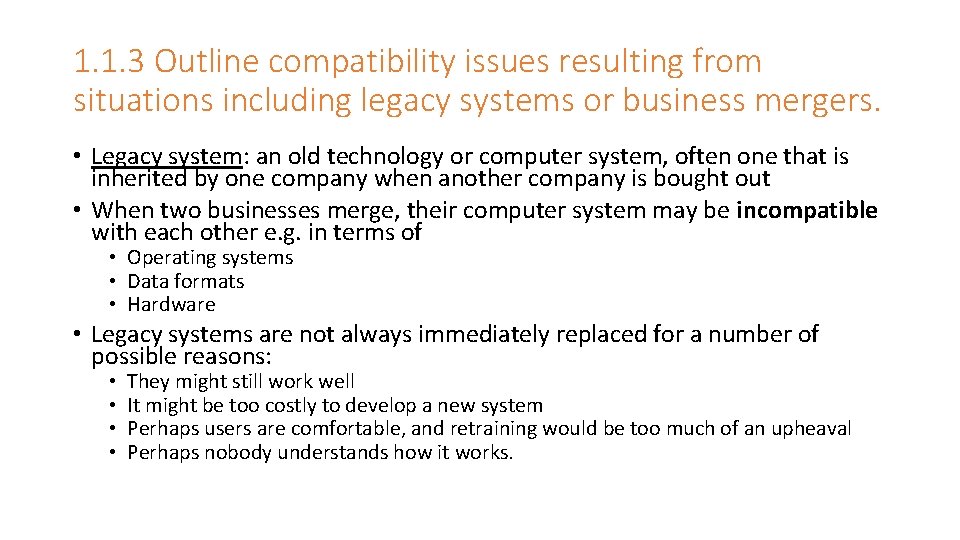
1. 1. 3 Outline compatibility issues resulting from situations including legacy systems or business mergers. • Legacy system: an old technology or computer system, often one that is inherited by one company when another company is bought out • When two businesses merge, their computer system may be incompatible with each other e. g. in terms of • Operating systems • Data formats • Hardware • Legacy systems are not always immediately replaced for a number of possible reasons: • • They might still work well It might be too costly to develop a new system Perhaps users are comfortable, and retraining would be too much of an upheaval Perhaps nobody understands how it works.
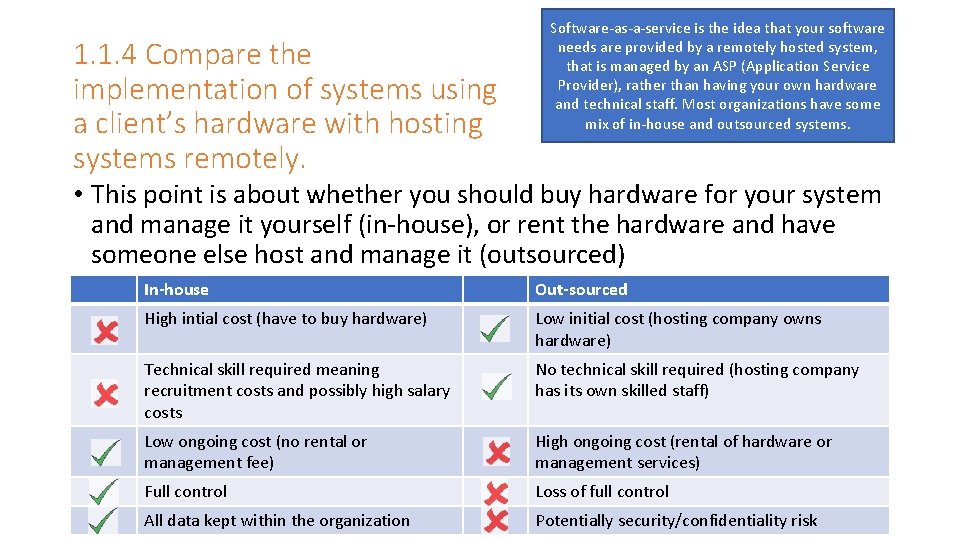
1. 1. 4 Compare the implementation of systems using a client’s hardware with hosting systems remotely. Software-as-a-service is the idea that your software needs are provided by a remotely hosted system, that is managed by an ASP (Application Service Provider), rather than having your own hardware and technical staff. Most organizations have some mix of in-house and outsourced systems. • This point is about whether you should buy hardware for your system and manage it yourself (in-house), or rent the hardware and have someone else host and manage it (outsourced) In-house Out-sourced High intial cost (have to buy hardware) Low initial cost (hosting company owns hardware) Technical skill required meaning recruitment costs and possibly high salary costs No technical skill required (hosting company has its own skilled staff) Low ongoing cost (no rental or management fee) High ongoing cost (rental of hardware or management services) Full control Loss of full control All data kept within the organization Potentially security/confidentiality risk
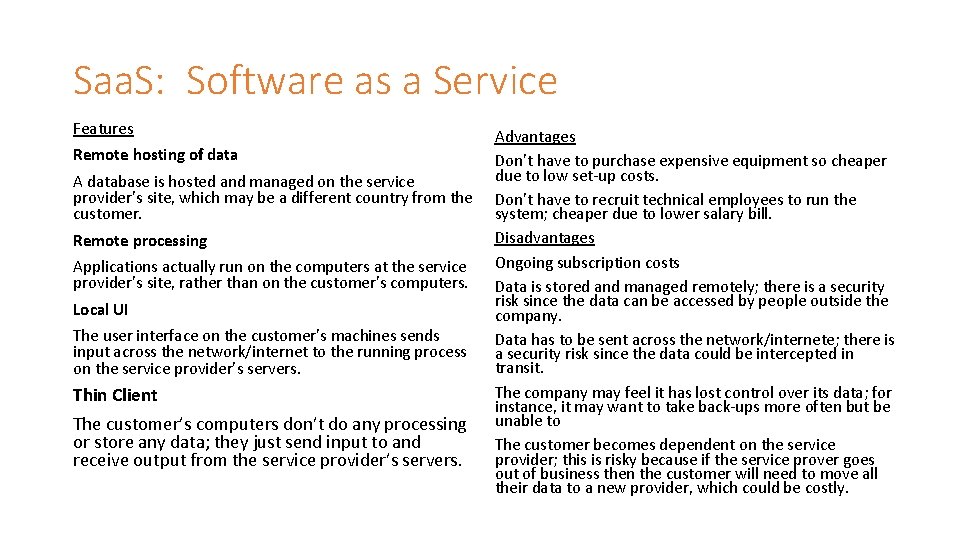
Saa. S: Software as a Service Features Remote hosting of data A database is hosted and managed on the service provider’s site, which may be a different country from the customer. Remote processing Applications actually run on the computers at the service provider’s site, rather than on the customer’s computers. Local UI The user interface on the customer’s machines sends input across the network/internet to the running process on the service provider’s servers. Thin Client The customer’s computers don’t do any processing or store any data; they just send input to and receive output from the service provider’s servers. Advantages Don’t have to purchase expensive equipment so cheaper due to low set-up costs. Don’t have to recruit technical employees to run the system; cheaper due to lower salary bill. Disadvantages Ongoing subscription costs Data is stored and managed remotely; there is a security risk since the data can be accessed by people outside the company. Data has to be sent across the network/internete; there is a security risk since the data could be intercepted in transit. The company may feel it has lost control over its data; for instance, it may want to take back-ups more often but be unable to The customer becomes dependent on the service provider; this is risky because if the service prover goes out of business then the customer will need to move all their data to a new provider, which could be costly.
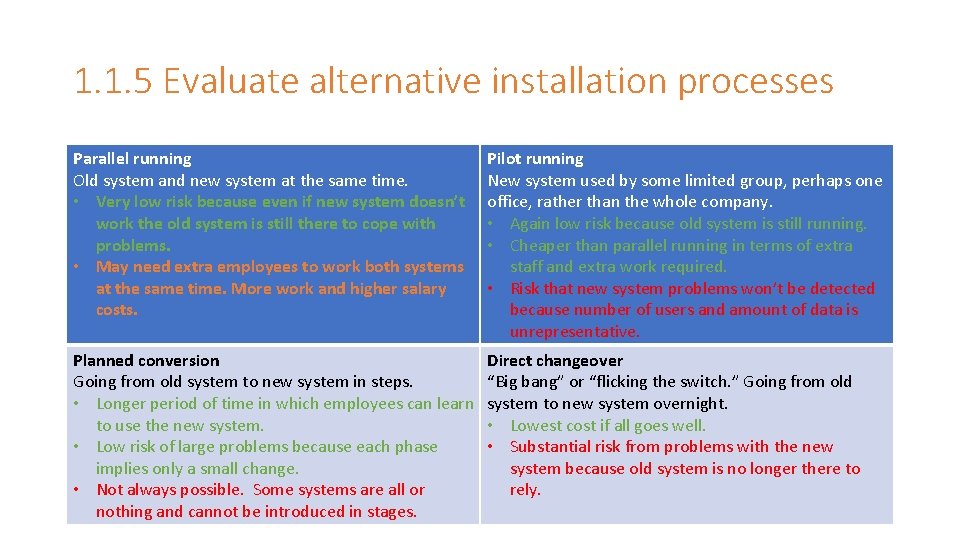
1. 1. 5 Evaluate alternative installation processes Parallel running Old system and new system at the same time. • Very low risk because even if new system doesn’t work the old system is still there to cope with problems. • May need extra employees to work both systems at the same time. More work and higher salary costs. Pilot running New system used by some limited group, perhaps one office, rather than the whole company. • Again low risk because old system is still running. • Cheaper than parallel running in terms of extra staff and extra work required. • Risk that new system problems won’t be detected because number of users and amount of data is unrepresentative. Planned conversion Going from old system to new system in steps. • Longer period of time in which employees can learn to use the new system. • Low risk of large problems because each phase implies only a small change. • Not always possible. Some systems are all or nothing and cannot be introduced in stages. Direct changeover “Big bang” or “flicking the switch. ” Going from old system to new system overnight. • Lowest cost if all goes well. • Substantial risk from problems with the new system because old system is no longer there to rely.
1. 1. 6 discuss problems that may arise as a part of data migration • Data migration is the process of moving data from one system to another, usually an older system to a newer one. • Issues that can arise (according to the guide) aare: • Incompatible file formats, data structures, validation rules • Incomplete data transfer • International conventions on dates, currencies and character sets • Data often has to undergo a conversion process before it can be loaded into the new system.
1. 1. 7 Suggest various types of testing. How important is testing? Implementation of a buggy system can lead to loss of productivity, customer dissatisfaction and can mean that users don’t want to use the system. This last problem can be very difficult to undo. Consider how important testing is for each of the implementation strategies in 1. 1. 5 These are not mutually exclusive alternatives. There is some crossover between them: • Debugging: Ongoing. Happens during development • Alpha testing: The first stage of testing, done by the programmers themselves; • Beta testing: Later testing, done by future users when the system is almost finalized. • White-box testing: Testing the system from the point of view of the programmer, with full knowledge of how it does what it does • Black-box testing: Testing what the system is supposed to do, from the point of view of the user, with no knowledge of how the program does what it does • Unit testing: Testing the modules or components of the system separately • System testing: Testing the system as a whole • Acceptance testing: The last testing phase once the system is delivered to the user and just before sign-off. • Automated testing: Using software to test software
Advantages and Disadvantages of Testing Types The problem with white-box testing is that because the testers know how the program works, they might subconsciously only give it input that they know will be valid. Since real users do black-box testing, their input is considered more genuine and realistic. On the other hand, white-box testers will be able to design their tests to cover all of the possible functions of the software, because they know how it works. Black-box testers may only test a small range of the software’s function because they don’t know what it can do. The advantage with unit testing is that testers can make sure that every component is tested and nothing is overlooked. With system testing, it’s less easy to make sure all components are tested. On the other hand, unit testing doesn’t test whether all components work together, even they work well separately. System testing is needed to make sure that there are no compatibility problems between components.
1. 1. 8 Describe the importance of user documentation • Non-technical as opposed to system documentation, which is aimed at IT professionals) • Contains friendly advice about installation, operation, troubleshooting • Graphical information like sample data and screens • One of the biggest difficulities with a new system is a userbase that is unwilling or unable to adopt the new system (old habits die hard) • Good user documentation can go a long way to making a new system successful by easing the transition
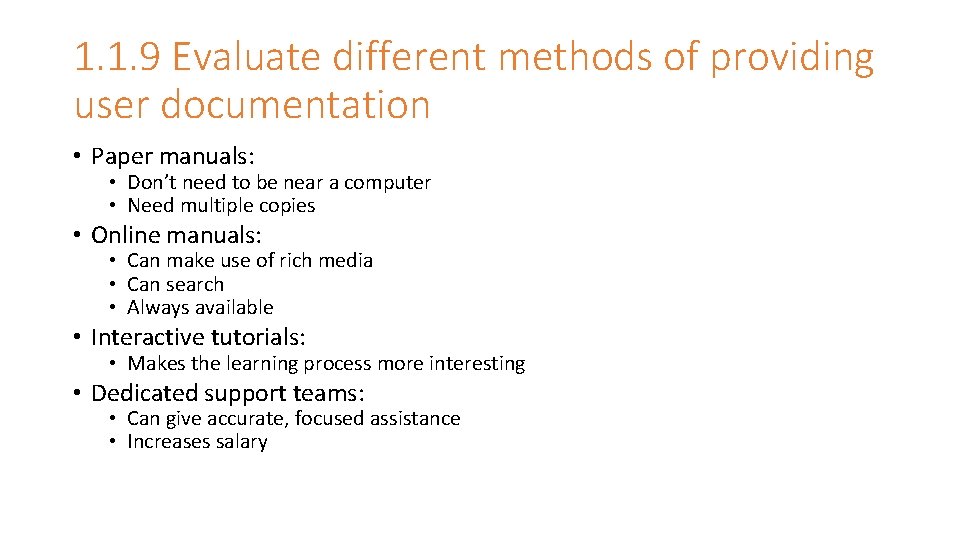
1. 1. 9 Evaluate different methods of providing user documentation • Paper manuals: • Don’t need to be near a computer • Need multiple copies • Online manuals: • Can make use of rich media • Can search • Always available • Interactive tutorials: • Makes the learning process more interesting • Dedicated support teams: • Can give accurate, focused assistance • Increases salary
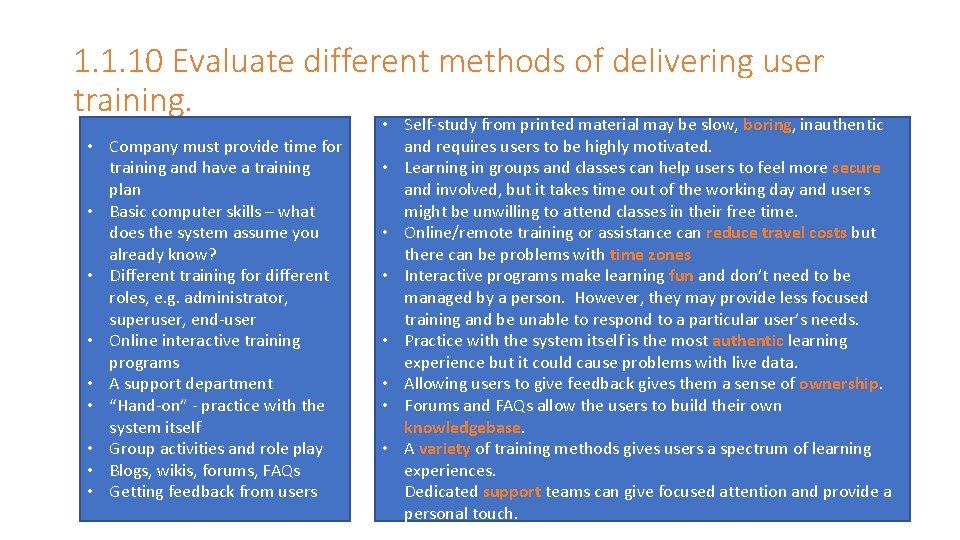
1. 1. 10 Evaluate different methods of delivering user training. • Company must provide time for training and have a training plan • Basic computer skills – what does the system assume you already know? • Different training for different roles, e. g. administrator, superuser, end-user • Online interactive training programs • A support department • “Hand-on” - practice with the system itself • Group activities and role play • Blogs, wikis, forums, FAQs • Getting feedback from users • Self-study from printed material may be slow, boring, inauthentic and requires users to be highly motivated. • Learning in groups and classes can help users to feel more secure and involved, but it takes time out of the working day and users might be unwilling to attend classes in their free time. • Online/remote training or assistance can reduce travel costs but there can be problems with time zones • Interactive programs make learning fun and don’t need to be managed by a person. However, they may provide less focused training and be unable to respond to a particular user’s needs. • Practice with the system itself is the most authentic learning experience but it could cause problems with live data. • Allowing users to give feedback gives them a sense of ownership. • Forums and FAQs allow the users to build their own knowledgebase. • A variety of training methods gives users a spectrum of learning experiences. Dedicated support teams can give focused attention and provide a personal touch.
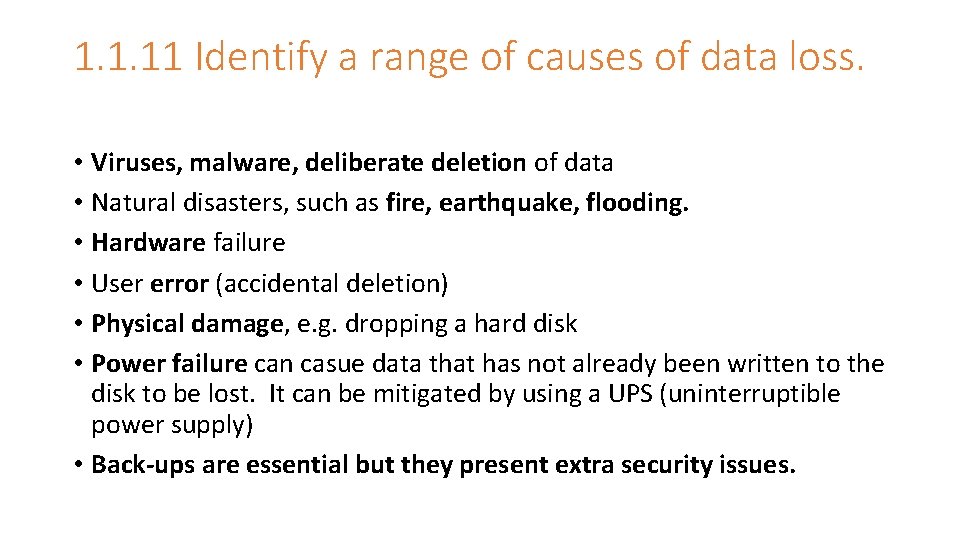
1. 1. 11 Identify a range of causes of data loss. • Viruses, malware, deliberate deletion of data • Natural disasters, such as fire, earthquake, flooding. • Hardware failure • User error (accidental deletion) • Physical damage, e. g. dropping a hard disk • Power failure can casue data that has not already been written to the disk to be lost. It can be mitigated by using a UPS (uninterruptible power supply) • Back-ups are essential but they present extra security issues.
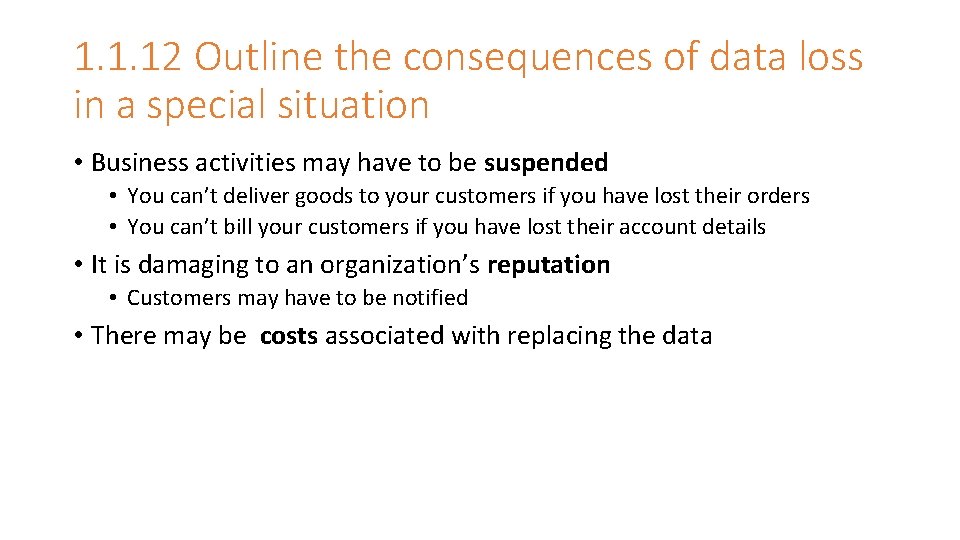
1. 1. 12 Outline the consequences of data loss in a special situation • Business activities may have to be suspended • You can’t deliver goods to your customers if you have lost their orders • You can’t bill your customers if you have lost their account details • It is damaging to an organization’s reputation • Customers may have to be notified • There may be costs associated with replacing the data
1. 1. 13 Describe a range of methods that can be used to prevent data loss. • Back-up • Removable media: Cheap, simple to install (USB), large capacity, easy to move offsite. Also easy to lose! • Offsite: Take back-ups offsite in case of disasters like fire or flooding. • Online: Always available, need internet connection, possible security risk. • Antivirus: Prevent malware from deleting/editing data • Failover and redundancy: • A redundant system is a clone of an existing that is kept up-to-date in case the primary system fails. • Failover is the process of detecting a failure of the primary system and switching users to the redundant system. • This is often done with large enterprise servers because of the high cost that would be associated with a server outage.
1. 1. 14 Describe strategies for managing releases and updates. • The software life cycle involves continuous monitoring, testing, bug-fixing, and re-development • Hence the need for multiple releases and updates of software • Reasons include: • • Bug-fix (often called a “patch”) Security threat User requests Additional features • Mechanism: Software compares current release with latest release via internet. If the current release is out-of-date, the newer version is downloaded and installed. • Some software allows automatic update option e. g. Windows update • Possible issue: How do you know that the update is genuine? How do you know that it doesn’t grant the software extra privleges that you wouldn’t have agreed to on installation, e. g. accessing your contacts? • Possible solution: On first install, Adroid apps have to declare the privileges they require, and they can update themselves only if they do not require extra privileges.
1. 2. 1 Define the terms: hardware, software, peripheral, network, human resources. • Hardware: The machines, wiring and other physical components of a computer or other electronic system • Software: The intructions and data that can be stored electronically in a computer system. • Peripheral: A computer device, such as a CD-ROM drive or a printer, that is not part of the main computer but which is added to provide some extra function. • Network: A group of two or more computers linked via wired or wireless communication medium. • Human resources: The personnel or workers of a business or organization, esp. when regarded as a significant asset.
1. 2. 2 Describe the roles that a computer can take in a networked world. • Client: A computer on a network that makes requests to a server. Example: Your computer on the school network. When you go to the student resource double-click a file you are making a request of the school’s file server. • Server: A computer on a network that listens to and responds to requests from clients. Examples are file servers, database servers, web servers, etc. • Email server: A computer on a network dedicated to sending and receiving email. • DNS server: DNS = Domain Name Service. A computer on a network that translates between user-friendly names of network resources and their numerical IP address. Example: User-friendly name: www. yahoo. com, IP address: 206. 190. 36. 150. • Router: A computer on a network that is responsible for sending network packets to the right host, subnet or network. • Firewall: A computer on a network that limits the flow of data packet for a number of different reasons including: port number, application, content
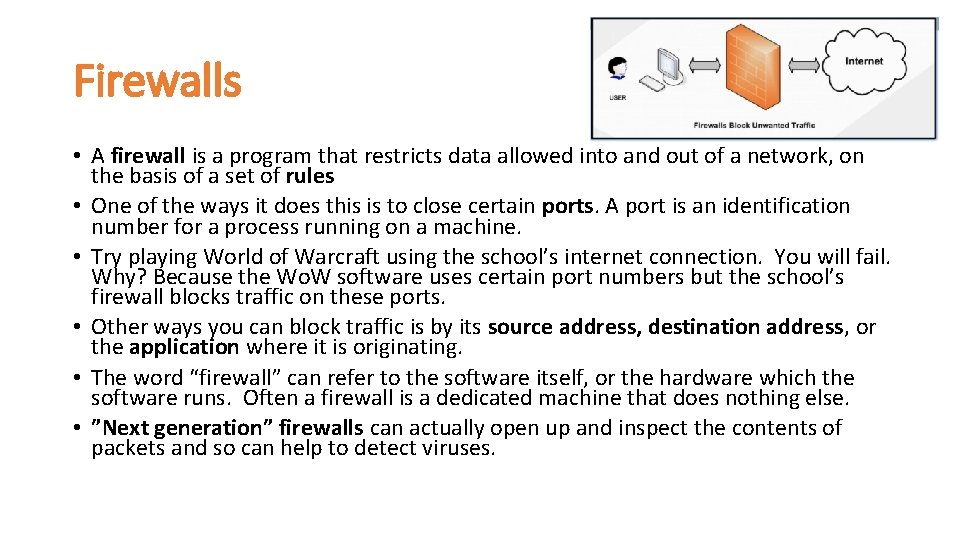
Firewalls • A firewall is a program that restricts data allowed into and out of a network, on the basis of a set of rules • One of the ways it does this is to close certain ports. A port is an identification number for a process running on a machine. • Try playing World of Warcraft using the school’s internet connection. You will fail. Why? Because the Wo. W software uses certain port numbers but the school’s firewall blocks traffic on these ports. • Other ways you can block traffic is by its source address, destination address, or the application where it is originating. • The word “firewall” can refer to the software itself, or the hardware which the software runs. Often a firewall is a dedicated machine that does nothing else. • ”Next generation” firewalls can actually open up and inspect the contents of packets and so can help to detect viruses.
1. 2. 3 Discuss the social and ethical issues associated with a networked world • I have generally tried to concentrate all social and ethical stuff into one slide (1. 2. 11) • Also see discussion in Topic 3
1. 2. 4 Identify the relevant stakeholders when planning a new system A “stakeholder” is any person or organization that is actively involved in a project, or whose interests may be affected positively or negatively by execution of a project. Examples are: • End-users of the planned system • Basic user, superuser, administrator • • Other employees Customers Suppliers Shareholders Unions Local community Etc.
1. 2. 5 Describe methods of obtaining requirements from stakeholders • Surveys: • Adv: You can get information from a lot of people quickly • Disadv: The survey may not ask the right questions. Qualitative information difficult to quantify. • Interviews: • Adv: Stakeholders can make you aware of thing you hadn’t thought of, unlike with survey in which their answers are restricted • Disadv: Time-comsuming. Stakeholders may give biased information. • Direct observations: • Adv: Avoids bias. • Disadv: Time-consuming. Observer can affect the process.
1. 2. 6 Describe appropriate techniques for gathering the information needed to arrive at a workable solution. • Examine the current system to see how it works. What are the inputs and outputs? What process is done? What different roles are there for the users? • Competing products can give ideas about a different way to achieve the same aim. • Organizational capabilities. Are there experts within the organization who can be consulted? • A literature search is the term given to a systemic study to previous project reports to in an attempt to see if the problem has already been solved by someone else.
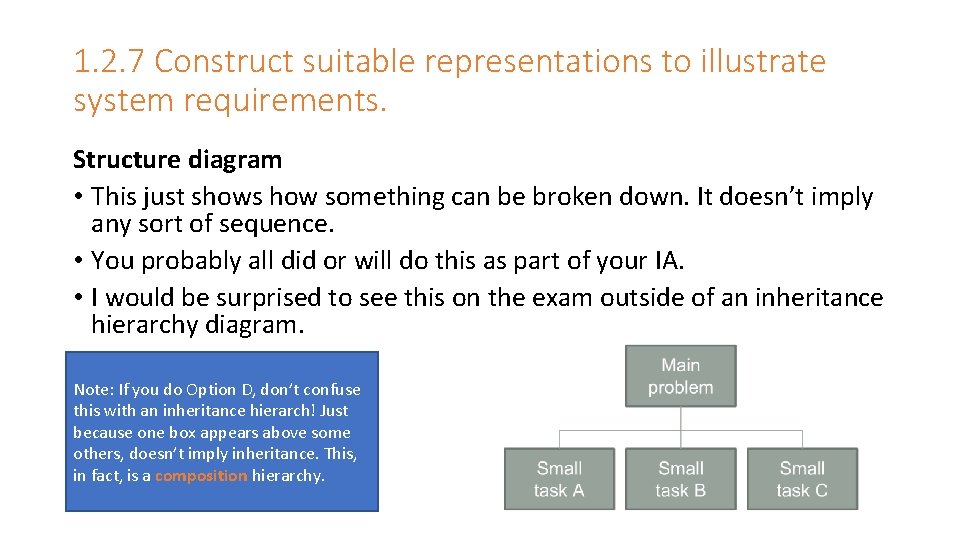
1. 2. 7 Construct suitable representations to illustrate system requirements. Structure diagram • This just shows how something can be broken down. It doesn’t imply any sort of sequence. • You probably all did or will do this as part of your IA. • I would be surprised to see this on the exam outside of an inheritance hierarchy diagram. Note: If you do Option D, don’t confuse this with an inheritance hierarch! Just because one box appears above some others, doesn’t imply inheritance. This, in fact, is a composition hierarchy.
1. 2. 7 Construct suitable representations to illustrate system requirements. Data Flow Diagram • The guide does mention DFDs but I don’t think it has been thought through properly • DFDs are very specific things and contructing them takes a long time • I can’t believe there is any way you will be asked to create one in an exam.
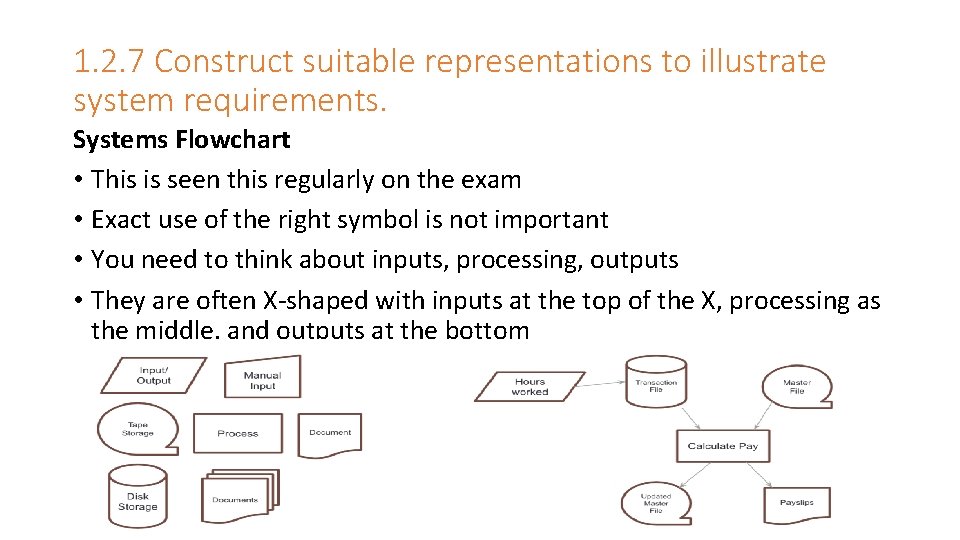
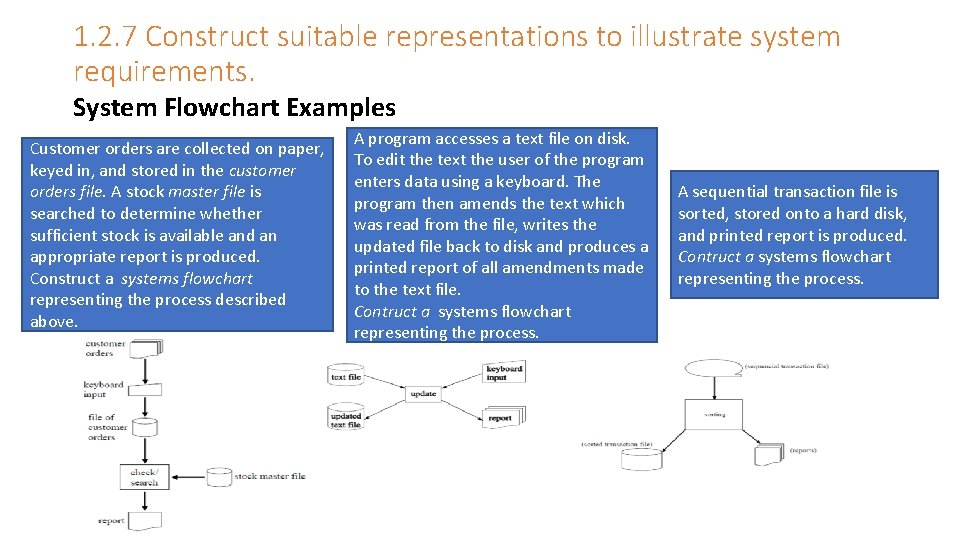
1. 2. 7 Construct suitable representations to illustrate system requirements. Systems Flowchart • This is seen this regularly on the exam • Exact use of the right symbol is not important • You need to think about inputs, processing, outputs • They are often X-shaped with inputs at the top of the X, processing as the middle, and outputs at the bottom
1. 2. 7 Construct suitable representations to illustrate system requirements. System Flowchart Examples Customer orders are collected on paper, keyed in, and stored in the customer orders file. A stock master file is searched to determine whether sufficient stock is available and an appropriate report is produced. Construct a systems flowchart representing the process described above. A program accesses a text file on disk. To edit the text the user of the program enters data using a keyboard. The program then amends the text which was read from the file, writes the updated file back to disk and produces a printed report of all amendments made to the text file. Contruct a systems flowchart representing the process. A sequential transaction file is sorted, stored onto a hard disk, and printed report is produced. Contruct a systems flowchart representing the process.
1. 2. 8 Describe the purpose of prototypes to demonstrate the proposed system to the client. • Allows the user to give the developer immediate feedback • Gives the client a better sense of what the software will be like because it’s easier to understand a prototype than, say, a written description • Allows the developer to verify that he understands the requirements • Allows the client to change/amend requirements before the software is developed • This reduces costs in the long term • And saves time
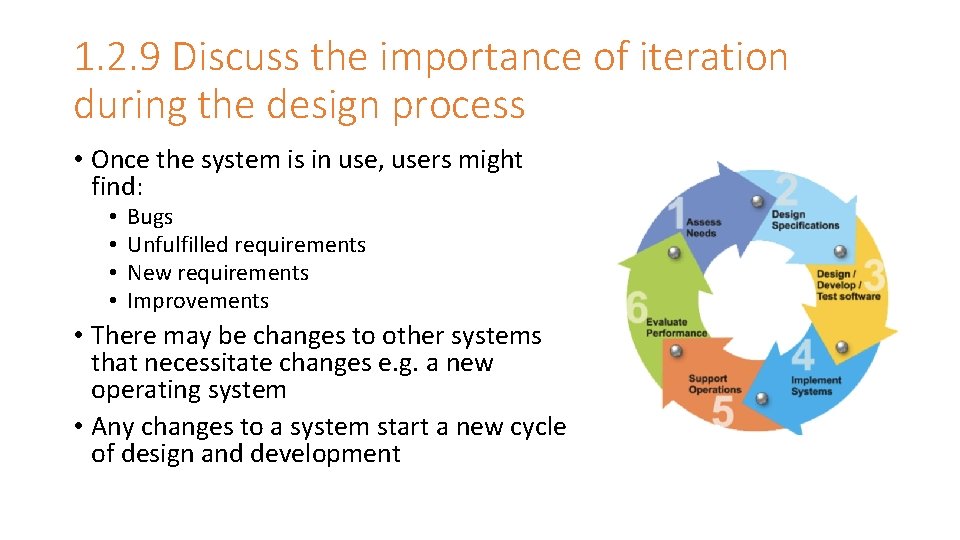
1. 2. 9 Discuss the importance of iteration during the design process • Once the system is in use, users might find: • • Bugs Unfulfilled requirements New requirements Improvements • There may be changes to other systems that necessitate changes e. g. a new operating system • Any changes to a system start a new cycle of design and development
1. 2. 10 Explain the possible consequences of failing to involve the end-user in the design process. • The end-users are the experts and they know what they need from the system better than anyone • If users are not involved in the design process, there is an increased chance that the software will be designed inappropriately • If this happens, the client will end up not using the software • This means that the development cost will have been wasted • There may also be reduced productivity in the client organization • Involving the user requires constant communication is in a variety of ways, including surveys, interviews, focus groups, responses to prototypes, etc.
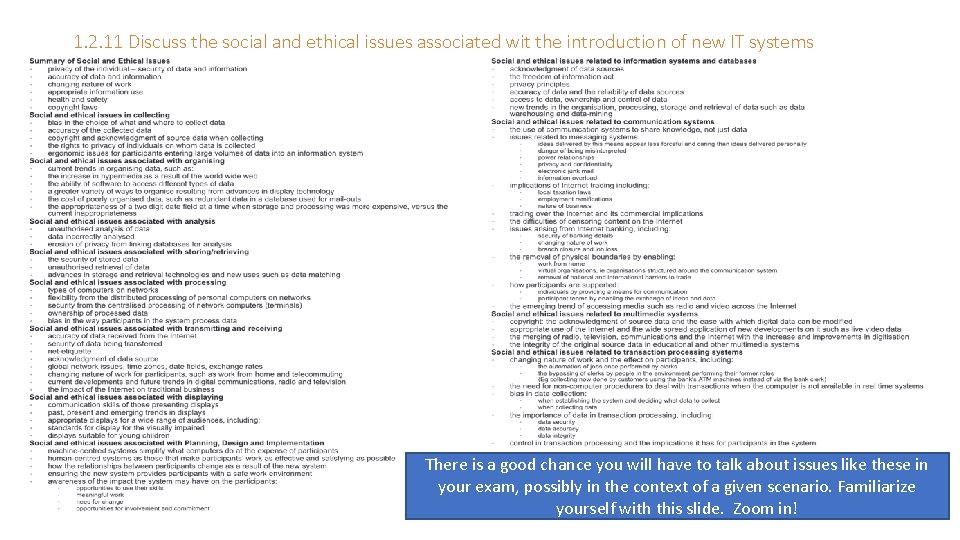
1. 2. 11 Discuss the social and ethical issues associated wit the introduction of new IT systems There is a good chance you will have to talk about issues like these in your exam, possibly in the context of a given scenario. Familiarize yourself with this slide. Zoom in!
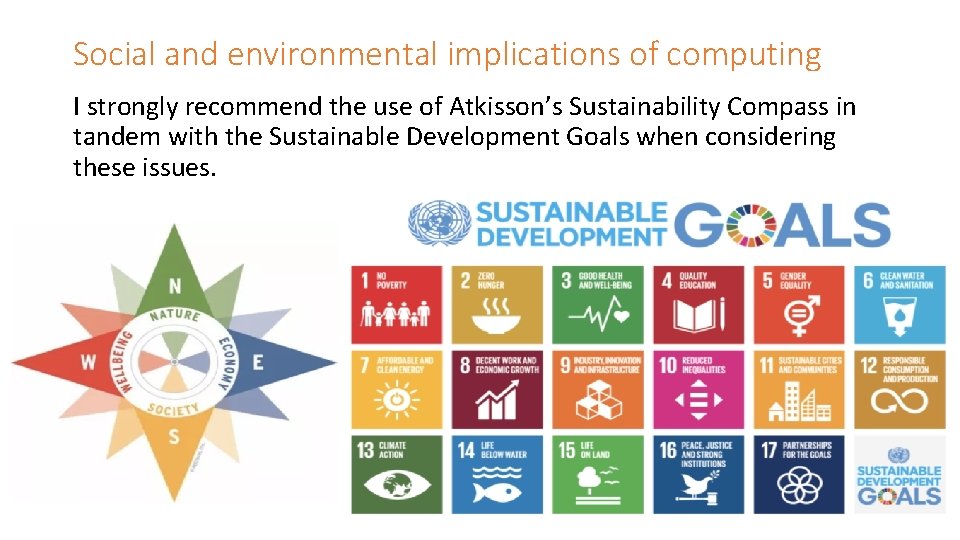
Social and environmental implications of computing I strongly recommend the use of Atkisson’s Sustainability Compass in tandem with the Sustainable Development Goals when considering these issues.
1. 2. 12 Define the term usability • Usability: The notion of how easy a system is to learn and use • Learnability: How easy is it for users to accomplish basic tasks the first time they encounter the design? • Efficiency: Once users have learned the design, how quickly can they perform tasks? • Memorabilty: When users return to the design after a period of not using it, how easily can they re-establish profiency? • Errors: How many errors do users make, how severe are these errors and how easily can they recover from the errors? • Satisfaction: How pleasant is it to use the design? • Ergonomics: designing and arranging things people use so that the people and things interact most efficiently and safely? • Accessibility: The ability of people to access and benefit form some system. Often people with disabilities or special needs.
1. 2. 13 Identify a range of usability problems with commonly used digital devices. • Students should be aware of usability issues in a range of devices including PCs, digital cameras, cell phones, games, consoldes, MP 3 players and other commonly used digital devices. [IB guide] • • • Confusing navigation Lack of help No search facilty Small, fiddly buttons Too complex, too many functions
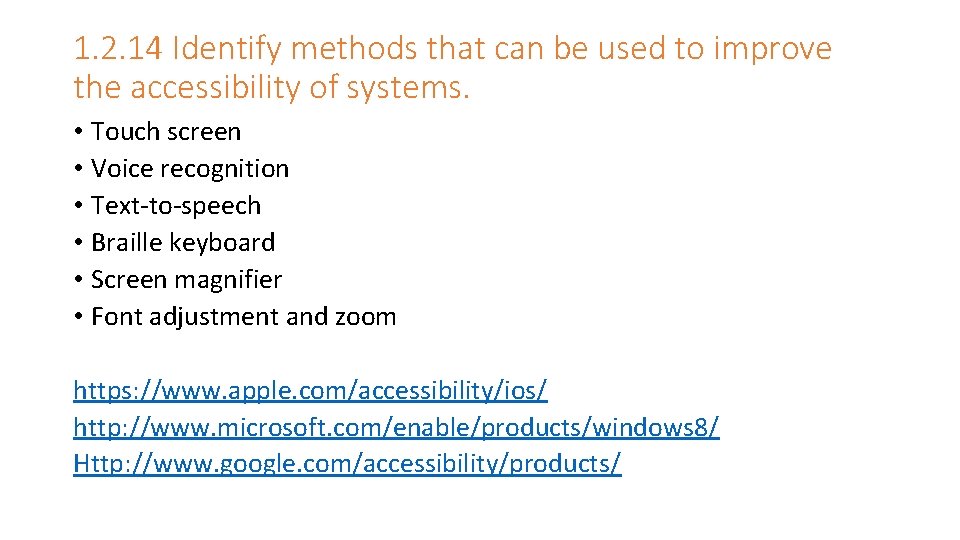
1. 2. 14 Identify methods that can be used to improve the accessibility of systems. • Touch screen • Voice recognition • Text-to-speech • Braille keyboard • Screen magnifier • Font adjustment and zoom https: //www. apple. com/accessibility/ios/ http: //www. microsoft. com/enable/products/windows 8/ Http: //www. google. com/accessibility/products/
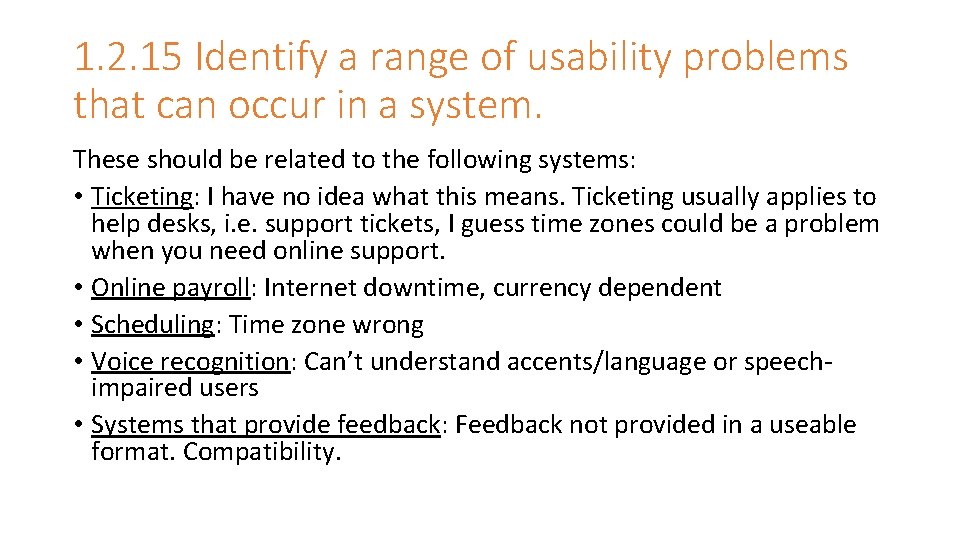
1. 2. 15 Identify a range of usability problems that can occur in a system. These should be related to the following systems: • Ticketing: I have no idea what this means. Ticketing usually applies to help desks, i. e. support tickets, I guess time zones could be a problem when you need online support. • Online payroll: Internet downtime, currency dependent • Scheduling: Time zone wrong • Voice recognition: Can’t understand accents/language or speechimpaired users • Systems that provide feedback: Feedback not provided in a useable format. Compatibility.
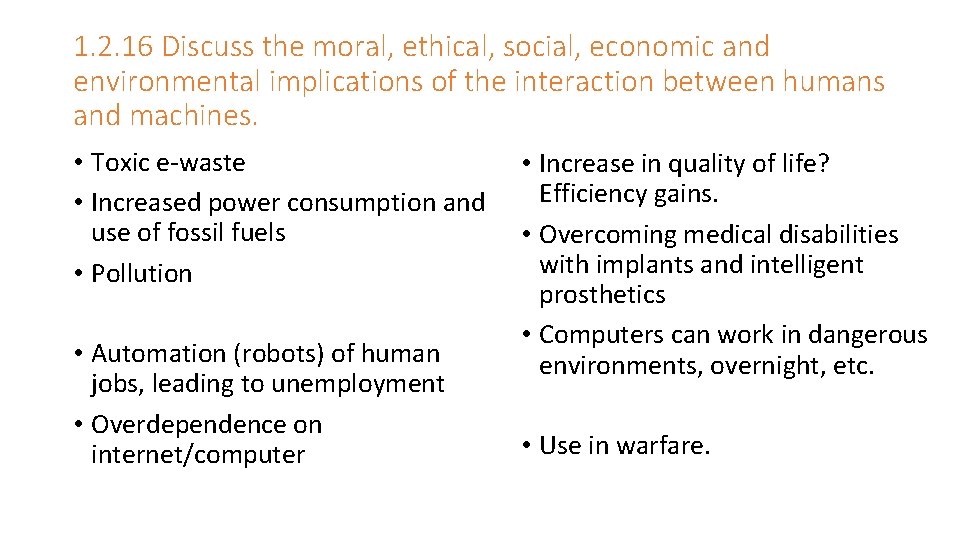
1. 2. 16 Discuss the moral, ethical, social, economic and environmental implications of the interaction between humans and machines. • Toxic e-waste • Increased power consumption and use of fossil fuels • Pollution • Automation (robots) of human jobs, leading to unemployment • Overdependence on internet/computer • Increase in quality of life? Efficiency gains. • Overcoming medical disabilities with implants and intelligent prosthetics • Computers can work in dangerous environments, overnight, etc. • Use in warfare.
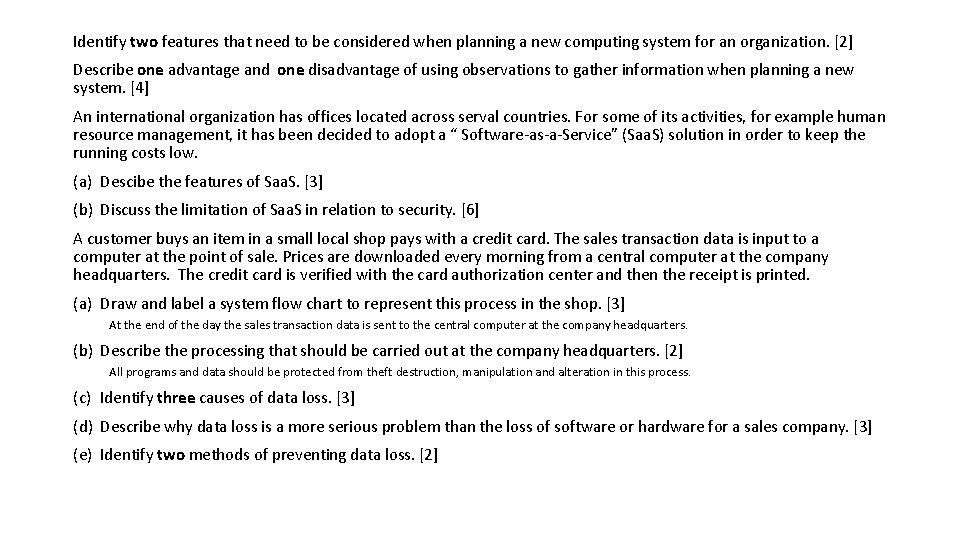
Identify two features that need to be considered when planning a new computing system for an organization. [2] Describe one advantage and one disadvantage of using observations to gather information when planning a new system. [4] An international organization has offices located across serval countries. For some of its activities, for example human resource management, it has been decided to adopt a “ Software-as-a-Service” (Saa. S) solution in order to keep the running costs low. (a) Descibe the features of Saa. S. [3] (b) Discuss the limitation of Saa. S in relation to security. [6] A customer buys an item in a small local shop pays with a credit card. The sales transaction data is input to a computer at the point of sale. Prices are downloaded every morning from a central computer at the company headquarters. The credit card is verified with the card authorization center and then the receipt is printed. (a) Draw and label a system flow chart to represent this process in the shop. [3] At the end of the day the sales transaction data is sent to the central computer at the company headquarters. (b) Describe the processing that should be carried out at the company headquarters. [2] All programs and data should be protected from theft destruction, manipulation and alteration in this process. (c) Identify three causes of data loss. [3] (d) Describe why data loss is a more serious problem than the loss of software or hardware for a sales company. [3] (e) Identify two methods of preventing data loss. [2]