
Top Level of CSC DCS UI Communication Loss
- Slides: 53
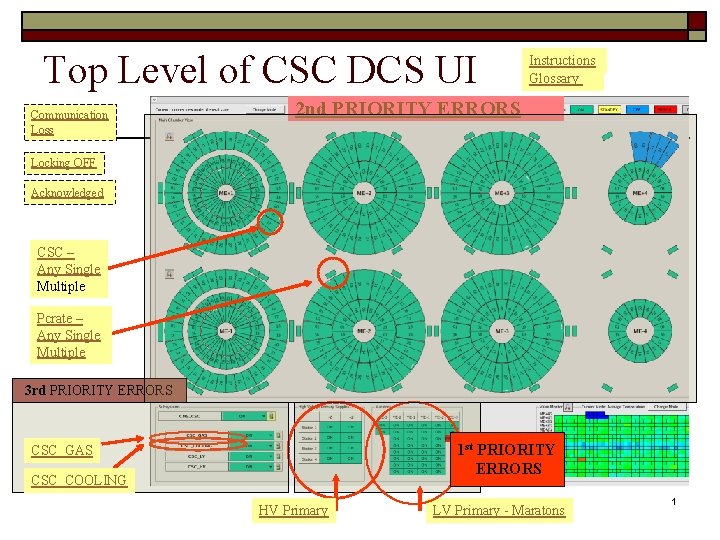
Top Level of CSC DCS UI Communication Loss Instructions Glossary 2 nd PRIORITY ERRORS Locking OFF Acknowledged CSC – Any Single Multiple Pcrate – Any Single Multiple 3 rd PRIORITY ERRORS 1 st PRIORITY ERRORS CSC_GAS CSC_COOLING HV Primary LV Primary - Maratons 1
1 st Priority o HV Primaries o LV Maratons 2
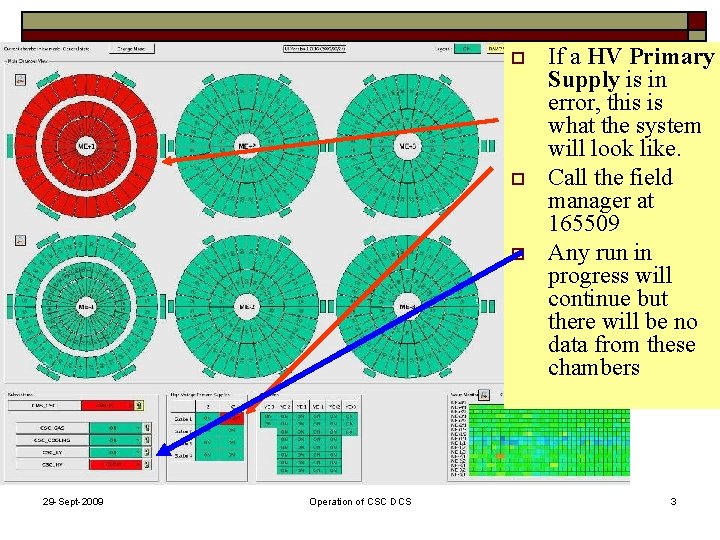
o o o 29 -Sept-2009 Operation of CSC DCS If a HV Primary Supply is in error, this is what the system will look like. Call the field manager at 165509 Any run in progress will continue but there will be no data from these chambers 3
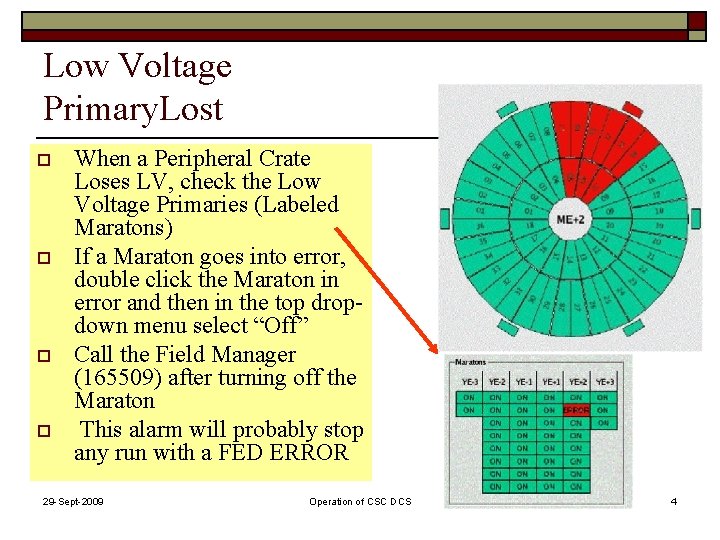
Low Voltage Primary. Lost o o When a Peripheral Crate Loses LV, check the Low Voltage Primaries (Labeled Maratons) If a Maraton goes into error, double click the Maraton in error and then in the top dropdown menu select “Off” Call the Field Manager (165509) after turning off the Maraton This alarm will probably stop any run with a FED ERROR 29 -Sept-2009 Operation of CSC DCS 4
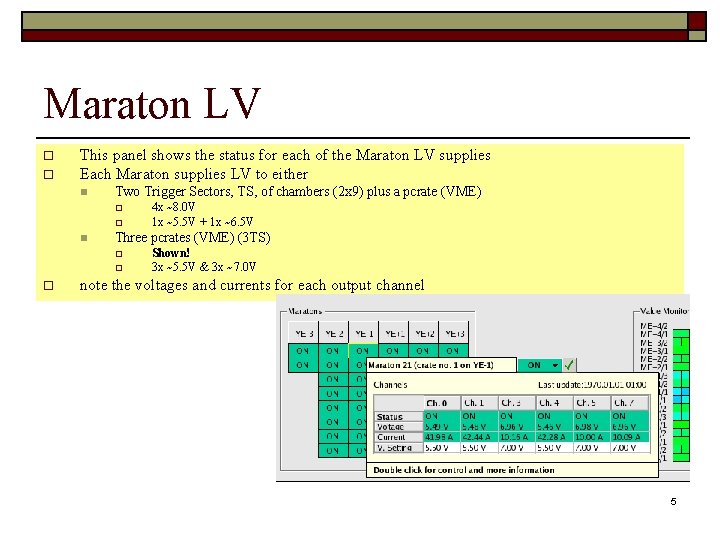
Maraton LV o o This panel shows the status for each of the Maraton LV supplies Each Maraton supplies LV to either n Two Trigger Sectors, TS, of chambers (2 x 9) plus a pcrate (VME) o o n Three pcrates (VME) (3 TS) o o o 4 x ~8. 0 V 1 x ~5. 5 V + 1 x ~6. 5 V Shown! 3 x ~5. 5 V & 3 x ~7. 0 V note the voltages and currents for each output channel 5
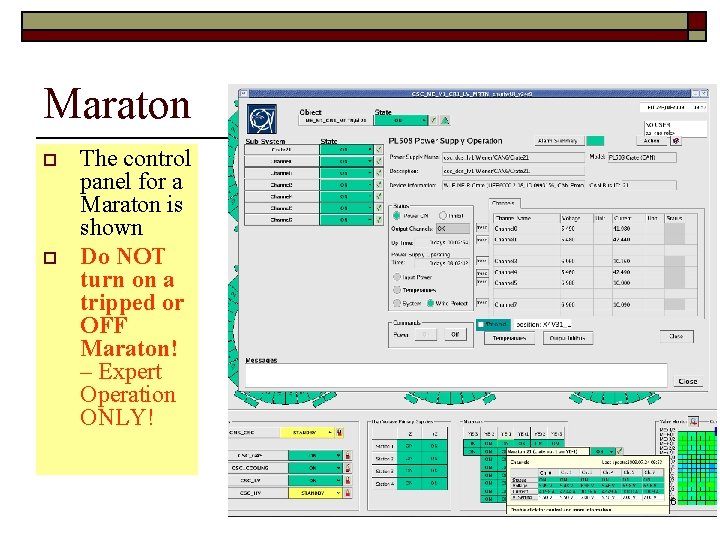
Maraton o o The control panel for a Maraton is shown Do NOT turn on a tripped or OFF Maraton! – Expert Operation ONLY! 6
2 nd Priority o Chambers or Pcrates o HV LV Temperature o o 7
2 nd o CSC Errors o HV LV Temperature o o 8
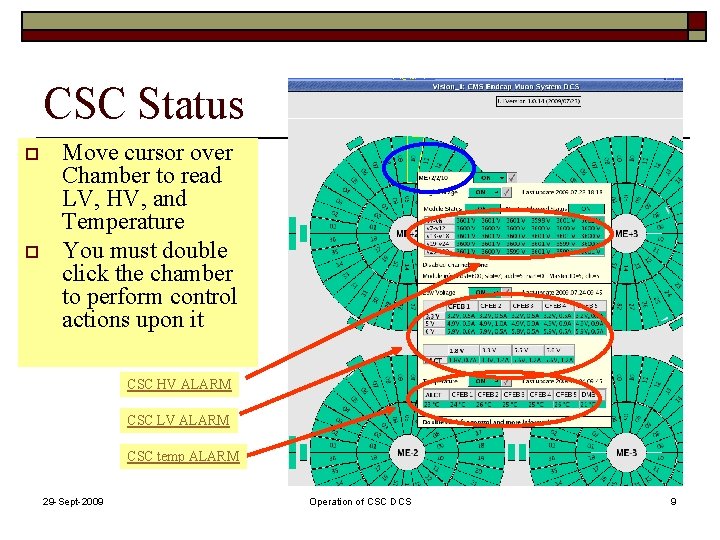
CSC Status o o Move cursor over Chamber to read LV, HV, and Temperature You must double click the chamber to perform control actions upon it CSC HV ALARM CSC LV ALARM CSC temp ALARM 29 -Sept-2009 Operation of CSC DCS 9
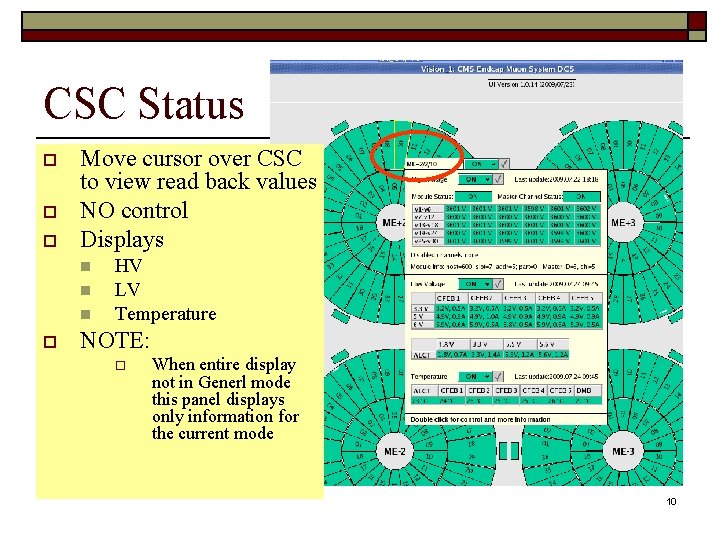
CSC Status o o o Move cursor over CSC to view read back values NO control Displays n n n o HV LV Temperature NOTE: o When entire display not in Generl mode this panel displays only information for the current mode 10
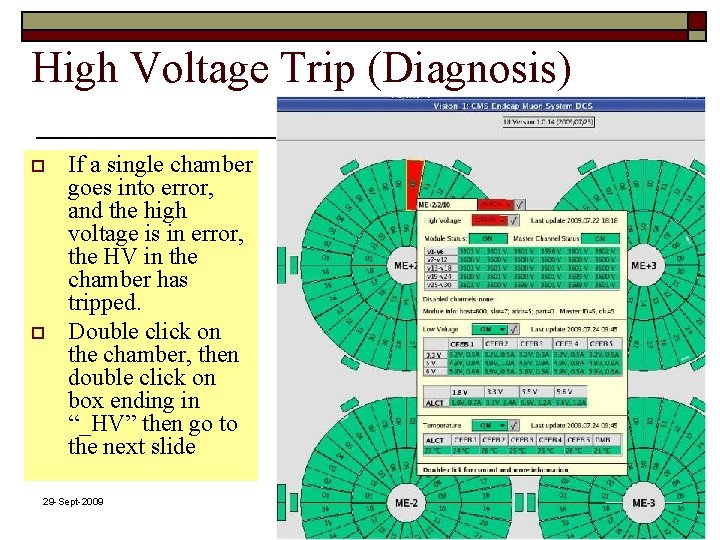
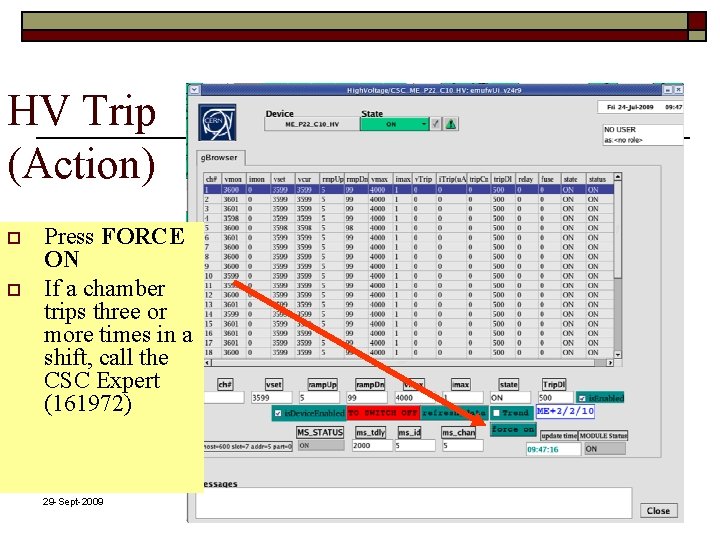
High Voltage Trip (Diagnosis) o o If a single chamber goes into error, and the high voltage is in error, the HV in the chamber has tripped. Double click on the chamber, then double click on box ending in “_HV” then go to the next slide 29 -Sept-2009 Operation of CSC DCS 11
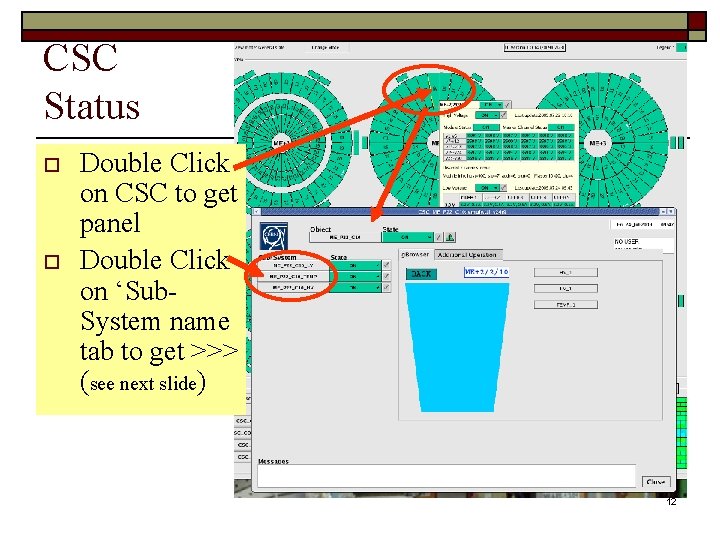
CSC Status o o Double Click on CSC to get panel Double Click on ‘Sub. System name tab to get >>> (see next slide) 12
HV Trip (Action) o o Press FORCE ON If a chamber trips three or more times in a shift, call the CSC Expert (161972) 29 -Sept-2009 Operation of CSC DCS 13
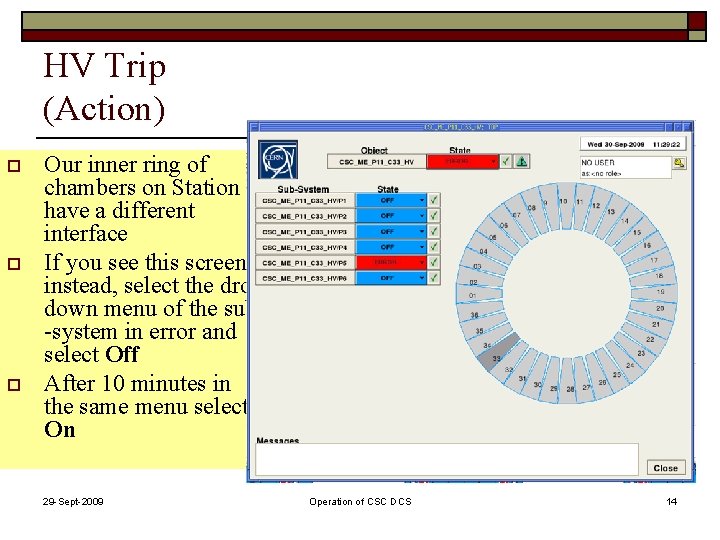
HV Trip (Action) o o o Our inner ring of chambers on Station 1 have a different interface If you see this screen instead, select the drop down menu of the sub -system in error and select Off After 10 minutes in the same menu select On 29 -Sept-2009 Operation of CSC DCS 14
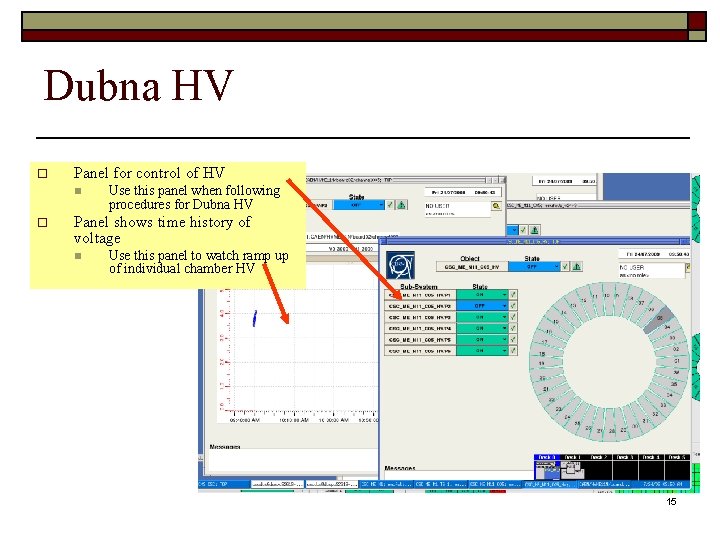
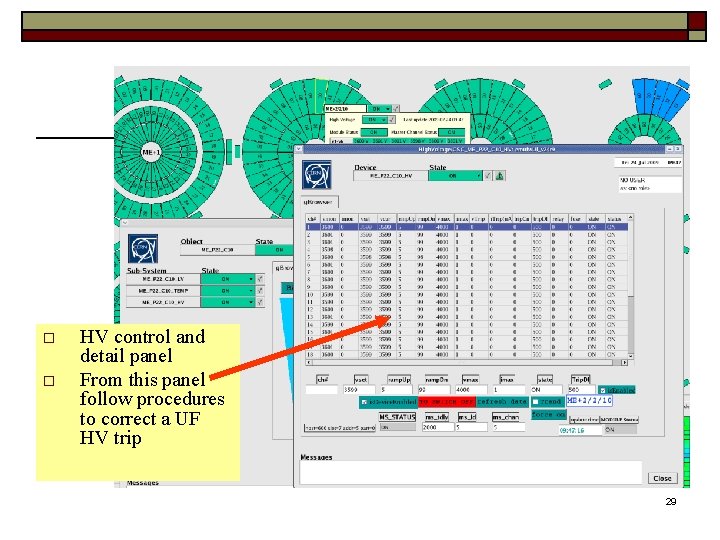
Dubna HV o Panel for control of HV n o Use this panel when following procedures for Dubna HV Panel shows time history of voltage n Use this panel to watch ramp up of individual chamber HV 15
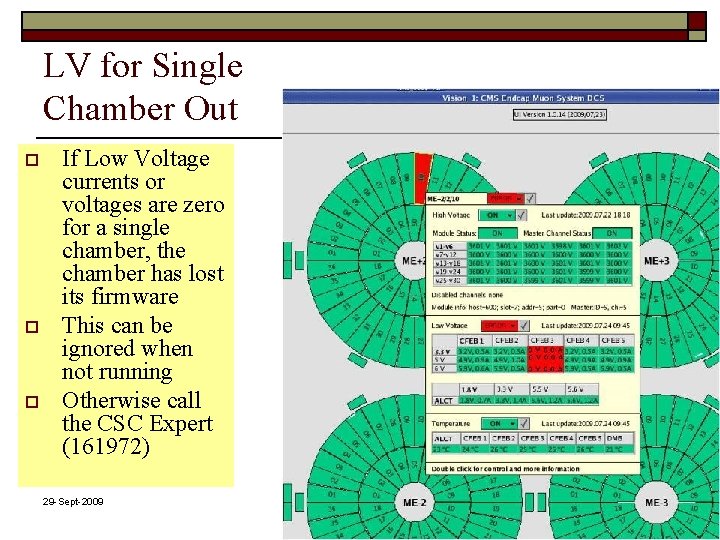
LV for Single Chamber Out o o o If Low Voltage currents or voltages are zero for a single chamber, the chamber has lost its firmware This can be ignored when not running Otherwise call the CSC Expert (161972) 29 -Sept-2009 Operation of CSC DCS 16
CSC Temperature Alarm 17
2 nd o Pcrate o LV Temperature o 18
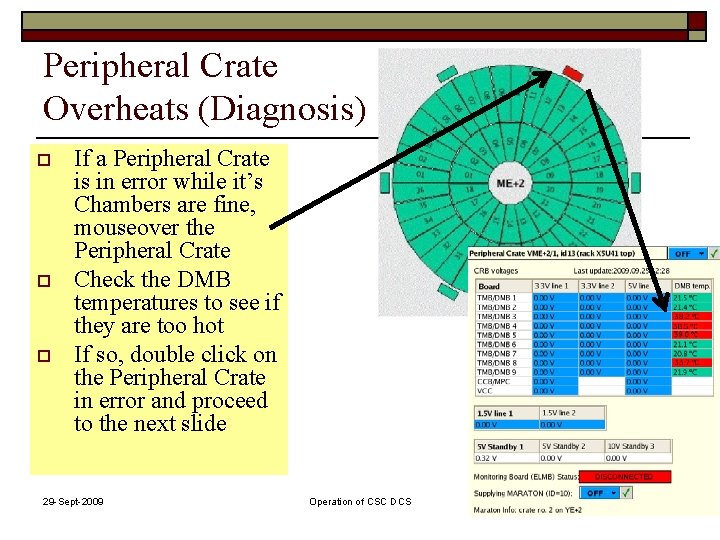
Peripheral Crate Overheats (Diagnosis) o o o If a Peripheral Crate is in error while it’s Chambers are fine, mouseover the Peripheral Crate Check the DMB temperatures to see if they are too hot If so, double click on the Peripheral Crate in error and proceed to the next slide 29 -Sept-2009 Operation of CSC DCS 19
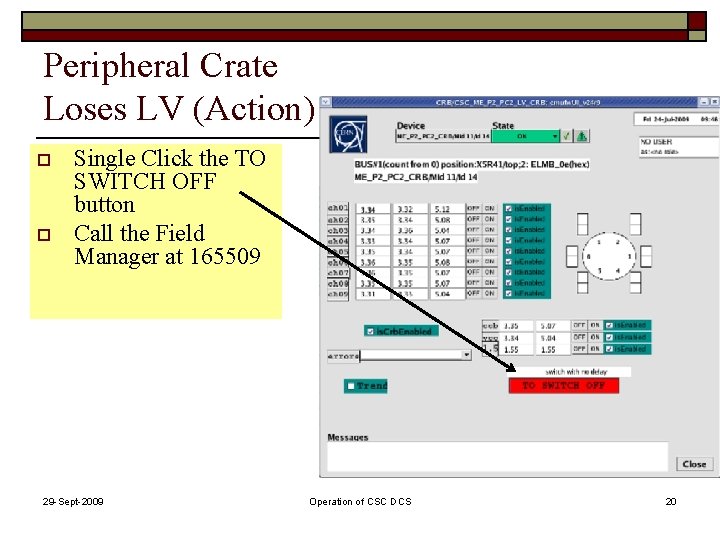
Peripheral Crate Loses LV (Action) o o Single Click the TO SWITCH OFF button Call the Field Manager at 165509 29 -Sept-2009 Operation of CSC DCS 20
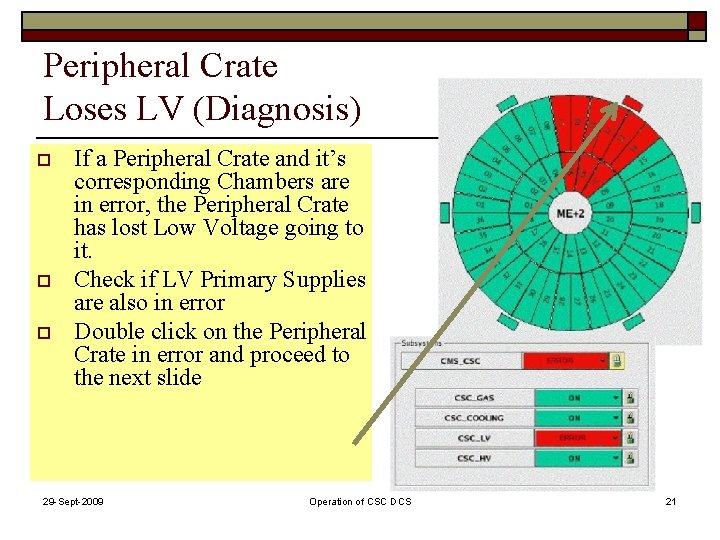
Peripheral Crate Loses LV (Diagnosis) o o o If a Peripheral Crate and it’s corresponding Chambers are in error, the Peripheral Crate has lost Low Voltage going to it. Check if LV Primary Supplies are also in error Double click on the Peripheral Crate in error and proceed to the next slide 29 -Sept-2009 Operation of CSC DCS 21
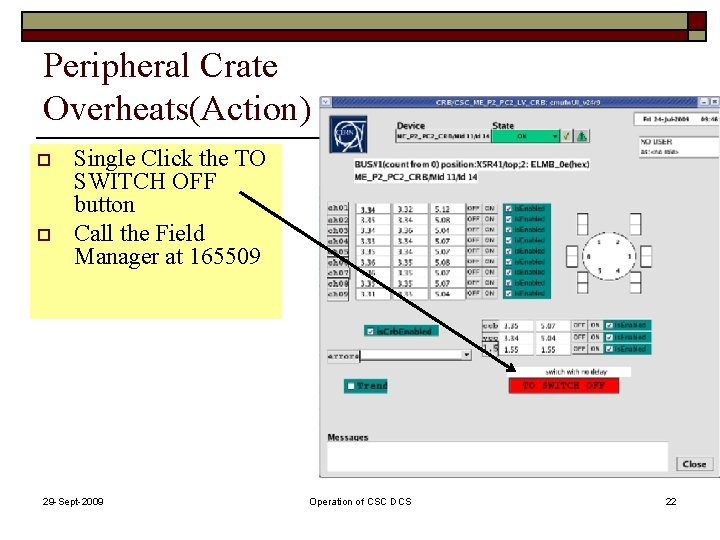
Peripheral Crate Overheats(Action) o o Single Click the TO SWITCH OFF button Call the Field Manager at 165509 29 -Sept-2009 Operation of CSC DCS 22
3 rd Priority o CSC_GAS o CSC_COOLONG 23
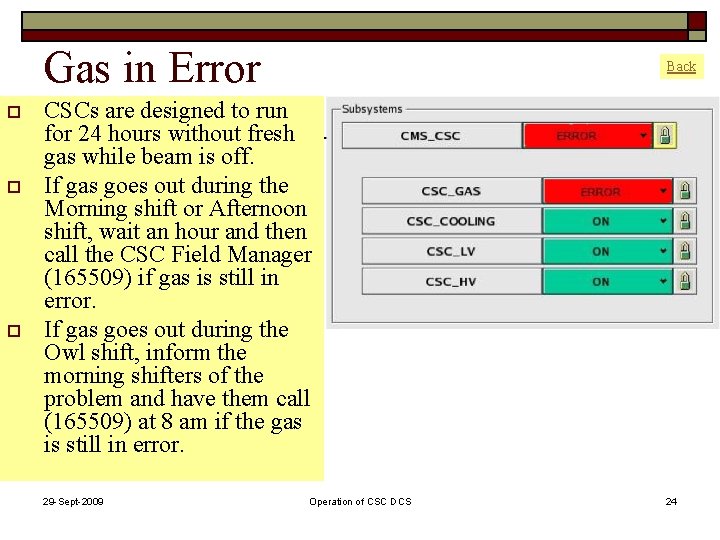
Gas in Error o o o Back CSCs are designed to run for 24 hours without fresh gas while beam is off. If gas goes out during the Morning shift or Afternoon shift, wait an hour and then call the CSC Field Manager (165509) if gas is still in error. If gas goes out during the Owl shift, inform the morning shifters of the problem and have them call (165509) at 8 am if the gas is still in error. 29 -Sept-2009 Operation of CSC DCS 24
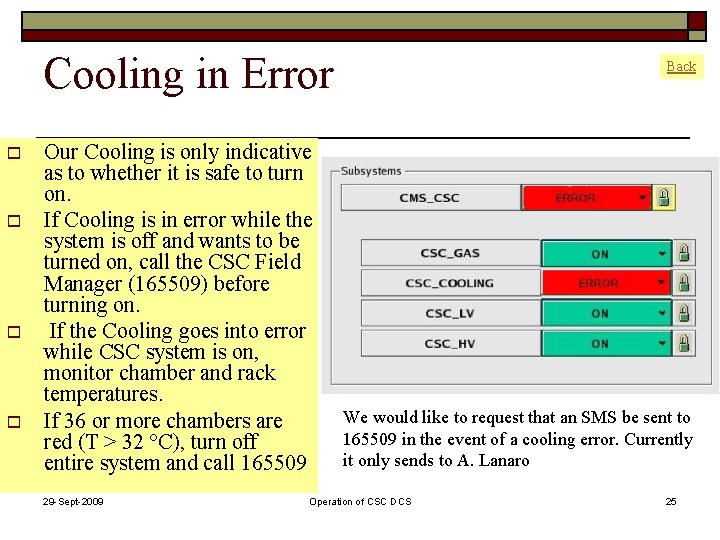
Cooling in Error o o Our Cooling is only indicative as to whether it is safe to turn on. If Cooling is in error while the system is off and wants to be turned on, call the CSC Field Manager (165509) before turning on. If the Cooling goes into error while CSC system is on, monitor chamber and rack temperatures. If 36 or more chambers are red (T > 32 °C), turn off entire system and call 165509 29 -Sept-2009 Back We would like to request that an SMS be sent to 165509 in the event of a cooling error. Currently it only sends to A. Lanaro Operation of CSC DCS 25
Standby 26
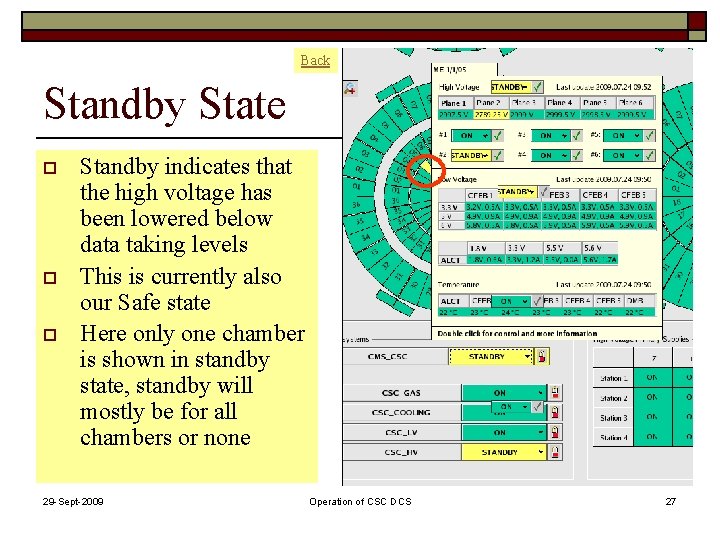
Back Standby State o o o Standby indicates that the high voltage has been lowered below data taking levels This is currently also our Safe state Here only one chamber is shown in standby state, standby will mostly be for all chambers or none 29 -Sept-2009 Operation of CSC DCS 27
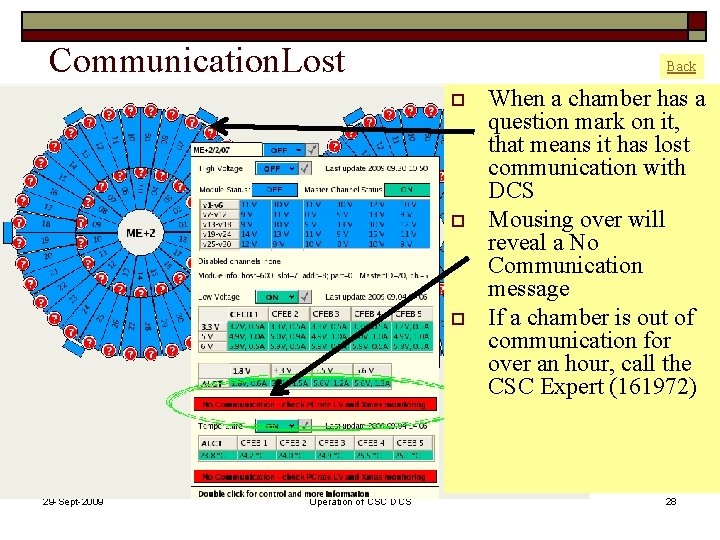
Communication. Lost Back o o o 29 -Sept-2009 Operation of CSC DCS When a chamber has a question mark on it, that means it has lost communication with DCS Mousing over will reveal a No Communication message If a chamber is out of communication for over an hour, call the CSC Expert (161972) 28
o o HV control and detail panel From this panel follow procedures to correct a UF HV trip 29
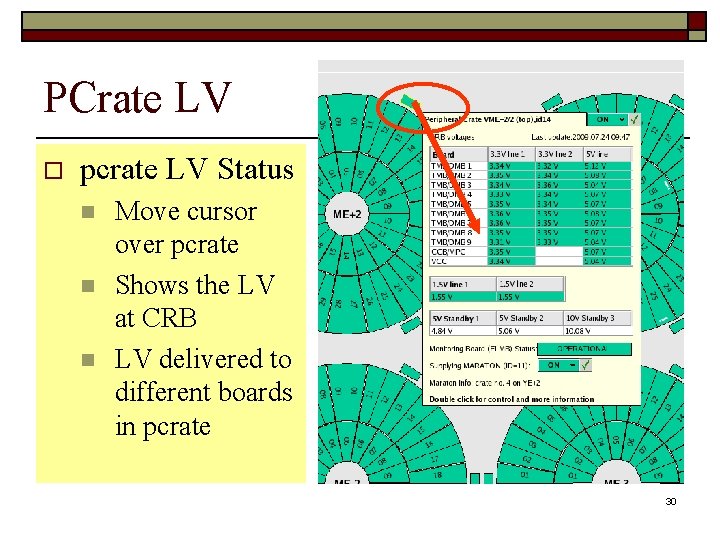
PCrate LV o pcrate LV Status n n n Move cursor over pcrate Shows the LV at CRB LV delivered to different boards in pcrate 30
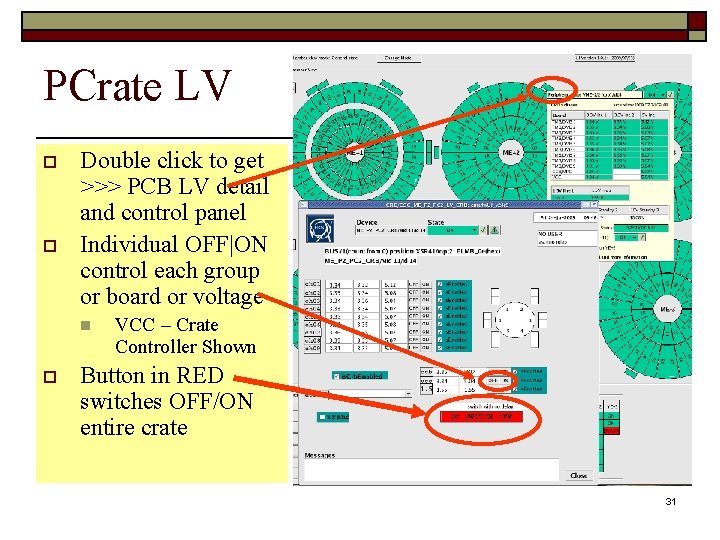
PCrate LV o o Double click to get >>> PCB LV detail and control panel Individual OFF|ON control each group or board or voltage n o VCC – Crate Controller Shown Button in RED switches OFF/ON entire crate 31
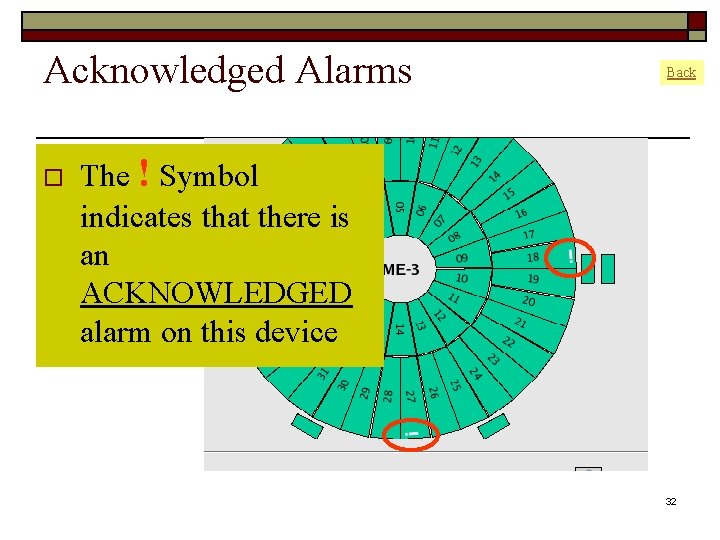
Acknowledged Alarms o Back The ! Symbol indicates that there is an ACKNOWLEDGED alarm on this device 32
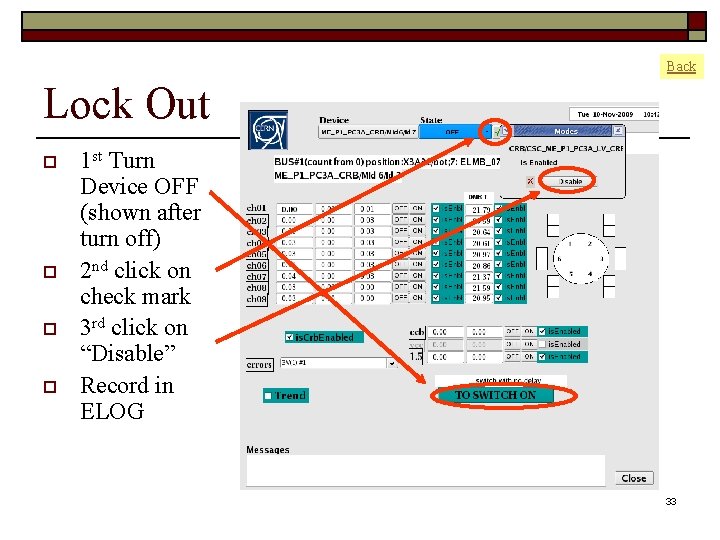
Back Lock Out o o 1 st Turn Device OFF (shown after turn off) 2 nd click on check mark 3 rd click on “Disable” Record in ELOG 33
Other Error / Unknown State o o o Please double check to see if it looks similar to one of the previous problems and if so please perform those actions. No action described in this manual will damage our system If there is no procedure or the situation is unique please call the CSC Field Manager (165509). 29 -Sept-2009 Operation of CSC DCS ? 34
Instructions 35
Nomenclature 36
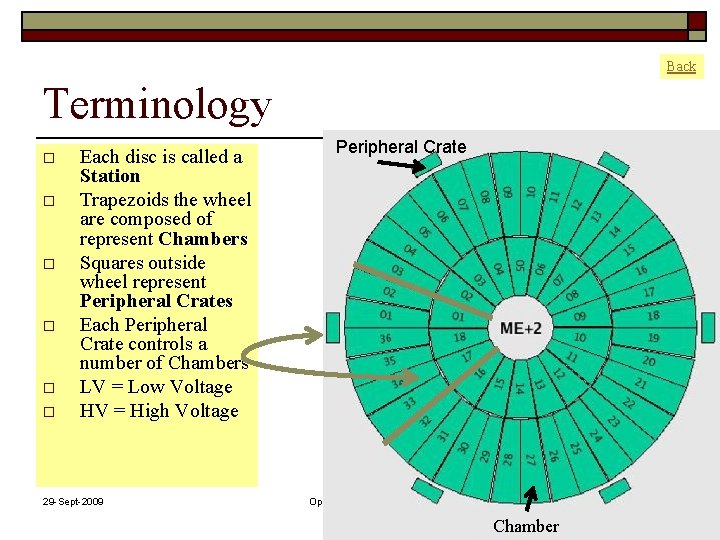
Back Terminology o o o Each disc is called a Station Trapezoids the wheel are composed of represent Chambers Squares outside wheel represent Peripheral Crates Each Peripheral Crate controls a number of Chambers LV = Low Voltage HV = High Voltage 29 -Sept-2009 Peripheral Crate Operation of CSC DCS 37 Chamber
Backup Slides 38
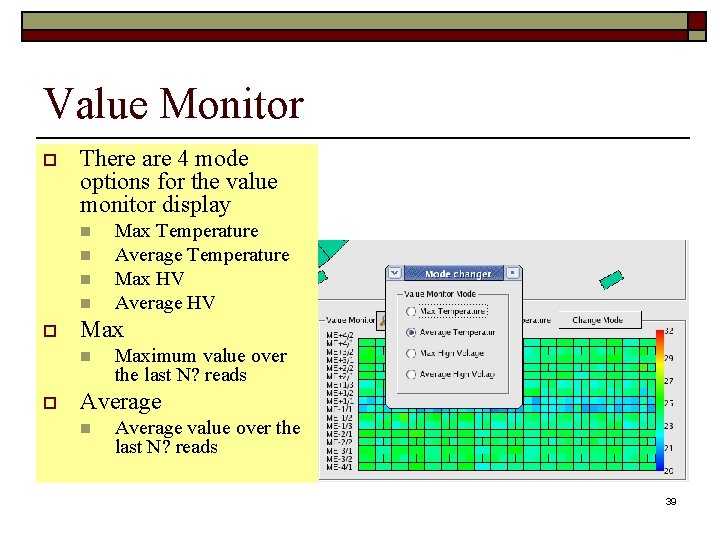
Value Monitor o There are 4 mode options for the value monitor display n n o Max Temperature Average Temperature Max HV Average HV Maximum value over the last N? reads Average n Average value over the last N? reads 39
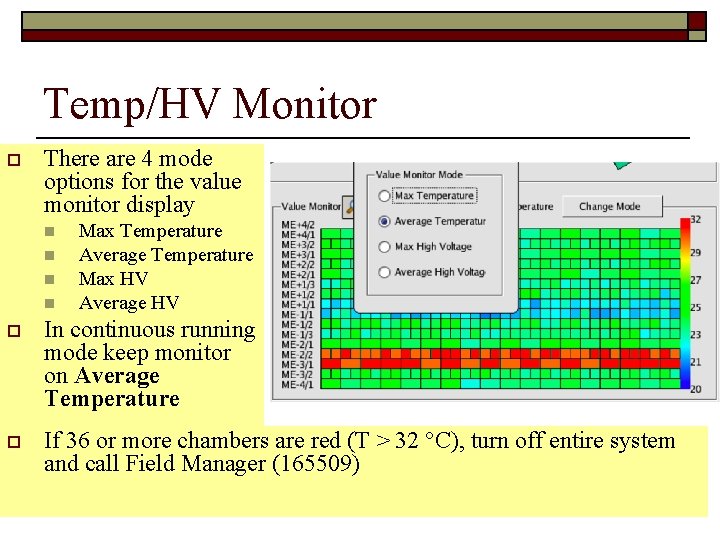
Temp/HV Monitor o There are 4 mode options for the value monitor display n n Max Temperature Average Temperature Max HV Average HV o In continuous running mode keep monitor on Average Temperature o If 36 or more chambers are red (T > 32 °C), turn off entire system and call Field Manager (165509) 29 -Sept-2009 Operation of CSC DCS 40
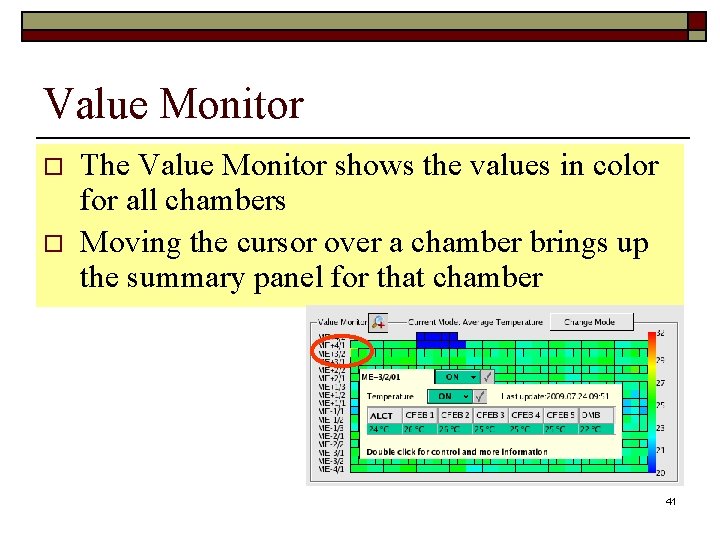
Value Monitor o o The Value Monitor shows the values in color for all chambers Moving the cursor over a chamber brings up the summary panel for that chamber 41
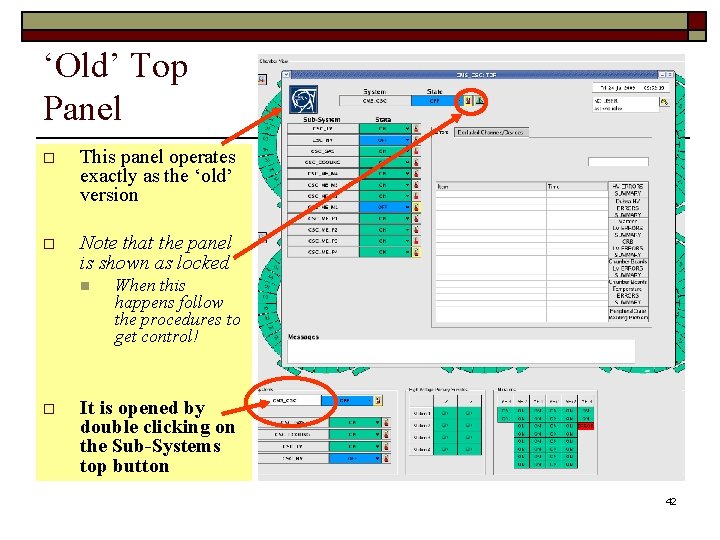
‘Old’ Top Panel o This panel operates exactly as the ‘old’ version o Note that the panel is shown as locked n o When this happens follow the procedures to get control! It is opened by double clicking on the Sub-Systems top button 42
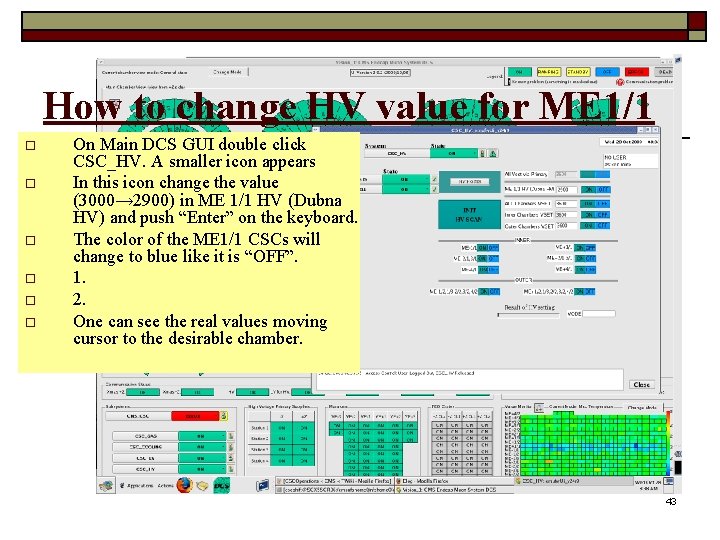
How to change HV value for ME 1/1 o o o On Main DCS GUI double click CSC_HV. A smaller icon appears In this icon change the value (3000→ 2900) in ME 1/1 HV (Dubna HV) and push “Enter” on the keyboard. The color of the ME 1/1 CSCs will change to blue like it is “OFF”. 1. 2. One can see the real values moving cursor to the desirable chamber. 43
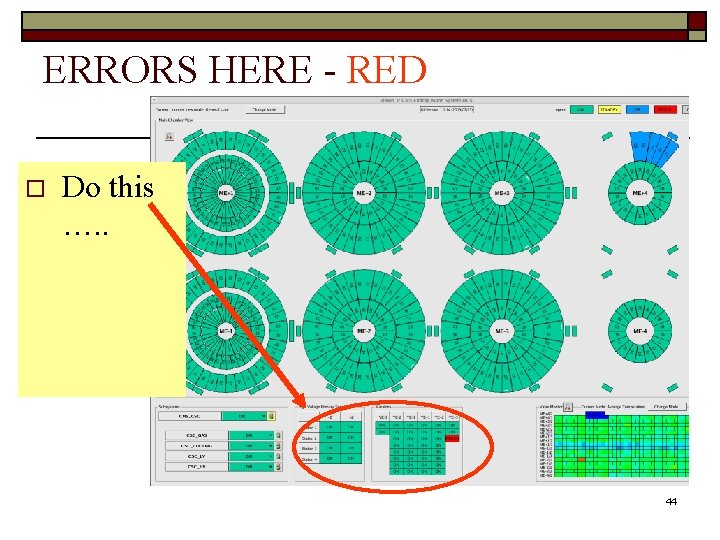
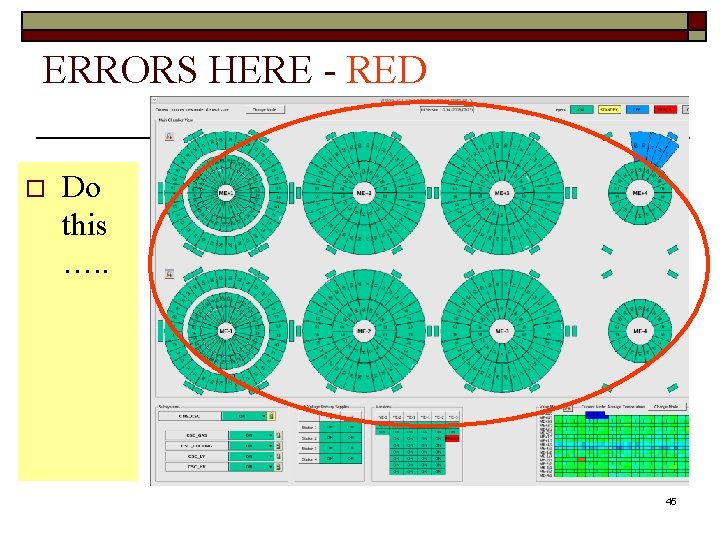
ERRORS HERE - RED o Do this …. . 44
ERRORS HERE - RED o Do this …. . 45
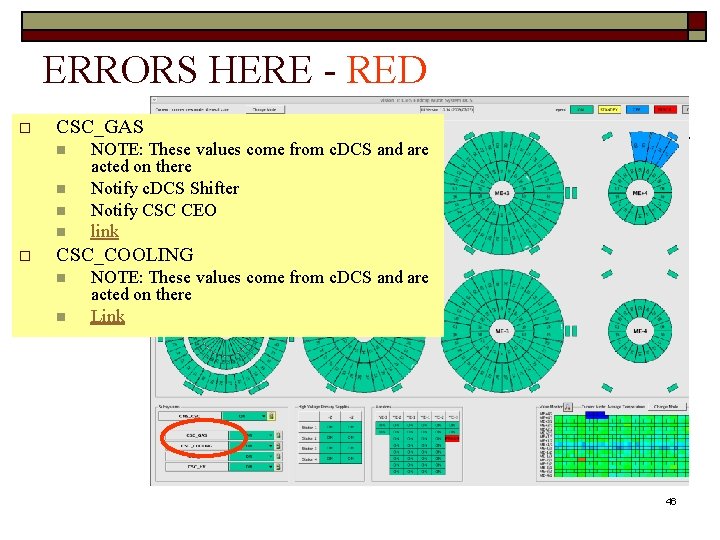
ERRORS HERE - RED o CSC_GAS n n o NOTE: These values come from c. DCS and are acted on there Notify c. DCS Shifter Notify CSC CEO link CSC_COOLING n n NOTE: These values come from c. DCS and are acted on there Link 46
Possible Errors 29 -Sept-2009 Operation of CSC DCS 47
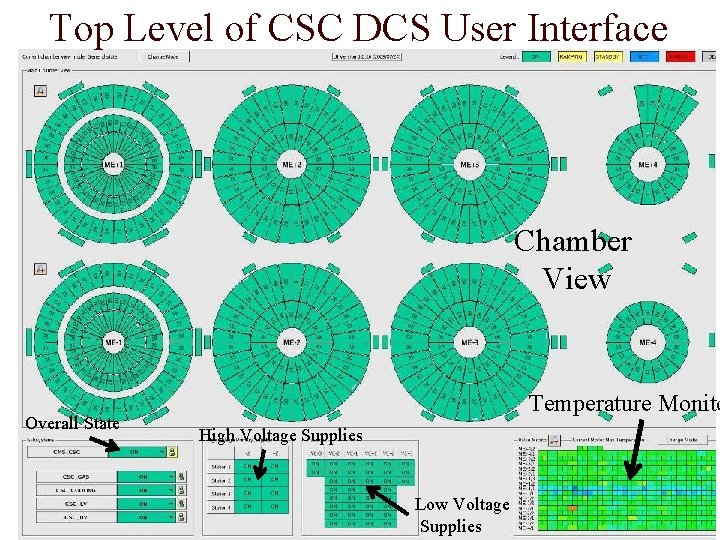
Top Level of CSC DCS User Interface Chamber View Overall State 29 -Sept-2009 Temperature Monito High Voltage Supplies Operation of CSC DCS Low Voltage Supplies 48
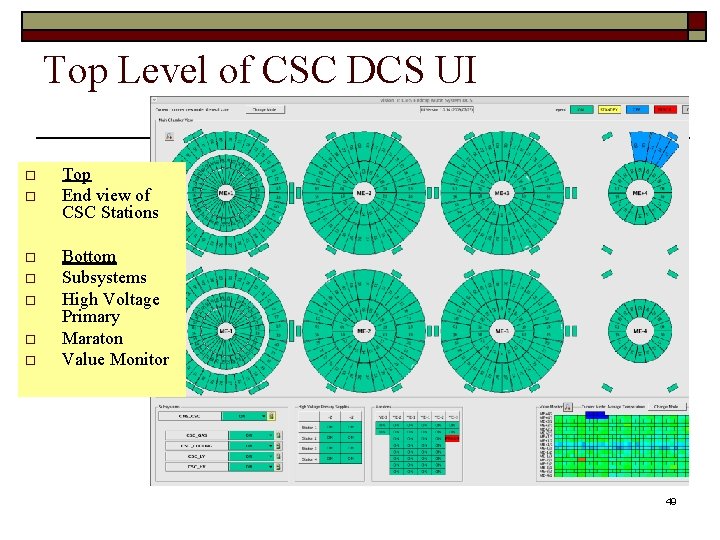
Top Level of CSC DCS UI o o o o Top End view of CSC Stations Bottom Subsystems High Voltage Primary Maraton Value Monitor 49
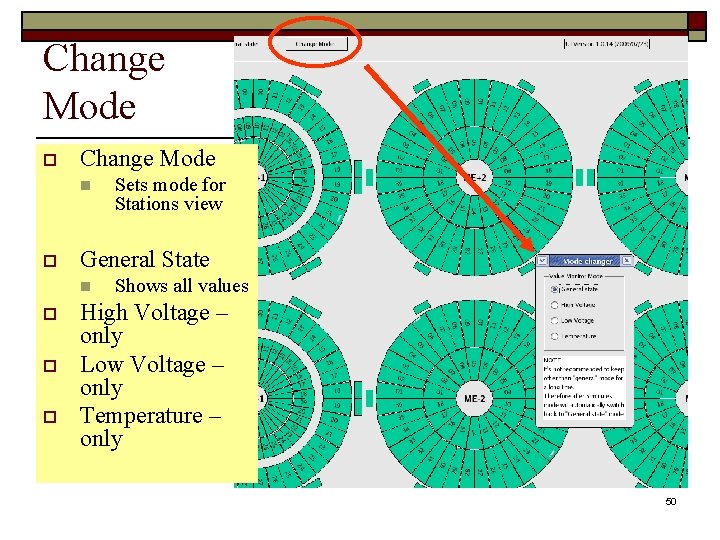
Change Mode o Change Mode n o General State n o o o Sets mode for Stations view Shows all values High Voltage – only Low Voltage – only Temperature – only 50
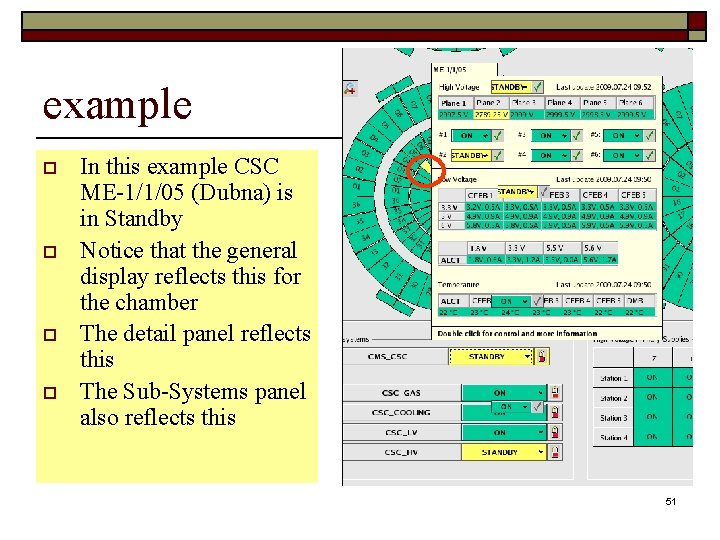
example o o In this example CSC ME-1/1/05 (Dubna) is in Standby Notice that the general display reflects this for the chamber The detail panel reflects this The Sub-Systems panel also reflects this 51
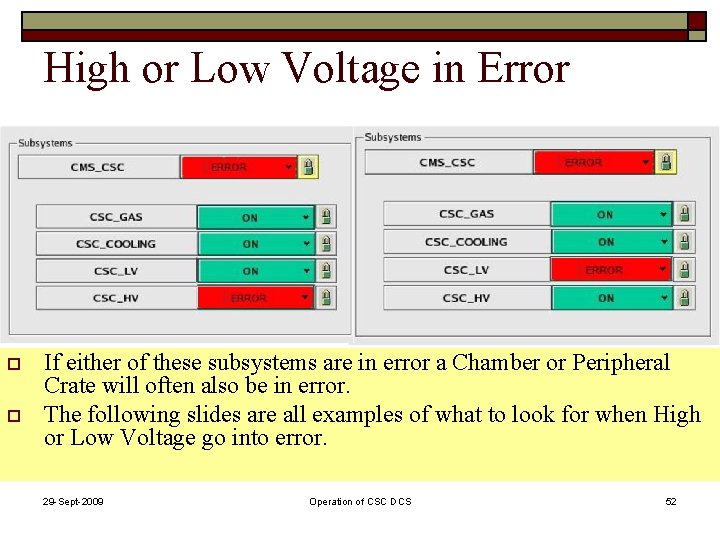
High or Low Voltage in Error o o If either of these subsystems are in error a Chamber or Peripheral Crate will often also be in error. The following slides are all examples of what to look for when High or Low Voltage go into error. 29 -Sept-2009 Operation of CSC DCS 52
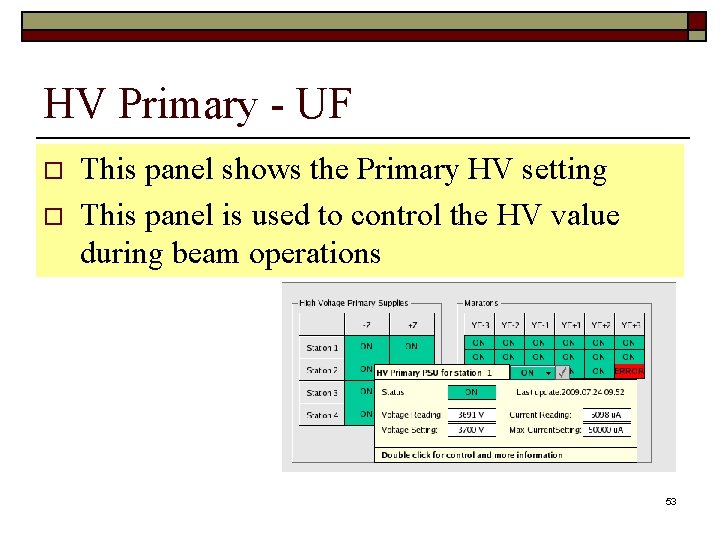
HV Primary - UF o o This panel shows the Primary HV setting This panel is used to control the HV value during beam operations 53