
Tools available for animation in Adobe Flash Introduction
Tools available for animation in Adobe Flash
Introduction Tools such as layers and frames are the basic features used in the creation of animation and are found in all animation applications including Abode Flash. Scripting is a further method which is commonly used to add interactivity for products such as games. You may here the term ‘frame’ used a lot in animation. This is simply a single image within an animation. Frames are played in sequence at a specific rate (known as frames per second(fps)) to create the illusion of animation. Key frames are also used and are special frames where an animation either begins or ends.
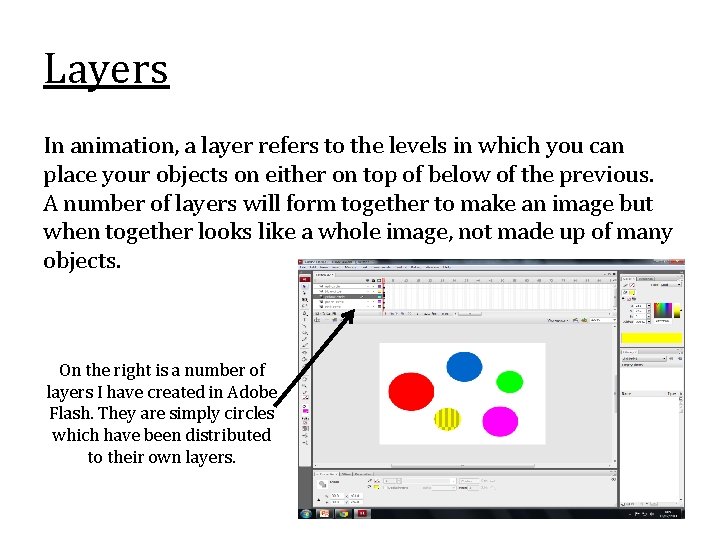
Layers In animation, a layer refers to the levels in which you can place your objects on either on top of below of the previous. A number of layers will form together to make an image but when together looks like a whole image, not made up of many objects. On the right is a number of layers I have created in Adobe Flash. They are simply circles which have been distributed to their own layers.
Tweening can create movement (such as motion tween ) or morphing (such as shape tween). The actual tween itself does have certain properties that can be altered. An example of something which can be changed is the ease. This is also known as the fairing but is the speed at which a tween is performed.
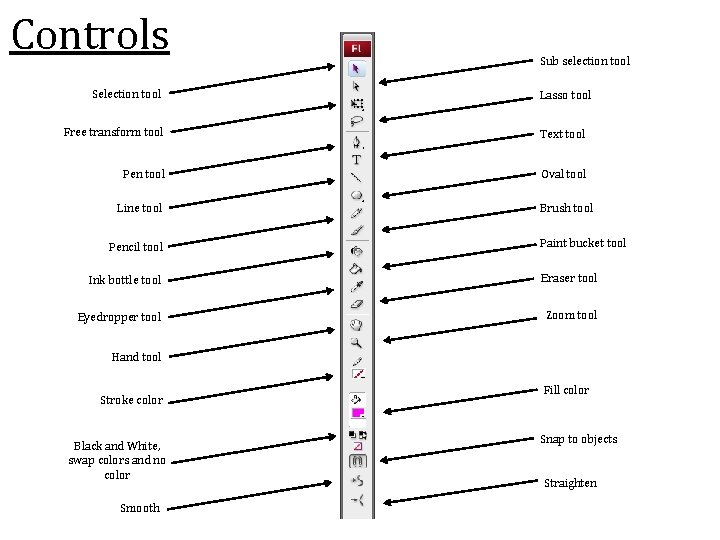
Controls Selection tool Sub selection tool Lasso tool Free transform tool Text tool Pen tool Oval tool Line tool Pencil tool Brush tool Paint bucket tool Ink bottle tool Eraser tool Eyedropper tool Zoom tool Hand tool Stroke color Black and White, swap colors and no color Smooth Fill color Snap to objects Straighten
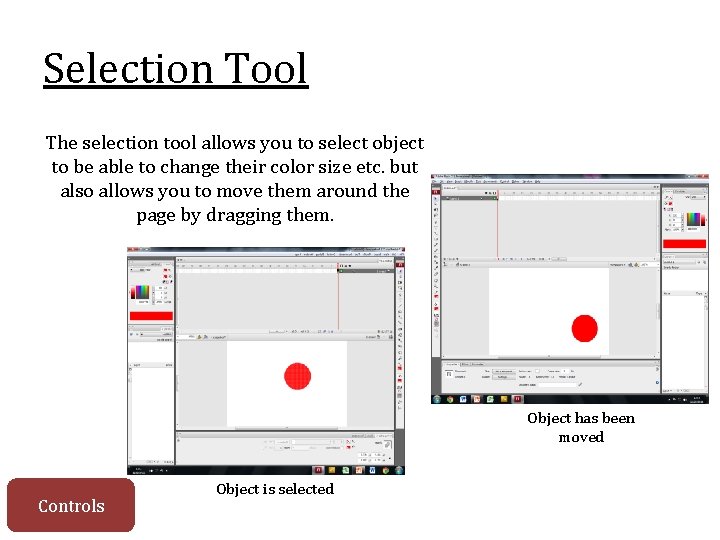
Selection Tool The selection tool allows you to select object to be able to change their color size etc. but also allows you to move them around the page by dragging them. Object has been moved Controls Object is selected
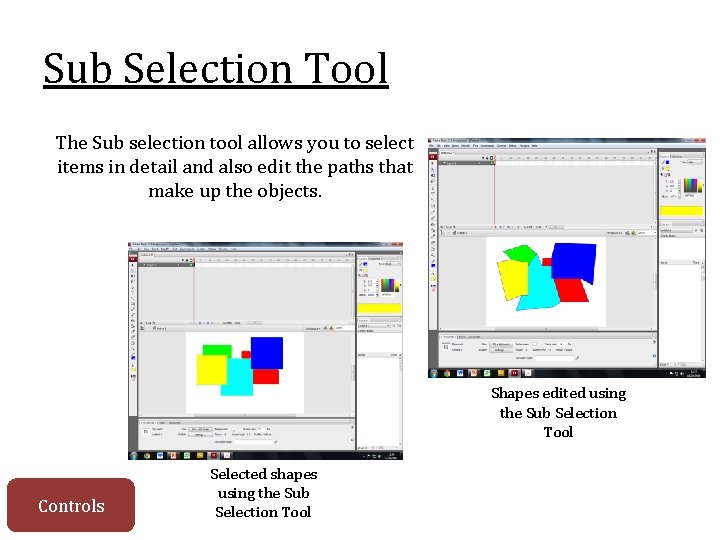
Sub Selection Tool The Sub selection tool allows you to select items in detail and also edit the paths that make up the objects. Shapes edited using the Sub Selection Tool Controls Selected shapes using the Sub Selection Tool

Free transform Tool The free transform tool enables you to change the shape and size of objects you have drawn. Shapes can be seen larger or smaller. Red shape has changed Controls Blue shape has changed
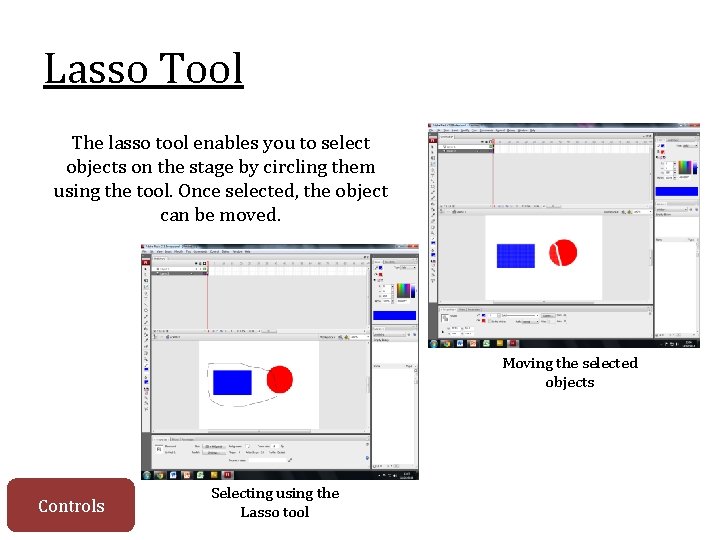
Lasso Tool The lasso tool enables you to select objects on the stage by circling them using the tool. Once selected, the object can be moved. Moving the selected objects Controls Selecting using the Lasso tool
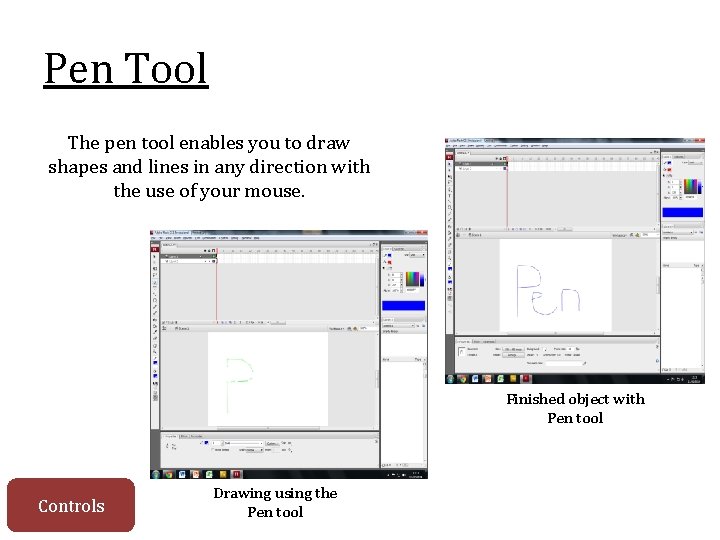
Pen Tool The pen tool enables you to draw shapes and lines in any direction with the use of your mouse. Finished object with Pen tool Controls Drawing using the Pen tool
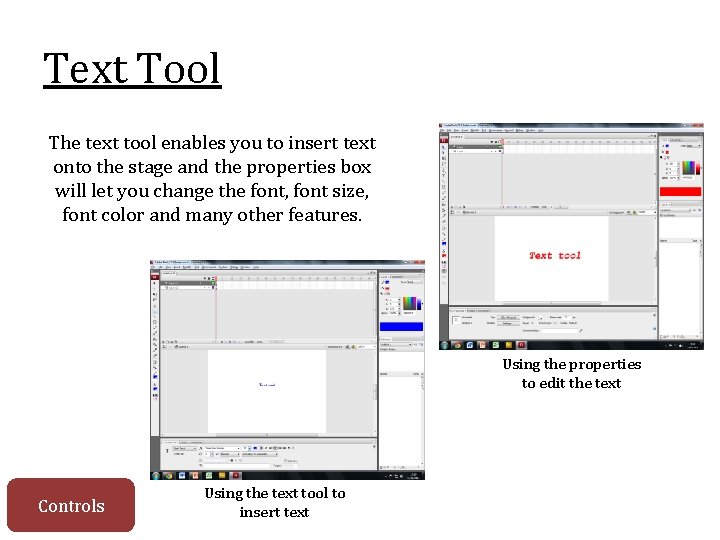
Text Tool The text tool enables you to insert text onto the stage and the properties box will let you change the font, font size, font color and many other features. Using the properties to edit the text Controls Using the text tool to insert text
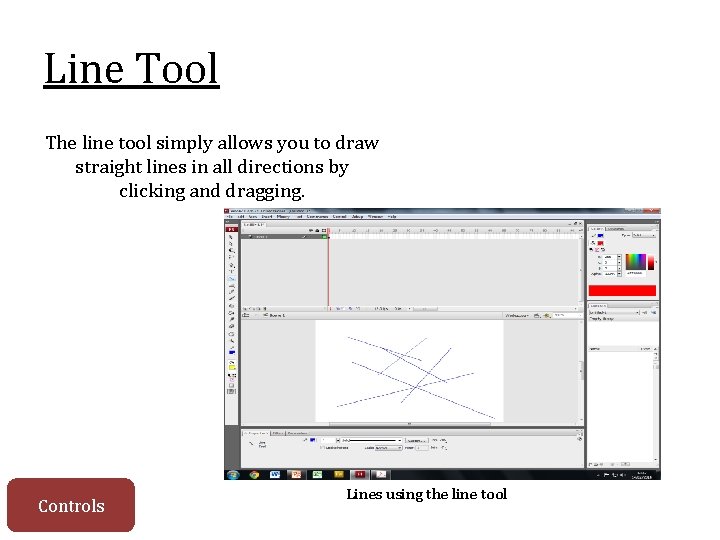
Line Tool The line tool simply allows you to draw straight lines in all directions by clicking and dragging. Controls Lines using the line tool
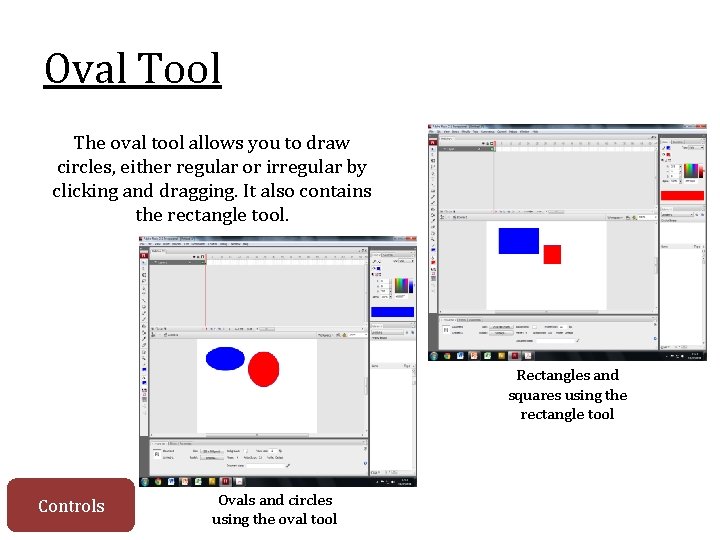
Oval Tool The oval tool allows you to draw circles, either regular or irregular by clicking and dragging. It also contains the rectangle tool. Rectangles and squares using the rectangle tool Controls Ovals and circles using the oval tool
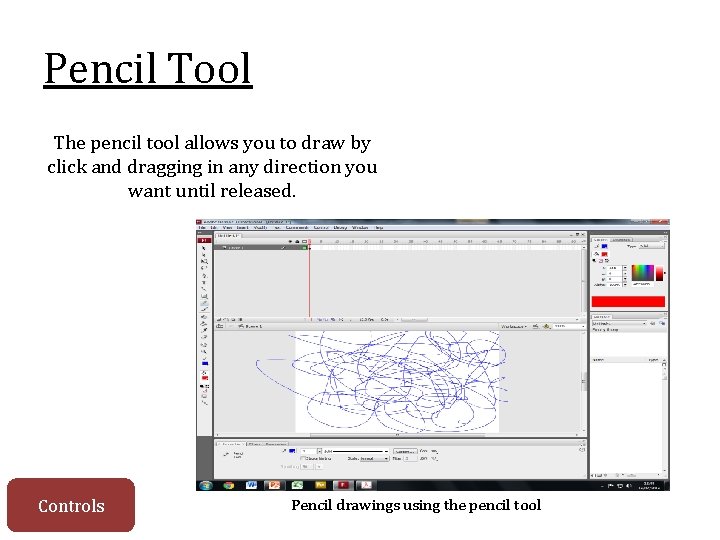
Pencil Tool The pencil tool allows you to draw by click and dragging in any direction you want until released. Controls Pencil drawings using the pencil tool
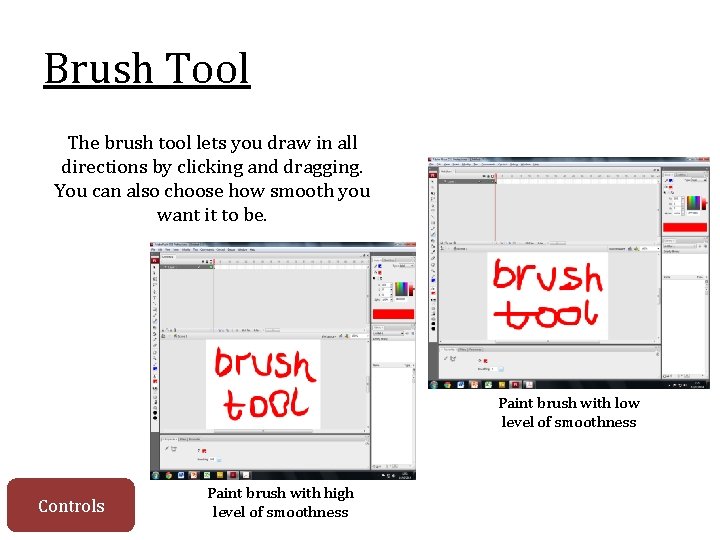
Brush Tool The brush tool lets you draw in all directions by clicking and dragging. You can also choose how smooth you want it to be. Paint brush with low level of smoothness Controls Paint brush with high level of smoothness
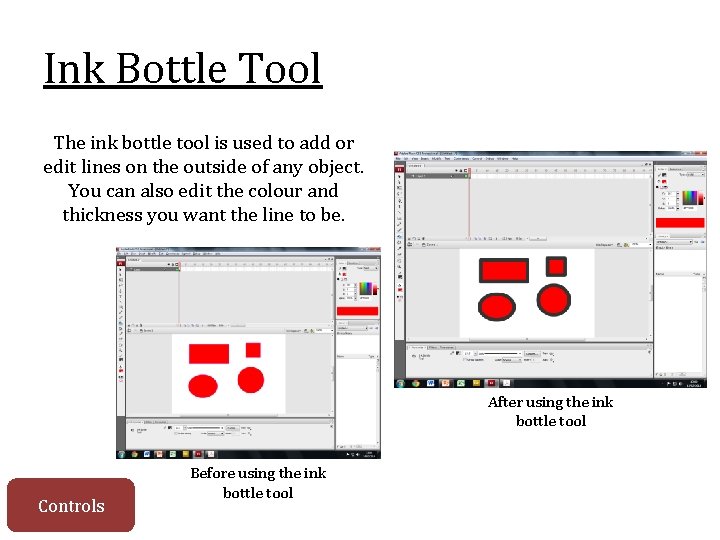
Ink Bottle Tool The ink bottle tool is used to add or edit lines on the outside of any object. You can also edit the colour and thickness you want the line to be. After using the ink bottle tool Controls Before using the ink bottle tool
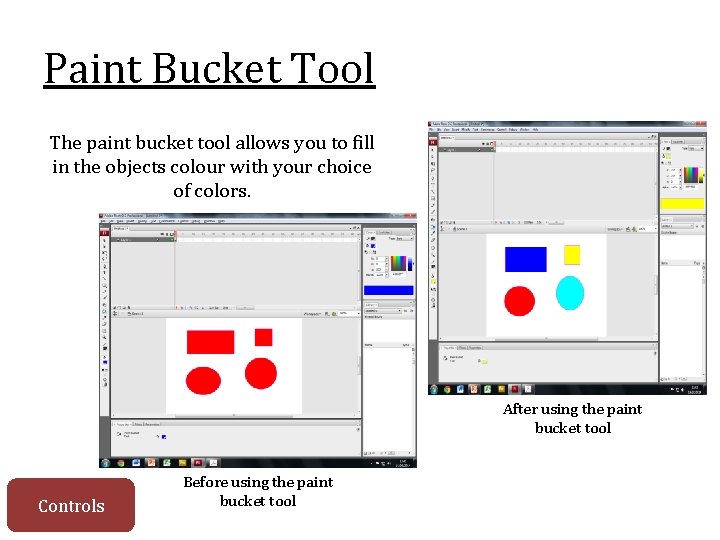
Paint Bucket Tool The paint bucket tool allows you to fill in the objects colour with your choice of colors. After using the paint bucket tool Controls Before using the paint bucket tool
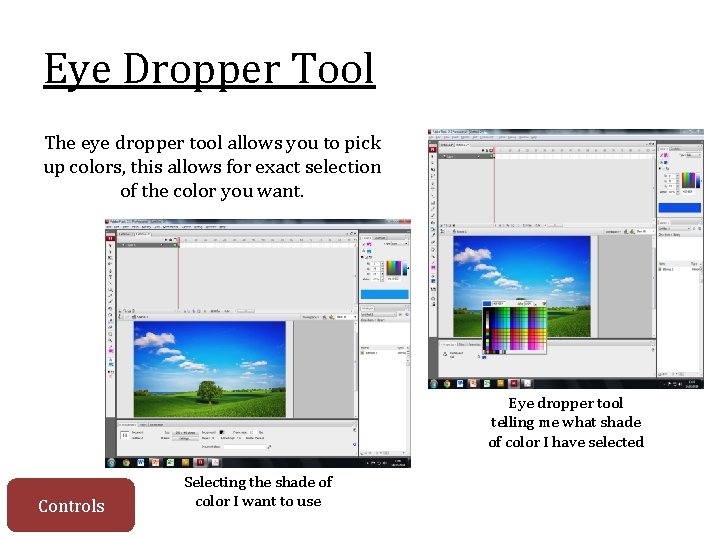
Eye Dropper Tool The eye dropper tool allows you to pick up colors, this allows for exact selection of the color you want. Eye dropper tool telling me what shade of color I have selected Controls Selecting the shade of color I want to use
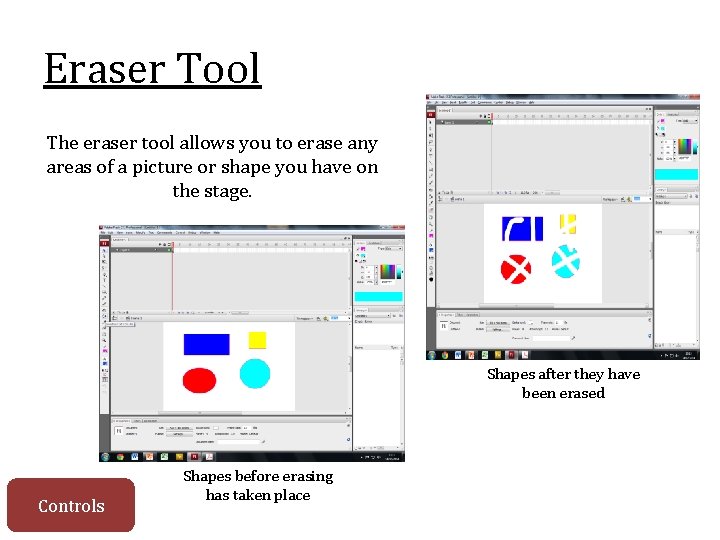
Eraser Tool The eraser tool allows you to erase any areas of a picture or shape you have on the stage. Shapes after they have been erased Controls Shapes before erasing has taken place
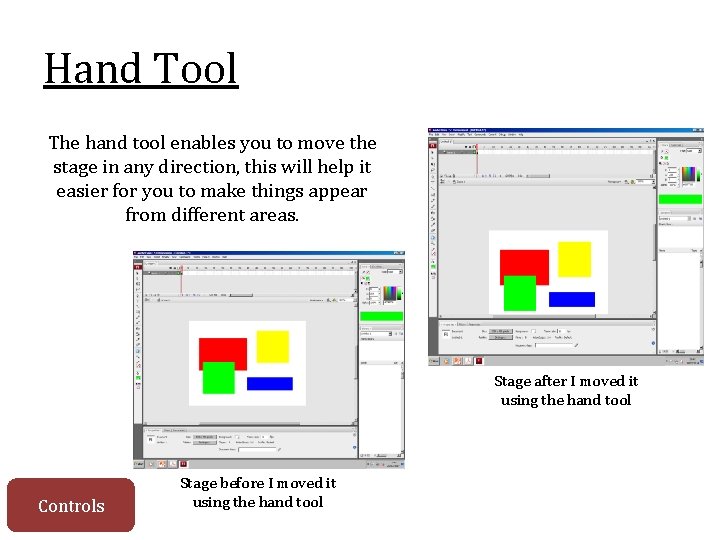
Hand Tool The hand tool enables you to move the stage in any direction, this will help it easier for you to make things appear from different areas. Stage after I moved it using the hand tool Controls Stage before I moved it using the hand tool
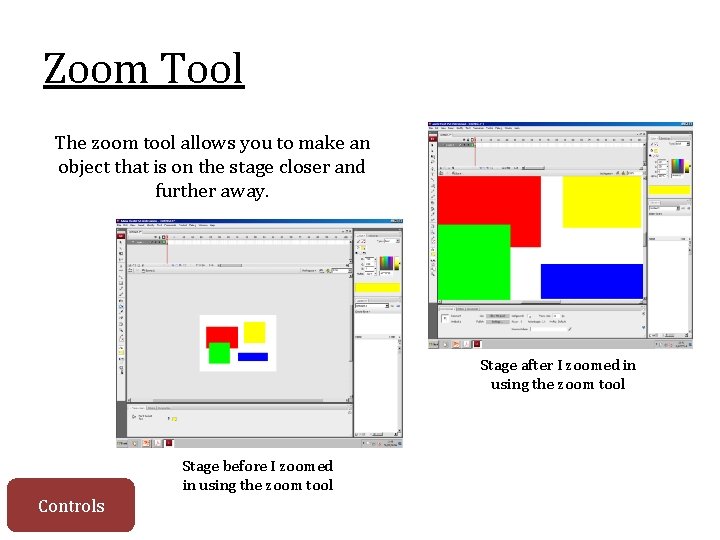
Zoom Tool The zoom tool allows you to make an object that is on the stage closer and further away. Stage after I zoomed in using the zoom tool Stage before I zoomed in using the zoom tool Controls
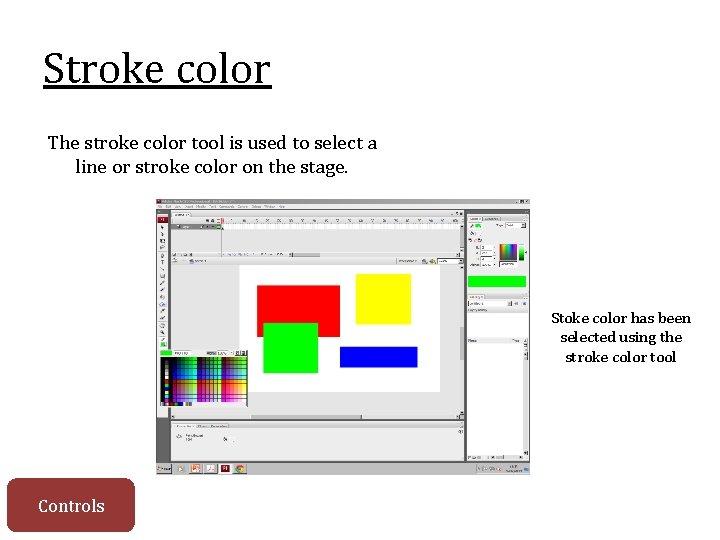
Stroke color The stroke color tool is used to select a line or stroke color on the stage. Stoke color has been selected using the stroke color tool Controls
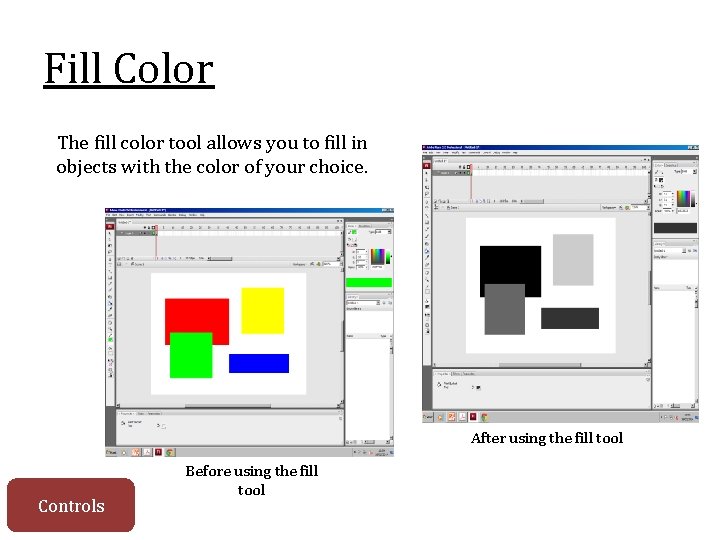
Fill Color The fill color tool allows you to fill in objects with the color of your choice. After using the fill tool Controls Before using the fill tool
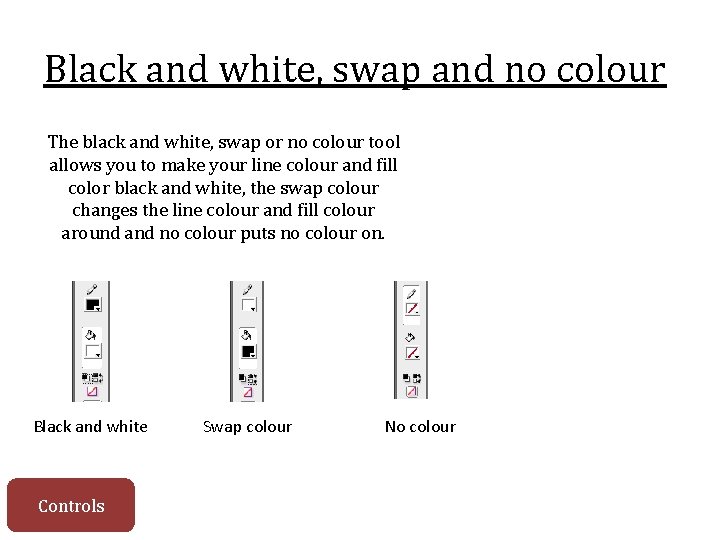
Black and white, swap and no colour The black and white, swap or no colour tool allows you to make your line colour and fill color black and white, the swap colour changes the line colour and fill colour around and no colour puts no colour on. Black and white Controls Swap colour No colour
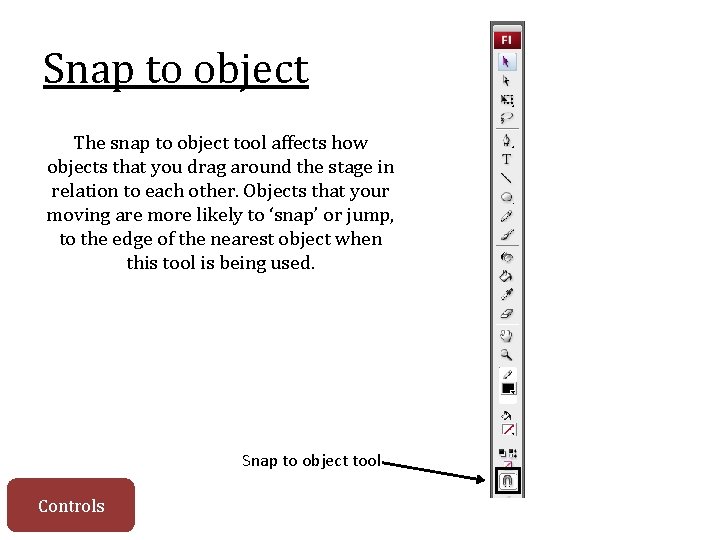
Snap to object The snap to object tool affects how objects that you drag around the stage in relation to each other. Objects that your moving are more likely to ‘snap’ or jump, to the edge of the nearest object when this tool is being used. Snap to object tool Controls
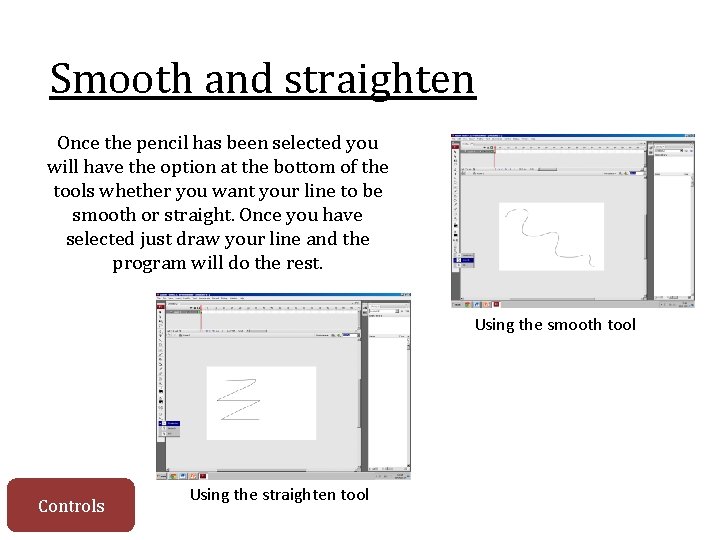
Smooth and straighten Once the pencil has been selected you will have the option at the bottom of the tools whether you want your line to be smooth or straight. Once you have selected just draw your line and the program will do the rest. Using the smooth tool Controls Using the straighten tool
- Slides: 26