
Tools 5 Spatial Data Collection using Point Data




- Slides: 24
Tools 5 Spatial Data Collection using Point Data with Reach. View DELCOM/r. DUAT Training Toolkit
Spatial Data Collection using Point Data with Reach. View App version Reach. View : v 2. 16. 2
Contents 1 Necessities 2 Daily use in the field 2. 1 Getting the Reach. View app ready 2. 2 Data collection in the field 2. 3 Options in identifying points and parcels 2. 4 Uploading data 3 Postprocessing 3. 1 Constructing polygons from points in GIS 3. 2 Importing in Si. GIT
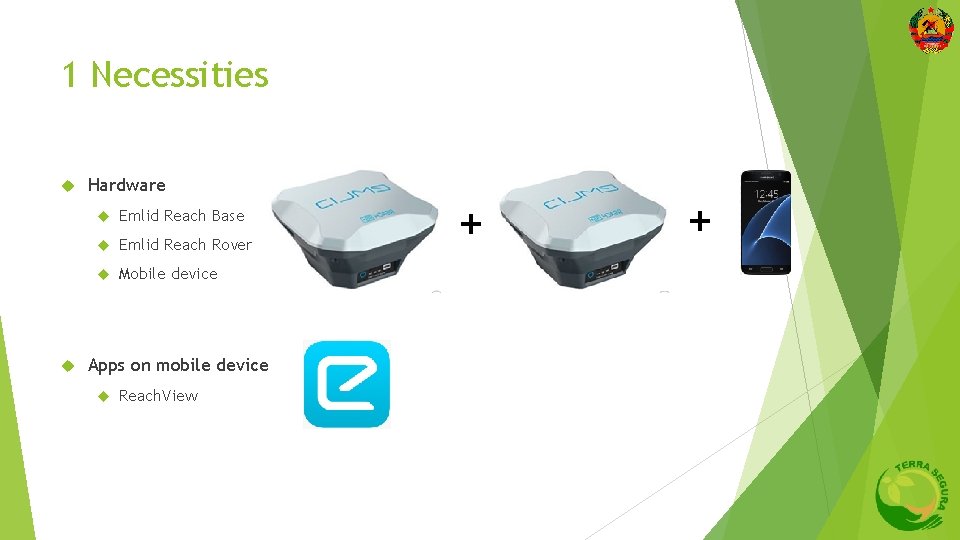
1 Necessities Hardware Emlid Reach Base Emlid Reach Rover Mobile device Apps on mobile device Reach. View + +
2 Daily use in the field
2. 1 Getting the Reach. View app ready 2. 1. 1 Connecting Rover with mobile device 2. 1. 2 Preparing the Reach. View app
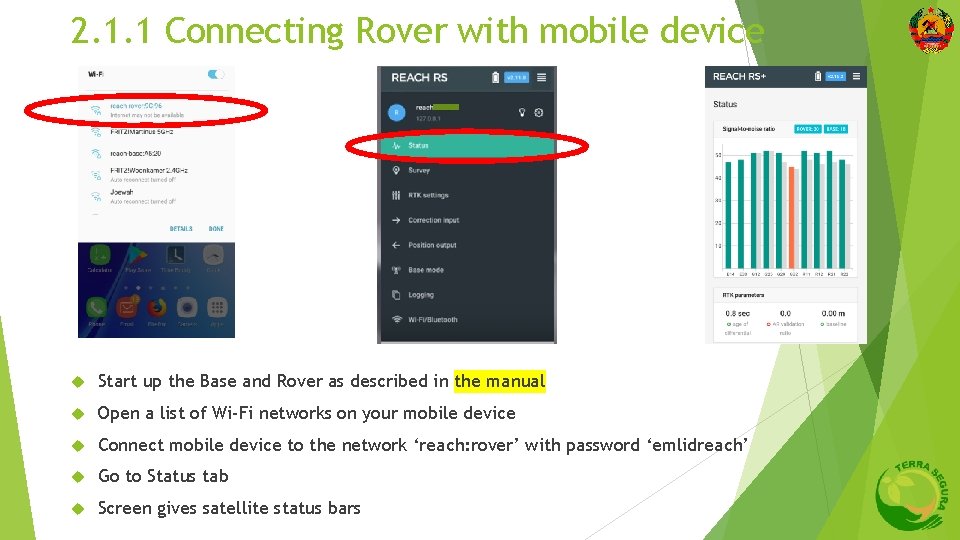
2. 1. 1 Connecting Rover with mobile device Start up the Base and Rover as described in the manual Open a list of Wi-Fi networks on your mobile device Connect mobile device to the network ‘reach: rover’ with password ‘emlidreach’ Go to Status tab Screen gives satellite status bars
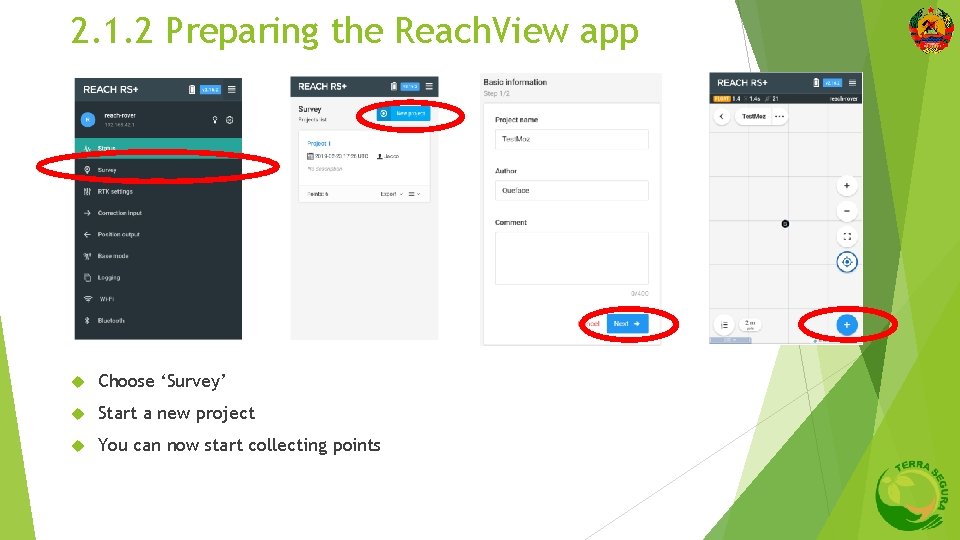
2. 1. 2 Preparing the Reach. View app Choose ‘Survey’ Start a new project You can now start collecting points
2. 2 Data collection in the field
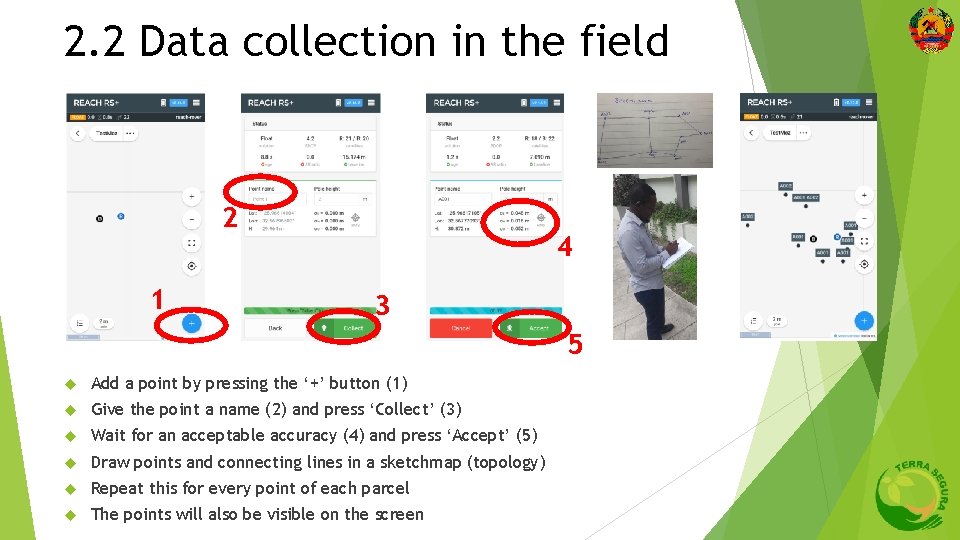
2. 2 Data collection in the field 2 1 4 3 5 Add a point by pressing the ‘+’ button (1) Give the point a name (2) and press ‘Collect’ (3) Wait for an acceptable accuracy (4) and press ‘Accept’ (5) Draw points and connecting lines in a sketchmap (topology) Repeat this for every point of each parcel The points will also be visible on the screen
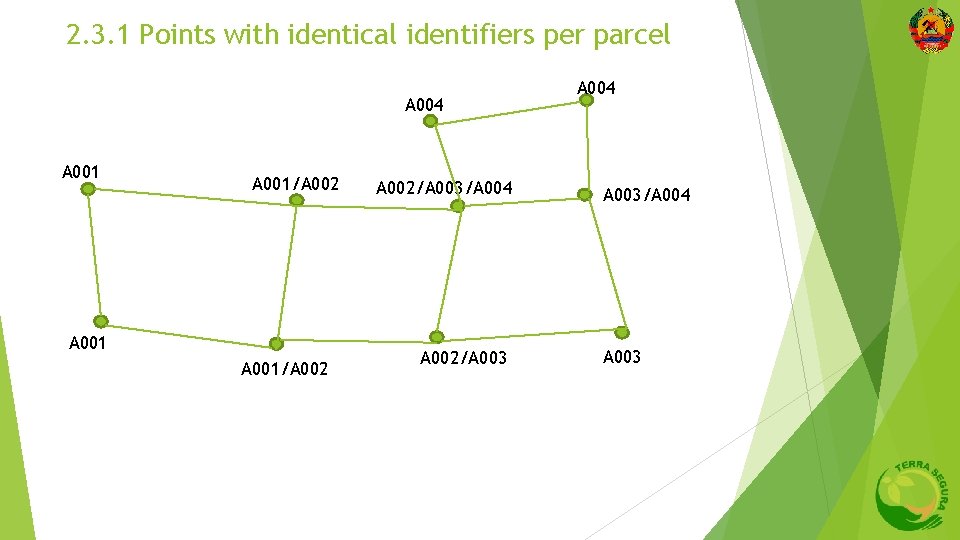
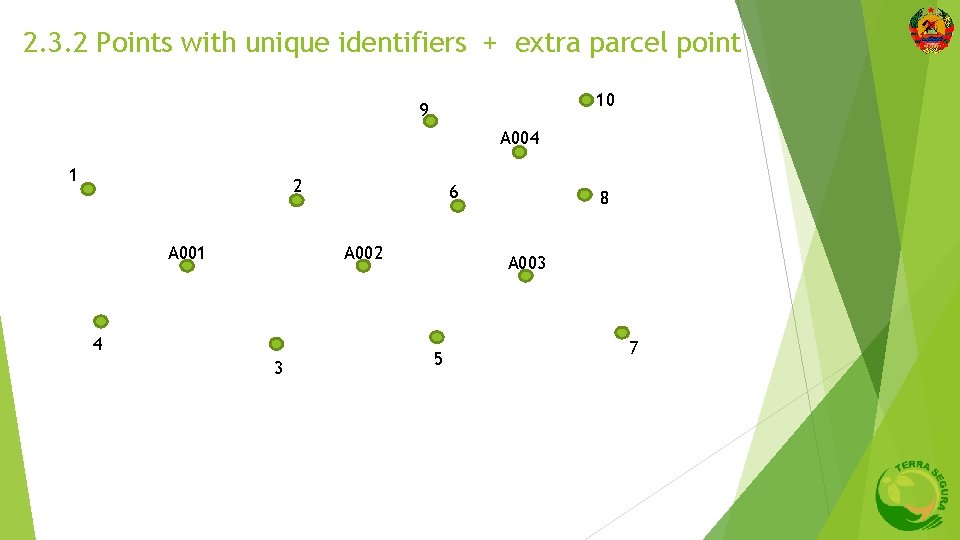
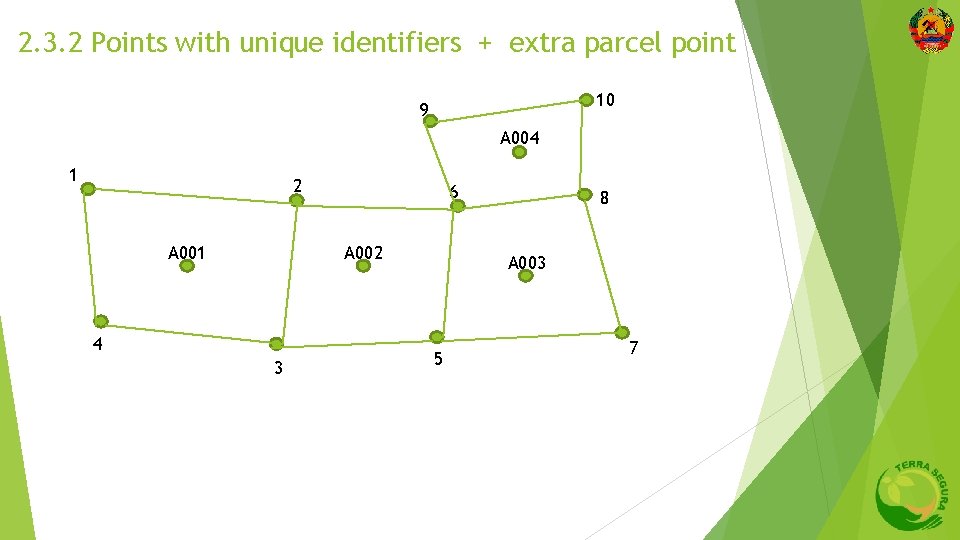
2. 3 Options in identifying points and parcels 2. 3. 1 Points with identical identifiers per parcel 2. 3. 2 Points with unique identiers + extra parcel point
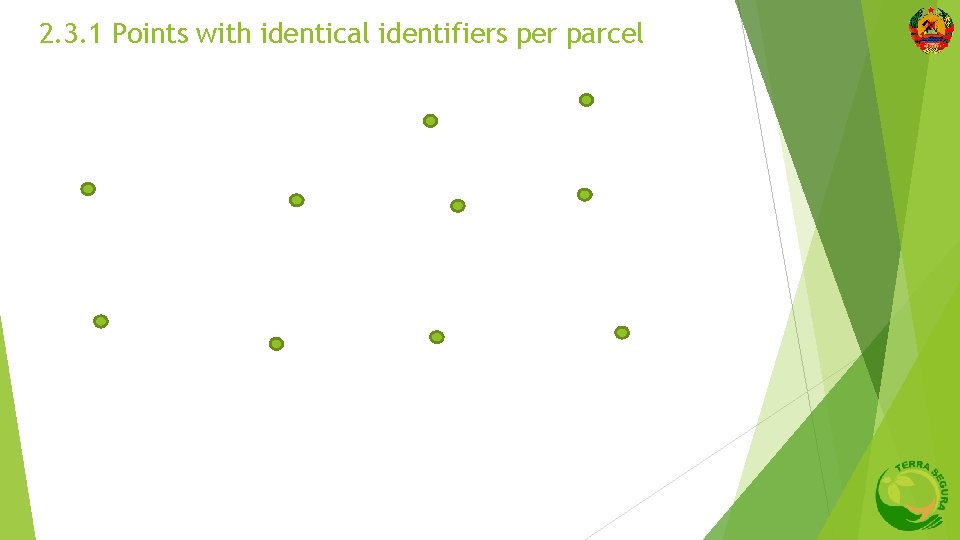
2. 3. 1 Points with identical identifiers per parcel
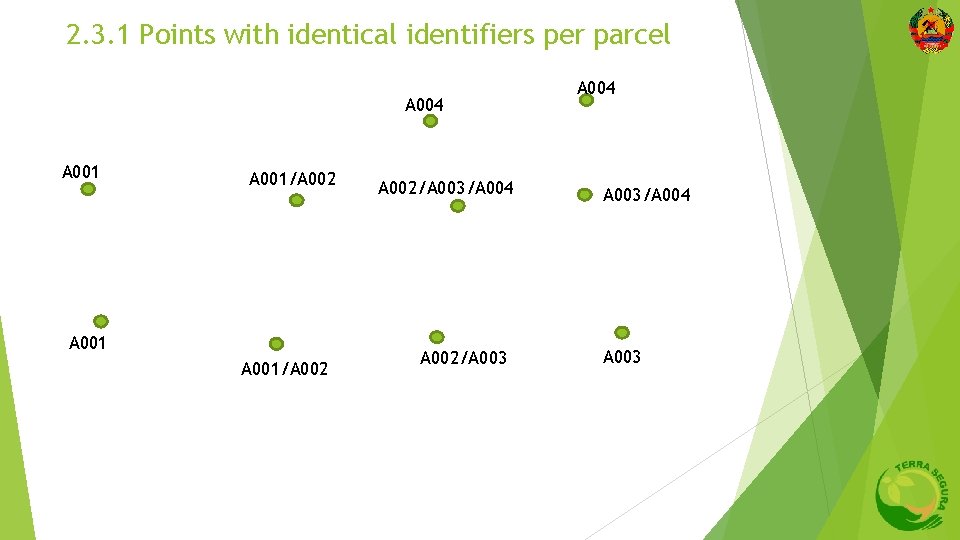
2. 3. 1 Points with identical identifiers per parcel A 004 A 001/A 002/A 003/A 004 A 002/A 003 A 004 A 003/A 004 A 003
2. 3. 1 Points with identical identifiers per parcel A 004 A 001/A 002/A 003/A 004 A 002/A 003 A 004 A 003/A 004 A 003
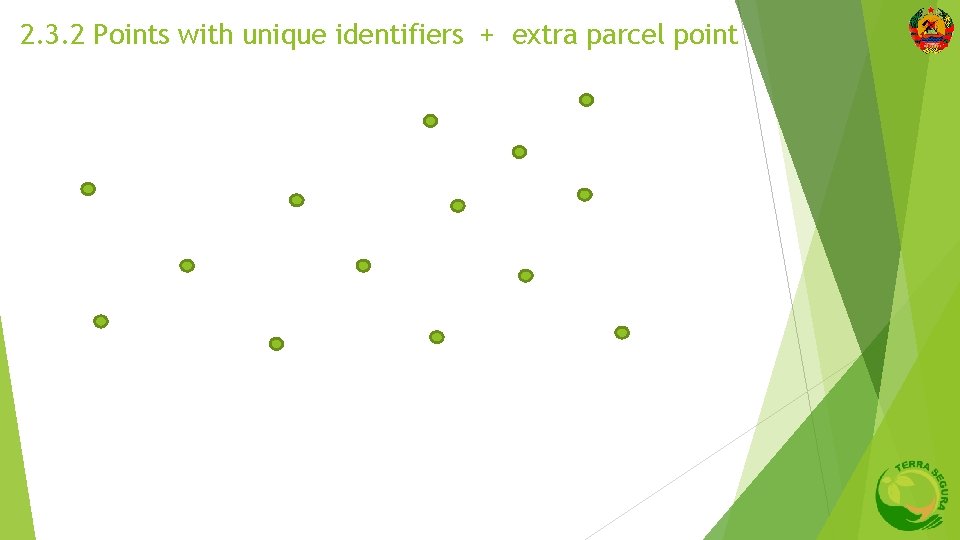
2. 3. 2 Points with unique identifiers + extra parcel point
2. 3. 2 Points with unique identifiers + extra parcel point 10 9 A 004 1 2 A 001 6 A 002 4 3 8 A 003 5 7
2. 3. 2 Points with unique identifiers + extra parcel point 10 9 A 004 1 2 A 001 6 A 002 4 3 8 A 003 5 7
2. 4 Uploading data
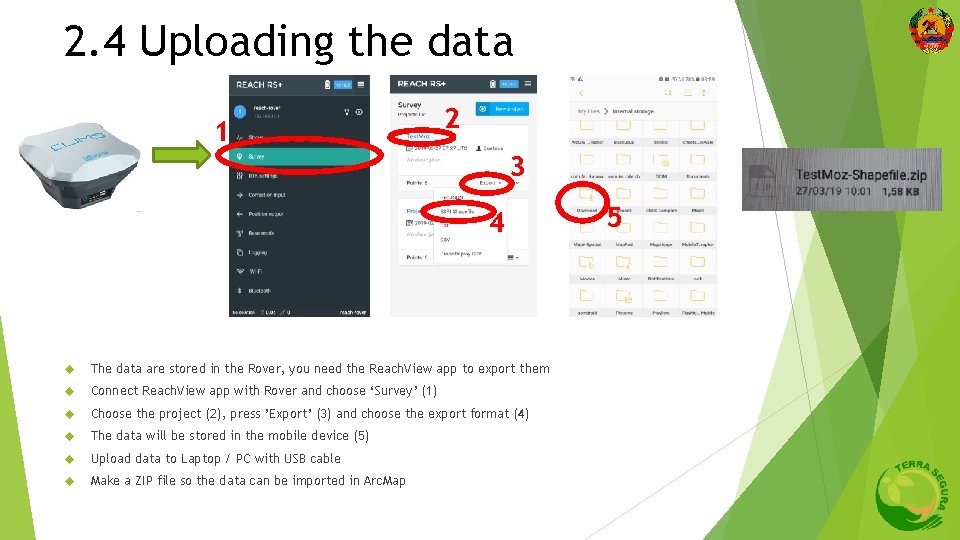
2. 4 Uploading the data 1 2 3 4 The data are stored in the Rover, you need the Reach. View app to export them Connect Reach. View app with Rover and choose ‘Survey’ (1) Choose the project (2), press ’Export’ (3) and choose the export format (4) The data will be stored in the mobile device (5) Upload data to Laptop / PC with USB cable Make a ZIP file so the data can be imported in Arc. Map 5
3 Postprocessing 3. 1 Constructing polygons from points in Arc. Map 3. 2 Importing in Si. GIT
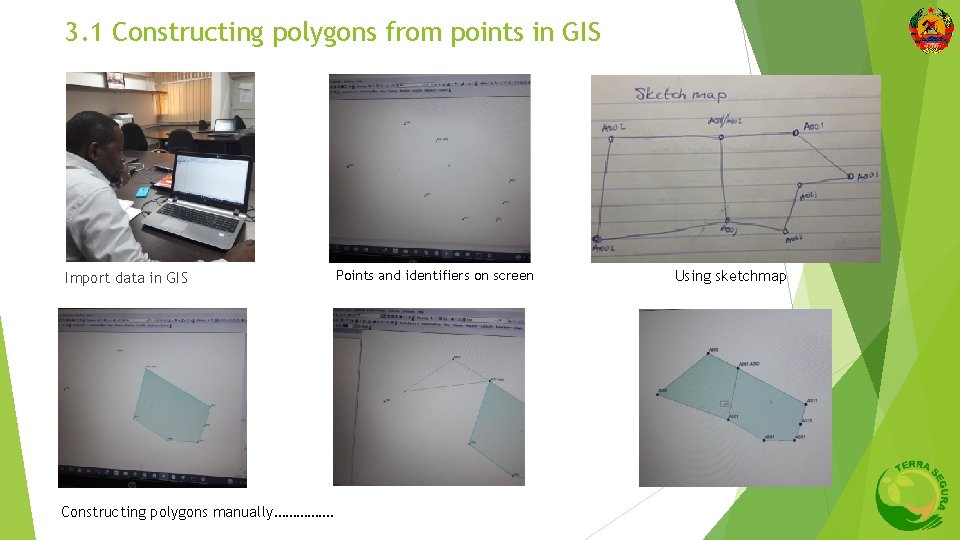
3. 1 Constructing polygons from points in GIS Import data in GIS Constructing polygons manually……………. Points and identifiers on screen Using sketchmap
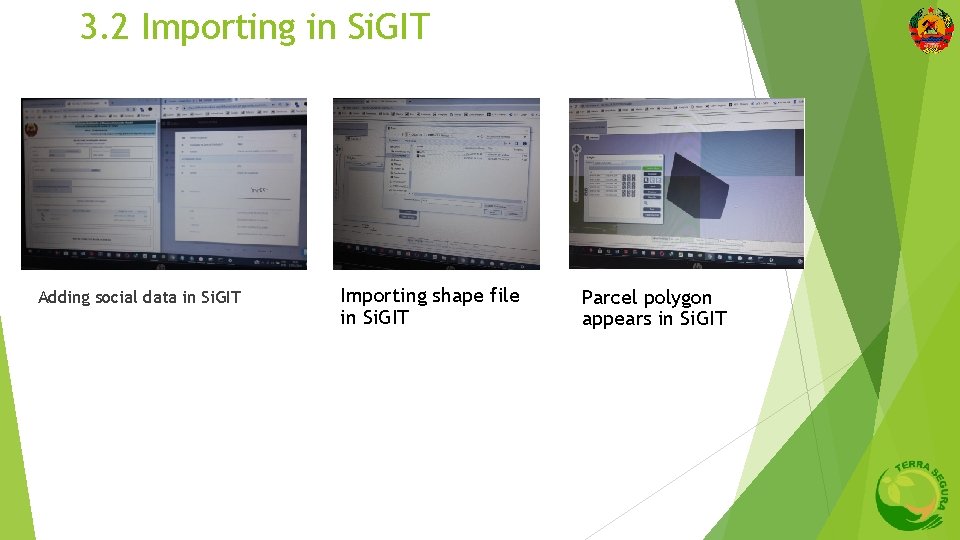
3. 2 Importing in Si. GIT Adding social data in Si. GIT Importing shape file in Si. GIT Parcel polygon appears in Si. GIT
End. Enjoy.
Disclaimer and Copyright The materials in this presentation are for educational purposes only. Where images and content has been adapted or adopted from other sources, all effort has been made to attribute those sources appropriately. All materials and copyright remains the intellectual property of the original authors. The materials on the slides are not to be replicated in any form and are not to be released onto the public domain. 24