
Tool box Pick tool Select position or transform
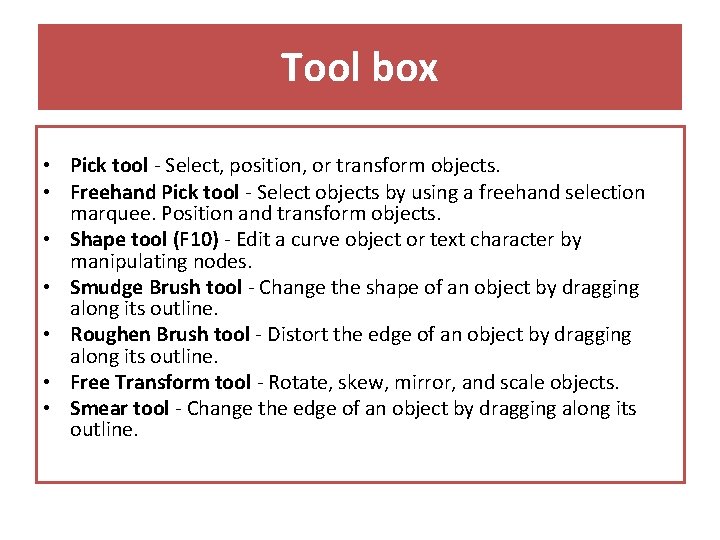
Tool box • Pick tool - Select, position, or transform objects. • Freehand Pick tool - Select objects by using a freehand selection marquee. Position and transform objects. • Shape tool (F 10) - Edit a curve object or text character by manipulating nodes. • Smudge Brush tool - Change the shape of an object by dragging along its outline. • Roughen Brush tool - Distort the edge of an object by dragging along its outline. • Free Transform tool - Rotate, skew, mirror, and scale objects. • Smear tool - Change the edge of an object by dragging along its outline.
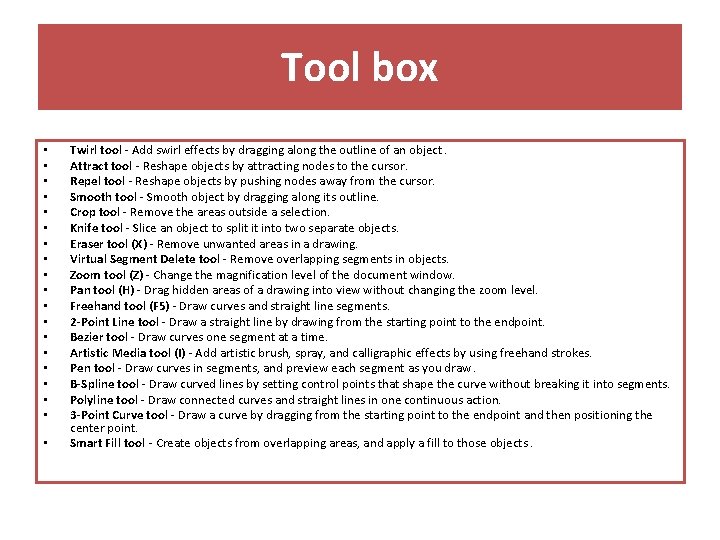
Tool box • • • • • Twirl tool - Add swirl effects by dragging along the outline of an object. Attract tool - Reshape objects by attracting nodes to the cursor. Repel tool - Reshape objects by pushing nodes away from the cursor. Smooth tool - Smooth object by dragging along its outline. Crop tool - Remove the areas outside a selection. Knife tool - Slice an object to split it into two separate objects. Eraser tool (X) - Remove unwanted areas in a drawing. Virtual Segment Delete tool - Remove overlapping segments in objects. Zoom tool (Z) - Change the magnification level of the document window. Pan tool (H) - Drag hidden areas of a drawing into view without changing the zoom level. Freehand tool (F 5) - Draw curves and straight line segments. 2 -Point Line tool - Draw a straight line by drawing from the starting point to the endpoint. Bezier tool - Draw curves one segment at a time. Artistic Media tool (I) - Add artistic brush, spray, and calligraphic effects by using freehand strokes. Pen tool - Draw curves in segments, and preview each segment as you draw. B-Spline tool - Draw curved lines by setting control points that shape the curve without breaking it into segments. Polyline tool - Draw connected curves and straight lines in one continuous action. 3 -Point Curve tool - Draw a curve by dragging from the starting point to the endpoint and then positioning the center point. Smart Fill tool - Create objects from overlapping areas, and apply a fill to those objects.

Tool box • • • • Smart Drawing tool (Shift+S) - Convert freehand strokes to basic shapes or smoothed curves. Rectangle tool (F 6) - Draw squares and rectangles by dragging in the drawing window. 3 -Point Rectangle tool - Draw rectangles at an angle. Elipse tool (F 7) - Draw circles and elipses by dragging in the drawing window. 3 -Point Elipse tool - Draws elipses at an angle. Polygon tool (Y) - Draw polygons by draggig in the drawing window. Star tool - Draw uniform, outlined stars. Complex Star tool - Draw stars that have intersecting sides. Graph Paper tool (D) - Draw a grid. Spiral tool (A) - Draw symmetrical and logarithmic spirals. Basic Shapes tool - Draw triangles, circles, cylinders, hearts and other shapes. Arrow Shapes tool - Draw arrows of various shapes and directions. Flowchart Shapes tool - Draw flowchart symbols. Banner Shapes tool - Draw ribbon objects and explosion shapes.

Tool box • • • • • Callout Shapes tool - Draw labels and speech bubbles. Text tool (F 8) - Add and edit paragraph and artistic text. Table tool - Draw, select, and edit tables. Parallel Dimension tool - Draw slanted dimension lines. Horizontal or Vertical Dimension tool - Draw horizontal or vertical dimension lines. Angular Dimension tool - Draw angular dimension lines. Segment Dimension tool - Display the distance between end nodes on single or multiple segments. 3 -Point Callout tool - Draw a callout with a two-segment leadingline. Straight-Line Connector tool - Draw a straight line to connect two objects. Right-Angle Connector tool - Draw a right angle to connect two objects. Right-Angle Round Connector tool - Draw a right angle with a rounded corner to connect two objects. Edit Anchor tool - Modify the connector line anchor points of objects. Blend tool - Blend objects by creating a progression of intermediate objects and colors. Contour tool - Apply a series of concentric shapes that radiate into or out of an object. Distort tool -Transform objets by applying Push and Pull, Zipper, or Twister effects. Drop Shadow tool - Apply shadows behind or below objects. Envelope tool - Change the shape of an object by applying and dragging the nodes of an envelope.
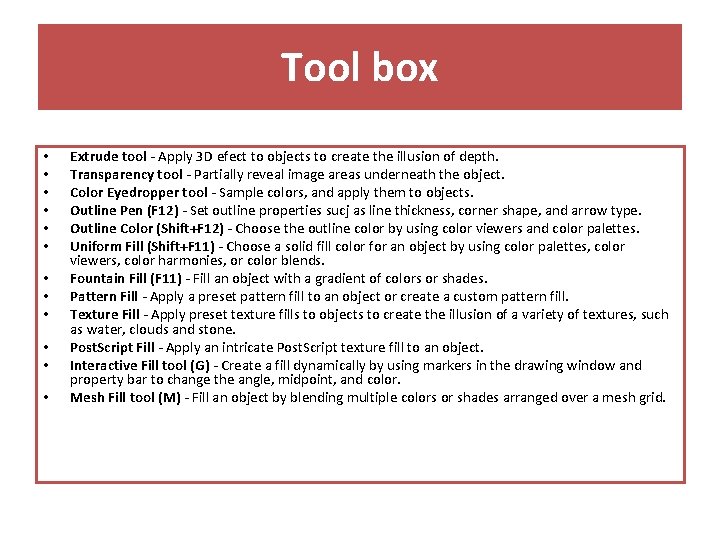
Tool box • • • Extrude tool - Apply 3 D efect to objects to create the illusion of depth. Transparency tool - Partially reveal image areas underneath the object. Color Eyedropper tool - Sample colors, and apply them to objects. Outline Pen (F 12) - Set outline properties sucj as line thickness, corner shape, and arrow type. Outline Color (Shift+F 12) - Choose the outline color by using color viewers and color palettes. Uniform Fill (Shift+F 11) - Choose a solid fill color for an object by using color palettes, color viewers, color harmonies, or color blends. Fountain Fill (F 11) - Fill an object with a gradient of colors or shades. Pattern Fill - Apply a preset pattern fill to an object or create a custom pattern fill. Texture Fill - Apply preset texture fills to objects to create the illusion of a variety of textures, such as water, clouds and stone. Post. Script Fill - Apply an intricate Post. Script texture fill to an object. Interactive Fill tool (G) - Create a fill dynamically by using markers in the drawing window and property bar to change the angle, midpoint, and color. Mesh Fill tool (M) - Fill an object by blending multiple colors or shades arranged over a mesh grid.
- Slides: 5