
TODAY CONCEPTS Development for portable devices Definition of
TODAY: CONCEPTS • • Development for portable devices • Definition of resources • Deployment of resources Begin GUI Elements • • • Properties and organization Events • Protocols of function calls • Event driven model UI Elements • Definition, appearance, how to modify • UI element hierarchy • Event propagation model • Naming and changing the state of an UI element • For fun: • The Timer utility, Time. Span, and a stopwatch
TOOLS USED • Visual Studio 2010 • Windows Phone Developer SDK • SDK: Software Development Kit • Windows Presentation Foundation (WPF) • The xaml files …. And Expression Blend • Silverlight • Windows Phone 7: because it is fun
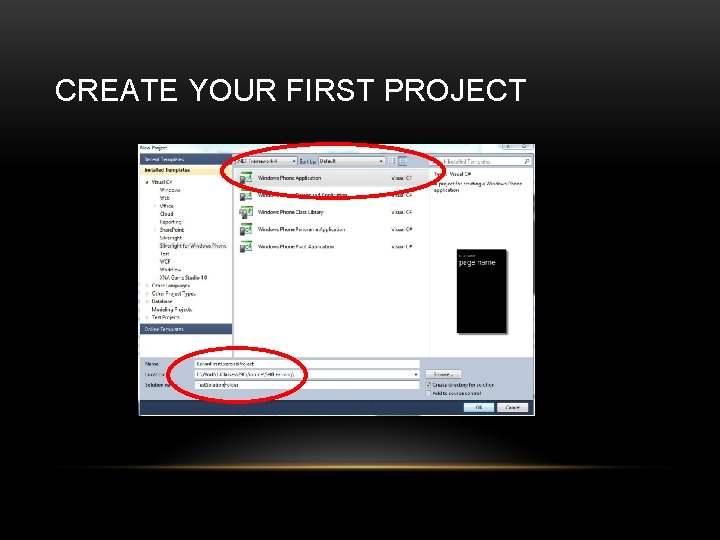
CREATE YOUR FIRST PROJECT
WORKING WITH THE IDE • Solution, Project, • Deploy vs. Debug, Run without Debug • Debug vs. Release • View • Solution Explorer • Show/Hide button • Refresh button • Toolbox • Properties Window • Context Sensitive Window
COMPILE/BUILD AND RUN • Compile (build), and Run • Two separate procedure • Run on Emulator: The executable • The. xap file: where is this file? • How to “run” this program? • Double click on. exe, what happens? • How to “load” the. xap onto the phone? • Go check out a Windows Phone
DEPLOYMENT • Where is your app on the phone? • What is the name of your app? • How to change this? • What is your icon? How to change that? • Explorer: view file extension how? • How to “pin” your all to the main page? • How to un-pin? • How to delete your app from the phone? • Notice the UI design: • pressed for a while and see what happens? !
WORKING WITH THE DEVICE • Unlock for development! • Refer to web-site under WP 7 sites, wait a little this process is going to be MUCH easier in a few weeks • Zune must be running • Communication channel • Load and run on the phone • From the. xap file • From the IDE • Limited number of Apps you can load!
IMAGES IN THE PROJECT • • Background: 173 x 173, Icon: 62 x 62 • WMApp. Manifest. xml: Look for Background. png • Or, project properties: GUI view vs. xaml view How to include your own images • • Must “Include into project” Properties of the newly added image: • Build Action: Content • Copy to Output: Copy if newer • Remove all unused images!! • Hint: • If you don’t see changes on the phone • un-install + Re-deploy
PROJECT PROPERTIES • Double click on Properties (Under Project) + Application Tab: • XAP file name • Deployment Title + Icon: in the app area • Pin to main: Tile + Background image • Hint: If you can’t see your images in the properties windows • Close/open the property window to see them in the drop-down menu • . XAP files: • Simple zip file: change file extension • See all the images? ! Remove unused images!!
FILES IN THE PROJECT • Which are the useful/useless files? • Build in Release: • Save the. xap file (your APP) from the Bin/Release folder. • Useless files: • Bin, obj folders can be deleted! • Any files ending with: • . cache, . user can remove these files
PROJECTS FOR THIS CLASS • For exercises and MPs • DO NOT copy projects • Always create from scratch • Project and App naming convention: help me grade • GUID: actual project name • Assembly. Info. cs, WMApp. Manifest. xml
WINDOWS PRESENTATION FOUNDATION (WPF) • Fancy name for simple idea • Source files: • . xaml and. xaml. cs • Two sets: App and Main. Page • App: don’t worry about this … but … • this is the “Entry point: ” the Main() • Calls: Main. Page()! • Double click on • Main. Page. xaml. cs: C# source code … whooo … • Main. Page. xaml
GUI ELEMENTS • Elements of Graphical User Interface: • A Textbox, a Button, a Sliderbar, etc • A Window, a “Panel” • Open in Expression Blend • Relationships: Expression Blend vs. Properties Window • Try: Save in one window and see in the other • Notice how. xaml file content changes! Two programs shares data via a file! • Don’t change in both at the same time!!
EXPRESSION BLEND • Cool? Easy way of edit the appearance of GUI elements • Text color, font size, location of textbox … • Windows • Tools, Assets, Properties, Objects and Timeline, Device • Tools and Assets: overlaps! • Properties: lets you control the appearance • Important insight!!
GUI ELEMENT HIERARCHY • The Default Hierarchy of the GUI element! • Layout. Root parent of: Title. Panel and Content. Panel • Title. Panel and Content. Panel: • are siblings • Children of Layout. Root • Application. Title and Page. Title: siblings • Children of Content. Panel • Why is this important? • Try deleting Layout. Root? ! • Or moving it! • Important to know parents of a GUI element!!
EVENTS • GUI Elements as variables • GUI Element Alignment problem • Window Size change (e. g. , Phone orientation change) • Event Driven Programming Structure • Event propagation model • Notice: same event in entire ancestry tree • Service Events • Event service routines
LET’S TRY: • Add in a Text. Box • Change alignment with offset • Change color • Add a rectangle • How to “group” the rectangle and Text. Box under the same alignment? • Hint: Canvas • How to move existing elements into a canvas? • WATCH OUT: • Properties window: the Event vs. Properties Tab!!
EXPRESSION BLEND • Add in a new textbox • Give this textbox a name: A NAME? • GUI element hierarchy • The object that contains the variable name: • Which one? • Exercise: Create a canvas move the textbox into the canvas … Notice, • the textbox has a new GUI parent • The textbox’s variable belongs to Main. Page • Learn: cannot name two GUI elements the same name! • Main. Page. xaml. cs: Main. Page() • Set the Text content on the textbox • ALL properties of all GUI elements can be changed in the. cs file!!
SWITCH ON ORIENTATION SUPPORT • Expression Blend • Notice which GUI element you select!! • Only one (the very root) has Orientation property • See the exact same property can be access via Visual Studio (IDE) • Remember, same data!! • Find the file being changed! Which one? • Now, run, the Main. Page reacts “intuitively” • Nice? No? • What’s happening to your text. Box, what do you want from it?
TEXT (OR: ANY GUI) PLACEMENT • This is a real problem in general! • GUI Window size change!! • Look at your WORD document, when you resize your window what happens? • Choice: Policy!! • Statically defined: does not change during runtime • Specify measured from which boundary, how many pixels • Program control: Policy • At run time, move GUI according to some policy • E. g. , distance from the Top/Left • How does WORD support its menus?
ALIGNING TEXT OR ANYTHING! • Align Text wrt Top/Left (TL) • Align Rectangle wrt Bottom Left • How to align two GUI elements at the same time? • Canvas! • Silverlight datatypes to work with: • Orientation: enumerated datatype • Panel/Layout: • Actual. Width/Height • Render. Size
EVENTS AND EVENT SERVICES • Select Content Panel • Properties Tab: look at all the events!! • Let’s look at size change • Add in a “Service Function: <CR>!! • BAM!! • Just Registered a event service function with the Content. Panel • What? This function will be called when Content. Panel size changes • Who is calling this function? WPF • What do we do in this function? • One thing! One thing and return! • Let’s see what is the size, and size change
EVENTS AND SERVICE ROUTINES • Events are generated by user action • Events are “sent” to a GUI element • Root window, Panel, textbox, etc. • We can choose to let a GUI “service” an event • Find the GUI • Find the event • Define the service routine! • Same event service tag can exists all along the UI element parentage hierarchy • Now, what should we do to receive orientation change?
INTER-DEPENDENT EVENTS • An event implies another one will be generated! • Mouse Buttons: Down Drag Up • Touch Drag Up • Usually wants to keep track of what is happening along the way!! • Manipulation series of Touch events • Notice exists on ALL GUI elements! • Remember about Event propagation/Routing: start from Parent • Use Manipulation to capture movements • Delta: what just happened • Cumulative: what happened since the beginning • Print out the Translation. X/Y to verify
EXAMPLE: EVENT ROUTING • Look at the Event. Routing source code • Structure • Blue: Grandparent: lowest priority in event handling • Red: Parent: blocks delta from grand. Parent • Green Region: highest priority: blocks End from Parent • Hint: Panel without Fill cannot receive Touch events.
EVENT ROUTING DETAILS • Always sent to the leve!! (lowest-level child)!! • Child-Green panel: touch/move: • Start from all three generation • Delta only from Child/Parent (Parent blocked the event from Grand. Parent) • Completed: only from Child (Child blocked event from everyone!) • Red Region: touch/move • Start: from parent and grand. Parent • Delta: only from Parent (parent blocked from grand. Parent) • Completed: from both parent and grand. Parent (parent did not block Completed) • Blue region: touch/move see all messages
EXAMPLE: TIMER • Start a “System Timer” • Variable types: • Instances vs. Local the difference? ! • The Stop. Watch. Timer app: • Dispatcher. Timer (Systems. Windows. Threading) • Interval, Tick, and Start() • Date and time: • Date. Time, Time. Span • Rectangle UI element • Solid. Color. Brush
APPENDIX: MISC INFO • . xaml. cs vs. . cs • Properties Window • Properties vs. Event tabs • Debugging, stop and examine results • Editing/running from Expression Blend • Event call backs • Which GUI element is generating the event
- Slides: 28