
To Socrative By Amanda Kosky What is Socrative
To Socrative By: Amanda Kosky
What is Socrative and How is it Helpful for Me as a Teacher? • Socrative is a free educational technology tool which allows the user to: Create a free account Create assessments quickly and easily Store assessments on the user’s account Determine the type of format for an assessment Obtain instant feedback about the results from an assessment Did I mention it is
How Can I Use Socrative as a Teacher? There are many different ways to incorporate Socrative in the classroom Daily Warmup Homework Check Pretest Posttest Exit Slip
How Does Socrative Benefit Students? • Socrative is easy to use in the classroom • Students do not need to create an account which would require them to remember a password • All students need is an electronic device and the Room Number to take the assessment • The instant feedback obtained can help you make data-driven decisions immediately to help your students understand content material
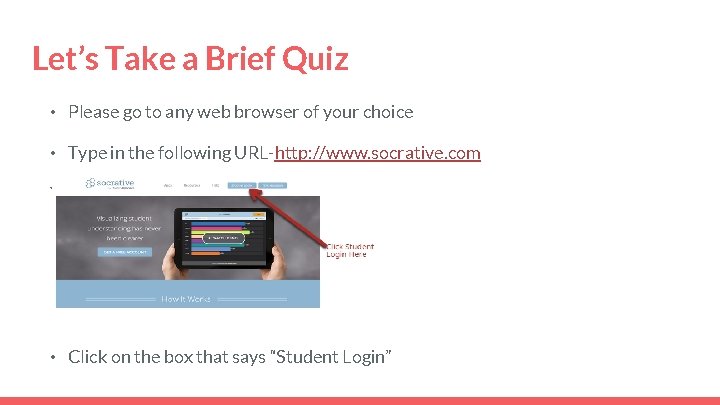
Let’s Take a Brief Quiz • Please go to any web browser of your choice • Type in the following URL-http: //www. socrative. com Your screen will look like this • Click on the box that says “Student Login”
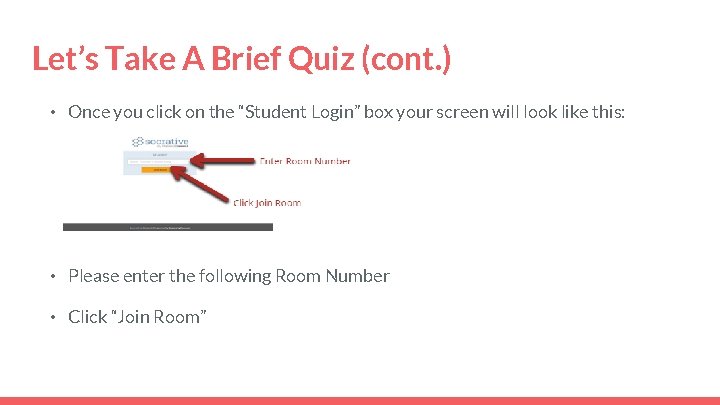
Let’s Take A Brief Quiz (cont. ) • Once you click on the “Student Login” box your screen will look like this: • Please enter the following Room Number • Click “Join Room”
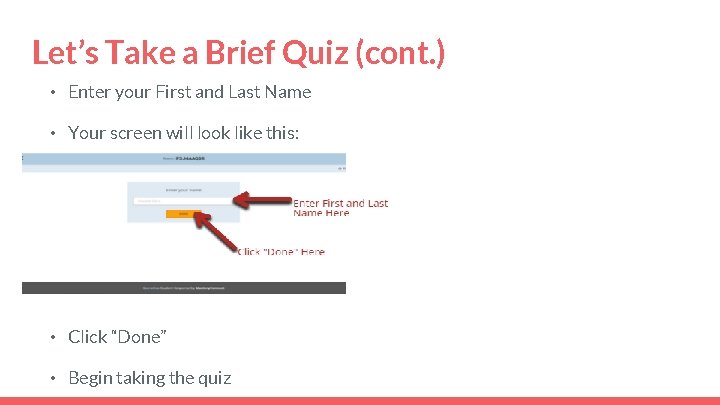
Let’s Take a Brief Quiz (cont. ) • Enter your First and Last Name • Your screen will look like this: • Click “Done” • Begin taking the quiz
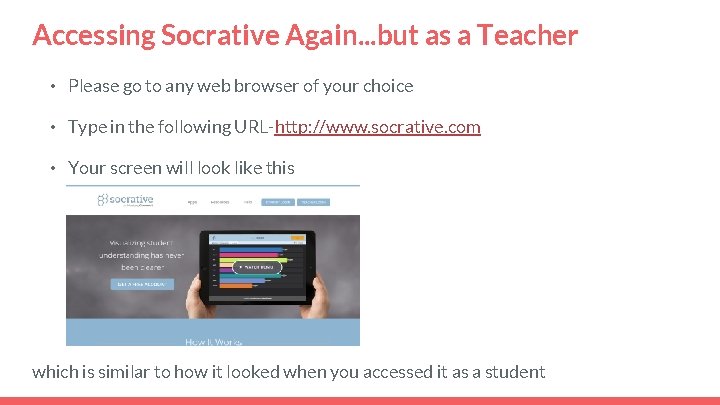
Accessing Socrative Again. . . but as a Teacher • Please go to any web browser of your choice • Type in the following URL-http: //www. socrative. com • Your screen will look like this which is similar to how it looked when you accessed it as a student
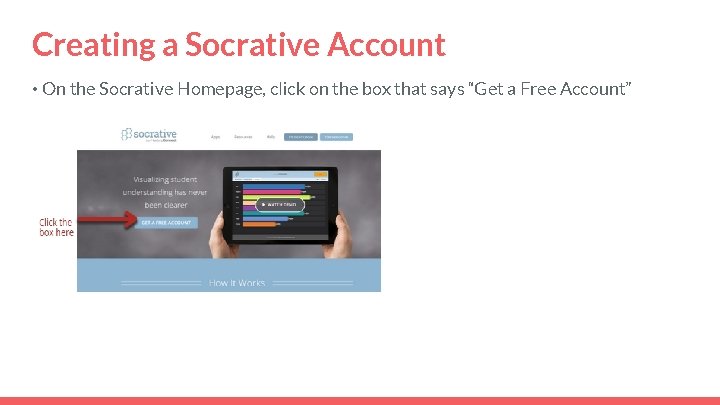
Creating a Socrative Account • On the Socrative Homepage, click on the box that says “Get a Free Account”
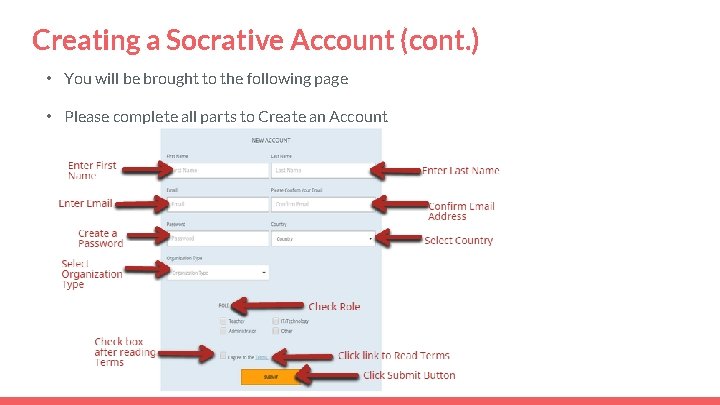
Creating a Socrative Account (cont. ) • You will be brought to the following page • Please complete all parts to Create an Account
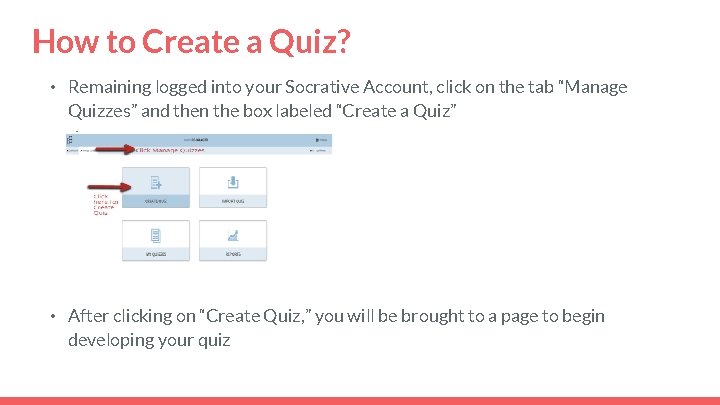
How to Create a Quiz? • Remaining logged into your Socrative Account, click on the tab “Manage Quizzes” and then the box labeled “Create a Quiz” • After clicking on “Create Quiz, ” you will be brought to a page to begin developing your quiz
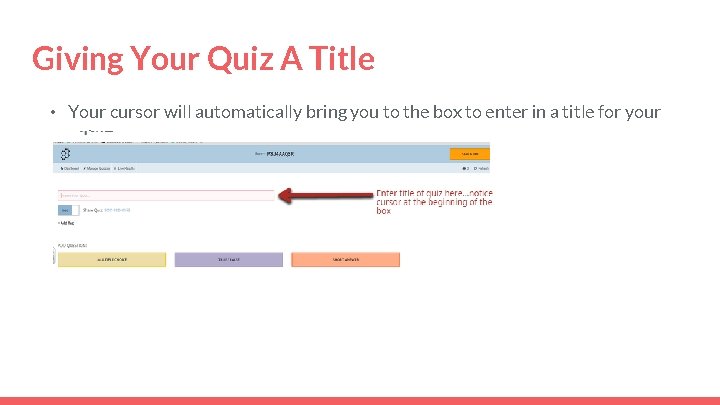
Giving Your Quiz A Title • Your cursor will automatically bring you to the box to enter in a title for your quiz
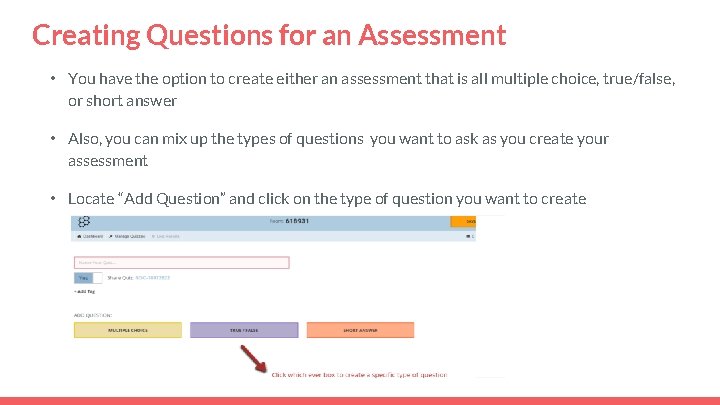
Creating Questions for an Assessment • You have the option to create either an assessment that is all multiple choice, true/false, or short answer • Also, you can mix up the types of questions you want to ask as you create your assessment • Locate “Add Question” and click on the type of question you want to create
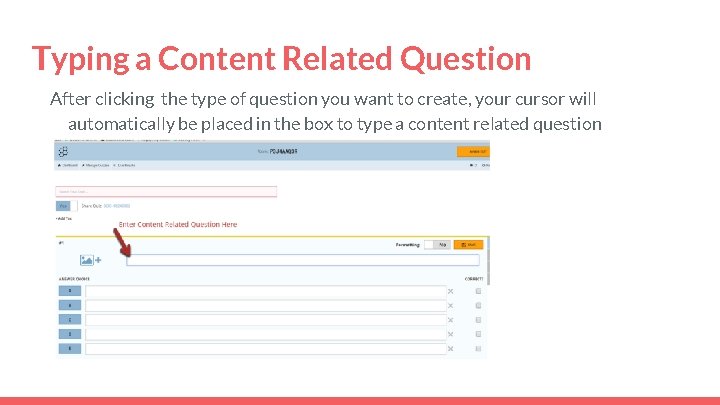
Typing a Content Related Question After clicking the type of question you want to create, your cursor will automatically be placed in the box to type a content related question
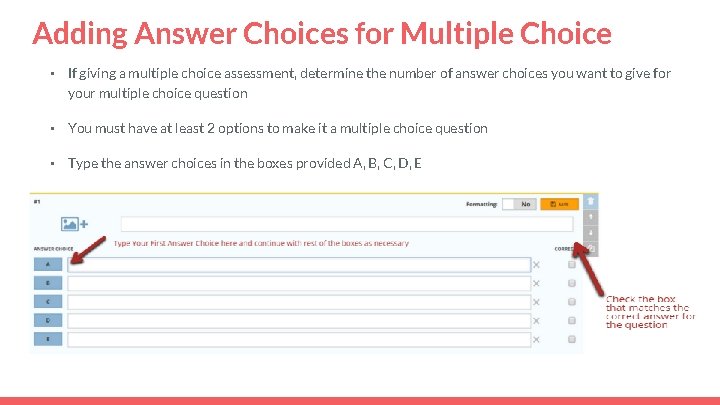
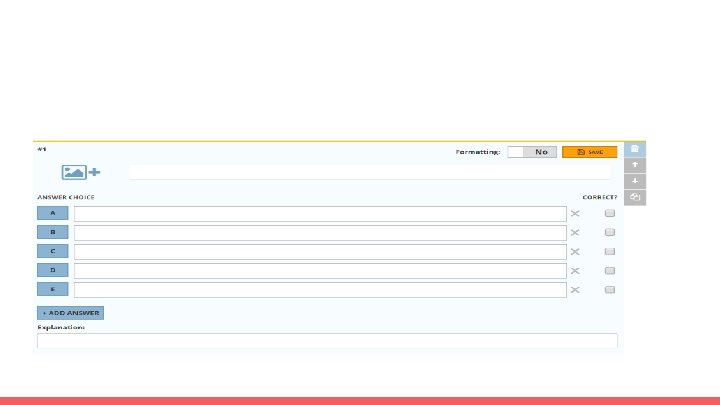
Adding Answer Choices for Multiple Choice • If giving a multiple choice assessment, determine the number of answer choices you want to give for your multiple choice question • You must have at least 2 options to make it a multiple choice question • Type the answer choices in the boxes provided A, B, C, D, E To identify the correct answer to the question, locate the CORRECT? column and check the box that corresponds with the correct answer
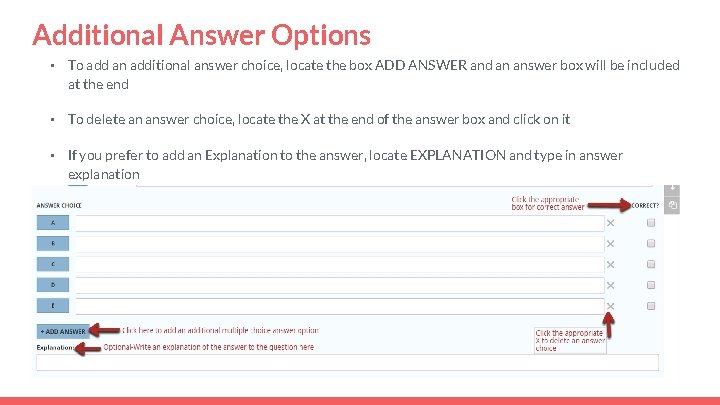
Additional Answer Options • To add an additional answer choice, locate the box ADD ANSWER and an answer box will be included at the end • To delete an answer choice, locate the X at the end of the answer box and click on it • If you prefer to add an Explanation to the answer, locate EXPLANATION and type in answer explanation
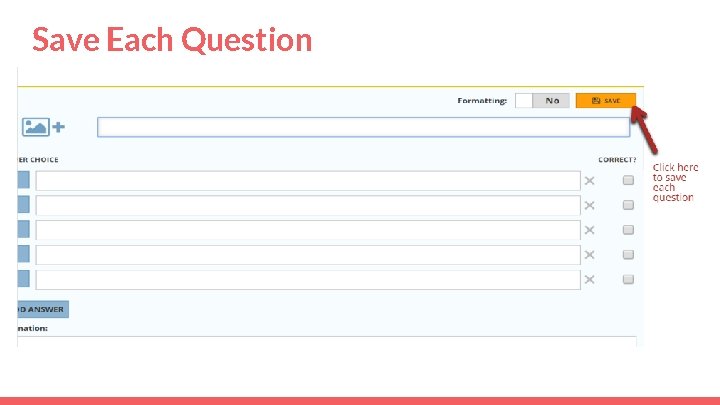
Save Each Question
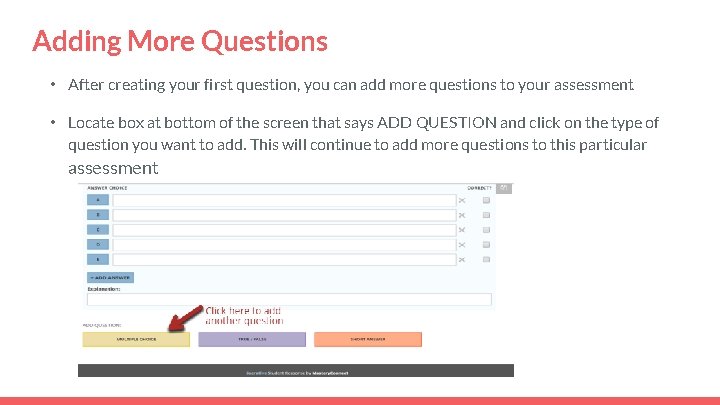
Adding More Questions • After creating your first question, you can add more questions to your assessment • Locate box at bottom of the screen that says ADD QUESTION and click on the type of question you want to add. This will continue to add more questions to this particular assessment
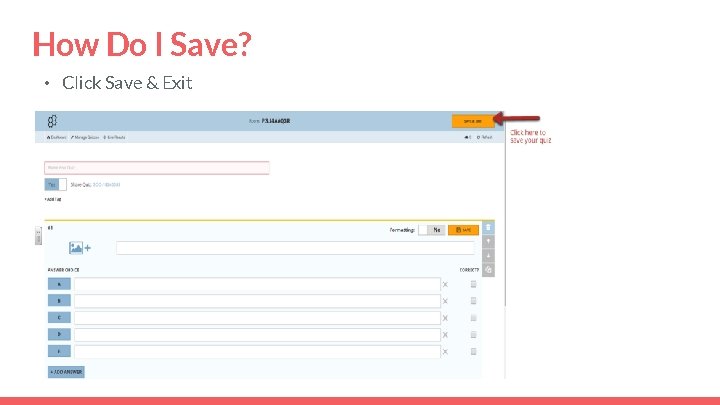
How Do I Save? • Click Save & Exit
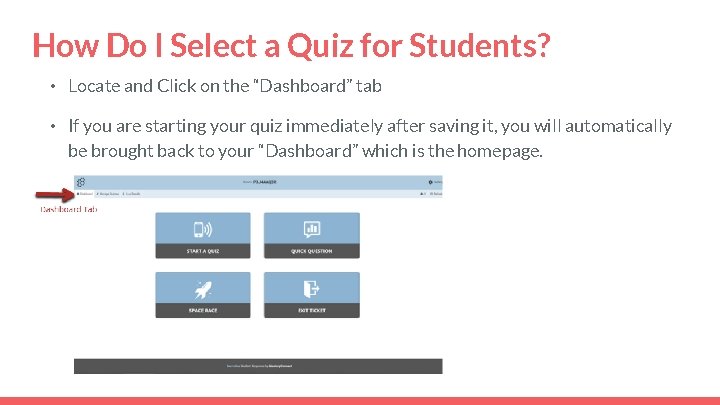
How Do I Select a Quiz for Students? • Locate and Click on the “Dashboard” tab • If you are starting your quiz immediately after saving it, you will automatically be brought back to your “Dashboard” which is the homepage. Your Dashboard looks like this:
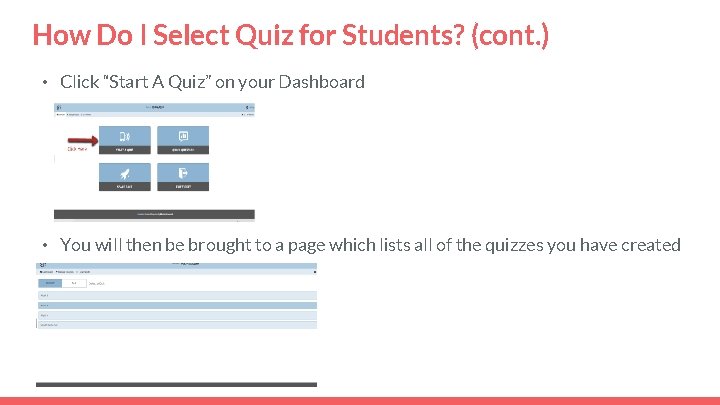
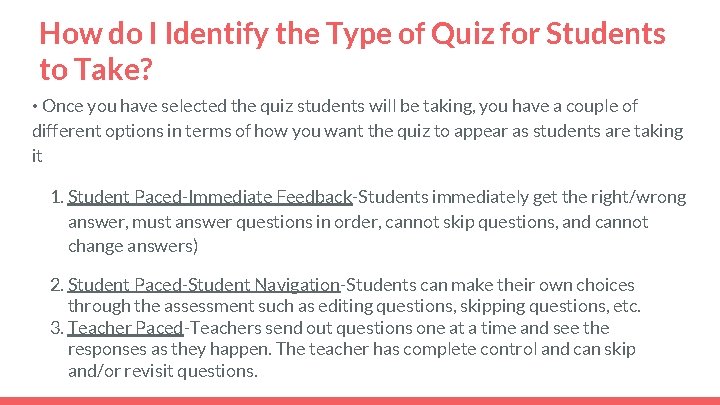
How Do I Select Quiz for Students? (cont. ) • Click “Start A Quiz” on your Dashboard • You will then be brought to a page which lists all of the quizzes you have created
How do I Identify the Type of Quiz for Students to Take? • Once you have selected the quiz students will be taking, you have a couple of different options in terms of how you want the quiz to appear as students are taking it 1. Student Paced-Immediate Feedback-Students immediately get the right/wrong answer, must answer questions in order, cannot skip questions, and cannot change answers) 2. Student Paced-Student Navigation-Students can make their own choices through the assessment such as editing questions, skipping questions, etc. 3. Teacher Paced-Teachers send out questions one at a time and see the responses as they happen. The teacher has complete control and can skip and/or revisit questions.
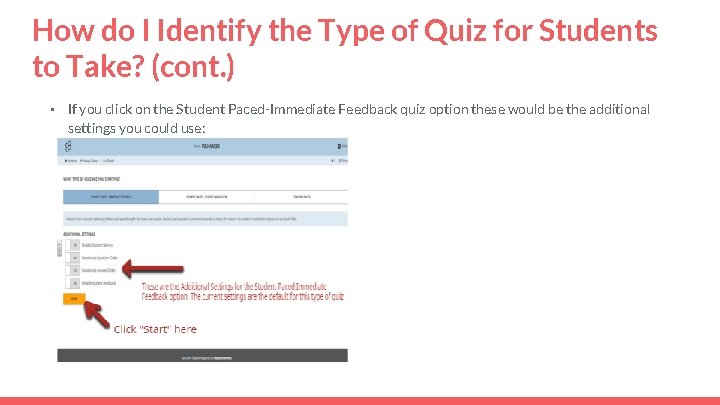
How do I Identify the Type of Quiz for Students to Take? (cont. ) • If you click on the Student Paced-Immediate Feedback quiz option these would be the additional settings you could use:
How Do I Prepare Students to Take an Assessment? • Students need an electronic device to access Socrative • Steps to Follow 1. Access http: //www. socrative. com 2. Click on “Student login” 3. Enter Room Number (provided by you, the teacher) 4. Enter First and Last Name 5. Click “Done”
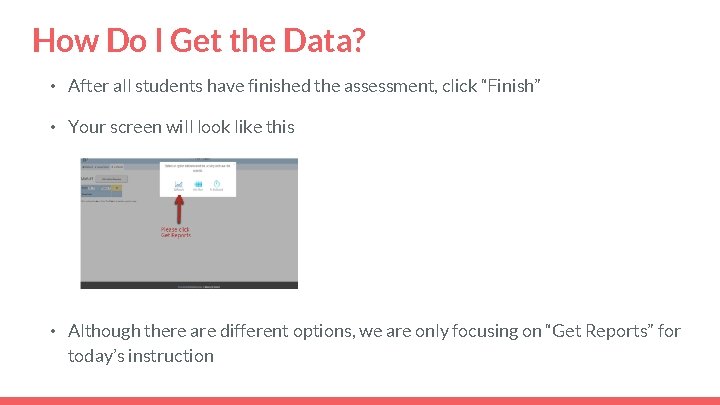
How Do I Get the Data? • After all students have finished the assessment, click “Finish” • Your screen will look like this • Although there are different options, we are only focusing on “Get Reports” for today’s instruction
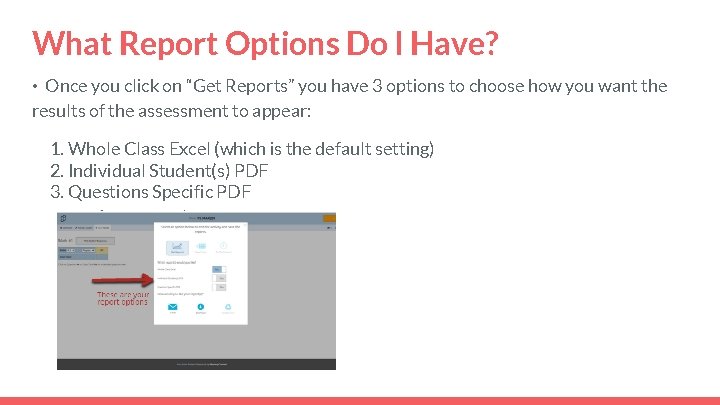
What Report Options Do I Have? • Once you click on “Get Reports” you have 3 options to choose how you want the results of the assessment to appear: 1. Whole Class Excel (which is the default setting) 2. Individual Student(s) PDF 3. Questions Specific PDF
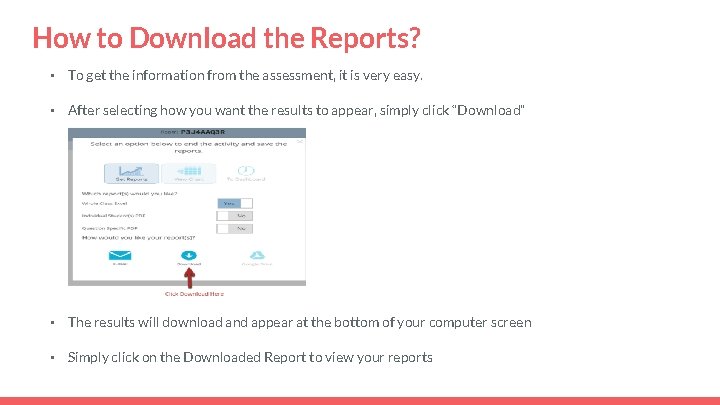
How to Download the Reports? • To get the information from the assessment, it is very easy. • After selecting how you want the results to appear, simply click “Download” • The results will download and appear at the bottom of your computer screen • Simply click on the Downloaded Report to view your reports
How Can I Use the Data? • Now that you have data available at your fingertips you can decide what to do to with the results
How to Exit Socrative? • When you are done using Socrative, click “Settings” in the upper right hand corner and click “Logout” • Click “Confirm”
How Can I Use Socrative in this Unit? • Socrative can be used in this unit in a variety of ways: 1. You could use it as a daily warm-up, reading check quiz, and/or pair or group activity 2. You can create the same type of assessment (ie all multiple choice) or you can include different types of questions in your assessment (ie some multiple choice , some short answer) 3. You can instantly download the results to determine whether or not students complete the reading and/or understand the content 4. Socrative is similar to Kahoot, but Socrative doesn’t have the game feel that Kahoot does
Need Help? • Please let me know how I can help you or if you want me to work with you on creating an assessment using Socrative!
- Slides: 32