
Tips Tricks Extending MSBuild with Tasks Loggers and
Tips & Tricks: Extending MSBuild with Tasks, Loggers, and Targets Faisal Mohamood (faisalmo@microsoft. com) TLNL 01 Program Manager - MSBuild Microsoft Corporation 1
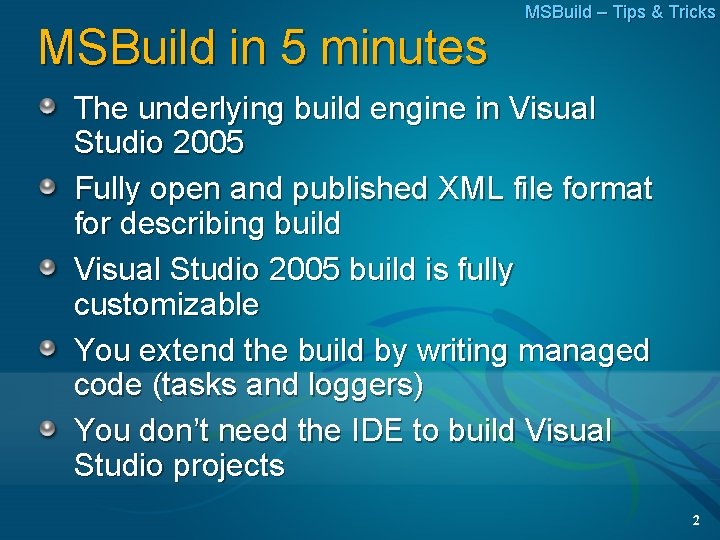
MSBuild in 5 minutes MSBuild – Tips & Tricks The underlying build engine in Visual Studio 2005 Fully open and published XML file format for describing build Visual Studio 2005 build is fully customizable You extend the build by writing managed code (tasks and loggers) You don’t need the IDE to build Visual Studio projects 2
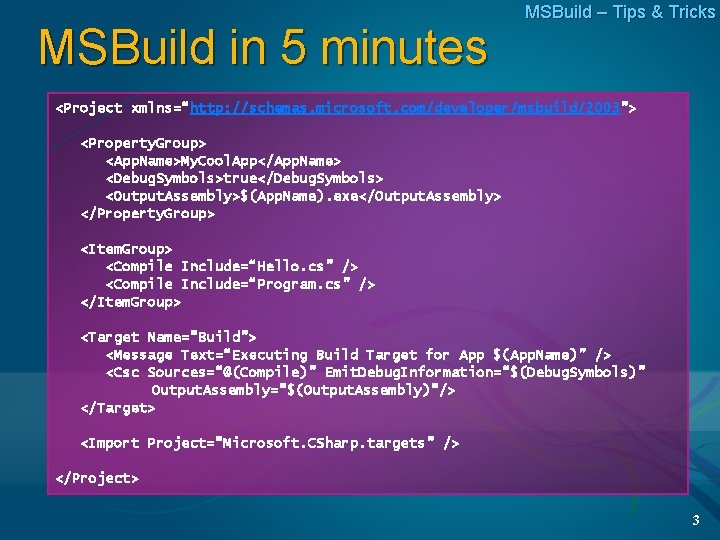
MSBuild in 5 minutes MSBuild – Tips & Tricks <Project xmlns=“http: //schemas. microsoft. com/developer/msbuild/2003”> <Property. Group> <App. Name>My. Cool. App</App. Name> <Debug. Symbols>true</Debug. Symbols> <Output. Assembly>$(App. Name). exe</Output. Assembly> </Property. Group> <Item. Group> <Compile Include=“Hello. cs” /> <Compile Include=“Program. cs” /> </Item. Group> <Target Name=“Build”> <Message Text=“Executing Build Target for App $(App. Name)” /> <Csc Sources=“@(Compile)” Emit. Debug. Information=“$(Debug. Symbols)” Output. Assembly=“$(Output. Assembly)”/> </Target> <Import Project=“Microsoft. CSharp. targets” /> </Project> 3
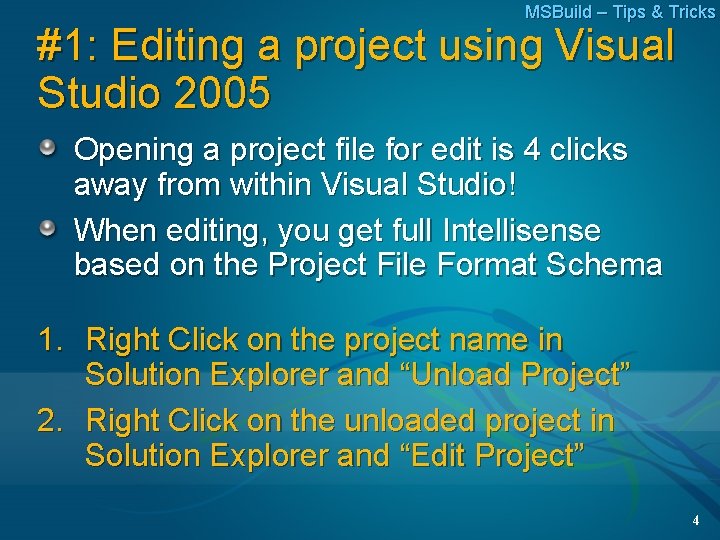
MSBuild – Tips & Tricks #1: Editing a project using Visual Studio 2005 Opening a project file for edit is 4 clicks away from within Visual Studio! When editing, you get full Intellisense based on the Project File Format Schema 1. Right Click on the project name in Solution Explorer and “Unload Project” 2. Right Click on the unloaded project in Solution Explorer and “Edit Project” 4
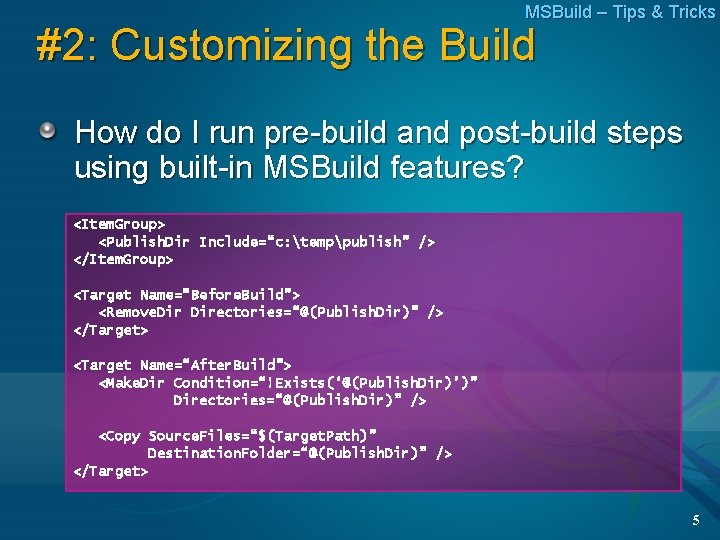
MSBuild – Tips & Tricks #2: Customizing the Build How do I run pre-build and post-build steps using built-in MSBuild features? <Item. Group> <Publish. Dir Include=“c: temppublish” /> </Item. Group> <Target Name=“Before. Build”> <Remove. Directories=“@(Publish. Dir)” /> </Target> <Target Name=“After. Build”> <Make. Dir Condition=“!Exists(‘@(Publish. Dir)’)” Directories=“@(Publish. Dir)” /> <Copy Source. Files=“$(Target. Path)” Destination. Folder=“@(Publish. Dir)” /> </Target> 5

MSBuild – Tips & Tricks #3: Customizing with more granularity How do I run custom steps during arbitrary points in the build process – for example, what if I wanted to delete all files from c: temppublish as a part of Clean target? <Item. Group> <Publish. Dir Include=“c: temppublish” /> </Item. Group> <Property. Group> <Clean. Depends. On>$(Clean. Depends. On); My. Clean </Property. Group> <Target Name=“My. Clean”> <Remove. Directories=“@(Publish. Dir)” /> </Target> 6
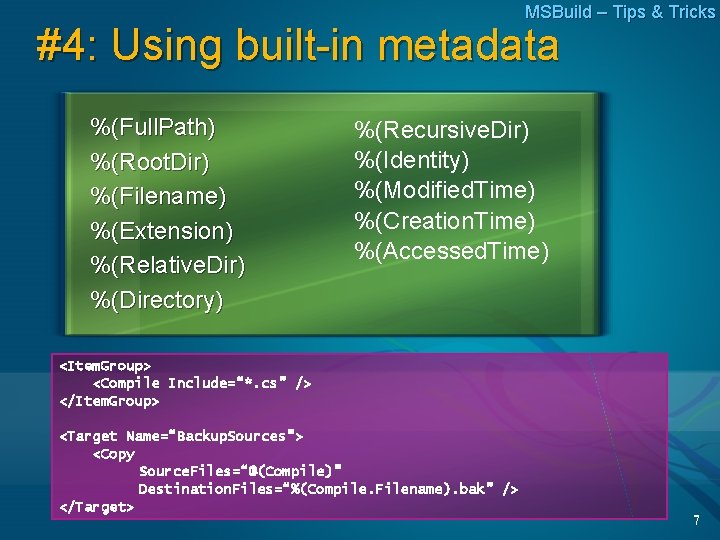
MSBuild – Tips & Tricks #4: Using built-in metadata %(Full. Path) %(Root. Dir) %(Filename) %(Extension) %(Relative. Dir) %(Directory) %(Recursive. Dir) %(Identity) %(Modified. Time) %(Creation. Time) %(Accessed. Time) <Item. Group> <Compile Include=“*. cs” /> </Item. Group> <Target Name=“Backup. Sources”> <Copy Source. Files=“@(Compile)” Destination. Files=“%(Compile. Filename). bak” /> </Target> 7
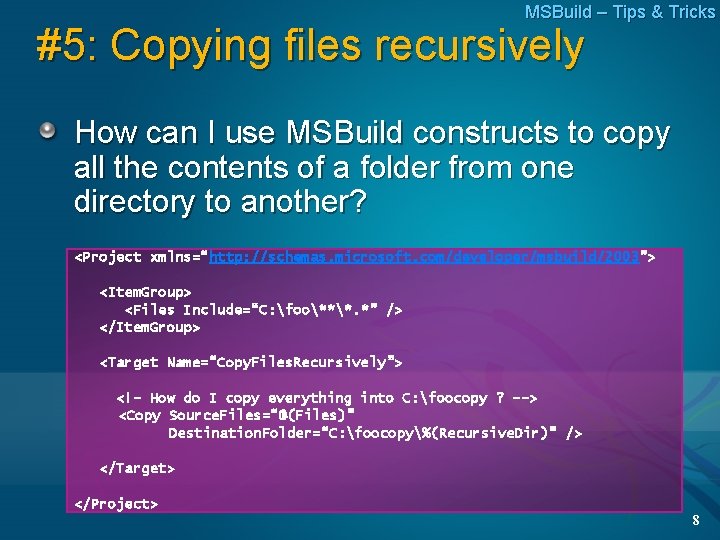
MSBuild – Tips & Tricks #5: Copying files recursively How can I use MSBuild constructs to copy all the contents of a folder from one directory to another? <Project xmlns=“http: //schemas. microsoft. com/developer/msbuild/2003”> <Item. Group> <Files Include=“C: foo***. *” /> </Item. Group> <Target Name=“Copy. Files. Recursively”> <!– How do I copy everything into C: foocopy ? --> <Copy Source. Files=“@(Files)” Destination. Folder=“C: foocopy%(Recursive. Dir)” /> </Target> </Project> 8
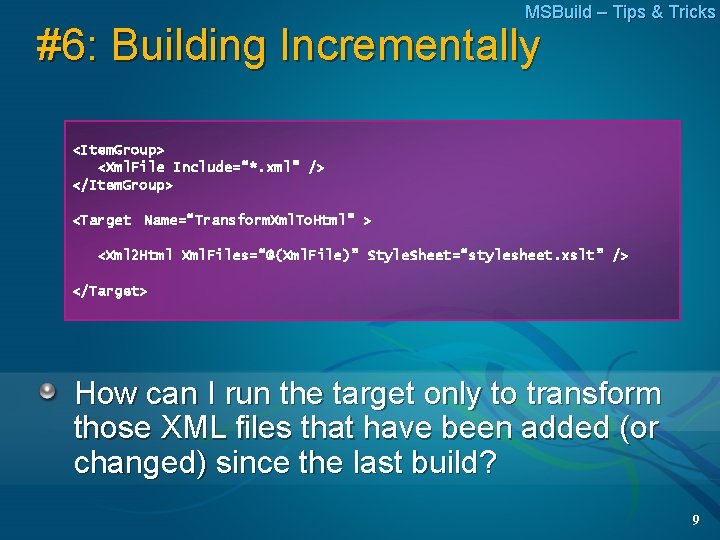
MSBuild – Tips & Tricks #6: Building Incrementally <Item. Group> <Xml. File Include=“*. xml” /> </Item. Group> <Target Name=“Transform. Xml. To. Html” > <Xml 2 Html Xml. Files=“@(Xml. File)” Style. Sheet=“stylesheet. xslt” /> </Target> How can I run the target only to transform those XML files that have been added (or changed) since the last build? 9
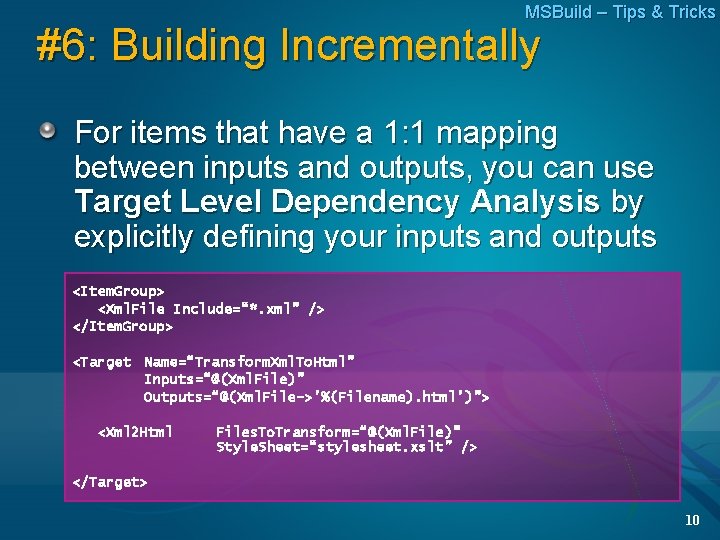
MSBuild – Tips & Tricks #6: Building Incrementally For items that have a 1: 1 mapping between inputs and outputs, you can use Target Level Dependency Analysis by explicitly defining your inputs and outputs <Item. Group> <Xml. File Include=“*. xml” /> </Item. Group> <Target Name=“Transform. Xml. To. Html” Inputs=“@(Xml. File)” Outputs=“@(Xml. File->’%(Filename). html’)”> <Xml 2 Html Files. To. Transform=“@(Xml. File)” Style. Sheet=“stylesheet. xslt” /> </Target> 10
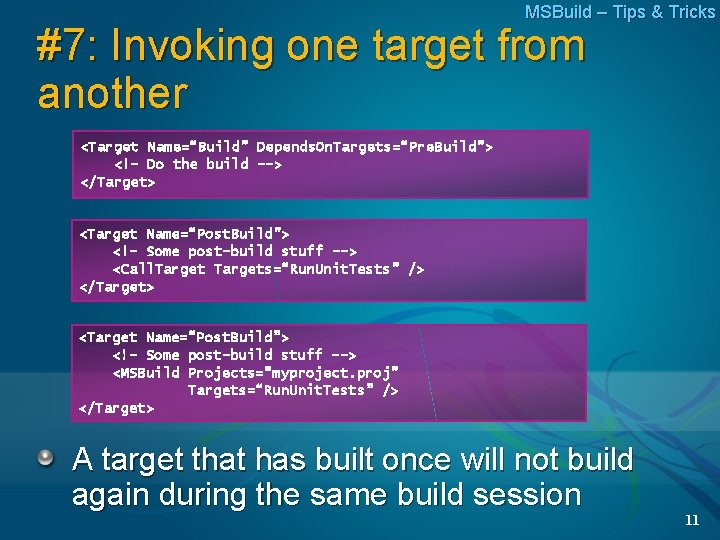
MSBuild – Tips & Tricks #7: Invoking one target from another <Target Name=“Build” Depends. On. Targets=“Pre. Build”> <!– Do the build --> </Target> <Target Name=“Post. Build”> <!– Some post-build stuff --> <Call. Targets=“Run. Unit. Tests” /> </Target> <Target Name=“Post. Build”> <!– Some post-build stuff --> <MSBuild Projects=“myproject. proj” Targets=“Run. Unit. Tests” /> </Target> A target that has built once will not build again during the same build session 11
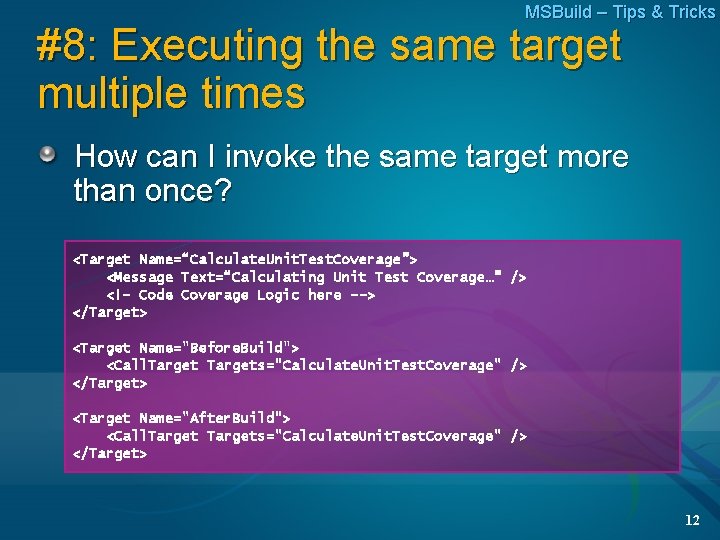
MSBuild – Tips & Tricks #8: Executing the same target multiple times How can I invoke the same target more than once? <Target Name=“Calculate. Unit. Test. Coverage”> <Message Text=“Calculating Unit Test Coverage…” /> <!– Code Coverage Logic here --> </Target> <Target Name="Before. Build"> <Call. Targets="Calculate. Unit. Test. Coverage" /> </Target> <Target Name="After. Build"> <Call. Targets="Calculate. Unit. Test. Coverage" /> </Target> 12
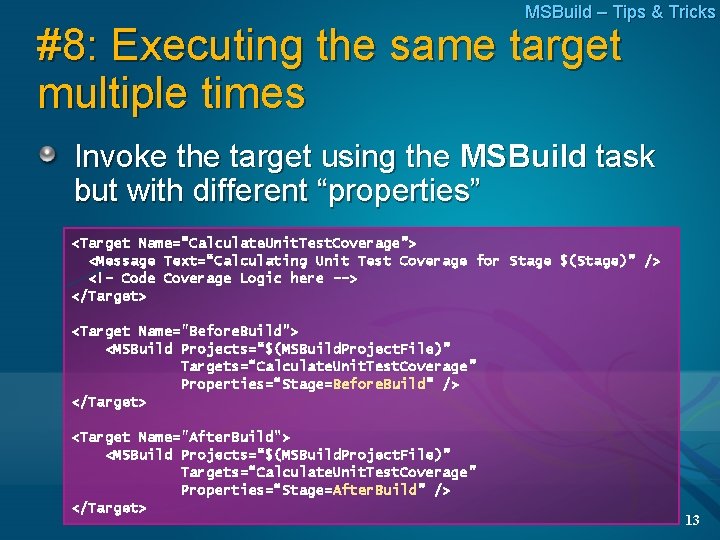
MSBuild – Tips & Tricks #8: Executing the same target multiple times Invoke the target using the MSBuild task but with different “properties” <Target Name=“Calculate. Unit. Test. Coverage”> <Message Text=“Calculating Unit Test Coverage for Stage $(Stage)” /> <!– Code Coverage Logic here --> </Target> <Target Name="Before. Build"> <MSBuild Projects=“$(MSBuild. Project. File)” Targets=“Calculate. Unit. Test. Coverage” Properties=“Stage=Before. Build” /> </Target> <Target Name="After. Build"> <MSBuild Projects=“$(MSBuild. Project. File)” Targets=“Calculate. Unit. Test. Coverage” Properties=“Stage=After. Build” /> </Target> 13
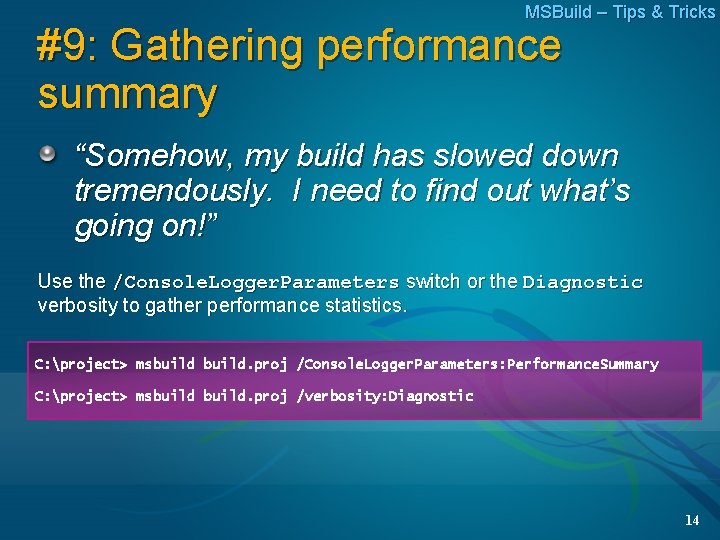
MSBuild – Tips & Tricks #9: Gathering performance summary “Somehow, my build has slowed down tremendously. I need to find out what’s going on!” Use the /Console. Logger. Parameters switch or the Diagnostic verbosity to gather performance statistics. C: project> msbuild. proj /Console. Logger. Parameters: Performance. Summary C: project> msbuild. proj /verbosity: Diagnostic 14
How do I do this? MSBuild – Tips & Tricks I’ve got a bunch of code that I’d like to open in Visual Studio, but all I have is a ton of source code with no Visual Studio project or solution I’d like to open for edit and browse using Visual Studio Is this possible? 15
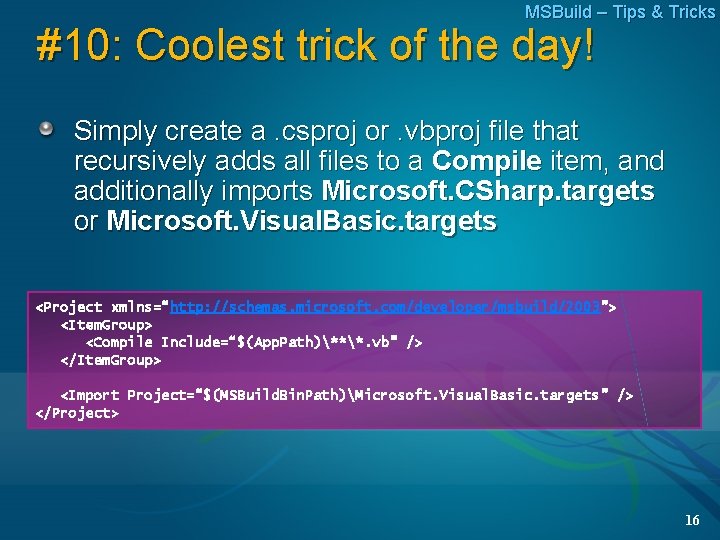
MSBuild – Tips & Tricks #10: Coolest trick of the day! Simply create a. csproj or. vbproj file that recursively adds all files to a Compile item, and additionally imports Microsoft. CSharp. targets or Microsoft. Visual. Basic. targets <Project xmlns=“http: //schemas. microsoft. com/developer/msbuild/2003”> <Item. Group> <Compile Include=“$(App. Path)***. vb” /> </Item. Group> <Import Project=“$(MSBuild. Bin. Path)Microsoft. Visual. Basic. targets” /> </Project> 16
Additional Resources MSBuild – Tips & Tricks Go to the Advanced MSBuild Breakout Session by Rajeev Goel – today @5 pm Stop by the MSBuild table at Ask the Experts – Thursday 6: 30 pm @ The Big Room Visit the Tools & Languages Track Lounge (Big Room) Try out the MSBuild Hands On Lab here at the PDC if you are new to MSBuild Visit the MSBuild Wiki http: //channel 9. msdn. com/wiki/default. aspx/MSBuild. Home. Page Post a question on the MSDN Forums – http: //forums. microsoft. com/msdn/Show. Forum. aspx? Forum. ID=27 Send mail to msbuild@microsoft. com 17

© 2005 Microsoft Corporation. All rights reserved. This presentation is for informational purposes only. Microsoft makes no warranties, express or implied, in this summary. 18
- Slides: 18