
TIPS FOR SUCCESSFUL POWERPOINT 1 Tips When starting

- Slides: 15
TIPS FOR SUCCESSFUL POWERPOINT 1
Tips… • When starting a new presentation, always save and name it before you even begin typing. • File – Save As • Always update your save with “control s”. • Create your presentation in ALL BLACK AND WHITE first. • Don’t waste your time playing around with colors, fonts or designs until all of your data is typed in. • Or you will never get your slide show created. • Make it “pretty” once the work is done. 2
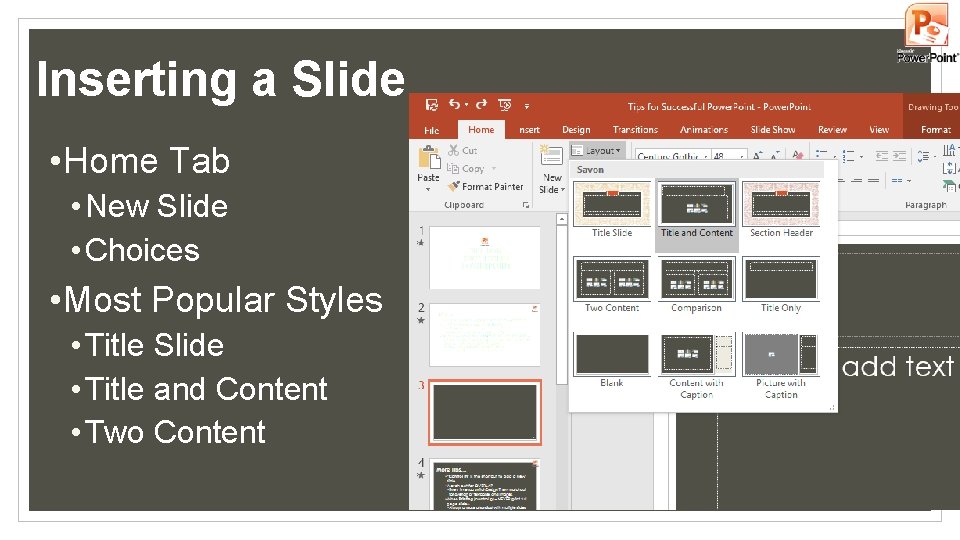
Inserting a Slide • Home Tab • New Slide • Choices • Most Popular Styles • Title Slide • Title and Content • Two Content 3
Using bullets • Each time you strike the tab key the information • You are typing will indent to the right • The more you tab, the more it will indent • If you want your information to move left • Move back toward the left margin • Strike “shift tab. ” • Holding down SHIFT and TAB together will move your tab left, back out to the left margin. 4
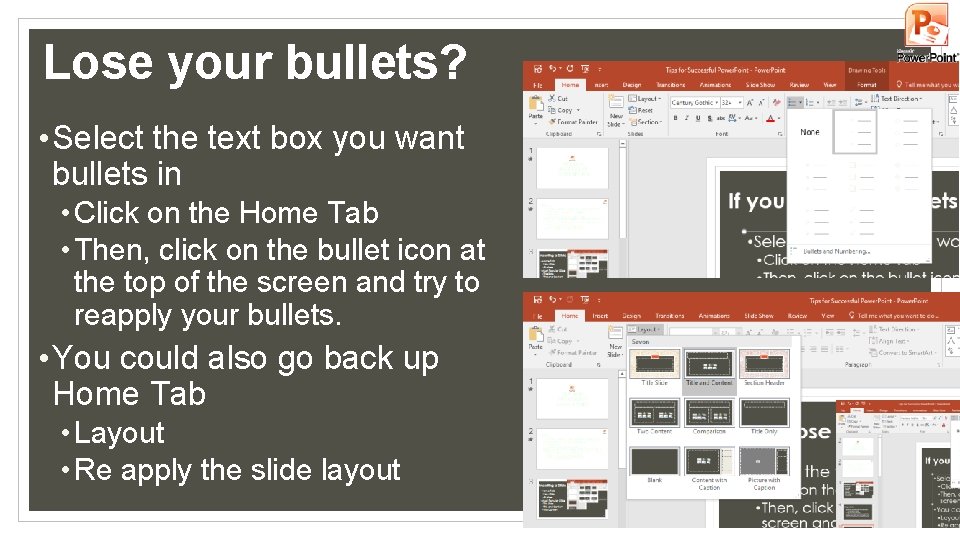
Lose your bullets? • Select the text box you want bullets in • Click on the Home Tab • Then, click on the bullet icon at the top of the screen and try to reapply your bullets. • You could also go back up Home Tab • Layout • Re apply the slide layout 5
More Tips… • “Control m” is the shortcut to add a new slide. • Watch out for OVERLAP • Every time you switch Design Them watch out for overlap of textboxes and images. • When Printing (control p) – NEVER print full page slides. • Always choose a handout with multiple slides per sheet of paper. 6
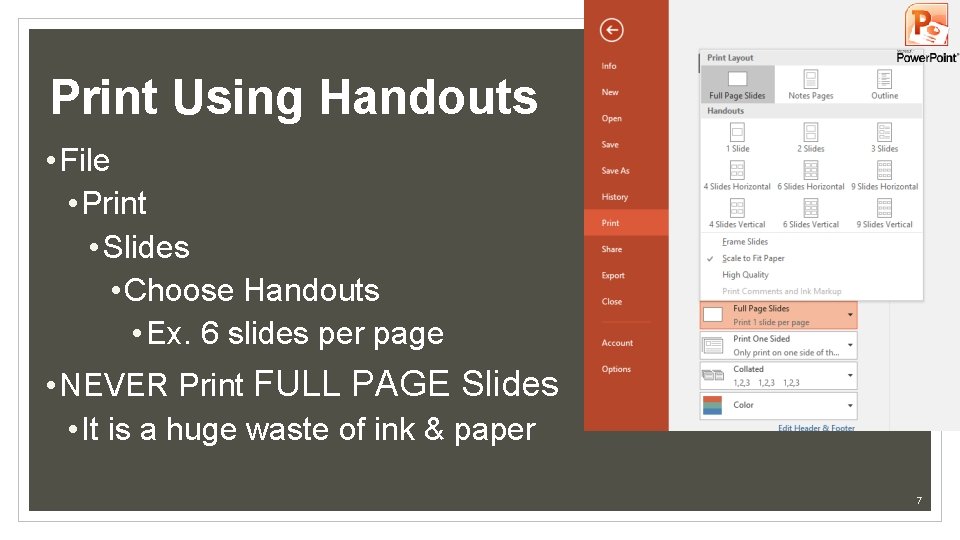
Print Using Handouts • File • Print • Slides • Choose Handouts • Ex. 6 slides per page • NEVER Print FULL PAGE Slides • It is a huge waste of ink & paper 7
Font Tips • Make sure your font is at least size 20. • Visibility is key. • Utilize your bullets. • Don’t type a book on a slide. • Use brief points. • Try for no more than 6 points per slide. • Remember to tab in and tab out. • “Shift tab” will move your tab back out. 8
Graphics and Design Tips • Use Designs and Images that fit with the topic of your presentation. • Do not over use • Animation • Sound • Color 9
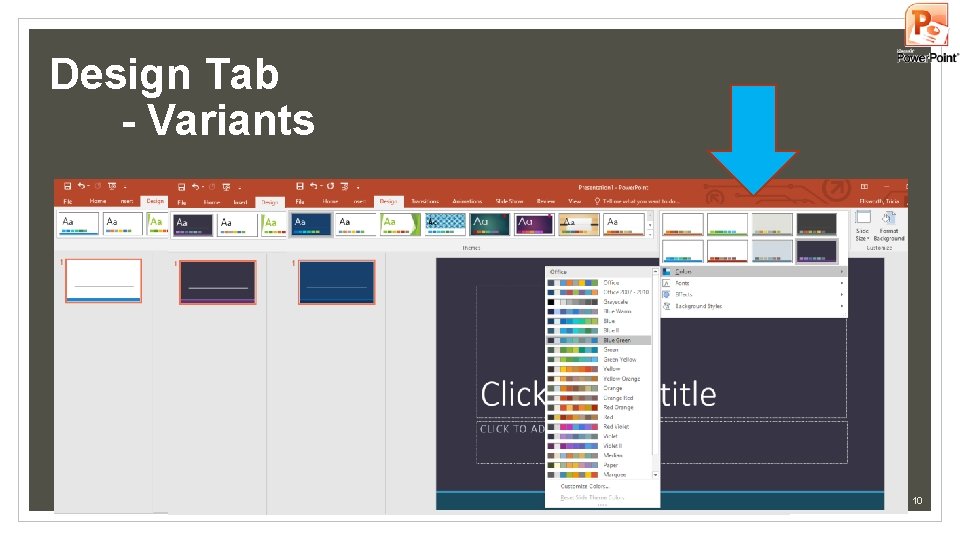
Design Tab - Variants 10
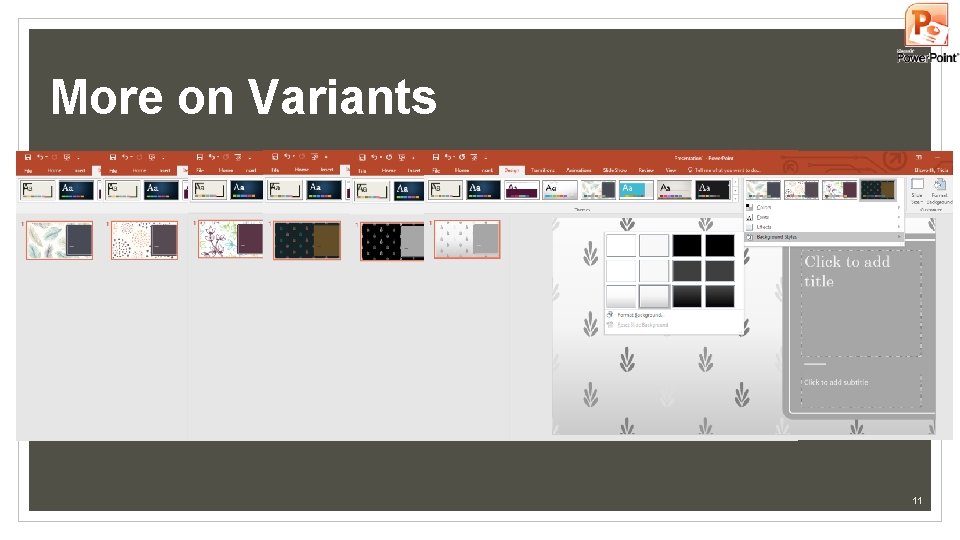
More on Variants 11
Color Tips • Choose a color scheme that is easy on the eyes. • Use dark text on light backgrounds. • Use light text on dark backgrounds. • Using images as backgrounds can make your font difficult to read. • Make sure your colors look professional, not obnoxious. 12
Presentation Tips • Ask someone else to proofread your presentation prior to presenting. • Use animations to make your bullet points appear separately. • This allows the audience to focus on you rather than reading the screen. • When presenting try not to read directly off from your presentation. 13
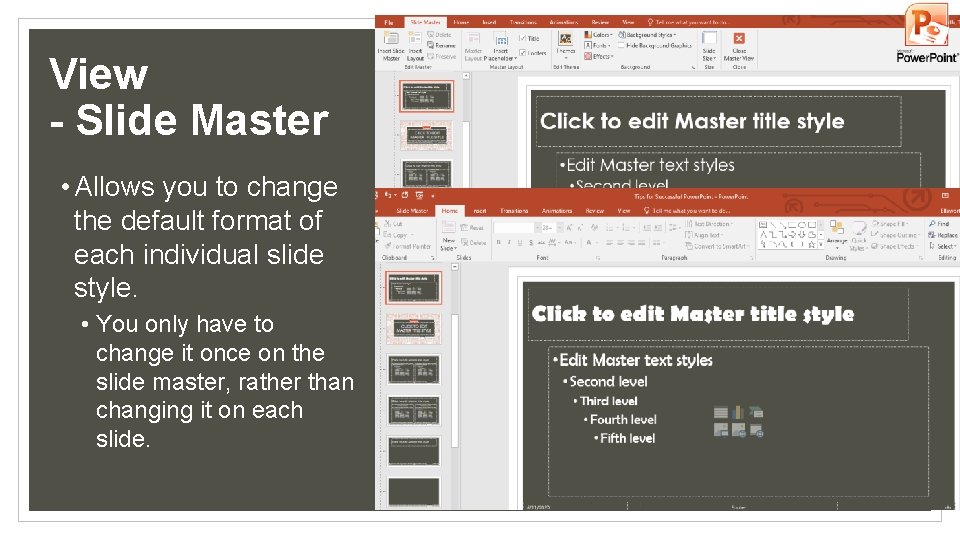
View - Slide Master • Allows you to change the default format of each individual slide style. • You only have to change it once on the slide master, rather than changing it on each slide. 14
Don’t forget your shortcuts • Ctrl s – save • Ctrl m – new slide • Ctrl a – selects all • Ctrl z - undo • Ctrl c - copy • Ctrl x – cut • Ctrl v – paste • Ctrl p – print • Ctrl n – new document 15