
Tips for Making Power Point Slides Avoiding the
- Slides: 24
Tips for Making Power. Point Slides Avoiding the Pitfalls of Bad Slides 1
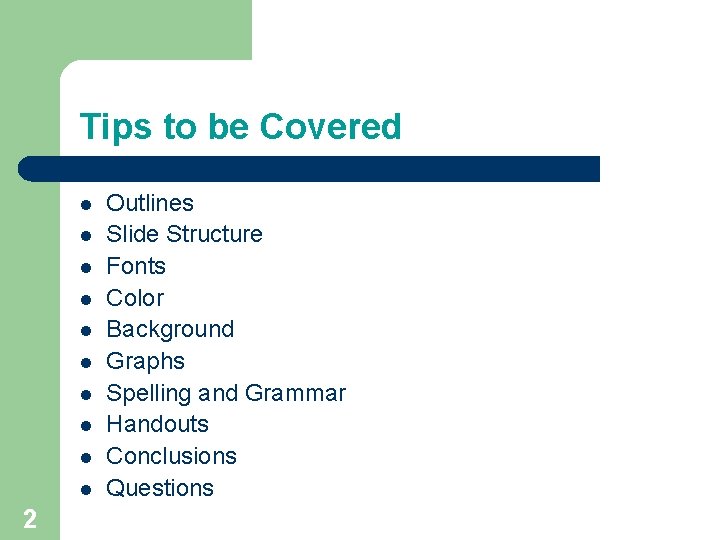
Tips to be Covered l l l l l 2 Outlines Slide Structure Fonts Color Background Graphs Spelling and Grammar Handouts Conclusions Questions
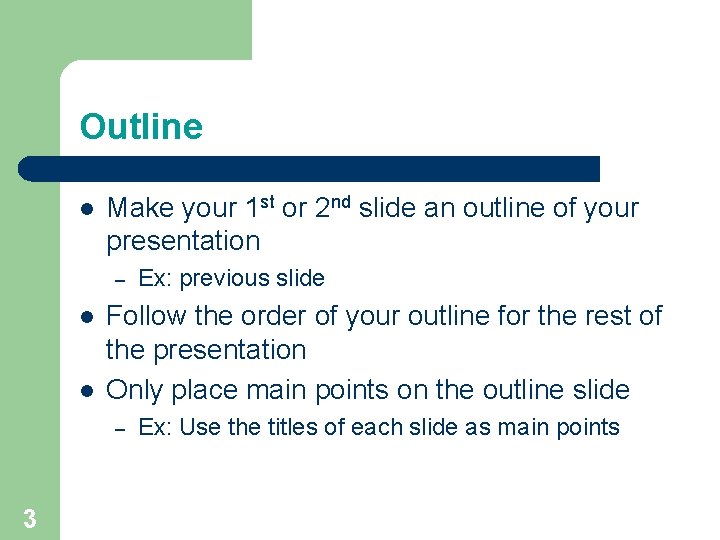
Outline l Make your 1 st or 2 nd slide an outline of your presentation – l l Follow the order of your outline for the rest of the presentation Only place main points on the outline slide – 3 Ex: previous slide Ex: Use the titles of each slide as main points
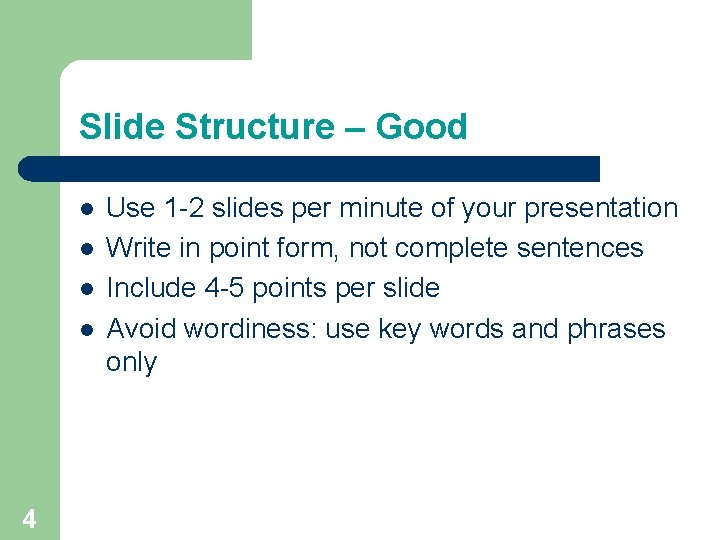
Slide Structure – Good l l 4 Use 1 -2 slides per minute of your presentation Write in point form, not complete sentences Include 4 -5 points per slide Avoid wordiness: use key words and phrases only
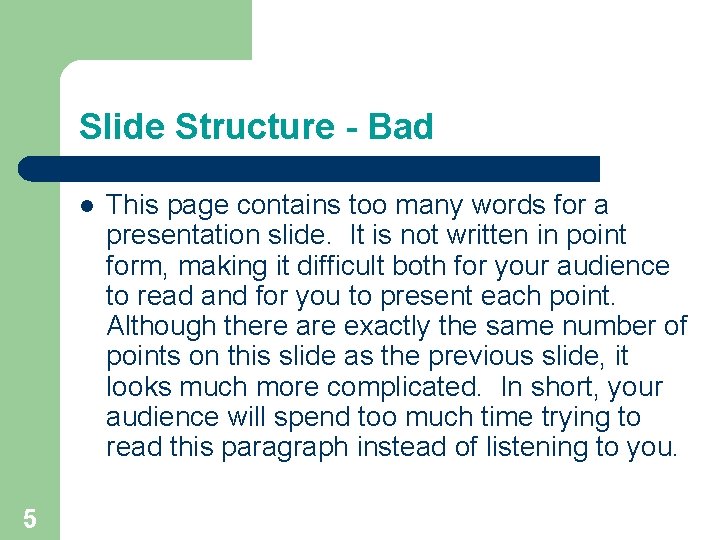
Slide Structure - Bad l 5 This page contains too many words for a presentation slide. It is not written in point form, making it difficult both for your audience to read and for you to present each point. Although there are exactly the same number of points on this slide as the previous slide, it looks much more complicated. In short, your audience will spend too much time trying to read this paragraph instead of listening to you.
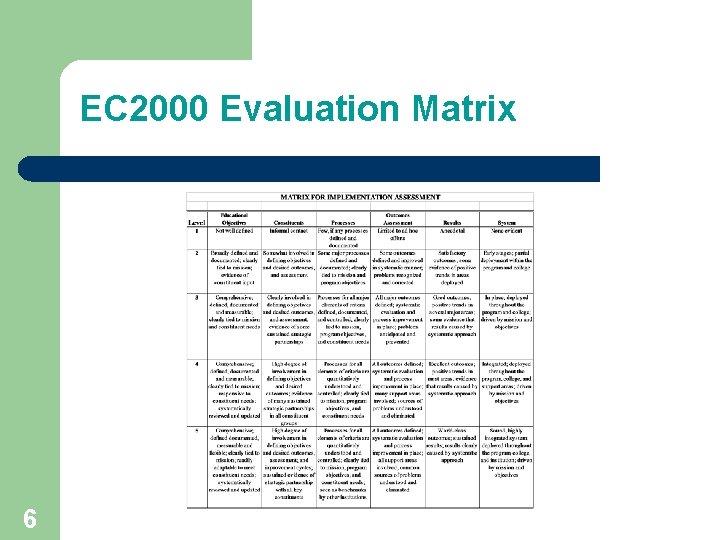
EC 2000 Evaluation Matrix 6
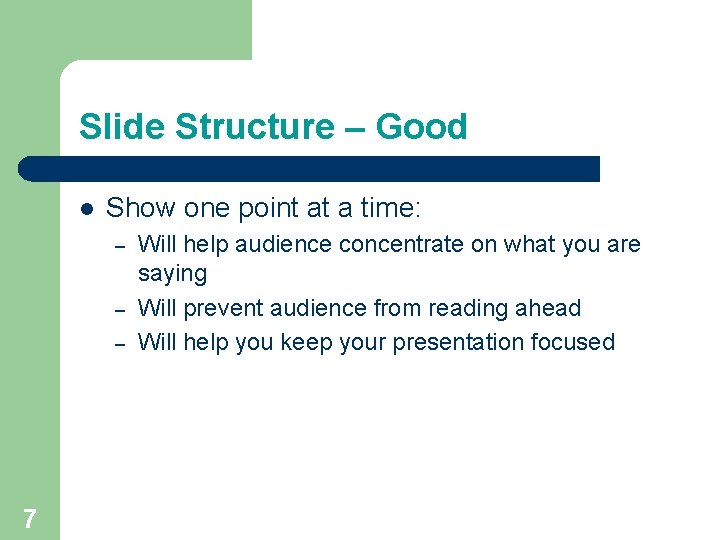
Slide Structure – Good l Show one point at a time: – – – 7 Will help audience concentrate on what you are saying Will prevent audience from reading ahead Will help you keep your presentation focused
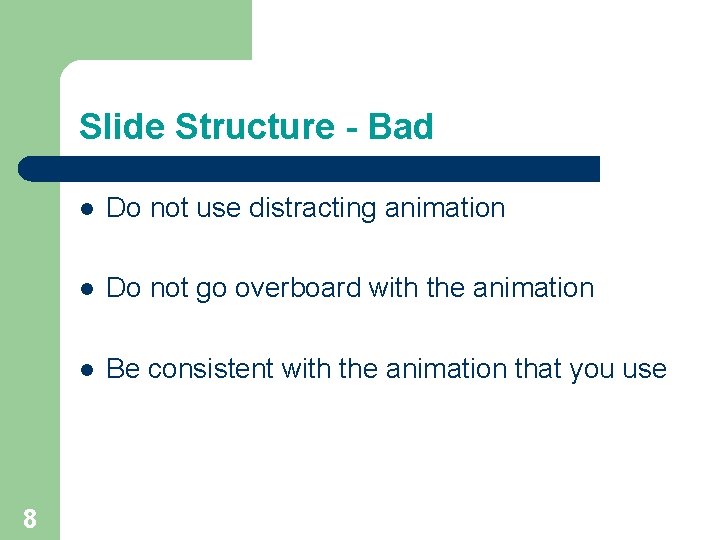
Slide Structure - Bad 8 l Do not use distracting animation l Do not go overboard with the animation l Be consistent with the animation that you use
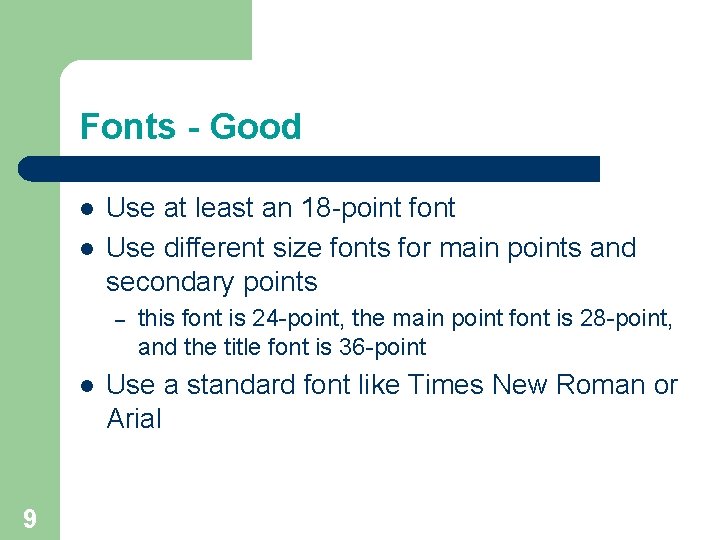
Fonts - Good l l Use at least an 18 -point font Use different size fonts for main points and secondary points – l 9 this font is 24 -point, the main point font is 28 -point, and the title font is 36 -point Use a standard font like Times New Roman or Arial
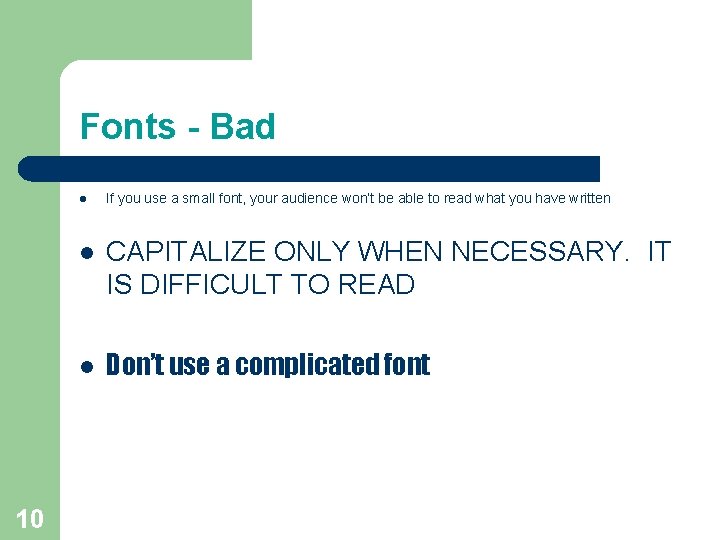
Fonts - Bad l 10 If you use a small font, your audience won’t be able to read what you have written l CAPITALIZE ONLY WHEN NECESSARY. IT IS DIFFICULT TO READ l Don’t use a complicated font
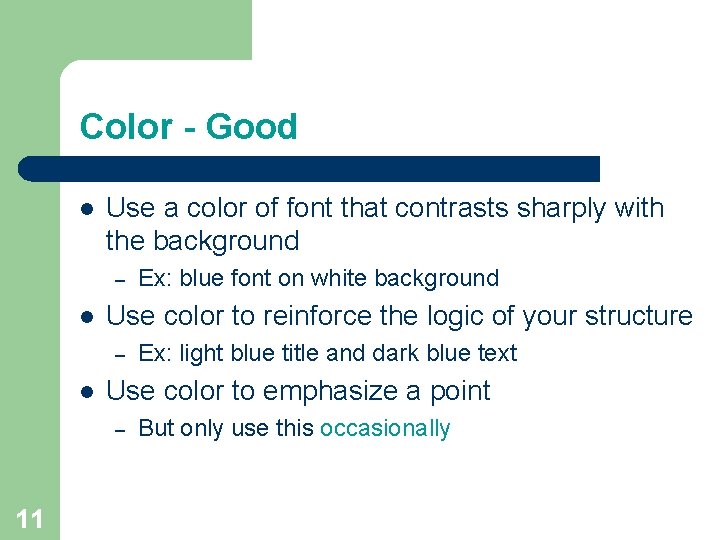
Color - Good l Use a color of font that contrasts sharply with the background – l Use color to reinforce the logic of your structure – l Ex: light blue title and dark blue text Use color to emphasize a point – 11 Ex: blue font on white background But only use this occasionally
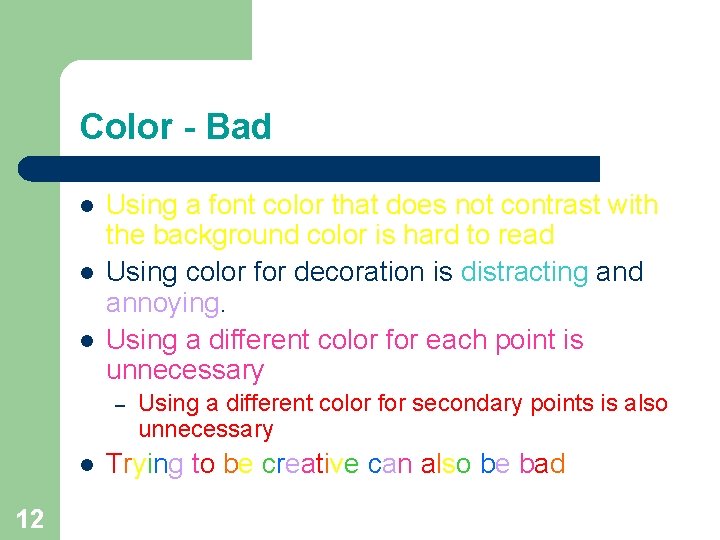
Color - Bad l l l Using a font color that does not contrast with the background color is hard to read Using color for decoration is distracting and annoying. Using a different color for each point is unnecessary – l 12 Using a different color for secondary points is also unnecessary Trying to be creative can also be bad
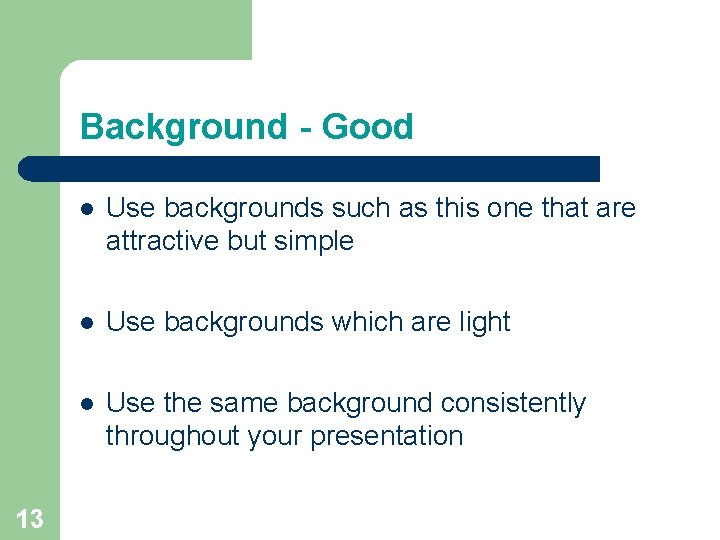
Background - Good 13 l Use backgrounds such as this one that are attractive but simple l Use backgrounds which are light l Use the same background consistently throughout your presentation
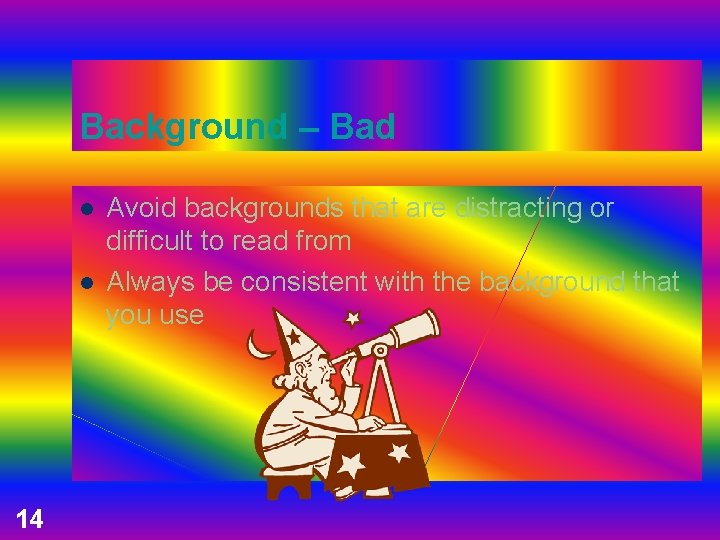
Background – Bad l l 14 Avoid backgrounds that are distracting or difficult to read from Always be consistent with the background that you use
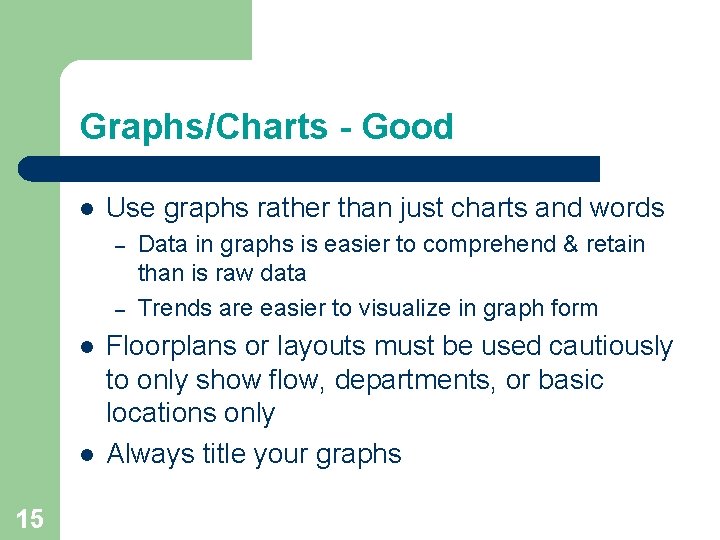
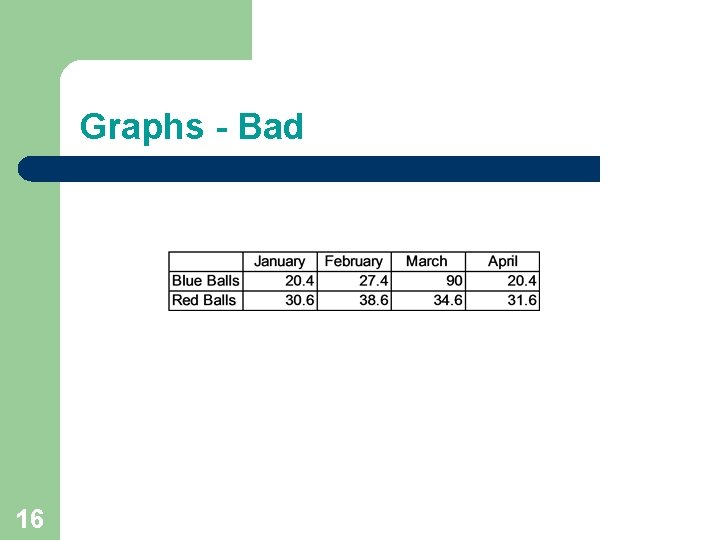
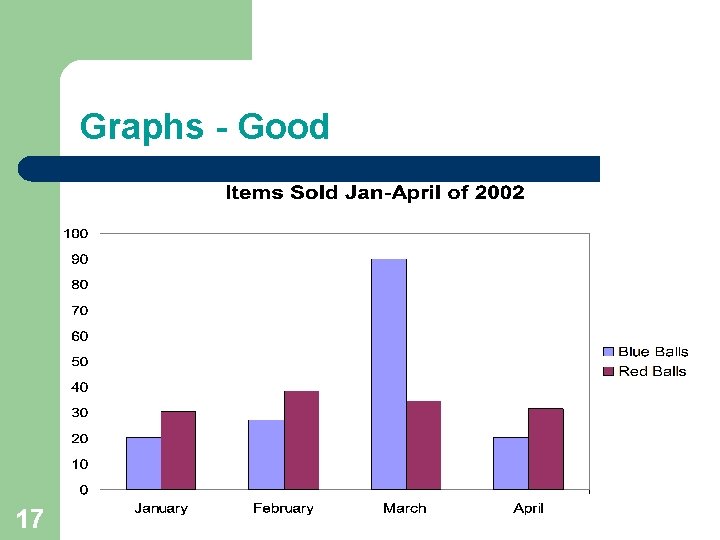
Graphs/Charts - Good l Use graphs rather than just charts and words – – l l 15 Data in graphs is easier to comprehend & retain than is raw data Trends are easier to visualize in graph form Floorplans or layouts must be used cautiously to only show flow, departments, or basic locations only Always title your graphs
Graphs - Bad 16
Graphs - Good 17
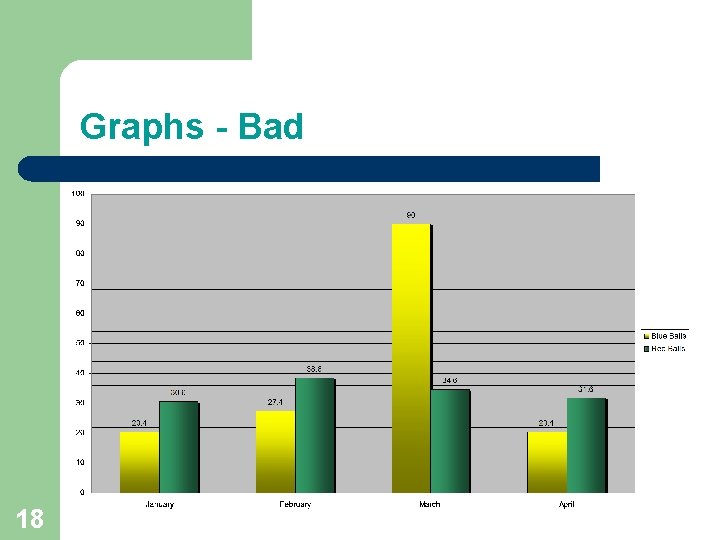
Graphs - Bad 18
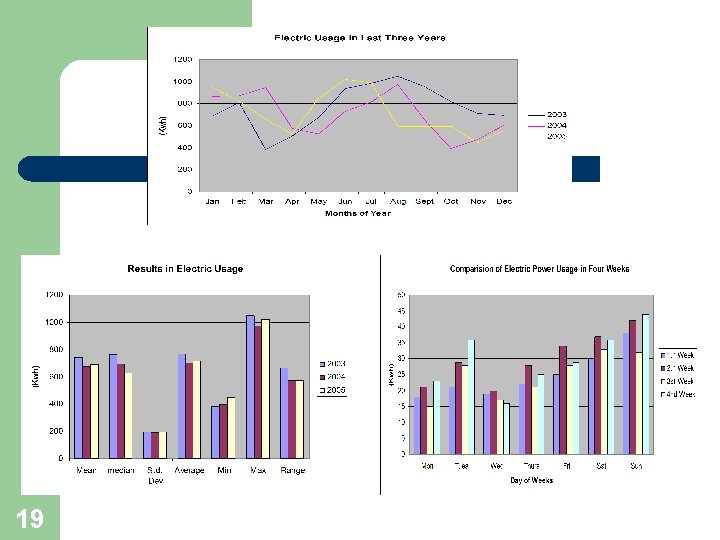
19
Graphs - Bad l l l 20 Minor gridlines are unnecessary Font is too small Colors are illogical Title is missing Shading is distracting Two or more graphs/slide
Spelling and Grammar l Proof your slides for: – – – l 21 spelling mistakes the use of of repeated words grammatical errors you might have make If English is not your first language, please have someone else check your presentation!
Handout Tips l l l 22 Print a copy of your presentation handout to see if it is legible Consider 3 slides per page with note taking lines Provide the handout at the beginning of the presentation for mature audiences
Conclusions & Recommendations l Use an effective and strong closing – l Use a conclusion slide to: – – l 23 Your audience is likely to remember your last words Summarize the main points of your presentation Suggest future projects or avenues of research Add a slide(s) for acknowledgements and/or references if appropriate
Questions? ? l End your presentation with a simple question slide to: – – – 24 Invite your audience to ask questions Provide a visual aid during question period Avoid ending a presentation abruptly