
Tips and tricks 22 03 2018 E Urrutia




- Slides: 17
Tips and tricks 22. 03. 2018 – E. Urrutia
Expand settings in Smarteam 1/15/2022 2
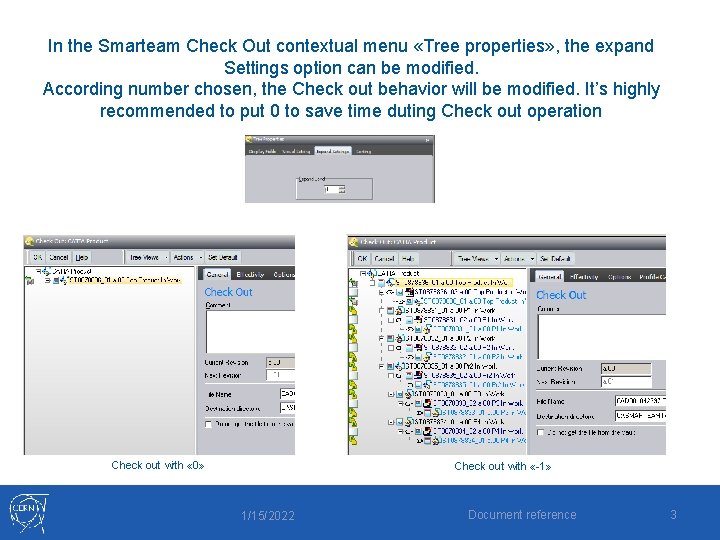
In the Smarteam Check Out contextual menu «Tree properties» , the expand Settings option can be modified. According number chosen, the Check out behavior will be modified. It’s highly recommended to put 0 to save time duting Check out operation Check out with « 0» Check out with «-1» 1/15/2022 Document reference 3
Smarteam : windows simultaneous closure 1/15/2022 4
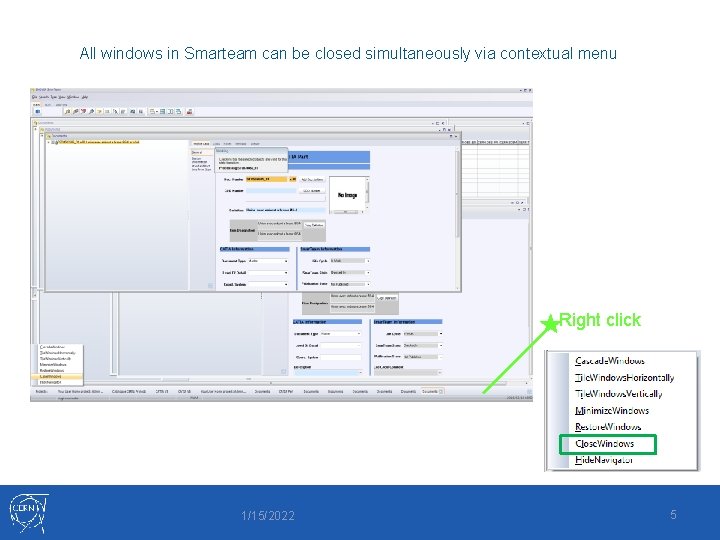
All windows in Smarteam can be closed simultaneously via contextual menu Right click 1/15/2022 5
Units recognition in dimension boxes 1/15/2022 6
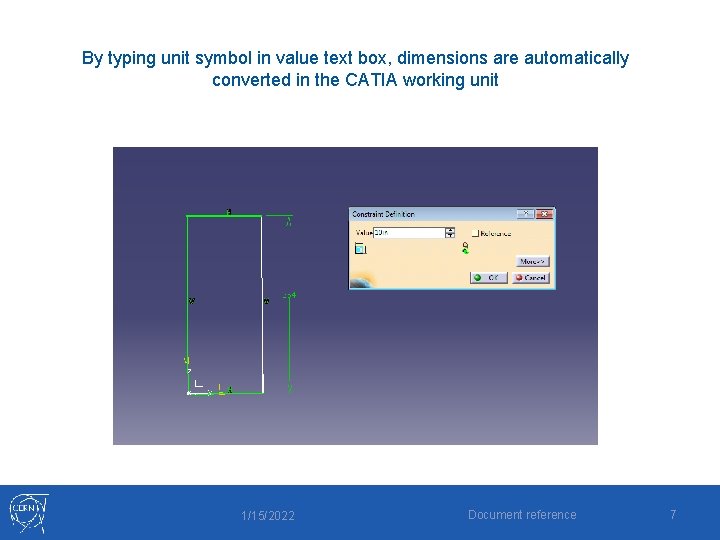
By typing unit symbol in value text box, dimensions are automatically converted in the CATIA working unit 1/15/2022 Document reference 7
Rounded results 1/15/2022 8
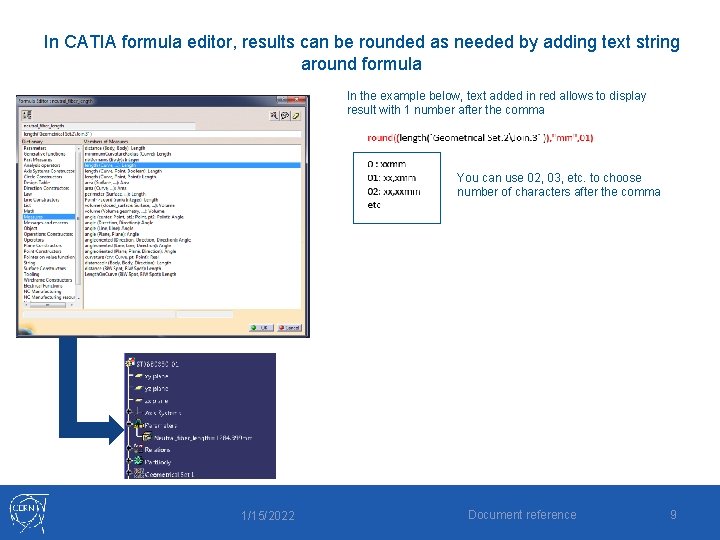
In CATIA formula editor, results can be rounded as needed by adding text string around formula In the example below, text added in red allows to display result with 1 number after the comma You can use 02, 03, etc. to choose number of characters after the comma 1/15/2022 Document reference 9
Quick detail views : characteristics 1/15/2022 10
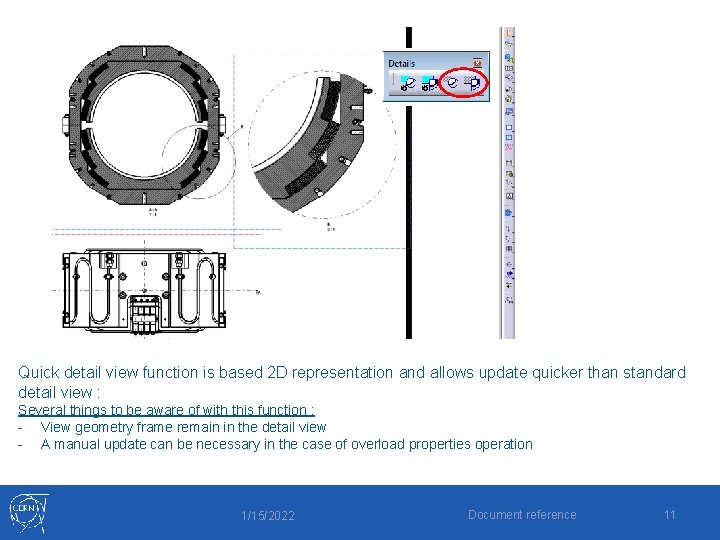
Quick detail view function is based 2 D representation and allows update quicker than standard detail view : Several things to be aware of with this function : - View geometry frame remain in the detail view - A manual update can be necessary in the case of overload properties operation 1/15/2022 Document reference 11
Hatching treatment in drawings 1/15/2022 Document reference 12
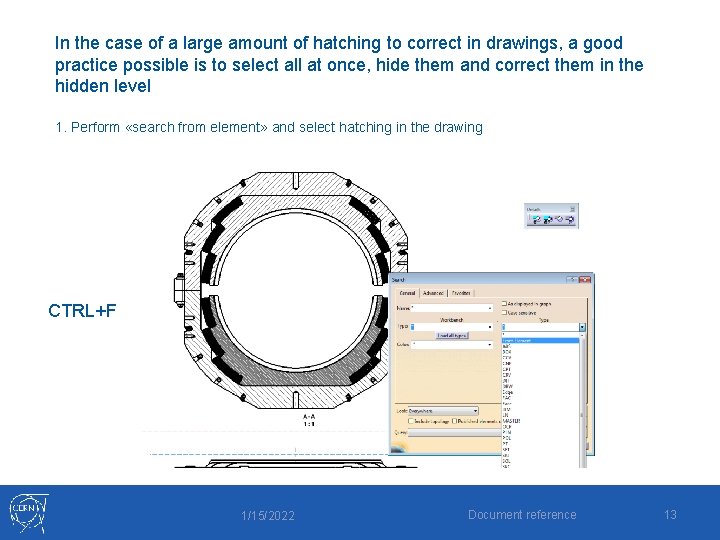
In the case of a large amount of hatching to correct in drawings, a good practice possible is to select all at once, hide them and correct them in the hidden level 1. Perform «search from element» and select hatching in the drawing CTRL+F 1/15/2022 Document reference 13
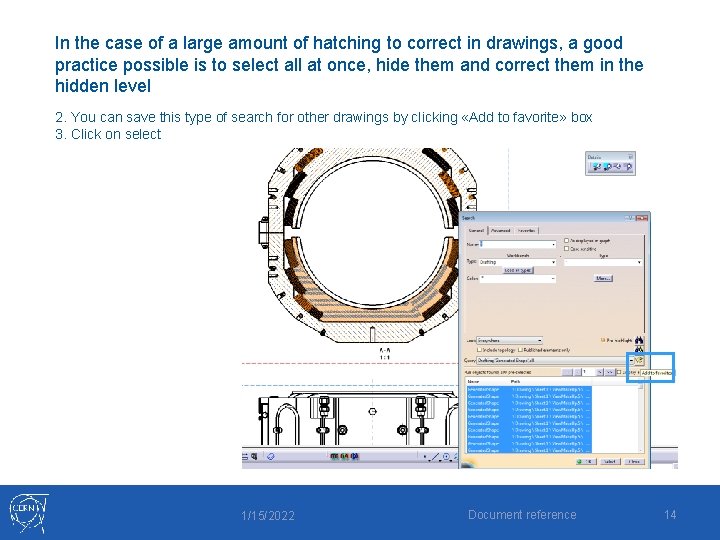
In the case of a large amount of hatching to correct in drawings, a good practice possible is to select all at once, hide them and correct them in the hidden level 2. You can save this type of search for other drawings by clicking «Add to favorite» box 3. Click on select 1/15/2022 Document reference 14
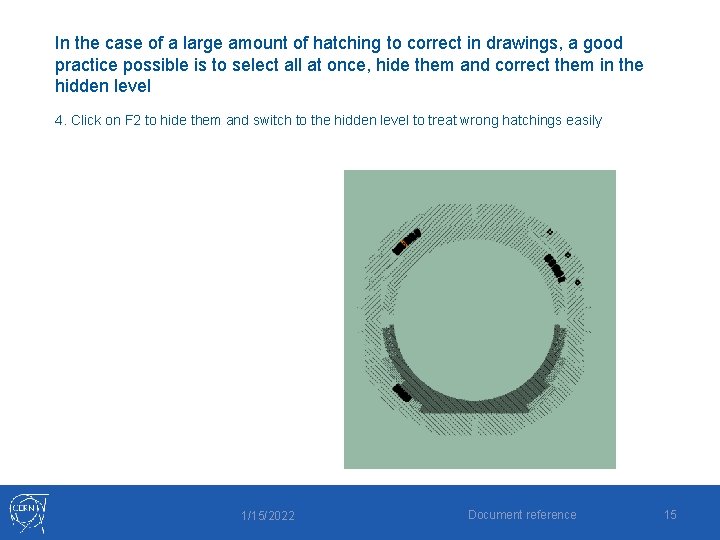
In the case of a large amount of hatching to correct in drawings, a good practice possible is to select all at once, hide them and correct them in the hidden level 4. Click on F 2 to hide them and switch to the hidden level to treat wrong hatchings easily 1/15/2022 Document reference 15
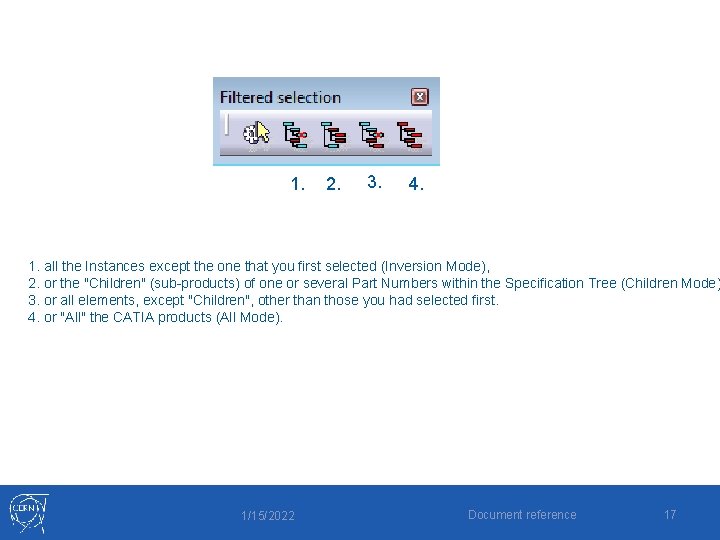
Filtered selection 1/15/2022 Document reference 16
1. 2. 3. 4. 1. all the Instances except the one that you first selected (Inversion Mode), 2. or the "Children" (sub-products) of one or several Part Numbers within the Specification Tree (Children Mode) 3. or all elements, except "Children", other than those you had selected first. 4. or "All" the CATIA products (All Mode). 1/15/2022 Document reference 17